C#Open Source Project: SiMay Remote Control Management System

C#Open Source Project: SiMay Remote Control Management System

A Windows remote control system based on IOCP asynchronous communication model

最后更新 12/4/2020 8:33 AM
dWwwang
预计阅读 10 分钟
分类
Winform
专题
Winform open source project C#Open Source Project
标签
.NET C# Winform Winform open source project open source projects

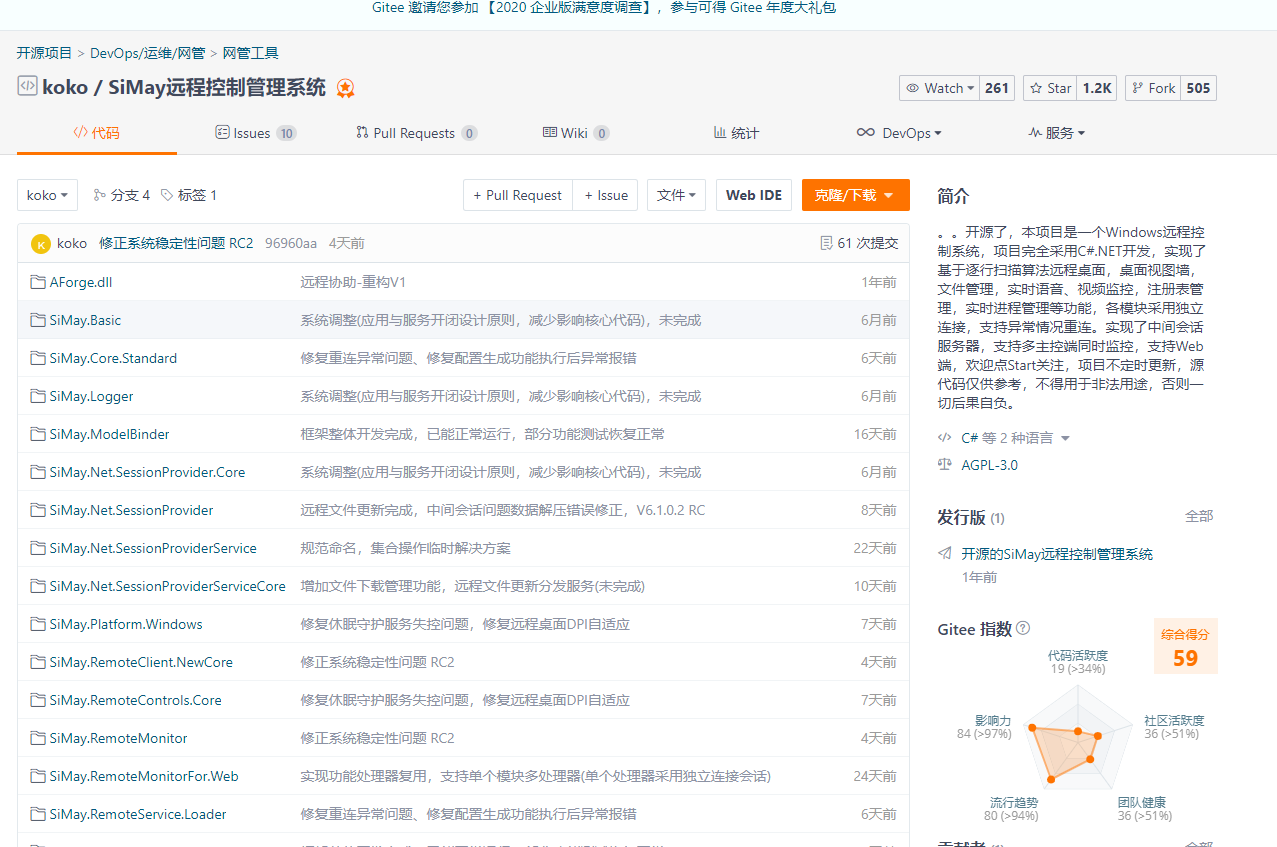
This project is a Windows remote control system. The project is developed entirely using C#. NET and realizes remote desktop based on progressive scanning algorithm, desktop view wall, file management, real-time voice and video monitoring, registry management, real-time process management and other functions. Each module is connected independently to support reconnection under abnormal circumstances. It implements an intermediate session server, supports simultaneous monitoring by multiple master terminals, supports the Web terminal, and welcomes the attention of Start. The project is updated from time to time. The source code is for reference only and must not be used for illegal purposes, otherwise all consequences will be borne.

Screenshot of Gitee warehouse

Gitee仓库截图

Below is based on the original project warehouse readme

systematically introduced

  • SiMay remote control management system is a Windows remote control system. The underlying layer is based on the asynchronous communication model of IOCP and can monitor a large number of clients in real time. Currently, its functions have been realized: line-by-line scanning remote desktop classic file management, real-time remote voice, real-time camera, classic registry management, command-line terminal, real-time system process management, user desktop view wall carousel and other functions. It can also capture UAC,Winlogon desktops. The system implements an intermediate session server, which can support multiple masters on different platforms to simultaneously monitor the same controlled end. The controlled server supports green startup and installation as a system service. The project is completely developed using C#. NET. The code is for reference only. The project is updated from time to time. Welcome to pay attention to stars and fork. Welcome to join the group technical exchange:905958449 :laughing: :blush:

Enterprise function customization items

  • Remote desktop upgrade (50% improvement in overall performance and less bandwidth consumption), remote desktop for Web version,(camera, voice, screen broadcast), file distribution, support for remote server desktop and other functions, welcome to join the group to consult group owners.

affirms

  • As a creator, I accept no liability for any actions and/or damage caused by this software. You accept full responsibility for your actions and acknowledge that this software is used for educational and research purposes only. May not be used on any system that you do not own or have the right to use. Using this software, you automatically agree to the above content. Thank you for your support.

background

  • This project is only a personal project. After several reconstructions, the system has become relatively mature. I decided to open source and feed back to the open source community. I hope that more people can make progress with me. Welcome to complain about improvements.

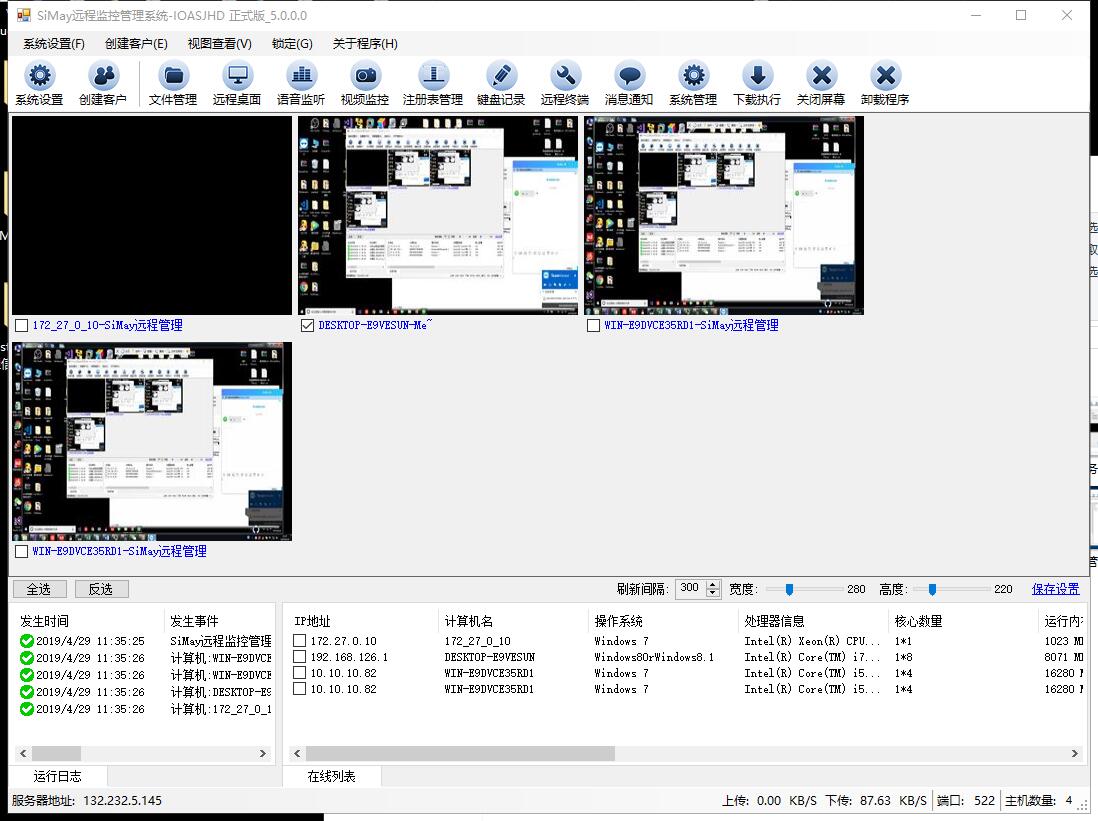
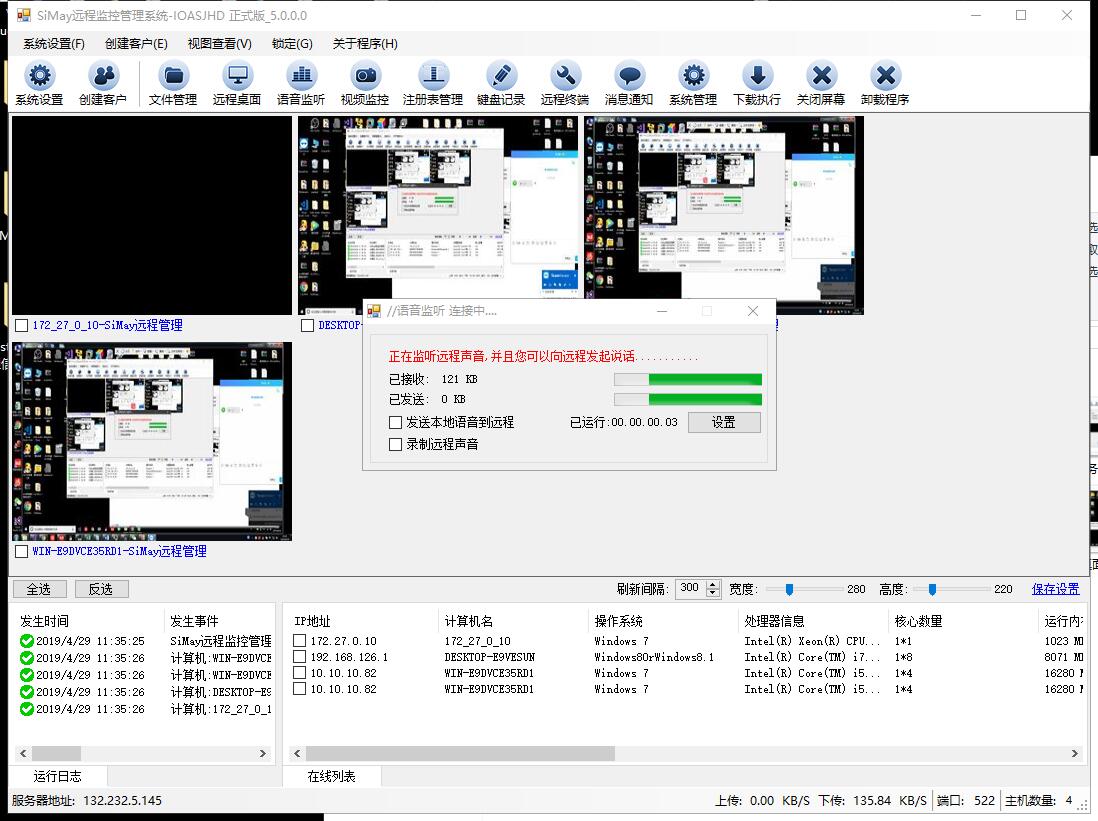
master control interface

主控界面

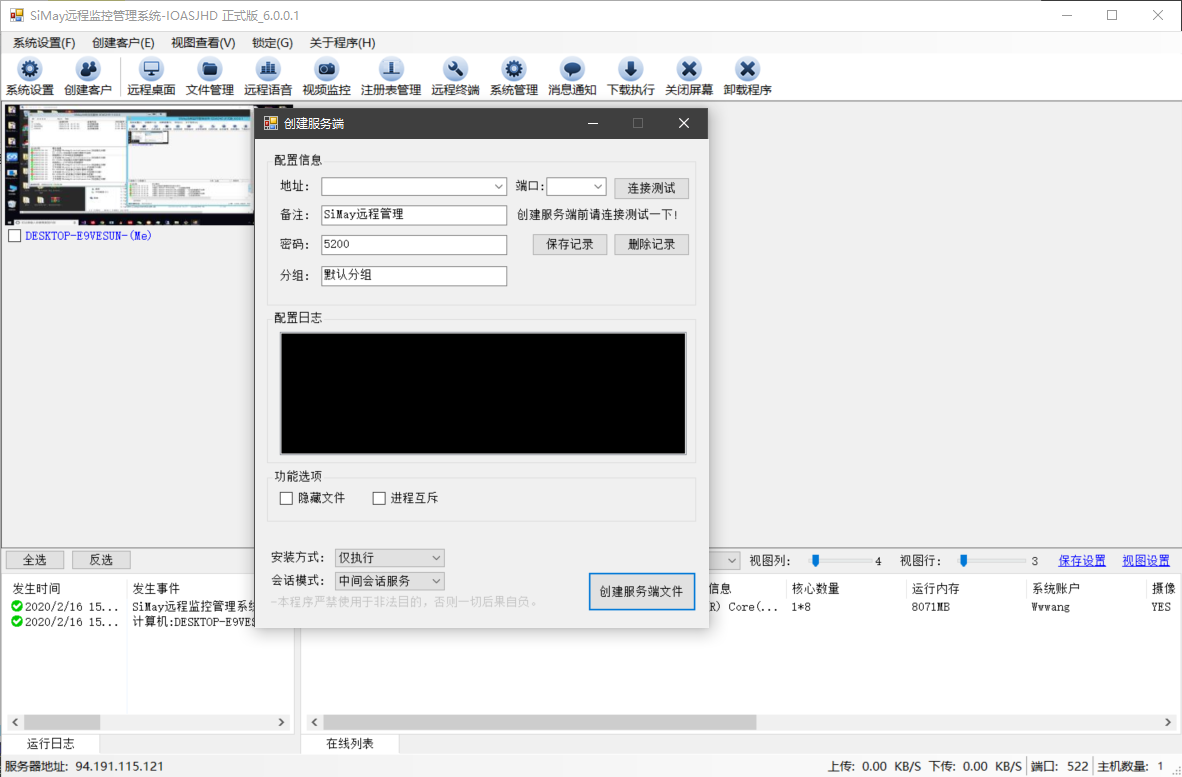
Create server

创建服务端

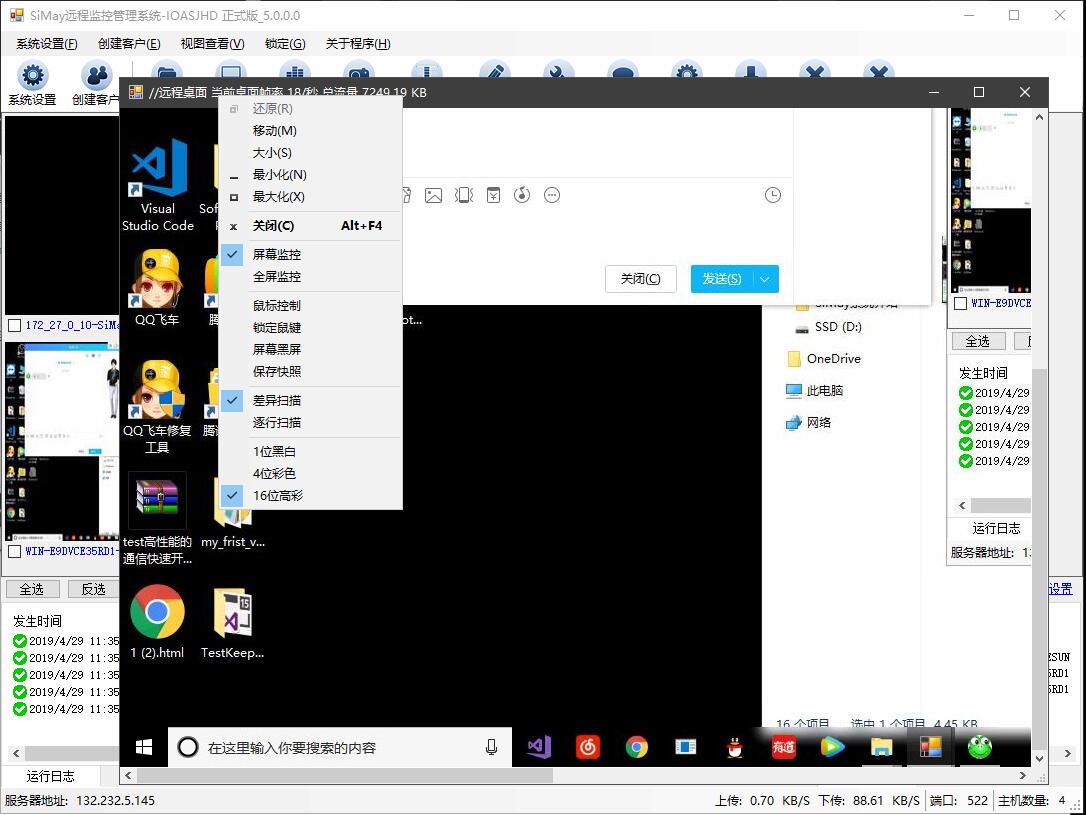
Remote Desktop

远程桌面

file management

文件管理

voice transmission

语音传输

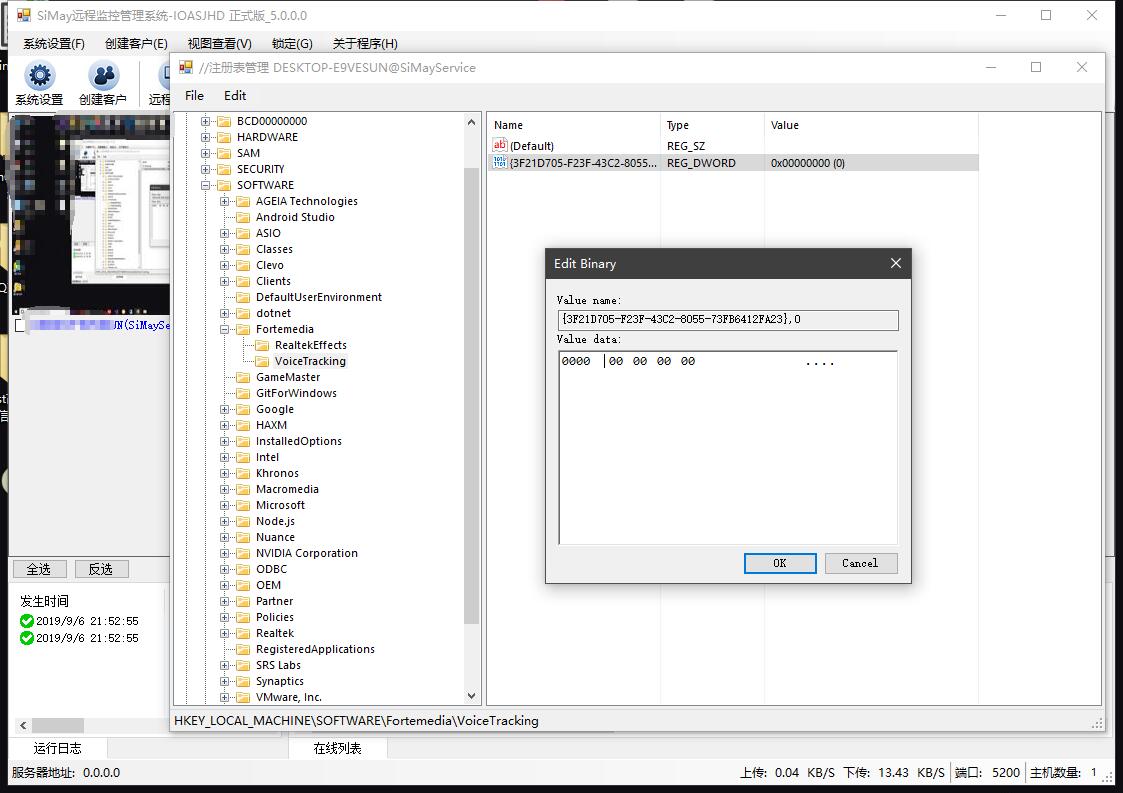
registry management

注册表管理

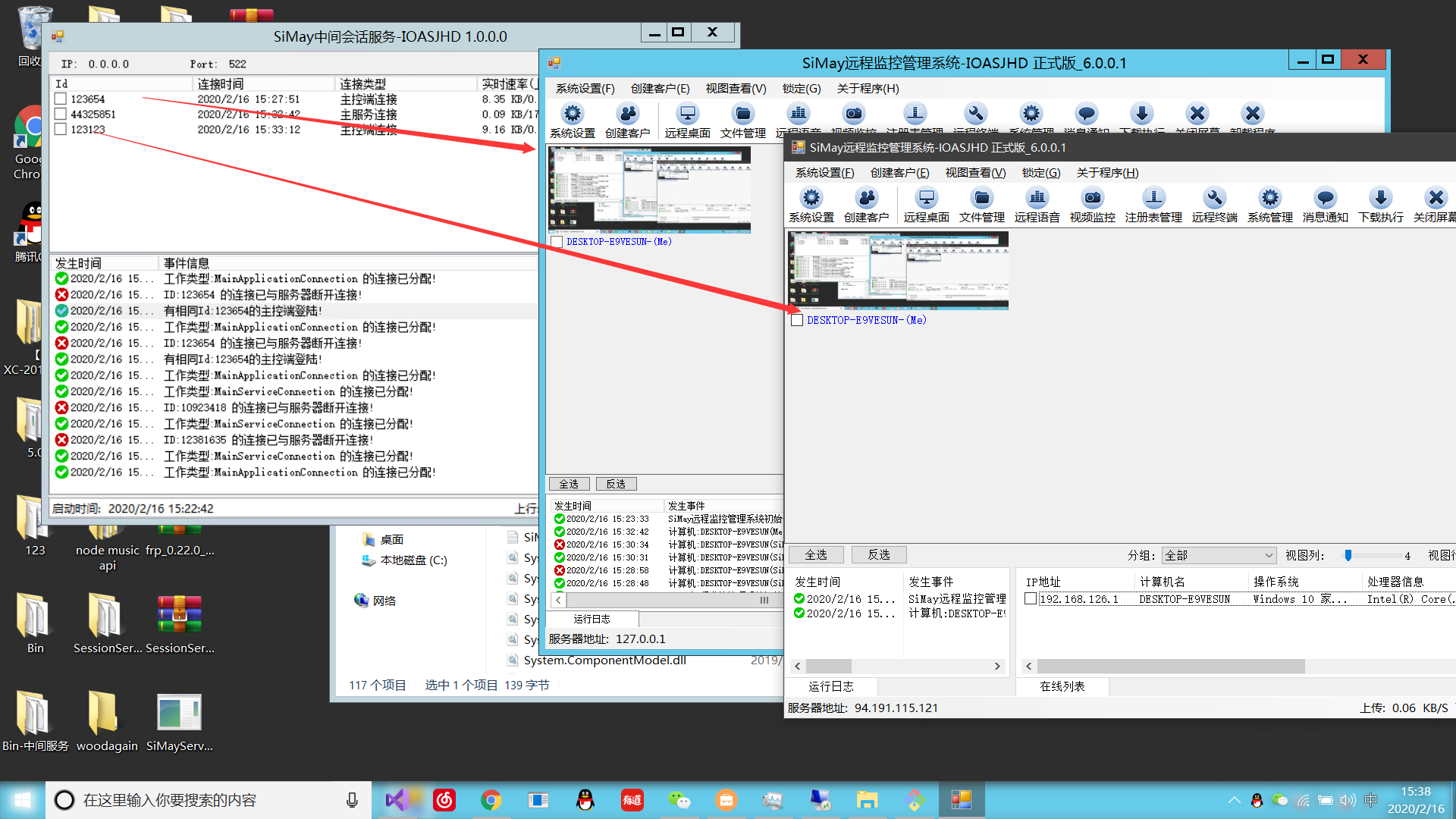
intermediate server

中间服务器

System project structure

SiMay.Core [Common Core Functions]

  1. SiMay.Basic -Basic Universal Library
  2. SiMay.Core.Standard --System core unified public library [unified communication instructions, shared components, communication data entities, etc.]
  3. SiMay.Serialize.Standard --Lightweight high-performance binary serialization library [Role: Materialization of system communication data]
  4. SiMay.ModelBinder --Call Binder

SiMay.RemoteMonitor [Main Controller]

  1. SiMay.RemoteControls.Core --Main Control Core Library
  2. SiMay.RemoteMonitor.Windows --Windows master management terminal
  3. SiMay.RemoteMonitor.Web --Web Master
  4. SiMay.RemoteMonitorForWebSite --Web Monitoring Front-End

SiMay.Platform [Platform Implementation]

  1. SiMay.Platform.Windows --Windows-based feature implementation

SiMay.RemoteService [Remote Controlled Server]

  1. SiMay.RemoteService.Loader --Memory Load Loader, which enables remote memory loading of the controlled end core library
  2. SiMay.ServiceCore --Controlled end core library

SiMay.SessionProvider

  1. SiMay. Net.SessionProvider --Session Providing Library [Role: Provides server listening mode or intermediate session proxy protocol]
  2. SiMay. Net.SessionProvider.Core --Unified public library of proxy protocols [Role: Unifies communication instructions and serialization between intermediate libraries and servers, etc.]
  3. SiMay. Net.SessionProviderServiceCore --Intermediate Service Core Library
  4. SiMay. Net.SessionProviderService --Intermediate Session Proxy Server [Role: Provides the functions of maintaining session retention and data forwarding on the server, and realizes multi-platform monitoring based on this]

SiMay.Sockets [Communication Layer]

  1. SiMay.Socket.Standard --Lightweight Communication Engine
  2. SiMaySocketTestApp --Communication Engine Test Program

compilation

Bin is the compilation directory. After regeneration, the main control program will compile to this directory. The Bin->dat directory is the directory of the controlled server, and the controlled server will be here after compilation. (There is no directory to create a new one)

run

  1. local area network

Main control terminal: Open the main control terminal program SiMayRemoteMonitor.exe in the Bit and Bin directory, confirm that the system settings the server address is 0.0.0.0 (monitors all network cards on this machine), the default port is 5200, and the session mode is = Local server, and then save the configuration restart program. After restarting, the log output monitoring successfully means that the main control terminal is set correctly.

Create the controlled server: Open the main control terminal--> Create client--> Address Enter the local physical address (or 127.0.0.1), and set the port to the server listening port (default 5200)--> Click connection test to check whether the configuration is correct--> Create a server file, which is the configured controlled program (If you are prompted that the file cannot be found, please check whether the controlled service program exists [whether the compilation steps are correct]), double-click to run the controlled service program to see the service online information on the main control end. If there is no online information on the main control end, please check whether the above steps are configured correctly.

  1. wide area network

Conditions: The main control terminal needs to be in a public network environment (or set up routing intranet mapping or use intranet mapping tools [such as peanut shells, intranet Netcom]), and open the main control terminal's monitoring port (pay attention to check whether the port is open and firewall traffic rules). Create a client--> the public network address where the controlled server connects to the main control terminal, just the port

  1. Intermediate server deployment

Conditions: The intermediate server needs to be in a public network environment (it is recommended to deploy it on a public network server, or set up routing intranet mapping), and the intermediate server's listening port is open (default port 522, pay attention to check whether the port is open, firewall traffic rules).

Control terminal settings: System Settings--> Session server address Enter the public network address and port of the intermediate server. --> Set the session mode to: Intermediate Session Mode--> Confirm that the AccessKey is consistent with the Intermediate Server Accesskey. (Intermediate session server system settings are located at the right click of the system menu in the title bar)--> Create a client and select the session mode as intermediate session mode, ip, and enter the public network address of the intermediate server at the end

  1. Web-side monitoring

Compile SiMay.RemoteMonitor.Web.exe. The Web service is in the console form and has no system setting interface. You can directly use the system configuration file SiMayConfig.ini saved by the Windows controller. The session mode can be started in server mode or intermediate session mode. After the console is successfully started, the words "Monitoring Success or Initialization Success" will be set correctly.(Server mode indicates successful listening, and intermediate session mode indicates successful initialization and WebSocket port monitoring.) If a controlled terminal connects successfully, the console will print online connection information in real time, and the Web service settings will be completed.

After the above Web service settings are completed, the next step is to deploy the Web website SiMay.WebRemoteMonitor. First, open the Index.html file and edit the WebSocket connection address, pointing to the public network address and port of the Web service.

Use a browser to visit the SiMay.WebRemoteMonitor website, and the Id will pop up on the page. The Key input box will indicate that the connection to the Web service has been successful. Enter the account password configured by SiMay.RemoteMonitorFor.Web.exe to log in. After the connection is successful, the page will see the desktop view of the computer on the controlled server. Pressing and holding the view will open more functions.

technology

  1. Component system architecture design
  2. Remote synchronous call
  3. Entity Message Transfer Protocol
  4. Apply multi-connection session support
  5. Remote desktop with progressive scanning algorithm for visible area
  6. Intermediate session service forwarding, supporting simultaneous real-time monitoring by multiple masters
  7. HOOK technology
  8. WebSocket Web monitoring
  9. IOCP Asynchronous Socket High-Performance Communication Model
  10. Voice communication based on Windows WaInXX series
  11. Capture camera based on Dx component

development environment

  1. Recommended Visual Studio 2019 Enterprise Edition

to contribute

  1. Fork this warehouse
  2. New Feature_xxx branch
  3. submit code
  4. New Pull Request

future concept

  1. Mobile Web monitoring terminal
  2. Cross-platform system management monitoring
Keep Exploring

延伸阅读

更多文章
同分类 / 同标签 2/29/2024

Data display can also be done in Winform

In the process of developing winform, data display functions are often needed. I have been using the gridcontrol before. Today, I want to use an example to introduce to you how to use the table component in ant design blazor hybrid to display data.

继续阅读
同分类 / 同标签 2/29/2024

Can Winform's interface become better?

A few days ago, I introduced to you the use of blazor hybrid in winform, and I also said that with blazor's ui, our winform program design can be more beautiful. Next, I want to use an example of drawing in winform blazor hybrid to illustrate it, hoping to be helpful to you.

继续阅读
同分类 / 同标签 11/21/2021

Open source Winform control library: Hua Mulan control library

You can compile the project. Except for the animation functions extracted from Silverlight and the ColorEditorExt.cs Color Panel View Designer extension modified from online examples, the entire control was written on the basis of native controls by myself and did not use any third-party libraries, so use it with confidence. There is no infringement of the copyright of others.

继续阅读