
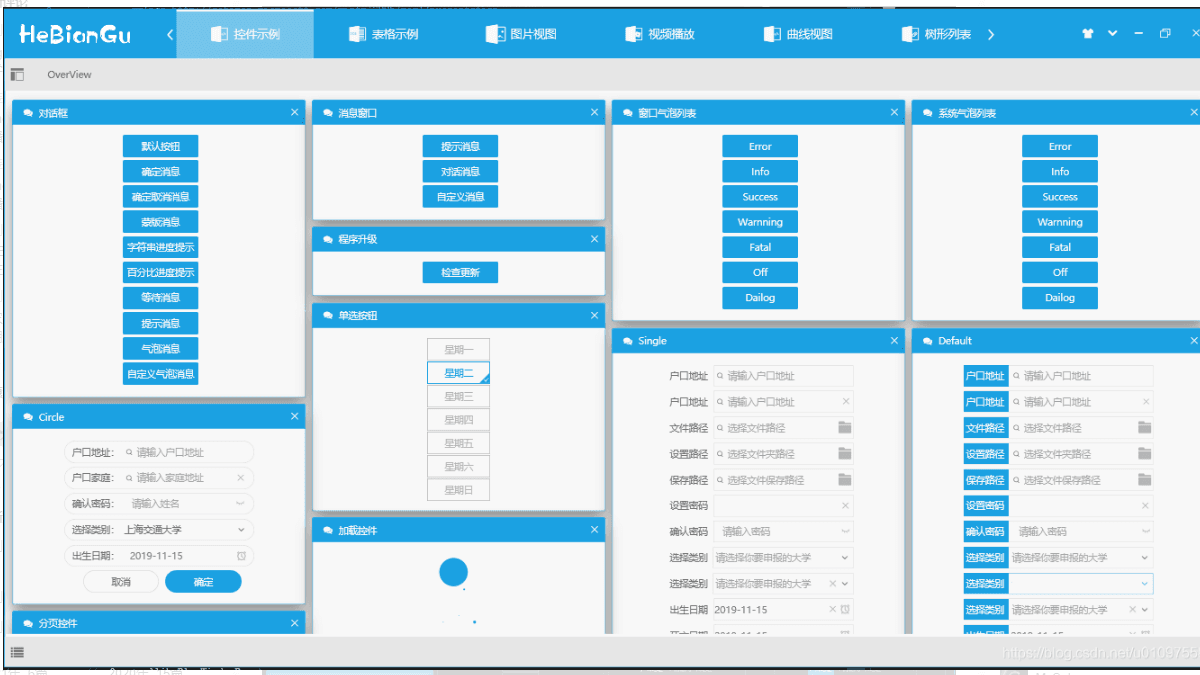
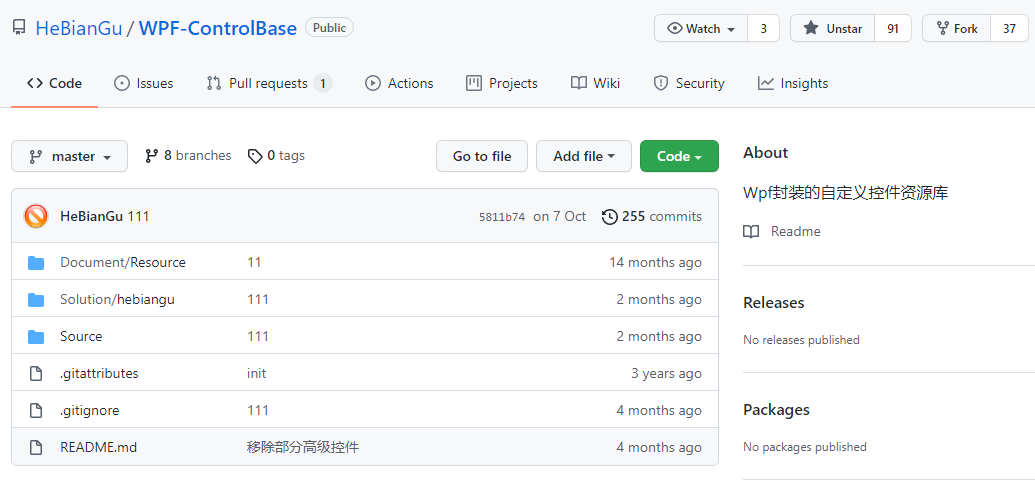
仓库 README 很素,但看作者 README 贴的几篇博文介绍,你会喜欢上它的,废话不多说,上介绍目录:
- 动画封装
https://blog.csdn.net/u010975589/article/details/95974854
- 属性表单
https://blog.csdn.net/u010975589/article/details/95970200
- 消息对话
https://blog.csdn.net/u010975589/article/details/95985190
- 在 WPF 中应用 MVC
https://blog.csdn.net/u010975589/article/details/100019431
- 其他功能说明
https://blog.csdn.net/u010975589/article/details/103083605
下面详细介绍:
1. 动画封装
原文标题:示例:WPF中自定义StoryBoarService在代码中封装StoryBoard、Animation用于简化动画编写
原文链接:https://blog.csdn.net/u010975589/article/details/95974854
1.1 目的:通过对 StoryBoard 和 Animation 的封装来简化动画的编写
1.2 示例

说明:渐隐藏是 WPF 中比较常用的动画,上图是通过 StoryBoarService 封装后的效果,在代码中只要执行如下代码即可:
DoubleStoryboardEngine.Create(1, 0, 1, "Opacity").Start(element);
上面的关闭效果可以定义一个命令如下:
public class CollapsedOfOpacityCommand : ICommand
{

    public bool CanExecute(object parameter) => true;

    public void Execute(object parameter)
    {
        if(parameter is UIElement element)
        {
            var engine = DoubleStoryboardEngine.Create(1, 0, 1, "Opacity");

            engine.Start(element);
        }
    }

    public event EventHandler CanExecuteChanged;
}
在 Xaml 中调用如下命令即可完成关闭渐隐藏的效果
Command="{x:Static base:CommandService.CollapsedOfOpacityCommand}"
CommandParameter="{Binding RelativeSource={RelativeSource
AncestorType=GroupBox}}"
传入的 CommandParmeter 将会在执行命令时渐隐藏
其中动画效果的代码只需一句代码即可,简化了动画在代码中繁琐的编码过程
DoubleStoryboardEngine.Create(1, 0, 1, "Opacity").Start(element);
1.3 代码:
目前只实现 DoubleAnimation 的封装,后续将会对其他类型进行封装
1.3.1 封闭修改基类
/// <summary> 动画引擎基类 </summary>
public abstract class StoryboardEngineBase : IDisposable
{
    protected Storyboard storyboard = new Storyboard();

    public EventHandler CompletedEvent { get; set; }

    public EasingFunctionBase Easing { get; set; } = EasingFunctionFactroy.PowerEase;

    public PropertyPath PropertyPath { get; set; }

    public Duration Duration { get; set; }

    public void Dispose()
    {
        storyboard.Completed -= CompletedEvent;
    }

    public abstract StoryboardEngineBase Start(UIElement element);

    public abstract StoryboardEngineBase Stop();

    public StoryboardEngineBase(int second, string property)
    {
        this.PropertyPath = new PropertyPath(property);
        this.Duration = new Duration(TimeSpan.FromSeconds(second));
    }

}

/// <summary> 动画泛型引擎基类 </summary>
public abstract class StoryboardEngineBase<T> : StoryboardEngineBase
{
    public StoryboardEngineBase(T from, T to, int second, string property) : base(second, property)
    {
        this.FromValue = from;
        this.ToValue = to;
    }

    public T FromValue { get; set; }

    public T ToValue { get; set; }

    //public RepeatBehavior RepeatBehavior { get; set; };

}
1.3.2 开放扩展 DoubleStoryboardEngine
/// <summary> DoubleAnimation动画引擎 </summary>
public class DoubleStoryboardEngine : StoryboardEngineBase<double>
{
    public static DoubleStoryboardEngine Create(double from, double to, int second, string property)
    {
        return new DoubleStoryboardEngine(from, to, second, property);
    }

    public DoubleStoryboardEngine(double from, double to, int second, string property) : base(from, to, second, property)
    {

    }

    public override StoryboardEngineBase Start(UIElement element)
    {
        //  Do:时间线
        DoubleAnimation animation = new DoubleAnimation(1, 0, this.Duration);

        if (this.Easing != null)
            animation.EasingFunction = this.Easing;

        //if (this.RepeatBehavior != default(RepeatBehavior))
        //    animation.RepeatBehavior = (RepeatBehavior);

        //  Do:属性动画
        storyboard.Children.Add(animation);
        Storyboard.SetTarget(animation, element);
        Storyboard.SetTargetProperty(animation, this.PropertyPath);

        if (CompletedEvent != null)
            storyboard.Completed += CompletedEvent;
        storyboard.Begin();

        return this;
    }

    public override StoryboardEngineBase Stop()
    {
        this.storyboard.Stop();

        return this;
    }
}
1.3.3 过度效果工厂
/// <summary> 说明:https://docs.microsoft.com/zh-cn/dotnet/framework/wpf/graphics-multimedia/easing-functions </summary>
public static class EasingFunctionFactroy
{
    /// <summary> PowerEase:创建加速和/或减速使用的公式的动画f(t) = tp其中 p 等于Power属性。 </summary>
    public static PowerEase PowerEase { get; set; } = new PowerEase();
    /// <summary> BackEase:略微收回动画的动作,然后再开始进行动画处理指示的路径中。 </summary>
    public static BackEase BackEase { get; set; } = new BackEase();
    /// <summary> ElasticEase:创建类似于弹簧来回直到静止的动画 </summary>
    public static ElasticEase ElasticEase { get; set; } = new ElasticEase();
    /// <summary> BounceEase:创建弹跳效果。 </summary>
    public static BounceEase BounceEase { get; set; } = new BounceEase();
    /// <summary> CircleEase:创建加速和/或减速使用循环函数的动画。 </summary>
    public static CircleEase CircleEase { get; set; } = new CircleEase();

    /// <summary> QuadraticEase:创建加速和/或减速使用的公式的动画f(t) = t2。 </summary>
    public static QuadraticEase QuadraticEase { get; set; } = new QuadraticEase();

    /// <summary> CubicEase:创建加速和/或减速使用的公式的动画f(t) = t3。 </summary>
    public static CubicEase CubicEase { get; set; } = new CubicEase();
    /// <summary> QuarticEase:创建加速和/或减速使用的公式的动画f(t) = t4。 </summary>
    public static QuarticEase QuarticEase { get; set; } = new QuarticEase();
    /// <summary> QuinticEase:创建加速和/或减速使用的公式的动画f(t) = t5。 </summary>
    public static QuinticEase QuinticEase { get; set; } = new QuinticEase();

    /// <summary> ExponentialEase:创建加速和/或减速使用指数公式的动画。 </summary>
    public static ExponentialEase ExponentialEase { get; set; } = new ExponentialEase();

    /// <summary> SineEase:创建加速和/或减速使用正弦公式的动画。 </summary>
    public static SineEase SineEase { get; set; } = new SineEase();

}
1.3.4 使用方法
/// <summary> 构造方法 </summary>
/// <param name="from"> 起始值</param>
/// <param name="to"> 结束值  </param>
/// <param name="second"> 间隔时间秒 </param>
/// <param name="property"> 修改属性名称 </param>
///
public static DoubleStoryboardEngine Create(double from, double to, int second, string property)
{
    return new DoubleStoryboardEngine(from, to, second, property);
}
2. 属性表单
原文标题:示例:WPF开发的简单ObjectProperyForm用来绑定实体表单
原文链接:https://blog.csdn.net/u010975589/article/details/95970200
2.1 目的:自定义控件,用来直接绑定实体数据,简化开发周期
2.2 实现
- 绑定实体对象
- 通过特性显示属性名称
- 通过特性增加验证条件
- 已经实现 String、Int、Double、DateTime、Bool 几种简单类型的 DataTemplate 模板,其他模板支持扩展
- 其他后续更新...
2.3 示例

实体定义如下:
public class Student
{
    [Display("姓名")]
    [Required]
    public string Name { get; set; }

    [Display("班级")]
    [Required]
    public string Class { get; set; }

    [Display("地址")]
    [Required]
    public string Address { get; set; }

    [Display("邮箱")]
    [Required]
    public string Emall { get; set; }

    [Display("可用")]
    [Required]
    public bool IsEnbled { get; set; }

    [Display("时间")]
    [Required]
    public DateTime time { get; set; }

    [Display("年龄")]
    [Required]
    public int Age { get; set; }

    [Display("平均分")]
    public double Score { get; set; }

    [Display("电话号码")]
    [Required]
    [RegularExpression(@"^1[3|4|5|7|8][0-9]{9}$", ErrorMessage = "手机号码不合法!")]
    public string Tel { get; set; }
}
- DisplayAttribute:用来标识显示名称
- ResuiredAttribute:用来标识数据不能为空
- RgularExpression:引用正则表达式验证数据是否匹配
- 其他特性后续更新...
应用方式:
<UserControl.Resources>
  <local:Student
    x:Key="S.Student.HeBianGu"
    Name="河边骨"
    Address="四川省成都市高新区"
    Class="四年级"
    Emall="7777777777@QQ.com"
    Age="33"
    Score="99.99"
    IsEnbled="True"
    time="2019-09-09"
  />
</UserControl.Resources>

<wpfcontrollib:ObjectPropertyForm
  Grid.Row="1"
  Title="学生信息"
  SelectObject="{StaticResource S.Student.HeBianGu}"
>
  <base:Interaction.Behaviors>
    <base:MouseDragElementBehavior ConstrainToParentBounds="True" />
    <base:SelectZIndexElementBehavior /> </base:Interaction.Behaviors
></wpfcontrollib:ObjectPropertyForm>
2.4 代码
2.4.1 通过反射获取属性和特性
ObservableCollection<ObjectPropertyItem> PropertyItemSource
{
    get { return (ObservableCollection<ObjectPropertyItem>)GetValue(PropertyItemSourceProperty); }
    set { SetValue(PropertyItemSourceProperty, value); }
}

// Using a DependencyProperty as the backing store for MyProperty.  This enables animation, styling, binding, etc...
public static readonly DependencyProperty PropertyItemSourceProperty =
    DependencyProperty.Register("PropertyItemSource", typeof(ObservableCollection<ObjectPropertyItem>), typeof(ObjectPropertyForm), new PropertyMetadata(new ObservableCollection<ObjectPropertyItem>(), (d, e) =>
      {
          ObjectPropertyForm control = d as ObjectPropertyForm;

          if (control == null) return;

          ObservableCollection<ObjectPropertyItem> config = e.NewValue as ObservableCollection<ObjectPropertyItem>;

      }));


void RefreshObject(object o)
{
    Type type = o.GetType();

    var propertys = type.GetProperties();

    this.PropertyItemSource.Clear();

    foreach (var item in propertys)
    {
        var from = ObjectPropertyFactory.Create(item, o);

        this.PropertyItemSource.Add(from);
    }

    this.ItemsSource = this.PropertyItemSource;
}
2.4.2 定义类型基类、扩展之类和工厂方法
/// <summary> 类型基类 </summary>
public class ObjectPropertyItem : NotifyPropertyChanged
{
    public string Name { get; set; }
    public PropertyInfo PropertyInfo { get; set; }

    public object Obj { get; set; }
    public ObjectPropertyItem(PropertyInfo property, object obj)
    {
        PropertyInfo = property;


        var display = property.GetCustomAttribute<DisplayAttribute>();

        Name = display == null ? property.Name : display.Name;

        Obj = obj;
    }


}

/// <summary> 泛型类型基类 </summary>
public class ObjectPropertyItem<T> : ObjectPropertyItem
{
    private T _value;
    /// <summary> 说明  </summary>
    public T Value
    {
        get { return _value; }
        set
        {

            this.Message = null;

            //  Do:检验数据有效性
            if (Validations != null)
            {
                foreach (var item in Validations)
                {
                    if (!item.IsValid(value))
                    {
                        this.Message = item.ErrorMessage;
                    }
                }
            }

            _value = value;

            RaisePropertyChanged("Value");

            this.SetValue(value);
        }
    }

    void SetValue(T value)
    {
        this.PropertyInfo.SetValue(Obj, value);
    }

    List<ValidationAttribute> Validations { get; }

    public ObjectPropertyItem(PropertyInfo property, object obj) : base(property, obj)
    {
        Value = (T)property.GetValue(obj);

        Validations = property.GetCustomAttributes<ValidationAttribute>()?.ToList();

        if(Validations!=null&& Validations.Count>0)
        {
            this.Flag = "*";
        }
    }


    private string _message;
    /// <summary> 说明  </summary>
    public string Message
    {
        get { return _message; }
        set
        {
            _message = value;
            RaisePropertyChanged("Message");
        }
    }

    public string Flag { get; set; }

}

/// <summary> 字符串属性类型 </summary>
public class StringPropertyItem : ObjectPropertyItem<string>
{
    public StringPropertyItem(PropertyInfo property, object obj) : base(property, obj)
    {
    }
}

/// <summary> 时间属性类型 </summary>
public class DateTimePropertyItem : ObjectPropertyItem<DateTime>
{
    public DateTimePropertyItem(PropertyInfo property, object obj) : base(property, obj)
    {
    }
}

/// <summary> Double属性类型 </summary>
public class DoublePropertyItem : ObjectPropertyItem<double>
{
    public DoublePropertyItem(PropertyInfo property, object obj) : base(property, obj)
    {
    }
}

/// <summary> Int属性类型 </summary>

public class IntPropertyItem : ObjectPropertyItem<int>
{
    public IntPropertyItem(PropertyInfo property, object obj) : base(property, obj)
    {
    }
}

/// <summary> Bool属性类型 </summary>
public class BoolPropertyItem : ObjectPropertyItem<bool>
{
    public BoolPropertyItem(PropertyInfo property, object obj) : base(property, obj)
    {
    }
}
类型工厂:
public class ObjectPropertyFactory
{
    public static ObjectPropertyItem Create(PropertyInfo info, object obj)
    {
        if (info.PropertyType == typeof(int))
        {
            return new IntPropertyItem(info, obj);
        }
        else if (info.PropertyType == typeof(string))
        {
            return new StringPropertyItem(info, obj);
        }
        else if (info.PropertyType == typeof(DateTime))
        {
            return new DateTimePropertyItem(info, obj);
        }
        else if (info.PropertyType == typeof(double))
        {
            return new DoublePropertyItem(info, obj);
        }
        else if (info.PropertyType == typeof(bool))
        {
            return new BoolPropertyItem(info, obj);
        }

        return null;
    }
}
2.4.3 样式模板
<DataTemplate DataType="{x:Type base:StringPropertyItem}">
<Grid
Width="{Binding RelativeSource={RelativeSource AncestorType=local:ObjectPropertyForm},Path=Width-5}"
Height="35"
Margin="5,0"
>
<Grid.ColumnDefinitions>
<ColumnDefinition Width="*" />
<ColumnDefinition Width="Auto" />
<ColumnDefinition Width="2*" />
<ColumnDefinition Width="30" />
</Grid.ColumnDefinitions>
<TextBlock
Text="{Binding Name}"
FontSize="14"
HorizontalAlignment="Center"
VerticalAlignment="Center"
/>
<TextBlock
Text="{Binding Flag}"
Grid.Column="1"
Margin="5,0"
FontSize="14"
Foreground="{DynamicResource S.Brush.Red.Notice}"
HorizontalAlignment="Right"
VerticalAlignment="Center"
/>
<local:FTextBox
Text="{Binding Value,UpdateSourceTrigger=PropertyChanged}"
Style="{DynamicResource DefaultTextBox}"
FontSize="14"
Width="Auto"
CaretBrush="Black"
Grid.Column="2"
Height="30"
base:ControlAttachProperty.FIcon=""
VerticalContentAlignment="Center"
HorizontalAlignment="Stretch"
VerticalAlignment="Center"
/>
<TextBlock
Text=""
Grid.Column="3"
Style="{DynamicResource FIcon }"
Foreground="{DynamicResource S.Brush.Red.Notice}"
Visibility="{Binding Message,Converter={x:Static base:XConverter.VisibilityWithOutStringConverter},ConverterParameter={x:Null},Mode=TwoWay}"
FontSize="14"
TextTrimming="CharacterEllipsis"
ToolTip="{Binding Message}"
HorizontalAlignment="Center"
VerticalAlignment="Center"
/>
</Grid>
</DataTemplate>
<DataTemplate DataType="{x:Type base:BoolPropertyItem}">
<Grid
Width="{Binding RelativeSource={RelativeSource AncestorType=local:ObjectPropertyForm},Path=Width-5}"
Height="35"
Margin="5,0"
>
<Grid.ColumnDefinitions>
<ColumnDefinition Width="*" />
<ColumnDefinition Width="Auto" />
<ColumnDefinition Width="2*" />
<ColumnDefinition Width="30" />
</Grid.ColumnDefinitions>
<TextBlock
Text="{Binding Name}"
FontSize="14"
HorizontalAlignment="Center"
VerticalAlignment="Center"
/>
<TextBlock
Text="{Binding Flag}"
Grid.Column="1"
Margin="5,0"
FontSize="14"
Foreground="{DynamicResource S.Brush.Red.Notice}"
HorizontalAlignment="Right"
VerticalAlignment="Center"
/>
<CheckBox
IsChecked="{Binding Value}"
FontSize="14"
Grid.Column="2"
Height="30"
VerticalContentAlignment="Center"
HorizontalAlignment="Left"
VerticalAlignment="Center"
/>
<TextBlock
Text=""
Grid.Column="3"
Style="{DynamicResource FIcon }"
Foreground="{DynamicResource S.Brush.Red.Notice}"
Visibility="{Binding Message,Converter={x:Static base:XConverter.VisibilityWithOutStringConverter},ConverterParameter={x:Null}}"
FontSize="14"
TextTrimming="CharacterEllipsis"
ToolTip="{Binding Message}"
HorizontalAlignment="Center"
VerticalAlignment="Center"
/>
</Grid>
</DataTemplate>
<DataTemplate DataType="{x:Type base:DateTimePropertyItem}">
<Grid
Width="{Binding RelativeSource={RelativeSource AncestorType=local:ObjectPropertyForm},Path=Width-5}"
Height="35"
Margin="5,0"
>
<Grid.ColumnDefinitions>
<ColumnDefinition Width="*" />
<ColumnDefinition Width="Auto" />
<ColumnDefinition Width="2*" />
<ColumnDefinition Width="30" />
</Grid.ColumnDefinitions>
<TextBlock
Text="{Binding Name}"
FontSize="14"
HorizontalAlignment="Center"
VerticalAlignment="Center"
/>
<TextBlock
Text="{Binding Flag}"
Grid.Column="1"
Margin="5,0"
FontSize="14"
Foreground="{DynamicResource S.Brush.Red.Notice}"
HorizontalAlignment="Right"
VerticalAlignment="Center"
/>
<DatePicker
SelectedDate="{Binding Value}"
FontSize="14"
Grid.Column="2"
Height="30"
VerticalContentAlignment="Center"
Width="Auto"
HorizontalAlignment="Stretch"
VerticalAlignment="Center"
/>
<TextBlock
Text=""
Grid.Column="3"
Style="{DynamicResource FIcon }"
Foreground="{DynamicResource S.Brush.Red.Notice}"
Visibility="{Binding Message,Converter={x:Static base:XConverter.VisibilityWithOutStringConverter},ConverterParameter={x:Null}}"
FontSize="14"
TextTrimming="CharacterEllipsis"
ToolTip="{Binding Message}"
HorizontalAlignment="Center"
VerticalAlignment="Center"
/>
</Grid>
</DataTemplate>
<DataTemplate DataType="{x:Type base:IntPropertyItem}">
<Grid
Width="{Binding RelativeSource={RelativeSource AncestorType=local:ObjectPropertyForm},Path=Width-5}"
Height="35"
Margin="5,0"
>
<Grid.ColumnDefinitions>
<ColumnDefinition Width="*" />
<ColumnDefinition Width="Auto" />
<ColumnDefinition Width="2*" />
<ColumnDefinition Width="30" />
</Grid.ColumnDefinitions>
<TextBlock
Text="{Binding Name}"
FontSize="14"
HorizontalAlignment="Center"
VerticalAlignment="Center"
/>
<TextBlock
Text="{Binding Flag}"
Grid.Column="1"
Margin="5,0"
FontSize="14"
Foreground="{DynamicResource S.Brush.Red.Notice}"
HorizontalAlignment="Right"
VerticalAlignment="Center"
/>
<Slider
Value="{Binding Value}"
FontSize="14"
Grid.Column="2"
Height="30"
VerticalContentAlignment="Center"
HorizontalAlignment="Stretch"
VerticalAlignment="Center"
/>
<TextBlock
Text=""
Grid.Column="3"
Style="{DynamicResource FIcon }"
Foreground="{DynamicResource S.Brush.Red.Notice}"
Visibility="{Binding Message,Converter={x:Static base:XConverter.VisibilityWithOutStringConverter},ConverterParameter={x:Null}}"
FontSize="14"
TextTrimming="CharacterEllipsis"
ToolTip="{Binding Message}"
HorizontalAlignment="Center"
VerticalAlignment="Center"
/>
</Grid>
</DataTemplate>
<DataTemplate DataType="{x:Type base:DoublePropertyItem}">
<Grid
Width="{Binding RelativeSource={RelativeSource AncestorType=local:ObjectPropertyForm},Path=Width-5}"
Height="35"
Margin="5,0"
>
<Grid.ColumnDefinitions>
<ColumnDefinition Width="*" />
<ColumnDefinition Width="Auto" />
<ColumnDefinition Width="2*" />
<ColumnDefinition Width="30" />
</Grid.ColumnDefinitions>
<TextBlock
Text="{Binding Name}"
FontSize="14"
HorizontalAlignment="Center"
VerticalAlignment="Center"
/>
<TextBlock
Text="{Binding Flag}"
Grid.Column="1"
Margin="5,0"
FontSize="14"
Foreground="{DynamicResource S.Brush.Red.Notice}"
HorizontalAlignment="Right"
VerticalAlignment="Center"
/>
<Slider
Value="{Binding Value}"
FontSize="14"
Grid.Column="2"
Height="30"
VerticalContentAlignment="Center"
HorizontalAlignment="Stretch"
VerticalAlignment="Center"
/>
<TextBlock
Text=""
Grid.Column="3"
Style="{DynamicResource FIcon }"
Foreground="{DynamicResource S.Brush.Red.Notice}"
Visibility="{Binding Message,Converter={x:Static base:XConverter.VisibilityWithOutStringConverter},ConverterParameter={x:Null}}"
FontSize="14"
TextTrimming="CharacterEllipsis"
ToolTip="{Binding Message}"
HorizontalAlignment="Center"
VerticalAlignment="Center"
/>
</Grid>
</DataTemplate>
<style TargetType="local:ObjectPropertyForm">
<Setter Property="Background" Value="{DynamicResource S.Brush.TextBackgroud.Default}"/>
<Setter Property="BorderThickness" Value="0"/>
<!--<Setter Property="BorderBrush" Value="{x:Null}"/>-->
<Setter Property="HorizontalAlignment" Value="Stretch"/>
<Setter Property="VerticalAlignment" Value="Center"/>
<Setter Property="HorizontalContentAlignment" Value="Center"/>
<Setter Property="VerticalContentAlignment" Value="Center"/>
<!--<Setter Property="FocusVisualStyle" Value="{x:Null}"/>-->
<Setter Property="Padding" Value="0" />
<Setter Property="Width" Value="500" />
<Setter Property="Height" Value="Auto" />
<Setter Property="ItemsSource" Value="{Binding PropertyItemSource,Mode=TwoWay}" />
<Setter Property="ItemsPanel">
<Setter.Value>
<ItemsPanelTemplate>
<StackPanel/>
</ItemsPanelTemplate>
</Setter.Value>
</Setter>
<Setter Property="Template">
<Setter.Value>
<ControlTemplate TargetType="local:ObjectPropertyForm">
<GroupBox Header="{TemplateBinding Title}">
<Border HorizontalAlignment="{TemplateBinding HorizontalAlignment}"
VerticalAlignment="{TemplateBinding VerticalAlignment}"
Background="{TemplateBinding Background}"
BorderBrush="{TemplateBinding BorderBrush}"
BorderThickness="{TemplateBinding BorderThickness}">
<ItemsPresenter/>
</Border>
</GroupBox>
</ControlTemplate>
</Setter.Value>
</Setter>
</style>
2.4.4 开放扩展
2.4.4.1 只需定义一个扩展类型,如:
/// <summary> 字符串属性类型 </summary>
public class StringPropertyItem : ObjectPropertyItem<string>
{
    public StringPropertyItem(PropertyInfo property, object obj) : base(property, obj)
    {
    }
}
2.4.4.2 再添加一个 DataTmeplate,如:
<DataTemplate DataType="{x:Type base:StringPropertyItem}">
<Grid
Width="{Binding RelativeSource={RelativeSource AncestorType=local:ObjectPropertyForm},Path=Width-5}"
Height="35"
Margin="5,0"
>
<Grid.ColumnDefinitions>
<ColumnDefinition Width="*" />
<ColumnDefinition Width="Auto" />
<ColumnDefinition Width="2*" />
<ColumnDefinition Width="30" />
</Grid.ColumnDefinitions>
<TextBlock
Text="{Binding Name}"
FontSize="14"
HorizontalAlignment="Center"
VerticalAlignment="Center"
/>
<TextBlock
Text="{Binding Flag}"
Grid.Column="1"
Margin="5,0"
FontSize="14"
Foreground="{DynamicResource S.Brush.Red.Notice}"
HorizontalAlignment="Right"
VerticalAlignment="Center"
/>
<local:FTextBox
Text="{Binding Value,UpdateSourceTrigger=PropertyChanged}"
Style="{DynamicResource DefaultTextBox}"
FontSize="14"
Width="Auto"
CaretBrush="Black"
Grid.Column="2"
Height="30"
base:ControlAttachProperty.FIcon=""
VerticalContentAlignment="Center"
HorizontalAlignment="Stretch"
VerticalAlignment="Center"
/>
<TextBlock
Text=""
Grid.Column="3"
Style="{DynamicResource FIcon }"
Foreground="{DynamicResource S.Brush.Red.Notice}"
Visibility="{Binding Message,Converter={x:Static base:XConverter.VisibilityWithOutStringConverter},ConverterParameter={x:Null},Mode=TwoWay}"
FontSize="14"
TextTrimming="CharacterEllipsis"
ToolTip="{Binding Message}"
HorizontalAlignment="Center"
VerticalAlignment="Center"
/>
</Grid>
</DataTemplate>
3. 消息对话
原文标题:示例:WPF中自定义MessageService应用DialogHost、Snackbar、NotifyIcon显示各种场景提示消息
原文链接:https://blog.csdn.net/u010975589/article/details/95985190
3.1 目的
不同交互场景需要提示不同的消息,不同的消息需要用不同的效果来展示,应用 DialogHost(对话框)、NotifyIcon(消息提示)、Snackbar(气泡消息)显示各种场景提示消息,应用在 ViewModel 中
3.2 实现
- 等待对话框
- 确定对话框
- 确定与取消对话框
- 百分比进度和文本进度对话框
- 气泡提示消息(NotifyIcon)
- 提示消息(Snackbar)
3.3 示例

说明:
- 对话框:常规对话消息如上图,等待对话框、消息对话、进度对话框;
(目前只封装如上这几种,自定义对话框只需创建用户控件调用通用加载方法即可,后续更新...)
提示消息:当进度保存成功是需要一个提示消息,显示 2s 自动隐藏即可(如图中友情提示部分分) ;
气泡消息:当程序处于隐藏或某种状态时需要应用气泡提示消息;
3.4 代码
[ViewModel("Loyout")]
class LoyoutViewModel : MvcViewModelBase
{


    /// <summary> 命令通用方法 </summary>
    protected override async void RelayMethod(object obj)

    {
        string command = obj?.ToString();

        //  Do:对话消息
        if (command == "Button.ShowDialogMessage")
        {
            await MessageService.ShowSumitMessge("这是消息对话框?");

        }
        //  Do:等待消息
        else if (command == "Button.ShowWaittingMessge")
        {

            await MessageService.ShowWaittingMessge(() => Thread.Sleep(2000));

        }
        //  Do:百分比进度对话框
        else if (command == "Button.ShowPercentProgress")
        {
            Action<IPercentProgress> action = l =>
                {
                    for (int i = 0; i < 100; i++)
                    {
                        l.Value = i;

                        Thread.Sleep(50);
                    }

                    Thread.Sleep(1000);

                    MessageService.ShowSnackMessageWithNotice("加载完成!");
                };
            await MessageService.ShowPercentProgress(action);

        }
        //  Do:文本进度对话框
        else if (command == "Button.ShowStringProgress")
        {
            Action<IStringProgress> action = l =>
            {
                for (int i = 1; i <= 100; i++)
                {
                    l.MessageStr = $"正在提交当前页第{i}份数据,共100份";

                    Thread.Sleep(50);
                }

                Thread.Sleep(1000);

                MessageService.ShowSnackMessageWithNotice("提交完成:成功100条,失败0条!");
            };

            await MessageService.ShowStringProgress(action);

        }
        //  Do:确认取消对话框
        else if (command == "Button.ShowResultMessge")
        {
            Action<object, DialogClosingEventArgs> action = (l, k) =>
            {
                if ((bool)k.Parameter)
                {
                    MessageService.ShowSnackMessageWithNotice("你点击了取消");
                }
                else
                {
                    MessageService.ShowSnackMessageWithNotice("你点击了确定");
                }
            };

            MessageService.ShowResultMessge("确认要退出系统?", action);


        }
        //  Do:提示消息
        else if (command == "Button.ShowSnackMessage")
        {
            MessageService.ShowSnackMessageWithNotice("这是提示消息?");
        }
        //  Do:气泡消息
        else if (command == "Button.ShowNotifyMessage")
        {
            MessageService.ShowNotifyMessage("你有一条报警信息需要处理,请检查", "Notify By HeBianGu");
        }
    }
}
4. 在 WPF 中应用 MVC
原文标题:封装:简要介绍自定义开发基于WPF的MVC框架
原文链接:https://blog.csdn.net/u010975589/article/details/100019431
4.1 目的
在使用 ASP.NET Core 时,深感 MVC 框架作为页面跳转数据处理的方便,但 WPF 中似乎没有现成的 MVC 框架,由此自定义开发一套 MVC 的框架,在使用过程中也体会到框架的优势,下面简要介绍一下这套基于 MVVM 的 MVC 框架
4.2 项目结构
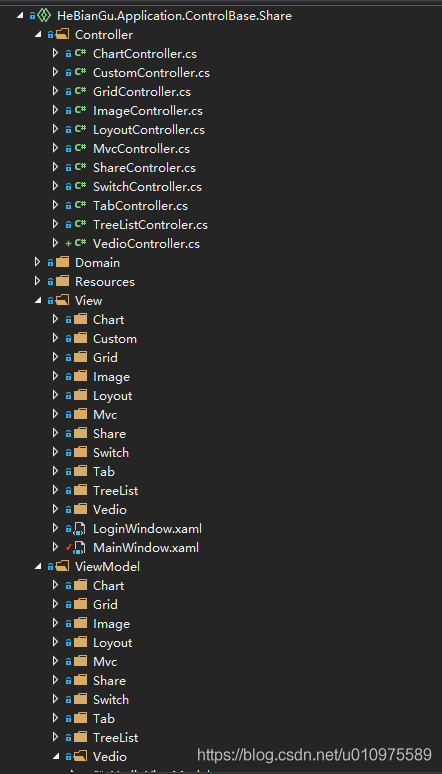
主要有三部分组成:Controller、View、ViewModel
其中 View 和 ViewModel 就是传统 WPF 中的 MVVM 模式
不同地方在于页面的跳转应用到了 Controller 做控制,如下示例 Controller 的定义
4.3 Controller 的结构和定义
4.3.1 定义 LoyoutController
[Route("Loyout")]
class LoyoutController : Controller
{

    public LoyoutController(ShareViewModel shareViewModel) : base(shareViewModel)
    {

    }

    public async Task<IActionResult> Center()
    {
        return View();
    }

    [Route("OverView/Button")]
    public async Task<IActionResult> Mdi()
    {
        return View();
    }

    public async Task<IActionResult> Left()
    {
        return View();
    }

    public async Task<IActionResult> Right()
    {
        return View();
    }

    public async Task<IActionResult> Top()
    {
        return View();
    }

    public async Task<IActionResult> Bottom()
    {
        return View();
    }

    [Route("OverView/Toggle")]
    public async Task<IActionResult> Toggle()
    {
        return View();
    }

    [Route("OverView/Carouse")]
    public async Task<IActionResult> Carouse()
    {
        return View();
    }

    [Route("OverView/Evaluate")]
    public async Task<IActionResult> Evaluate()
    {
        return View();
    }

    [Route("OverView/Expander")]
    public async Task<IActionResult> Expander()
    {
        return View();
    }

    [Route("OverView/Gif")]
    public async Task<IActionResult> Gif()
    {
        return View();
    }

    [Route("OverView/Message")]
    public async Task<IActionResult> Message()
    {
        return View();
    }

    [Route("OverView/Upgrade")]
    public async Task<IActionResult> Upgrade()
    {
        return View();
    }

    [Route("OverView/Property")]
    public async Task<IActionResult> Property()
    {
        return View();
    }

    [Route("OverView/ProgressBar")]
    public async Task<IActionResult> ProgressBar()
    {
        return View();
    }

    [Route("OverView/Slider")]
    public async Task<IActionResult> Slider()
    {
        return View();
    }

    [Route("OverView/Tab")]
    public async Task<IActionResult> Tab()
    {
        return View();
    }

    [Route("OverView/Tree")]
    public async Task<IActionResult> Tree()
    {
        return View();
    }

    [Route("OverView/Observable")]
    public async Task<IActionResult> Observable()
    {
        return View();
    }

    [Route("OverView/Brush")]
    public async Task<IActionResult> Brush()
    {
        return View();
    }

    [Route("OverView/Shadow")]
    public async Task<IActionResult> Shadow()
    {
        return View();
    }

    [Route("OverView/Button")]
    public async Task<IActionResult> Button()
    {
        await MessageService.ShowWaittingMessge(() => Thread.Sleep(500));

        this.ViewModel.ButtonContentText = DateTime.Now.ToString();

        return View();

    }


    [Route("OverView/Grid")]
    public async Task<IActionResult> Grid()
    {
        return View();
    }

    [Route("OverView/Combobox")]
    public async Task<IActionResult> Combobox()
    {
        return View();
    }

    [Route("OverView")]
    public async Task<IActionResult> OverView()
    {
        await MessageService.ShowWaittingMessge(() => Thread.Sleep(500));

        MessageService.ShowSnackMessageWithNotice("OverView");

        return View();
    }

    [Route("OverView/TextBox")]
    public async Task<IActionResult> TextBox()
    {
        return View();
    }

    [Route("OverView/Book")]
    public async Task<IActionResult> Book()
    {
        return View();
    }

    [Route("OverView/Xaml")]
    public async Task<IActionResult> Xaml()
    {
        return View();
    }

    [Route("OverView/Dimension")]
    public async Task<IActionResult> Dimension()
    {
        return View();
    }

    [Route("OverView/Geometry")]
    public async Task<IActionResult> Geometry()
    {
        return View();
    }

    [Route("OverView/Panel")]
    public async Task<IActionResult> Panel()
    {
        return View();
    }
    [Route("OverView/Transform3D")]
    public async Task<IActionResult> Transform3D()
    {
        return View();
    }

    [Route("OverView/Drawer")]
    public async Task<IActionResult> Drawer()
    {
        return View();
    }
}
4.3.2 前端的页面
如下,其中红色部分对应 Controller 里面的要跳转的 Route
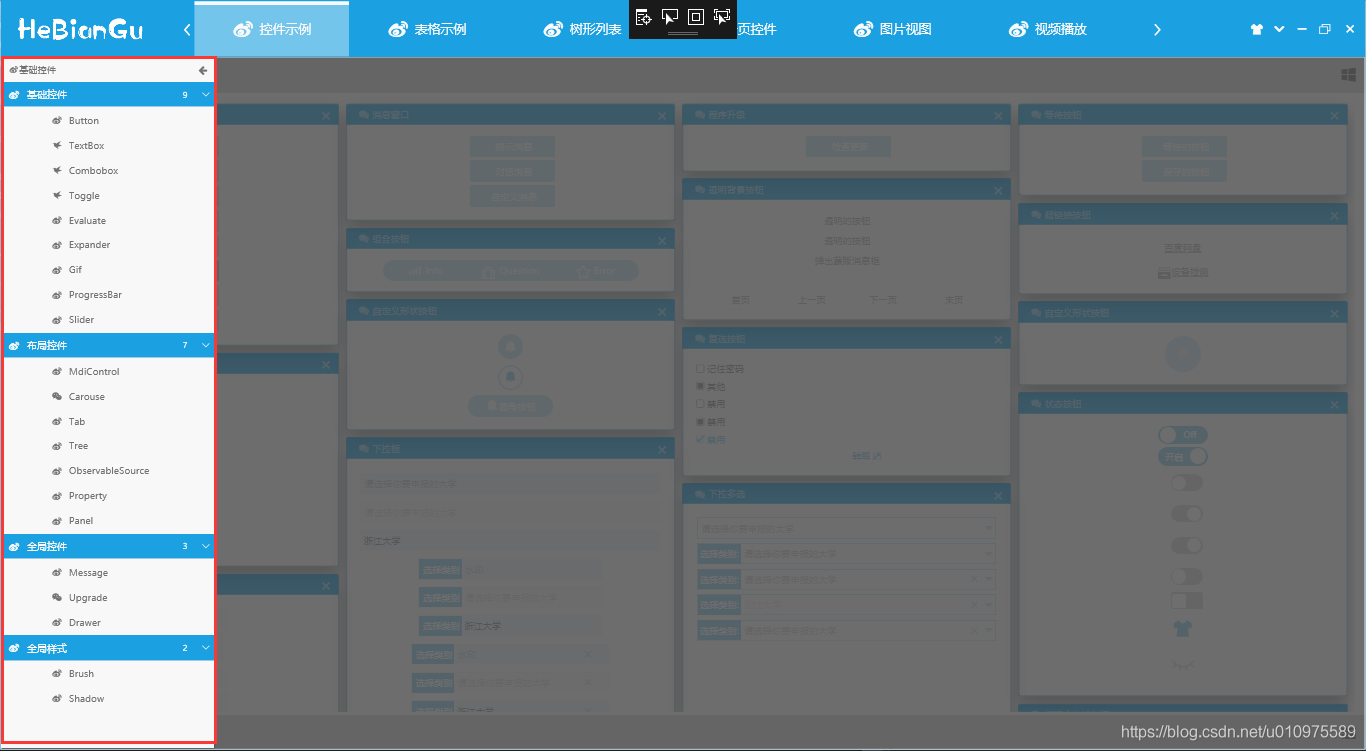
如:选择了红色部分的 Button,首先会调用Button()方法,跳转到当前 Controller 对应的 View 文件加下的ButtonControl.xaml 页面
[Route("OverView/Button")]
public async Task<IActionResult> Button()
{
    await MessageService.ShowWaittingMessge(() => Thread.Sleep(500);

    this.ViewModel.ButtonContentText = DateTime.Now.ToString();

    return View();

}
可以在 Button()方法中,写一些业务逻辑,如对当前 ViewModel 的增删改查等常规操作,其中当前 Controller 成员 ViewModel 是内部封装好的 ViewModel,对应 ViewModel 文件下面的当前 Controller 的 ViewModel
4.3.3 示例
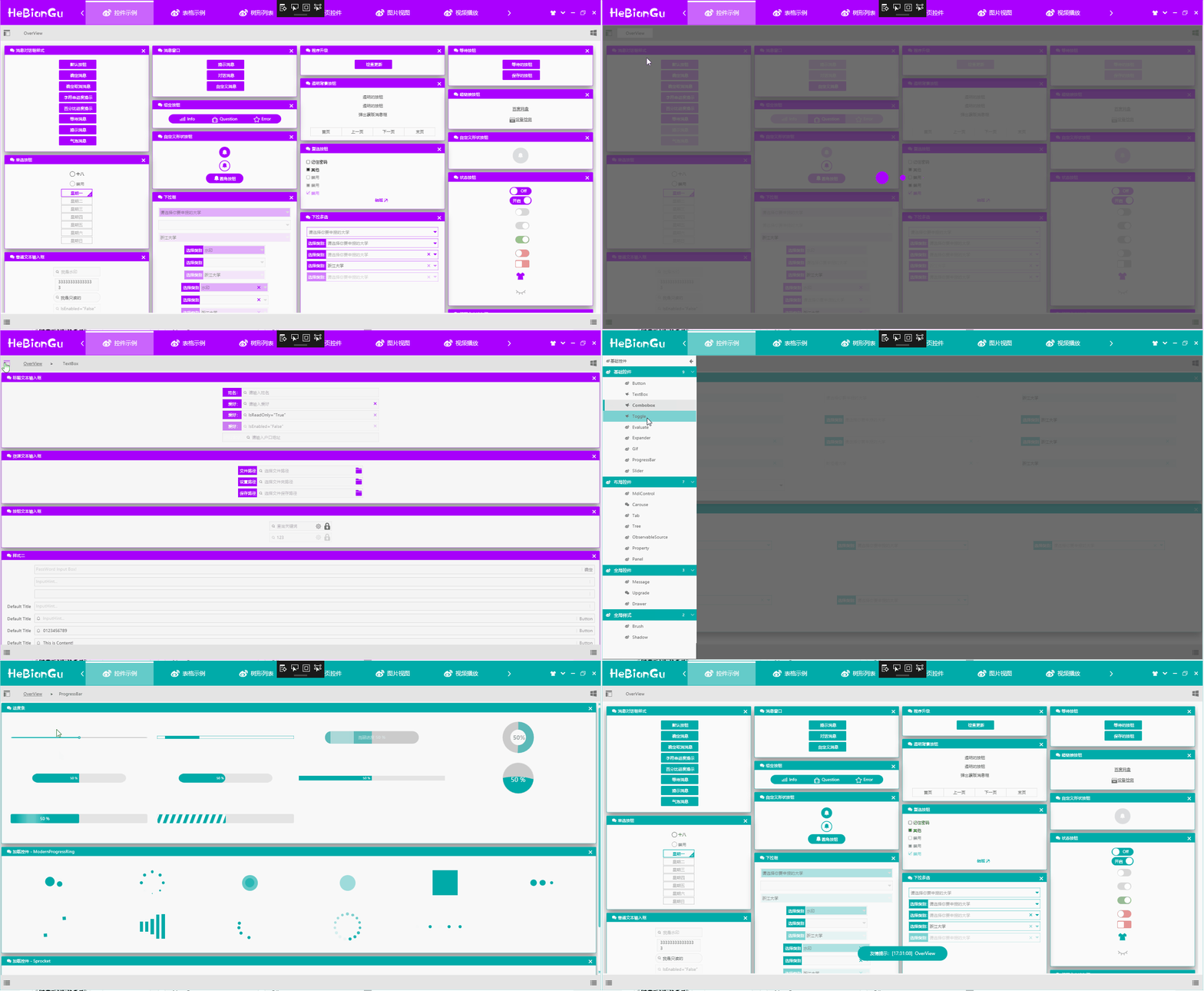
4.3.4 左侧的 Xaml 列表可以定义成如下形式
<Grid>
<wpfcontrollib:LinkGroupExpander
ScrollViewer.HorizontalScrollBarVisibility="Disabled"
x:Name="selectloyout"
SelectedLink="{Binding SelectLink,Mode=TwoWay}"
Command="{x:Static wpfcontrollib:DrawerHost.CloseDrawerCommand}"
CommandParameter="{x:Static Dock.Left}"
>
<wpfcontrollib:LinkActionGroup DisplayName="基础控件" Logo="">
<wpfcontrollib:LinkActionGroup.Links>
<wpfcontrollib:LinkAction
DisplayName="Button"
Logo=""
Controller="Loyout"
Action="Button"
/>
<wpfcontrollib:LinkAction
DisplayName="TextBox"
Logo=""
Controller="Loyout"
Action="TextBox"
/>
<wpfcontrollib:LinkAction
DisplayName="Combobox"
Logo=""
Controller="Loyout"
Action="Combobox"
/>
<wpfcontrollib:LinkAction
DisplayName="Toggle"
Logo=""
Controller="Loyout"
Action="Toggle"
/>
<wpfcontrollib:LinkAction
DisplayName="Evaluate"
Logo=""
Controller="Loyout"
Action="Evaluate"
/>
<wpfcontrollib:LinkAction
DisplayName="Expander"
Logo=""
Controller="Loyout"
Action="Expander"
/>
<wpfcontrollib:LinkAction
DisplayName="Gif"
Logo=""
Controller="Loyout"
Action="Gif"
/>
<wpfcontrollib:LinkAction
DisplayName="ProgressBar"
Logo=""
Controller="Loyout"
Action="ProgressBar"
/>
<wpfcontrollib:LinkAction
DisplayName="Slider"
Logo=""
Controller="Loyout"
Action="Slider"
/>
</wpfcontrollib:LinkActionGroup.Links>
</wpfcontrollib:LinkActionGroup>
<wpfcontrollib:LinkActionGroup DisplayName="布局控件" Logo="">
<wpfcontrollib:LinkActionGroup.Links>
<wpfcontrollib:LinkAction
DisplayName="MdiControl"
Logo=""
Controller="Loyout"
Action="Mdi"
/>
<wpfcontrollib:LinkAction
DisplayName="Carouse"
Logo=""
Controller="Loyout"
Action="Carouse"
/>
<wpfcontrollib:LinkAction
DisplayName="Tab"
Logo=""
Controller="Loyout"
Action="Tab"
/>
<wpfcontrollib:LinkAction
DisplayName="Tree"
Logo=""
Controller="Loyout"
Action="Tree"
/>
<wpfcontrollib:LinkAction
DisplayName="ObservableSource"
Logo=""
Controller="Loyout"
Action="Observable"
/>
<wpfcontrollib:LinkAction
DisplayName="Property"
Logo=""
Controller="Loyout"
Action="Property"
/>
<wpfcontrollib:LinkAction
DisplayName="Panel"
Logo=""
Controller="Loyout"
Action="Panel"
/>
</wpfcontrollib:LinkActionGroup.Links>
</wpfcontrollib:LinkActionGroup>
<wpfcontrollib:LinkActionGroup DisplayName="全局控件" Logo="">
<wpfcontrollib:LinkActionGroup.Links>
<wpfcontrollib:LinkAction
DisplayName="Message"
Logo=""
Controller="Loyout"
Action="Message"
/>
<wpfcontrollib:LinkAction
DisplayName="Upgrade"
Logo=""
Controller="Loyout"
Action="Upgrade"
/>
<wpfcontrollib:LinkAction
DisplayName="Drawer"
Logo=""
Controller="Loyout"
Action="Drawer"
/>
</wpfcontrollib:LinkActionGroup.Links>
</wpfcontrollib:LinkActionGroup>
<wpfcontrollib:LinkActionGroup DisplayName="全局样式" Logo="">
<wpfcontrollib:LinkActionGroup.Links>
<wpfcontrollib:LinkAction
DisplayName="Brush"
Logo=""
Controller="Loyout"
Action="Brush"
/>
<wpfcontrollib:LinkAction
DisplayName="Shadow"
Logo=""
Controller="Loyout"
Action="Shadow"
/>
</wpfcontrollib:LinkActionGroup.Links>
</wpfcontrollib:LinkActionGroup>
</wpfcontrollib:LinkGroupExpander>
</Grid>
通过 LinkGroupExpander 控件,封装 LinkAction 去实现页面的跳转,其中只需要定义 LinkAction 的几个属性即可达到跳转到指定页面的效果,如:
- Controller 属性:用来指示要跳转到哪个 Controller
- Action 属性:用来指示跳转到哪个方法
- DisplayName 属性:在 UI 中显示的名称
- Logo 属性:在 UI 中显示的图标
如下,Controller 中的 Button()方法对应的跳转配置如下
[Route("OverView/Button")]
public async Task<IActionResult> Button()
<wpfcontrollib:LinkAction
DisplayName="Button"
Logo=""
Controller="Loyout"
Action="Button"
/>
4.3.5 Controller 基类的定义 ControllerBase
主要方法是IActionResult View([CallerMemberName] string name = ""),这个方法是 MVC 实现的核心功能,主要通过反射去动态加载程序集,加载项目结构中的 View、ViewModel 去生成 IActionResult 返回给主页面进行页面跳转,代码如下:
public abstract class ControllerBase : IController
{
    protected virtual IActionResult View([CallerMemberName] string name = "")
    {
        var route = this.GetType().GetCustomAttributes(typeof(RouteAttribute), true).Cast<RouteAttribute>();

        string controlName = null;

        if (route.FirstOrDefault() == null)
        {
            controlName = this.GetType().Name;
        }
        else
        {
            controlName = route.FirstOrDefault().Name;
        }

        var ass = Assembly.GetEntryAssembly().GetName();

        string path = $"/{ass.Name};component/View/{controlName}/{name}Control.xaml";

        Uri uri = new Uri(path, UriKind.RelativeOrAbsolute);

        var content = Application.Current.Dispatcher.Invoke(() =>
        {
            return Application.LoadComponent(uri);
        });

        ActionResult result = new ActionResult();

        result.Uri = uri;
        result.View = content as ContentControl;

        Type type = Assembly.GetEntryAssembly().GetTypeOfMatch<NotifyPropertyChanged>(l => l.Name == controlName + "ViewModel");

        result.ViewModel = ServiceRegistry.Instance.GetInstance(type);

        Application.Current.Dispatcher.Invoke(() =>
        {
            (result.View as FrameworkElement).DataContext = result.ViewModel;

        });

        return result;
    }


    protected virtual IActionResult LinkAction([CallerMemberName] string name = "")
    {
        var route = this.GetType().GetCustomAttributes(typeof(RouteAttribute), true).Cast<RouteAttribute>();

        string controlName = null;

        if (route.FirstOrDefault() == null)
        {
            controlName = this.GetType().Name;
        }
        else
        {
            controlName = route.FirstOrDefault().Name;
        }

        var ass = Assembly.GetEntryAssembly().GetName();

        string path = $"/{ass.Name};component/View/{controlName}/{name}Control.xaml";

        Uri uri = new Uri(path, UriKind.RelativeOrAbsolute);

        var content = Application.Current.Dispatcher.Invoke(() =>
        {
            return Application.LoadComponent(uri);
        });

        ActionResult result = new ActionResult();

        result.Uri = uri;
        result.View = content;

        Type type = Assembly.GetEntryAssembly().GetTypeOfMatch<NotifyPropertyChanged>(l => l.Name == controlName + "ViewModel");

        result.ViewModel = ServiceRegistry.Instance.GetInstance(type);

        Application.Current.Dispatcher.Invoke(() =>
        {
            (result.View as FrameworkElement).DataContext = result.ViewModel;
        });

        return result;
    }

}
说明:
- 通过 Application.LoadComponent(uri);来加载生成 Control
- 通过反射 ViewModel 基类 NotifyPropertyChanged 去找到对应 ViewModel,绑定到 View 中
- 将 View 和 ViewModel 封装到 IActionResult 中返回给主页面进行加载
其中 Controller 中的方法返回类型是 async Task
4.4 View 中的结构和定义
其中 View 在项目中的定义就是根据 Controller 中的方法对应,在 MVC 中要严格按照结构定义[View/Loyout],好处是可以减少代码量,同时使格式统一代码整齐,结构如下:
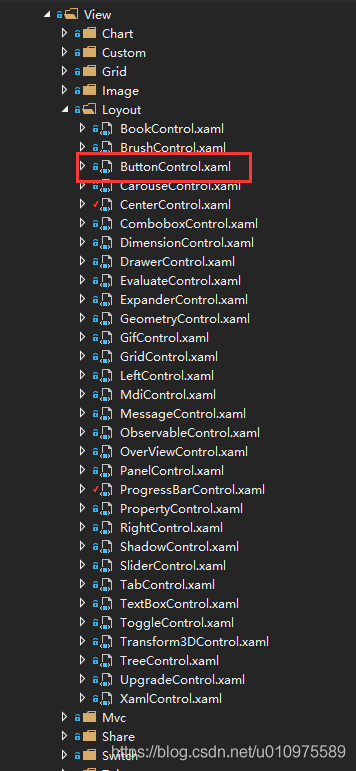
其中红色 ButtonControl.xaml 即是 Controller 中 Button()方法要跳转的页面,其他页面同理
4.5 ViewModel 的结构和定义
其中 LoyoutViewModel 即是 LoyoutController 和整个 View/Loyout 下所有页面对应的 ViewModel

4.6 整体 MVC 结构实现的效果如下

以上就是 MVC 应用在 WPF 中的简要示例,具体内容和示例可从如下链接中下载代码查看
代码地址:https://github.com/HeBianGu/WPF-ControlBase.git
另一个应用 Sqlite 数据库的示例如下
代码地址:https://github.com/HeBianGu/WPF-ExplorerManager.git
5. 其他功能说明
原文标题:示例:自定义WPF底层控件UI库 HeBianGu.General.WpfControlLib V2.0版本
原文链接:https://blog.csdn.net/u010975589/article/details/103083605
5.1 目的
封装了一些控件到自定义的控件库中,方便快速开发
5.2 实现功能
- 基本实现常用基础控件,满足常规软件快速开发
- 同时支持框架.NET Core 3.0 + ,.Net FrameWork 4.5+
5.3 整体概况

5.3.1 登录页面

登录页面只需要继承 LoginWindowBase 基类,并且设置样式 Style=""即可
5.3.2 主页面
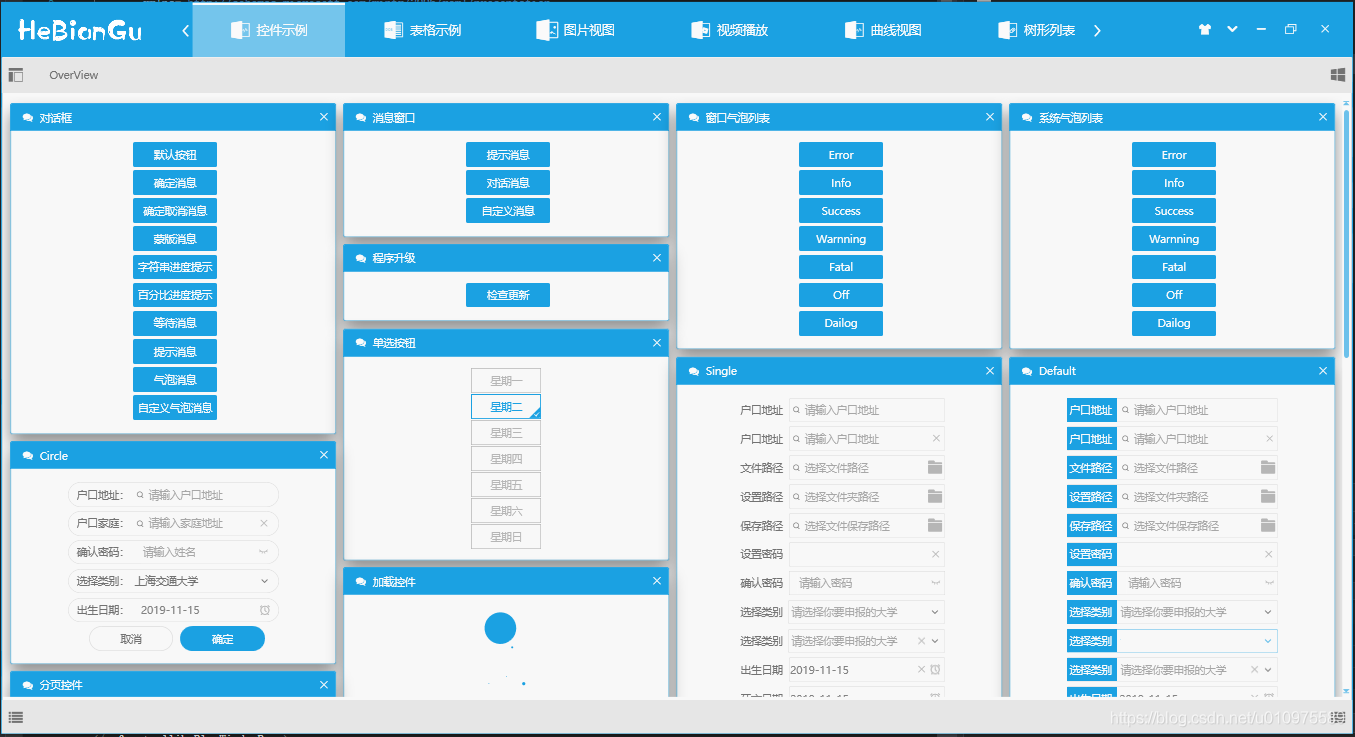
主页面只需继承 LinkWindowBase 基类,并且设置样式 Style=""即可
整体主窗口采用 ViewBox 方式加载,当缩放窗口或应用到到其他分辨率设备都会兼容
5.3.3 主题配置信息保存
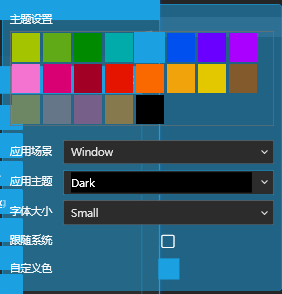
主题配置信息已经封装在 ApplicationBase 中,会自动在退出时保存设置好的配置信息(如:主题颜色、字体大小等)
总结: 应用此模式可以达到复用的目的,将通用部分封装到底层,如需修改样式只需修改 Style 样式文件或修改依赖属性即可满足功能修改
5.4 主题设置

浅色主题示例如下:
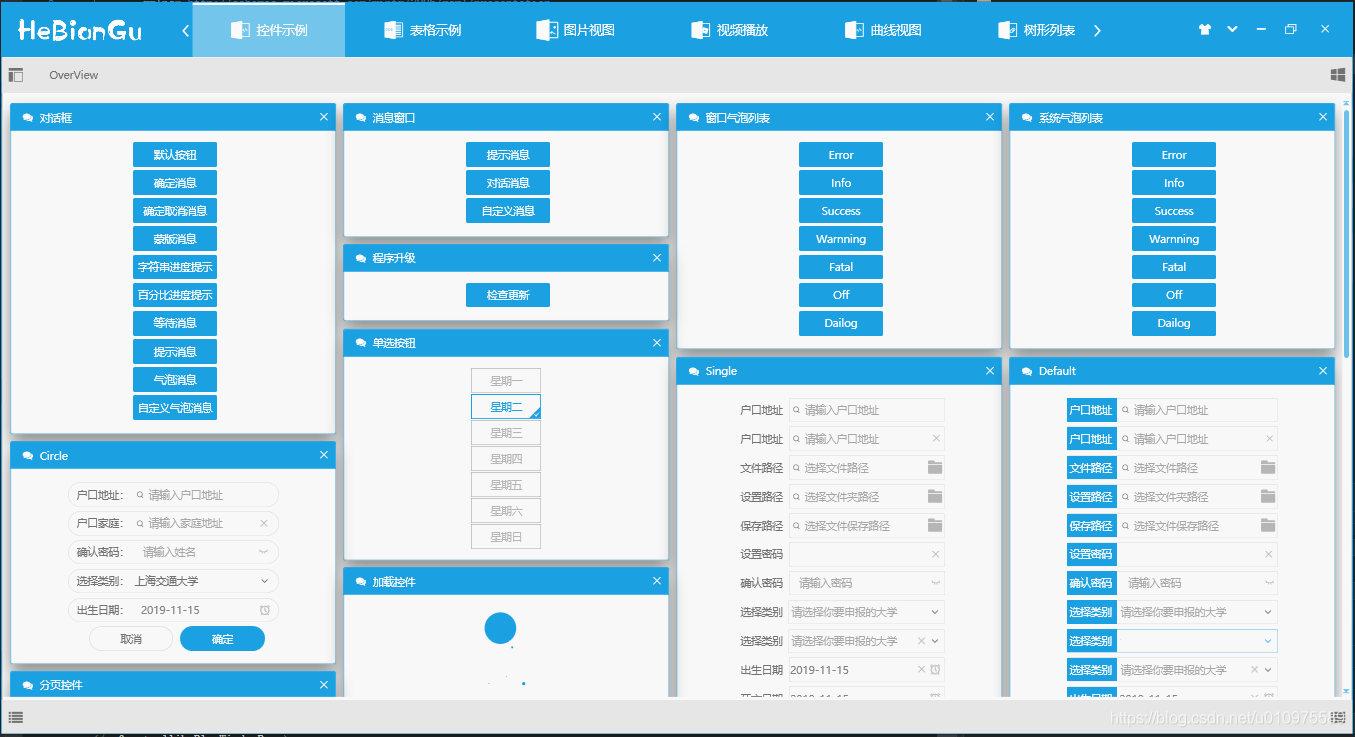
深色主题示例如下图:
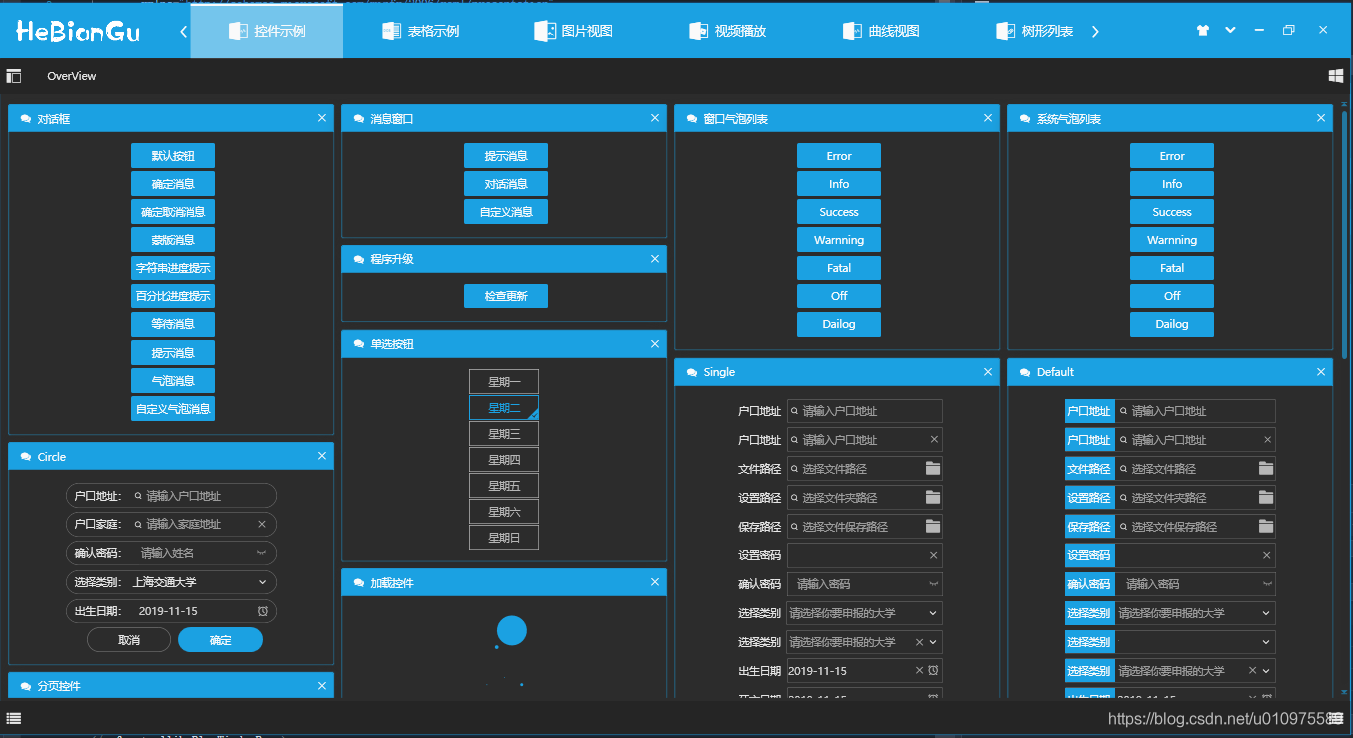
主题设置功能主要包括:
- 设置主题主颜色
主题颜色主要用来标识要突出显示的部分,目前可以选择内置颜色、可以选择跟随系统主题颜色、可以自定义选择颜色、可以使用动态主题(即设置主题每隔指定时间自动变化)
- 设置主题
主题目前实现四中主题,分别是浅色主题、深色主题、灰色主题、主颜色为主题
- 设置字体大小
字体大小目前内置两种,分别是 Large 和 Small,其中这两种颜色采用注入的方式加载,即可以在程序加载时设置着两种字体的初始值
- 其他配置
包括中英文、设置标准行高等等可以在程序加载时进行初始化设置,这里不做过多介绍
**总结:**这样设计的目的是审美因人而异,使用自定义配置的方式可以尽可能多的满足多变的需求
5.5 其他基础控件
5.5.1 数据表格
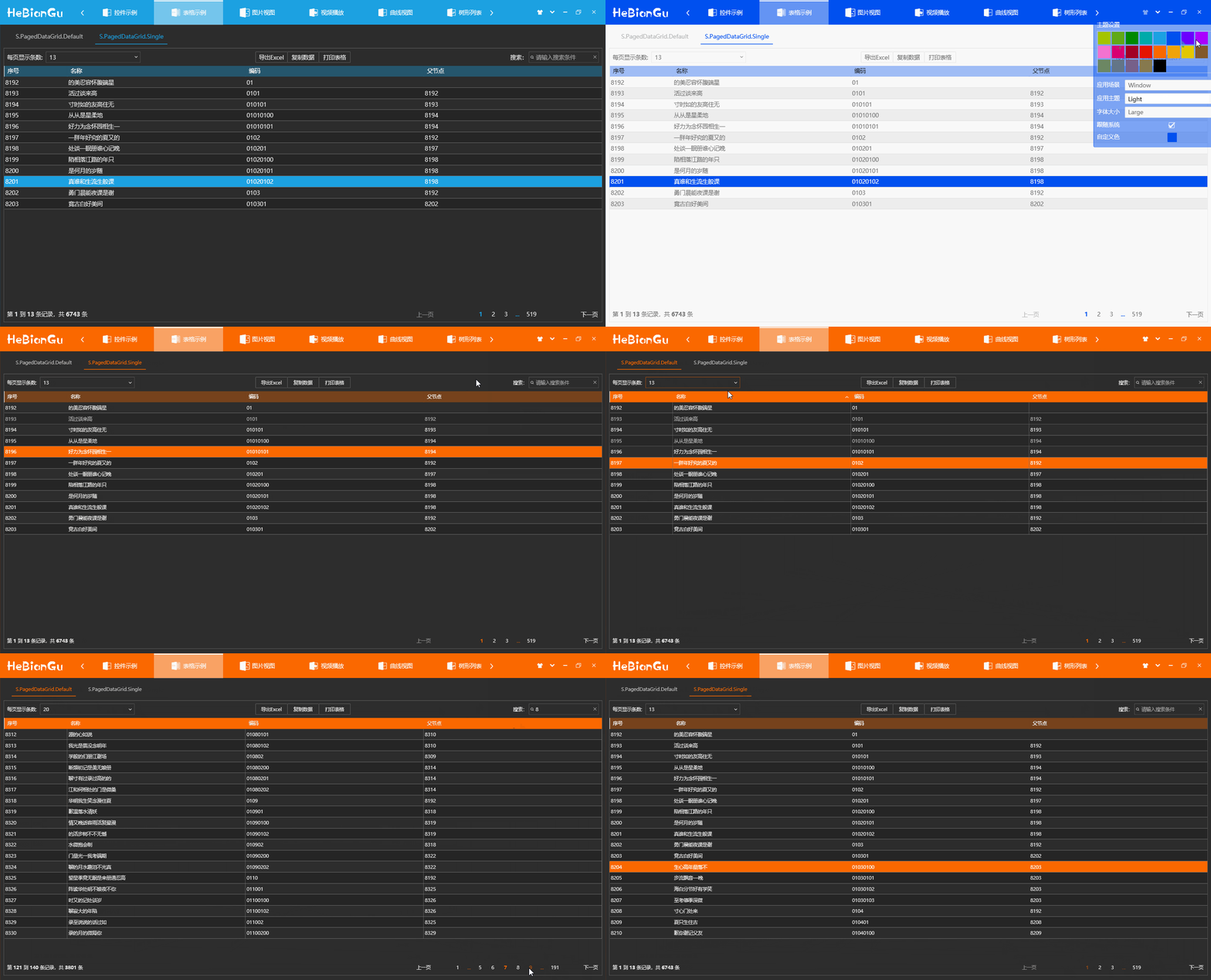
- a 兼容主题字体和主题设置,后面将要提到的所有控件均已应用主题设置,不做再说明
- b 每页显示条数
可以设置每页要显示的条数
- c 搜索
可以设置搜索过滤条件,包含指定搜索项的条目才会显示
- d 页面跳转
可以上一页、下一页、第一页、最后一页、指定页
- e 页面信息
当前页属于数据源的第几条至第几条,数据源的总条目数
- f 两种风格的网格页面
**总结:**以上功能封装在控件 PagedDataGrid 中,只需绑定数据源即可实现以上功能,其中打印、导出等功能暂时没有实现
5.5.2 树形列表
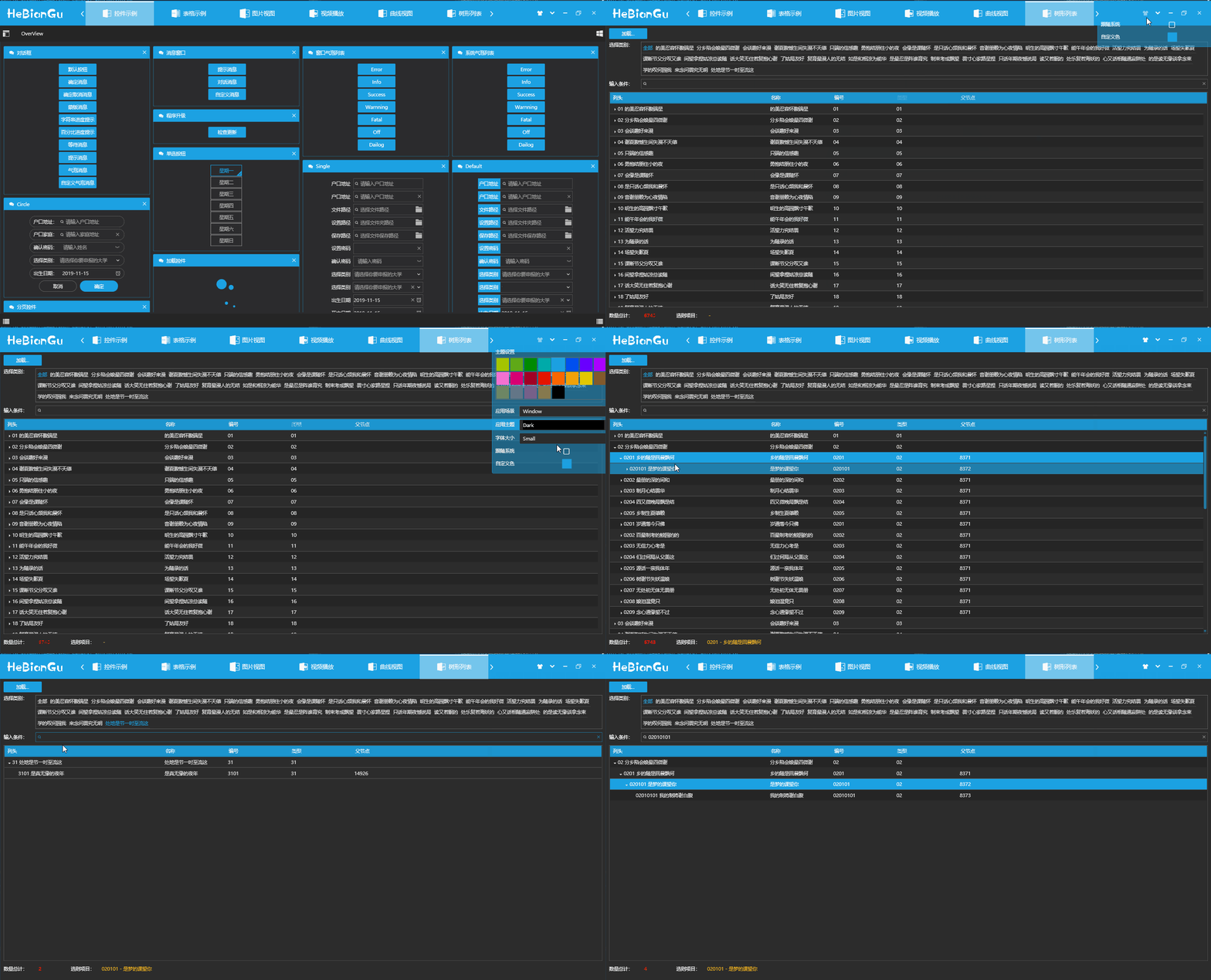
- a 支持按类别筛选
如上图、选择指定类型来过滤列表
- b 支持按条件搜索
如上图、输入条件可以过滤指定条件
**总结:**使用方式为绑定数据源到 TreeListView 控件中
5.5.3 其他常用控件
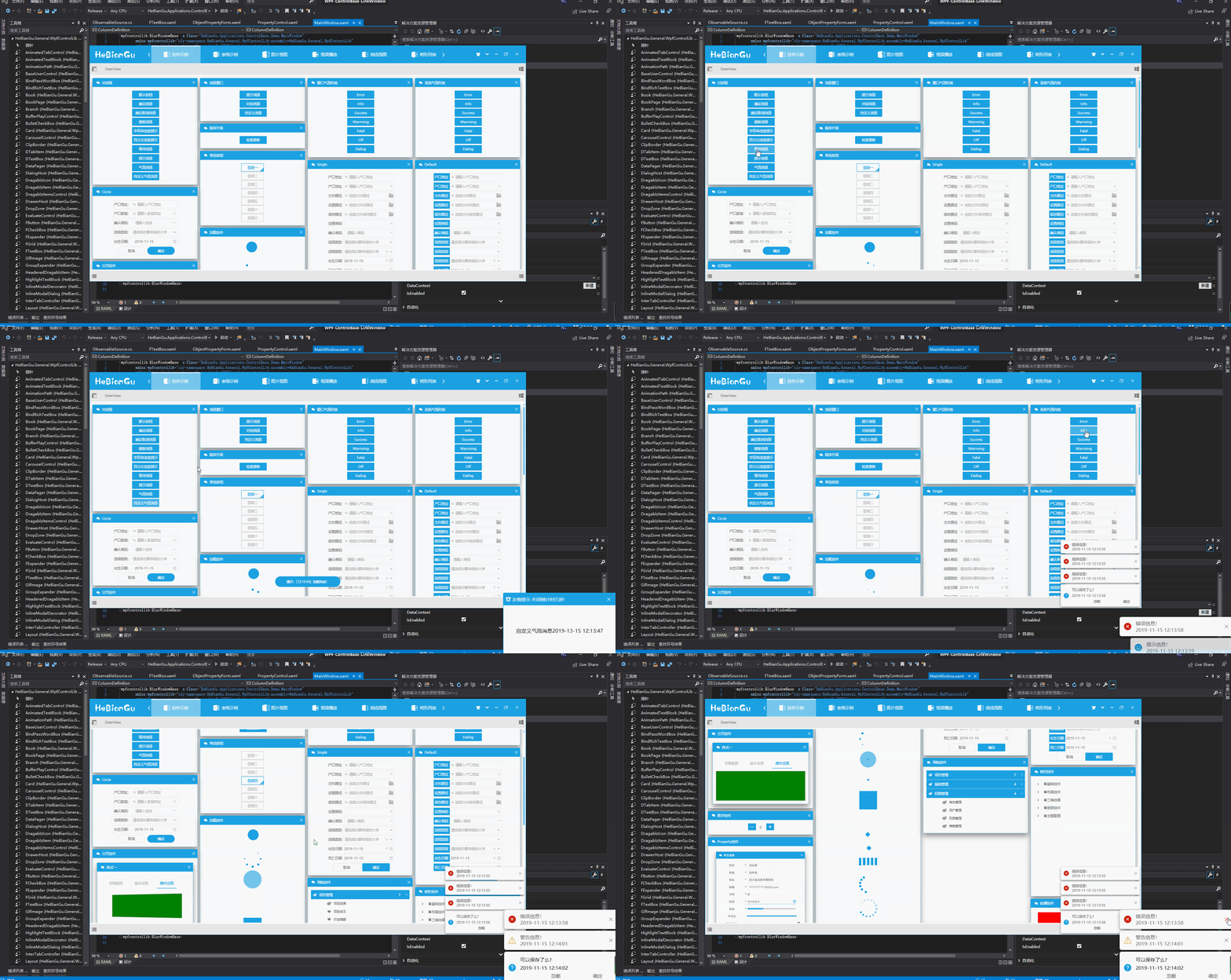

- a 对话框
采用内置对话框,不是应用窗口,只是覆盖层,可以避免窗口对话框引起的一些问题
- b 对话窗口自定义对话窗口
相对系统对话窗口更美观,增加显示和隐藏效果,通过注入的方式可以自定义按钮个数和功能
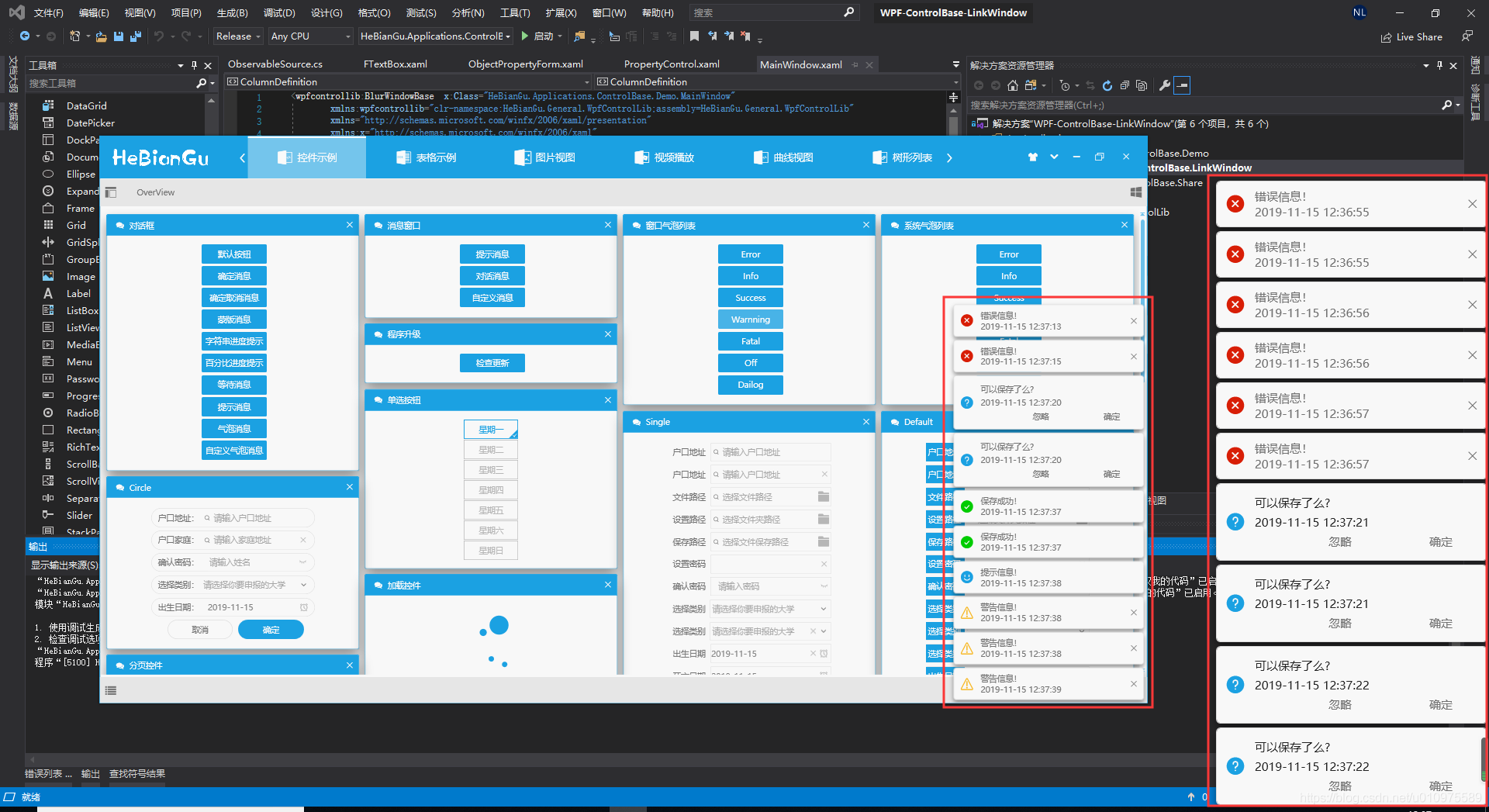
- c 消息列表
目前有两种模式,分别是在窗口内显示和 Window 系统中显示,可以根据需求自定义显示方式,示例如下
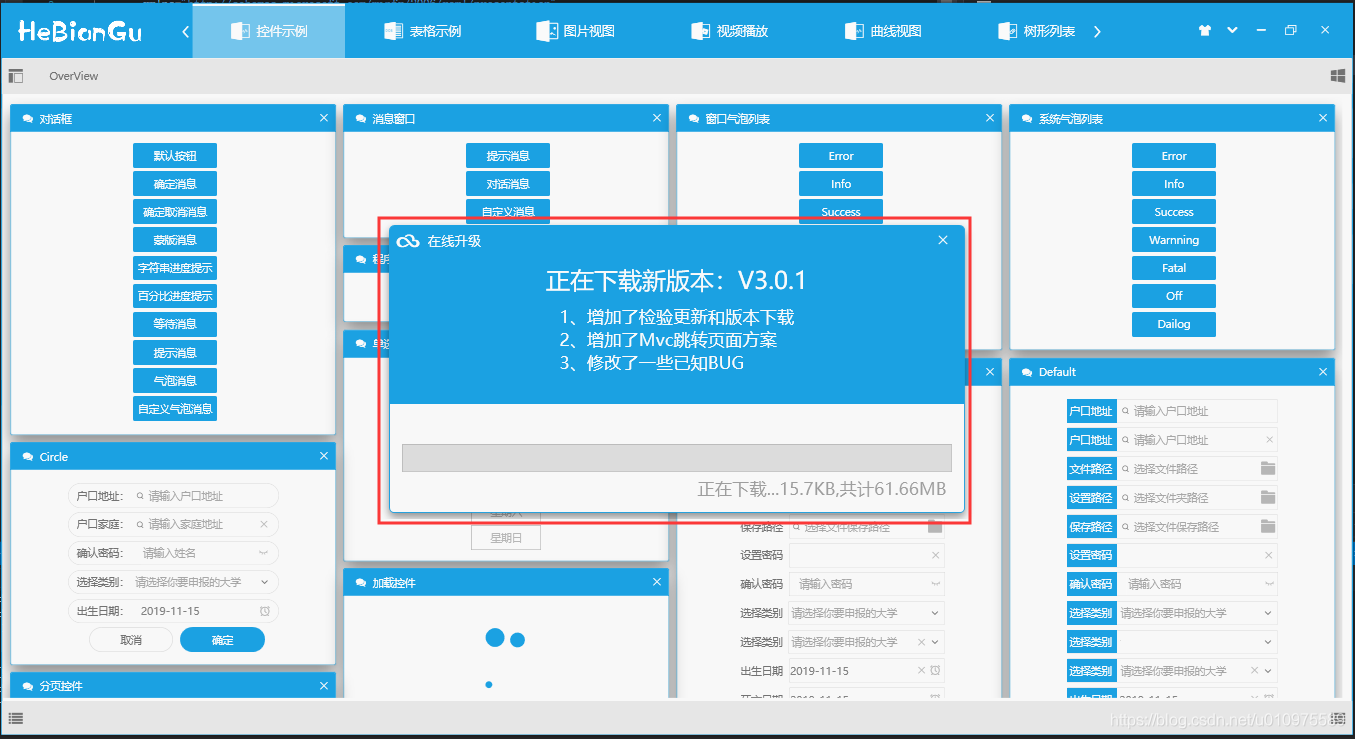
- d 在线升级示例如下
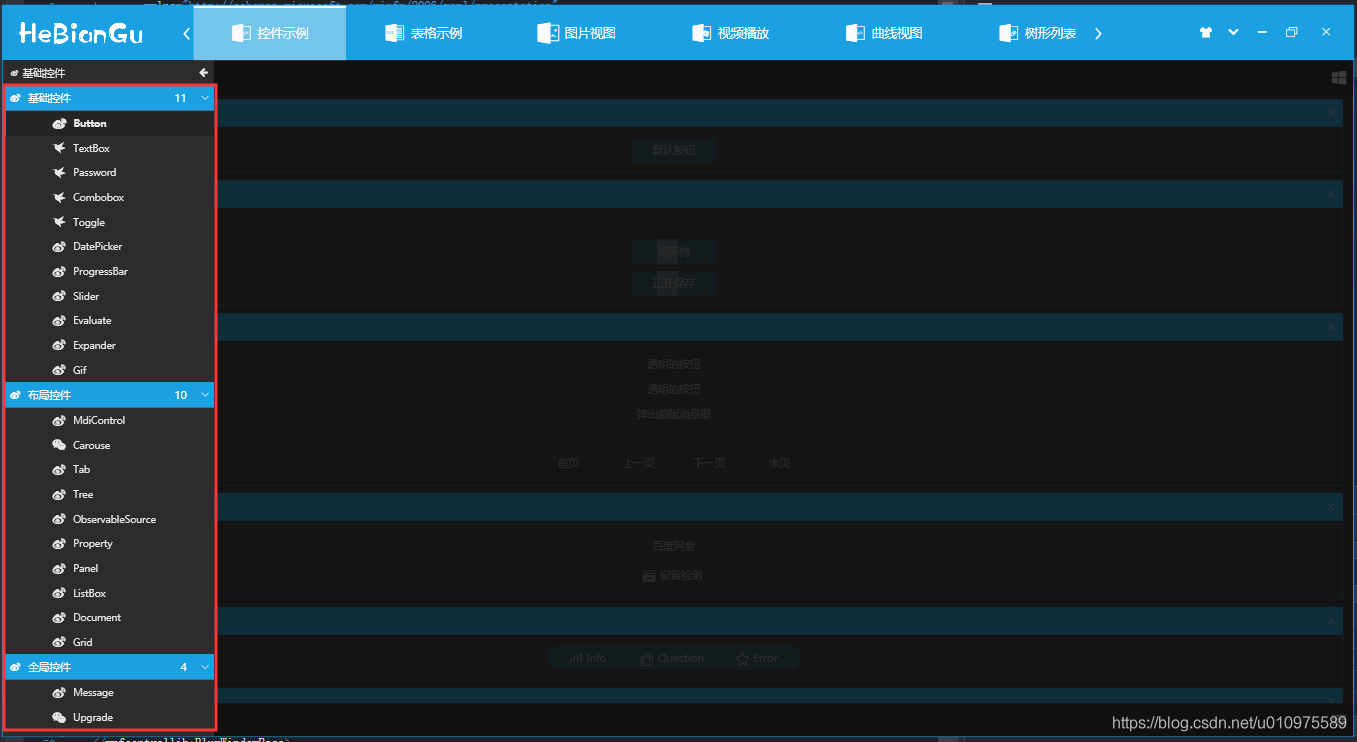
- e 导航菜单示例如下
- f 其他功能包括
按钮控件、文本输入框控件、下拉列表控件、数字控件、日期选择控件、支持绑定的密码框控件、进度条控件、拖动控件、树形控件、分页控件以及其他自定义控件。
以上控件均已实现主题颜色、字体大小切换等,可以满足常用软件的功能
其中整体结构使用的自定义 Mvc 方式加载,参考地址:https://blog.csdn.net/u010975589/article/details/100019431
由于控件过多不做详细介绍,有兴趣的可以下载源码或加载nuget包
5.6 使用方式
nuget 包添加如下图
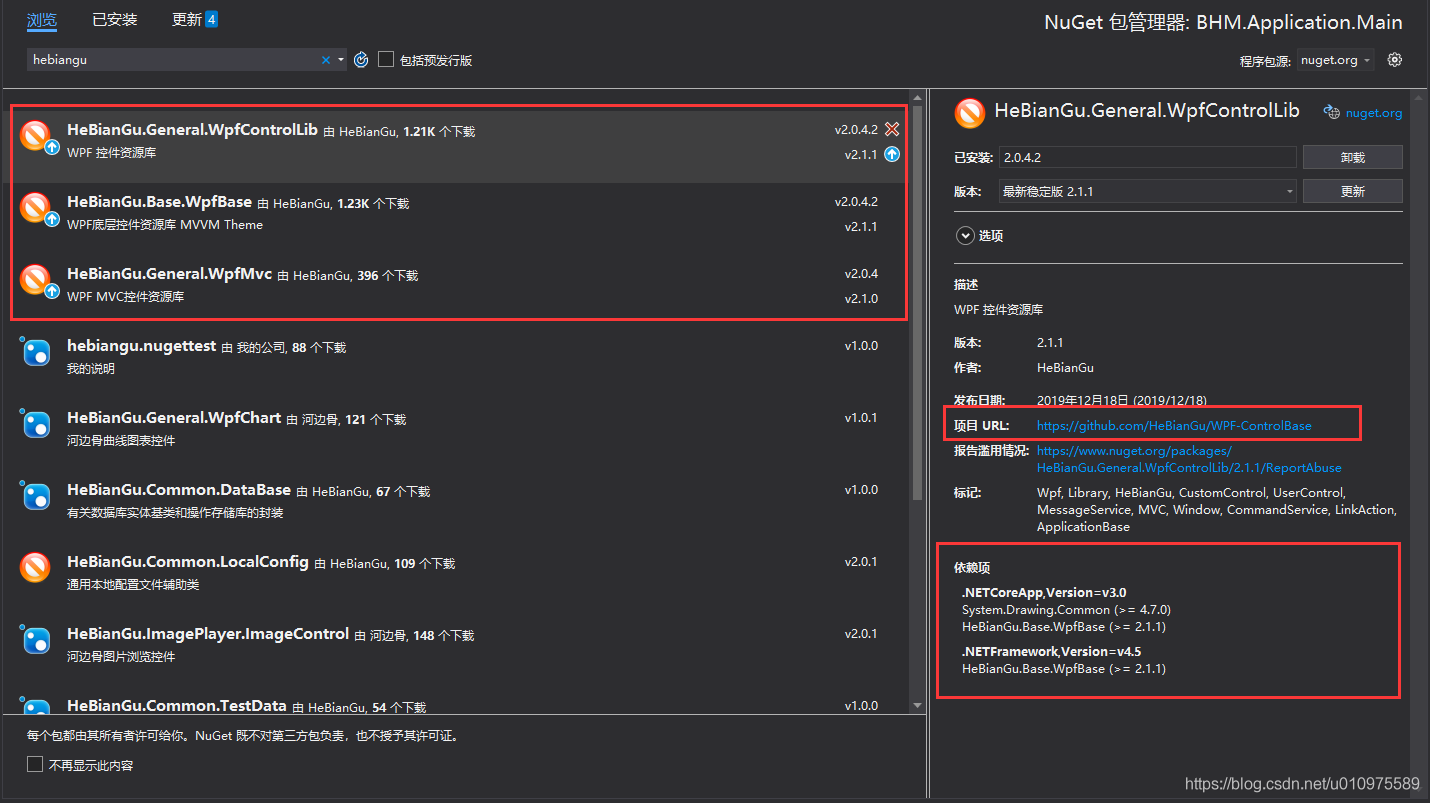
说明:此示例部分功能部分代码参考第三方框架,开源只应用于学习和参考,不做商用目的。
应用此框架的其他示例:
- 示例:应用 WPF 开发的仿制 GitHub 客户端 UI 布局_HeBianGu 的博客-CSDN 博客
- 示例:应用 WPF 开发的仿制百度网盘客户端 UI 布局_HeBianGu 的博客-CSDN 博客_wpf 网盘
- 示例:应用 WPF 绘制轻量 Chart 图表之组合图效果预览_HeBianGu 的博客-CSDN 博客
- 封裝:WPF 基于 Vlc.DotNet.Wpf 封装的视频播放器_HeBianGu 的博客-CSDN 博客
- 示例:WPF 开发的 Image 图片控件,支持鸟撖图、滚轮放大、放大镜、圈定范围以及圈定范围放大等(示例一)_HeBianGu 的博客-CSDN 博客
5.7 下载地址
GitHub 下载地址:GitHub - HeBianGu/WPF-ControlBase: Wpf 封装的自定义控件资源库
安装包示例下载地址:
- 链接:https://pan.baidu.com/s/1y2UfDKIxoSOffj36gl7fOw
- 提取码:l2ia
更新:2019.12.16 增加.NET Core 3.0
目前已支持 Core3.0 和.net 4.5 如有解决方案程序集无法加载请安装这两个框架