

在.NET 生态系统中,控制台程序的表现相对较差。通常来说,这种项目经常作为 Demo 演示使用。现在是时候让控制台应用程序得到其应有的尊重了。
终端技术的发展开启了增强用户体验的复兴。 ITerm2, Hyper, Windows Terminal,所有这些工具都为单调的控制台体验增加了一些趣味。 虽然这些工具都允许用户定制自己体验,但是对于开发人员来说,他们还希望向控制台应用程序中添加一些编程风格。
在本篇博文中,我们将一起看一下如何使用一些出色的开源项目为我们的控制台程序增添趣味。这里说明的顺序并不表明项目的优劣,他们都是改善我们控制台程序体验的优秀方案。
1. Colorful.Console
Colorful.Console是一个 NuGet 包,它可以增强我们对控制台输出文字样式的控制。我们可以使用System.Drawing.Color中定义的颜色来定义控制台程序的配色方案。
using System;
using System.Drawing;
using Console = Colorful.Console;
...
...
Console.WriteLine("console in pink", Color.Pink);
Console.WriteLine("console in default");

除此之外,Colorful.Console还允许我们使用FIGlet字体编写带颜色的 ASCII 码输出
- FIGLet: http://www.figlet.org/
FigletFont font = FigletFont.Load("chunky.flf");
Figlet figlet = new Figlet(font);

Console.WriteLine(figlet.ToAscii("Belvedere"), ColorTranslator.FromHtml("#8AFFEF"));
Console.WriteLine(figlet.ToAscii("ice"), ColorTranslator.FromHtml("#FAD6FF"));
Console.WriteLine(figlet.ToAscii("cream."), ColorTranslator.FromHtml("#B8DBFF"));
这个输出的结果完全就是黑客的梦想。
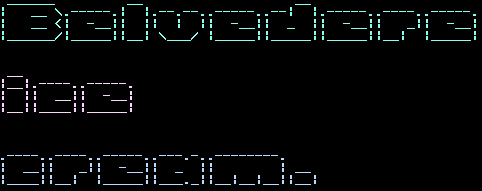
我建议你访问一下Colorful.Console的官方站点,了解这个库能实现的所有效果,以便更好的改善控制台程序的体验。
- Colorful.Console: http://colorfulconsole.com/
2. ConsoleTables
ConsoleTables包是我(作者)自己编写的,这里有一点厚颜无耻.。 使用这个库,可以让开发人员很轻松的将一组对象以表格的形式展示在控制台中。
static void Main(String[] args)
{
    var table = new ConsoleTable("one", "two", "three");
    table.AddRow(1, 2, 3)
         .AddRow("this line should be longer", "yes it is", "oh");

    table.Write();
    Console.WriteLine();

    var rows = Enumerable.Repeat(new Something(), 10);

    ConsoleTable
        .From<Something>(rows)
        .Configure(o => o.NumberAlignment = Alignment.Right)
        .Write(Format.Alternative);

    Console.ReadKey();
}
以前,谁不希望能在控制台中输出一个表格呢?
FORMAT: Default:

 --------------------------------------------------
 | one                        | two       | three |
 --------------------------------------------------
 | 1                          | 2         | 3     |
 --------------------------------------------------
 | this line should be longer | yes it is | oh    |
 --------------------------------------------------

 Count: 2


FORMAT: Alternative:

+----------------------------+-----------+-------+
| one                        | two       | three |
+----------------------------+-----------+-------+
| 1                          | 2         | 3     |
+----------------------------+-----------+-------+
| this line should be longer | yes it is | oh    |
+----------------------------+-----------+-------+
自从ConsoleTables发布以来,许多开发人员已经研发出自己的控制台表格库了。有一些甚至更好,你可以自行去查找一下。
3. ShellProgressBar
和需要其他应用程序一样,控制台程序也可以执行长时任务。ShellProgressBar是一个非常棒的库,使用它,你可以在控制台输出一些非常惊艳的进度条。而且,ShellProgressBar是可以实现进度条的嵌套使用。例如,如下 GIF 动画中展示的效果。
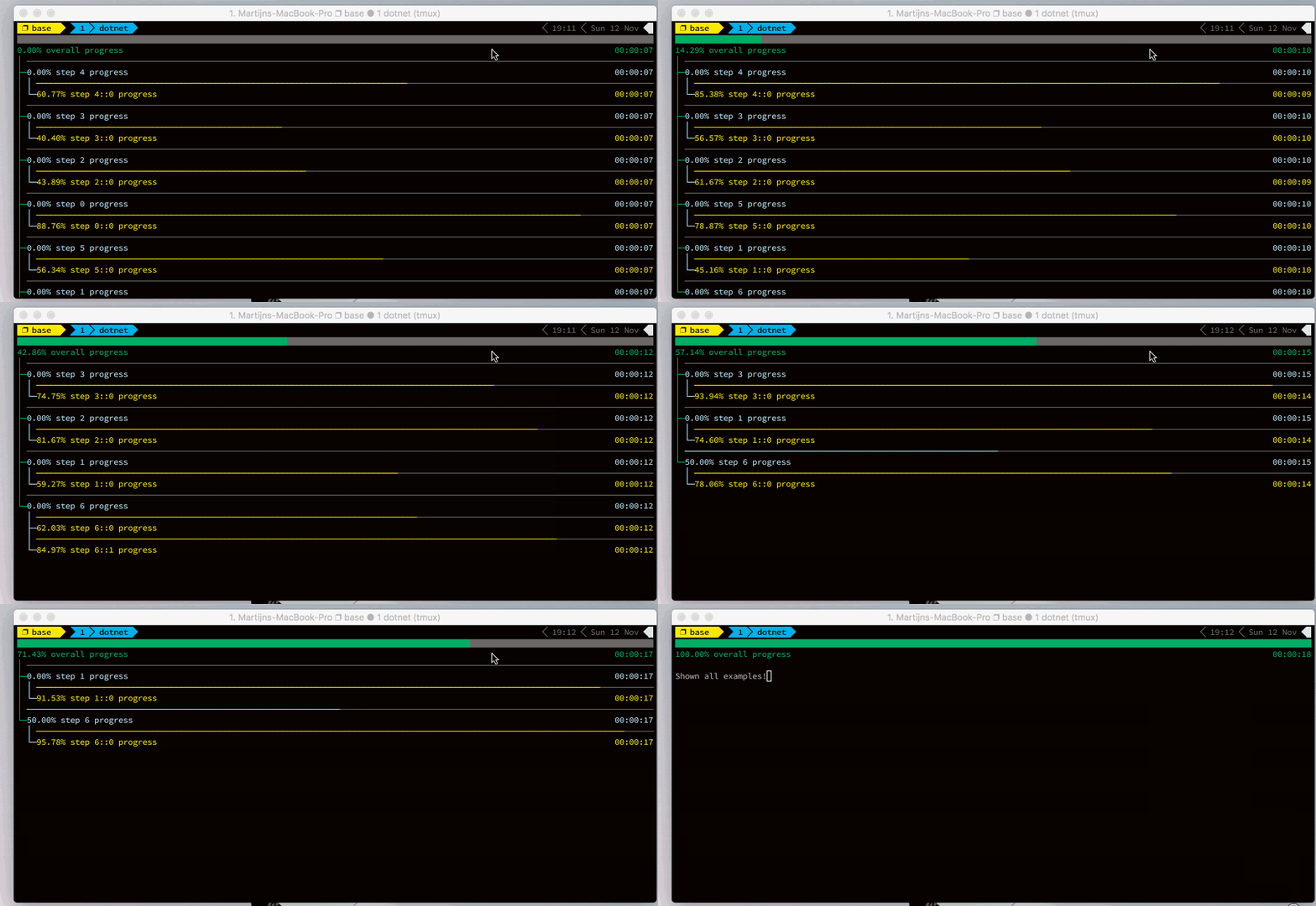
ShellProgressBar使用起来相当的直接。
const int totalTicks = 10;
var options = new ProgressBarOptions
{
    ProgressCharacter = '─',
    ProgressBarOnBottom = true
};
using (var pbar = new ProgressBar(totalTicks, "Initial message", options))
{
    pbar.Tick(); //will advance pbar to 1 out of 10.
    //we can also advance and update the progressbar text
    pbar.Tick("Step 2 of 10");
}
谢谢你, Martijin Larrman, 这真的是一个非常好用的库。
4. GUI.CS
GUI.CS是一个非常棒的控制台 UI 工具包。它提供了一个功能完善的工具箱,开发人员可以使用它构建早期控制台常见的一种用户界面。
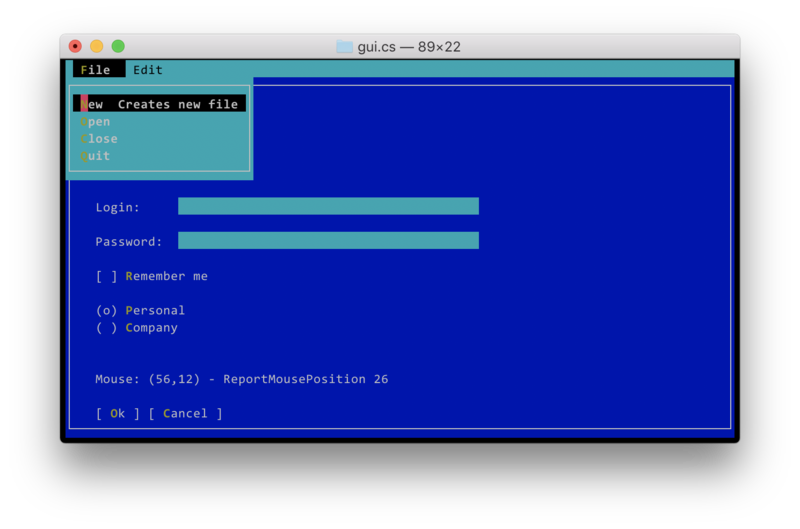
这个 UI 工具箱提供了如下控件:
- Buttons
- Labels
- Text Entry
- Text View
- User Inputs
- Windows
- Menus
- ScrollBars
使用它,开发人员可以在控制台应用中实现一些令人难以置信的效果。这个库是由Miguel De Icaza编写的,是控制台技术的巅峰之作,下面让我们一起来看一个实例程序。
using Terminal.Gui;

class Demo {
    static void Main ()
    {
        Application.Init ();
        var top = Application.Top;

    // 创建顶级窗体
        var win = new Window ("MyApp") {
        X = 0,
        Y = 1, // 预留菜单行

        // 使用Dim.Fill(), 它可以自动调整窗体大小,实现自适应,而无需手动敢于
        Width = Dim.Fill (),
        Height = Dim.Fill ()
    };
        top.Add (win);

    // 创建一个菜单
        var menu = new MenuBar (new MenuBarItem [] {
            new MenuBarItem ("_File", new MenuItem [] {
                new MenuItem ("_New", "Creates new file", NewFile),
                new MenuItem ("_Close", "", () => Close ()),
                new MenuItem ("_Quit", "", () => { if (Quit ()) top.Running = false; })
            }),
            new MenuBarItem ("_Edit", new MenuItem [] {
                new MenuItem ("_Copy", "", null),
                new MenuItem ("C_ut", "", null),
                new MenuItem ("_Paste", "", null)
            })
        });
        top.Add (menu);

    var login = new Label ("Login: ") { X = 3, Y = 2 };
    var password = new Label ("Password: ") {
            X = Pos.Left (login),
        Y = Pos.Top (login) + 1
        };
    var loginText = new TextField ("") {
                X = Pos.Right (password),
                Y = Pos.Top (login),
                Width = 40
        };
        var passText = new TextField ("") {
                Secret = true,
                X = Pos.Left (loginText),
                Y = Pos.Top (password),
                Width = Dim.Width (loginText)
        };

    // 添加一些其他控件
    win.Add (
        // 这是我最喜欢的布局
          login, password, loginText, passText,

        // 这里使用了绝对定位
            new CheckBox (3, 6, "Remember me"),
            new RadioGroup (3, 8, new [] { "_Personal", "_Company" }),
            new Button (3, 14, "Ok"),
            new Button (10, 14, "Cancel"),
            new Label (3, 18, "Press F9 or ESC plus 9 to activate the menubar"));

        Application.Run ();
    }
}
总结
作为开发人员,我们可以沉迷于 GUI, 这是理所当然的,它使我们更有生产力。但是控制台应用程序同样也很强大。下次当你编写控制台程序的时候,你可以考虑使用以上介绍的某些库,以便为你的控制台应用增添色彩。
原文标题:Upgrade Your .NET Console App Experience
原文链接:https://khalidabuhakmeh.com/upgraded-dotnet-console-experience
原文作者:Khalid Abuhakmeh
译文:Lamond Lu
本文转载自博客园(古道轻风):https://www.cnblogs.com/88223100/p/upgraded-dotnet-console-experience.html