背景
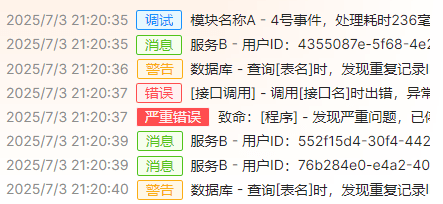
Avalonia 目前没有富文本框可实现日志输出显示,但提供了SelectableTextBlock控件可以替换,这是站长实现的一个日志组件效果:
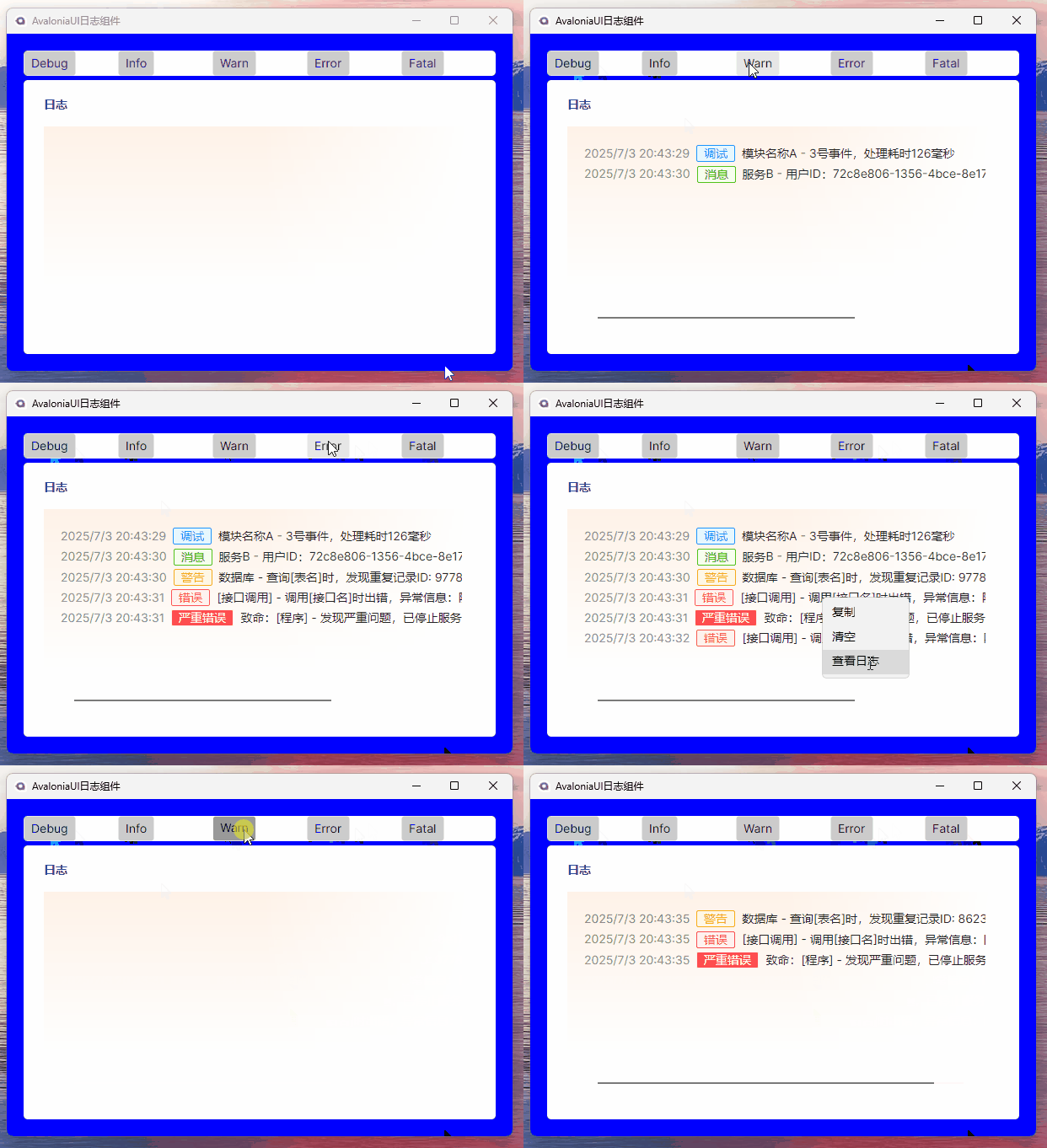
可展示日志时间、日志级别、日志详细内容等,后台除输出到界面外,也可持久化输出到文本文件,对于更多的日志信息展示可自行扩展,下面先讲解实现过程,再指出存在的问题,欢迎 PR。
使用
安装:
NuGet\Install-Package CodeWF.LogViewer.Avalonia -Version 1.0.10.2
视图使用:
xmlns:log="https://codewf.com"

<log:LogView />
日志输出:
Logger.Debug("调试日志");
Logger.Info("信息日志");
Logger.Warn("警告日志");
Logger.Error("错误日志");
Logger.Fatal("致命日志");
实现
只说关键部分代码,具体代码可浏览CodeWF.LogViewer仓库。
程序通过Logger类输出日志,该类将日志信息缓存到ConcurrentQueue<LogInfo> Logs集合,Logger类定义如下:
public static class Logger
{
    public static LogType Level = LogType.Info;
    public static string LogDir = AppDomain.CurrentDomain.BaseDirectory;
    internal static readonly ConcurrentQueue<LogInfo> Logs = new();

    public static void RecordToFile()
    {
        Task.Run(async () =>
        {
            while (true)
            {
                while (TryDequeue(out var log))
                {
                    var content =
                        $"{log.RecordTime}: {log.Level.Description()} {log.Description}{Environment.NewLine}";
                    AddLogToFile(content);
                }

                await Task.Delay(TimeSpan.FromMilliseconds(100));
            }
        });
    }

    public static bool TryDequeue(out LogInfo info)
    {
        return Logs.TryDequeue(out info);
    }

    public static void Log(int type, string content)
    {
        var logType = (LogType)type;
        if (Level > logType) return;
        Logs.Enqueue(new LogInfo(logType, content));
    }

    public static void Debug(string content)
    {
        if (Level <= LogType.Debug)
        {
            Logs.Enqueue(new LogInfo(LogType.Debug, content));
        }
    }

    public static void Info(string content)
    {
        if (Level <= LogType.Info)
        {
            Logs.Enqueue(new LogInfo(LogType.Info, content));
        }
    }

    public static void Warn(string content)
    {
        if (Level <= LogType.Warn)
        {
            Logs.Enqueue(new LogInfo(LogType.Warn, content));
        }
    }

    public static void Error(string content, Exception? ex = null)
    {
        if (Level > LogType.Error) return;

        var msg = ex == null ? content : $"{content}\r\n{ex.ToString()}";

        Logs.Enqueue(new LogInfo(LogType.Error, msg));
    }

    public static void Fatal(string content, Exception? ex = null)
    {
        if (Level > LogType.Fatal) return;

        var msg = ex == null ? content : $"{content}\r\n{ex.ToString()}";

        Logs.Enqueue(new LogInfo(LogType.Fatal, msg));
    }

    public static void AddLogToFile(string msg)
    {
        try
        {
            var logFolder = System.IO.Path.Combine(LogDir, "Log");
            if (!Directory.Exists(logFolder))
            {
                Directory.CreateDirectory(logFolder);
            }

            var logFileName = System.IO.Path.Combine(logFolder, $"Log_{DateTime.Now:yyyy_MM_dd}.log");
            File.AppendAllText(logFileName, msg);
        }
        catch
        {
            // ignored
        }
    }
}
只输出日志到文本文件
如果只是输出日志到文本文件,而不需要输出到界面,需要主动调用Logger.RecordToFile()方法定时检查日志输出。
同时输出日志到文本文件和视图
前提:这里不需要调用Logger.RecordToFile()方法
我们先看视图LogView.axaml,该部分使用ScrollViewer包裹SelectableTextBlock,以实现日志滚动查看及日志文本的可选择复制:
<ScrollViewer
    x:Name="LogScrollViewer"
    HorizontalScrollBarVisibility="Auto"
    PointerPressed="LogScrollViewer_OnPointerPressed"
    VerticalScrollBarVisibility="Auto">
    <SelectableTextBlock
        x:Name="LogTextView"
        TextAlignment="Start"
        TextWrapping="Wrap">
        <SelectableTextBlock.ContextMenu>
            <ContextMenu x:Name="LogContextMenu">
                <MenuItem Click="Copy_OnClick" Header="复制" />
                <MenuItem Click="Clear_OnClick" Header="清空" />
                <MenuItem Click="Location_OnClick" Header="查看日志" />
            </ContextMenu>
        </SelectableTextBlock.ContextMenu>
    </SelectableTextBlock>
</ScrollViewer>
LogView.axaml.cs内调用RecordLog()方法定时读取缓存日志,并再调用LogNotifyHandler方法写入界面,及调用Logger.AddLogToFile方法写入文本文件,代码不多,下面是核心部分:
partial class LogView : UserControl
{
    // ...
    private void RecordLog()
    {
        if (_isRecording) return;

        _isRecording = true;

        Task.Run(async () =>
        {
            while (true)
            {
                while (Logger.TryDequeue(out var log)) LogNotifyHandler(log);

                await Task.Delay(TimeSpan.FromMilliseconds(100));
            }
        });
    }

    private void LogNotifyHandler(LogInfo logInfo)
    {
        if (Logger.Level > logInfo.Level) return;

        _synchronizationContext.Post(o =>
        {
            var inlines = _textView.Inlines;
            try
            {
                if (inlines?.Count > MaxCount)
                {
                    for (var i = 0; i < 3; i++)
                    {
                        var needRemoveElement = inlines.First();
                        if (needRemoveElement != null)
                        {
                            inlines.Remove(needRemoveElement);
                        }
                    }
                }

                var start = _textView.Text.Length;

                inlines?.Add(
                    new Run($"{logInfo.RecordTime}")
                    {
                        Foreground = new SolidColorBrush(Color.Parse("#8C8C8C")),
                        BaselineAlignment = BaselineAlignment.Center
                    });
                inlines?.Add(GetLevelInline(logInfo.Level));
                inlines?.Add(new Run(logInfo.Description)
                {
                    Foreground = new SolidColorBrush(Color.Parse("#262626")),
                    BaselineAlignment = BaselineAlignment.Center
                });
                inlines?.Add(new Run(Environment.NewLine));

                Logger.AddLogToFile(
                    $"{logInfo.RecordTime}: {logInfo.Level.Description()} {logInfo.Description}{Environment.NewLine}");

                _textView.SelectionStart = start;
                _textView.SelectionEnd = _textView.Text.Length;
                _scrollViewer.ScrollToEnd();
            }
            catch
            {
                // ignored
            }
        }, null);
    }

    private Span GetLevelInline(LogType level)
    {
        var content = level.Description();

        // 创建宽度为零的透明文本,用于复制使用
        // TODO:复制还是有问题,会错位
        var zeroWidthText = new Run($"【{content}】")
        {
            Foreground = Brushes.Transparent, FontSize = 0.001
        };

        // 视觉显示的文本,不会被复制使用
        var border = new Border
        {
            BorderBrush = GetLevelForeground(level),
            Background = GetLevelBackground(level),
            BorderThickness = new Thickness(1),
            CornerRadius = new CornerRadius(2),
            Padding = new Thickness(8, 0),
            Margin = new Thickness(8, 2),
            VerticalAlignment = VerticalAlignment.Center,
            IsHitTestVisible = false,
            Child = new TextBlock
            {
                Text = content,
                Foreground = GetLevelForeground(level),
                IsHitTestVisible = false
            }
        };
        var levelSpan = new Span();
        levelSpan.Inlines.Add(zeroWidthText);
        levelSpan.Inlines.Add(border);
        return levelSpan;
    }
    // ...
}
上面省略了根据日志类型获取展示前景色、背景色等等代码,这不重要。
存在的问题
看上面的GetLevelInline方法,该方法生成日志级别块,使用的Border套日志级别描述(调试、错误等),实现日志类型带边框效果,但复制存在问题:
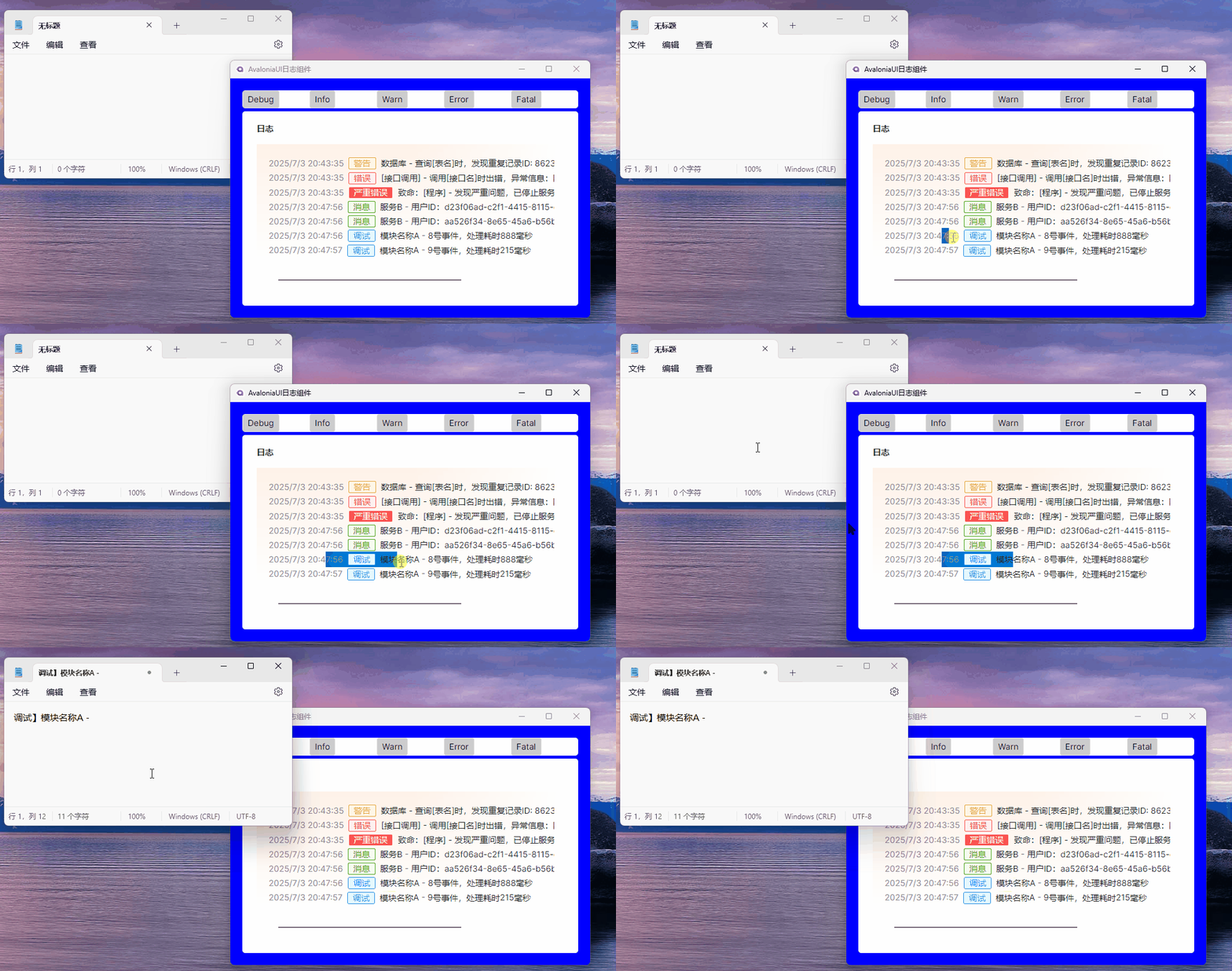
选择的7:56 调试 模块块并按Ctrl + C复制,再粘贴到记事本,复制出来是调试】模块名称A-,很明显的错位问题。
复制的应该是文本内容,但Border是不允许复制的,所以代码中留了注释创建宽度为零的透明文本,用于复制使用:
// 创建宽度为零的透明文本,用于复制使用
// TODO:复制还是有问题,会错位
var zeroWidthText = new Run($"【{content}】")
{
    Foreground = Brushes.Transparent, FontSize = 0.001
};
具体的不细说了,大家有什么解决方案吗?等待有缘人 PR 了,感谢。
总结
本文主要是寻求 PR,该组件如果对您有用,欢迎使用,仓库地址:
- CodeWF.LogViewer:https://github.com/dotnet9/CodeWF.LogViewer
下篇分享自定义 TabItem 边框实现: