1 Purpose of This Article
A few days ago, I launched an online Icon conversion tool. To make users feel at ease, I modified some code to delete temporary files immediately after converting and downloading an Icon. I also posted the development steps and code below the tool. Let me know if this approach is appropriate—see Issue 1.
This article won’t cover the code modification process (since the tool and the blog post on the site have already been updated). Instead, I’ll explain how to display a Markdown file below the tool. Check out the effect:

Why add this feature?
My idea is that besides providing the tool for free, users can also understand how it was developed. This should be more convenient:
- It’s hidden by default; click the
How was it developed?button to load the development article. - There’s currently no comment feature (might be added later); click
I want to give feedback (or complain)to jump to the Dotnet9 article Displaying Markdown files in csharp Blazor and leave a comment. - There’s also a
View source codebutton to browse the tool’s source code.
Now let’s discuss how to display Markdown files in Blazor. First, here’s what’s currently achieved:
- Just rendering the Markdown file as HTML.
- Syntax highlighting is not yet added.
2 Development Steps
Reference: blazor-markdown.
- Add NuGet packages
<PackageReference Include="BlazorMarkdown" Version="1.0.0" />
<PackageReference Include="HtmlSanitizer" Version="7.1.488" />
- Register services
Program.cs
builder.Services.AddScoped<IHtmlSanitizer, HtmlSanitizer>(x =>
{
    // Configure sanitizer rules as needed here.
    // For now, just use default rules + allow class attributes
    var sanitizer = new HtmlSanitizer();
    sanitizer.AllowedAttributes.Add("class");
    return sanitizer;
});
- Import namespace
_Imports.razor
@using BlazorMarkdown
- Usage
Prepare a Markdown file. For example, I put it under wwwroot:
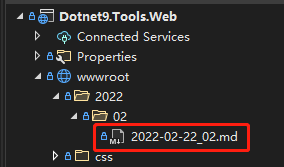
Now you can use it directly in IcoTool.razor:
<Markdown FilePath="wwwroot/2022/02/2022-02-22_02.md" />
Summary
That’s it—it’s that simple. See the effect at the beginning of this article. I won’t ramble today.
Oh, one more thing: if your Markdown contains images or other media files, remember to add these styles for responsiveness:
<style>
    h3 {
        border-bottom: 1px solid #eee;
        margin-top: 50px;
        padding-bottom: 10px;
    }

    pre {
        background: #1E1E1E;
        color: #eee;
        overflow-x: auto;
        padding: 0.5em !important;
        white-space: pre;
        word-break: normal;
        word-wrap: normal;
    }

    img, video, source { max-width: 100% }

    pre > code { white-space: pre; }
</style>