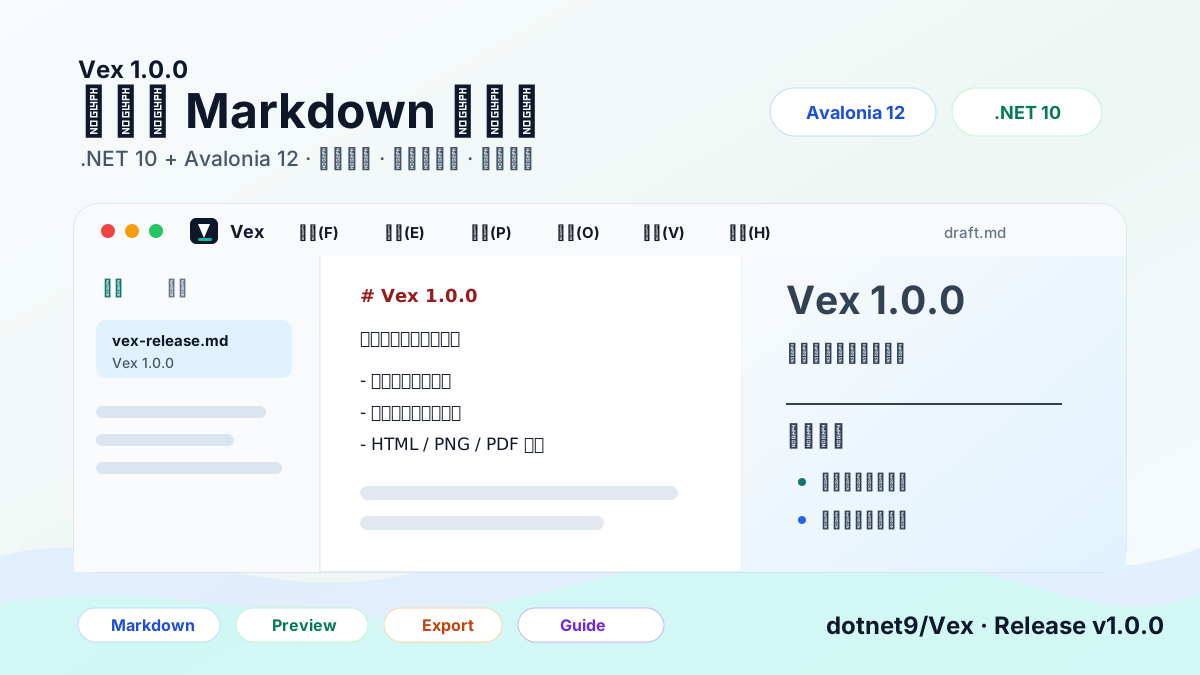
This time, let me introduce a new desktop writing tool: Vex (维刻).
Vex is a free, open-source, cross-platform Markdown editor built on .NET 10 + Avalonia 12. It does not aim to be a full-featured knowledge base or a clone of mature commercial editors. Its current focus is clear: Markdown source editing, live preview, file management, export, and copying to content platforms.
Project repository: https://github.com/dotnet9/Vex
Release v1.0.0: https://github.com/dotnet9/Vex/releases/tag/v1.0.0
Vex's slogan is: Minimal power, eloquent prose.
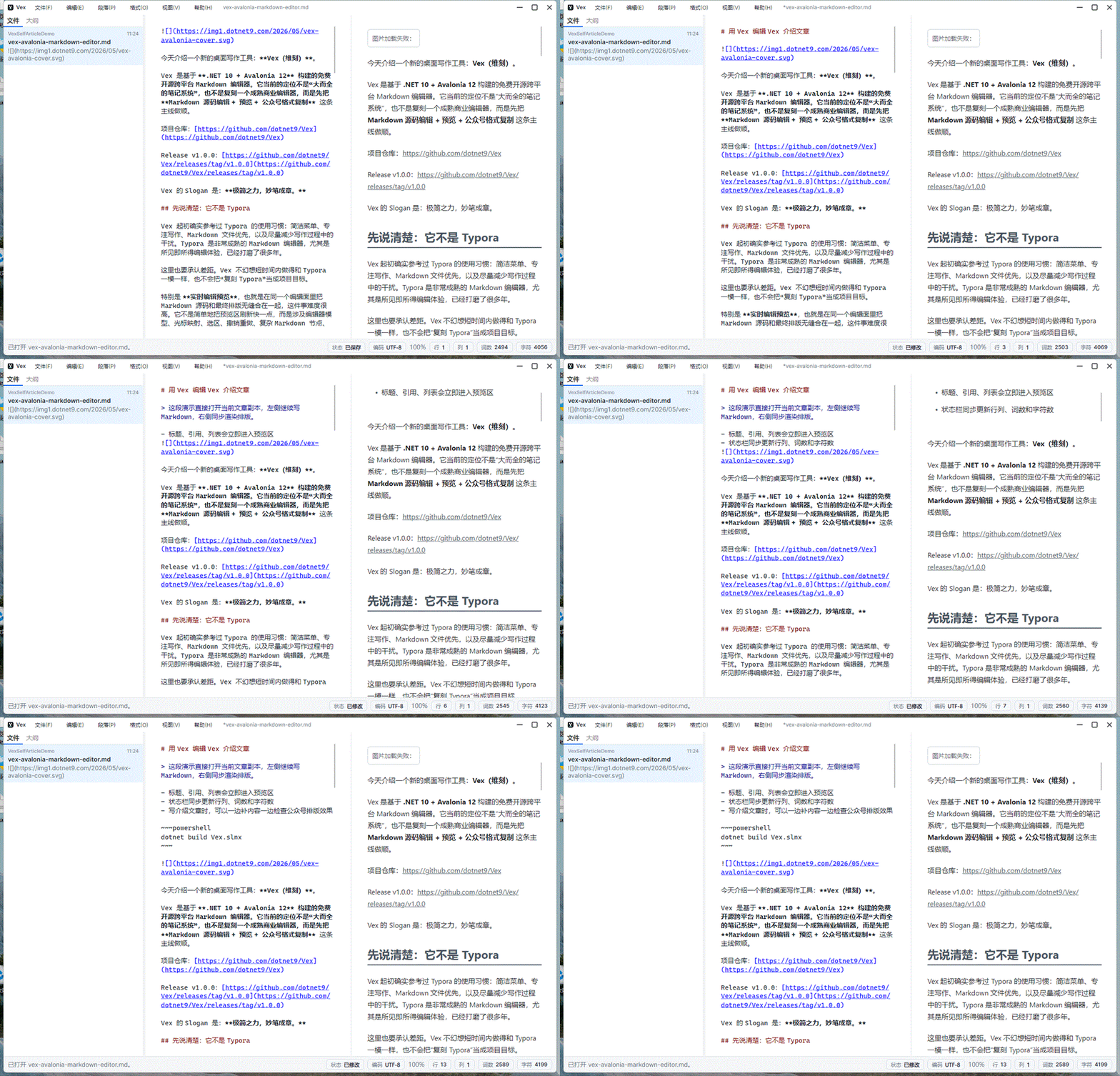
Let's start with the editing experience. The GIF below shows Vex opening a copy of this article: continue writing Markdown on the left, with live preview on the right; headings, quotes, lists, code blocks, and statistics in the status bar all update in real time.

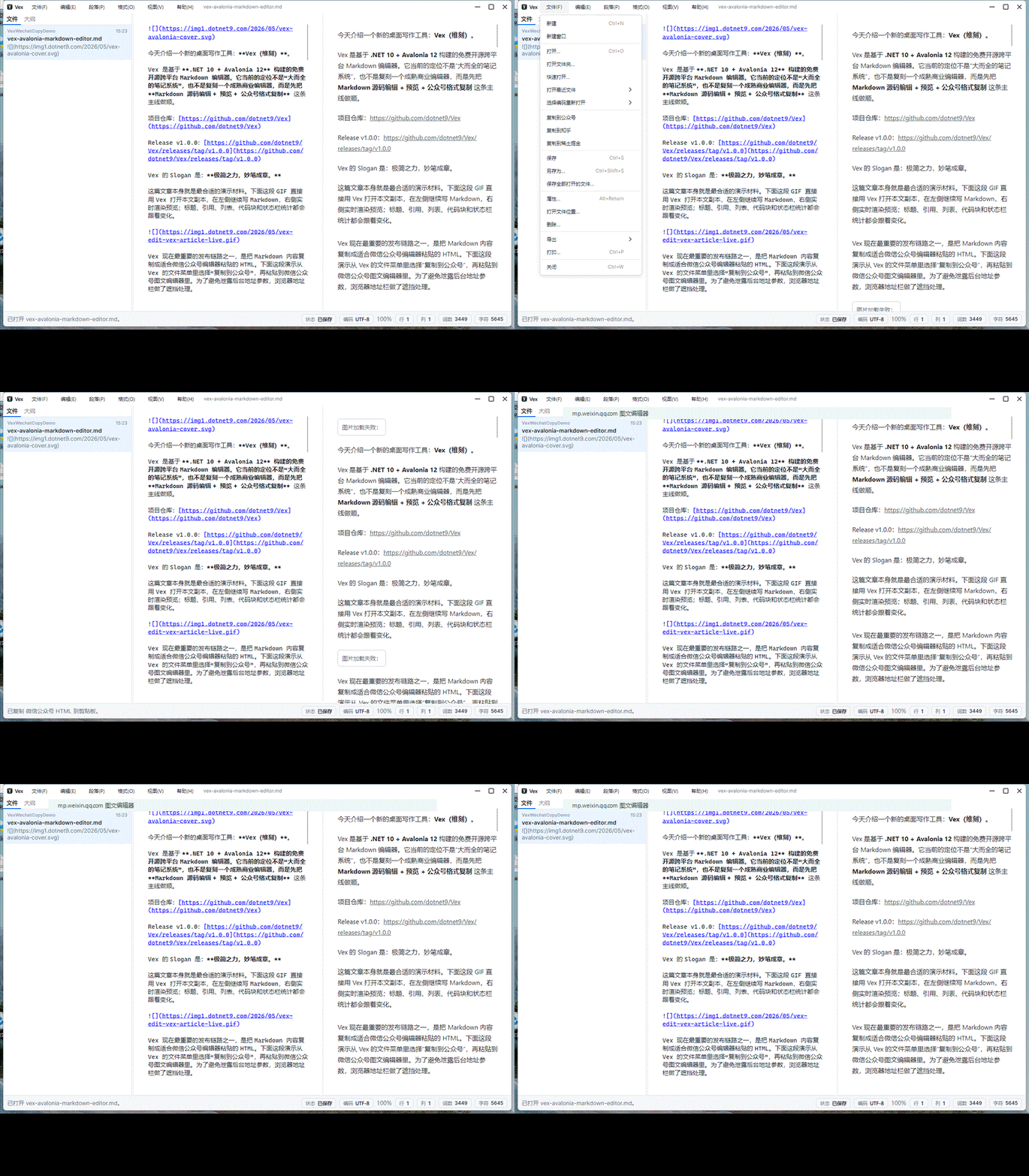
After writing, Vex can copy the Markdown as HTML suitable for pasting into the WeChat official account editor. The following demonstrates selecting "Copy to WeChat" from the File menu, then pasting into the WeChat article editor. The browser address bar is obscured.

Not a Typora clone
Vex did reference Typora's clean menus, focus on writing, and Markdown-file-first approach, but it is not a Typora replica.
Typora's WYSIWYG editing experience is very mature, but seamlessly merging Markdown source and final layout in a single editing surface essentially requires handling cursor mapping, text selection, undo/redo, input methods, tables, images, code blocks, and cross-platform text behavior. Vex does not currently follow that path.
A more realistic goal is to create a free, open-source .NET + Avalonia cross-platform Markdown desktop editor that first smooths out the workflow of "write, view, browse, export, copy to publishing platform."
v1.0.0
v1.0.0 was released on May 24, 2026, and is the first stable version of Vex. This version already covers the basic workflow for daily writing:
- Markdown source editing, live preview, outline navigation, document statistics.
- Smart list continuation, source mode, current line highlighting in the editor.
- New, open, save, save as, open folder, recent documents, drag-and-drop open, open via startup arguments.
- File rename, delete, open file location, external change detection and reload.
- Find and replace, case-sensitive/whole word/regex matching, match count, and debounced scanning for large documents.
- HTML, PNG, image-based PDF, print preview, copy HTML, and copy to content platforms.
- Local images, SVG rasterization, task lists, themed export, PDF headers and footers.
- Multiple themes, multiple typography themes, compact layout, dark mode detail refinements.
- Simplified Chinese, Traditional Chinese, English, and Japanese UI and help documentation.
- Multi-RID publishing, compressed packages, SHA256, release manifest, and optional Windows MSIX packaging.
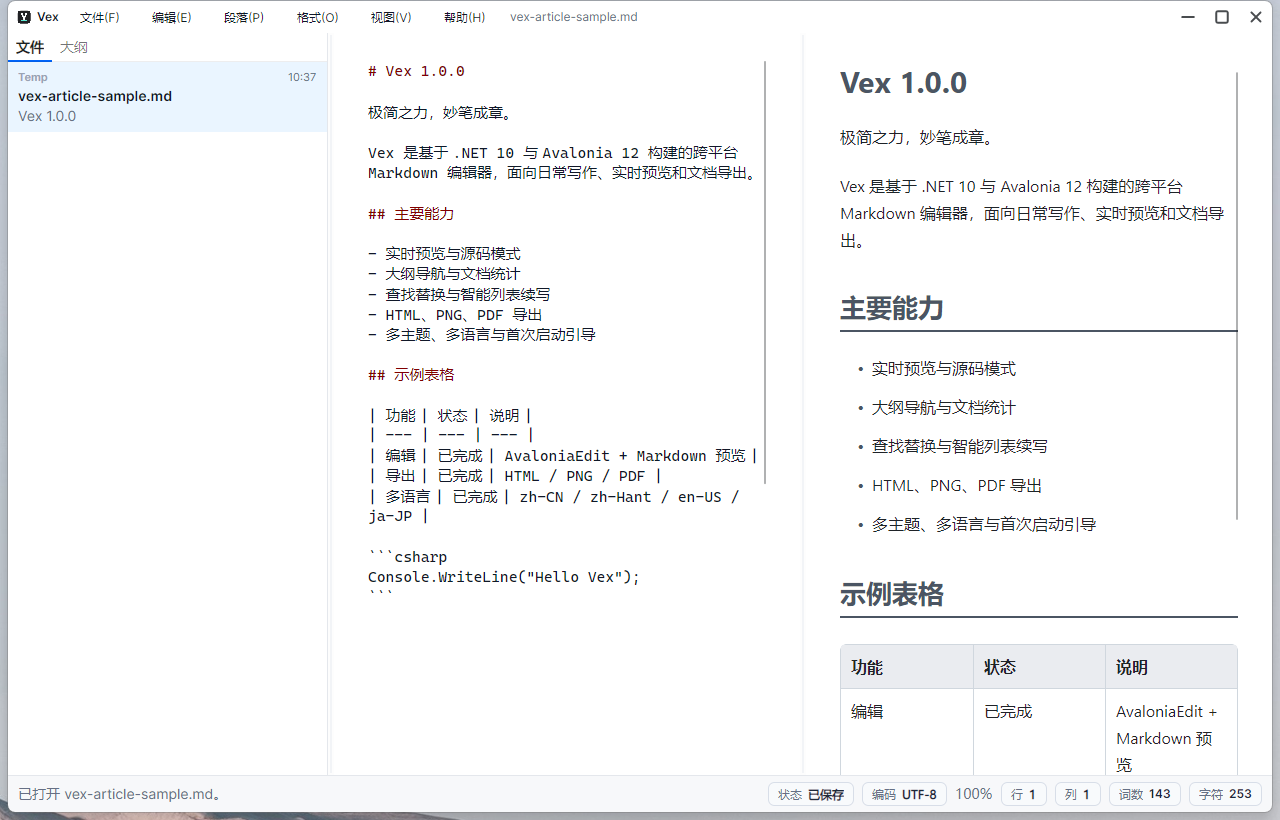
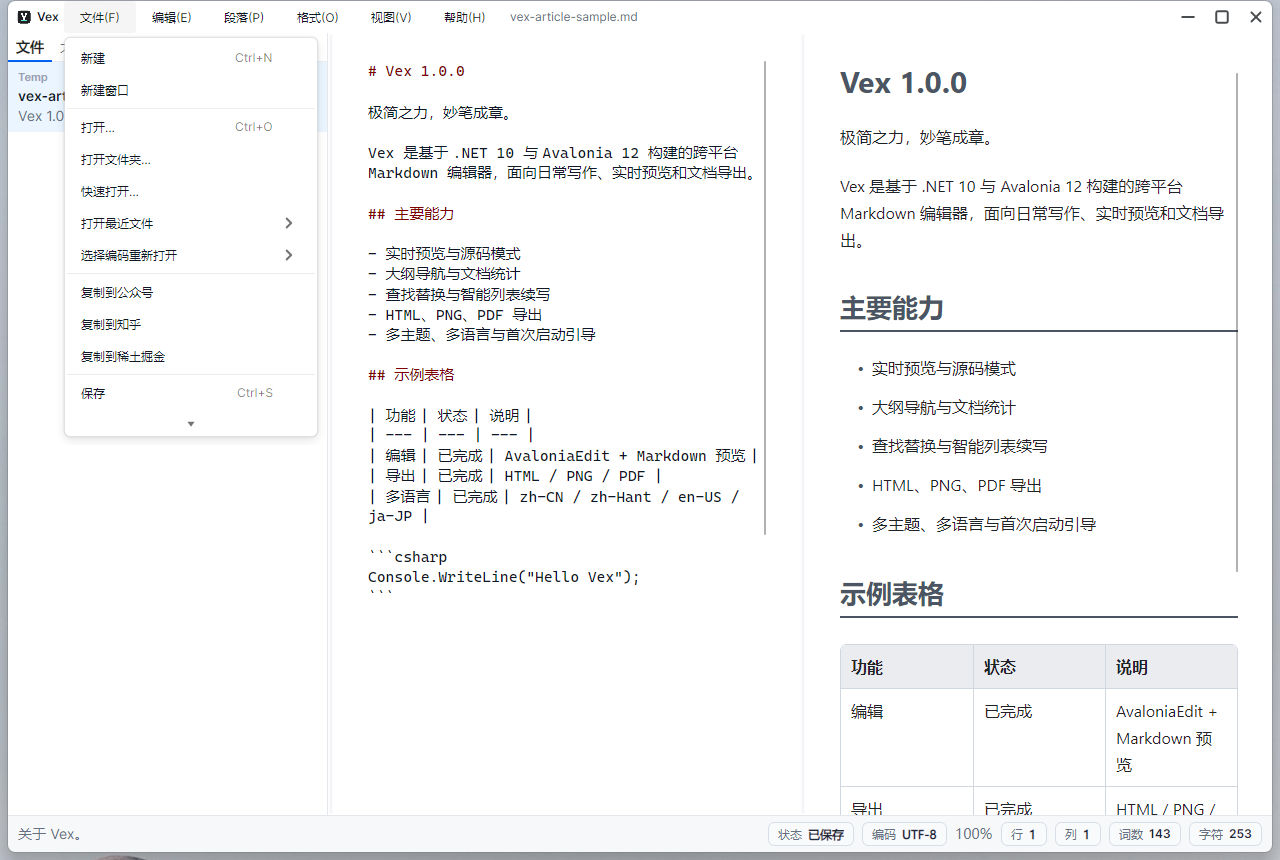
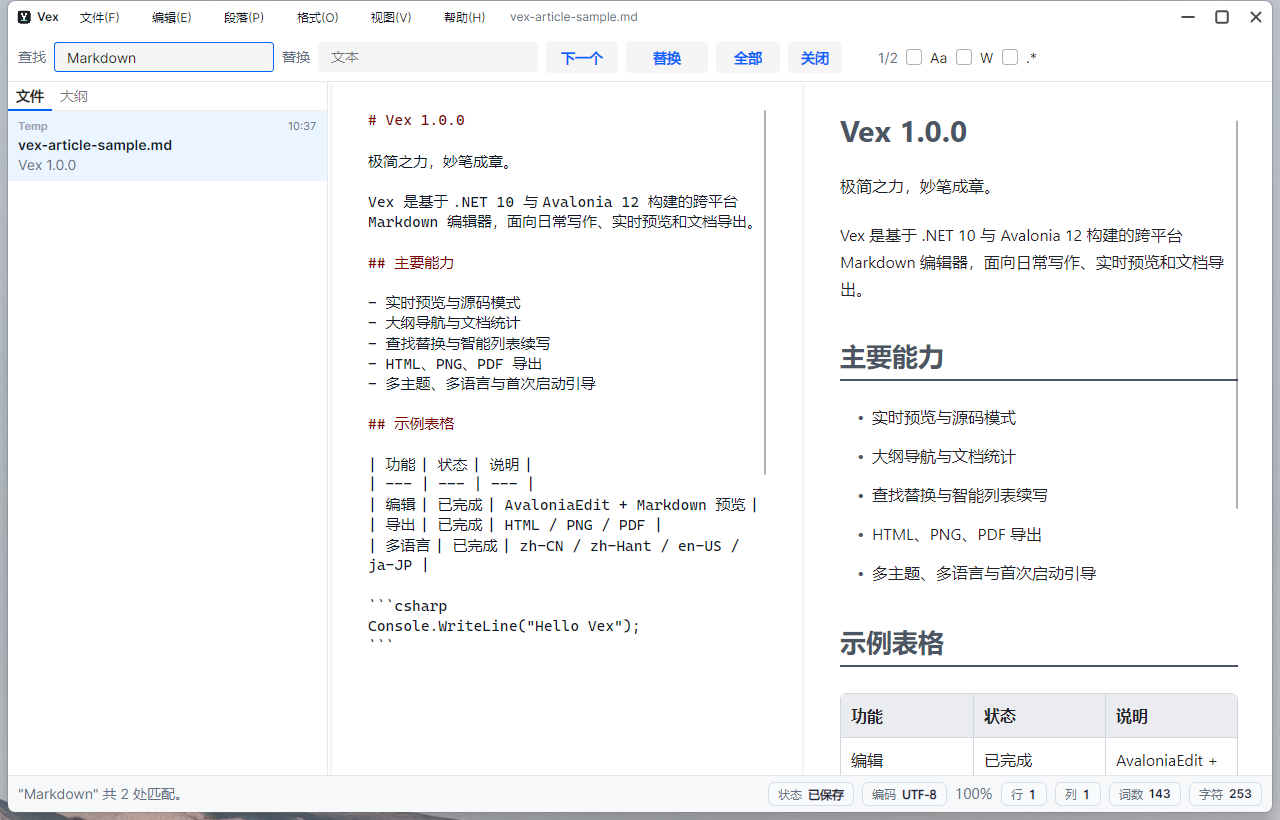
The current main interface is as follows: the left side is the file list and outline; the center is the Markdown source editing area; the right side is the preview area rendered natively by Avalonia; the bottom status bar shows save status, encoding, zoom level, line/column number, word count, and character count.

Writing and Preview
Vex's workspace uses a three-panel layout:
- Left: File list and outline navigation.
- Center: Markdown editing area based on AvaloniaEdit.
- Right: Preview area based on CodeWF.Markdown.
Instead of delegating Markdown preview to a WebView, Vex follows the path of CodeWF.Markdown's Avalonia control rendering. Themes, fonts, images, tables, code blocks, task lists, SVG, and the export pipeline are all handled within the desktop control system.
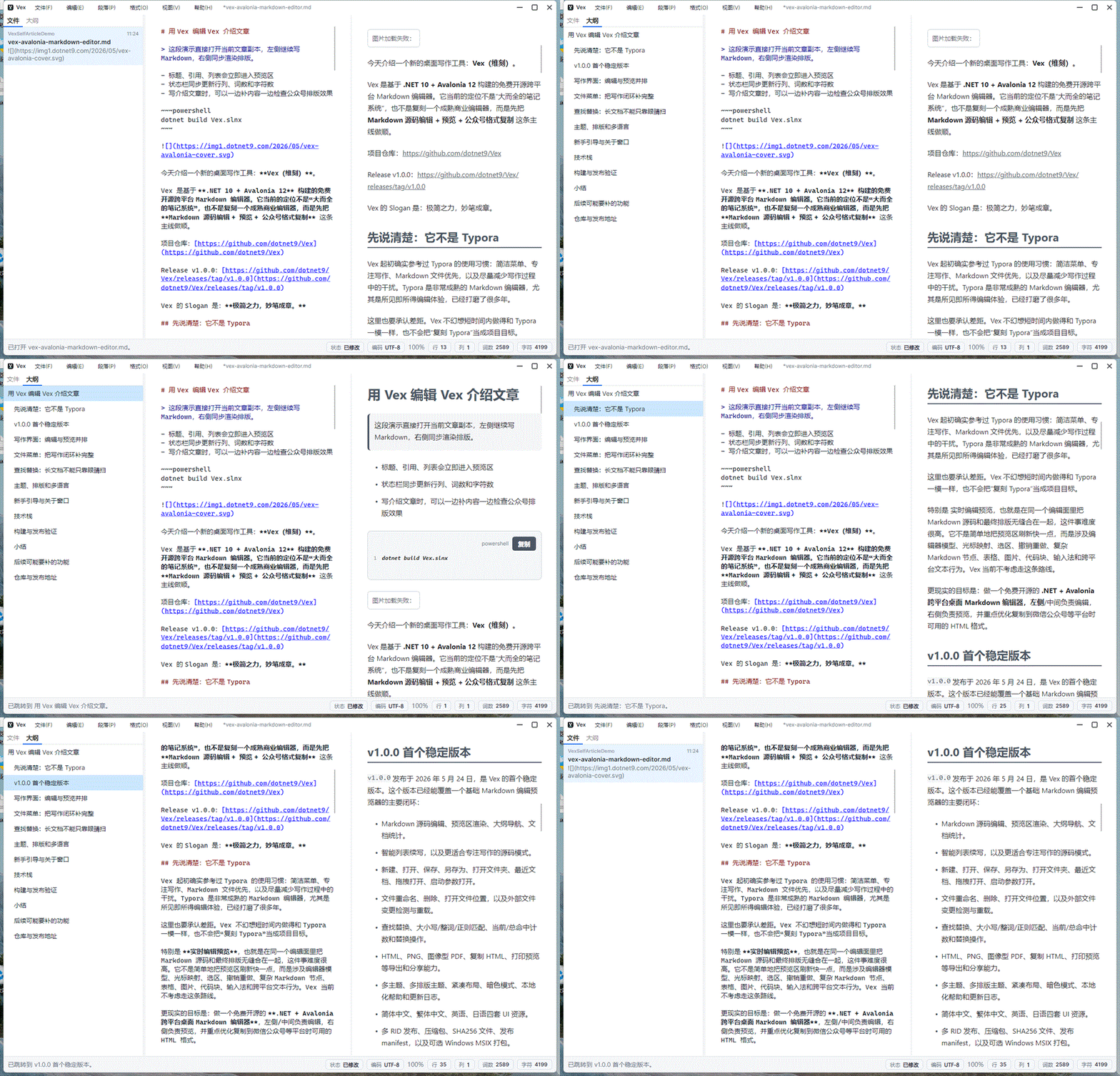
The most essential feature for long documents is the outline. Vex extracts navigation entries from the heading structure, allowing you to jump directly to the corresponding section after switching to the "Outline" tab.

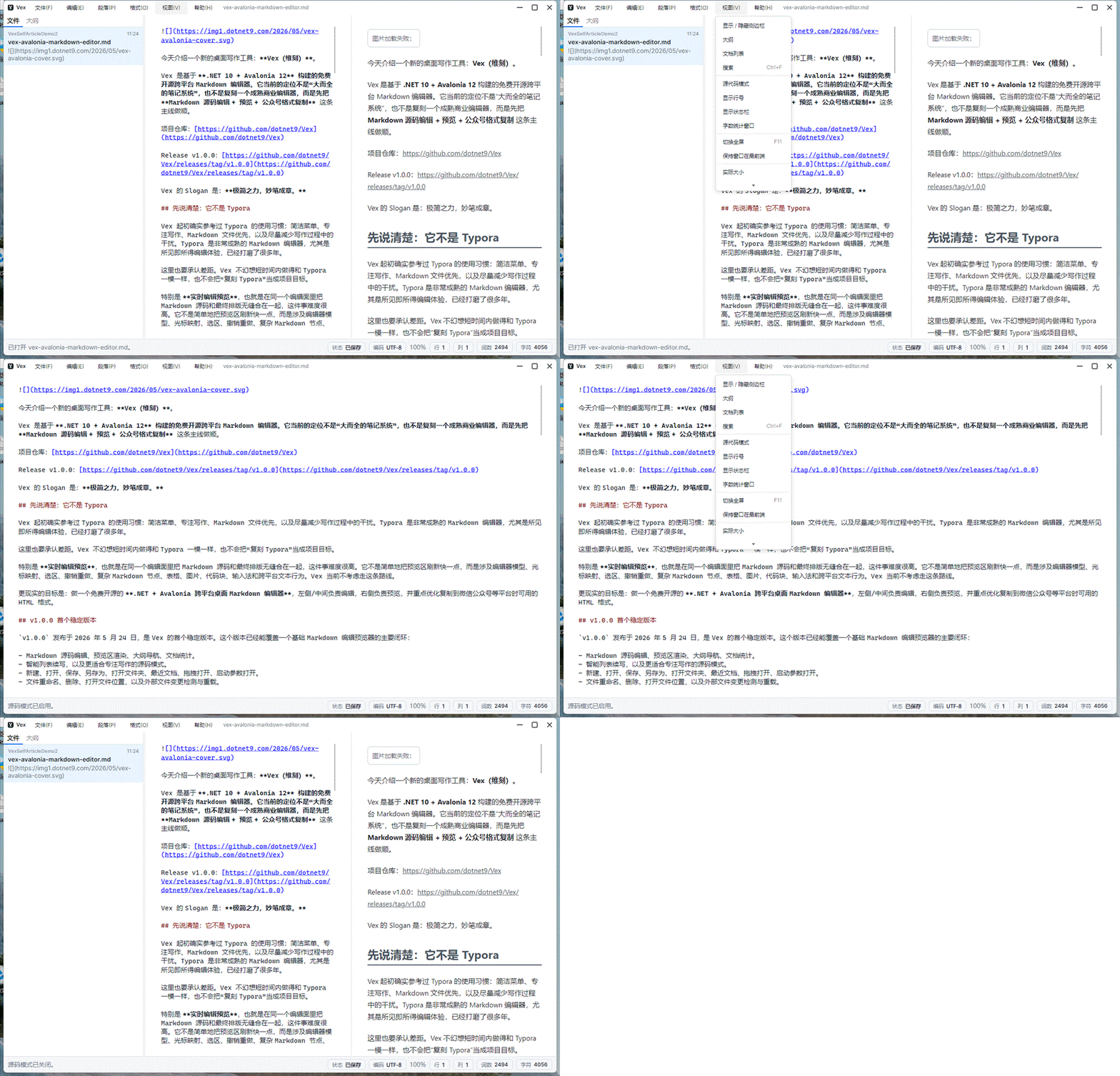
When you want to focus solely on the source code, you can switch to "Source Mode" from the View menu. It temporarily hides the sidebar and preview area, restoring the original layout when you exit.

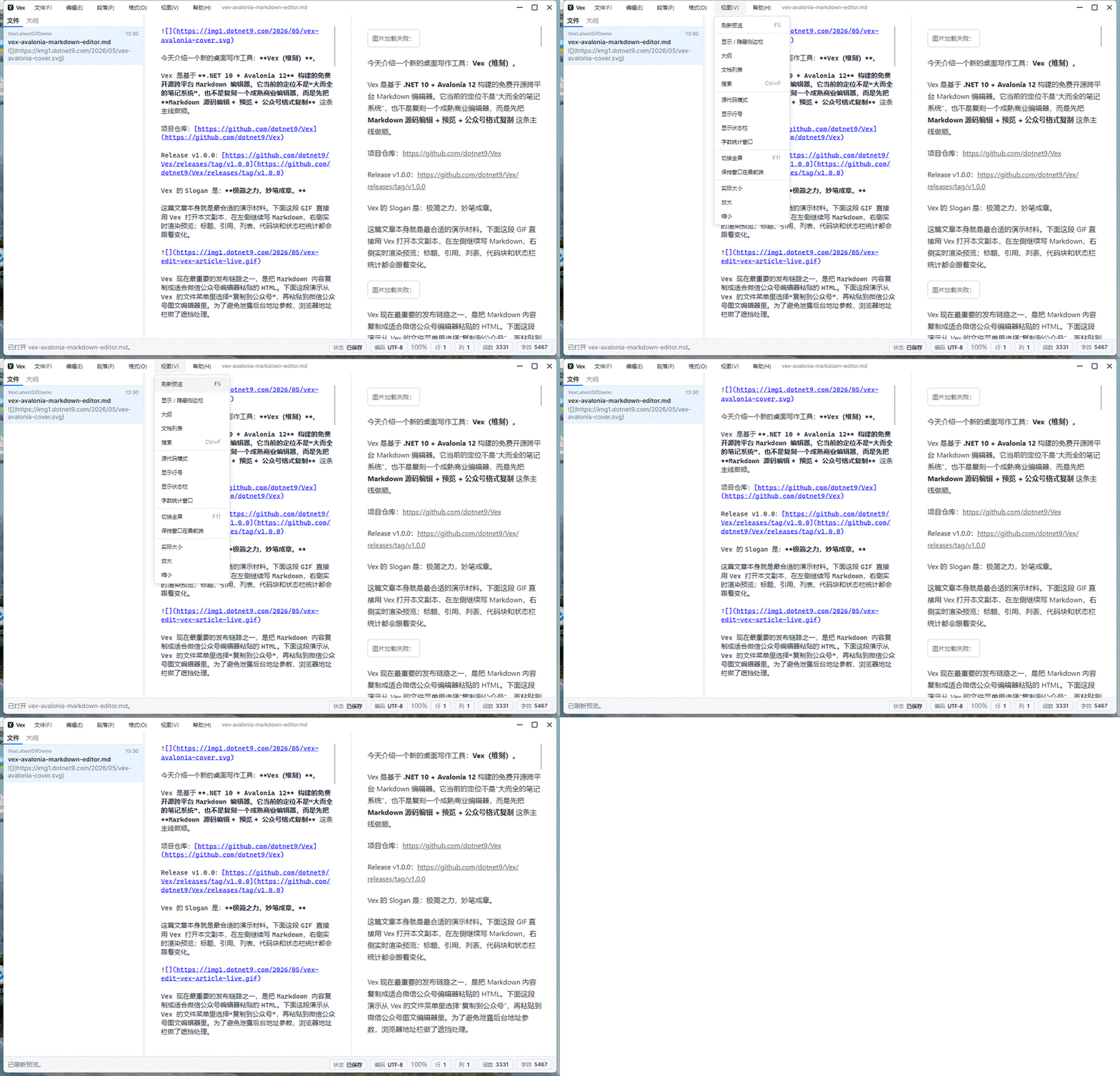
The View menu also includes "Refresh Preview," with the shortcut F5. It forcibly refreshes the preview binding and adds a version query parameter to remote image URLs, useful when the cover or remote images have just been updated but the preview still hits an old cache.

Files and Publishing
The File menu contains the most common actions for a writing tool: New, Open, Open Folder, Quick Open, Recent Documents, Reopen with Encoding, Copy to Content Platform, Save, Save As, Properties, Export, Print, and Close.

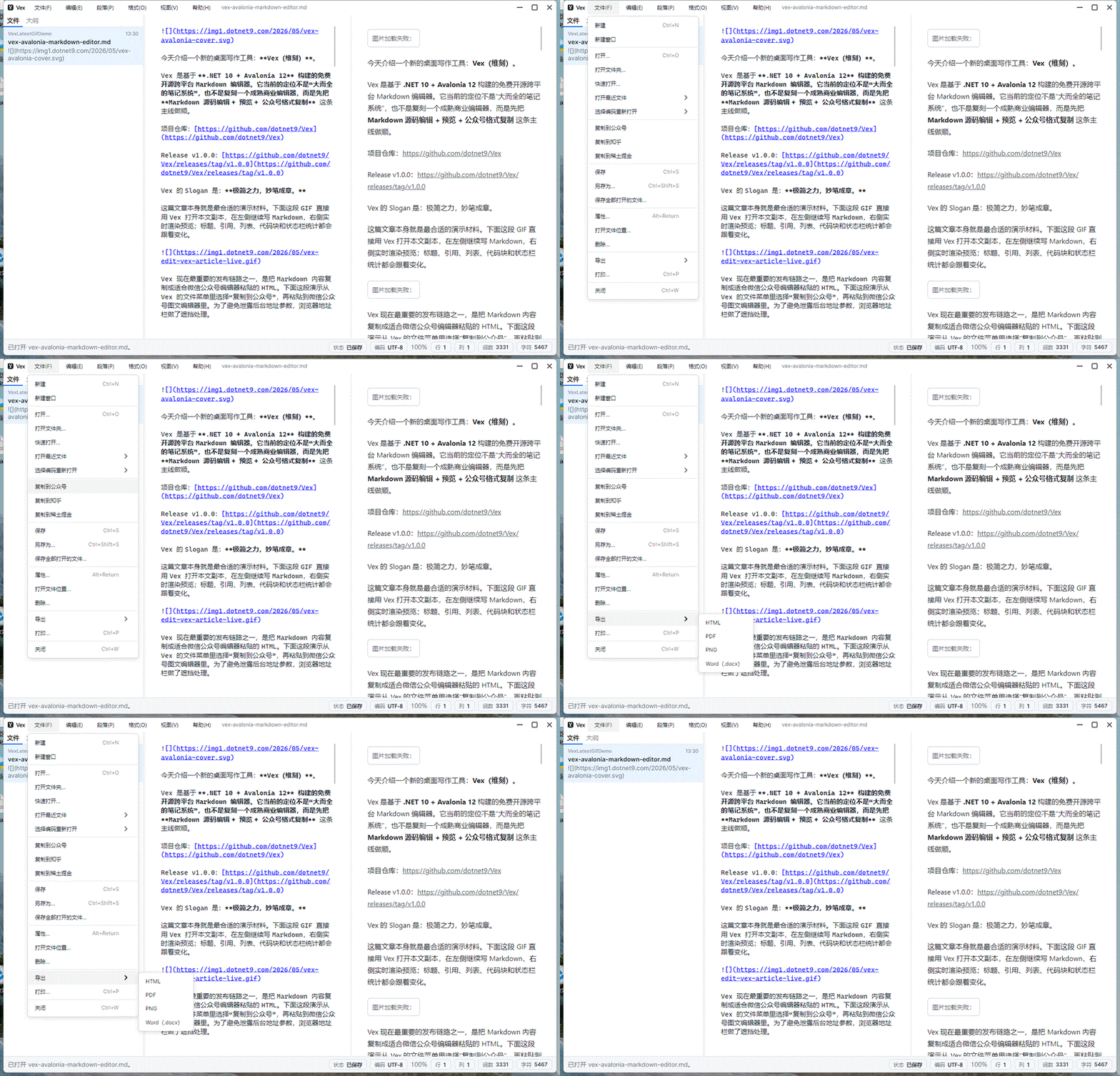
It's more intuitive to see it dynamically. The File menu now fully expands its contents, eliminating the need for secondary scrolling within the menu; Open, Save, Recent Files, Reopen with Encoding, Copy to Content Platform, Export HTML/PNG/PDF, and Print are all in the same workflow.

Several details are quite practical:
- After opening a folder, you can switch between Markdown files in the current directory from the left-side document list.
- Recent documents reduce the cost of repeatedly locating files.
- Reopen with Encoding retains entries for UTF-8, UTF-8 BOM, GB18030, Big5, etc.
- Copy to WeChat, Zhihu, and Juejin ("Rare Earth Nuggets") also incorporate "where to publish" into the editing workflow.
- The export menu supports HTML, PNG, and PDF; a Word entry is already reserved and will be added once stable.
For WeChat official account authors, the truly frequent action is not "saving an HTML file," but directly pasting into the WeChat editor after writing, while preserving the styles of headings, paragraphs, quotes, lists, code blocks, and links as much as possible. Vex currently optimizes along this path.
Find and Replace
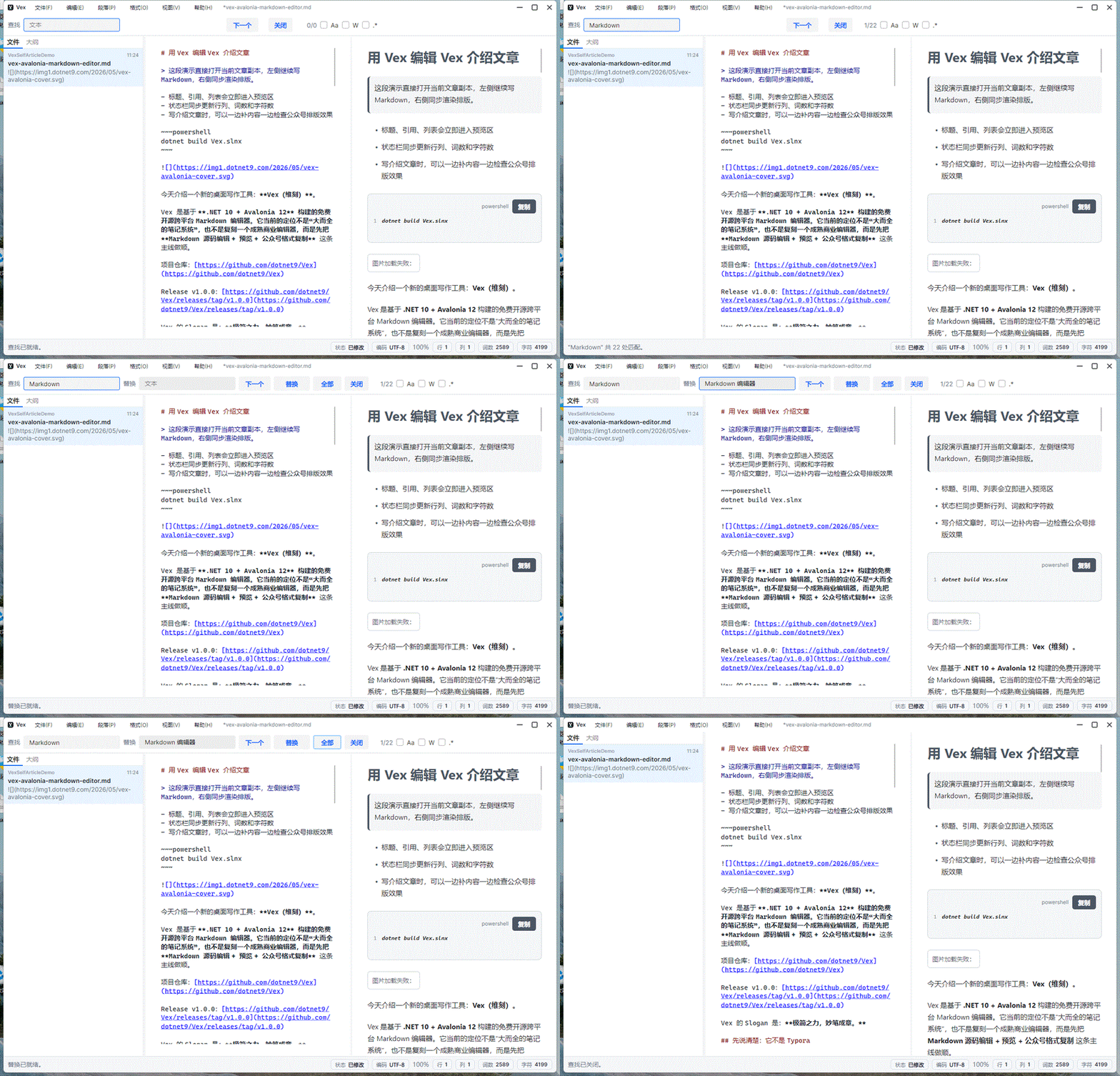
Long documents cannot rely solely on visual scanning. Vex's search bar supports Find, Replace, Next, Replace, Replace All, and Close, as well as case-sensitive, whole-word, and regex matching.

Continuing with this article as a demo: search for Markdown, then open the replace bar to replace it with a more specific term. The search bar shows the current match position and the total number of matches.

Scanning for large documents employs debouncing, and the replacement path tries to use AvaloniaEdit's document-level Replace method as much as possible, avoiding rebuilding the entire text for each replacement.
Themes, Typography, and Language
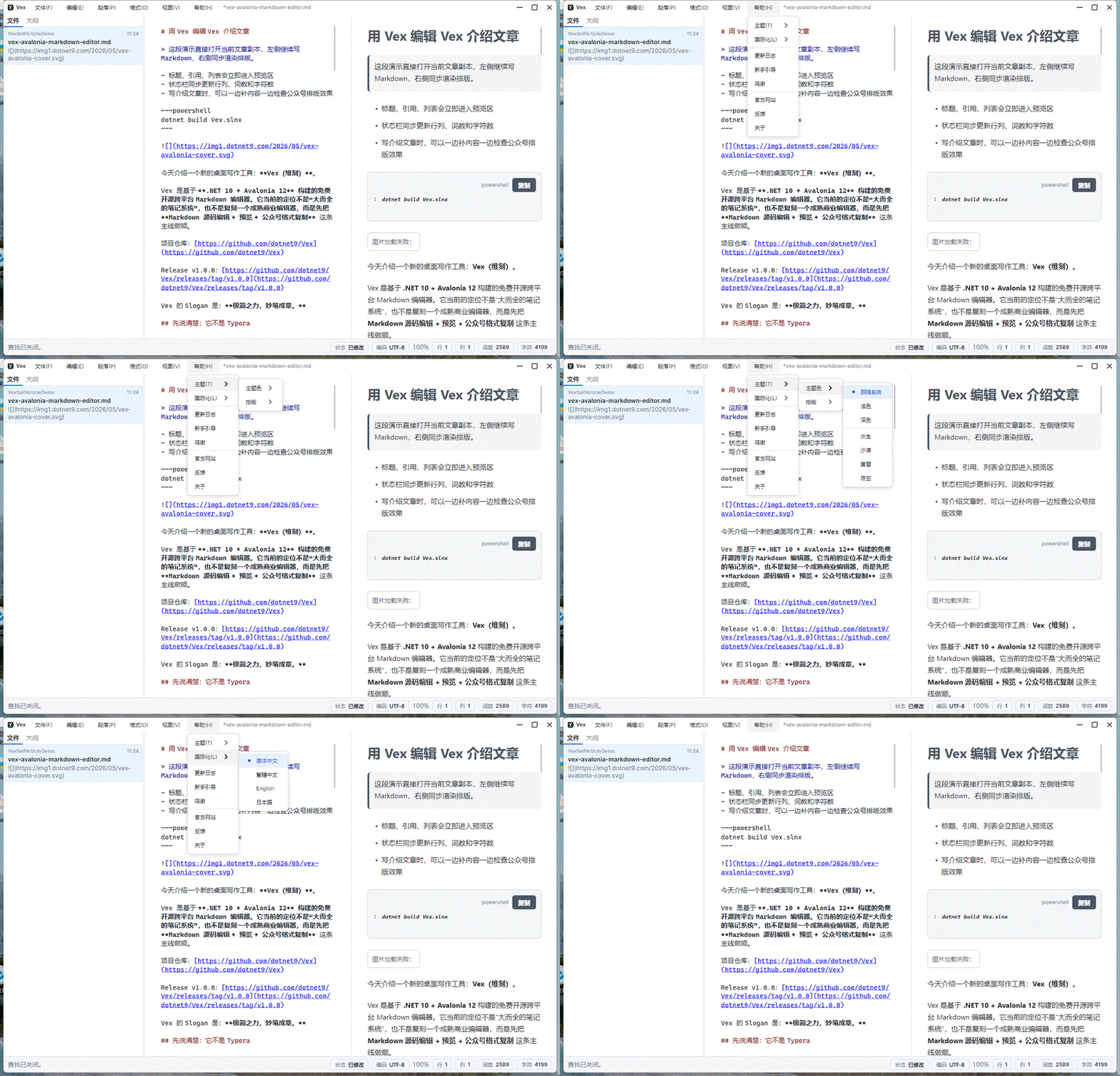
The appearance entry point is placed under the Help menu, which currently includes Theme Color, Typography Theme, Compact Layout, and Language Settings.

Theme color controls the application shell, while typography theme controls the Markdown body text. Separating them allows for different working environments: a light shell with a clean typography theme, or a dark shell with a typography theme better suited for reading code.

The multi-language support currently covers:
- Simplified Chinese
- Traditional Chinese
- English
- 日本語
This is jointly provided by Lang.Avalonia.Json, Semi.Avalonia, Ursa.Avalonia, and Vex's own help documentation. Menus, status bar, error details, Quick Start, Update Log, Credits, and the About window are all within the localization scope.
Onboarding Guide
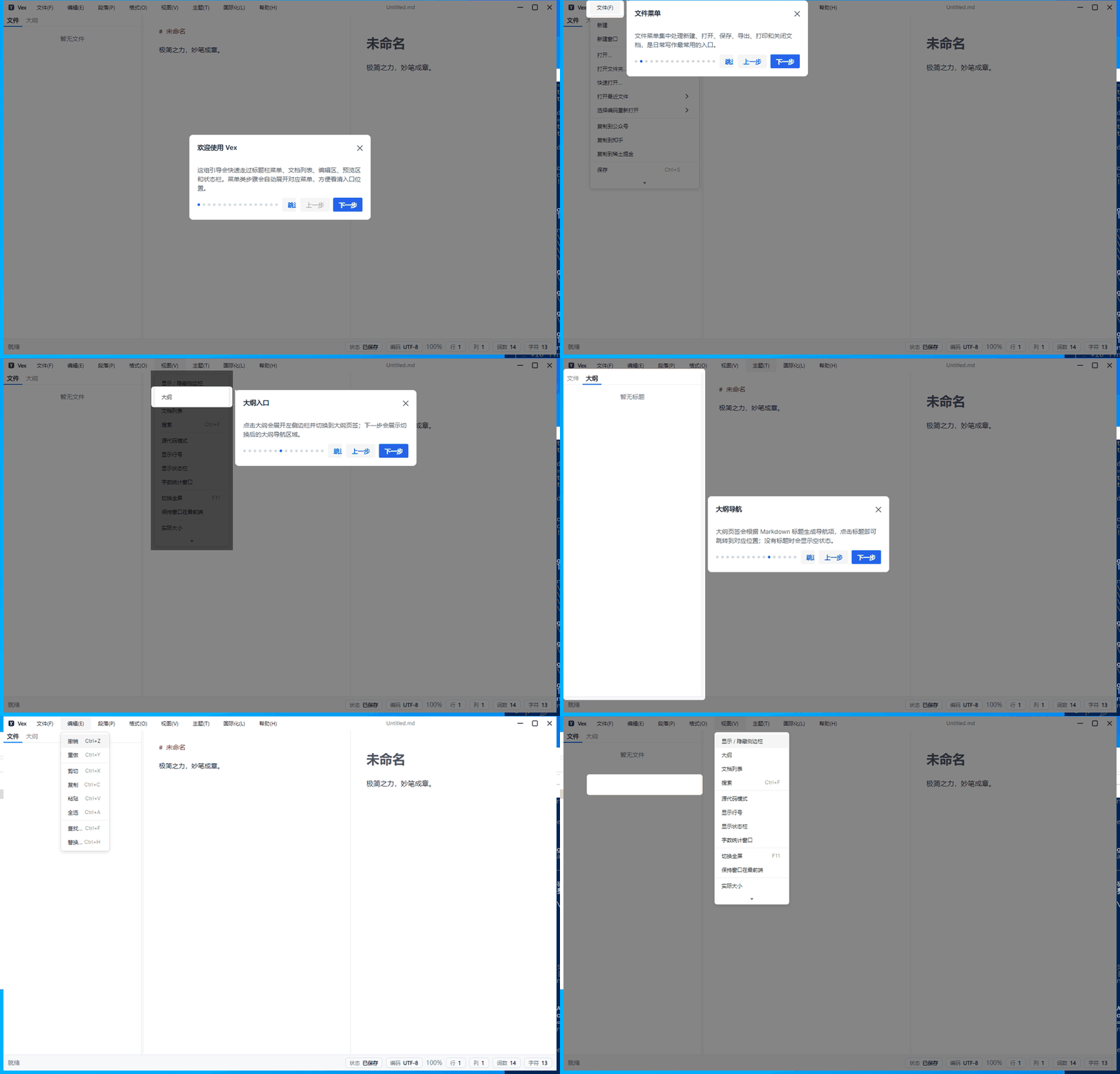
Vex is also the landing project for the new Guide control in CodeWF.AvaloniaControls. It appears once on the first launch and can be reopened from the Help menu.
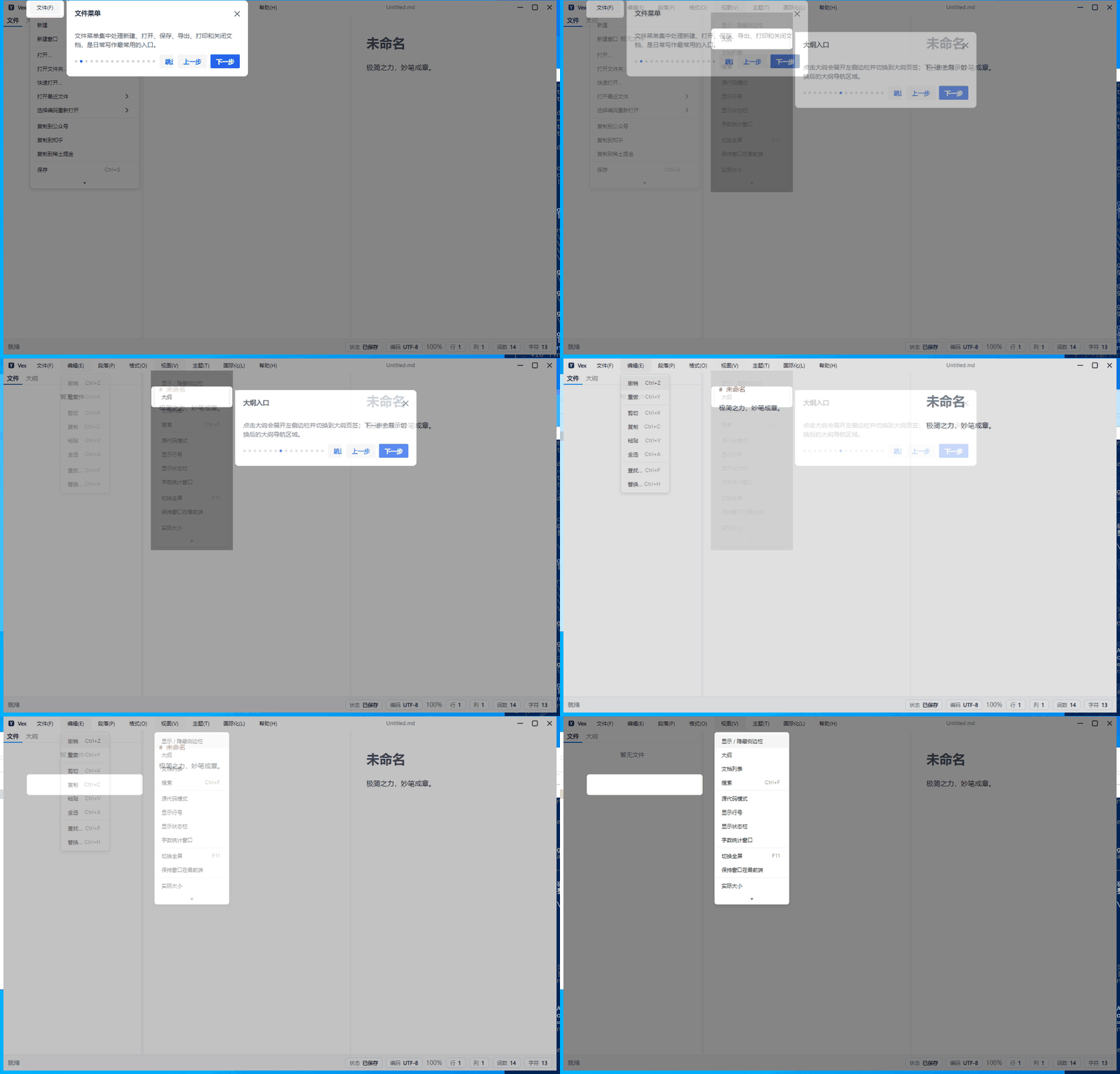
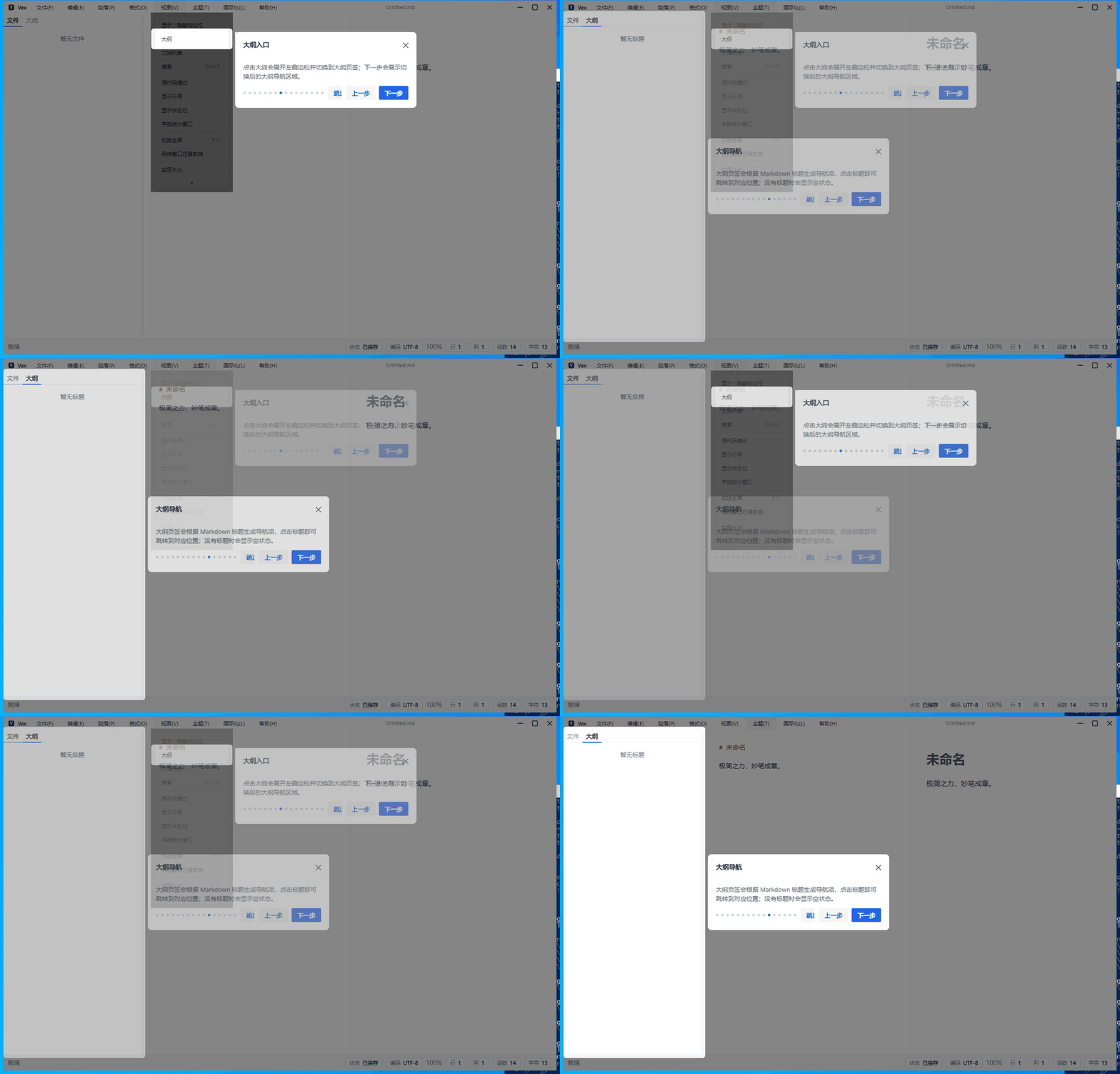
The guide covers the File menu, Export menu, Paragraph/Format/View menus, Theme menu, the left-side File/Outline area, the editing area, the preview area, and the status bar.

The most valuable part is the menu item guide. Many desktop software entries are hidden in menus or submenus; ordinary overlay controls can only highlight buttons already present on the page. Vex actively expands the menu when switching steps and then positions the MenuItem inside.

The left-side "Files/Outline" is a TabControl. When guiding to different tabs, it needs to switch the tab first, then refresh the highlight position.

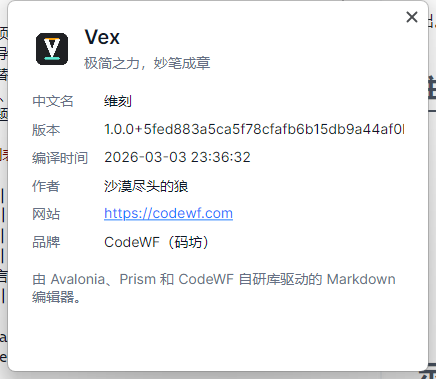
The About window displays the software name, Chinese name, version, compilation time, author, website, and brand information.

Technology Stack
Vex's current main technology stack:
- .NET 10
- Avalonia 12.0.3
- Prism.DryIoc.Avalonia
- ReactiveUI.Avalonia
- Semi.Avalonia
- Ursa.Avalonia
- AvaloniaEdit
- CodeWF.AvaloniaControls
- CodeWF.Markdown
- CodeWF.EventBus
- Lang.Avalonia.Json
The target frameworks are net10.0 and net10.0-windows, with runtime identifiers covering:
win-x64linux-x64linux-arm64osx-x64osx-arm64
The Windows publishing path enables Native AOT and sets the minimum supported Windows platform version to 6.1; non-Windows RIDs use self-contained single-file publishing. publish_vex_all.bat --package generates compressed packages, SHA256 files, and release manifests.
The release also includes a compatibility adjustment: the event bus directly uses CodeWF.EventBus.EventBus.Default, bypassing the DryIoc event bus registration path, improving startup compatibility on Windows 7.
Build and Release
Local development:
dotnet build Vex.slnx
Generate multi-platform release artifacts:
.\publish_vex_all.bat --package
Prepare Windows MSIX layout or installer:
.\scripts\package_vex_msix.ps1 -RuntimeIdentifier win-x64 -PrepareOnly
Future Directions
Vex will not prioritize WYSIWYG real-time editing next. Instead, it will continue to focus on the "edit & preview + publish & copy" fundamentals:
- Continue to optimize the HTML structure and style compatibility when copying to the WeChat official account.
- Supplement copy styles for platforms like Zhihu and Juejin.
- Add mobile preview effects for WeChat official accounts.
- Improve local image handling, relative paths, and resource prompts during copying.
- Optimize outline jumping and scroll synchronization between the editing and preview areas.
- Add more typography themes and allow saving custom publishing styles.
- Improve Word export, auto-update, and installer publishing workflows.
- Continue to polish font rendering, menus, keyboard shortcuts, and packaging on Linux and macOS.
Summary
The focus of Vex 1.0.0 is not a complex knowledge base, but to establish the basic experience of a Markdown desktop writing tool: open files, write content, see previews, jump via outlines, find and replace, switch themes, and export deliverables.
Folder switching, recent documents, external change reloading, encoding selection, copying to content platforms, multi-language help, first-launch guides, and status bar statistics—these individually may seem small, but together they directly affect whether the tool becomes part of a daily writing workflow.
Relevant links:
- Vex repository: https://github.com/dotnet9/Vex
- Release v1.0.0: https://github.com/dotnet9/Vex/releases/tag/v1.0.0