
今天这篇文章,站长来聊聊我最近基本开发完成的 CodeWF.Markdown。
这是一个基于 C# + Avalonia 12 + Markdig 做的 Markdown 渲染控件。它最早来自 CodeWF.AvaloniaControls,后来我把 Markdown 相关代码单独拆成了一个仓库和一组 NuGet 包:渲染控件、主题资源、示例程序、测试都围绕 Markdown 预览这件事来组织。
它的定位不是“把 Markdown 转成 HTML 后塞进 WebView”,而是把 Markdown AST 渲染成 Avalonia 控件树。这样做的好处是:主题、字体、选区、复制、图片预览、代码块工具栏、增量刷新这些桌面控件能力,都可以留在 Avalonia 体系里处理。
这次文章不只放几张界面图,我把示例程序也跑起来重新截了一轮素材,包括静态截图和 GIF 动图。先看一段功能巡览。
为什么单独拆一个 Markdown 控件
我平时写文章、整理文档、做工具箱页面时,经常需要一个本地 Markdown 预览控件。WebView 能做,但它会把问题带到另一套体系里:HTML/CSS 注入、脚本安全、平台差异、复制行为、图片预览窗口、主题资源同步,都要额外处理。
Avalonia 桌面应用里更自然的方式,是让 Markdown 直接变成控件树:
- 段落、标题、列表、引用、表格是 Avalonia 控件。
- 代码块可以挂复制按钮、语言标识和高亮控件。
- 图片可以用 Avalonia 的窗口能力做预览、缩放、旋转和另存。
- 主题可以走
ResourceDictionary,而不是再维护一套 CSS。 - 多个
MarkdownViewer可以在同一个窗口里拥有不同排版密度。
这就是 CodeWF.Markdown 的主要方向:做一个适合 Avalonia 应用直接嵌入的 Markdown Viewer,而不是再包一层浏览器。
当前包线
目前仓库里主要有这几条包线:
CodeWF.Markdown:完整版MarkdownViewer,包含代码高亮、图片/SVG、数学公式、多语言资源、增量渲染等能力。CodeWF.Markdown.Themes:完整版控件模板和排版主题资源。CodeWF.Markdown.Lite:轻量版 Viewer,直接包引用只保留 Avalonia 和 Markdig,适合只需要基础 Markdown 预览的场景。CodeWF.Markdown.Lite.Themes:轻量版对应主题资源。CodeWF.Markdown.Sample:完整版示例程序。CodeWF.Markdown.Lite.Sample:轻量版示例程序。tests/CodeWF.Markdown.Tests:渲染模型、差异服务和主题资源相关测试。
仓库地址在这里:https://github.com/dotnet9/CodeWF.Markdown。
当前截图对应的仓库版本已继续更新到 12.0.3.14。我本地已经执行过:
dotnet build CodeWF.Markdown.slnx
dotnet test CodeWF.Markdown.slnx --no-restore
测试项目当前 48 个用例通过。构建时会看到 .NET 预览版 SDK 的提示,但没有编译警告和错误。
示例程序:左边编辑,右边实时预览
先看主示例程序。界面分成两部分:左侧是 Markdown 输入,右侧是渲染预览。
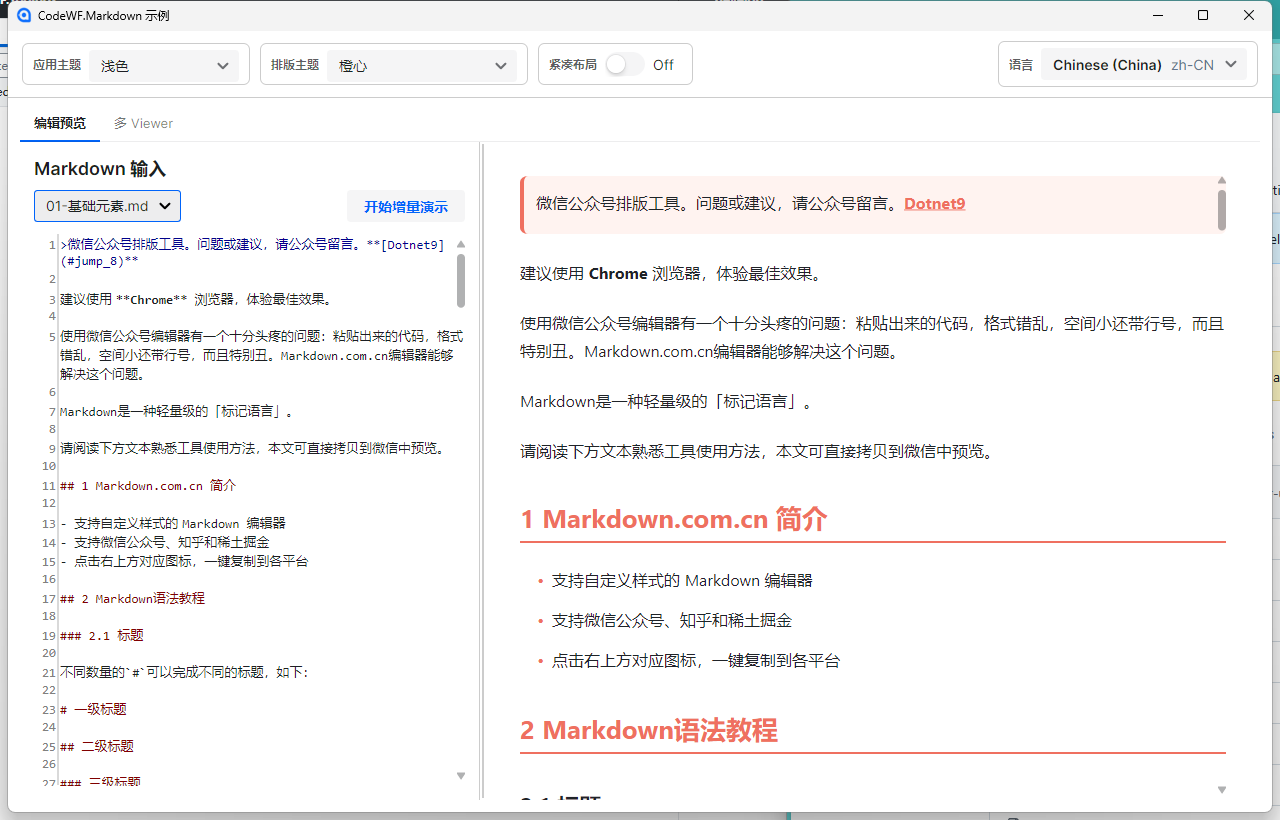
上方工具栏有几个关键设置:
- 应用主题:浅色、深色。
- 排版主题:切换 Markdown 内容的强调色、标题边线、引用背景、表格样式、代码区样式等。
- 紧凑布局:把字体、行高和块间距收紧,适合信息密度更高的工具界面。
- 语言:当前示例支持简体中文、繁体中文、英文、日文。
左侧下拉框加载了多份 Markdown 示例文件,用来覆盖基础元素、排版主题、代码与表格、列表引用、图片链接、增量渲染压力等场景。
这个示例程序不是为了做一个完整 Markdown 编辑器,而是为了验证控件在真实桌面窗口里的表现:窗口缩放、滚动、主题切换、多语言、编辑区持续变更、预览区增量刷新,都要放在一起看。
常见 Markdown 元素
完整版使用 Markdig 解析 Markdown。常见元素基本都按控件树渲染:
- 标题、段落、粗体、斜体、删除线。
- 行内代码和代码块。
- 有序列表、无序列表、嵌套列表。
- 任务列表。
- 引用块,以及引用块里的列表、代码和表格。
- 表格、链接、分割线。
- 脚注、数学公式等扩展语法。
- HTML inline 和 HTML block 的 fallback。
这里有一个取舍:CodeWF.Markdown 不执行 HTML。也就是说,Markdown 里写 <section>、<span> 这类内容时,它会作为文本安全显示出来,而不是像浏览器一样执行 HTML 和样式。对桌面预览控件来说,这个默认行为更稳,尤其适合展示外部输入或用户编辑内容。
代码块:高亮、语言标签和复制按钮
代码块是 Markdown 预览里很容易被忽略、但实际体验很关键的部分。
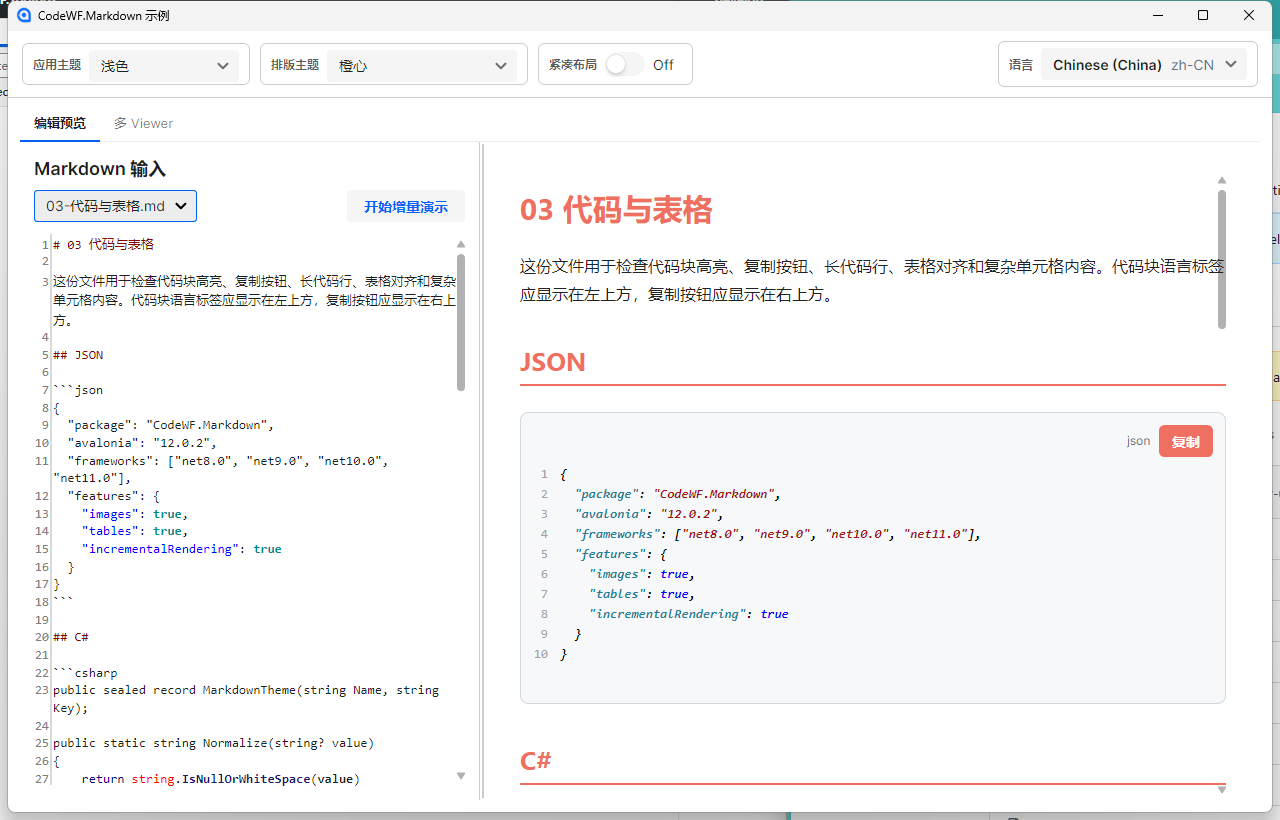
当前代码块会显示语言标签和复制按钮,并使用 TextMateSharp 做语法高亮。截图里可以看到 JSON、C#、TypeScript、Shell 等代码块的展示效果。
我没有把代码块只做成一个纯文本框,因为实际用 Markdown 读文档时经常需要复制代码;另外,不同主题下代码区背景、边框、字号和按钮尺寸也要一起跟着资源变化。
控件里还预留了 CodeBlockToolRender 事件,用来让外部项目在代码块工具区继续加自己的按钮。比如有些应用可能要在代码块上加“运行”“复制为命令”“发送到终端”这类入口,这些都不应该写死在 MarkdownViewer 内部。
表格和长内容
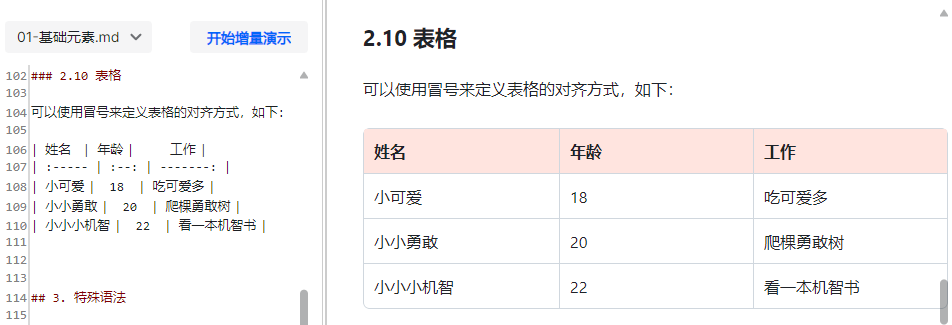
表格不是简单地拼字符串,而是按行、列、单元格渲染。表头背景、边框、文字颜色都从主题资源读取。
这个点看起来不起眼,但对中文文档很重要。很多 Markdown 文档里会有较长的中文说明、英文标识符、链接、版本号和路径。如果表格不能自然换行,预览区域就会很容易出现横向撑爆。
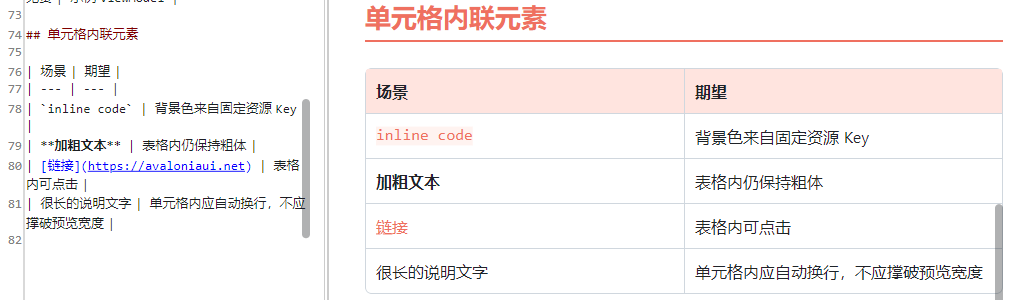
示例里专门放了对齐表格和复杂单元格内容,用来观察:
- 表头和内容区边框是否稳定。
- 长文本是否在单元格内换行。
- 行内代码、加粗文本和链接是否能在表格里正常显示。
- 主题切换后表格样式是否立即更新。
图片、SVG 和预览窗口
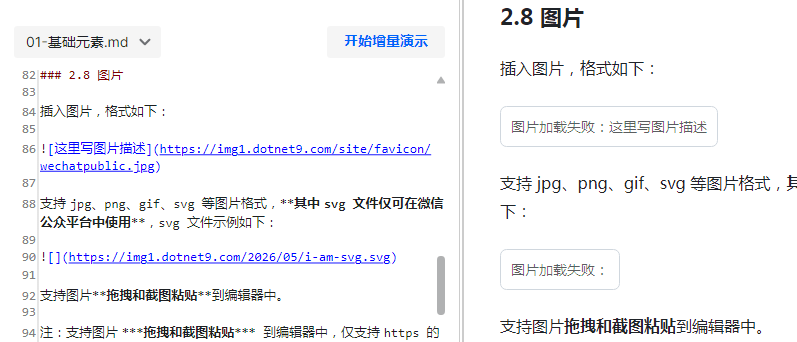
Markdown 里的图片也是一个独立控件 MarkdownImage,不是简单地把图片塞到文档里就结束。
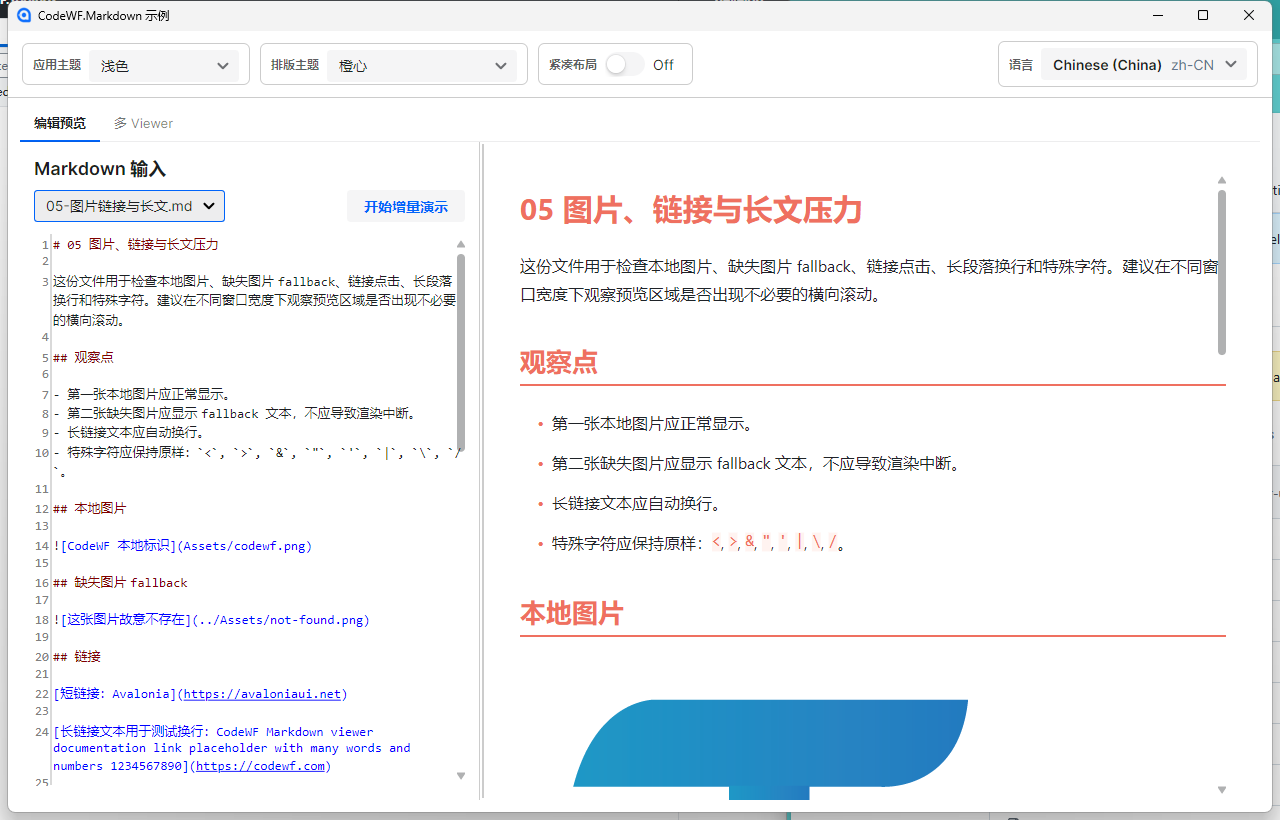
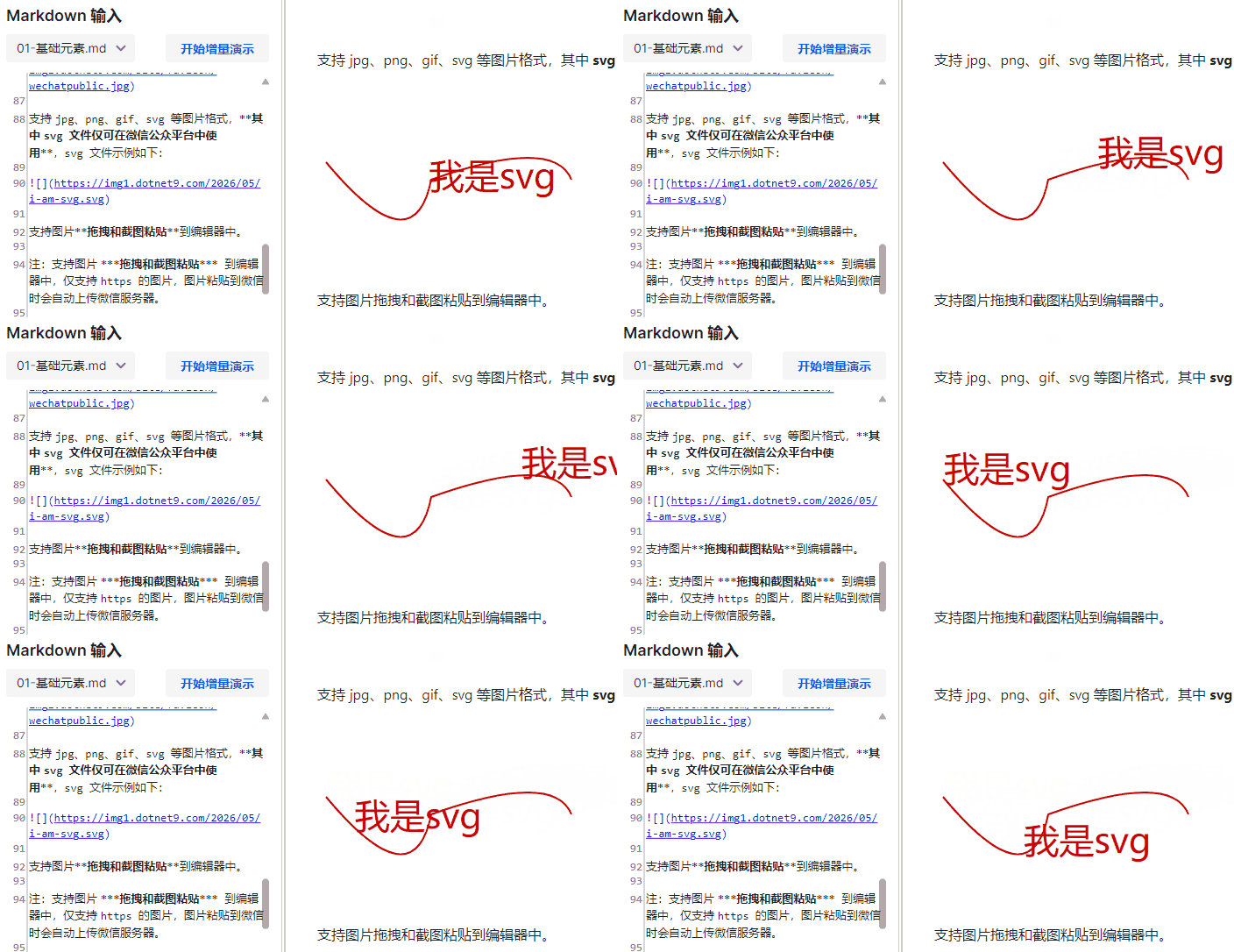
它支持本地图片、URL 图片、Data URI,以及 SVG 图片。最近这部分也抽成了宿主应用可复用的图片加载能力:MarkdownImageSourceLoader 负责加载 data:image、本地路径、file://、HTTP(S) 和相对图片;MarkdownImageRasterizer 负责把 SVG、GIF 首帧、WebP 等内容规范化成 PNG 字节。这样 Vex 这类宿主应用在导出 PDF、PNG、Word 时,可以复用同一条图片链路,把图片真正嵌入导出文件,发给别人后离线打开也不会丢图。
图片加载失败时,会显示 fallback 文本,不会让整个 Markdown 文档渲染中断。
点击图片后会打开预览窗口:
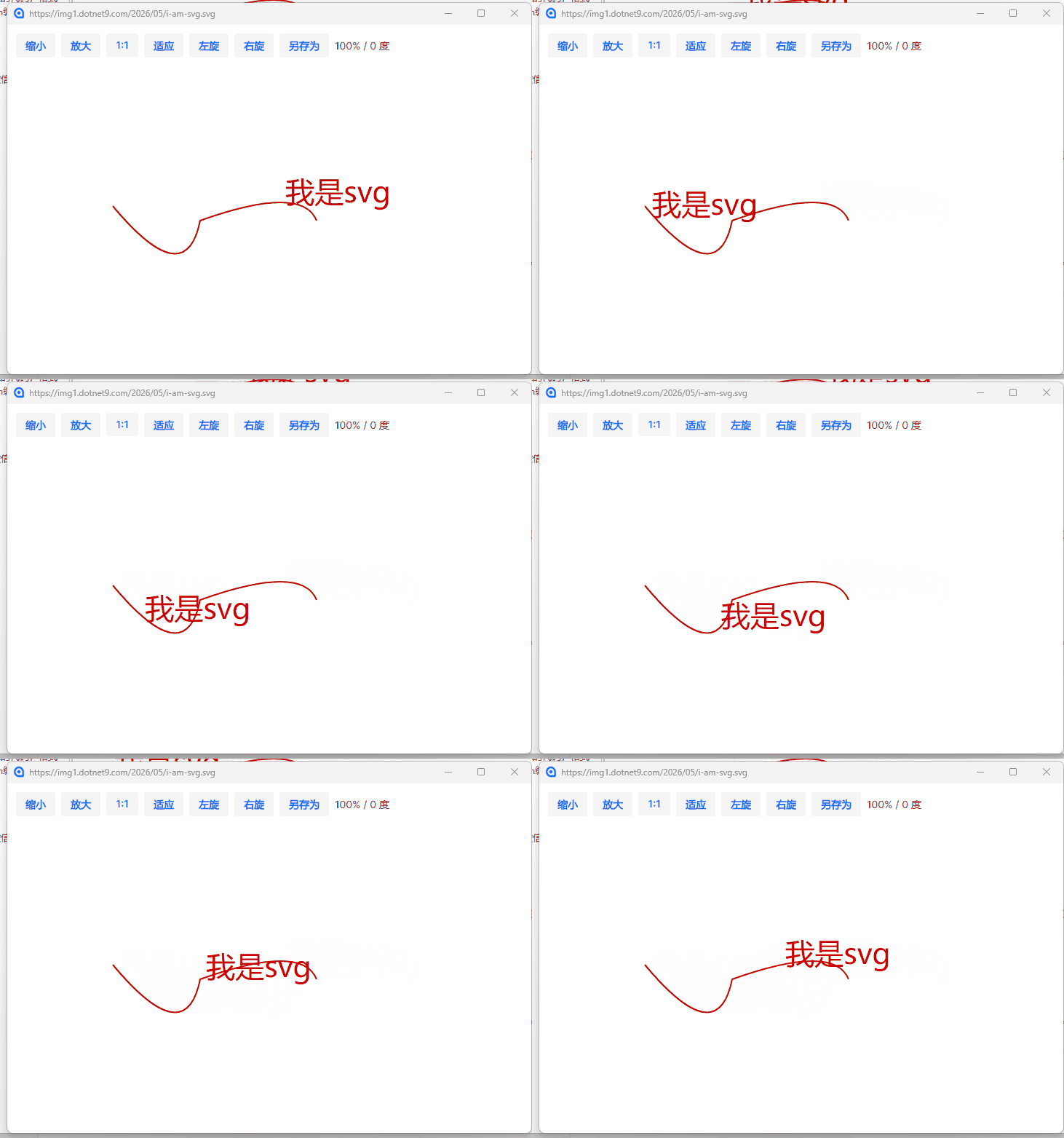
预览窗口支持:
- 缩小、放大。
- 1:1 显示。
- 适应窗口。
- 左旋、右旋。
- 另存为。
SVG 图片在预览时会额外转成位图作为预览输入,避免原始 Viewer 清理图片资源后预览窗口也跟着失效。最近这轮也专门处理了图片资源释放问题:Markdown 被替换、控件离开可视树、图片加载还没完成时,都要取消未完成任务并释放位图。
数学公式和化学表达式
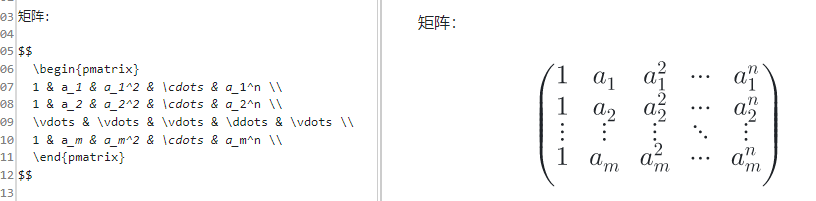
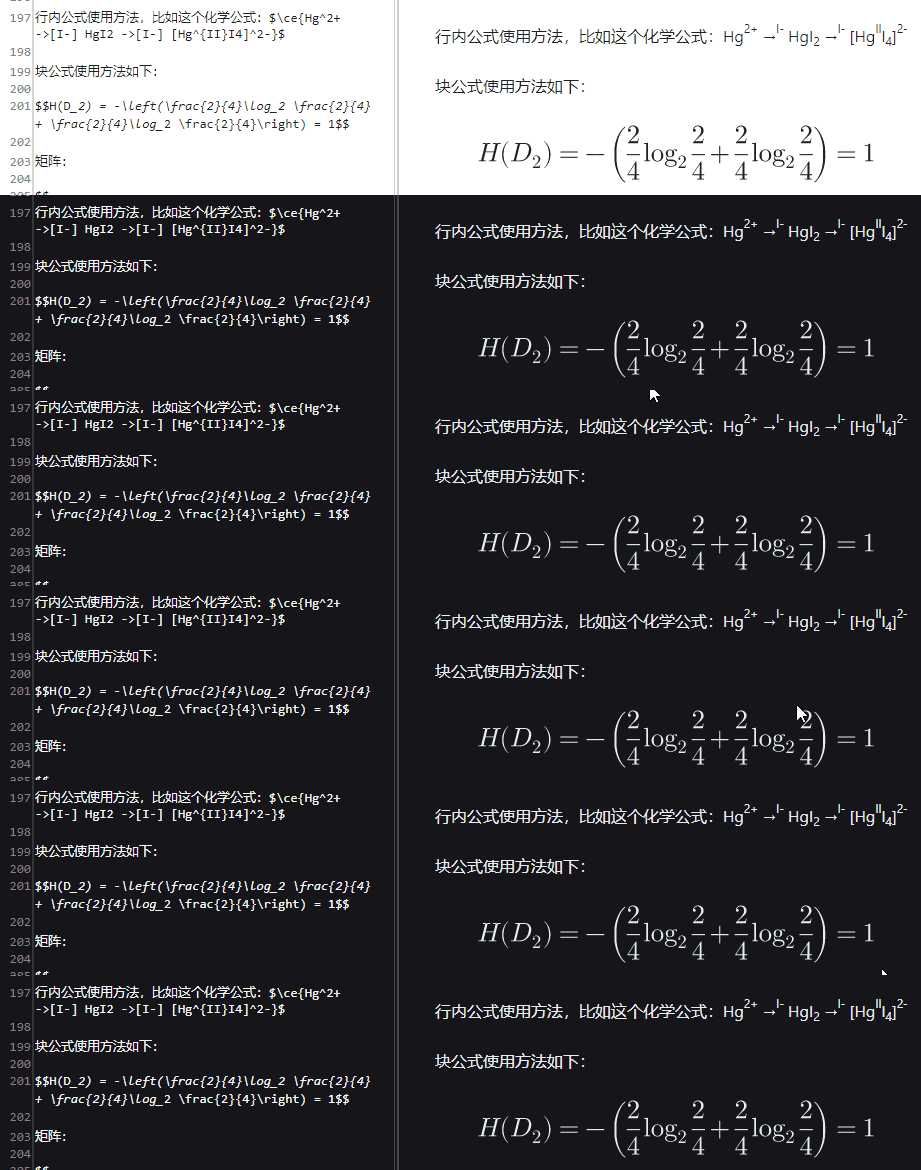
完整版里接入了 Sylinko.CSharpMath.Avalonia,用于数学公式渲染。最近新增的内部 MarkdownMathView,主要是为了让公式前景色能跟随当前 Markdown 主题。
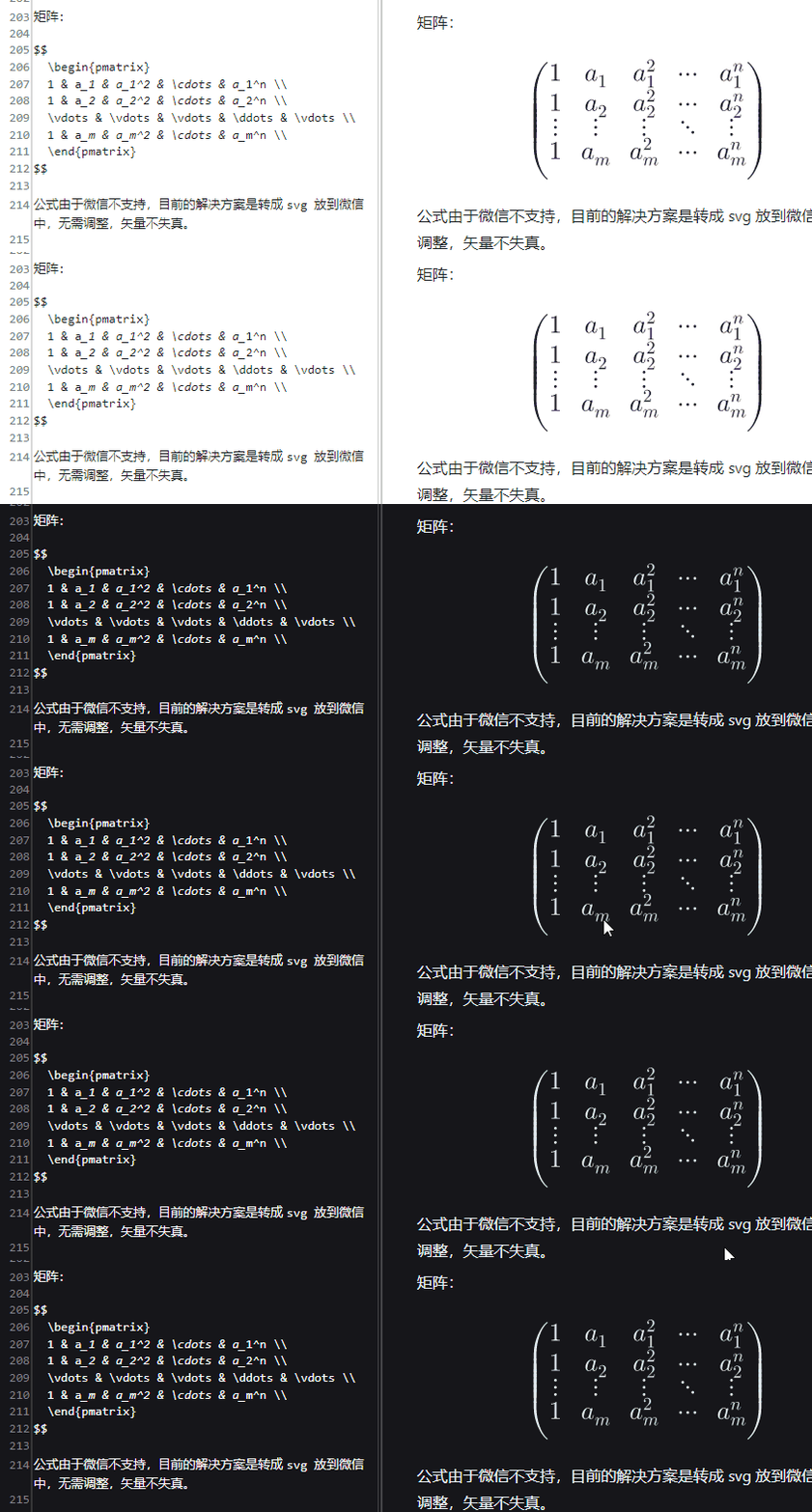
这类细节在浅色主题里不明显,一切换到深色主题就会暴露出来:普通文字已经变成浅色,但公式如果仍然使用固定黑色,就会看不清。把公式也纳入 Markdown 主题体系,才能保证整篇文档的阅读体验一致。
示例文档里还包含化学表达式处理,用于把部分 LaTeX 化学命令转成更适合复制和纯文本提取的内容。它不是要替代专业公式编辑器,而是让常见技术文章里的公式段落在桌面预览里能正常显示。
排版主题:不是只换一个颜色
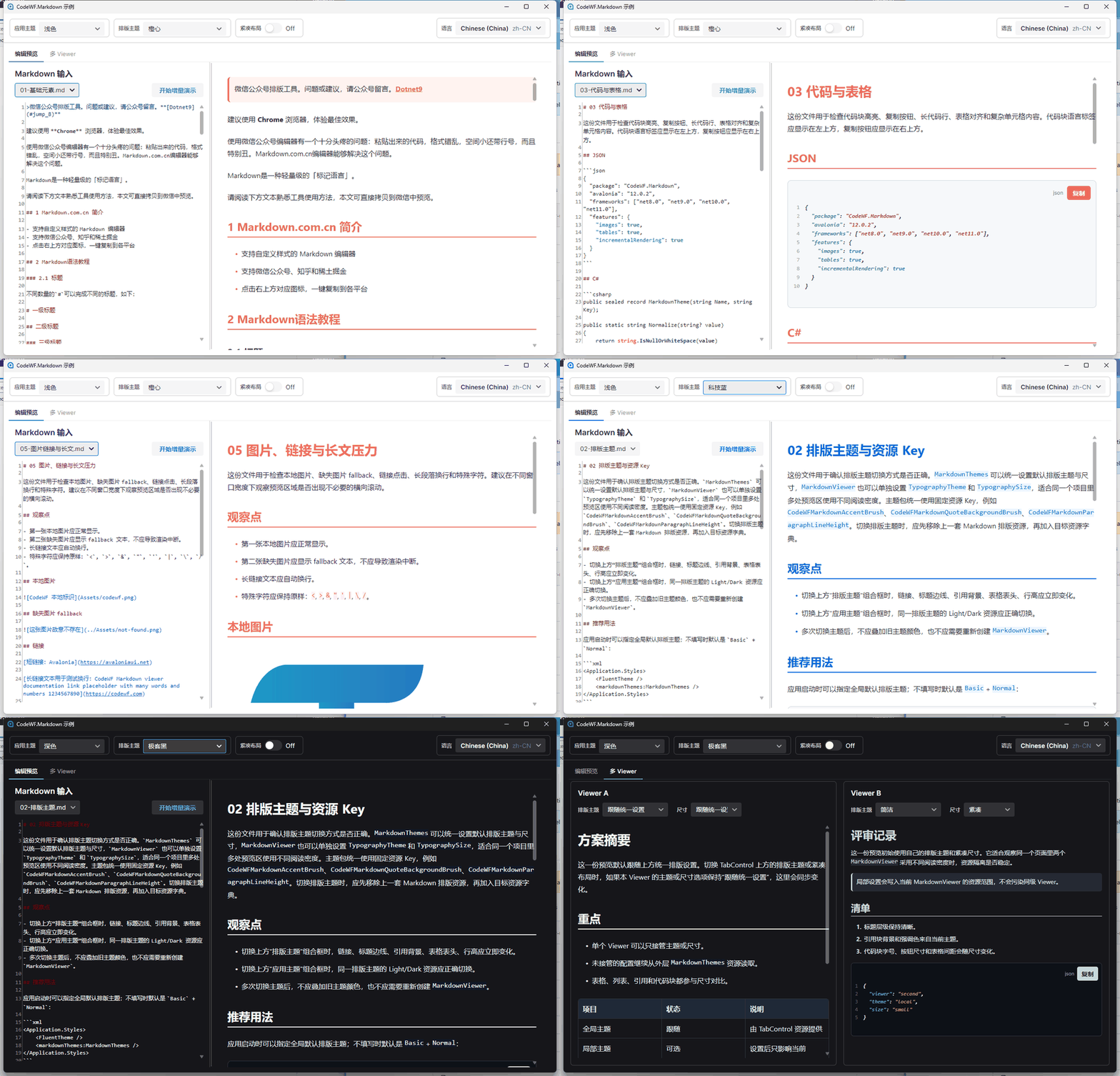
排版主题是这次控件里我比较重视的一块。它不是简单改一个 Accent Color,而是一整套 Markdown 阅读资源。
主题切换效果可以看这张 GIF:
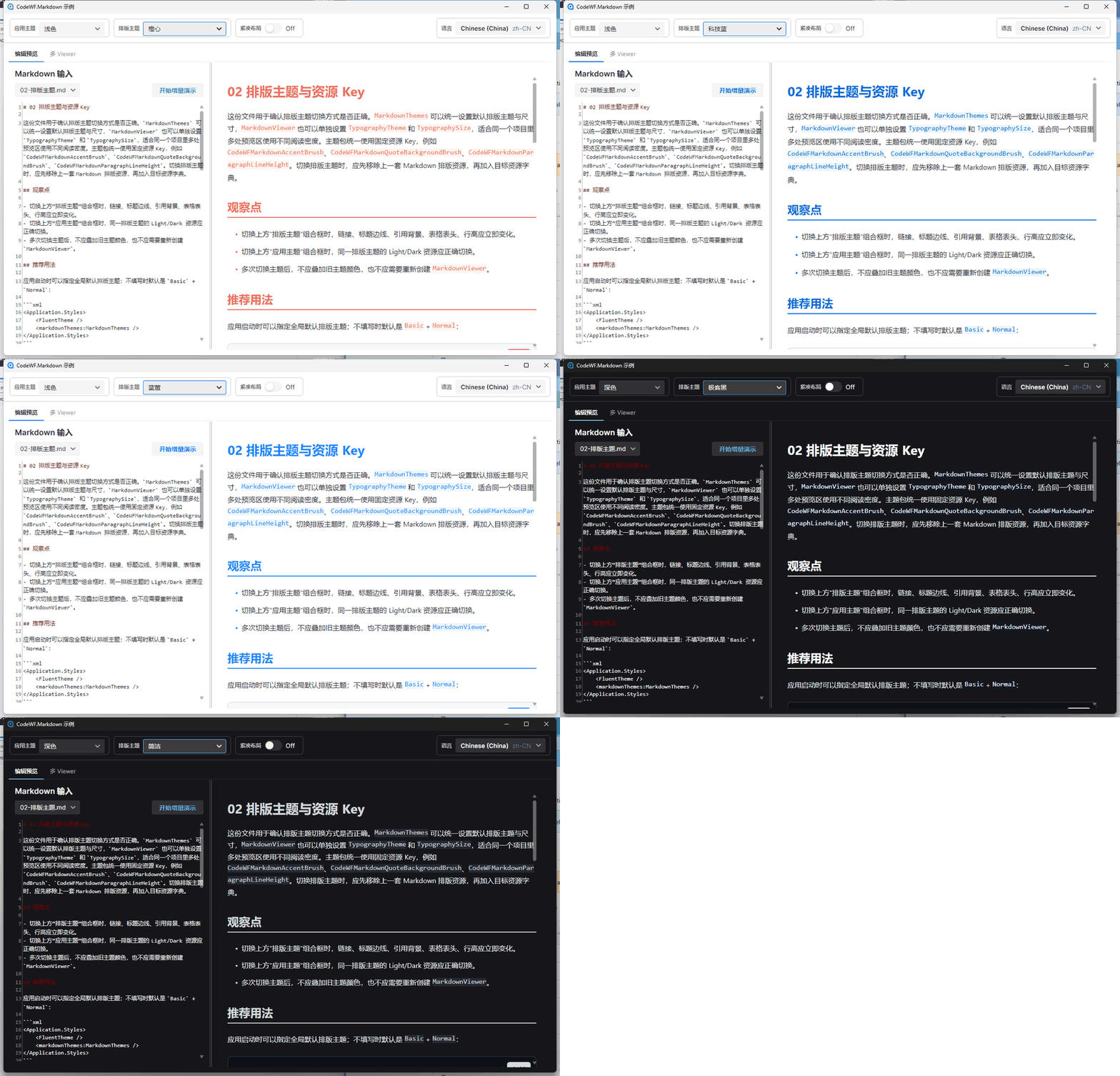
当前主题资源里包含这些方向:
Basic- 橙心
- 墨黑
- 彩紫
- 嫩青
- 绿意
- 红绯
- 蓝萤
- 科技蓝
- 兰青
- 山吹
- 前端之峰
- 极客黑
- 简洁
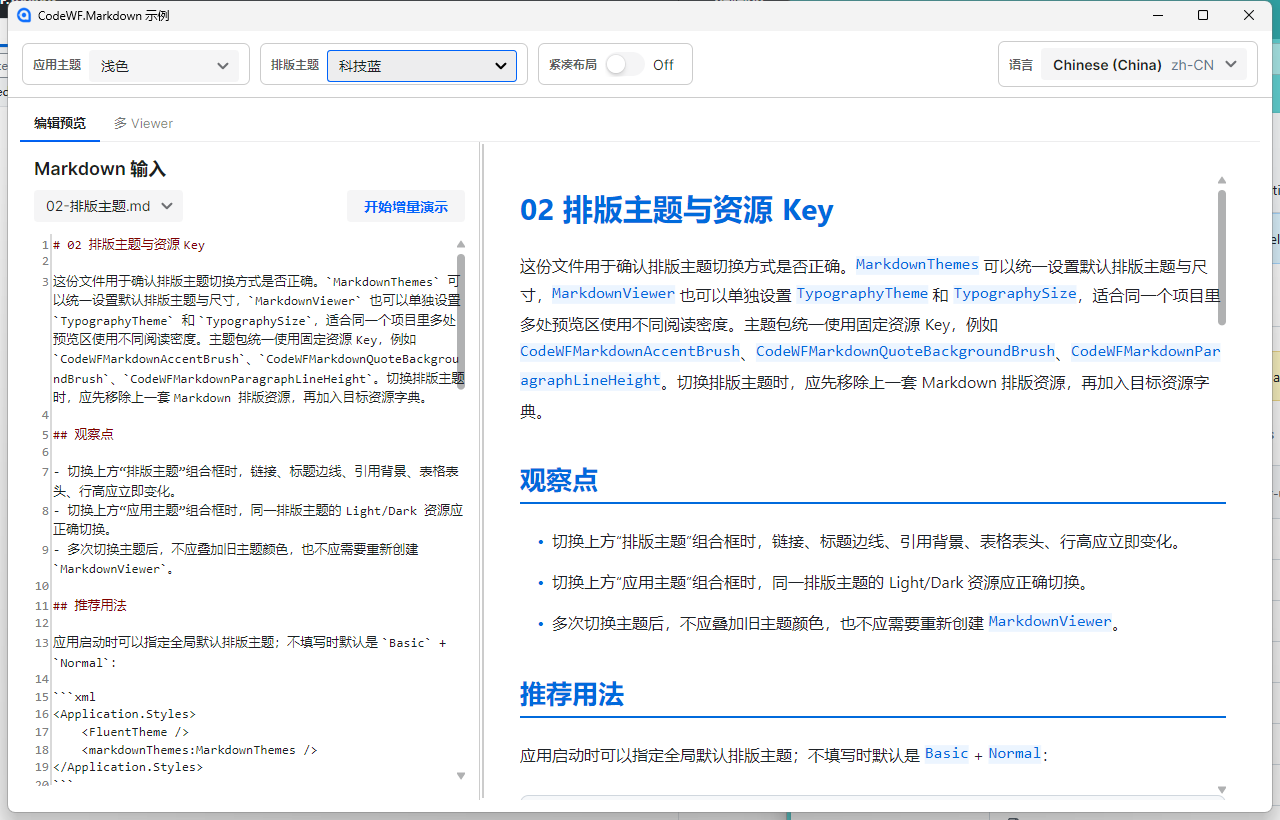
下面是科技蓝主题下的效果:
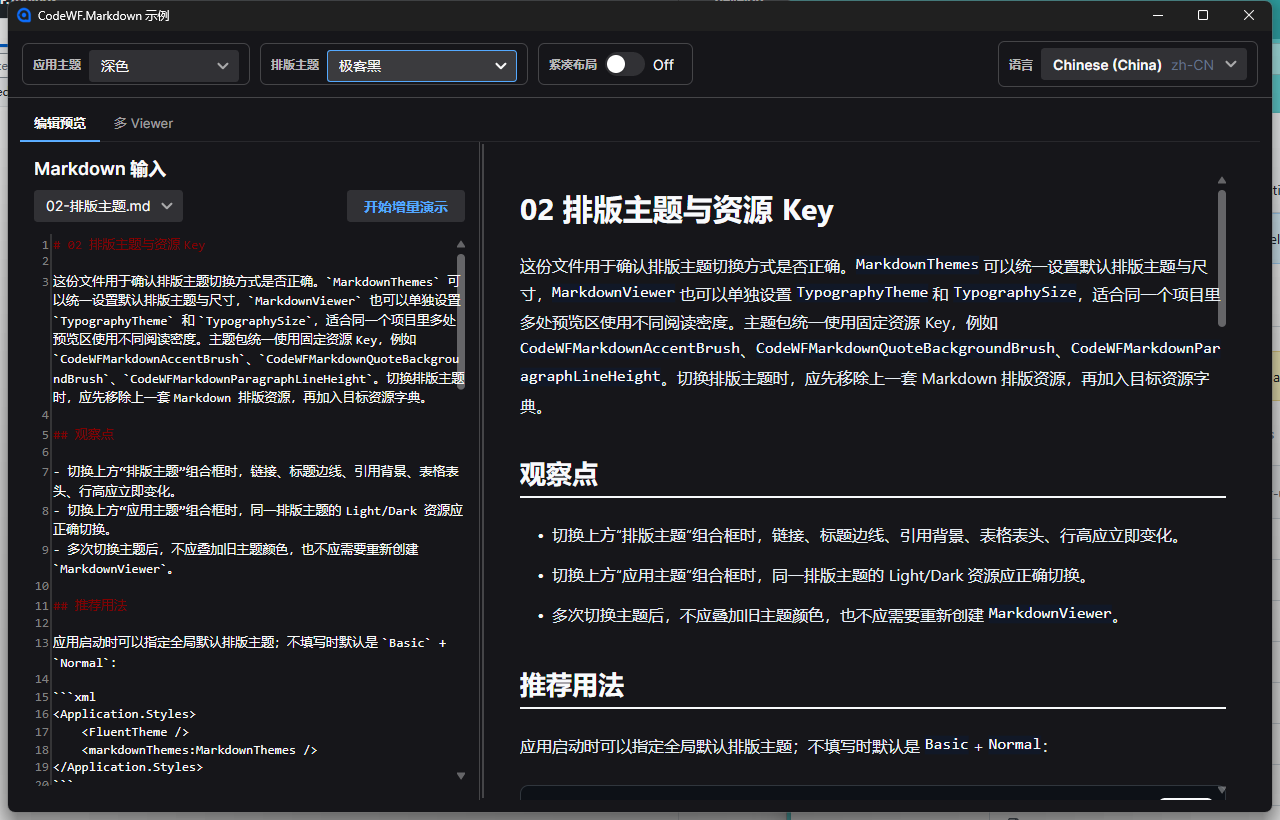
深色应用主题加极客黑排版主题,则更适合代码和技术笔记:
主题资源统一使用固定 Key,例如:
<SolidColorBrush x:Key="CodeWFMarkdownAccentBrush" Color="#0F766E" />
<SolidColorBrush x:Key="CodeWFMarkdownQuoteBackgroundBrush" Color="#ECFDF5" />
<x:Double x:Key="CodeWFMarkdownParagraphLineHeight">31</x:Double>
这样外部项目要自定义主题时,不需要改控件代码,只要覆盖这些资源 Key 即可。默认主题包也提供了 Light/Dark 两套资源,切换 Avalonia 应用主题后,同一个 Markdown 排版主题会加载对应的亮色或暗色资源。
单个 Viewer 可以单独覆盖主题
一个真实应用里,可能不止一个 Markdown 预览区。比如左边是正文预览,右边是评审记录;或者主文档用普通排版,旁边摘要用紧凑排版。
所以 MarkdownViewer 现在支持单个控件覆盖:
TypographyThemeTypographySize
<md:MarkdownViewer
    Markdown="{Binding Markdown}"
    TypographyTheme="Simple"
    TypographySize="Small" />
多 Viewer 示例就是为了验证这个场景:
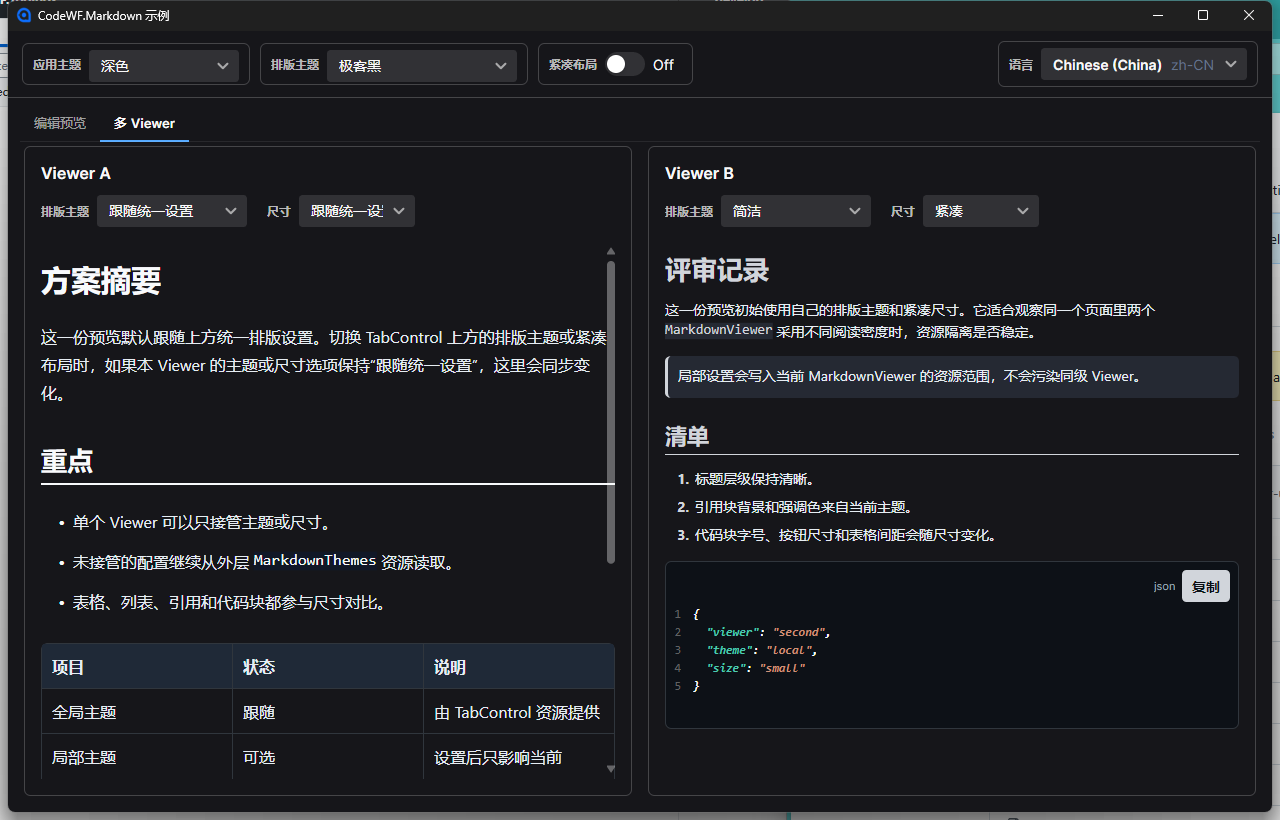
Viewer A 可以跟随上方统一设置,Viewer B 可以自己使用“简洁 + 紧凑”。局部设置会写入当前 Viewer 的资源范围,不会污染同级 Viewer。
这一点对桌面应用很实用。很多应用不是只有一个“文章阅读页”,而是把 Markdown 预览嵌在设置说明、版本更新、AI 回复、日志解释、文档详情、对比视图里。不同区域的阅读密度不同,不能只靠全局主题一把梭。
增量渲染:尽量只替换变更区域
如果每次输入一个字符都完整重建整个 Markdown 文档,短文本没问题,长文档就容易卡。
CodeWF.Markdown 里做了一个增量渲染路径:控件会保留已经渲染的块,文本变化后先通过差异服务判断变更范围,再尽量只替换受影响的块。
示例程序里有一个“开始增量演示”按钮,会自动模拟三类变化:
- 替换文档中一段内容。
- 在正文中部插入中文片段。
- 在文档尾部追加新的 Markdown 块。
效果如下:
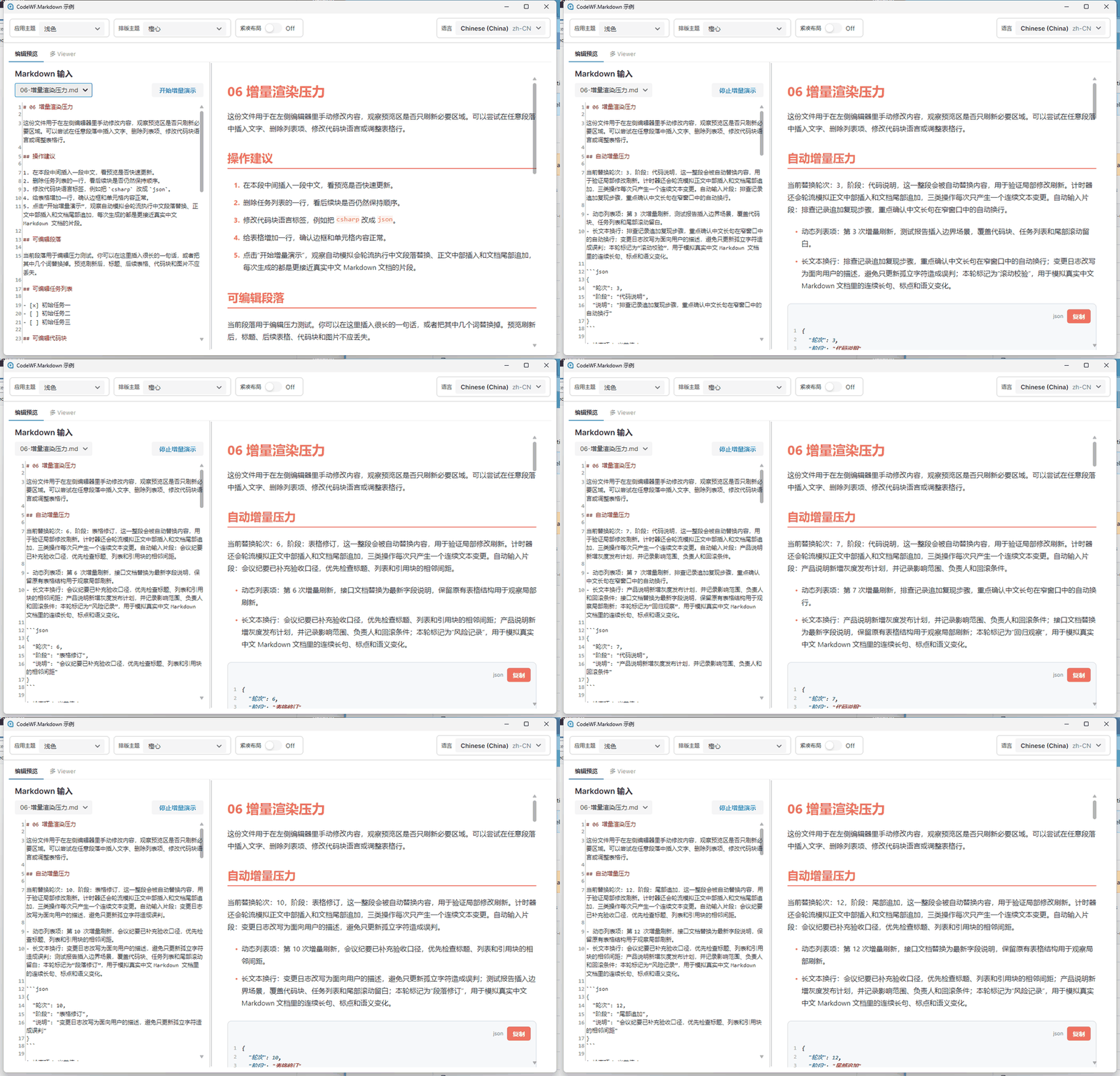
这套逻辑不是为了炫技,而是为了贴近真实编辑场景。中文文档里经常不是只改一个英文单词,而是改一整句话、插入一段说明、追加一个表格或代码块。增量渲染要处理的是这些连续文本变更。
当然,它也不是不顾正确性地强行局部刷新。如果变化范围过大、结构影响太多,或者局部替换不适合继续复用旧块,就会退回完整渲染。对预览控件来说,正确性仍然比“永远局部刷新”更重要。
选区和复制
MarkdownViewer 是只读预览控件,但只读不代表不能交互。
当前控件支持:
- 选择渲染后的文本。
- 复制选区。
- 在空白处复制整篇渲染文本。
- 代码块单独复制。
这里有一个细节:渲染文本不是简单返回原始 Markdown。比如表格、列表、图片 alt、公式、任务列表等内容,都需要提取成适合复制的纯文本。仓库里的 MarkdownParser 和共享渲染模型就承担了一部分这类工作。
做这个功能时我更关心的是“复制出来能不能用”。如果用户只是想从 Markdown 预览里复制一段说明、一个表格或一个代码块,就不应该被 Markdown 标记符打扰。
富 HTML 剪贴板辅助能力
除了预览控件本身,CodeWF.Markdown 现在还提供了 MarkdownHtmlClipboard、MarkdownHtmlClipboardExtensions、CopyKind 和 MarkdownSocialCopyProfiles。它不是把 Markdown 原文塞进剪贴板,而是给宿主应用写入可粘贴到网页编辑器的富 HTML:同时提供 text/plain、text/html、macOS public.html 和 Windows 原生 HTML Format。
这里最关键的是 Windows HTML Format。微信公众号、知乎、稀土掘金这类编辑器通常跑在 Chromium 系浏览器里,如果剪贴板格式不对,就会把 HTML 片段当普通文本显示出来。MarkdownHtmlClipboard 会按 UTF-8 字节计算 CF_HTML 的 StartHTML、EndHTML、StartFragment、EndFragment 偏移,并处理 <!--StartFragment--> / <!--EndFragment--> 片段标记。Vex 的“复制到公众号 / 知乎 / 稀土掘金”现在只需要把当前 Markdown、排版主题和目标平台传给公共扩展方法:
await clipboard.TrySetMarkdownHtmlAsync(
    markdown,
    typographyTheme,
    "wechat",
    typographySize);
CodeWF.Markdown 内部会按 CopyKind.Wechat、CopyKind.Zhihu、CopyKind.Juejin 或扩展的 MarkdownSocialCopyProfile 生成对应 inline HTML,解析本地图片,并写入富 HTML 剪贴板。
另外,网页内容粘贴回 Markdown 编辑器的方向也放进了公共库。宿主应用可以先读取剪贴板里的 HTML,再调用:
var markdown = MarkdownHtmlClipboard.Html2Markdown(htmlContent);
这个 API 会把网页复制得到的标题、段落、链接、图片、列表、引用、代码块和表格转成 Markdown。Vex 中间编辑器现在就是先尝试这条路径;没有 HTML 或转换失败时,再回落到普通粘贴。
Lite 包:给基础预览留一条轻量路径
完整版功能比较全,但依赖也会多一些:
TextMateSharp用于代码高亮。Svg.Controls.Skia.Avalonia和Svg.Skia用于 SVG。Sylinko.CSharpMath.Avalonia用于数学公式。Lang.Avalonia.Json用于多语言资源。
有些项目只需要基础 Markdown 预览,不需要这些扩展能力。为这个场景,我又拆了 CodeWF.Markdown.Lite。
Lite 版保留:
- 标题、段落、列表、任务列表。
- 引用、表格。
- 位图图片。
- 纯文本代码块和复制按钮。
- 对应的 Lite 主题包。
它的直接包引用只保留 Avalonia 和 Markdig,适合对依赖体积比较敏感的项目。如果需要代码高亮、SVG、数学公式、图片预览窗口这些能力,就用完整版。
接入方式
如果使用完整版,安装包:
Install-Package CodeWF.Markdown.Themes
如果习惯使用 .NET CLI,也可以这样加包:
dotnet add package CodeWF.Markdown.Themes
对应 NuGet 地址:
如果只需要轻量版基础预览,则安装 Lite 包线:
dotnet add package CodeWF.Markdown.Lite.Themes
Lite 对应 NuGet 地址:
项目源码在 GitHub:https://github.com/dotnet9/CodeWF.Markdown。
在 App.axaml 引入主题:
<Application
    xmlns="https://github.com/avaloniaui"
    xmlns:markdown="https://codewf.com">
    <Application.Styles>
        <FluentTheme />
        <markdown:MarkdownThemes />
    </Application.Styles>
</Application>
页面里直接使用 MarkdownViewer:
<UserControl
    xmlns="https://github.com/avaloniaui"
    xmlns:md="https://codewf.com">
    <ScrollViewer
        HorizontalScrollBarVisibility="Disabled"
        VerticalScrollBarVisibility="Auto">
        <md:MarkdownViewer
            Markdown="{Binding Markdown}"
            TypographyTheme="Simple"
            TypographySize="Small" />
    </ScrollViewer>
</UserControl>
如果不指定 TypographyTheme 和 TypographySize,默认是 Basic + Normal,也可以在 MarkdownThemes 上设置全局默认。
运行时切换资源可以调用:
MarkdownThemes.OverrideTypographyResources(
    app,
    MarkdownTypographyThemes.BlueGlow,
    MarkdownTypographySizes.Small);
也可以只覆盖某个窗口或某个控件范围,避免影响全局应用样式。
仓库组织
当前仓库结构大致是这样:
src/
  CodeWF.Markdown
  CodeWF.Markdown.Themes
  CodeWF.Markdown.Lite
  CodeWF.Markdown.Lite.Themes
  CodeWF.Markdown.Sample
  CodeWF.Markdown.Lite.Sample
  CodeWF.Markdown.Shared
tests/
  CodeWF.Markdown.Tests
CodeWF.Markdown.Shared 里放共享渲染模型、Markdown 解析、差异服务等代码。完整版、Lite 和测试都能复用这一层逻辑。
主题资源放在 CodeWF.Markdown.Themes 和 CodeWF.Markdown.Lite.Themes 里。这样控件代码、默认模板、排版资源可以分别维护,外部项目也能选择只引用自己需要的包。
最近这轮做了什么
从更新日志看,最近几版主要在补这些东西:
- 新增
CodeWF.Markdown.Lite和对应主题包、示例应用。 MarkdownViewer新增TypographyTheme与TypographySize,支持单个 Viewer 覆盖。MarkdownThemes新增紧凑型排版资源。- 示例应用调整为 Tab 结构,新增多 Viewer 演示。
- 多语言资源从 Resx 切换为 JSON,并随 NuGet content files 分发。
- 改进图片资源释放和图片预览窗口资源持有。
- 新增共享图片加载与栅格化能力,以及
MarkdownDocumentExporter/ExportKind,方便宿主应用用一个公共入口导出 PNG、可选择文本 PDF、Word;PDF 正文可复制,PDF/Word 可嵌入图片。 - 新增
MarkdownHtmlClipboardExtensions、CopyKind和自媒体 profile,为微信公众号、知乎、稀土掘金等网页编辑器提供可扩展的富 HTML 剪贴板载荷。 - 新增
MarkdownHtmlClipboard.Html2Markdown(htmlContent),让宿主编辑器可以把从网页复制得到的 HTML 自动转为 Markdown 后再粘贴。 - 新增内部
MarkdownMathView,让数学公式颜色跟随当前主题。 - 补充 Markdown、主题、SVG 及相关程序集的裁剪保留配置,改善裁剪发布兼容性。
这些工作看起来不如“新增一个大功能”显眼,但对控件长期可用很重要。尤其是主题资源、图片释放、局部 Viewer 覆盖、Lite 包线,它们决定了这个控件能不能被放进真实项目,而不是只能在示例里好看。
还可以继续打磨的地方
CodeWF.Markdown 现在已经能覆盖我自己常用的 Markdown 预览场景,但它仍然有继续打磨空间:
- 主题可以继续增加,并统一更多边角细节。
- 长文档和复杂表格还可以继续做压力测试。
- 代码高亮语言覆盖可以继续验证。
- 图片预览窗口的快捷键和交互还可以更完整。
- 文档示例可以补更多“如何在业务项目中接入”的片段。
- Lite 和完整版的能力边界需要在 README 里写得更直观。
- AOT、裁剪发布和不同平台字体差异还可以继续测。
我现在对这个控件的目标比较明确:先把常见阅读和预览场景做稳,再逐步补高级能力。Markdown 控件很容易越做越散,所以包线、主题资源、共享渲染模型和测试要先立住。
最后
CodeWF.Markdown 是我从自己项目里拆出来的 Avalonia Markdown 渲染控件。它的价值不在于“我也能渲染几个标题和列表”,而在于把 Markdown 预览作为桌面控件认真处理:
- 不是 WebView,而是 Avalonia 控件树。
- 不是单一样式,而是排版主题资源。
- 不是只能全局设置,而是支持单个 Viewer 覆盖。
- 不是每次输入都完整重建,而是尽量走增量渲染。
- 不是只做完整版,也给基础预览留了 Lite 包线。
对桌面工具、文档管理、AI 回复预览、更新日志展示、配置说明、开发者工具箱这类场景来说,一个可主题化、可复制、可嵌入、可长期维护的 MarkdownViewer 还是很有价值的。
后面站长会继续把它用到自己的工具和文章工作流里,一边用一边补真实场景里会遇到的细节。比起做一个一次性的 Demo,我更想把它打磨成 Avalonia 项目里可以直接拿来用的 Markdown 预览控件。