CodeWF Toolbox: A Developer Toolbox Built with Avalonia + Prism

CodeWF Toolbox: A Developer Toolbox Built with Avalonia + Prism

This article focuses on the existing features of CodeWF Toolbox, including conversion, development, security, web, media, network, text, data, log reader, international resource management, and the modular organization using Avalonia + Prism.

Last updated 5/16/2026 4:55 PM
dotnet9
16 min read
Category
.NET Avalonia Desktop Development
Topic
Avalonia
Tags
C# Avalonia Prism Cross-platform Desktop Toolbox CodeWF

Today, I (the site owner, often called "Zhanzhang" by my friends) want to talk about CodeWF Toolbox, a toolbox I developed myself.

If you know me, you probably call me "Zhanzhang" because I also run a website: CodeWF. This toolbox is built around the recurrent needs I encounter when writing code, maintaining the website, organizing materials, and debugging issues. It's not just an Avalonia demo with a few buttons—it's a local desktop toolbox with over 100 tool entry points.

The project uses C# + Avalonia + Prism + Semi.Avalonia + Ursa, and the goal is straightforward: gather all the conversion, encoding, formatting, validation, generation, and query tools that developers use daily into one local desktop application.

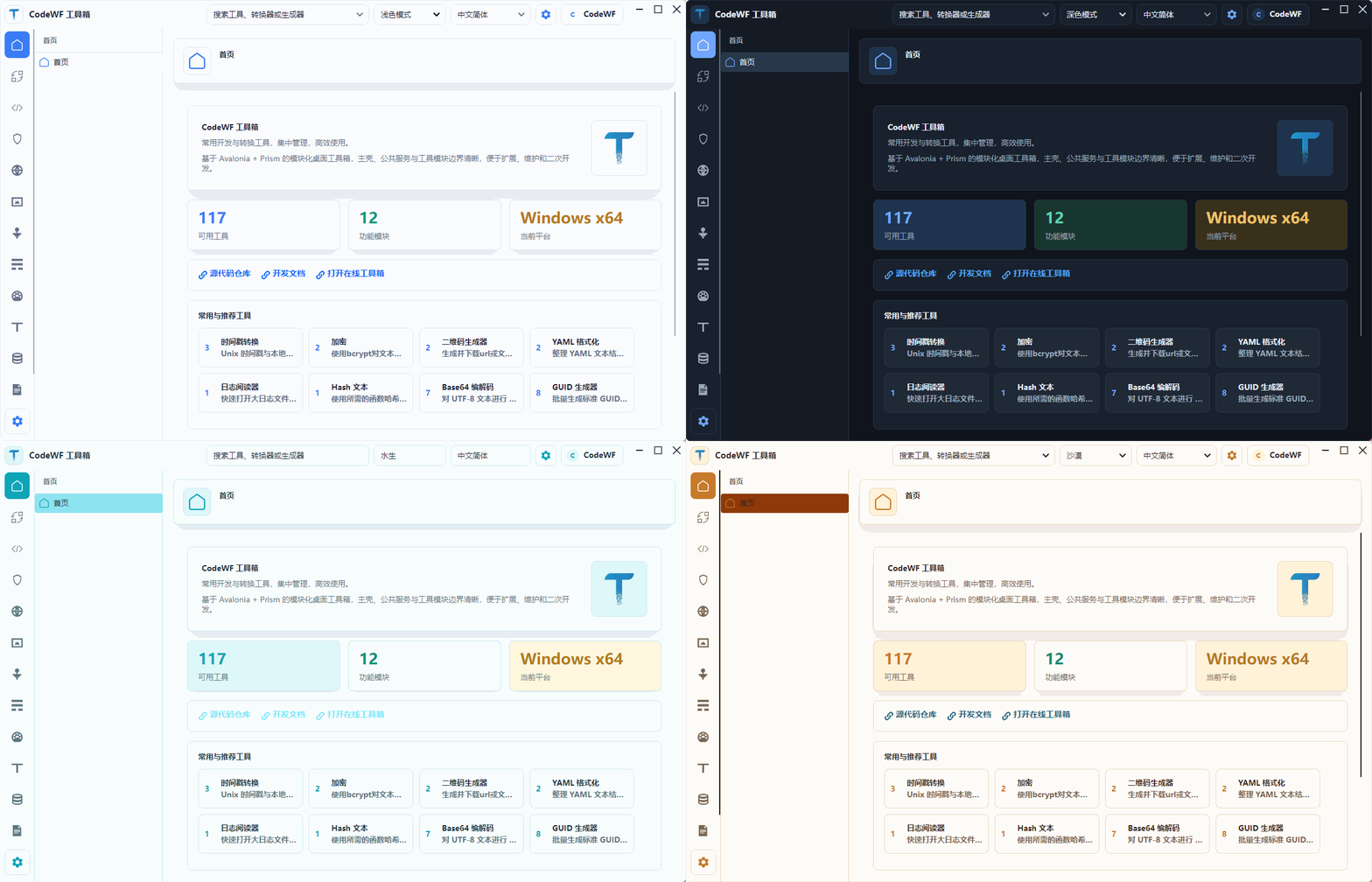
This time, I won't talk abstractly about "cross-platform UI capabilities." Instead, I'll break down what CodeWF Toolbox actually does. I've also taken new screenshots, reduced the main window size, added a home page with frequently used and recommended tools, and displayed everything in my preferred Desert theme.

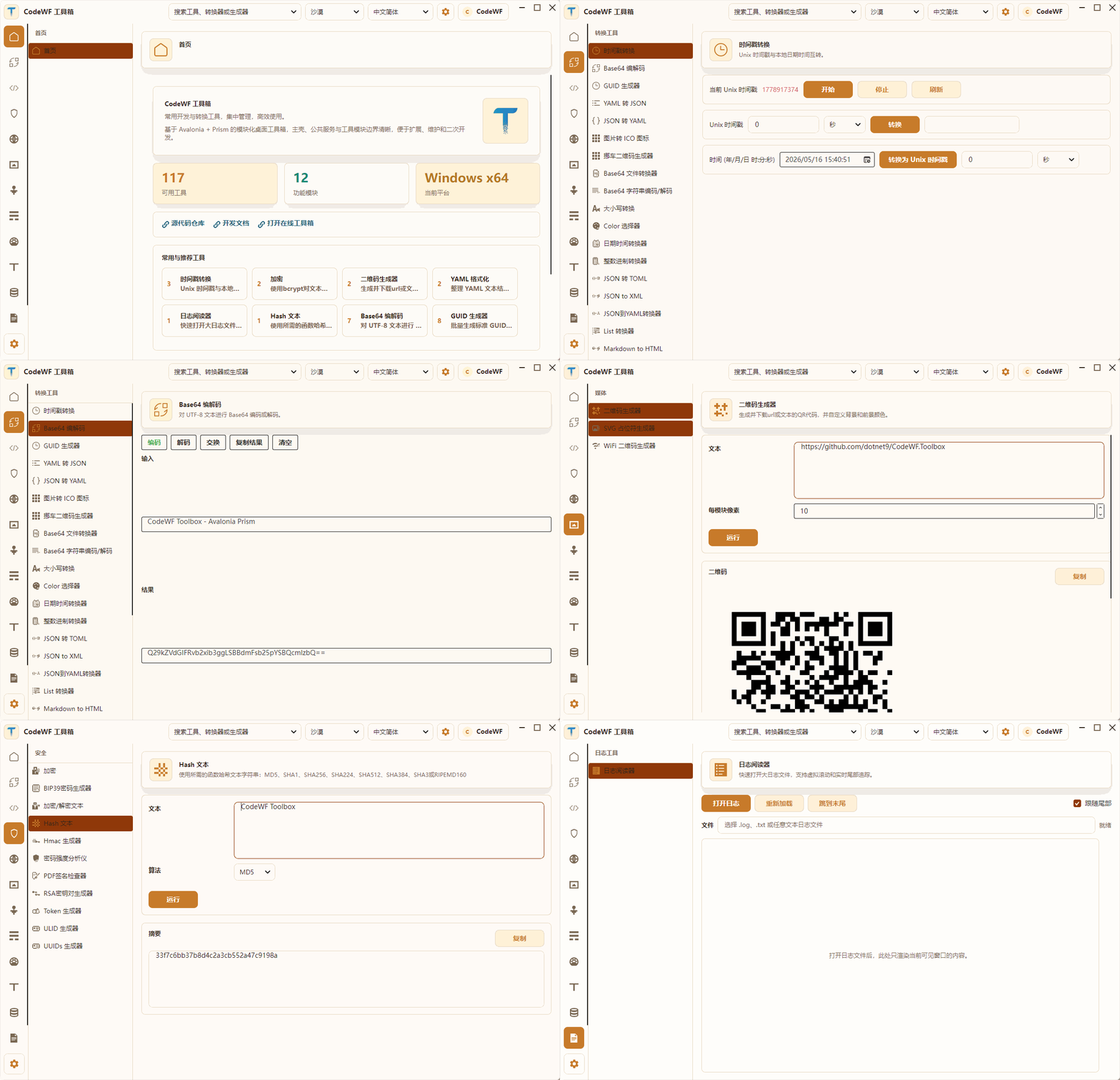
Let's start with a feature tour GIF.

Home Page: No Longer Just a Blank Welcome Page

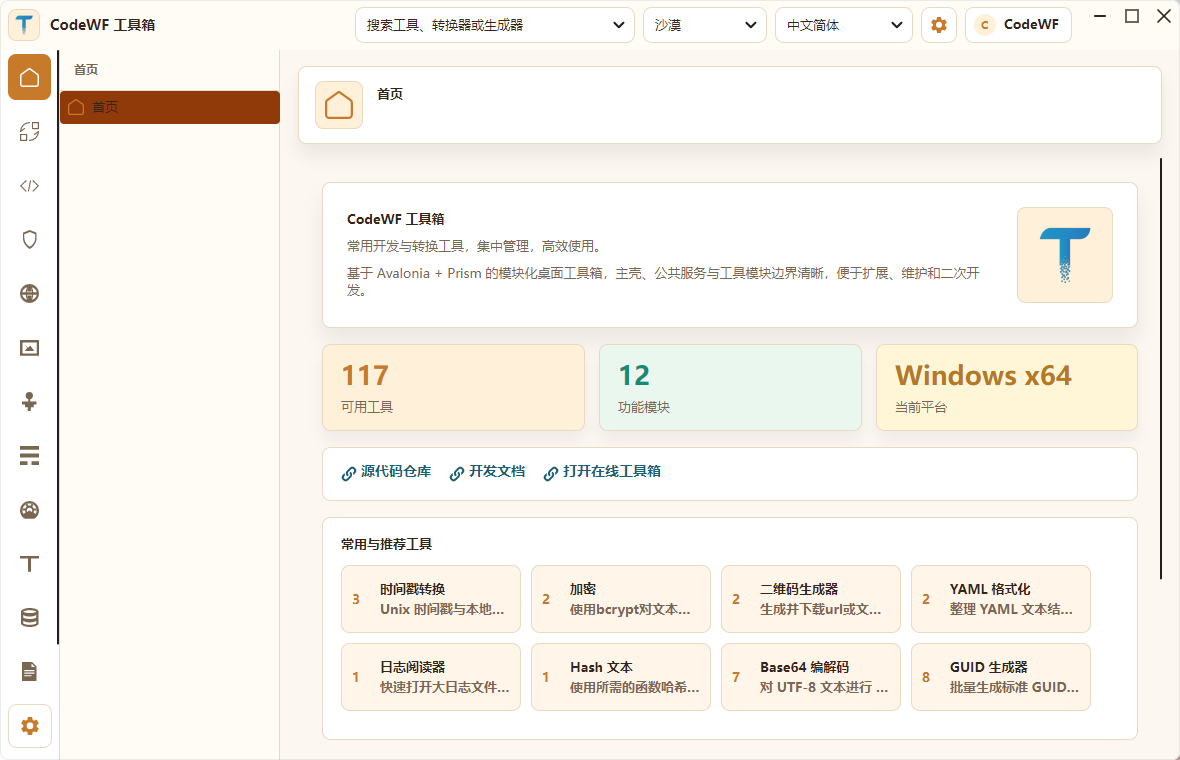
The new home page is one of the key improvements I focused on this time. Previously it was more like a generic welcome screen; now it's better suited as the entry point for the toolbox.

The top of the home page displays three core pieces of information:

  • Number of currently available tools: 117.
  • Number of function modules: 12.
  • Current running platform: Windows x64.

Below that, there's a "Frequently Used & Recommended Tools" section. If the user has used tools before, it shows the most frequently used ones; if there are fewer than 8, it fills the rest with recommended tools. Even on first launch, the page doesn't look empty—users see high-frequency entries like Timestamp, Base64, GUID, QR Code, Hash, Log Viewer, etc.

This change may seem small, but it's crucial for the toolbox experience. When I built this desktop toolbox, I had a clear idea: the home page shouldn't be just a promotional page—it should let users start working immediately after opening.

Conversion Tools: Small Functions Developers Use Every Day

Conversion tools are the most basic and most commonly used category in CodeWF Toolbox.

The current conversion module includes these standalone pages and data-driven tools:

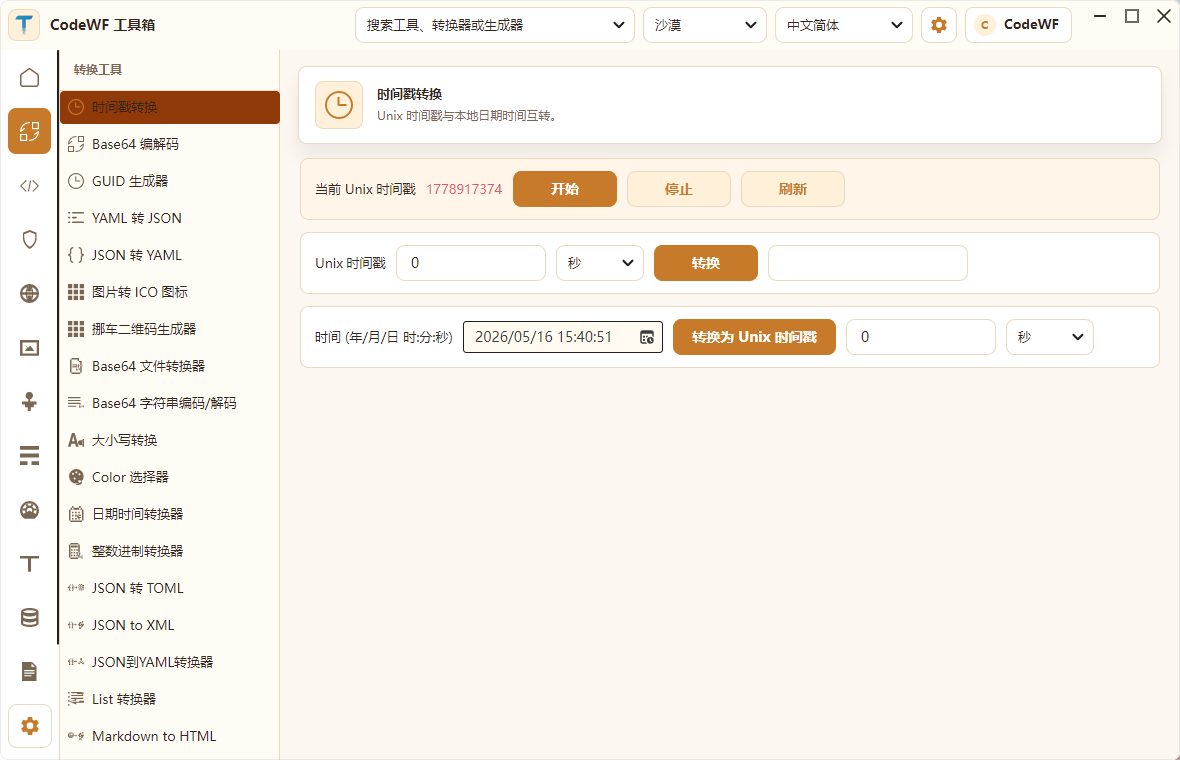
  • Timestamp Converter: Convert between Unix timestamps and local time, supporting seconds and milliseconds.
  • Base64 Encoder/Decoder: Encode and decode UTF-8 text, swap, copy.
  • GUID Generator: Batch generate GUIDs with control over case and format.
  • YAML to JSON, JSON to YAML.
  • Image to ICO icon.
  • Car-moving QR Code Generator.
  • Base64 File Converter.
  • Base64 String Encoder/Decoder.
  • Case Converter.
  • Color Picker.
  • Date Time Converter.
  • Integer Base Converter.
  • JSON/TOML/XML/YAML cross-conversion.
  • List Converter, Markdown to HTML, Roman Numeral Converter, etc.

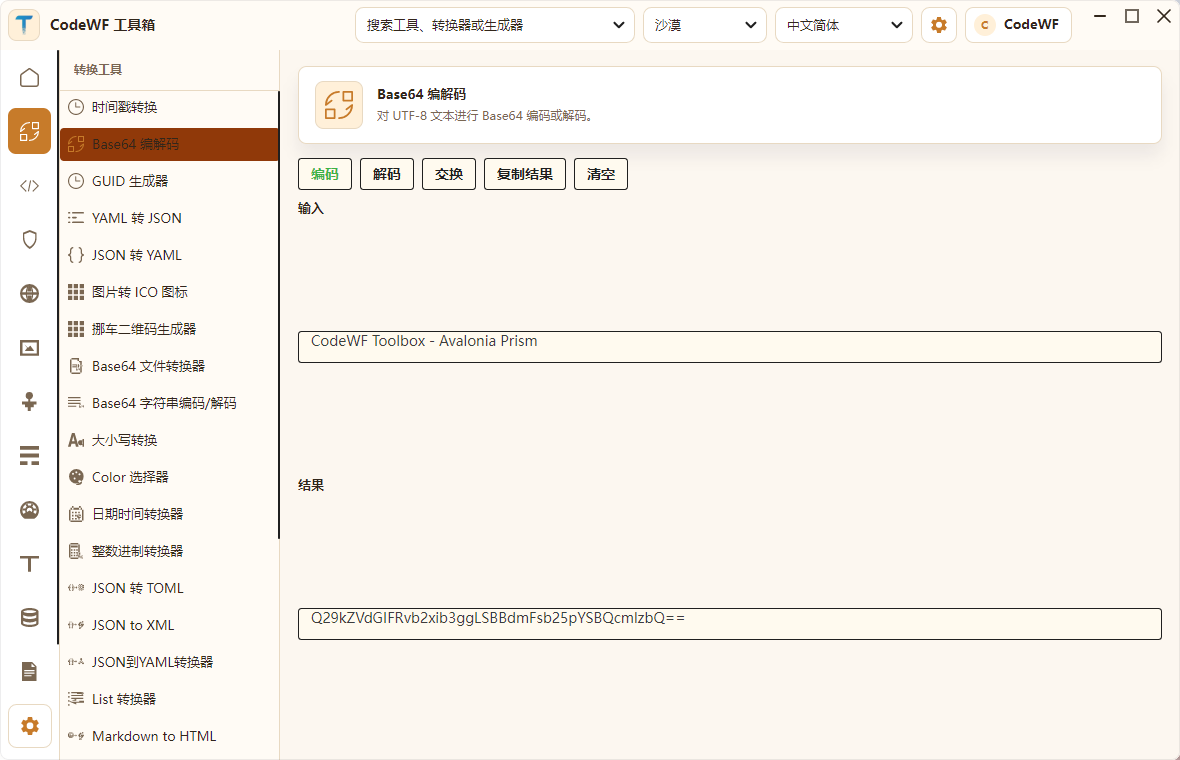
For example, the Base64 page: input text and get the encoded result immediately.

These functions are tiny, but they're exactly the kind of thing developers look up on the web repeatedly throughout the day. Turning them into a local toolbox has clear benefits: fast response, offline availability, no ads, and no need to paste temporary text into external sites.

Development Tools: Formatting, Parsing, Diffing, and Command Help

The development module is more about "helper tools during coding." Many of these are tools I use daily, so they had higher priority when I added them to the toolbox.

The existing development tools cover a wide range:

  • JSON Formatter, JSON Minifier, JSON Path Extractor, JSON to CSV.
  • YAML Formatter.
  • XML Formatter, XML XPath Tester.
  • SQL Beautifier and Formatter.
  • CSV to JSON, CSV to Markdown Table.
  • INI to JSON, .env to JSON.
  • HTTP Header Parser.
  • Data URL Parser.
  • Docker Image Tag Parser.
  • Docker Run to docker-compose.
  • Chmod Calculator.
  • Crontab Expression Generator.
  • Regex Tester, Regex Cheatsheet, Regex Replace.
  • Git Cheat Sheet.
  • Hex Dump Viewer.
  • SemVer Checker and Comparator.
  • Markdown Table Generator.
  • Generators: NanoID, UUID v5, Random Port, etc.

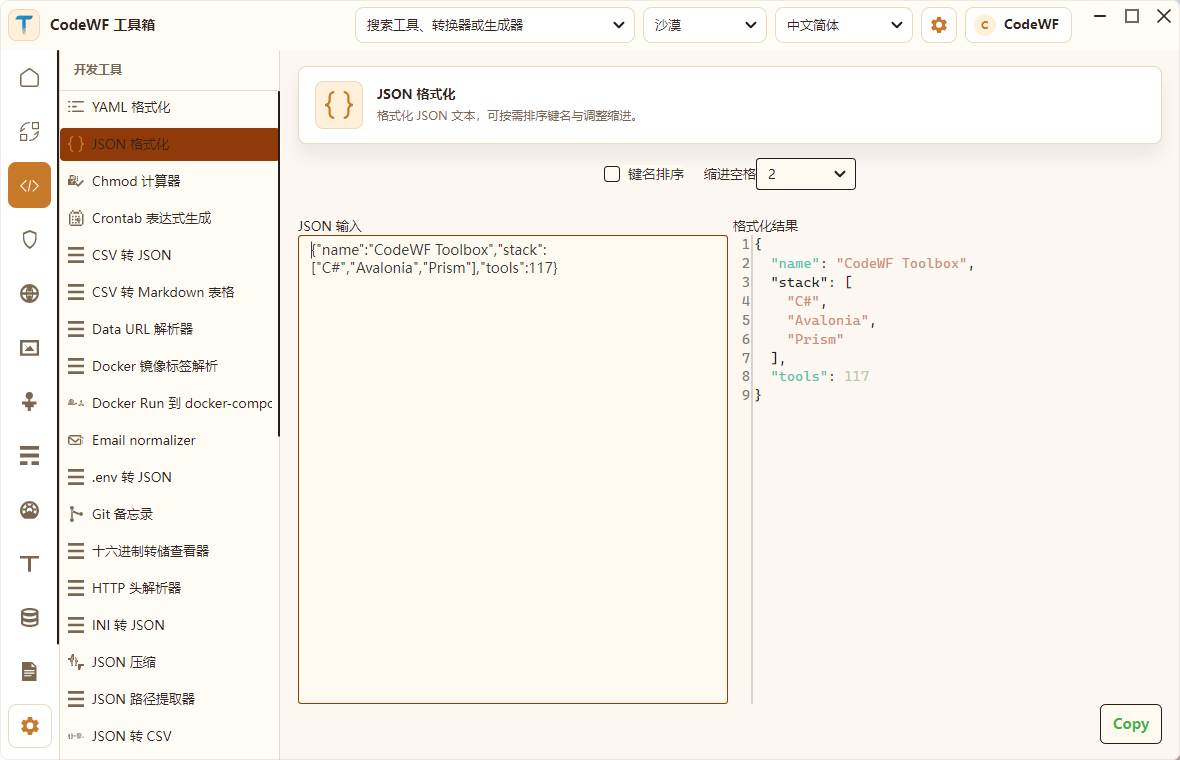
The JSON Format page in the screenshot is typical: input raw JSON on the left, output formatted JSON on the right, with options to control key sorting and indentation.

Such tools are well-suited to being abstracted as data-driven forms: input fields, output fields, execution functions, and auto-run settings can all be described by a ToolSpec, instead of writing repetitive XAML for each tool. That's important to me because once the tool count grows, maintenance cost becomes the real issue.

Security Tools: Hash, HMAC, Keys, and Password Capabilities

The security module contains security-related utilities that developers often need to temporarily compute or generate.

Current features include:

  • Bcrypt Hash and Compare.
  • BIP39 Mnemonic/Seed Generator.
  • AES, TripleDES Text Encryption/Decryption.
  • Hash Text: MD5, SHA1, SHA2, SHA3, RIPEMD160.
  • HMAC Generator.
  • Password Strength Analyzer.
  • PDF Signature Checker.
  • RSA Key Pair Generator.
  • Token Generator.
  • ULID Generator.
  • UUID v4 Generator.

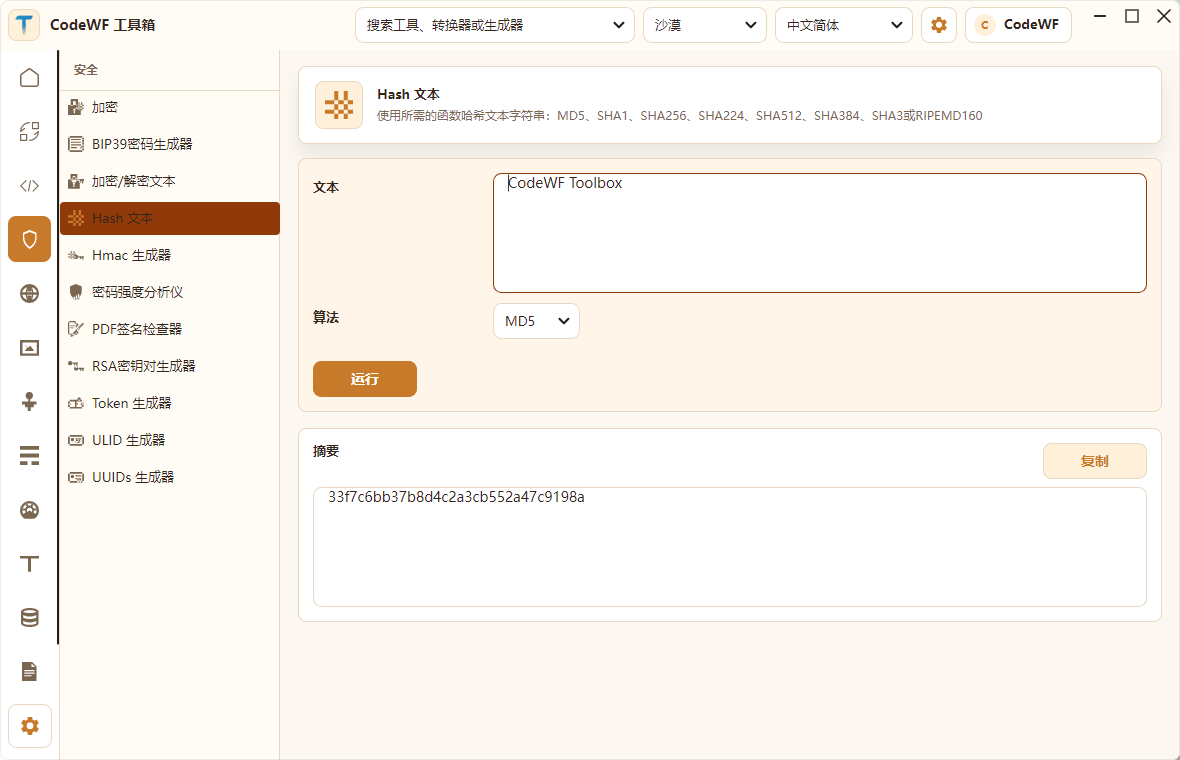
The screenshot shows the Hash Text tool. Enter "CodeWF Toolbox" and it instantly generates the digest. While you could do similar things via command line, a desktop tool is more convenient for temporary verification, copying, and comparing.

Web Tools: HTTP, JWT, URL, MIME, UA

The web module is mainly aimed at frontend/backend debugging, interface troubleshooting, and web metadata processing. I open these tools frequently when maintaining the website and writing APIs.

Existing tools include:

  • Basic Auth Header Generator.
  • Current Device Info Viewer.
  • HTML Entity Escape/Uescape.
  • HTML WYSIWYG Content Generator.
  • HTTP Status Code Lookup.
  • JWT Parser.
  • Keycode Info Viewer.
  • Open Graph / Twitter Meta Tag Generator.
  • MIME Type Lookup.
  • OTP One-Time Password Generator & Verifier.
  • Outlook SafeLink Decoder.
  • Slugify String.
  • URL Encoder/Decoder.
  • URL Parser.
  • User-Agent Parser.
  • JSON Diff.

These tools share a common characteristic: their input/output structures are quite standard, making them perfect for maintenance within a unified ToolFramework.

Media Tools: QR Code, WiFi QR Code, and SVG Placeholder

The media module isn't about heavy video editing tools; it's focused on small generation tools that developers need daily.

Current tools:

  • QR Code Generator.
  • WiFi QR Code Generator.
  • SVG Placeholder Generator.

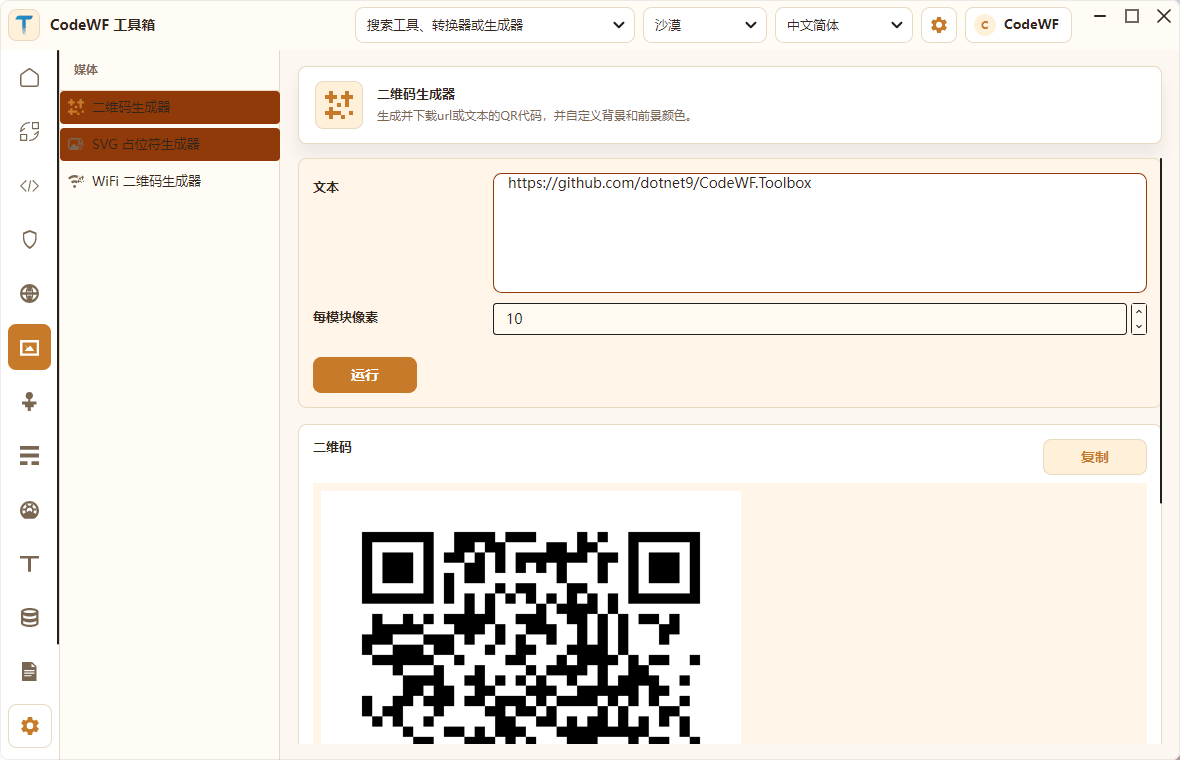
The QR Code Generator supports inputting a URL or text and generating a QR Code. This is handy when you need to quickly scan a local address, document URL, or repo URL with your phone.

Network Tools: IP, CIDR, MAC Address

The network module currently covers basic IP and MAC address tools:

  • IPv4 Address Converter: decimal, binary, hexadecimal, IPv6 mapped, etc.
  • IPv4 Range Expander: start/end IP to CIDR range.
  • IPv4 Subnet Calculator.
  • IPv6 ULA Generator.
  • MAC Address Generator.
  • MAC Address Vendor Lookup.

These are practical for backend, operations, network troubleshooting, and local development environment configuration. By adding them to CodeWF Toolbox, I hoped that some scattered but commonly needed queries and conversions wouldn't require ad-hoc internet searches.

Math, Measurement, Text & Data Tools

CodeWF Toolbox doesn't just handle encoding and conversion; it also includes small calculation and text processing tools.

Math:

  • ETA Calculator.
  • Math Expression Calculator.
  • Percentage Calculator.

Measurement:

  • Benchmark Builder.
  • Chronometer.
  • Temperature Converter.

Text:

  • ASCII Art Text Generator.
  • Emoji Picker.
  • Lorem Ipsum Generator.
  • Numeronym Generator.
  • String Obfuscator.
  • Text Diff.
  • Text Statistics.

Data:

  • IBAN Validation & Parser.
  • Phone Number Parser & Formatter.

You might not use these every day, but they belong to the category of "tools you need temporarily and would otherwise search for." Since I'm building a toolbox, I wanted to include these low-frequency but practical little capabilities as well.

Log Viewer: Not Loading Large Files into Memory All at Once

The Log Viewer is one of my favorite module directions.

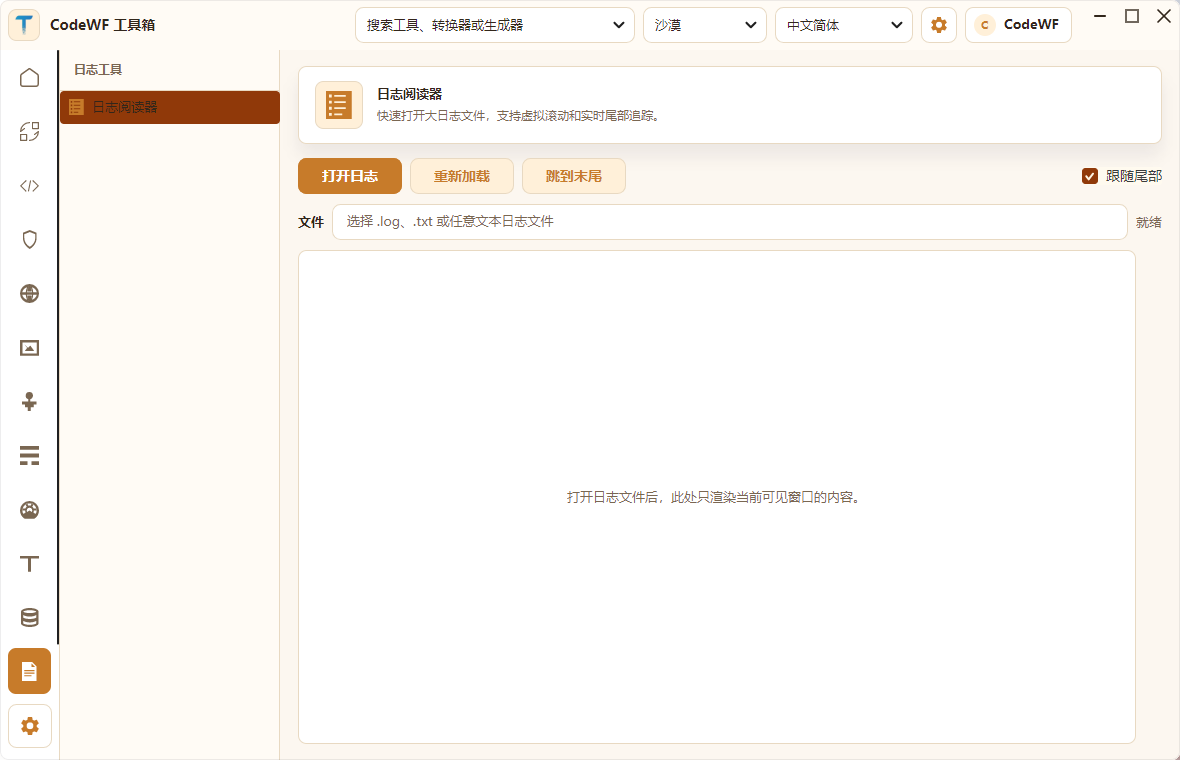
It's not a simple ReadAllText() into a text box; it renders based on the visible window, designed for large log files and real-time tailing scenarios. The interface shows:

  • Open Log.
  • Reload.
  • Scroll to End.
  • Follow Tail.
  • Current file path.
  • Visible content area.

This kind of functionality is valuable for a desktop tool. Often I just want to quickly look at a several-hundred-MB log without opening an IDE or having a regular text editor freeze.

Internationalization Resource Manager: Merging and Managing XML Translation Files

The project also includes a CodeWF.Modules.XmlTranslatorManager module for handling XML language resources.

It contains:

  • Merge XML Files.
  • Manage XML Files.
  • Multilingual property and language class models.

This module is an example of CodeWF Toolbox serving itself. As the number of tools grows, multilingual resources, module menus, and resource merges need to be tool-ified; relying solely on manual maintenance is error-prone.

Note: The current version uses JSON for multilingual files. The XML format is in the i18n-xml branch.

Theme & Language: The Desert Theme Is Indeed More Appealing

For this round of screenshots, I used the Desert theme. Its overall look is more distinctive than plain light mode, yet not as dark as a true dark theme that drowns out content.

You can see the theme switching effect in this GIF:

The current theme list includes:

  • Follow System.
  • Light.
  • Dark.
  • Aquatic.
  • Desert.
  • Dusk.
  • Night Sky.

The language resources include:

  • Simplified Chinese.
  • Traditional Chinese.
  • English.
  • Japanese.

It's worth noting that themes and languages aren't just about replacing a few strings. For a desktop application to be usable long-term, you have to consider themes, control libraries, fonts, window sizes, list widths, and dropdown widths together. For example, the main window has been reduced from a large startup size to a more standard desktop ratio, and the home page cards use a more compact 4-column layout.

How Are So Many Tools Organized?

If every small tool required its own complete page, maintenance would be painful. CodeWF Toolbox currently has two broad approaches to organizing tools.

The first category is standalone page tools.

Examples:

  • Timestamp Converter.
  • Base64 Encoder/Decoder.
  • GUID Generator.
  • Image to ICO.
  • Log Viewer.
  • XML Translation Resource Manager.

These tools have more specific interactions and state, so it's better to write separate Views and ViewModels.

The second category is data-driven tools.

Examples:

  • JSON Formatter.
  • JWT Parser.
  • Hash Text.
  • URL Encoder.
  • MIME Lookup.
  • MAC Address Lookup.
  • QR Code Generator.
  • Math Calculations.
  • Text Statistics.

These tools have more standardized input/output patterns and can be described with a ToolSpec:

public class ToolSpec
{
    public string Id { get; set; }
    public string Category { get; set; }
    public string Name { get; set; }
    public string Description { get; set; }
    public List<ToolField> Fields { get; } = [];
    public List<ToolOutput> Outputs { get; } = [];
    public Func<ToolRunContext, CancellationToken, Task> RunAsync { get; set; }
    public bool AutoRun { get; set; }
}

This way, when adding a new tool, in many cases you only need to provide:

  • Tool ID.
  • Category.
  • Input fields.
  • Output fields.
  • Algorithm function.
  • Multilingual resources.
  • Icon.

The UI form can be reused, and the tool logic doesn't pollute the main window. This foundation is what I rely on for expanding CodeWF Toolbox further.

Prism Modularity Allows Continuous Feature Growth

At the project entry point, modules are registered via Prism:

moduleCatalog.AddModule<MainModule>();
moduleCatalog.AddModule<ToolFrameworkModule>();
moduleCatalog.AddModule<ConverterModule>();
moduleCatalog.AddModule<DevelopmentModule>();
moduleCatalog.AddModule<SecurityModule>();
moduleCatalog.AddModule<WebModule>();
moduleCatalog.AddModule<MediaModule>();
moduleCatalog.AddModule<NetworkModule>();
moduleCatalog.AddModule<MathModule>();
moduleCatalog.AddModule<MeasurementModule>();
moduleCatalog.AddModule<TextModule>();
moduleCatalog.AddModule<DataModule>();
moduleCatalog.AddModule<LogViewerModule>();
moduleCatalog.AddModule<XmlTranslatorManagerModule>();

Each module is responsible for registering its own menu items and Views. The main program doesn't need to know how each tool page is implemented internally; it only handles:

  • Application startup.
  • Login window.
  • Main window.
  • Themes and languages.
  • Common services.
  • Prism regions.
  • Module catalog.
  • System tray and exit behavior.

This boundary is important. A toolbox project can easily become scattered, ending up with the main window bloated with functional details. Prism modularization at least provides a clear direction for extension, and it helps me avoid messing up the main program as I continue adding tools.

Q: Why does the main project have strong references to the tool modules?

A: After Windows AOT publishing, managed module dynamic libraries cannot be dynamically loaded normally (they depend on the .NET runtime). Publishing as unmanaged dynamic libraries also doesn't support modular dynamic loading (not researched). Without AOT publishing, Windows 7 compatibility is lost.

Learning Points

If you're learning Avalonia, I think CodeWF Toolbox is more valuable than a single-window demo because it tackles many real-world desktop application issues:

  • Main window and login window.
  • System tray.
  • Theme switching.
  • Multilingual resources.
  • Modular navigation.
  • ToolFramework data-driven tools.
  • File selection.
  • Clipboard copy.
  • Large log file viewing.
  • User configuration and usage history.
  • Windows/Linux/macOS platform difference provisions.
  • Publishing configuration.

These engineering points aren't about "can you draw a button"; they're about "can you still maintain the application when there are many tools." This project is my own way of organizing and tackling these engineering challenges.

Areas Still Open for Polish

CodeWF Toolbox already has a relatively complete direction, but I'm well aware it still has room for improvement:

  • The control styles on some tool pages can be further unified, e.g., input box borders, button hierarchy, spacing.
  • Some Chinese resources still have machine-translation traces and can be polished.
  • With so many tools, the recommended tools on the home page could benefit from a clearer categorization strategy.
  • Search results could better highlight tool categories and recent usage.
  • The Log Viewer could include sample files or a drag-and-drop entry.
  • The build still has preview SDK hints, deprecated APIs, and Avalonia XAML accessibility warnings that can be cleaned up over time.

I've already reduced the default window size and filled the home page with 8 quick-access shortcuts. With the Desert theme, it feels more like a daily-use toolbox than an oversized desktop shell.

Final Thoughts

CodeWF Toolbox is a toolbox I develop and maintain myself. Its value doesn't lie in the complexity of any single tool, but in organizing many high-frequency developer tools into an extensible desktop application.

It currently covers:

  • Conversion Tools.
  • Development Tools.
  • Security Tools.
  • Web Tools.
  • Media Tools.
  • Network Tools.
  • Math Tools.
  • Measurement Tools.
  • Text Tools.
  • Data Tools.
  • Log Viewer.
  • Internationalization XML Resource Management.

Writing desktop tools in C# is not outdated. For file operations, local clipboard, logging, offline conversion, temporary generation, formatting, and system integration, a local desktop application remains valuable.

And Avalonia + Prism provides a relatively modern path for this direction: it's cross-platform, and you can maintain a large number of features in a modular way.

I will continue to polish CodeWF Toolbox toward being a truly daily-use tool. Rather than making just a demo window, I want to practice this ability: how to organize an ever-growing collection of small tools into a product that can be maintained long-term.

Keep Exploring

Related Reading

More Articles