Today we continue polishing the local desktop mind map editor Zhijian.
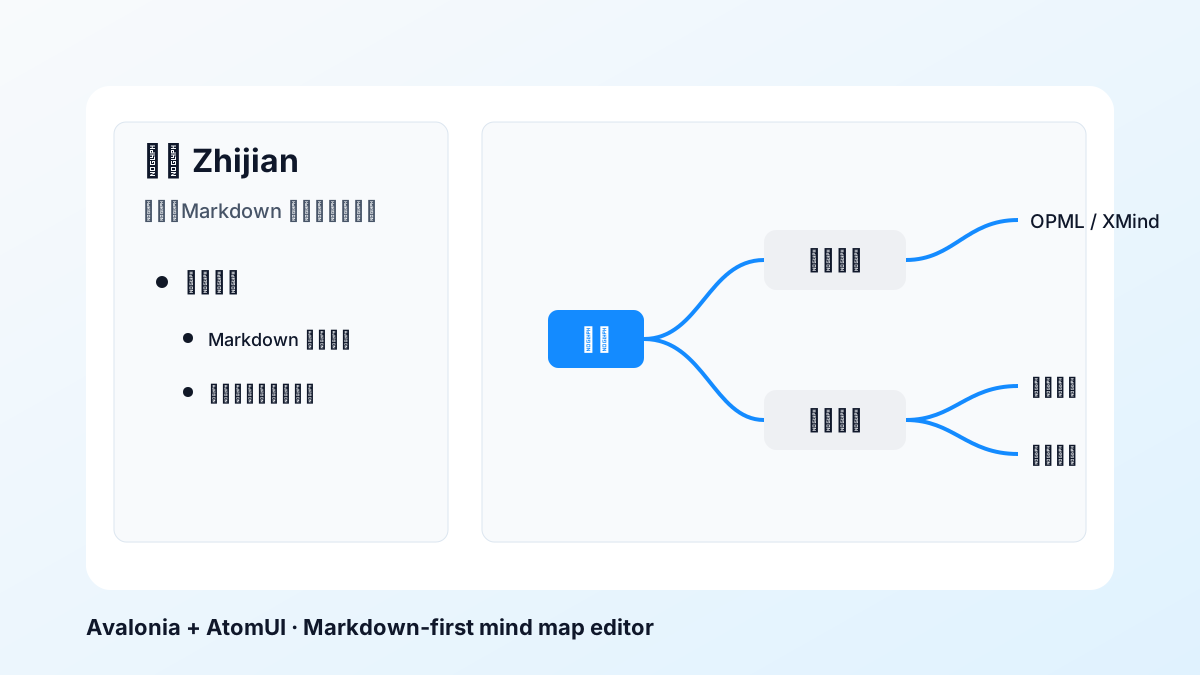
Zhijian is a Markdown-first mind map editor based on C# + Avalonia. It is not a complex project management system, but rather focuses on high-frequency scenarios such as outlining, structuring feature designs, and organizing article structures. It binds three perspectives—outline, Markdown, and mind map—into a single tree.
Project repository: https://github.com/dotnet9/Zhijian.
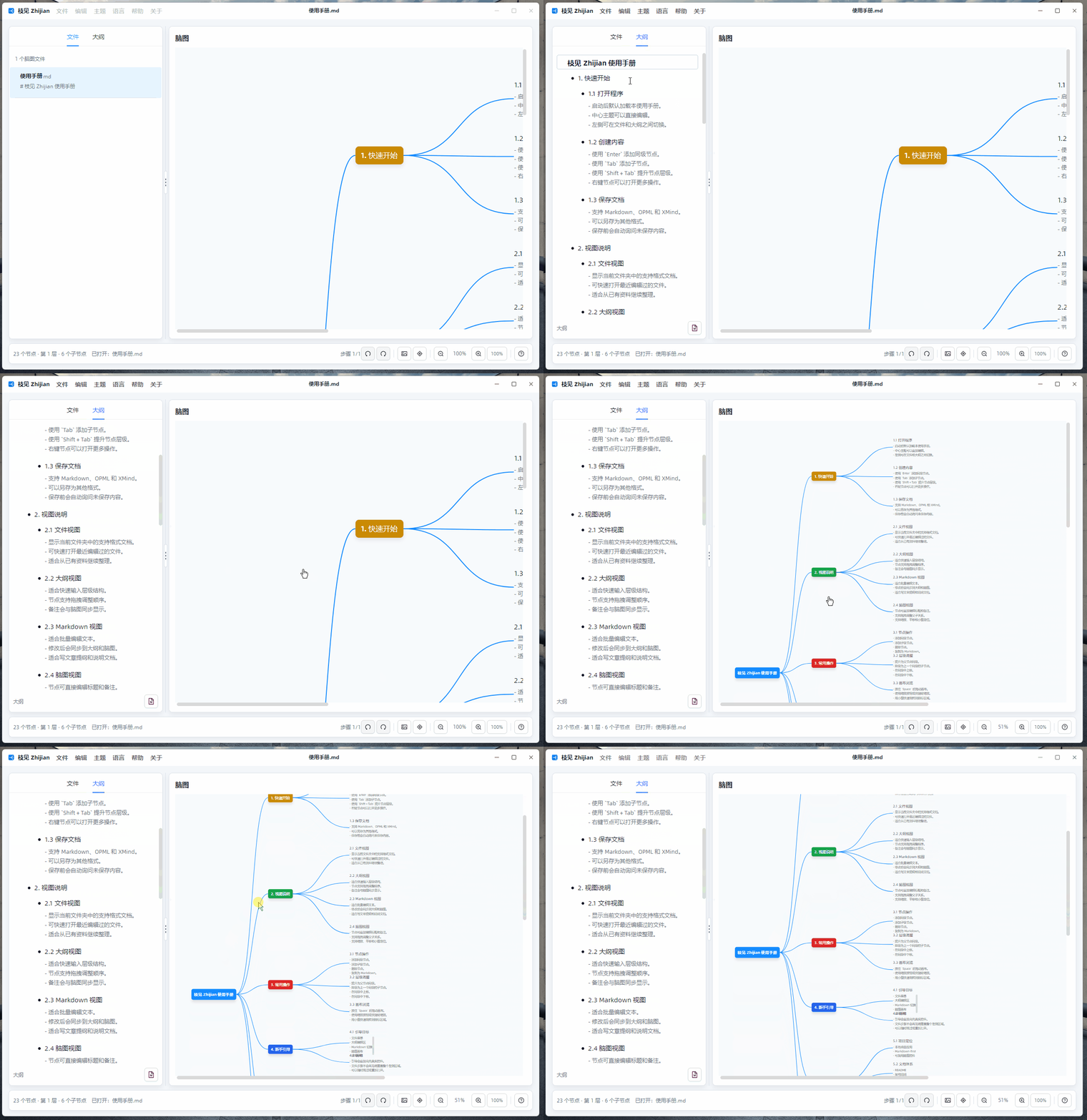
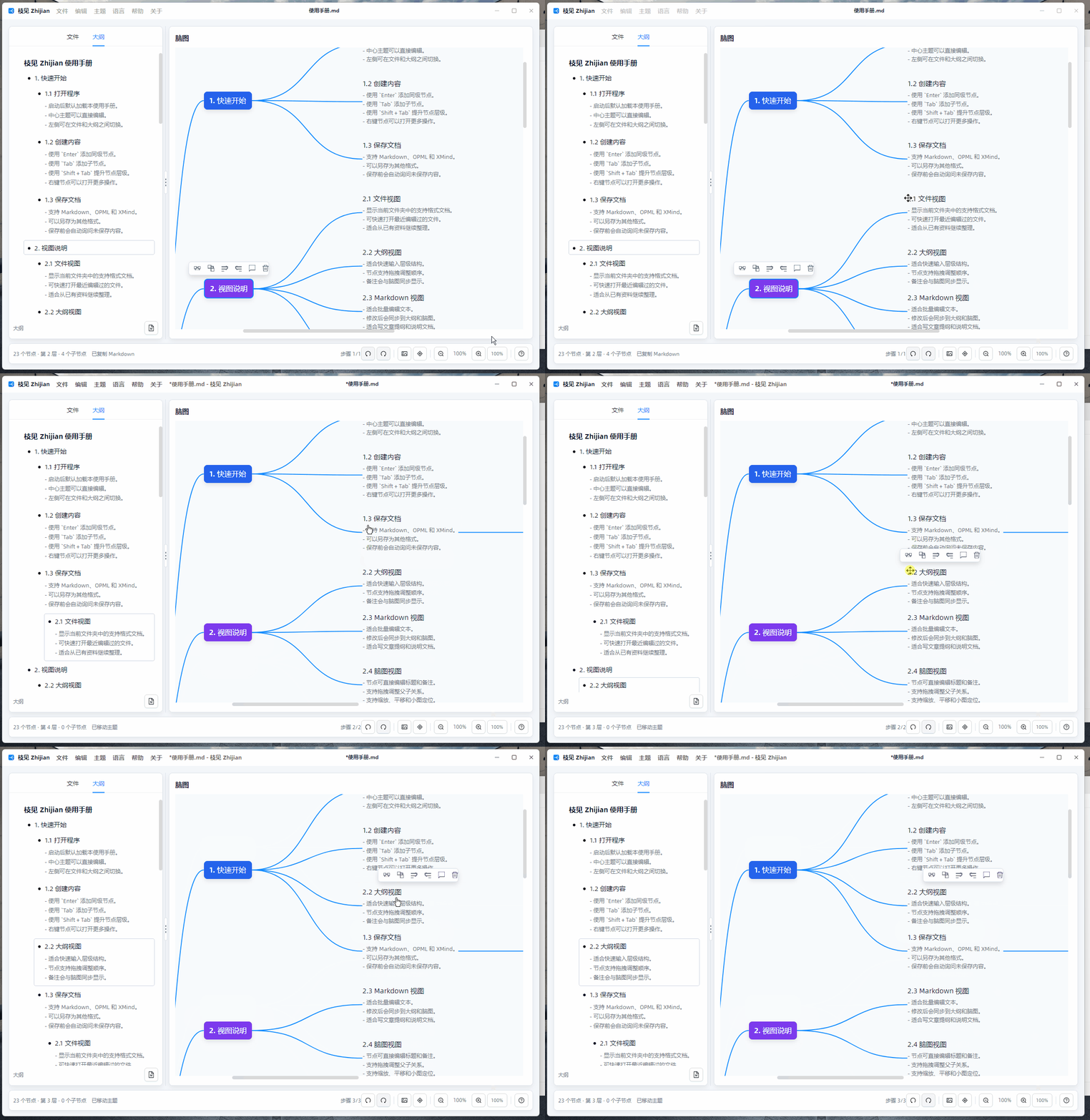
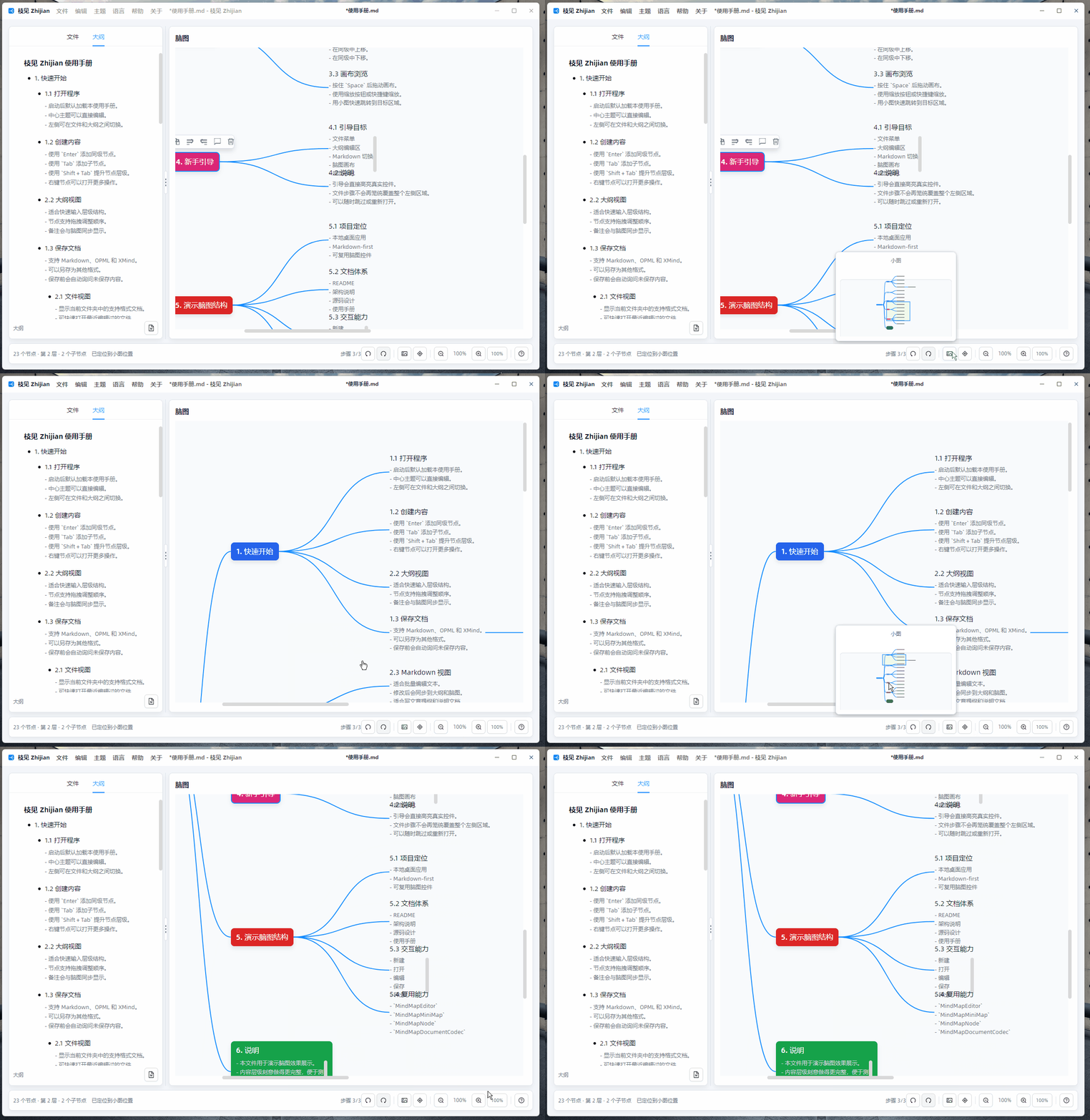
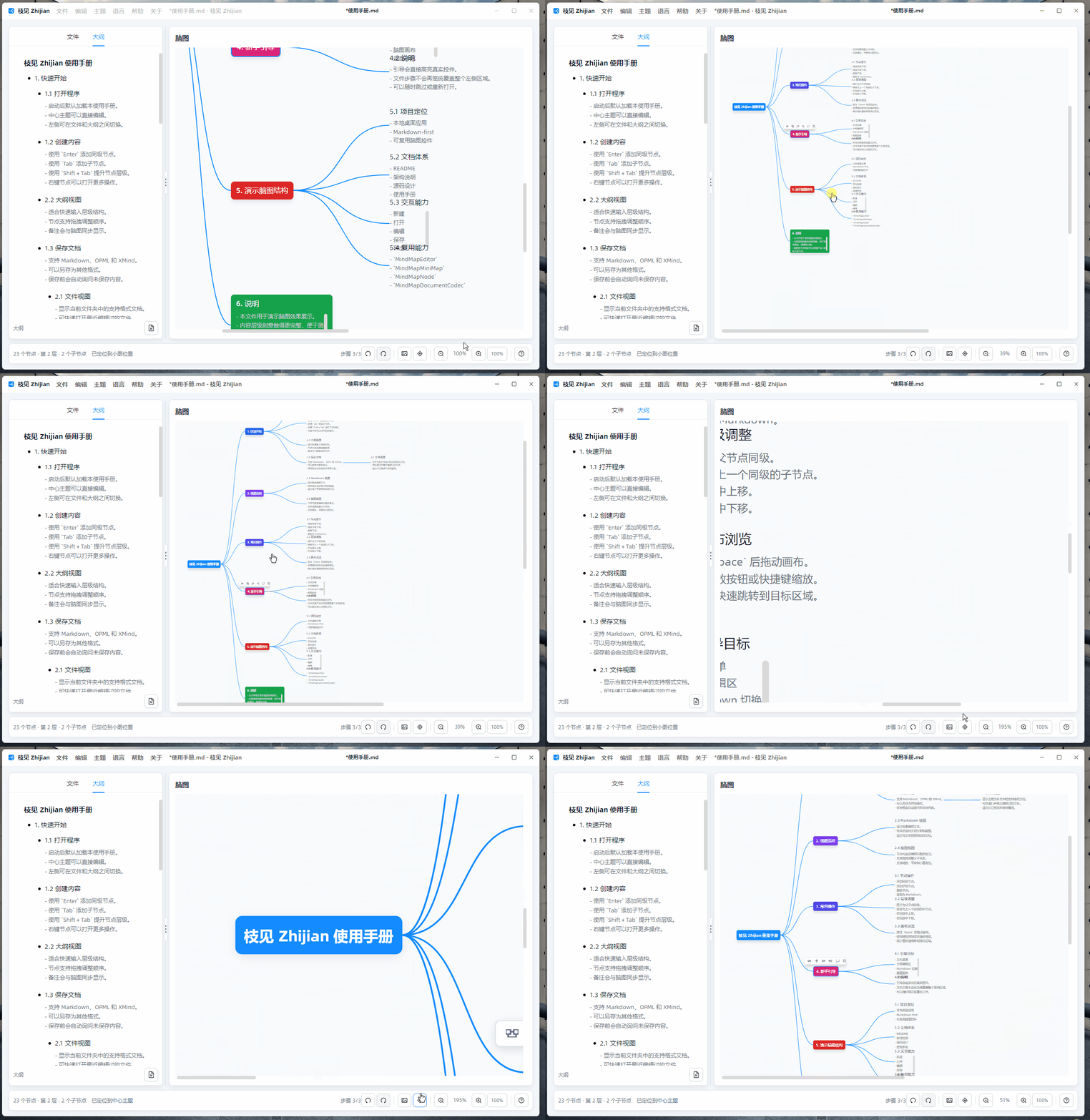
All screenshots and GIFs in this round have been recreated using the current UI, and they load the built-in user manual by default. They focus on the file list, minimap, zoom, canvas drag, and hierarchy adjustment.

Opens with the User Manual
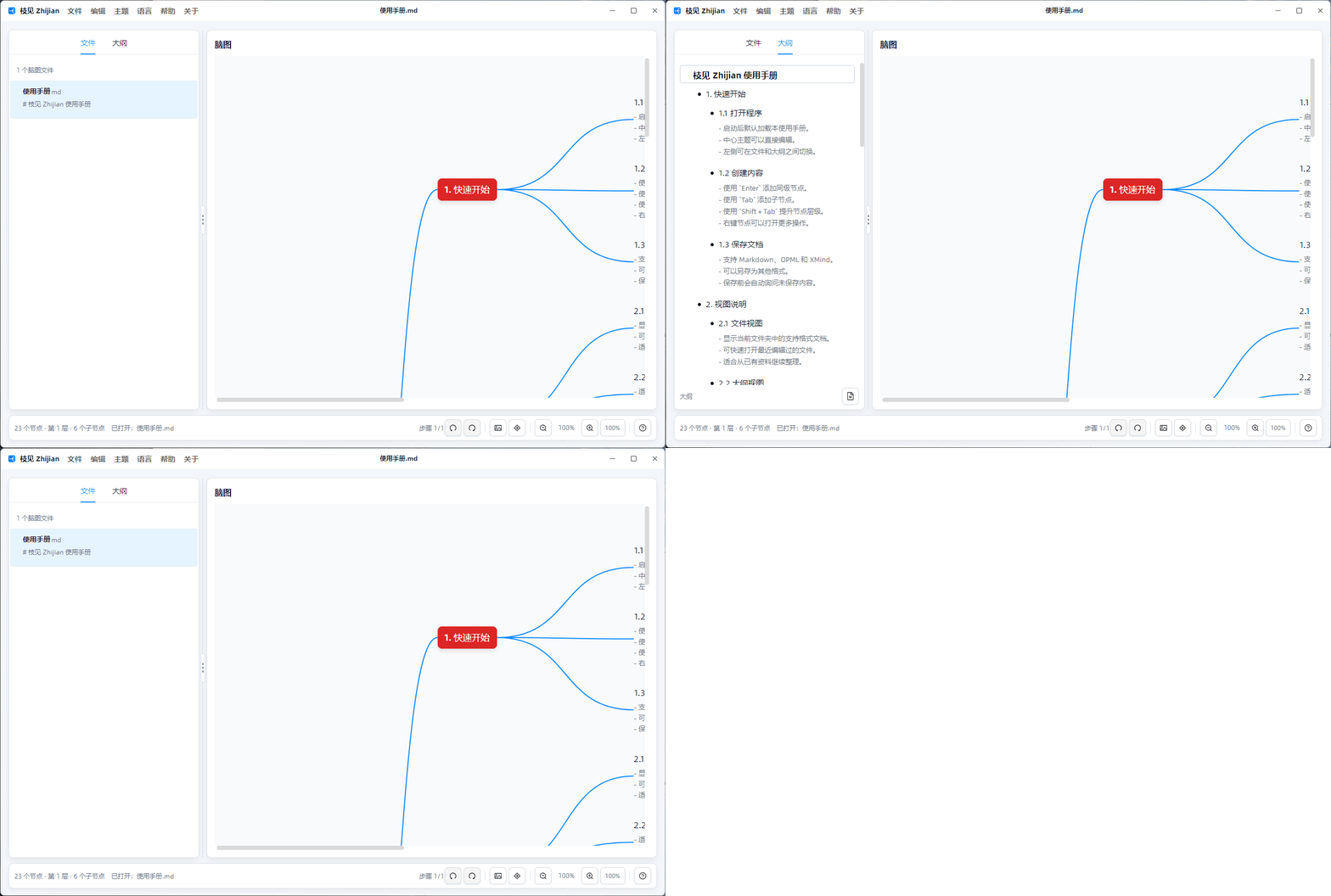
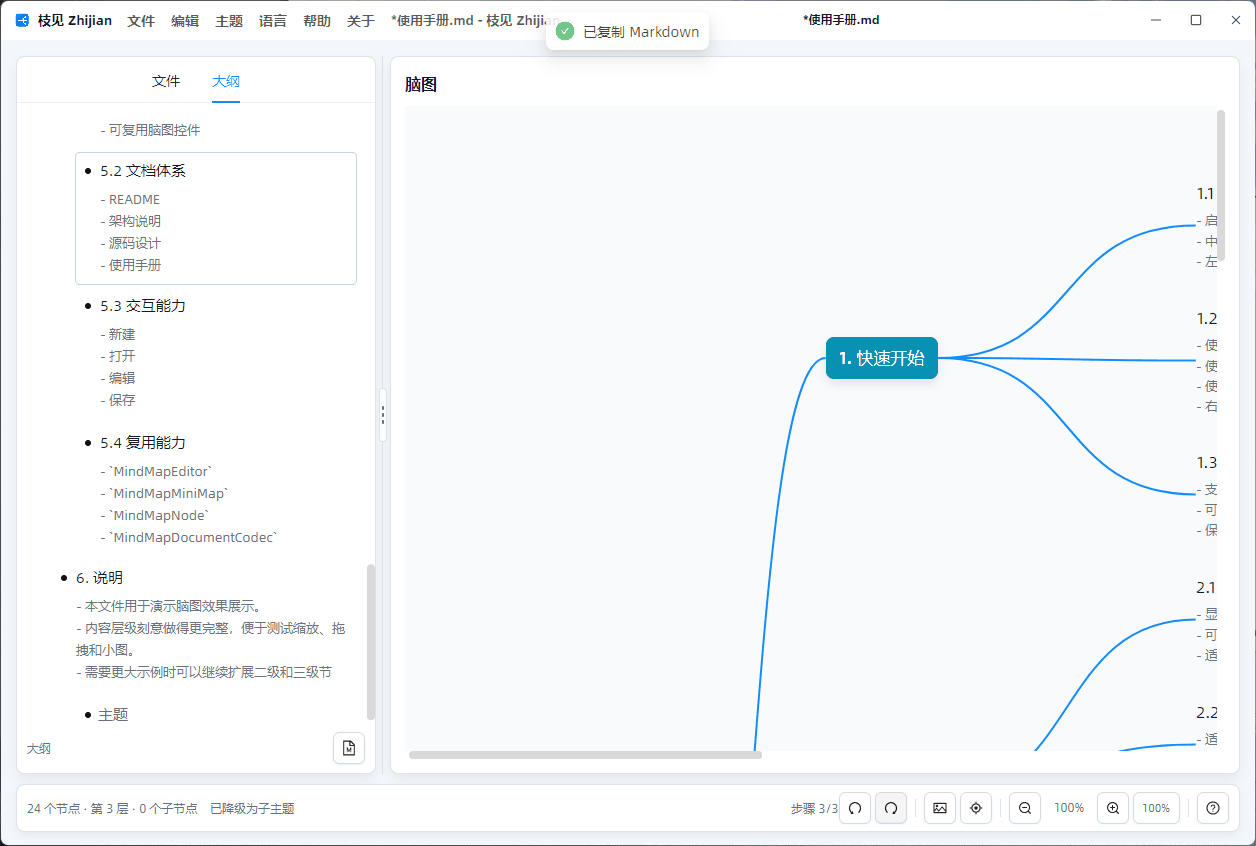
In the new version, after launch, the application automatically loads the bundled User Manual.md. This document itself is a multi-level mind map; on the first screen, you can directly see the linked behavior of the file list, outline, and mind map. When users want to start from scratch, they can still create a blank mind map with only the central topic via "New."
Mind map second-level nodes are no longer monotonous gray. When created or imported, second-level nodes use a more prominent automatic accent color; note text uses a gray foreground and slightly larger font size to distinguish it from the title, but no extra background block is added—reducing visual load.
File Menu Completed as a Product Workflow
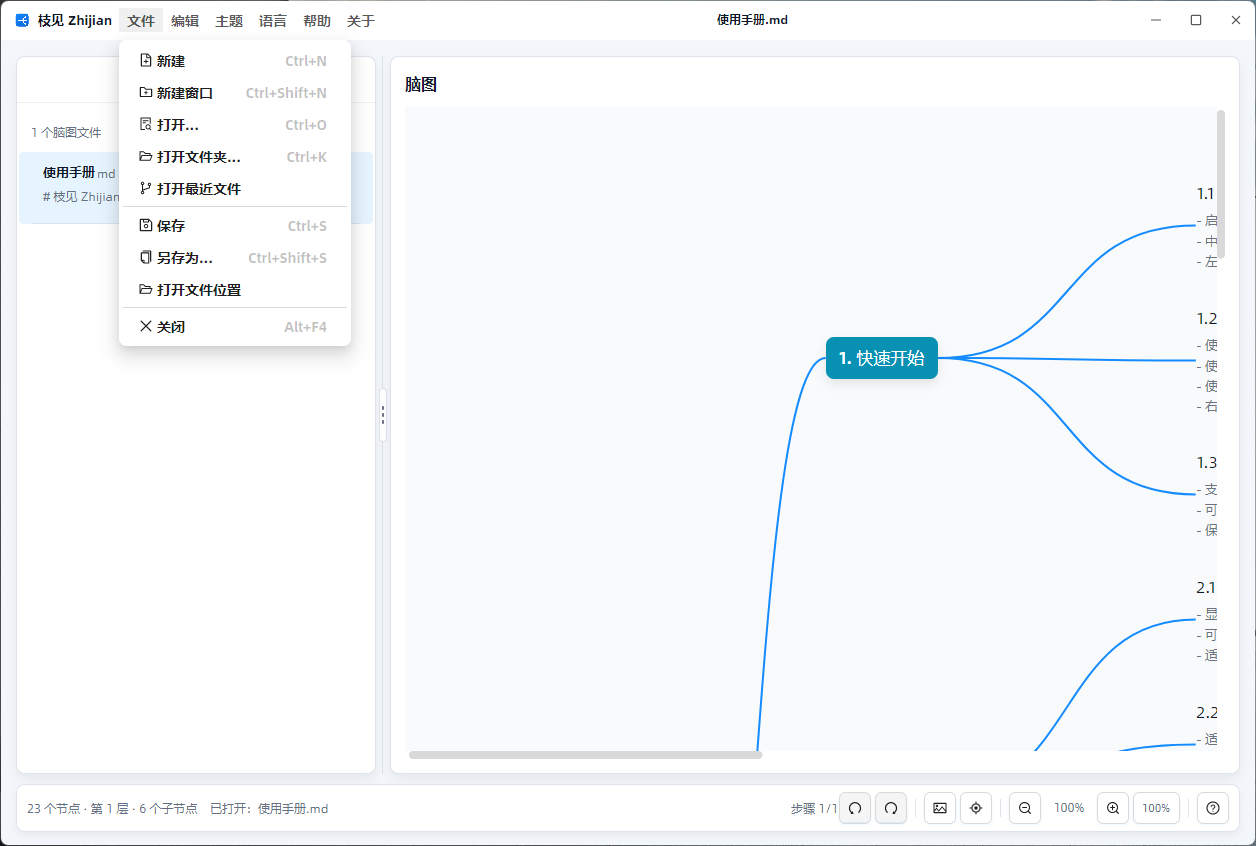
The "File" menu in the title bar is no longer just an import/export entry but a complete file workflow. On macOS, menu shortcuts are displayed and respond to ⌘; Windows/Linux continue to use Ctrl, avoiding Mac users seeing a set of shortcuts inconsistent with system conventions.
- New: Creates a blank mind map.
- New Window: Opens a new editor process.
- Open: Opens a file dialog to select supported formats (Markdown, OPML, XMind, etc.) and adds the file to the left file list.
- Open Folder: Scans the folder for supported mind map files and switches the left file list accordingly.
- Open Recent: Records recently used files.
- Save, Save As, Open File Location, Close: Completes the closed loop needed for daily editing.

Title Bar Menus Reorganized According to Real Workflows
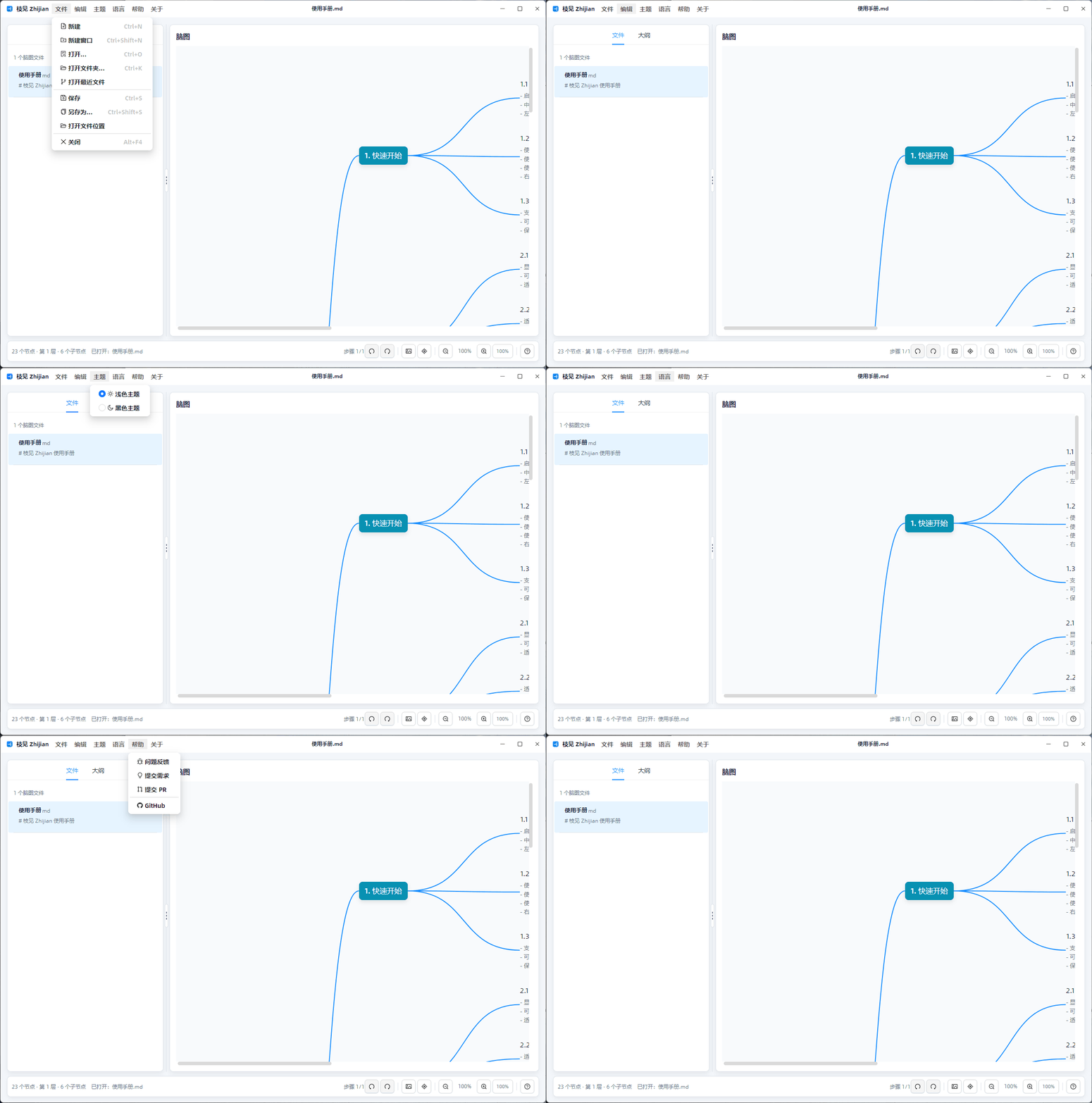
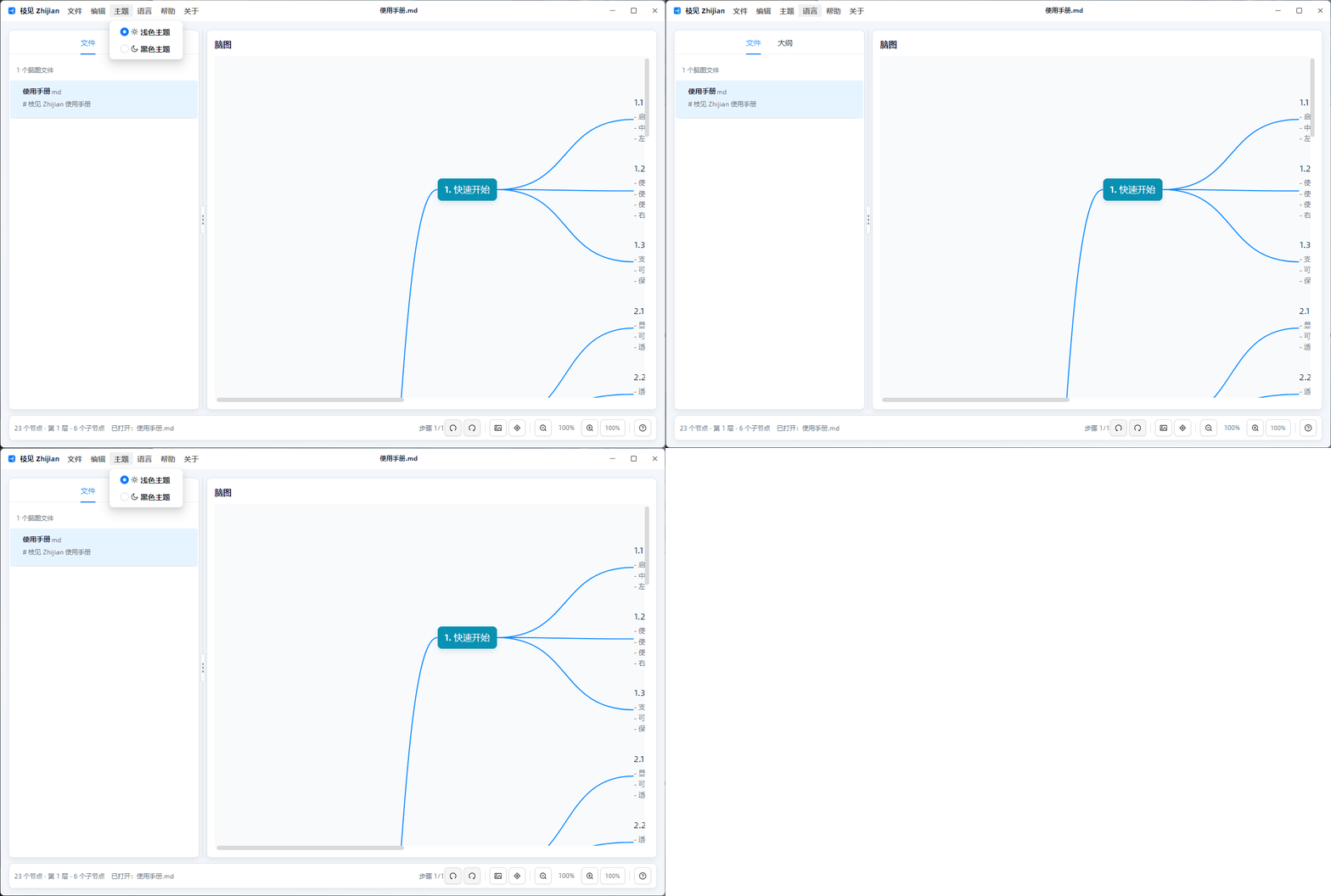
Menus now include more than just "File" and "About." The title bar has been reorganized into several groups: File, Edit, Theme, Language, Help, and About. Menu items have icons, and commonly used operations display keyboard shortcuts.

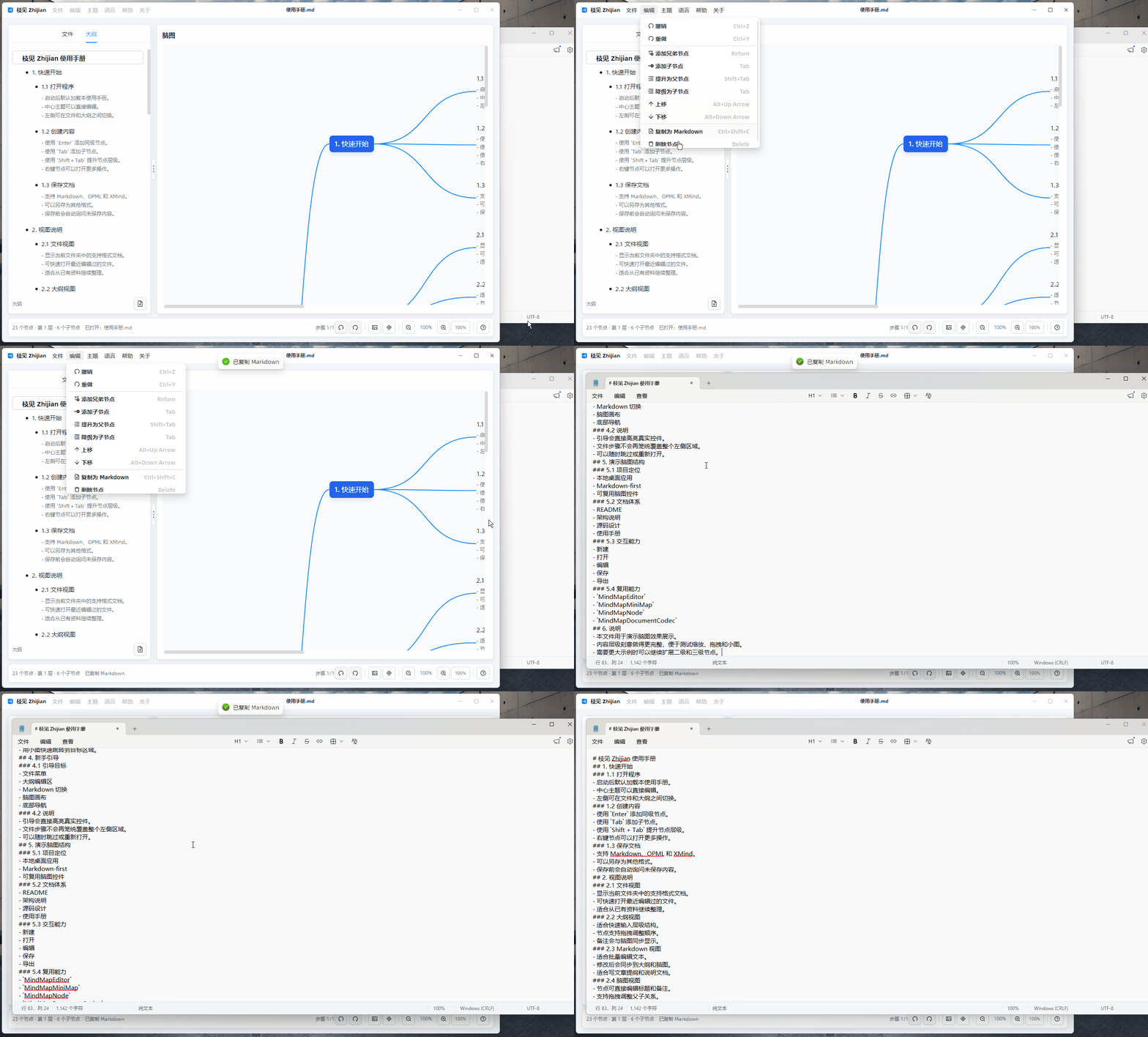
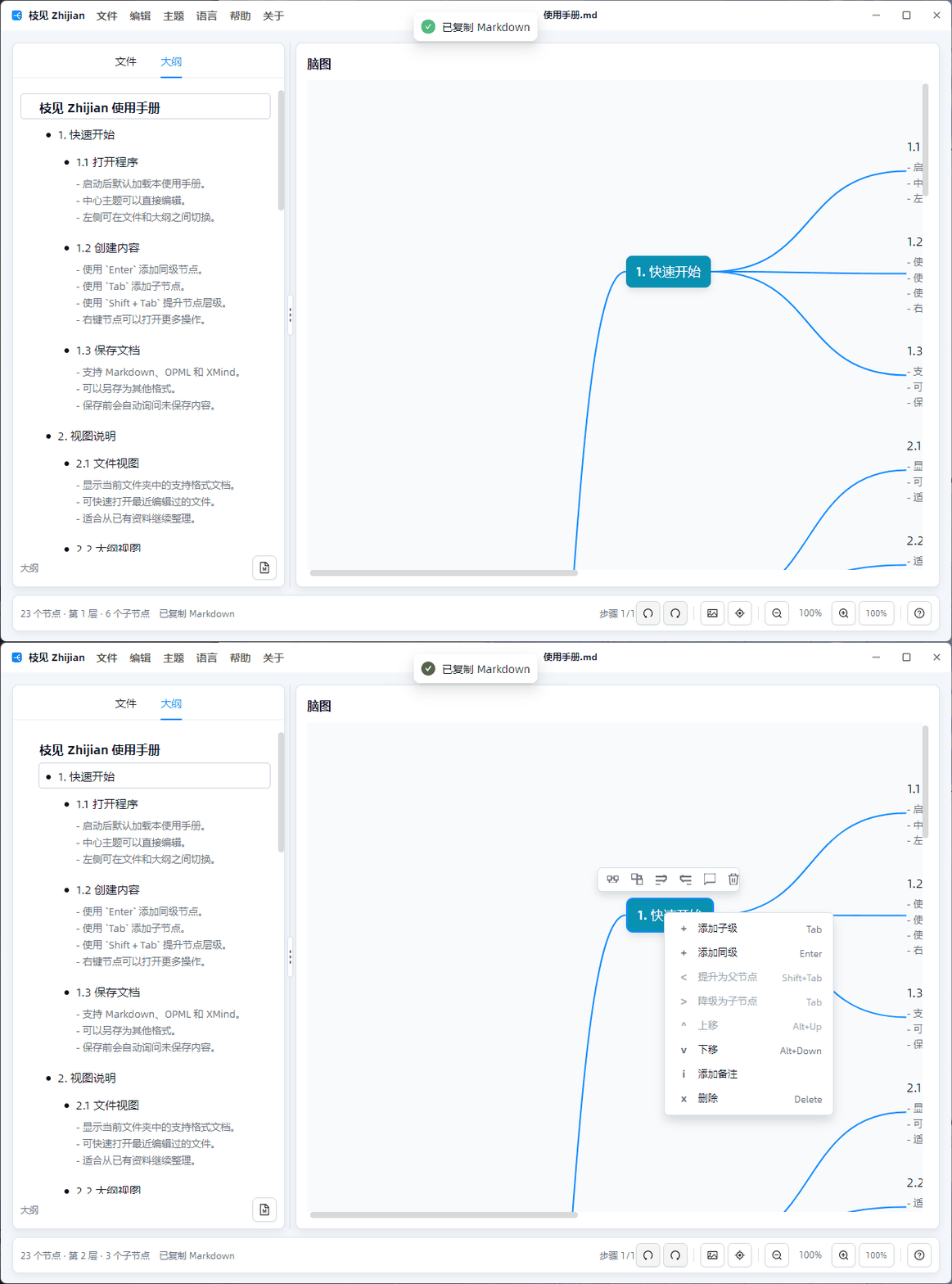
The "Edit" menu contains Undo, Redo, Add Sibling, Add Child, Promote, Demote, Move Up, Move Down, Delete, and "Copy as Markdown." Copying writes to the system clipboard and shows a desktop global notification.

The theme toggle is no longer a ToggleSwitch in the title bar but is placed separately in the "Theme" menu, making it easier to add more themes in the future. The language menu uses Lang.Avalonia.Json and currently provides Simplified Chinese, Traditional Chinese, English, and Japanese resources.

The "Help" menu provides options for issue feedback, feature requests, submitting PRs, and the GitHub repository. The "About" menu continues to offer website, changelog, acknowledgments, and an About window.
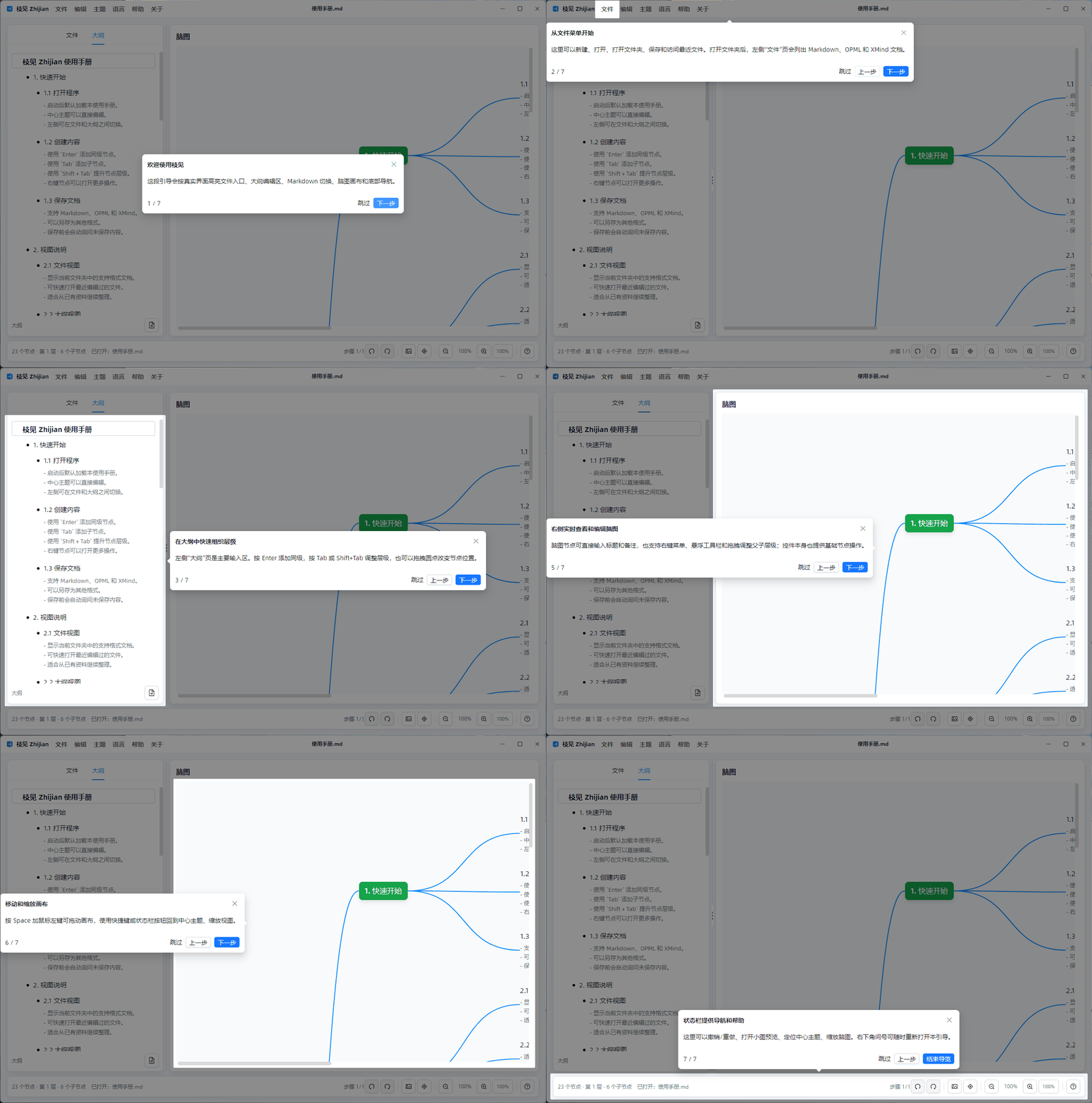
The first-launch onboarding has been revised: the file step now directly highlights the "File" menu in the title bar, instead of vaguely covering the left panel; subsequent steps then point sequentially to the outline editing area, Markdown toggle, mind map canvas, minimap preview, zoom, and status bar navigation. The onboarding includes a "Skip" button so users can end the guidance at any time after starting the software.
Whether to show the guide, default language, number of recent files, history steps, and runtime state file names (such as recent-files.json and new-user-tour.seen) are all centralized in src/Zhijian/App.config. At runtime, ApplicationSettings reads the compiled Zhijian.dll.config. If the configuration is corrupted, it falls back to default values without affecting startup.

After opening a single file, the left "File" tab lists that file for easy switching. After opening a folder, it lists Markdown, OPML, and XMind documents in the directory. Selecting a file automatically switches back to the "Outline" tab, displaying the current mind map structure.

If there are unsaved changes before closing or switching files, a save prompt appears. The recent files list is stored locally to avoid having to locate frequently used documents each time.
Both Outline and Mind Map Should Be Convenient
The outline view and mind map view share the same MindMapNode tree, so edits to titles, notes, or parent-child relationships in either view are synchronized instantly.
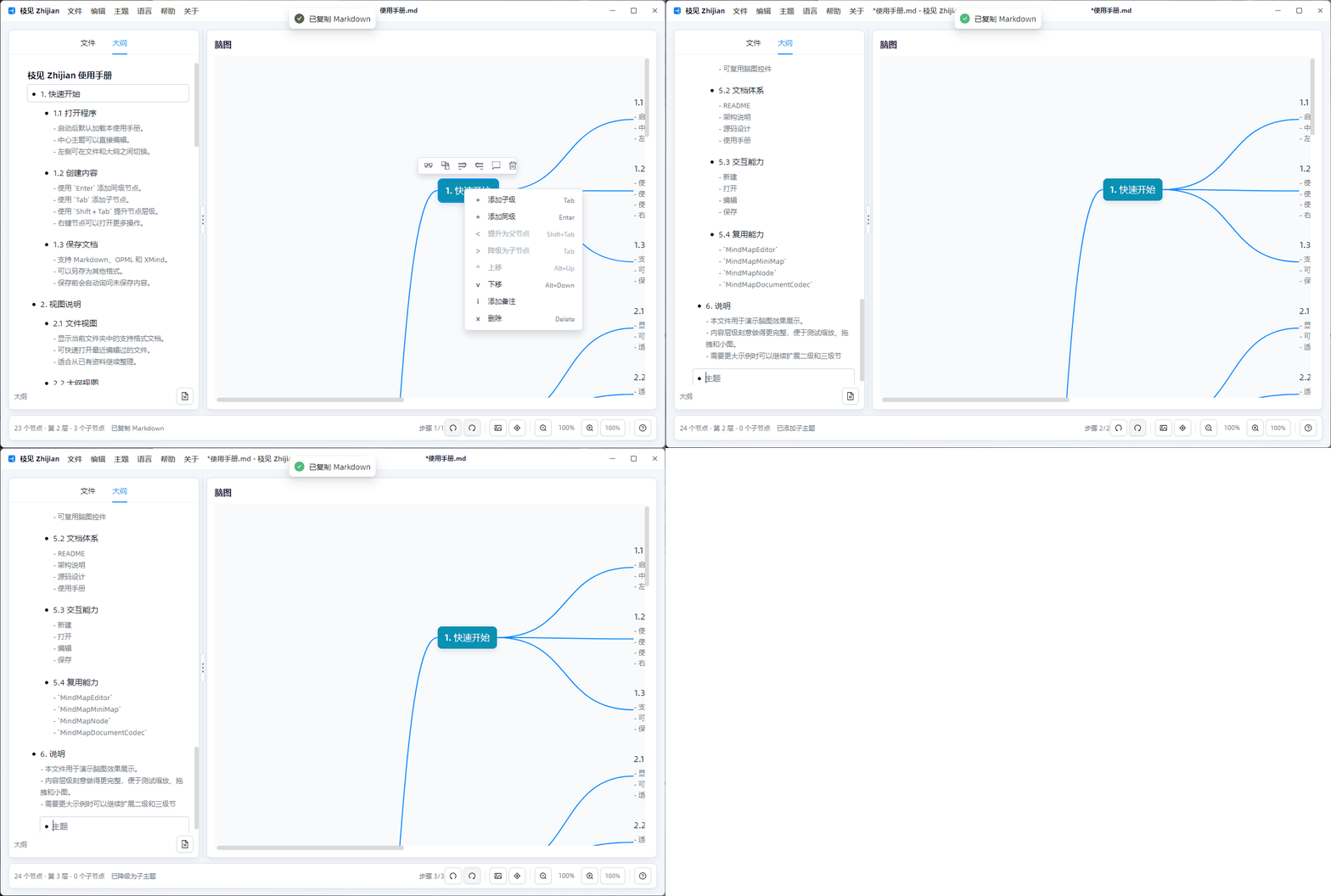
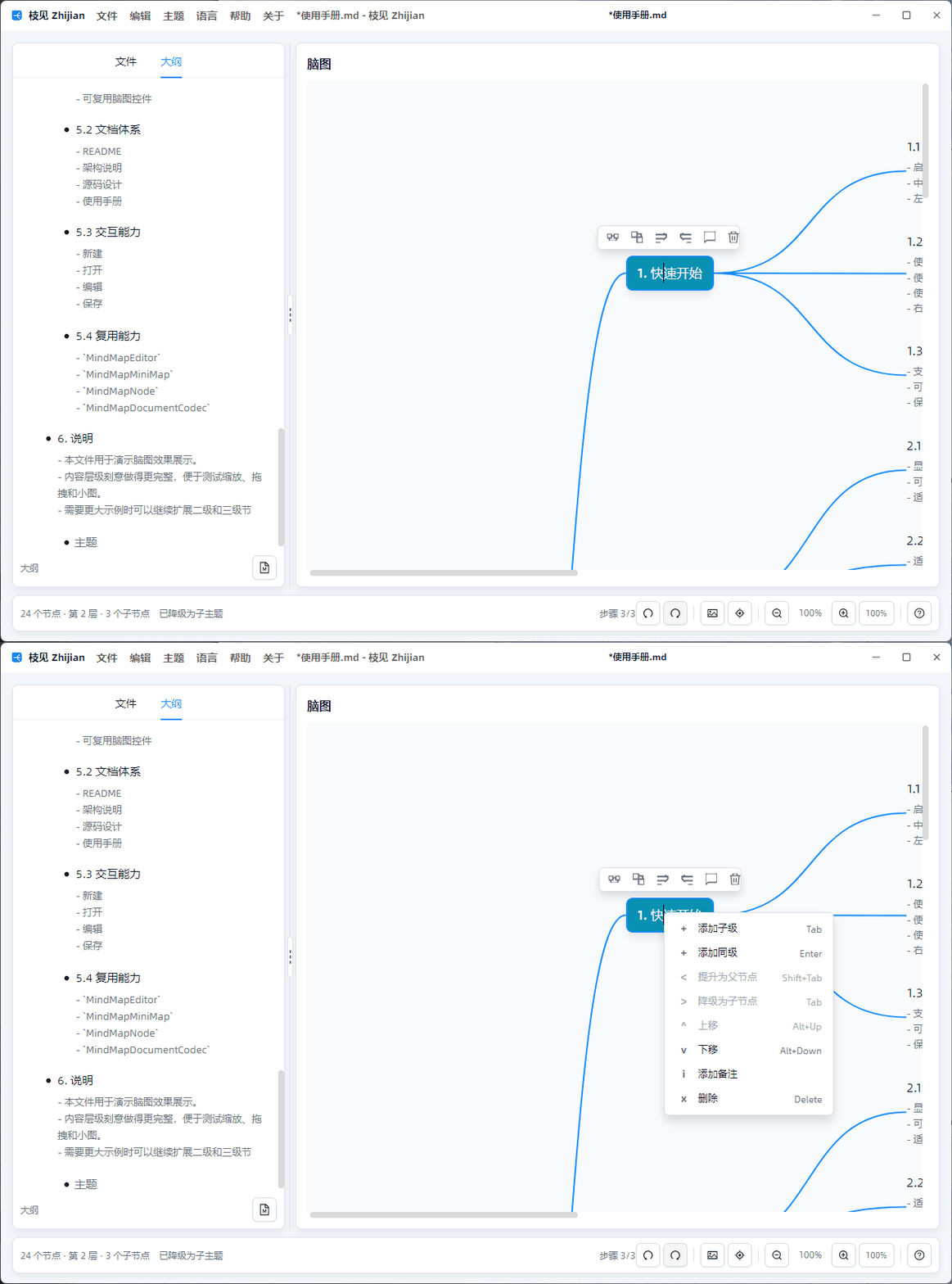
Common structural operations have been added to the context menus in both views:
- Add child node, Add sibling node.
- Promote to parent, Demote to child.
- Move up, Move down.
- Note, Delete.

The keyboard-based node creation path has been reworked: Enter adds a sibling, Tab or Shift+Tab adjusts the hierarchy, and focus returns to the new node's input box.

The outline's dot menu and drag share the same entry point: a short press opens the menu; dragging is initiated only after the movement exceeds a threshold, so the menu and drag do not conflict.

Note input has also been refined: the note input box is shown only when the node already has a note, or when the user explicitly selects "Note"; an empty note automatically collapses when it loses focus. In the mind map, notes and titles are now rendered with the same text alignment, allowing short-text nodes to regain focus and continue editing.

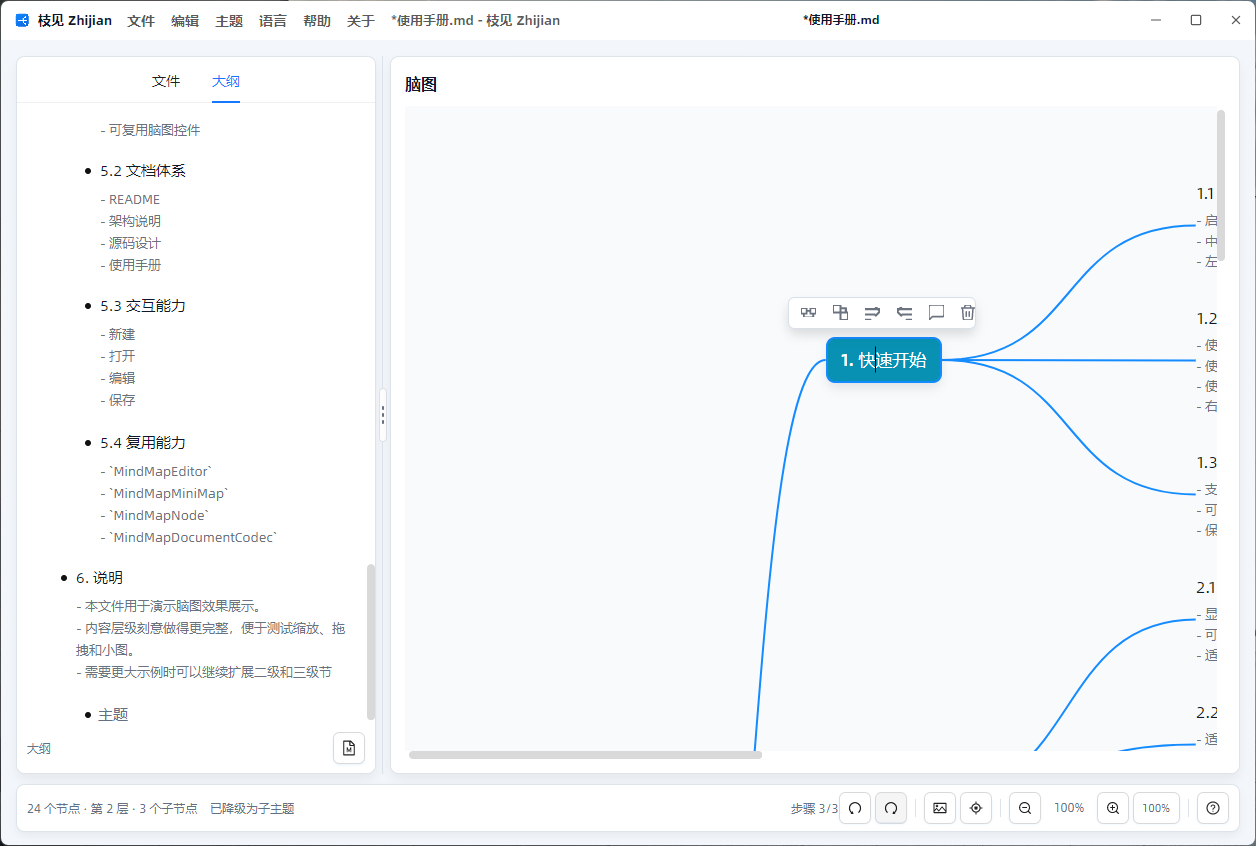
When a mind map node gains focus, a floating toolbar appears, allowing users to add notes or delete the node directly.

The mind map side also supports drag-and-drop to adjust parent-child hierarchy: dropping on the middle of a node makes it a child; dropping on the top or bottom edge adjusts the sibling order.

Minimap, Zoom, and Canvas Drag
As the mind map area grows, what users most need is "where am I looking on the full map?" The minimap now draws based on actual node coordinates and the current viewport, not a fixed diagram. Clicking on the minimap navigates to the corresponding area.

Zoom, centering on the root topic, and canvas drag have all been re-verified within the actual window.

The middle splitter for adjusting widths has also been changed to explicit GridSplitter behavior, verified via screenshots. However, since such animations are not very helpful for reading, they are no longer shown as a highlighted demonstration.
About, Changelog, and Acknowledgments
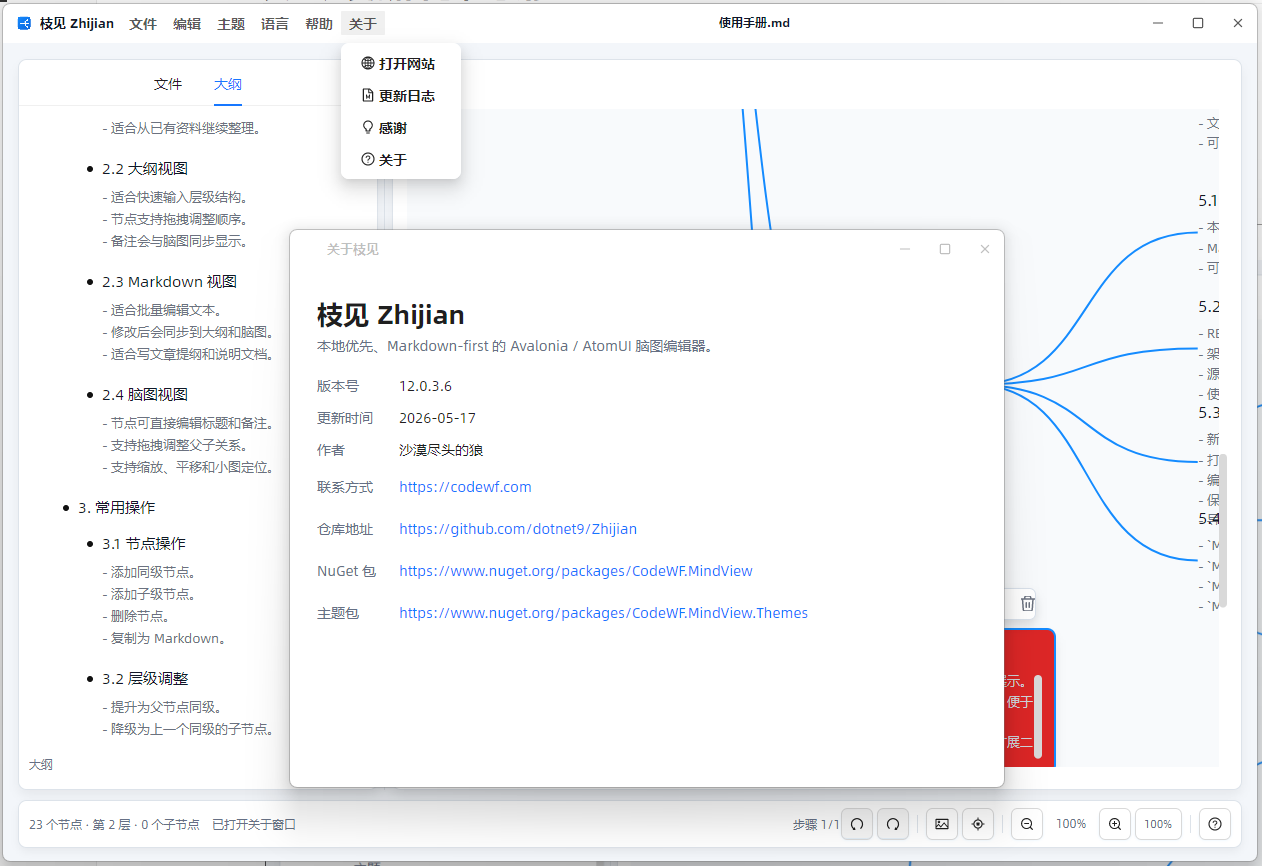
The "About" menu in the title bar includes:
- Open website: https://codewf.com
- Changelog: A standalone desktop window displaying the changelog file distributed with the program, rendered using
CodeWF.Markdown.Lite.Themes. - About: Shows the software name, description, version number, update date, author, contact info, repository URL, and NuGet package URL.
- Acknowledgments: Lists the open-source projects this software uses and benefits from, with clickable links.

Zhijian thanks these excellent open-source platforms and projects:
How New Apps Can Reuse CodeWF.MindView
If you want to reuse the mind map capability in your own Avalonia application, prefer referencing CodeWF.MindView instead of copying the entire Zhijian application.
CodeWF.MindView currently includes:
MindMapNode: Shared node model with title, note, color, coordinates, and child nodes.MindMapEditor: The main mind map editing control with built-in node creation, deletion, promotion, demotion, sibling movement, drag-and-drop, and auto-layout.MindMapMiniMap: A minimap control based on actual node coordinates.MindMapDocumentCodec: Codec for Markdown, OPML, and XMind.IMindMapEditorController: Optional host interface, to be implemented only if undo history, unsaved-state tracking, or business constraints are needed.IMindMapFileService: File open, save, recent files, folder loading, and unsaved-state prompts (application-level file service contract).
New applications can reference the control library and theme library as follows:
<ItemGroup>
<ProjectReference Include="..\CodeWF.MindView\CodeWF.MindView.csproj" />
<ProjectReference Include="..\CodeWF.MindView.Themes\CodeWF.MindView.Themes.csproj" />
</ItemGroup>
Register the theme in App.axaml:
<Application
xmlns="https://github.com/avaloniaui"
xmlns:mindThemes="using:CodeWF.MindView.Themes">
<Application.Styles>
<mindThemes:MindViewThemes />
</Application.Styles>
</Application>
Place the mind map control directly in your page. For simple integration, just bind the node collection and current selection:
<UserControl
xmlns="https://github.com/avaloniaui"
xmlns:mind="https://codewf.com">
<mind:MindMapEditor
Roots="{Binding Roots}"
SelectedNode="{Binding SelectedNode, Mode=TwoWay}" />
</UserControl>
The host ViewModel only needs to provide an ObservableCollection<MindMapNode> to get it running. The control library handles display, editing, drag preview, minimap, and basic node operations. If your application needs to manage its own document state, undo history, file menus, and business rules, implement IMindMapEditorController and bind it to Controller.
If your application also requires an outline view, file menu, title bar, and Markdown panel similar to Zhijian, refer to src/Zhijian. OutlineEditor and the desktop window are application-layer code; CodeWF.MindView remains Avalonia-only, making it easier to reuse in other projects.
Repository and Release
- Repository: https://github.com/dotnet9/Zhijian
- Release: https://github.com/dotnet9/Zhijian/releases/tag/V12.0.3
Verification in This Round
This round is not just about compiling after changing code. I regenerated documentation screenshots/GIFs and used the default user manual to cover these operations:
- Launch with the user manual loaded automatically; verify that individually opened files appear in the left file list.
- Open the File menu and About menu; confirm the title bar menus are clickable and have no awkward arrows on the right.
- Open Edit, Theme, Language, and Help menus; confirm menus, icons, shortcuts, and categories are correct.
- Toggle dark/light themes; verify text and menus are readable under different themes.
- Switch to English language; confirm title bar menus, tabs, and status bar text update.
- Use "Copy as Markdown"; verify clipboard command executes and a desktop global notification appears.
- Reset the first-launch mark; confirm the onboarding can display relative to the actual window.
- Click "Skip" on the onboarding; confirm it immediately closes and writes the "seen" state.
- Open a folder; confirm the "File / Outline" tabs can switch and load files.
- Open node menus in both outline and mind map; confirm common structural operations are complete.
- Edit short-text nodes and notes; confirm focus can be regained and title/note alignment works.
- Use
⌘ + Land⌘ + mouse wheelon macOS; confirm center-topic positioning and zoom follow Mac shortcut conventions. - Open minimap, zoom mind map, and drag the canvas.
- Simulate new node, add sibling, add child, delete, promote, demote, note, and Markdown sync via ViewModel.
- Drag the left-right splitter; confirm outline and mind map widths actually adjust.
Final build command:
dotnet build Zhijian.slnx
The build result: 0 warnings, 0 errors.
For me, what matters most in Zhijian is not piling up features, but making every high-frequency operation feel natural: open with a blank document, menu items directly hit real needs, focus lands correctly after creating a node, notes don't steal visual attention, and zoom plus minimap help users reorient themselves. If these details are done well, users will be willing to keep using it for organizing structures.