This article reorganizes the newly added Guide onboarding control in CodeWF.AvaloniaControls.
For an onboarding guide control, just describing properties and implementation is not intuitive. Essentially, it is a highly interactive control: mask, highlight, card positioning, menu expansion, TabItem switching, delayed appearance of target controls—these effects need to be seen in action before the code makes sense.
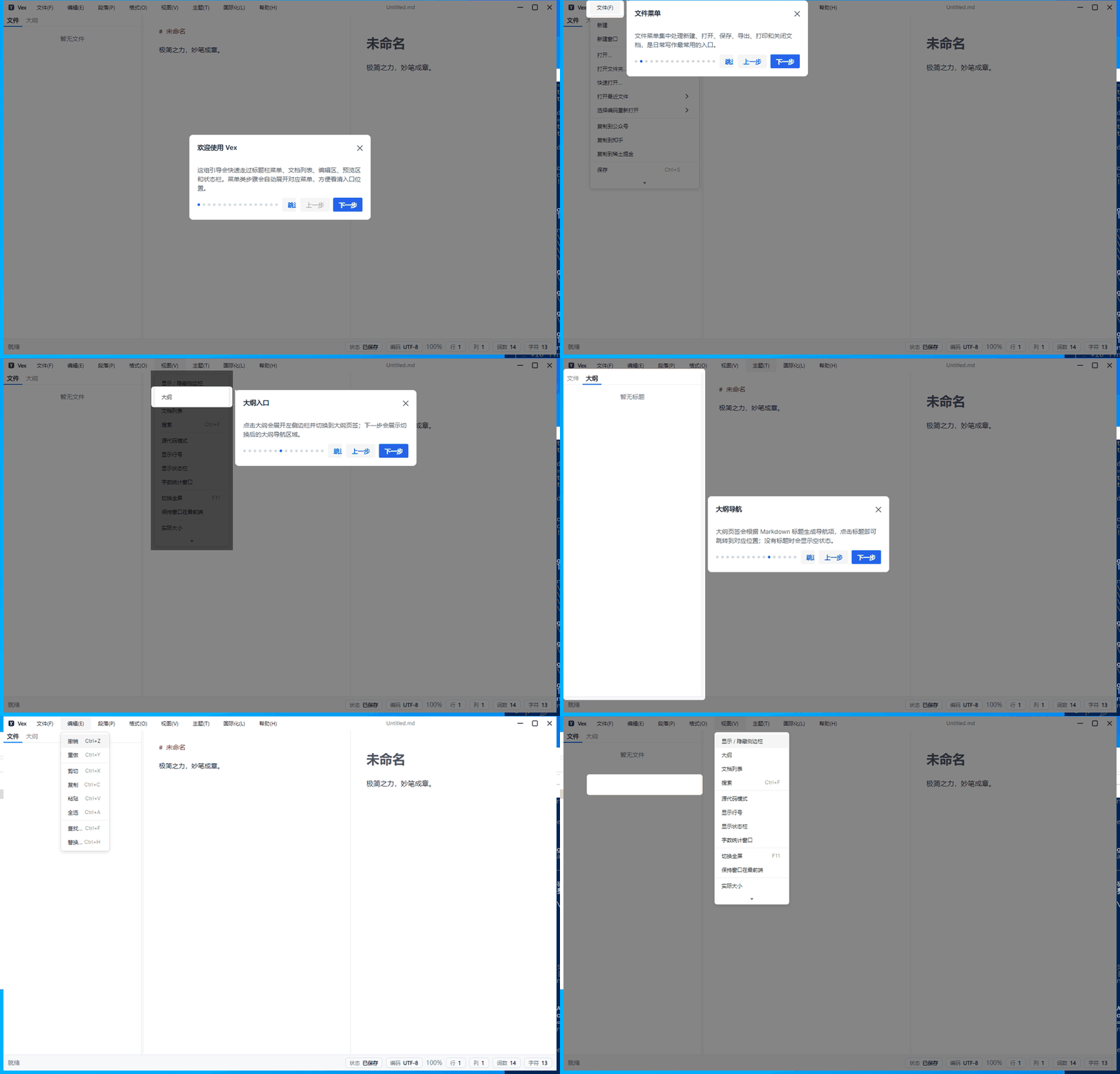
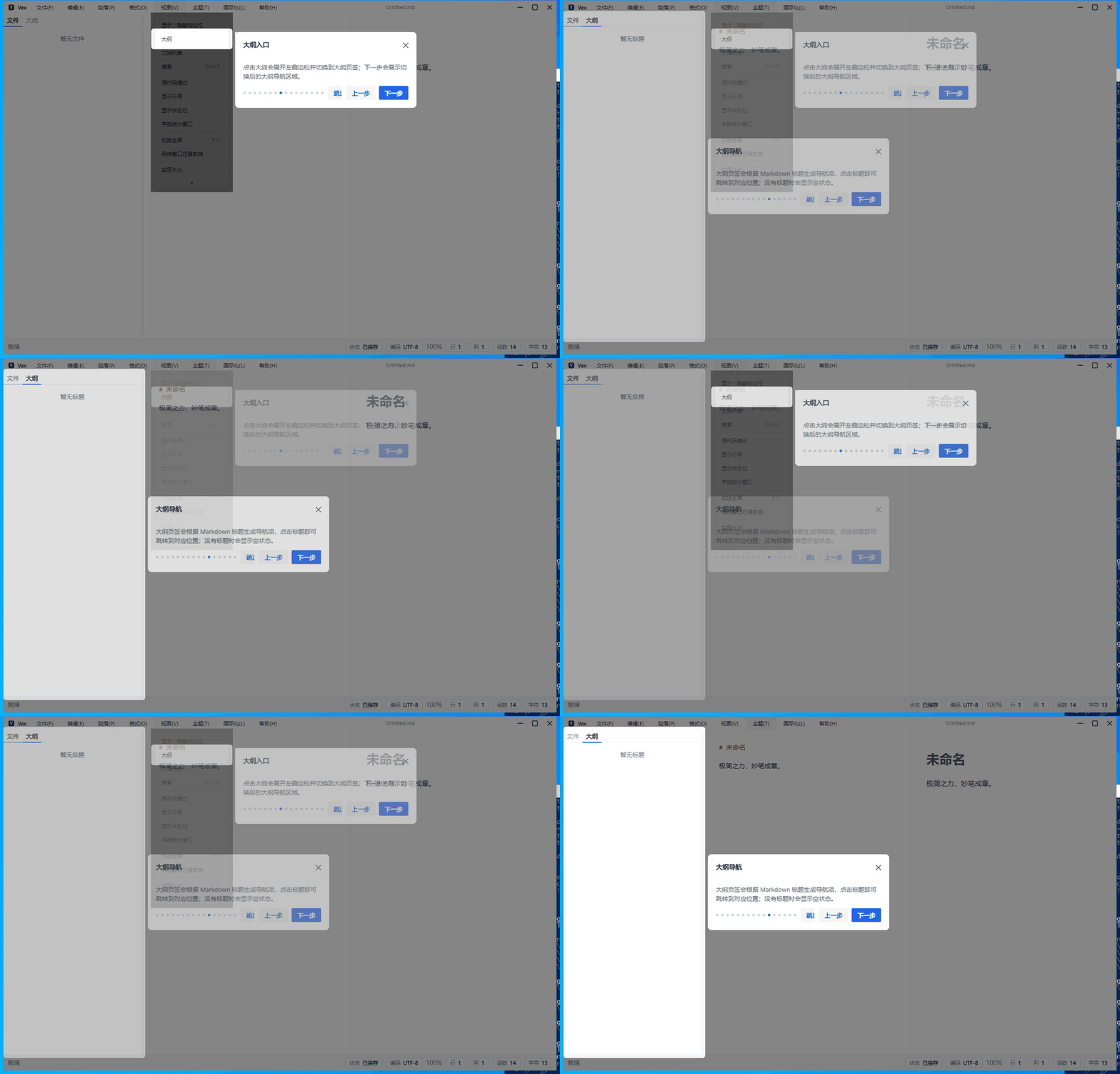
Let's first look at the actual onboarding flow in Vex.

This set of guides covers Vex's title bar menus, file menu items, outline entry, left outline tab, theme menu, and help menu. The key is that it doesn't just point to buttons already present on the page; it actively opens menus, switches sidebar TabItems as steps change, and then highlights newly appeared targets.
The source code for Guide is here:
https://github.com/dotnet9/CodeWF.AvaloniaControls/tree/main/src/CodeWF.AvaloniaControls/Controls/Guide
Vex's implementation code is here:
https://github.com/dotnet9/Vex/tree/main/src/Vex/Modules/Shell/Views\MainWindow.axaml
https://github.com/dotnet9/Vex/tree/main/src/Vex/Modules/Shell/Views\MainWindow.axaml.cs
https://github.com/dotnet9/Vex/tree/main/src/Vex/Modules/Shell/Views\ShellTitleMenuView.axaml
https://github.com/dotnet9/Vex/tree/main/src/Vex/Modules/Shell/Views\ShellTitleMenuView.axaml.cs
Why build Guide
Avalonia has basic controls like Popup, MenuItem, TabControl, Flyout, but they don't directly combine into a complete onboarding flow.
A truly usable onboarding control in a desktop application needs to address these issues:
- Multi-step flow: Previous, Next, Finish, Close.
- Each step bound to a different target control.
- Center the instruction card when no target control exists.
- Draw a mask with a cutout area around the target when present.
- Position the guide card above, below, left, right, etc., relative to the target.
- Auto-scroll to make the target visible if it's inside a scrollable area.
- Wait for targets that appear later and reposition accordingly.
- Correctly highlight targets inside
Menu,Popup, orFlyout. - Recalculate highlight areas after layout changes or window resizing.
My reference is the Tour roaming guide control from AtomUI. AtomUI's Tour implements the main control as a TemplatedControl, abstracts steps into ITourStepOption, and uses popup layers and overlay layers to achieve the guide effect. This approach is well-suited for Avalonia.
CodeWF's Guide follows this idea but with implementation tailored to my own project needs:
- Uses
GuideOverlayto self-draw the mask and highlight area. - Uses
Popupto display the guide card. - Declares each step via
GuideStep, also supportsStepsSourcedata source. - Supports dynamic business actions via
StepOpeningandOpeningCommand. - Uses
TargetResolveDelayto wait for layout completion of menus, TabItems, Popup content. - Handles
MenuIteminside popups specially to avoid menu light-dismiss interfering with the "Next" button.
Control Structure
The Guide related types are clear:
Guide: Main control, manages open/close, current step, mask, popup, target resolution.GuideStep: Declarative step, used in XAML.GuideStepOption: Used when creating steps in code.IGuideStepOption: Unified interface for steps.GuideOverlay: Responsible for drawing the mask and the target highlight hole.DefaultGuideIndicator: Default dot progress indicator.TextGuideIndicator: Text progress indicator, e.g.,1 / 6.GuidePlacementMode: Enum for card position.GuideMissingTargetBehavior: Options for centering, skipping, or closing when target is missing.
Theme file location:
https://github.com/dotnet9/CodeWF.AvaloniaControls/tree/main/src\CodeWF.AvaloniaControls.Themes\Themes\Controls\Guide.axaml
The template includes three key popups:
PART_MaskPopup: Mask over the current window.PART_TargetMaskPopup: Used when the target is in another popup orTopLevel.PART_Popup: The guide card itself.
This structure lets the business side only care about "which targets to guide", while the control handles masking, positioning, buttons, indicators, and cleanup internally.
Basic Usage
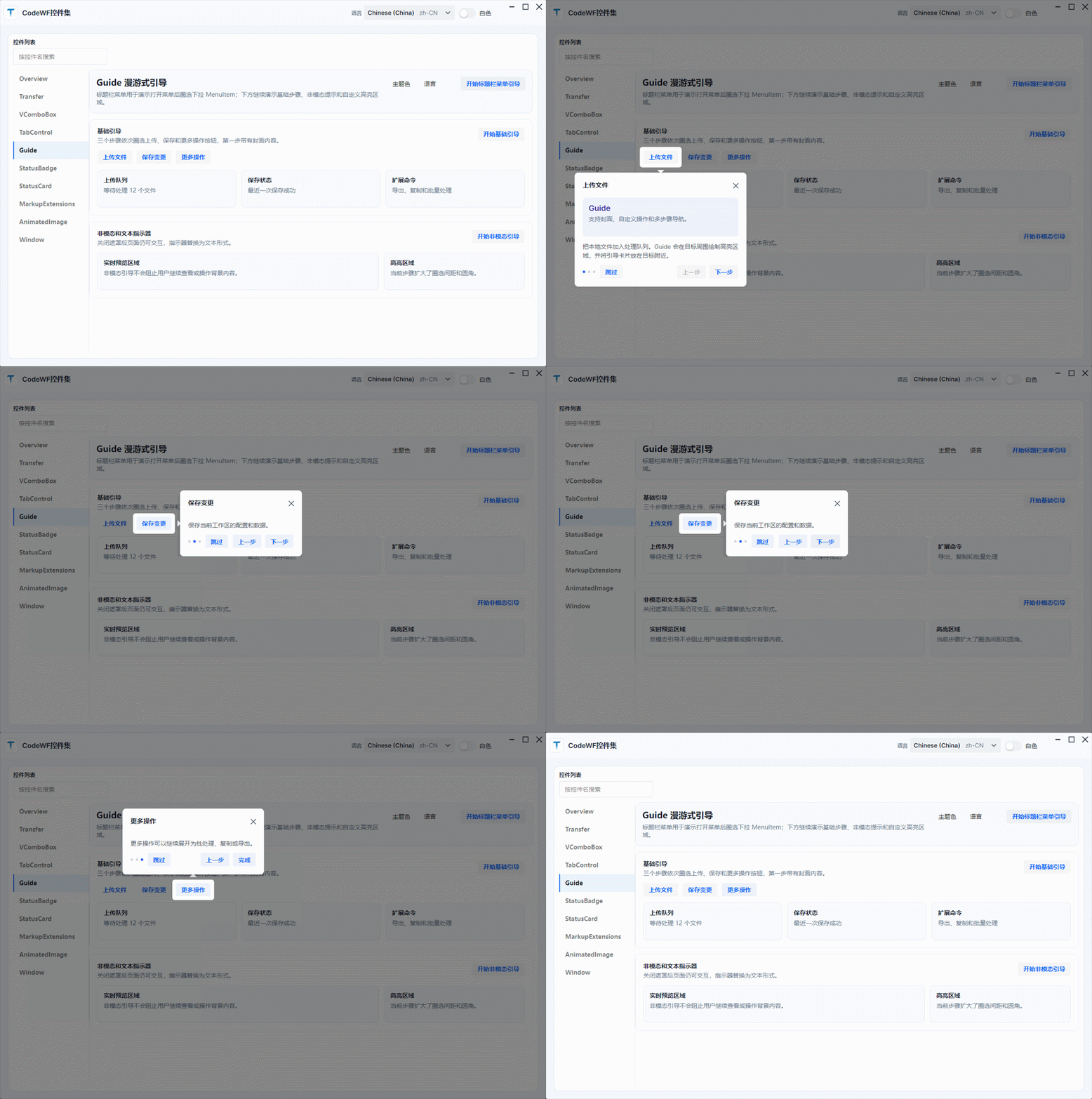
The simplest usage is to place the Guide in the root layout of the page and bind each GuideStep to a target control:
<Grid>
<StackPanel Orientation="Horizontal" Spacing="10">
<Button x:Name="UploadButton" Content="Upload File" />
<Button x:Name="SaveButton" Content="Save Changes" />
<Button x:Name="MoreButton" Content="More Actions" />
</StackPanel>
<codewf:Guide x:Name="BasicGuide" Placement="Bottom" PopupOffset="14">
<codewf:GuideStep
Target="{Binding ElementName=UploadButton}"
Title="Upload File"
Description="Add local files to the processing queue." />
<codewf:GuideStep
Target="{Binding ElementName=SaveButton}"
Placement="Right"
Title="Save Changes"
Description="Save current workspace configuration and data." />
<codewf:GuideStep
Target="{Binding ElementName=MoreButton}"
Placement="Top"
Title="More Actions"
Description="More actions can be expanded to export, copy, or batch processing." />
</codewf:Guide>
</Grid>
To open the guide:
BasicGuide.GoTo(0);
BasicGuide.Show();
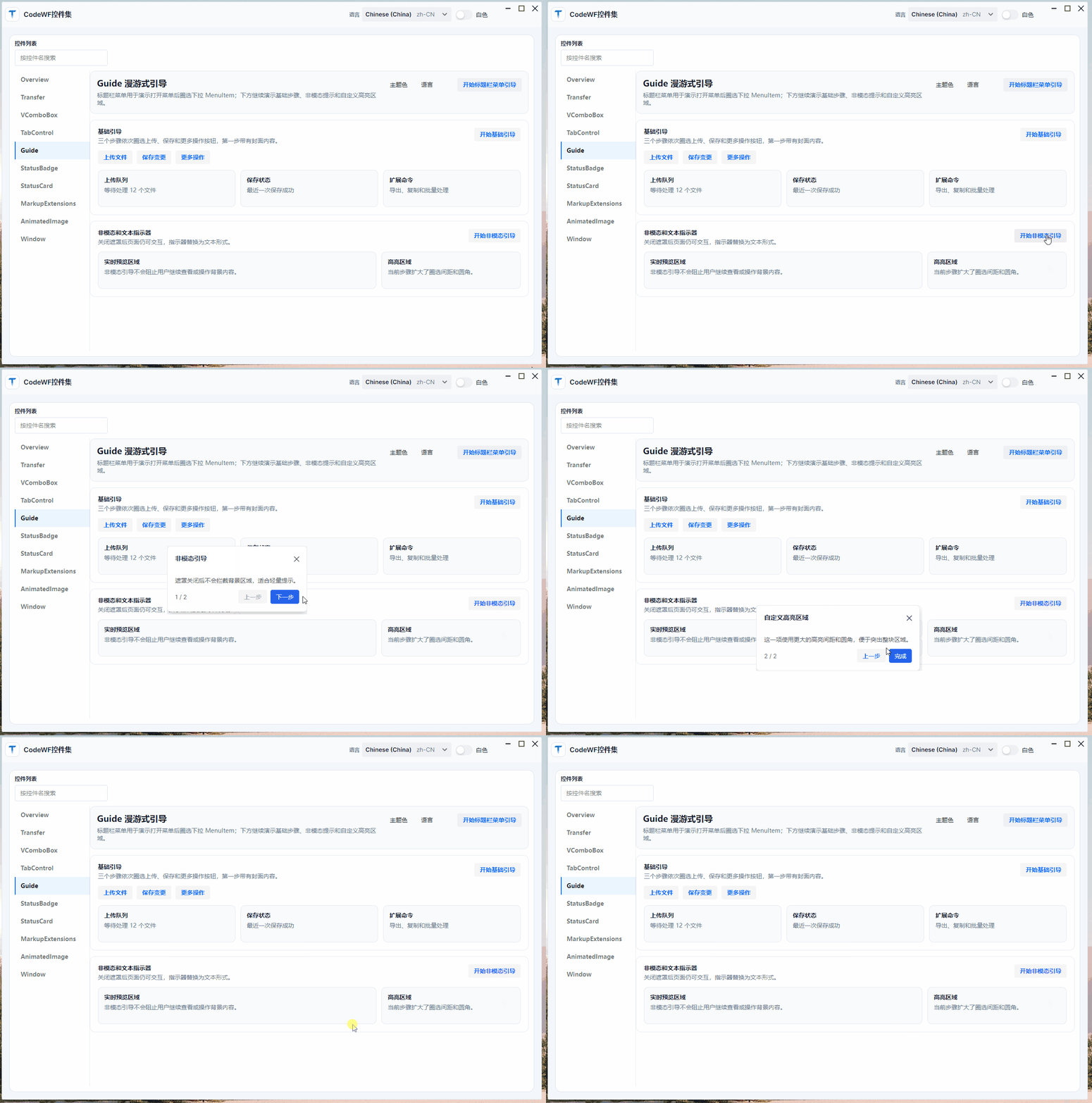
For a non-modal hint, you can disable the mask:
<codewf:Guide
x:Name="NonMaskGuide"
IsShowMask="False"
Placement="Top"
StyleType="Primary">
<codewf:Guide.Indicator>
<codewf:TextGuideIndicator />
</codewf:Guide.Indicator>
</codewf:Guide>
You can also adjust the highlight area per step:
<codewf:GuideStep
Target="{Binding ElementName=PreviewPanel}"
Placement="Left"
GapOffsetX="16"
GapOffsetY="16"
GapRadius="14"
Title="Custom Highlight Area"
Description="Enlarge selection margins and round corners to highlight an entire region." />
How the Mask is Drawn
The core of GuideOverlay is creating a hole using the EvenOdd geometry rule.
It first draws a rectangle covering the entire window, then adds the target control area as a second rectangle to the same GeometryGroup, setting:
geometry.FillRule = FillRule.EvenOdd;
The result: the whole screen becomes dim, while the target control area remains transparent.
The target area is calculated via screen coordinates:
var targetTopLeft = target.PointToScreen(new Point(0, 0));
var origin = relativeTopLevel.PointToClient(targetTopLeft);
var rect = new Rect(origin, target.Bounds.Size);
var result = rect.Inflate(new Thickness(gapX, gapY));
This approach doesn't directly use TranslatePoint in the same visual tree because targets like menus, Popups, and Flyouts may already be in another popup host. Converting to screen coordinates first and then back to the client coordinates of the corresponding TopLevel is more reliable.
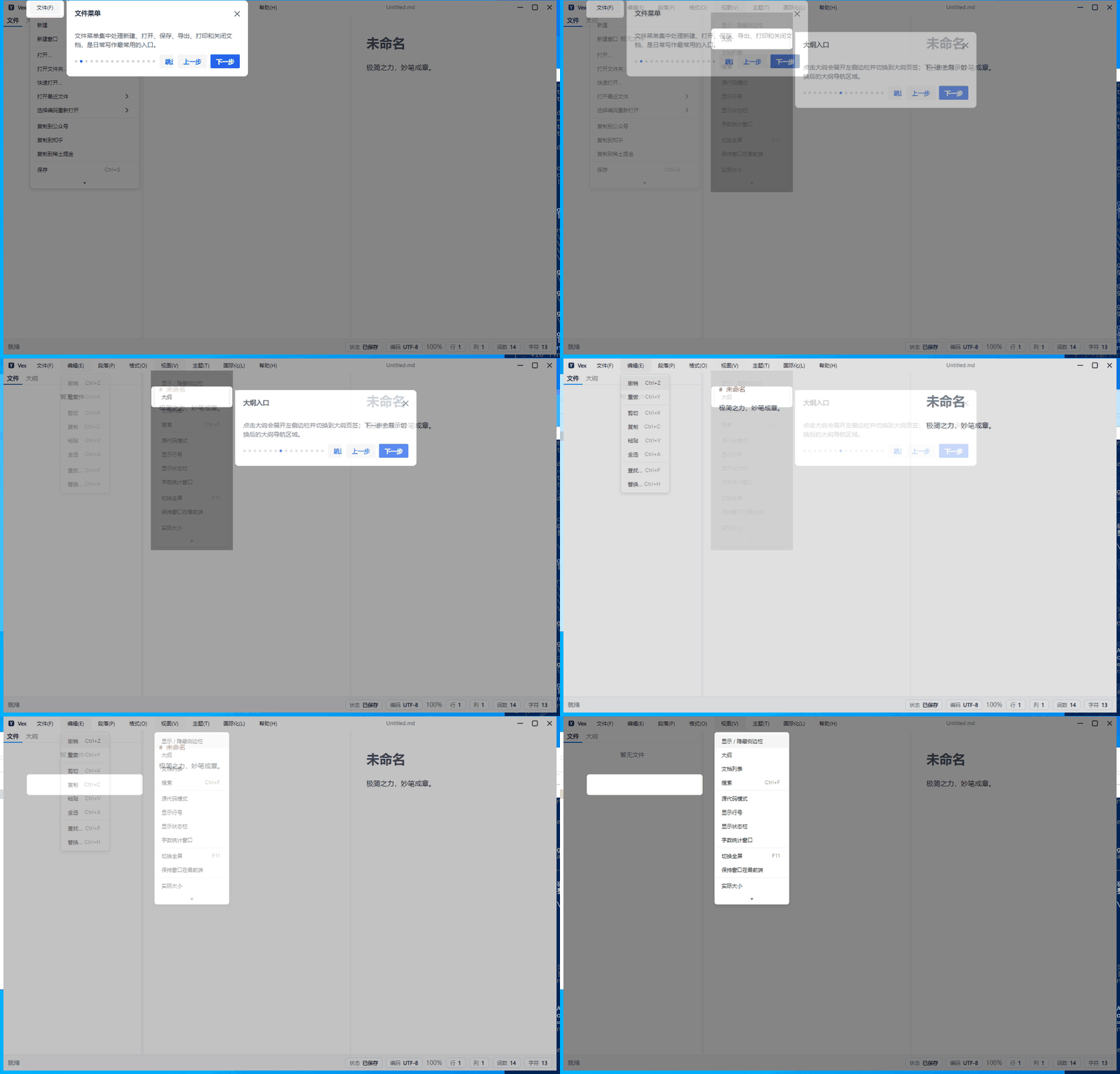
Dynamic Menu Guide
Dynamic menu handling is one of the most significant enhancements in this Guide.
Let's see the effect.

Ordinary guides target controls already present on the page, so highlighting is straightforward. Menu items are different: sub-level MenuItems only appear in the visual tree after their parent menu is opened.
For example, in Vex, the File menu, Paragraph menu, Format menu, View menu, Theme menu, and Help menu are all like that. Before guiding to a specific menu item, you need to open the corresponding menu first, then wait for the menu item to finish layout.
The approach in the demo:
<Menu>
<MenuItem x:Name="GuideThemeMenu" Header="Theme Color">
<MenuItem x:Name="GuideThemeBlueItem" Header="Blue" />
<MenuItem x:Name="GuideThemeGreenItem" Header="Green" />
<MenuItem x:Name="GuideThemePurpleItem" Header="Purple" />
</MenuItem>
</Menu>
<codewf:Guide
x:Name="DynamicGuide"
TargetResolveDelay="00:00:00.220"
StepOpening="DynamicGuide_OnStepOpening">
<codewf:GuideStep
Target="{Binding ElementName=GuideThemeMenu}"
Title="Theme Color Menu"
Description="First, explain the menu entry itself." />
<codewf:GuideStep
Target="{Binding ElementName=GuideThemeBlueItem}"
Placement="RightBottom"
Title="Blue Theme"
Description="After opening the menu, highlight the drop-down MenuItem." />
</codewf:Guide>
Open the menu when entering a step:
private void DynamicGuide_OnStepOpening(object? sender, GuideStepEventArgs e)
{
GuideThemeMenu.IsSubMenuOpen = e.Index is >= 1 and <= 3;
}
In real projects, I usually post it again to the UI thread background queue:
Dispatcher.UIThread.Post(
() => GuideThemeMenu.IsSubMenuOpen = true,
DispatcherPriority.Background);
The reason is that menu popup creation and layout are not fully synchronous. The TargetResolveDelay in Guide gives the menu popup a little time before resolving the target MenuItem.
Menu Item Implementation in Vex
Vex's title bar menus are defined in ShellTitleMenuView.axaml, with key items given names:
<MenuItem x:Name="FileMenuItem" Header="{i18n:I18n {x:Static l:VexL.MenuFile}}">
<MenuItem x:Name="OpenFolderMenuItem" Header="{i18n:I18n {x:Static l:VexL.OpenFolder}}" />
<MenuItem x:Name="ExportMenuItem" Header="{i18n:I18n {x:Static l:VexL.Export}}">
<MenuItem Header="HTML" />
<MenuItem Header="PDF" />
<MenuItem Header="PNG" />
</MenuItem>
</MenuItem>
ShellTitleMenuView.axaml.cs exposes these controls to the main window:
public MenuItem FileMenuTarget => FileMenuItem;
public MenuItem OpenFolderMenuTarget => OpenFolderMenuItem;
public MenuItem ExportMenuTarget => ExportMenuItem;
public MenuItem TableMenuTarget => TableMenuItem;
public MenuItem LinkMenuTarget => LinkMenuItem;
public MenuItem SourceModeMenuTarget => SourceModeMenuItem;
public MenuItem OutlineMenuTarget => OutlineMenuItem;
public MenuItem ThemeDarkMenuTarget => ThemeDarkMenuItem;
public MenuItem BeginGuideMenuTarget => BeginGuideMenuItem;
The main window then assigns these targets to the corresponding GuideSteps:
private void ConfigureOnboardingGuideTargets()
{
GuideFileMenuStep.Target = TitleMenuView.FileMenuTarget;
GuideFileOpenStep.Target = TitleMenuView.OpenFolderMenuTarget;
GuideFileExportStep.Target = TitleMenuView.ExportMenuTarget;
GuideParagraphMenuStep.Target = TitleMenuView.TableMenuTarget;
GuideFormatMenuStep.Target = TitleMenuView.LinkMenuTarget;
GuideViewMenuStep.Target = TitleMenuView.SourceModeMenuTarget;
GuideViewOutlineMenuStep.Target = TitleMenuView.OutlineMenuTarget;
GuideThemeMenuStep.Target = TitleMenuView.ThemeDarkMenuTarget;
GuideHelpMenuStep.Target = TitleMenuView.BeginGuideMenuTarget;
}
When entering a step, the main window determines which menu the current step belongs to:
private void OnboardingGuide_OnStepOpening(object? sender, GuideStepEventArgs e)
{
PrepareOnboardingGuideStep(e.Step);
TitleMenuView.SetGuideMenuOpen(GetGuideMenuKey(e.Step));
}
SetGuideMenuOpen first closes all menus, then opens the menu needed for the current step:
public void SetGuideMenuOpen(string? menuKey)
{
CloseGuideMenus();
if (string.IsNullOrWhiteSpace(menuKey))
{
return;
}
ApplyGuideMenuOpen(menuKey);
Dispatcher.UIThread.Post(() => ApplyGuideMenuOpen(menuKey), DispatcherPriority.Background);
}
The theme menu has a sub-menu, requiring sequential opening:
case ThemeColorGuideMenu:
ThemeMenuItem.IsSubMenuOpen = true;
ThemeColorMenuItem.IsSubMenuOpen = true;
break;
This is the complete chain for menu item guidance:
GuideStep.Targetpoints to the specificMenuItem.StepOpeningopens the parent menu.TargetResolveDelaywaits for the popup to finish layout.Guideresolves the target, draws the mask, and displays the card.- When the step ends or the guide closes, the menu is collapsed.
Displaying Guide After TabItem Switching
Vex's left sidebar is a TabControl with "Files" and "Outline" tabs. The onboarding guide has a typical dynamic flow: first highlight the "Outline" entry in the "View" menu, then automatically switch to the left "Outline" tab, and finally explain the outline navigation area.
Here's the effect.

In the main window, the sidebar target is a single Border:
<Border
x:Name="SidebarGuideTarget"
IsVisible="{Binding Layout.IsSidebarVisible}">
<TabControl
prism:RegionManager.RegionName="{x:Static regions:RegionNames.ShellSidebarRegion}"
SelectedIndex="{Binding Navigation.SelectedSideTabIndex, Mode=TwoWay}" />
</Border>
Both steps point to SidebarGuideTarget:
<codewf:GuideStep
x:Name="GuideSidebarFilesStep"
Target="{Binding ElementName=SidebarGuideTarget}"
Title="{i18n:I18n {x:Static l:VexL.GuideSidebarFilesTitle}}" />
<codewf:GuideStep
x:Name="GuideSidebarOutlineStep"
Target="{Binding ElementName=SidebarGuideTarget}"
Title="{i18n:I18n {x:Static l:VexL.GuideSidebarOutlineTitle}}" />
The difference is that before entering a step, we switch the TabItem:
private void PrepareOnboardingGuideStep(IGuideStepOption step)
{
if (DataContext is not MainWindowViewModel viewModel)
{
return;
}
if (ReferenceEquals(step, GuideSidebarFilesStep))
{
viewModel.Layout.ShowFiles();
QueueOnboardingGuideRefresh();
return;
}
if (ReferenceEquals(step, GuideSidebarOutlineStep))
{
viewModel.Layout.ShowOutline();
QueueOnboardingGuideRefresh();
}
}
ShowFiles() and ShowOutline() ensure the sidebar is visible and switch SelectedSideTabIndex:
public void ShowOutline()
{
IsSidebarVisible = true;
SelectSidebarTab(1);
}
public void ShowFiles()
{
IsSidebarVisible = true;
SelectSidebarTab(0);
}
Finally, refresh the guide position:
private void QueueOnboardingGuideRefresh()
{
Dispatcher.UIThread.Post(OnboardingGuide.Refresh, DispatcherPriority.Background);
}
This step is critical. After TabItem switching, the new content needs the layout system to refresh to get the correct size. First switch the business state, then post Guide.Refresh() to the background queue to avoid the highlight area staying on the old layout.
Show Only Once on First Launch
In Vex, the onboarding guide does not pop up every time the application starts. The configuration includes:
<add key="HasSeenOnboardingGuide" value="false" />
When the window opens, check this state:
private void QueueFirstRunOnboardingGuide()
{
if (_settingsStore is null || _settingsStore.Current.HasSeenOnboardingGuide == true)
{
return;
}
_settingsStore.Update(settings => settings with { HasSeenOnboardingGuide = true });
Dispatcher.UIThread.Post(BeginOnboardingGuide, DispatcherPriority.Background);
}
It automatically displays once on first launch and immediately writes back the state. After that, users can reopen it from the help menu:
<MenuItem
x:Name="BeginGuideMenuItem"
Header="{i18n:I18n {x:Static l:VexL.OnboardingGuide}}"
Click="BeginGuideMenuItem_OnClick" />
When reopening, start from step one:
private void BeginOnboardingGuide()
{
ConfigureOnboardingGuideTargets();
TitleMenuView.CloseGuideMenus();
OnboardingGuide.GoTo(0);
OnboardingGuide.Show();
}
A Few Easily Overlooked Points in Implementation
1. Delayed Target Appearance
Menu items, Popup content, TabItem content may not be immediately visible. Guide has TargetResolveDelay and will retry a few times if the target is temporarily invisible.
2. Popup Targets
Menu items are usually hosted under PopupRoot or OverlayPopupHost, not necessarily in the same visual tree as the main window content. Guide checks whether the target comes from a popup host and uses screen coordinates to calculate the highlight area.
3. Menu Light-Dismiss
If the target is in a menu popup, clicking the "Next" button on the guide card might trigger the menu's light-dismiss first, causing the normal Button.Click to be lost. Guide handles PointerPressed on the previous, next, and finish buttons to ensure guide navigation completes first.
4. Layout Refresh
When the target control's LayoutUpdated or the window's ClientSize changes, the highlight area must be recalculated. Otherwise, after resizing the window or expanding/collapsing the sidebar, the highlight frame will be misaligned.
5. Cleanup
When closing the guide, timers must be stopped, all Popups closed, target and window events unbound, and focus returned to the control that had focus before the guide opened. Since this control spans pages and popups, incomplete cleanup can easily leave residual masks.
Summary
Guide now covers common onboarding scenarios in desktop applications:
- Basic multi-step guidance.
- Centered welcome and end steps.
- Cover content, custom action buttons.
- Default dot progress and text progress.
- Mask, non-modal, highlight spacing and corner radius.
- Guiding
MenuItemafter menu expansion. - Guiding sub-menu items.
- Switching TabItems and continuing guidance after refresh.
- Waiting and retrying when targets appear with delay.
- Automatically showing once on first launch, reopenable from help menu.
After implementing it in Vex, I am more convinced that an onboarding control cannot just "highlight a static button." The real entry points of desktop applications are often hidden behind menus, popups, and tabs. Guide must be able to follow along with business state to be truly usable.
Repository Links and Thanks
Thanks to the AtomUI project for providing the Tour roaming guide control as an important reference.
- AtomUI control repository: https://github.com/AtomUI/AtomUI
- CodeWF.AvaloniaControls control repository (this article): https://github.com/dotnet9/CodeWF.AvaloniaControls
- Vex project repository: https://github.com/dotnet9/Vex
That concludes this article.