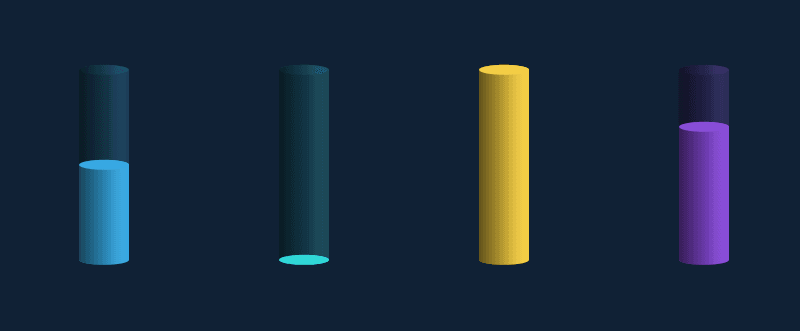
WPF uses only Rectangle to implement cylindrical progress bars

WPF uses only Rectangle to implement cylindrical progress bars

This article will briefly explain how to implement a cylindrical progress bar using only Rectangle

最后更新 2/21/2022 2:50 PM
dino.c
预计阅读 3 分钟
分类
WPF
标签
.NET WPF

This article will briefly introduce how to implement a cylindrical progress bar using only Rectangle. The results are shown in the figure above.

A cylindrical progress bar is not difficult to implement, but what's interesting is that it consists entirely of a Rectangle, which is slightly counterintuitive.

First we need to revisit some basics: Rectangle displays a rectangle with rounded corners. Use RadiusX and RadiusY to specify, respectively, the X and Y axes of the ellipse used to round the corners of the rectangle.

As in the following example, you can see that the rounded corners of the Rectangle with RadiusX="50" RadiusY="20" and the Ellipse with Width="100" Height="40"(X-axis radius 50, Y-axis radius 20 ) completely coincide.

<Rectangle
  Height="100"
  Width="100"
  Fill="#FF7E9EC0"
  Stroke="#FFFF0EC4"
  StrokeThickness="5"
  RadiusX="50"
  RadiusY="20"
/>
<Ellipse
  HorizontalAlignment="Left"
  VerticalAlignment="Top"
  StrokeThickness="5"
  Stroke="Yellow"
  Fill="Red"
  Width="100"
  Height="40"
  Opacity="0.5"
/>
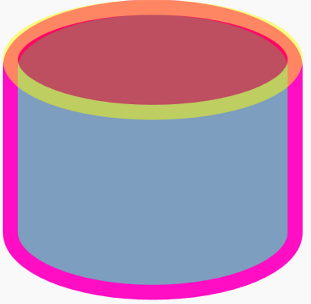
Now we lengthen the Rectangle above to form the basic shape of a cylinder; conversely, we flatten it to form the cross-section of a cylinder. Then set them to be translucent, which becomes the background of the cylindrical progress bar:

<Grid.Resources>
  <style TargetType="Rectangle">
    <Setter Property="Fill" Value="#36a8e2" />
    <Setter Property="RadiusX" Value="25" />
    <Setter Property="RadiusY" Value="5" />
  </style>
</Grid.Resources>
<Rectangle Opacity="0.2" />
<Rectangle Height="10" VerticalAlignment="Top" Opacity="0.1" />

Add an opaque Rectangle below:

<Rectangle Height="100" VerticalAlignment="Bottom" />

It looks a lot like a progress bar, but there is no three-dimensional effect at all, so we need to superimpose a translucent and gradient Rectangle:

<Rectangle Opacity="0.6">
  <Rectangle.Fill>
    <LinearGradientBrush StartPoint="0,0.5" EndPoint="1,.5">
      <GradientStop Color="Black" />
      <GradientStop Offset="1" Color="Transparent" />
      <GradientStop Offset="0.6" Color="#41000000" />
    </LinearGradientBrush>
  </Rectangle.Fill>
</Rectangle>
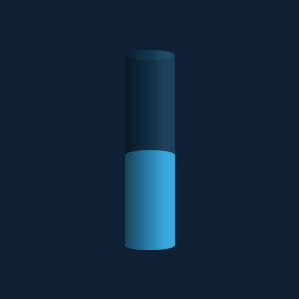
It's very close, but the section above is not obvious. Finally, another Rectangle representing the section needs to be added:

<Grid Height="100" VerticalAlignment="Bottom">
  <Rectangle Height="10" VerticalAlignment="Top" />
</Grid>
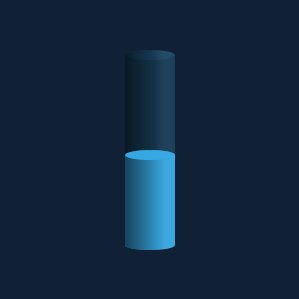
It looks like that now. However, these are just basic concepts in the UI aspect. Converting it into ProgressBar still needs to be a bit complicated. The specific code can be found in this project:

Original author: dino.c

Original link: www.cnblogs.com/dino623/p/wpf_column_progress_bar.html

Keep Exploring

延伸阅读

更多文章
同分类 / 同标签 9/13/2025

Migration from WPF to Avalonia series: Why I have to migrate WPF programs to Avalonia

In the past few years, our host computer software has been mainly developed using WPF and WinForm. These technologies are really easy to use on the Windows platform, and they have also accompanied us through the stage of small-scale trial production to today's large-scale delivery. However, with the development of business and changes in customer needs, the single Windows technology stack has gradually become a hurdle that we must overcome.

继续阅读
同分类 / 同标签 1/26/2025

WPF internationalizes with custom XML files

This article describes in detail the methods of using custom XML files to achieve internationalization in WPF programs, including installing the necessary NuGet package, dynamically obtaining language lists, dynamically switching languages, using translation strings in code and xaml interfaces, etc. It also provides source code links to help developers easily internationalize WPF applications.

继续阅读