

本文来自转载
原文作者:RyzenAdorer
原文标题:.NET Core 3 WPF MVVM 框架 Prism 系列之数据绑定
原文链接:https://www.cnblogs.com/ryzen/p/11905866.html
一. 安装 Prism
- 使用程序包管理控制台
Install-Package Prism.Unity -Version 7.2.0.1367
也可以去掉‘-Version 7.2.0.1367’获取最新的版本
- 使用管理解决方案的 NuGet 包

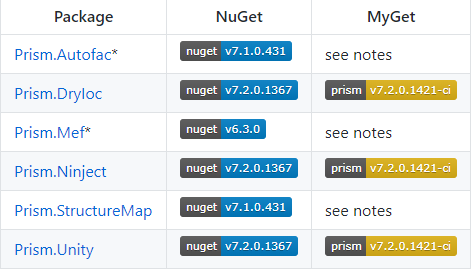
在上面或许我们有个疑问?为啥安装 prism 会跟 Prism.Unity 有关系,我们知道 Unity 是个 IOC 容器, 而 Prism 本身就支持 IOC, 且目前官方支持几种 IOC 容器:
-
- 且 unity 由于是微软官方的,且支持 prism 的组件化,由此我推荐使用 prism.unity,在官方文档中 prism7 不支持 prism.Mef,Prism 7.1 将不支持 prism.Autofac
-
- 安装完 prism.unity 就已经包含着所有 prism 的核心库了,架构如下:

二. 实现数据绑定
我们先创建 Views 文件夹和 ViewModels 文件夹,将 MainWindow 放在 Views 文件夹下,再在 ViewModels 文件夹下面创建 MainWindowViewModel 类,如下:
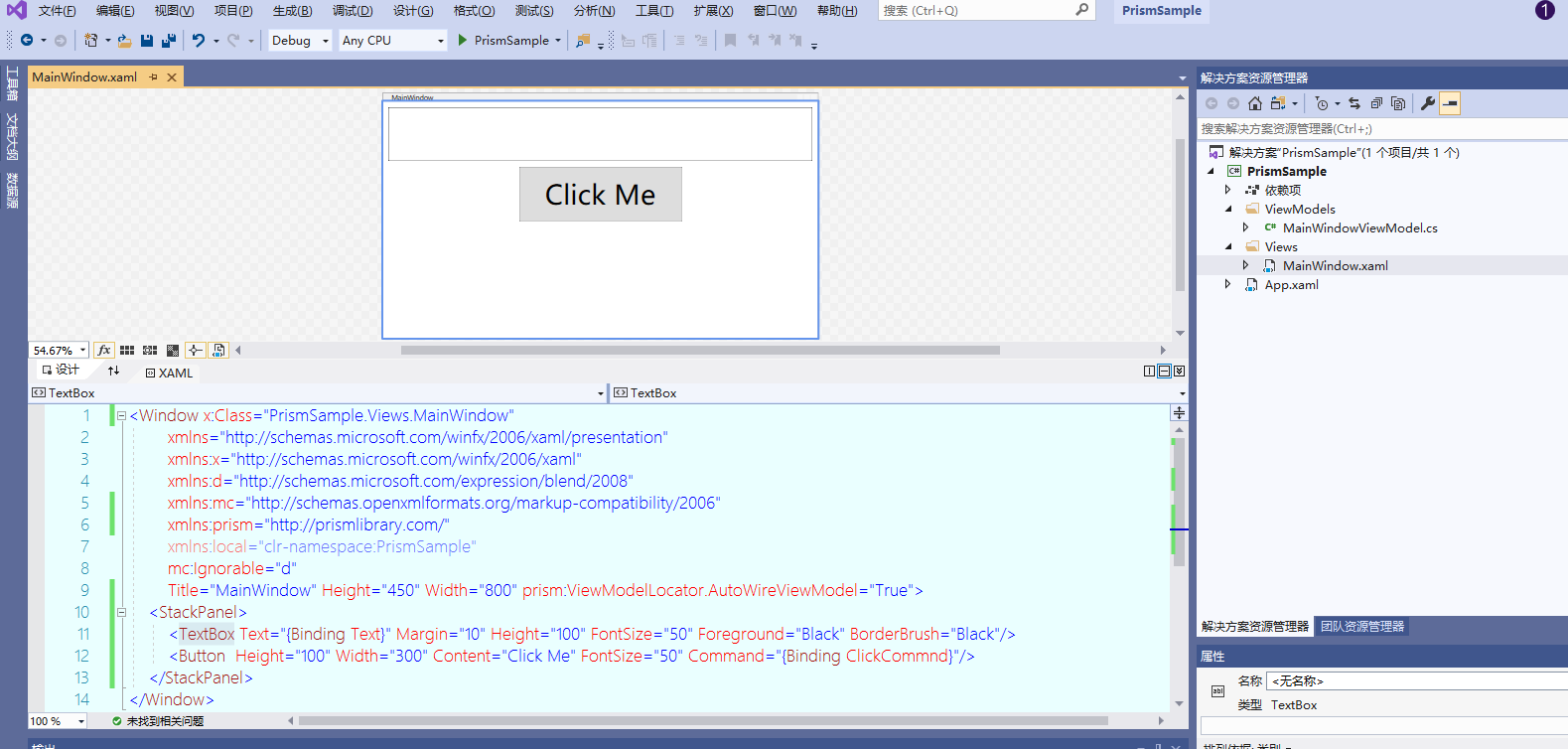
xaml 代码如下:
<Window
  x:Class="PrismSample.Views.MainWindow"
  xmlns="http://schemas.microsoft.com/winfx/2006/xaml/presentation"
  xmlns:x="http://schemas.microsoft.com/winfx/2006/xaml"
  xmlns:d="http://schemas.microsoft.com/expression/blend/2008"
  xmlns:mc="http://schemas.openxmlformats.org/markup-compatibility/2006"
  xmlns:prism="http://prismlibrary.com/"
  xmlns:local="clr-namespace:PrismSample"
  mc:Ignorable="d"
  Title="MainWindow"
  Height="450"
  Width="800"
  prism:ViewModelLocator.AutoWireViewModel="True"
>
  <StackPanel>
    <TextBox
      Text="{Binding Text}"
      Margin="10"
      Height="100"
      FontSize="50"
      Foreground="Black"
      BorderBrush="Black"
    />
    <button
      Height="100"
      Width="300"
      Content="Click Me"
      FontSize="50"
      Command="{Binding ClickCommnd}"
    />
  </StackPanel>
</Window>
ViewModel 代码如下:
using Prism.Commands;
using Prism.Mvvm;

namespace PrismSample.ViewModels
{
   public class MainWindowViewModel:BindableBase
    {
        private string _text;
        public string Text
        {
            get { return _text; }
            set { SetProperty(ref _text, value); }
        }

        private DelegateCommand _clickCommnd;
        public DelegateCommand ClickCommnd =>
            _clickCommnd ?? (_clickCommnd = new DelegateCommand(ExecuteClickCommnd));

        void ExecuteClickCommnd()
        {
            this.Text = "Click Me!";
        }

        public MainWindowViewModel()
        {
            this.Text = "Hello Prism!";
        }
    }
}
启动程序:

点击 click Me 按钮:

可以看到,我们已经成功的用 prism 实现数据绑定了,且 View 和 ViewModel 完美的前后端分离
但是现在我们又引出了另外一个问题,当我们不想按照 prism 的规定硬要将 View 和 ViewModel 放在 Views 和 ViewModels 里面,又或许自己的项目取名规则各不相同怎么办,这时候就要用到另外几种方法:
- 更改命名规则
如果,公司命名规则很变态,导致项目结构变成这样(这种公司辞职了算了):

首先我们在 App 需要引入 prism,修改‘Application’为‘prism:PrismApplication’且删除 StartupUri
xaml 代码如下:
<prism:PrismApplication
  x:Class="PrismSample.App"
  xmlns="http://schemas.microsoft.com/winfx/2006/xaml/presentation"
  xmlns:x="http://schemas.microsoft.com/winfx/2006/xaml"
  xmlns:prism="http://prismlibrary.com/"
  xmlns:local="clr-namespace:PrismSample"
>
  <Application.Resources> </Application.Resources>
</prism:PrismApplication>
cs 后台代码如下:
using Prism.Unity;
using Prism.Ioc;
using Prism.Mvvm;
using System.Windows;
using PrismSample.Viewsb;
using System;
using System.Reflection;

namespace PrismSample
{
    /// <summary>
    /// Interaction logic for App.xaml
    /// </summary>
    public partial class App : PrismApplication
    {
        //设置启动起始页
        protected override Window CreateShell()
        {
            return Container.Resolve<MainWindow>();
        }

        protected override void RegisterTypes(IContainerRegistry containerRegistry)
        {

        }

        //配置规则
        protected override void ConfigureViewModelLocator()
        {
            base.ConfigureViewModelLocator();
            ViewModelLocationProvider.SetDefaultViewTypeToViewModelTypeResolver((viewType) =>
            {
                var viewName = viewType.FullName.Replace(".Viewsb.", ".ViewModelsa.OhMyGod.");
                var viewAssemblyName = viewType.GetTypeInfo().Assembly.FullName;
                var viewModelName = $"{viewName}Test, {viewAssemblyName}";
                return Type.GetType(viewModelName);
            });
        }
    }
}
上面这两句是关键:
".Viewsb." 表示 View 所在文件夹 namespace,".ViewModelsa.OhMyGod." 表示 ViewModel 所在 namespace
var viewName = viewType.FullName.Replace(".Viewsb.", ".ViewModelsa.OhMyGod.");
Test 表示 ViewModel 后缀
var viewModelName = $"{viewName}Test, {viewAssemblyName}";
- 自定义 ViewModel 注册
我们新建一个 Foo 类作为自定义类,代码如下:
using Prism.Commands;
using Prism.Mvvm;

namespace PrismSample
{
   public class Foo:BindableBase
    {

        private string _text;
        public string Text
        {
            get { return _text; }
            set { SetProperty(ref _text, value); }
        }

        public Foo()
        {
            this.Text = "Foo";
        }

        private DelegateCommand _clickCommnd;
        public DelegateCommand ClickCommnd =>
            _clickCommnd ?? (_clickCommnd = new DelegateCommand(ExecuteClickCommnd));

        void ExecuteClickCommnd()
        {
            this.Text = "Oh My God!";
        }
    }
}
修改 App.cs 代码:
protected override void ConfigureViewModelLocator()
{
    base.ConfigureViewModelLocator();
    ViewModelLocationProvider.Register<MainWindow, Foo>();
    //ViewModelLocationProvider.SetDefaultViewTypeToViewModelTypeResolver((viewType) =>
    //{
    //    var viewName = viewType.FullName.Replace(".Viewsb.", ".ViewModelsa.OhMyGod.");
    //    var viewAssemblyName = viewType.GetTypeInfo().Assembly.FullName;
    //    var viewModelName = $"{viewName}Test, {viewAssemblyName}";
    //    return Type.GetType(viewModelName);
    //});
}
运行:

点击按钮:
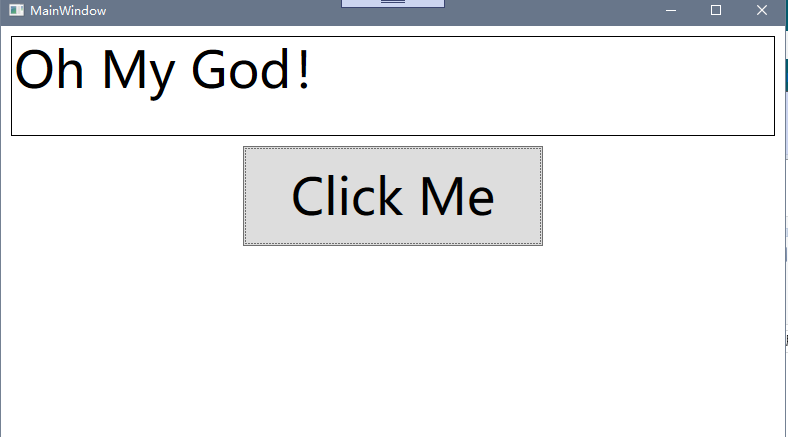
就算是不注释修改命名规则的代码,我们发现运行结果还是一样,因此我们可以得出结论,
这种直接的,不通过反射注册的自定义注册方式优先级会高点,在官方文档也说明这种方式效率会高点
且官方提供 4 种方式,其余三种的注册方式如下:
ViewModelLocationProvider.Register(typeof(MainWindow).ToString(), typeof(MainWindowTest));
ViewModelLocationProvider.Register(typeof(MainWindow).ToString(), () => Container.Resolve<Foo>());
ViewModelLocationProvider.Register<MainWindow>(() => Container.Resolve<Foo>());