
富 Web 时代,应用变得越来越强大,与此同时也越来越复杂。集群部署、隔离环境、灰度发布以及动态扩容缺一不可,而容器化则成为中间的必要桥梁。
本节我们就来探索一下 Docker 的神秘世界,从零到一掌握 Docker 的基本原理与实践操作。别再守着前端那一亩三分地,是时候该开疆扩土了。
我们将会围绕下面几点展开:
- 讲个故事
- 虚拟机与容器
- 认识 Docker
- 核心概念
- 安装 Docker
- 快速开始
- 常规操作
- 最佳实践
一、讲个故事
为了更好的理解 Docker 是什么,我们先来讲个故事:
我需要盖一个房子,于是我搬石头、砍木头、画图纸、盖房子。一顿操作,终于把这个房子盖好了。
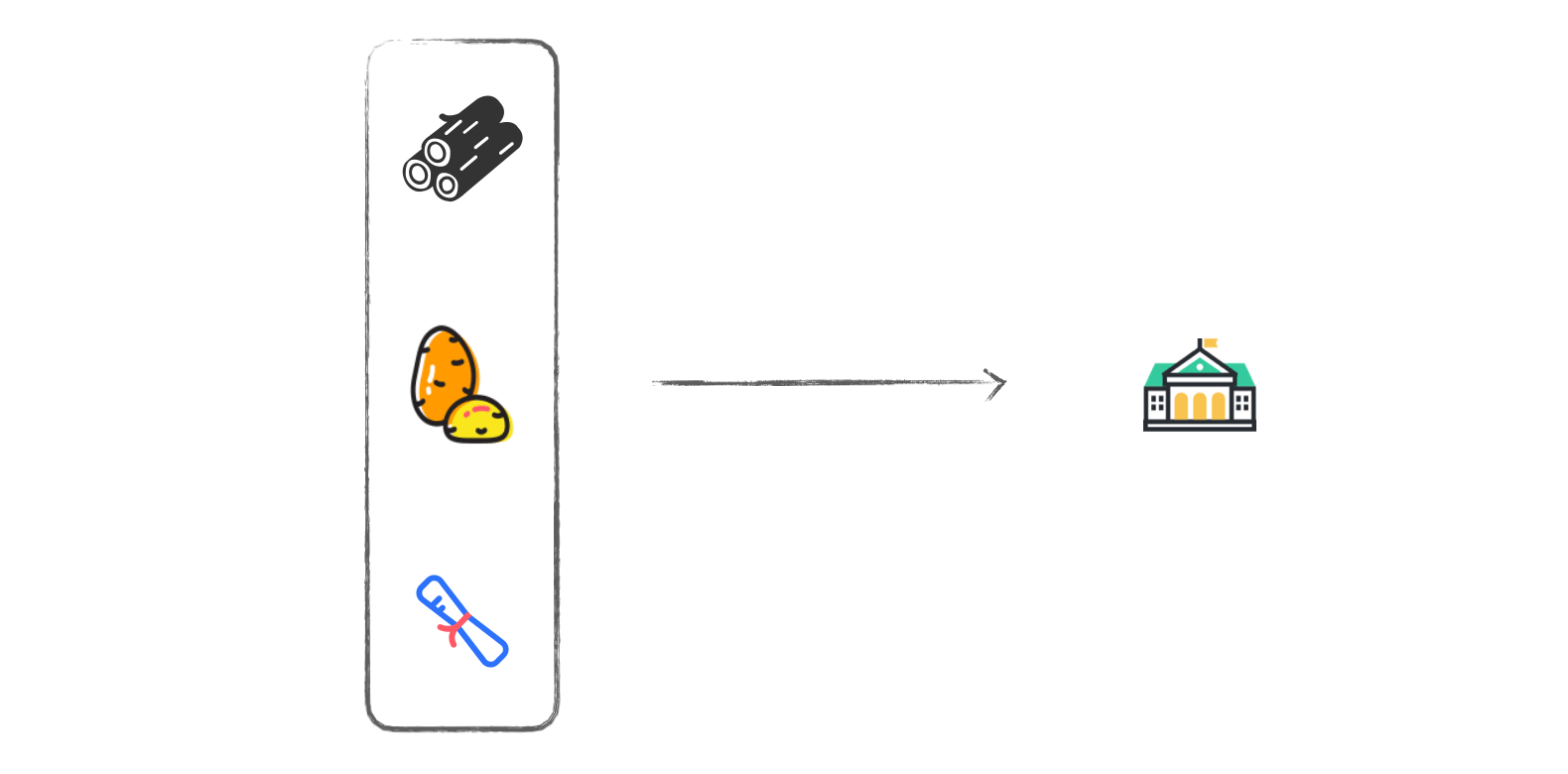
结果,住了一段时间,心血来潮想搬到海边去。这时候按以往的办法,我只能去海边,再次搬石头、砍木头、画图纸、盖房子。
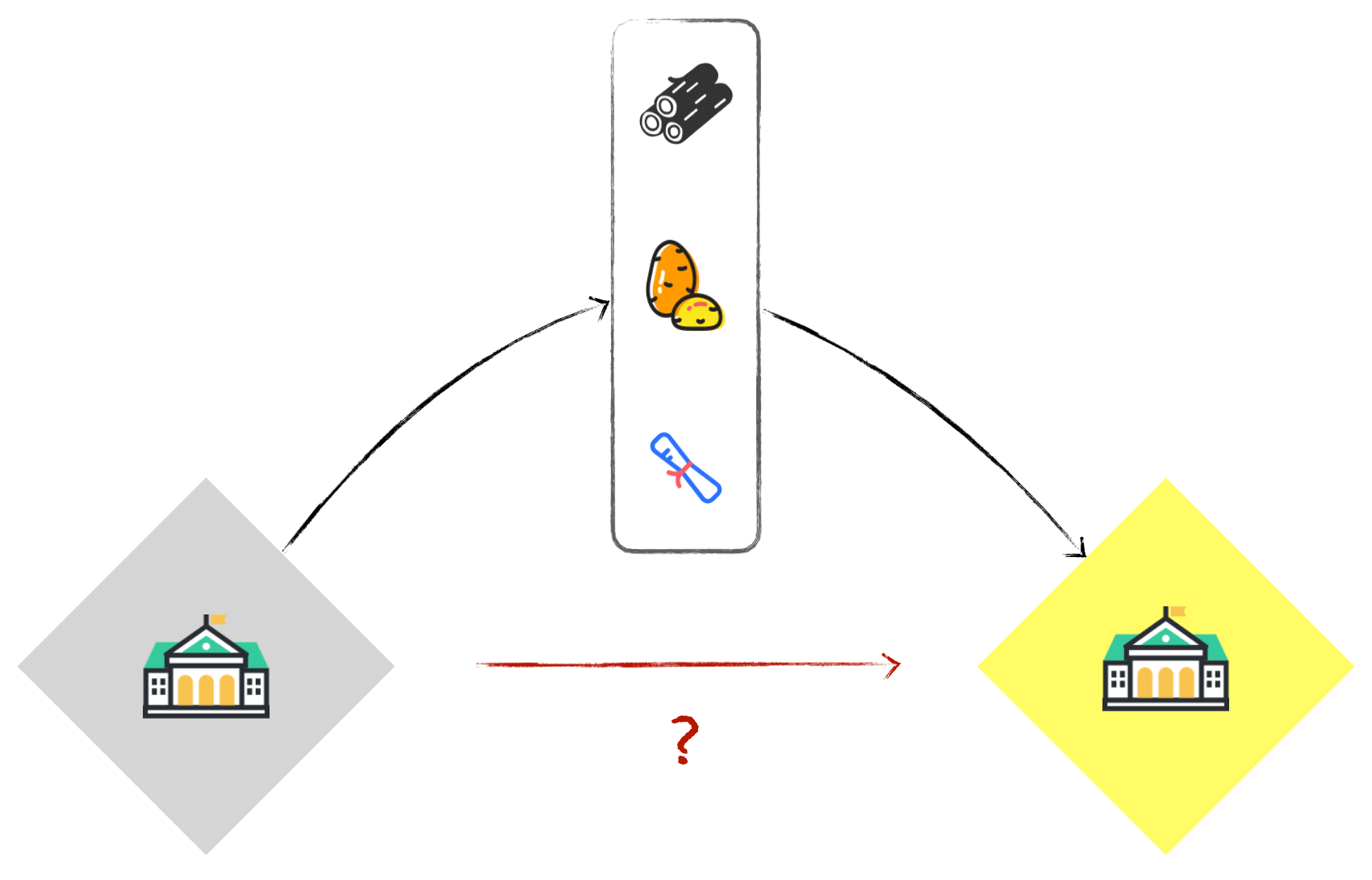
烦恼之际,跑来一个魔法师教会我一种魔法。这种魔法可以把我盖好的房子复制一份,做成「镜像」,放在我的背包里。
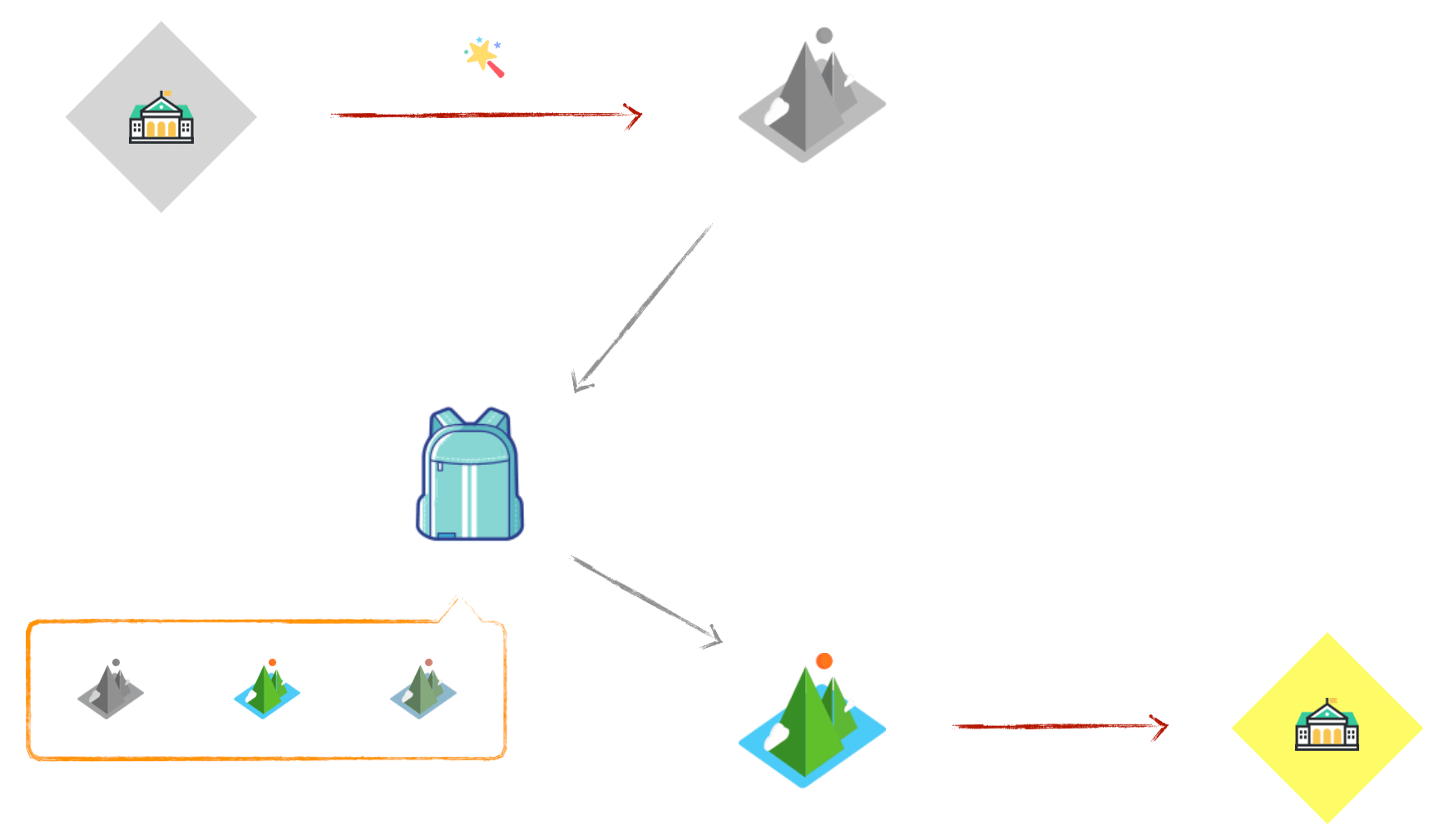
等我到了海边,就用这个「镜像」,复制一套房子,拎包入住。
是不是很神奇?对应到我们的项目中来,房子就是项目本身,镜像就是项目的复制,背包就是镜像仓库。如果要动态扩容,从仓库中取出项目镜像,随便复制就可以了。Build once,Run anywhere!
不用再关注版本、兼容、部署等问题,彻底解决了「上线即崩,无休止构建」的尴尬。
二、虚拟机与容器
开始之前,我们来做一些基础知识的储备:
- 虚拟机:虚拟化硬件
虚拟机 Virtual Machine 指通过软件模拟的具有完整硬件系统功能的、运行在一个完全隔离环境中的完整计算机系统。在实体计算机中能够完成的工作在虚拟机中都能够实现。
在计算机中创建虚拟机时,需要将实体机的部分硬盘和内存容量作为虚拟机的硬盘和内存容量。每个虚拟机都有独立的 CMOS、硬盘和操作系统,可以像使用实体机一样对虚拟机进行操作。在容器技术之前,业界的网红是虚拟机。
虚拟机技术的代表,是 VMWare 和 OpenStack。更多请参看百科虚拟机。
容器:将操作系统层虚拟化,是一个标准的软件单元
- 随处运行:容器可以将代码与配置文件和相关依赖库进行打包,从而确保在任何环境下的运行都是一致的。
- 高资源利用率:容器提供进程级的隔离,因此可以更加精细地设置 CPU 和内存的使用率,进而更好地利用服务器的计算资源。
- 快速扩展:每个容器都可作为单独的进程予以运行,并且可以共享底层操作系统的系统资源,这样一来可以加快容器的启动和停止效率。
区别与联系
- 虚拟机虽然可以隔离出很多「子电脑」,但占用空间更大,启动更慢。虚拟机软件可能还要花钱,例如
VMWare; - 容器技术不需要虚拟出整个操作系统,只需要虚拟一个小规模的环境,类似「沙箱」;
- 运行空间,虚拟机一般要几 GB 到 几十 GB 的空间,而容器只需要 MB 级甚至 KB 级;
- 虚拟机虽然可以隔离出很多「子电脑」,但占用空间更大,启动更慢。虚拟机软件可能还要花钱,例如
我们来看一下对比数据:
| 特性 | 虚拟机 | 容器 |
|---|---|---|
| 隔离级别 | 操作系统级 | 进程 |
| 隔离策略 | Hypervisor(虚拟机监控器) | Cgroups(控制组群) |
| 系统资源 | 5 ~ 15% | 0 ~ 5% |
| 启动时间 | 分钟级 | 秒级 |
| 镜像存储 | GB - TB | KB - MB |
| 集群规模 | 上百 | 上万 |
| 高可用策略 | 备份、容灾、迁移 | 弹性、负载、动态 |
与虚拟机相比,容器更轻量且速度更快,因为它利用了 Linux 底层操作系统在隔离的环境中运行。虚拟机的 Hypervisor 创建了一个非常牢固的边界,以防止应用程序突破它,而容器的边界不那么强大。
物理机部署不能充分利用资源,造成资源浪费。虚拟机方式部署,虚拟机本身会占用大量资源,导致资源浪费,另外虚拟机性能也很差。而容器化部署比较灵活,且轻量级,性能较好。
虚拟机属于虚拟化技术,而 Docker 这样的容器技术,属于轻量级的虚拟化。
三、认识 Docker
- 概念
Docker 是一个开源的应用容器引擎,让开发者可以打包他们的应用以及依赖包到一个可移植的容器中,然后发布到任何流行的 Linux 机器上,也可以实现虚拟化。容器是完全使用沙箱机制,相互之间不会有任何接口。
Docker 技术的三大核心概念,分别是:镜像 Image、容器 Container、仓库 Repository。
- Docker 轻量级的原因?
相信你也会有这样的疑惑:为什么 Docker 启动快?如何做到和宿主机共享内核?
当我们请求 Docker 运行容器时,Docker 会在计算机上设置一个资源隔离的环境。然后将打包的应用程序和关联的文件复制到 Namespace 内的文件系统中,此时环境的配置就完成了。之后 Docker 会执行我们预先指定的命令,运行应用程序。
镜像不包含任何动态数据,其内容在构建之后也不会被改变。
四、核心概念
Build, Ship and Run(搭建、运输、运行);Build once, Run anywhere(一次搭建,处处运行);Docker本身并不是容器,它是创建容器的工具,是应用容器引擎;Docker三大核心概念,分别是:镜像Image,容器Container、仓库Repository;Docker技术使用Linux内核和内核功能(例如Cgroups和namespaces)来分隔进程,以便各进程相互独立运行。- 由于
Namespace和Cgroups功能仅在Linux上可用,因此容器无法在其他操作系统上运行。那么Docker如何在macOS或Windows上运行?Docker实际上使用了一个技巧,并在非Linux操作系统上安装Linux虚拟机,然后在虚拟机内运行容器。 - 镜像是一个可执行包,其包含运行应用程序所需的代码、运行时、库、环境变量和配置文件,容器是镜像的
运行时实例。
更多关于 Docker 的原理,可以查看 Docker 工作原理及容器化简易指南,这里不再赘述。
五、安装 Docker
- 命令行安装
Homebrew 的 Cask 已经支持 Docker for Mac,因此可以很方便的使用 Homebrew Cask 来进行安装,执行如下命令:
brew cask install docker
更多安装方式,请查看官方文档:安装 Docker
- 查看版本
docker -v
- 配置镜像加速
设置 Docker Engine 写入配置:
{
  "registry-mirrors": [
    "http://hub-mirror.c.163.com/",
    "https://registry.docker-cn.com"
  ],
  "insecure-registries": [],
  "experimental": false,
  "debug": true
}
- 安装桌面端
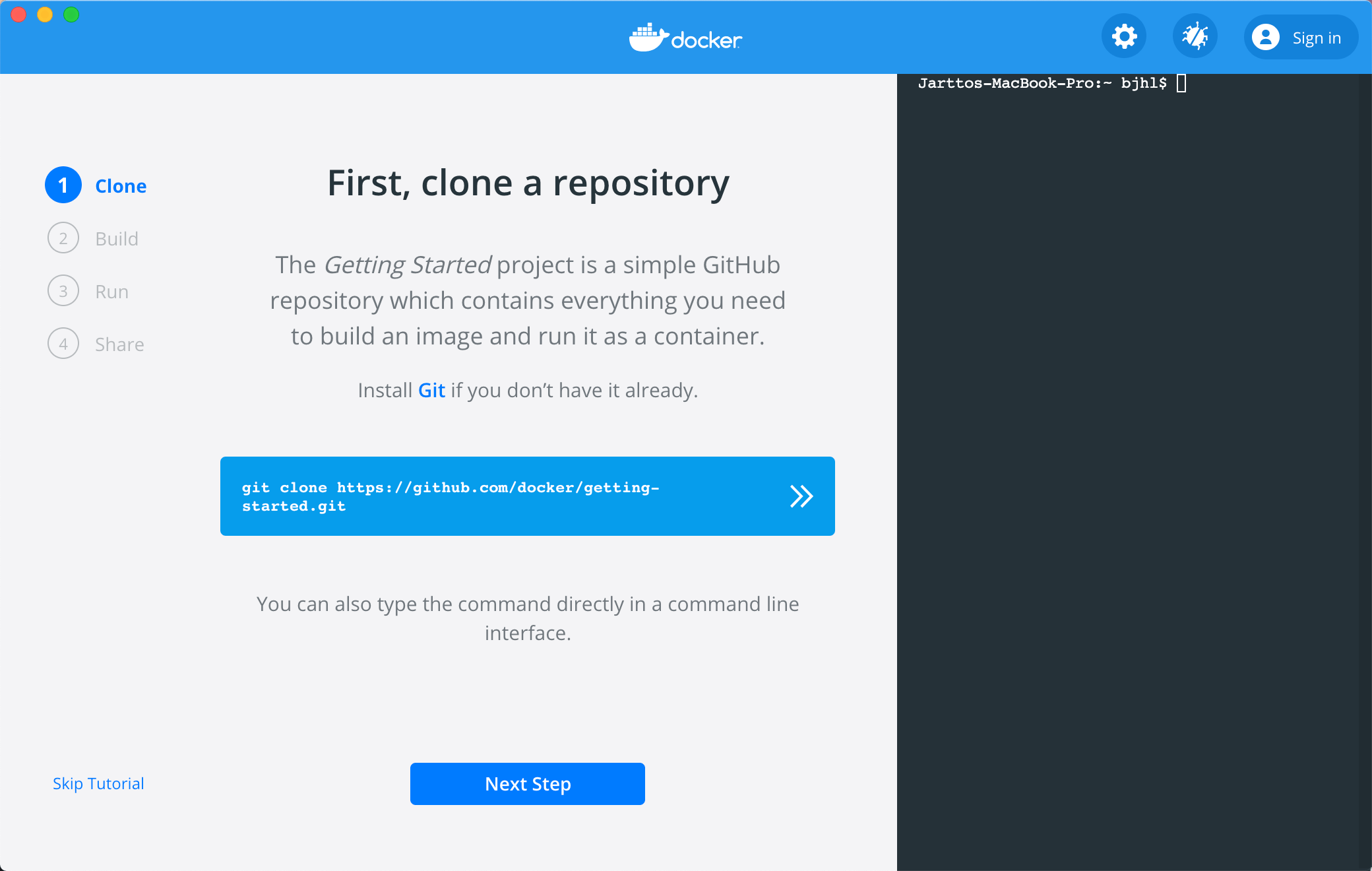
桌面端操作非常简单,先去官网下载。通过 Docker 桌面端,我们可以方便的操作:
- clone:克隆一个项目
- build:打包镜像
- run:运行实例
- share:共享镜像
好了,准备工作就绪,下面可以大展身手了!
六、快速开始
安装完 Docker 之后,我们先打个实际项目的镜像,边学边用。
1.首先需要大致了解一下我们将会用到的 11 个命令
| 命令 | 描述 |
|---|---|
| FROM | 基于哪个镜像来实现 |
| MAINTAINER | 镜像创建者 |
| ENV | 声明环境变量 |
| RUN | 执行命令 |
| ADD | 添加宿主机文件到容器里,有需要解压的文件会自动解压 |
| COPY | 添加宿住机文件到容器里 |
| WORKDIR | 工作目录 |
| EXPOSE | 容器内应用可使用的端口 |
| CMD | 容器启动后所执行的程序,如果执行 docker run 后面跟启动命令会被覆盖掉 |
| ENTRYPOINT | 与 CMD 功能相同,但需 docker run 不会覆盖,如果需要覆盖可增加参数 -entrypoint 来覆盖 |
| VOLUME | 数据卷,将宿主机的目录映射到容器中的目录 |
- 新建项目
为了快捷,我们直接使用 Vue 脚手架构建项目:
vue create docker-demo
尝试启动一下:
yarn serve
访问地址:http://localhost:8080/。项目就绪,我们接着为项目打包:
yarn build
这时候,项目目录下的 Dist 就是我们要部署的静态资源了,我们继续下一步。
需要注意:前端项目一般分两类,一类直接 Nginx 静态部署,一类需要启动 Node 服务。本节我们只考虑第一种。关于 Node 服务,下文我会详细说明。
- 新建 Dockerfile
cd docker-demo && touch Dockerfile
此时的项目目录如下:
.
├── Dockerfile
├── README.md
├── babel.config.js
├── dist
├── node_modules
├── package.json
├── public
├── src
└── yarn.lock
可以看到我们已经在 docker-demo 目录下成功创建了 Dockerfile 文件。
- 准备 Nginx 镜像
运行你的 Docker 桌面端,就会默认启动实例,我们在控制台拉取 Nginx 镜像:
docker pull nginx
控制台会出现如下信息:
Using default tag: latest
latest: Pulling from library/nginx
8559a31e96f4: Pull complete
8d69e59170f7: Pull complete
3f9f1ec1d262: Pull complete
d1f5ff4f210d: Pull complete
1e22bfa8652e: Pull complete
Digest: sha256:21f32f6c08406306d822a0e6e8b7dc81f53f336570e852e25fbe1e3e3d0d0133
Status: Downloaded newer image for nginx:latest
docker.io/library/nginx:latest
如果你出现这样的异常,请确认 Docker 实例是否正常运行。
Cannot connect to the Docker daemon at unix:///var/run/docker.sock. Is the docker daemon running?
镜像准备 OK,我们在根目录创建 Nginx 配置文件:
touch default.conf
写入:
server {
    listen       80;
    server_name  localhost;

    #charset koi8-r;
    access_log  /var/log/nginx/host.access.log  main;
    error_log  /var/log/nginx/error.log  error;

    location / {
        root   /usr/share/nginx/html;
        index  index.html index.htm;
    }

    error_page   500 502 503 504  /50x.html;
    location = /50x.html {
        root   /usr/share/nginx/html;
    }
}
- 配置镜像
打开 Dockerfile ,写入如下内容:
FROM nginx
COPY dist/ /usr/share/nginx/html/
COPY default.conf /etc/nginx/conf.d/default.conf
我们逐行解释一下代码:
FROM nginx指定该镜像是基于nginx:latest镜像而构建的;COPY dist/ /usr/share/nginx/html/命令的意思是将项目根目录下dist文件夹中的所有文件复制到镜像中/usr/share/nginx/html/目录下;COPY default.conf /etc/nginx/conf.d/default.conf将default.conf复制到etc/nginx/conf.d/default.conf,用本地的default.conf配置来替换Nginx镜像里的默认配置。
- 构建镜像
Docker 通过 build 命令来构建镜像:
docker build -t jartto-docker-demo .
按照惯例,我们解释一下上述代码:
-t参数给镜像命名jartto-docker-demo.是基于当前目录的Dockerfile来构建镜像
执行成功后,将会输出:
Sending build context to Docker daemon  115.4MB
Step 1/3 : FROM nginx
 ---> 2622e6cca7eb
Step 2/3 : COPY dist/ /usr/share/nginx/html/
 ---> Using cache
 ---> 82b31f98dce6
Step 3/3 : COPY default.conf /etc/nginx/conf.d/default.conf
 ---> 7df6efaf9592
Successfully built 7df6efaf9592
Successfully tagged jartto-docker-demo:latest
镜像制作成功!我们来查看一下容器:
docker image ls | grep jartto-docker-demo
可以看到,我们打出了一个 133MB 的项目镜像:
jartto-docker-demo latest 7df6efaf9592 About a minute ago 133MB
镜像也有好坏之分,后续我们将介绍如何优化,这里可以先暂时忽略。
- 运行容器
docker run -d -p 3000:80 --name docker-vue jartto-docker-demo
这里解释一下参数:
-d设置容器在后台运行-p表示端口映射,把本机的3000端口映射到container的80端口(这样外网就能通过本机的3000端口访问了--name设置容器名docker-vuejartto-docker-demo是我们上面构建的镜像名字
补充一点:
在控制台,我们可以通过 docker ps 查看刚运行的 Container 的 ID:
docker ps -a
控制台会输出:
CONTAINER ID IMAGE              COMMAND                  CREATED       STATUS PORTS  NAMES
ab1375befb0b jartto-docker-demo "/docker-entrypoint.…"   8 minutes ago Up 7 minutes  0.0.0.0:3000->80/tcp  docker-vue
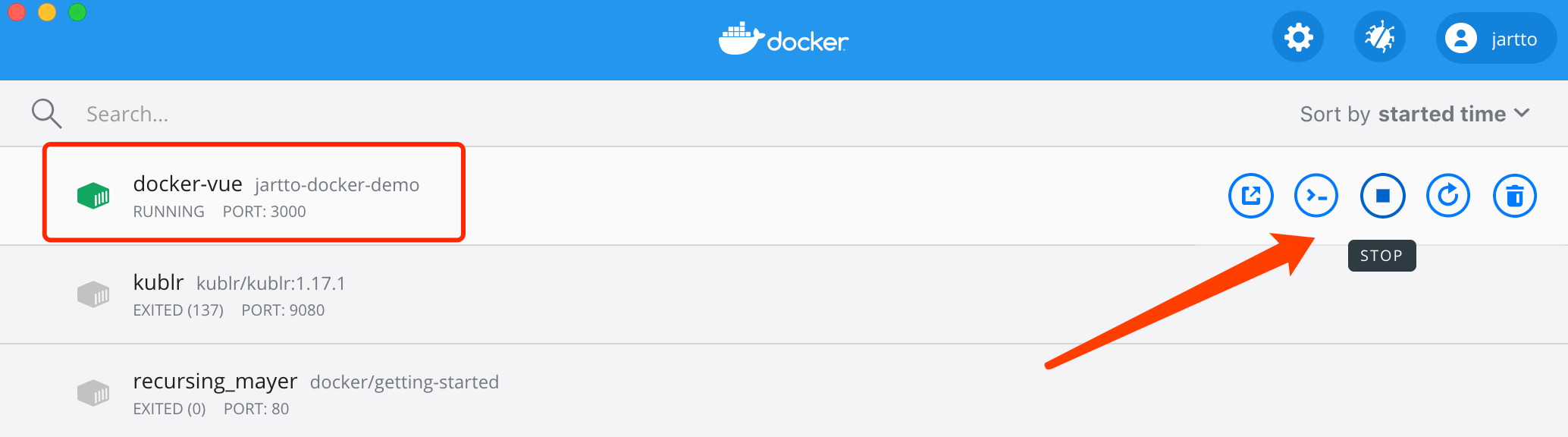
如果你使用桌面端,那么打开 Docker Dashboard 就可以看到容器列表了,如下图:
- 访问项目
因为我们映射了本机 3000 端口,所以执行:
curl -v -i localhost:3000
或者打开浏览器,访问:localhost:3000
- 发布镜像
如果你想为社区贡献力量,那么需要将镜像发布,方便其他开发者使用。
发布镜像需要如下步骤:
- 登录 dockerhub,注册账号;
- 命令行执行
docker login,之后输入我们的账号密码,进行登录; - 推送镜像之前,需要打一个 Tag,执行
docker tag <image> <username>/<repository>:<tag>
全流程结束,以后我们要使用,再也不需要「搬石头、砍木头、画图纸、盖房子」了,拎包入住。这也是 docker 独特魅力所在。
七、常规操作
到这里,恭喜你已经完成了 Docker 的入门项目!如果还想继续深入,不妨接着往下看看。
- 参数使用
FROM
- 指定基础镜像,所有构建的镜像都必须有一个基础镜像,且
FROM命令必须是Dockerfile的第一个命令 FROM <image> [AS <name>]指定从一个镜像构建起一个新的镜像名字FROM <image>[:<tag>] [AS <name>]指定镜像的版本Tag- 示例:
FROM mysql:5.0 AS database
- 指定基础镜像,所有构建的镜像都必须有一个基础镜像,且
MAINTAINER
- 镜像维护人的信息
MAINTAINER <name>- 示例:
MAINTAINER Jartto Jartto@qq.com
RUN
- 构建镜像时要执行的命令
RUN <command>- 示例:
RUN ["executable", "param1", "param2"]
ADD
- 将本地的文件添加复制到容器中去,压缩包会解压,可以访问网络上的文件,会自动下载
ADD <src> <dest>- 示例:
ADD *.js /app添加js文件到容器中的app目录下
COPY
- 功能和
ADD一样,只是复制,不会解压或者下载文件
- 功能和
CMD
- 启动容器后执行的命令,和
RUN不一样,RUN是在构建镜像是要运行的命令 - 当使用
docker run运行容器的时候,这个可以在命令行被覆盖 - 示例:
CMD ["executable", "param1", "param2"]
- 启动容器后执行的命令,和
ENTRYPOINT
- 也是执行命令,和
CMD一样,只是这个命令不会被命令行覆盖 ENTRYPOINT ["executable", "param1", "param2"]- 示例:
ENTRYPOINT ["donnet", "myapp.dll"]
- 也是执行命令,和
LABEL:为镜像添加元数据,key-value 形式
LABEL <key>=<value> <key>=<value> ...- 示例:
LABEL version="1.0" description="这是一个web应用"
ENV:设置环境变量,有些容器运行时会需要某些环境变量
ENV <key> <value>一次设置一个环境变量ENV <key>=<value> <key>=<value> <key>=<value>设置多个环境变量- 示例:
ENV JAVA_HOME /usr/java1.8/
EXPOSE:暴露对外的端口(容器内部程序的端口,虽然会和宿主机的一样,但是其实是两个端口)
EXPOSE <port>- 示例:
EXPOSE 80 - 容器运行时,需要用
-p映射外部端口才能访问到容器内的端口
VOLUME:指定数据持久化的目录,官方语言叫做挂载
VOLUME /var/log指定容器中需要被挂载的目录,会把这个目录映射到宿主机的一个随机目录上,实现数据的持久化和同步。VOLUME ["/var/log","/var/test".....]指定容器中多个需要被挂载的目录,会把这些目录映射到宿主机的多个随机目录上,实现数据的持久化和同步VOLUME /var/data var/log指定容器中的var/log目录挂载到宿主机上的/var/data目录,这种形式可以手动指定宿主机上的目录
WORKDIR:设置工作目录,设置之后 ,RUN、CMD、COPY、ADD 的工作目录都会同步变更
WORKDIR <path>- 示例:
WORKDIR /app/test
USER:指定运行命令时所使用的用户,为了安全和权限起见,根据要执行的命令选择不同用户
USER <user>:[<group>]- 示例:
USER test
ARG:设置构建镜像是要传递的参数
ARG <name>[=<value>]ARG name=sss
更多操作,请移步官方使用文档。
八、最佳实践
在掌握 Docker 常规操作之后,我们很容易就可以打出自己想要的项目镜像。然而不同的操作打出的镜像也是千差万别。
究竟是什么原因导致镜像差异,我们不妨继续探索。
以下是在应用 Docker 过程中整理的最佳实践,请尽量遵循如下准则:
- Require 明确:需要什么镜像
- 步骤精简:变化较少的 Step 优先
- 版本明确:镜像命名明确
- 说明文档:整个镜像打包步骤可以重现
推荐如下两篇文章:
九、总结
容器化技术必将是云时代不可或缺的技能之一,而 Docker 只是沧海一粟。随之而来的还有集群容器管理 K8s、Service Mesh 、Istio 等技术。打开 Docker 的大门,不断抽丝剥茧,逐层深入,你将感受到容器化的无穷魅力。
赶快打开技能边界,为你的前端技术赋能吧!
版权声明: 文章首发于 Jartto's Blog , 转载文章请务必以超链接形式标明文章出处、作者信息及本版权声明。