
無料オープンソース Blazor オンライン Ico 変換ツール。元ファイルおよび変換後のファイルは保存されず、ダウンロード完了後に削除されますので、安心してお使いいただけます。
目次
-
- 機能デモ
-
- 実装の説明
- 2.1 その他の画像アップロード
- 2.2 コアコード:その他の画像をIcoに変換
- 2.3 変換後のIcoファイルのダウンロード
-
- まとめ
1. 機能デモ
リポジトリ:IcoTool
オンラインデモ:https://tool.dotnet9.com/ico
ファイルアップロードと変換結果のデモ:
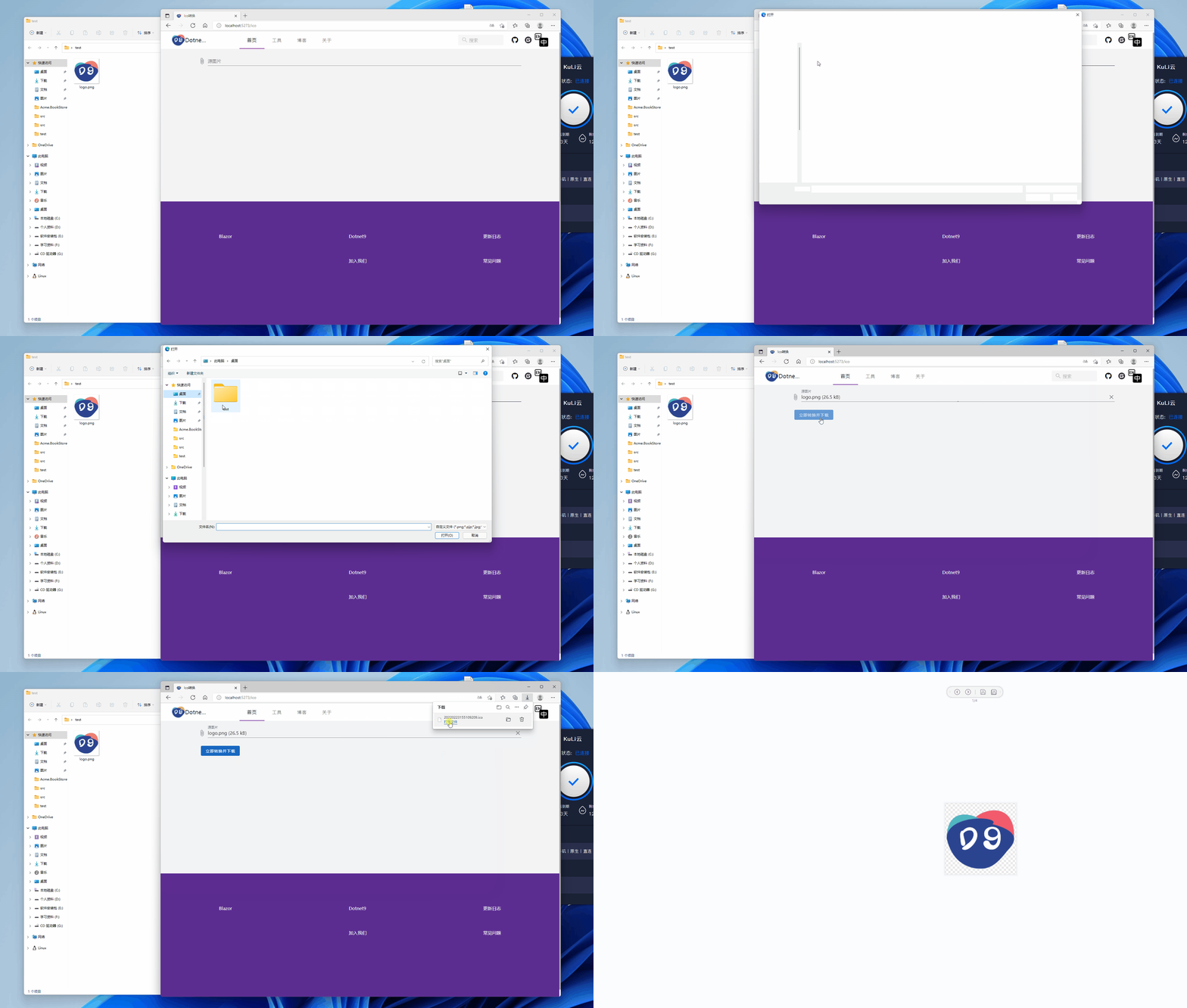
このツールとコードを通じて、以下のことがわかります。
- Blazor を使用してサーバー(Blazor Server)にファイルをアップロードする方法。
- サーバーからファイルをダウンロードする方法。
- png などの画像を Ico 画像に変換する方法。
以下に、このツールの実装コードについて簡単に説明します。不明な点があればコメントでお問い合わせください。
2. 実装の説明
2.1 その他の画像アップロード
使用しているのは MASA Blazor のアップロードコンポーネント MFileInput です。以下のコードをご覧ください。アップロードコンポーネントと、アップロード時のファイル保存処理のみです。コードファイル:IcoTool.razor
<MFileInput TValue="IBrowserFile"
            Placeholder="@T("IcoToolMFileInputPlaceholder")"
            Rules="_rules"
            ShowSize
            OnChange="@LoadFile"
            Accept="image/png, image/jpeg, image/jpg, image/bmp"
            Label="@T("IcoToolMFileInputLabel")">
</MFileInput>

@code {
    private readonly List<Func<IBrowserFile, StringBoolean>> _rules = new();

    private bool _loading;
    private IBrowserFile? _sourceBrowserFile;

    [Inject]
    public I18n I18N { get; set; } = default!;

    [Inject]
    public IJSRuntime Js { get; set; } = default!;

    protected override async Task OnInitializedAsync()
    {
        _rules.Add(value => value == null || value.Size < 2 * 1024 * 1024 ? true : T("IcoToolFileSizeLimitMessage"));
        await base.OnInitializedAsync();
    }

    private void LoadFile(IBrowserFile? e)
    {
        _sourceBrowserFile = e;
    }
}
上記のコードの LoadFile(IBrowserFile? e) メソッドは、ファイル選択時に IBrowserFile の参照を保存するだけで、選択後すぐに「今すぐ変換してIconをダウンロード」ボタンが表示されます。コードは以下の通りです。
@if (_sourceBrowserFile != null) {
<MButton
  class="ma-2 white--text"
  Loading="_loading"
  Disabled="_loading"
  Depressed
  Color="primary"
  OnClick="@ConvertAndDownloadIcon"
>
  <LoaderContent>
    <span>@T("IcoToolMButtonLoaderContent")</span>
  </LoaderContent>
  <ChildContent>
    <span>@T("IcoToolMButtonChildContent")</span>
  </ChildContent>
</MButton>
}
この時点では、元ファイルはまだアップロードされていません。ユーザーは再選択することも可能で、「今すぐ変換してIconをダウンロード」ボタンをクリックすると、アイコン変換とダウンロードが実行されます。これについては後述します。
2.2 コアコード:その他の画像をIcoに変換
参考コード:https://gist.github.com/darkfall/1656050
Bitmap を使用しているため、Visual Studio は Windows プラットフォームのみ対応と警告します(重要なのは System.Drawing.Common パッケージがクロスプラットフォームに対応していないだけで、.NET 6 がクロスプラットフォームに対応していないわけではない ということです)。現在、ツールプログラムは Windows Server 2019 サーバーにデプロイされています。クロスプラットフォームをサポートする他の変換コードがある場合は、技術的な議論を歓迎します。以下に、私が使用しているその他の画像をIcoに変換するコードを示します。コードのパスは ImagingHelper.cs です。
using System.Drawing;
using System.Drawing.Drawing2D;
using System.Drawing.Imaging;

namespace Dotnet9.Tools.Images;

/// <summary>
///     Adapted from this gist: https://gist.github.com/darkfall/1656050
///     Provides helper methods for imaging
/// </summary>
public static class ImagingHelper
{
    public const string FileheadBmp = "6677";
    public const string FileheadJpg = "255216";
    public const string FileheadPng = "13780";
    public const string FileheadGif = "7173";

    private static readonly Dictionary<ImageType, string> ImageTypeHead = new()
    {
        { ImageType.Bmp, FileheadBmp },
        { ImageType.Jpg, FileheadJpg },
        { ImageType.Png, FileheadPng },
        { ImageType.Gif, FileheadGif }
    };

    public static bool IsPicture(string filePath, out string fileHead)
    {
        fileHead = string.Empty;

        try
        {
            var fs = new FileStream(filePath, FileMode.Open, FileAccess.Read);
            var reader = new BinaryReader(fs);
            var fileClass = $"{reader.ReadByte().ToString()}{reader.ReadByte().ToString()}";
            reader.Close();
            fs.Close();
            if (fileClass is not (FileheadBmp or FileheadJpg or FileheadPng or FileheadGif))
                return false;

            fileHead = fileClass;
            return true;
        }
        catch
        {
            return false;
        }
    }

    public static bool IsPictureType(string filePath, ImageType imageType)
    {
        var isPicture = IsPicture(filePath, out var fileHead);
        if (!isPicture) return false;

        return ImageTypeHead[imageType] == fileHead;
    }

    /// <summary>
    ///     Converts a PNG image to a icon (ico) with all the sizes windows likes
    /// </summary>
    /// <param name="inputBitmap">The input bitmap</param>
    /// <param name="output">The output stream</param>
    /// <returns>Wether or not the icon was succesfully generated</returns>
    public static bool ConvertToIcon(Bitmap inputBitmap, Stream output)
    {
        var sizes = new[] { 256, 48, 32, 16 };

        // Generate bitmaps for all the sizes and toss them in streams
        var imageStreams = new List<MemoryStream>();
        foreach (var size in sizes)
        {
            var newBitmap = ResizeImage(inputBitmap, size, size);

            var memoryStream = new MemoryStream();
            newBitmap.Save(memoryStream, ImageFormat.Png);
            imageStreams.Add(memoryStream);
        }

        var iconWriter = new BinaryWriter(output);

        var offset = 0;

        // 0-1 reserved, 0
        iconWriter.Write((byte)0);
        iconWriter.Write((byte)0);

        // 2-3 image type, 1 = icon, 2 = cursor
        iconWriter.Write((short)1);

        // 4-5 number of images
        iconWriter.Write((short)sizes.Length);

        offset += 6 + 16 * sizes.Length;

        for (var i = 0; i < sizes.Length; i++)
        {
            // image entry 1
            // 0 image width
            iconWriter.Write((byte)sizes[i]);
            // 1 image height
            iconWriter.Write((byte)sizes[i]);

            // 2 number of colors
            iconWriter.Write((byte)0);

            // 3 reserved
            iconWriter.Write((byte)0);

            // 4-5 color planes
            iconWriter.Write((short)0);

            // 6-7 bits per pixel
            iconWriter.Write((short)32);

            // 8-11 size of image data
            iconWriter.Write((int)imageStreams[i].Length);

            // 12-15 offset of image data
            iconWriter.Write(offset);

            offset += (int)imageStreams[i].Length;
        }

        for (var i = 0; i < sizes.Length; i++)
        {
            // write image data
            // png data must contain the whole png data file
            iconWriter.Write(imageStreams[i].ToArray());
            imageStreams[i].Close();
        }

        iconWriter.Flush();

        return true;
    }

    /// <summary>
    ///     Converts a PNG image to a icon (ico)
    /// </summary>
    /// <param name="input">The input stream</param>
    /// <param name="output">The output stream</param
    /// <returns>Wether or not the icon was succesfully generated</returns>
    public static bool ConvertToIcon(Stream input, Stream output)
    {
        var inputBitmap = (Bitmap)Image.FromStream(input);
        return ConvertToIcon(inputBitmap, output);
    }

    /// <summary>
    ///     Converts a PNG image to a icon (ico)
    /// </summary>
    /// <param name="inputPath">The input path</param>
    /// <param name="outputPath">The output path</param>
    /// <returns>Wether or not the icon was succesfully generated</returns>
    public static bool ConvertToIcon(string inputPath, string outputPath)
    {
        using var inputStream = new FileStream(inputPath, FileMode.Open);
        using var outputStream = new FileStream(outputPath, FileMode.OpenOrCreate);
        return ConvertToIcon(inputStream, outputStream);
    }


    /// <summary>
    ///     Converts an image to a icon (ico)
    /// </summary>
    /// <param name="inputImage">The input image</param>
    /// <param name="outputPath">The output path</param>
    /// <returns>Wether or not the icon was succesfully generated</returns>
    public static bool ConvertToIcon(Image inputImage, string outputPath)
    {
        using var outputStream = new FileStream(outputPath, FileMode.OpenOrCreate);
        return ConvertToIcon(new Bitmap(inputImage), outputStream);
    }


    /// <summary>
    ///     Resize the image to the specified width and height.
    ///     Found on stackoverflow: https://stackoverflow.com/questions/1922040/resize-an-image-c-sharp
    /// </summary>
    /// <param name="image">The image to resize.</param>
    /// <param name="width">The width to resize to.</param>
    /// <param name="height">The height to resize to.</param>
    /// <returns>The resized image.</returns>
    public static Bitmap ResizeImage(Image image, int width, int height)
    {
        var destRect = new Rectangle(0, 0, width, height);
        var destImage = new Bitmap(width, height);

        destImage.SetResolution(image.HorizontalResolution, image.VerticalResolution);

        using var graphics = Graphics.FromImage(destImage);
        graphics.CompositingMode = CompositingMode.SourceCopy;
        graphics.CompositingQuality = CompositingQuality.HighQuality;
        graphics.InterpolationMode = InterpolationMode.HighQualityBicubic;
        graphics.SmoothingMode = SmoothingMode.HighQuality;
        graphics.PixelOffsetMode = PixelOffsetMode.HighQuality;

        using var wrapMode = new ImageAttributes();
        wrapMode.SetWrapMode(WrapMode.TileFlipXY);
        graphics.DrawImage(image, destRect, 0, 0, image.Width, image.Height, GraphicsUnit.Pixel, wrapMode);

        return destImage;
    }
}

public enum ImageType
{
    Bmp,
    Jpg,
    Png,
    Gif
}
簡単な単体テストも用意しています。コードは ImageHelperTests.cs をご覧ください。
using Dotnet9.Tools.Images;

namespace Dotnet9.Tools.Tests.Images;

public class ImageHelperTests
{
    [Fact]
    public void IsPicture()
    {
        var testFilePath = Path.Combine(AppDomain.CurrentDomain.BaseDirectory, "TestFiles", "logo.png");
        Assert.True(File.Exists(testFilePath));

        var isPicture = ImagingHelper.IsPicture(testFilePath, out var typename);

        Assert.True(isPicture);
    }

    [Fact]
    public void IsNotPicture()
    {
        var testFilePath = Path.Combine(AppDomain.CurrentDomain.BaseDirectory, "TestFiles", "test.txt");
        Assert.True(File.Exists(testFilePath));

        var isPicture = ImagingHelper.IsPicture(testFilePath, out var typename);

        Assert.False(isPicture);
    }

    [Fact]
    public void IsPngFile()
    {
        var testFilePath = Path.Combine(AppDomain.CurrentDomain.BaseDirectory, "TestFiles", "logo.png");
        Assert.True(File.Exists(testFilePath));

        var isPng = ImagingHelper.IsPictureType(testFilePath, ImageType.Png);

        Assert.True(isPng);
    }

    [Fact]
    public void ShouldConvertPngToIcon()
    {
        var sourcePng = Path.Combine(AppDomain.CurrentDomain.BaseDirectory, "TestFiles", "logo.png");
        var destIco = Path.Combine(AppDomain.CurrentDomain.BaseDirectory, "TestFiles", "logo.ico");
        Assert.True(File.Exists(sourcePng));
        Assert.False(File.Exists(destIco));

        ImagingHelper.ConvertToIcon(sourcePng, destIco);

        Assert.True(File.Exists(destIco));
        File.Delete(destIco);
    }
}
ユーザーがファイルを選択したことを確認した後、前述の「今すぐ変換してIconをダウンロード」ボタンをクリックすると、変換メソッド ConvertAndDownloadIcon() が実行されます。コードファイルは IcoTool.razor です。
@code { private async Task ConvertAndDownloadIcon() { if (_sourceBrowserFile ==
null) return; _loading = true; var tempSourcePath = Path.GetTempFileName(); var
tempDestPath = Path.GetTempFileName(); try { var fileName =
$"{Path.GetFileNameWithoutExtension(_sourceBrowserFile.Name)}.ico"; await
UploadFile(tempSourcePath); ImagingHelper.ConvertToIcon(tempSourcePath,
tempDestPath); await DownloadFile(tempDestPath, fileName); } finally {
DeleteFile(tempSourcePath); DeleteFile(tempDestPath); _loading = false; } }
private async Task UploadFile(string saveFilePath) { await using var
sourceFileStream = new FileStream(saveFilePath, FileMode.Create); await
_sourceBrowserFile!.OpenReadStream().CopyToAsync(sourceFileStream); } private
async Task DownloadFile(string fromFilePath, string saveFileName) { await using
var destFileStream = new FileStream(fromFilePath, FileMode.Open); using var
streamRef = new DotNetStreamReference(destFileStream); await
Js.InvokeVoidAsync("downloadFileFromStream", saveFileName, streamRef); } private
void DeleteFile(string filePath) { try { if (File.Exists(filePath))
File.Delete(filePath); } catch { // ignored } } }
変換およびダウンロード中は、アップロードされた元ファイルと変換された Icon ファイルが一時的に保存されますが、ダウンロード完了後にこれらのファイルは即座に削除されますので、ご安心ください。
2.3 変換後の Ico ファイルのダウンロード
ファイルが正常に変換された後、どのようにダウンロードを提供するのでしょうか?
当初は <a href="/files/xxx.ico" target="_blank">xxx.ico</a> タグを使用してブラウジングとダウンロードを提供することを考えましたが、動的に生成された画像にはアクセスできませんでした(理由は不明です)。そのため、当面は妥協した方法を採用しています。良いアイデアがあれば、ぜひコメントを残してください。
現在は、ボタンを押してダウンロードする方法を採用しています。以下は、Microsoft のドキュメント ASP.NET Core Blazor file downloads から引用した、カプセル化された js ダウンロードメソッドです。
JS コードは _Layout.cshtml に配置しています。
<script>
    // 一部のコードは省略

    async function downloadFileFromStream(fileName, contentStreamReference) {
        const arrayBuffer = await contentStreamReference.arrayBuffer();
        const blob = new Blob([arrayBuffer]);

        const url = URL.createObjectURL(blob);

        triggerFileDownload(fileName, url);

        URL.revokeObjectURL(url);
    }

    function triggerFileDownload(fileName, url) {
        const anchorElement = document.createElement('a');
        anchorElement.href = url;

        if (fileName) {
            anchorElement.download = fileName;
        }

        anchorElement.click();
        anchorElement.remove();
    }
</script>
ページダウンロード時には、上記で紹介したメソッド DownloadFile(string fromFilePath, string saveFileName) を使用します。ここではコードを再掲しません。
ファイルのダウンロードには JS 相互運用 を使用しています(JS 相互運用 とは何か? 参考までに私が転載した記事 (14/30)みんなで Blazor を学ぼう:JavaScript interop(相互運用) をご覧ください)。
3. まとめ
- 使用している Blazor コンポーネントライブラリは MASA Blazor で、非常に美しく大規模な
Material Designデザインスタイルです。 - Ico 変換には
System.Drawing.CommonパッケージのBitmapを使用しています。.NET 6 ではクロスプラットフォームをサポートせず、Windowsプラットフォームのみ対応と警告が出ます。重要なのはSystem.Drawing.Commonパッケージがクロスプラットフォームに対応していないだけで、.NET 6 がクロスプラットフォームに対応していないわけではない ということです。 - 本ツールは 7.0.100-preview.1 で開発、コンパイル、公開しています。.NET 6 をお使いの方も安心してご利用いただけます。シームレスなアップグレードが可能です。
Dotnet9工具箱 は、無料・オープンソースのオンラインツールを随時追加していきます。スターでのご支援をお願いします。ご要望があれば検討いたします。リポジトリは Dotnet9.Tools です。Issue の提出、サイトへのコメント、WeChat 公式アカウント(dotnet9)などでご連絡ください。
本ツールのソースコード:IcoTool
紹介記事:Blazor 在线 Ico 转换工具
オンラインデモ:https://tool.dotnet9.com/ico