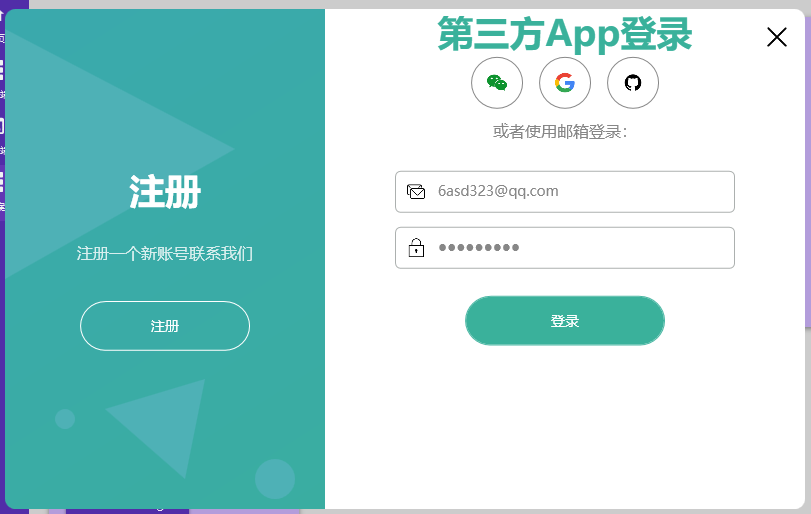
ログイン画面を共有します。まずは効果画像をご覧ください:
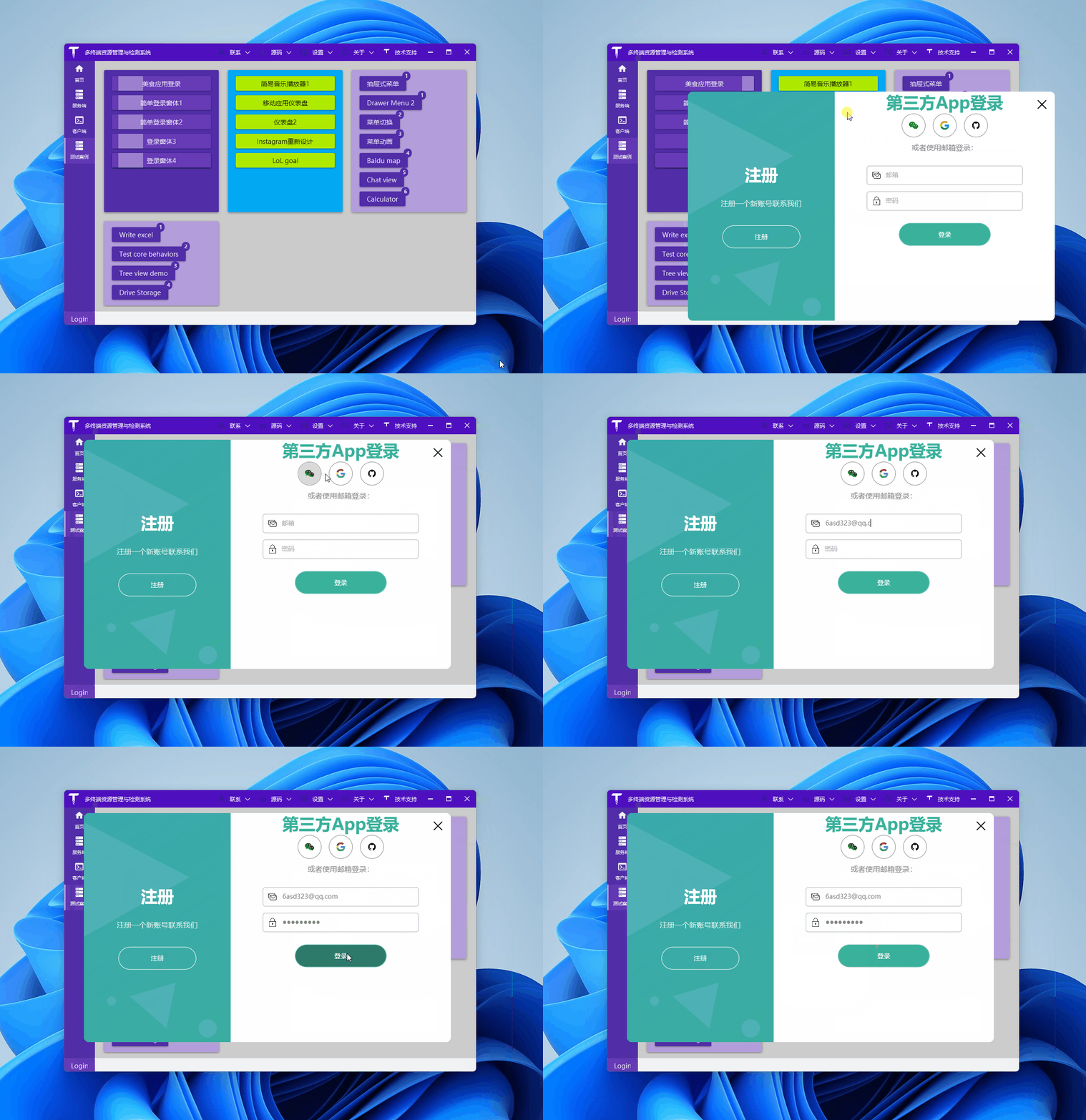
準備
記事内で使用するアイコン:
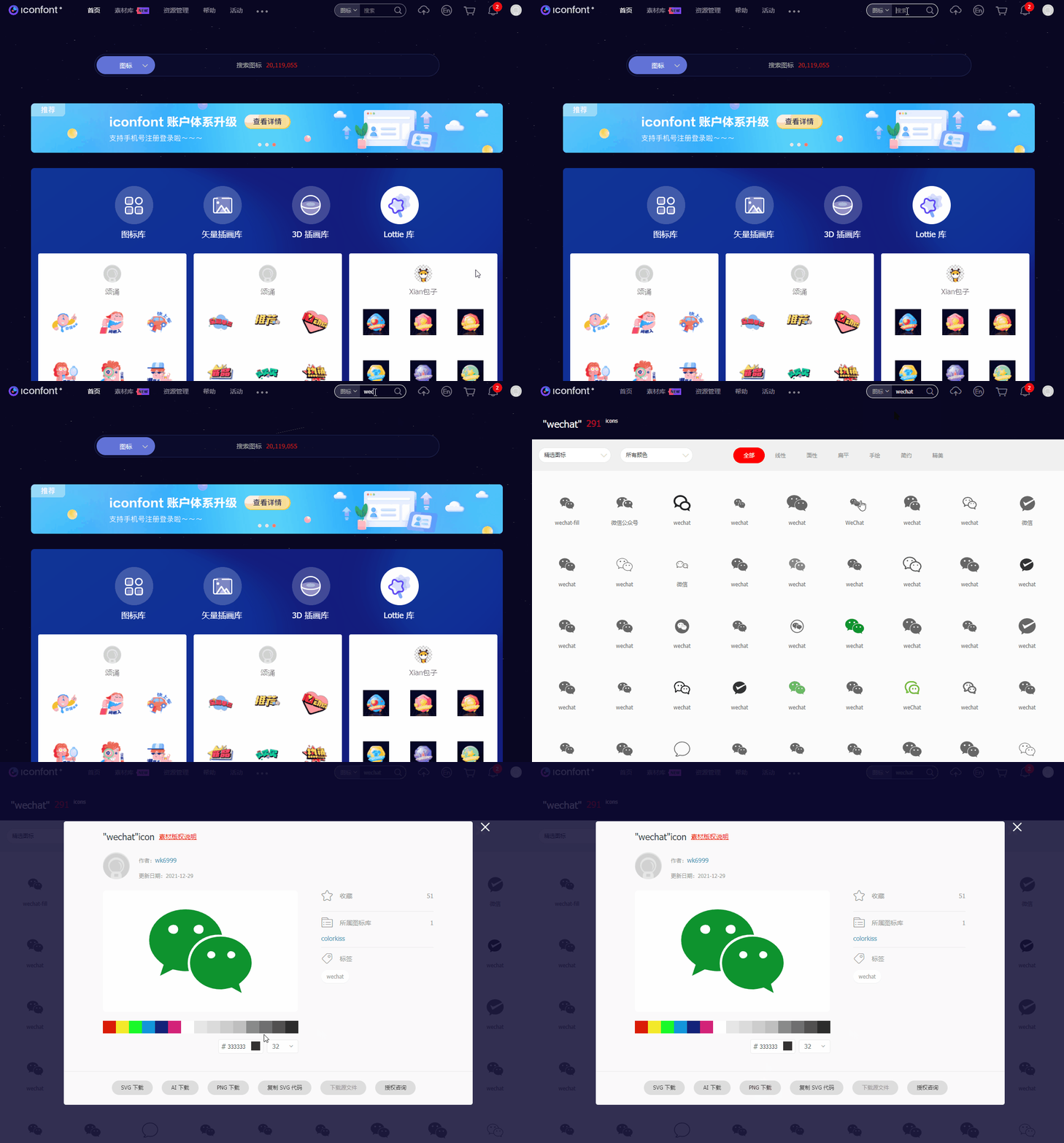
これらは iconfont から無料でダウンロードできます:
コードの簡単な説明
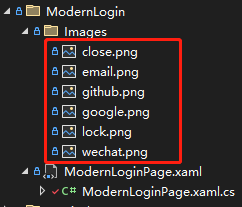
適当に WPF プロジェクト(.NET Framework、.NET 5/6/7 いずれでも可)を作成し、tree /f コマンドで最終的なファイル構造を確認します。上のスクリーンショットと同じです:
C:.
│  ModernLoginPage.xaml
│  ModernLoginPage.xaml.cs
│
└─Images
        close.png
        email.png
        github.png
        google.png
        lock.png
        wechat.png
簡単ですよね。画像ディレクトリに先ほどダウンロードしたアイコンを配置し、1つの xaml ファイルでログイン画面をデザインし、xaml.cs で画面のボタンイベント処理を記述します(実際のプロジェクトでは Mvvm を推奨)。
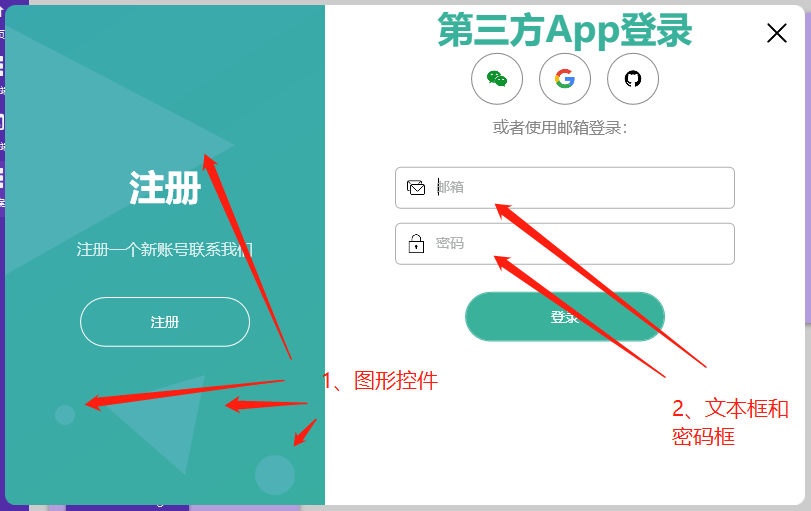
上のスクリーンショットについて、特に2つのポイントを説明します:
- 左側の図形コントロール
デザイナーがいる企業ではこのような画像は簡単に作成できますが、いない場合は Polygon や Ellipse などを使用して簡易的な効果を実現し、画面を単調にしないようにします:
<Canvas>
    <Polygon Points="0, 20 230,140 0,270" Fill="#4EB1B6" />
    <Polygon Points="100, 400 200,370 180,470" Fill="#4EB1B6" />
    <Ellipse Margin="250 450 0 0" Width="40" Height="40" Fill="#4EB1B6" />
    <Ellipse Margin="50 400 0 0" Width="20" Height="20" Fill="#4EB1B6" />
</Canvas>
- 右側のアカウント入力ボックスとパスワードボックス
作者はデモのために、アカウント入力ボックスに 画像 + ラベルコントロール + テキストボックス を組み合わせて実装しています:
<Border Padding="10" BorderThickness="1" BorderBrush="#acb0af" Margin="70 7" CornerRadius="5">
    <Grid>
        <Grid.ColumnDefinitions>
            <ColumnDefinition Width="auto" />
            <ColumnDefinition Width="*" />
        </Grid.ColumnDefinitions>

        <Image Source="/TerminalMACS.TestDemo;component/Views/ModernLogin/Images/email.png" Height="20" />
        <TextBlock x:Name="textEmail" MouseDown="textEmail_MouseDown" Text="邮箱"
                    Style="{StaticResource textHint}" />
        <TextBox x:Name="txtEmail" TextChanged="txtEmail_TextChanged" Style="{StaticResource textBox}" />
    </Grid>
</Border>
private void textEmail_MouseDown(object sender, MouseButtonEventArgs e)
{
    txtEmail.Focus();
}

private void txtEmail_TextChanged(object sender, TextChangedEventArgs e)
{
    if (!string.IsNullOrEmpty(txtEmail.Text) && txtEmail.Text.Length > 0)
    {
        textEmail.Visibility = Visibility.Collapsed;
    }
    else
    {
        textEmail.Visibility = Visibility.Visible;
    }
}
コードは比較的シンプルで、.cs ファイルのコード:
- ラベルをクリックしたときにアカウント入力ボックスにフォーカスを移し、ユーザー体験を向上
- テキストボックスにアカウント情報が入力されるとラベルを非表示/表示
パスワードボックスのロジックはアカウント入力ボックスと同じです:
<Border Padding="10" BorderThickness="1" BorderBrush="#acb0af" Margin="70 7" CornerRadius="5">
    <Grid>
        <Grid.ColumnDefinitions>
            <ColumnDefinition Width="auto" />
            <ColumnDefinition Width="*" />
        </Grid.ColumnDefinitions>

        <Image Source="/TerminalMACS.TestDemo;component/Views/ModernLogin/Images/lock.png" Height="20" />
        <TextBlock x:Name="textPassword" MouseDown="textPassword_MouseDown" Text="密码"
                    Style="{StaticResource textHint}" />
        <PasswordBox x:Name="txtPassword" PasswordChanged="txtPassword_TextChanged"
                        Style="{StaticResource textBox}" />
    </Grid>
</Border>
private void textPassword_MouseDown(object sender, MouseButtonEventArgs e)
{
    txtPassword.Focus();
}

private void txtPassword_TextChanged(object sender, RoutedEventArgs e)
{
    if (!string.IsNullOrEmpty(txtPassword.Password) && txtPassword.Password.Length > 0)
    {
        textPassword.Visibility = Visibility.Collapsed;
    }
    else
    {
        textPassword.Visibility = Visibility.Visible;
    }
}
参考:
- YouTube 動画:C# WPF UI | How to Design Modern Login Page in WPF
- YouTube 動画作者:C# WPF UI Academy
- 本記事のコード:ModernLogin