本文来自转载。
作者:hlpinghcg
原文标题:WPF ComboBox 里嵌入 TreeView 的实现(MVVM)
原文链接:https://blog.csdn.net/qq_28149763/article/details/126539635
前言
因为项目需要,需要 ComboBox 控件里有树形结构,也在网上看到很多,有复杂的也有简单实现的,自己在实现过程中也遇到了一些问题,在此分享一下自己的实现方式,有问题也欢迎大家私信我共同探讨和指教。
首先我是参考网友的实现方式:WPF 之 Treeview 实现 MVVM 双向绑定
废话不多说,切入正题。。。
Xaml 文件
<StackPanel Orientation="Vertical">
  <ComboBox Name="com" SelectedIndex="{Binding ComboSelected}">
    <i:Interaction.Triggers>
      <i:EventTrigger EventName="SelectionChanged">
        <i:InvokeCommandAction
          Command="{Binding SelectionChangedCommand}"
          CommandParameter="{Binding ElementName=com,Path=SelectedItem}"
        />
      </i:EventTrigger>
    </i:Interaction.Triggers>
    <ComboBoxItem Content="{Binding ShowName}" Visibility="Collapsed" />
    <ComboBoxItem FocusVisualStyle="{x:Null}">
      <ItemsControl>
        <TreeView
          x:Name="treeView"
          ItemsSource="{Binding TypeList}"
          Height="200"
          Width="{Binding ElementName=com, Path=ActualWidth}"
        >
          <i:Interaction.Triggers>
            <i:EventTrigger EventName="SelectedItemChanged">
              <i:InvokeCommandAction
                Command="{Binding SelectItemChangeCommand}"
                CommandParameter="{Binding ElementName=treeView,Path=SelectedItem}"
              />
            </i:EventTrigger>
          </i:Interaction.Triggers>
          <TreeView.Resources>
            <HierarchicalDataTemplate
              DataType="{x:Type m:TypeTreeModel}"
              ItemsSource="{Binding ChildList}"
            >
              <StackPanel Orientation="Horizontal">
                <!--<Image Source="/images/OIP-C.jpg" Width="15" Height="15"/>-->
                <TextBlock Text="{Binding Name}" Margin="3,2" />
                <TextBlock Text=" [" Foreground="Blue" />
                <TextBlock Text="{Binding ChildList.Count}" Foreground="Blue" />
                <TextBlock Text="]" Foreground="Blue" />
              </StackPanel>
              <!--<TextBlock Text="{Binding Name}" Margin="3,2"/>-->
            </HierarchicalDataTemplate>
            <DataTemplate DataType="{x:Type m:TypeModel}">
              <StackPanel Orientation="Horizontal">
                <!--<Image Source="/images/OIP-D.jpg" Width="15" Height="15"/>-->
                <!--<TextBlock Text="{Binding Name}" ToolTip="{Binding Id}" Margin="3,2"/>-->
                <TextBlock Text="{Binding Name}" Margin="3,2" />
                <TextBlock Text=" (" Foreground="Green" />
                <TextBlock Text="{Binding Id}" Foreground="Green" />
                <TextBlock Text=" )" Foreground="Green" />
              </StackPanel>
              <!--<TextBlock Text="{Binding Name}" ToolTip="{Binding Id}" Margin="3,2"></TextBlock>-->
            </DataTemplate>
          </TreeView.Resources>
        </TreeView>
      </ItemsControl>
    </ComboBoxItem>
  </ComboBox>
  <!--<TreeView x:Name="treeView" ItemsSource="{Binding TypeList}">
        <i:Interaction.Triggers>
            <i:EventTrigger EventName="SelectedItemChanged">
                <i:InvokeCommandAction Command="{Binding SelectItemChangeCommand}"
                          CommandParameter="{Binding ElementName=treeView,Path=SelectedItem}"/>
            </i:EventTrigger>
        </i:Interaction.Triggers>
        <TreeView.Resources>
            <HierarchicalDataTemplate DataType="{x:Type m:TypeTreeModel}" ItemsSource="{Binding ChildList}">
                <TextBlock Text="{Binding Name}" Margin="3,2"/>
            </HierarchicalDataTemplate>
            <DataTemplate DataType="{x:Type m:TypeModel}">
                <TextBlock Text="{Binding Name}" ToolTip="{Binding Id}" Margin="3,2"></TextBlock>
            </DataTemplate>
        </TreeView.Resources>
    </TreeView>-->
</StackPanel>
需要注意的是,将直接绑定事件切换到通过 Command 绑定的实现方式:
- 添加 GuNet 包(搜索 Interactivity)
- XAML 文件引入:xmlns:i=“clr-namespace:System.Windows.Interactivity;assembly=System.Windows.Interactivity”
- 添加代码
<i:Interaction.Triggers>
    <i:EventTrigger EventName="SelectionChanged">
        <i:InvokeCommandAction Command="{Binding SelectionChangedCommand}"
                  CommandParameter="{Binding ElementName=com,Path=SelectedItem}"/>
    </i:EventTrigger>
</i:Interaction.Triggers>
- 引用 MVVM 库,可以参考:WPF MVVM 通用封装库
- 后台逻辑(ViewModel)命令声明与使用
SelectItemChangeCommand = new RelayCommand<TypeModel>(onSelectItemChange);
SelectionChangedCommand = new RelayCommand(onSelectionChanged);
  public RelayCommand<TypeModel> SelectItemChangeCommand { get; set; }
  public RelayCommand SelectionChangedCommand { get; set; }
后台逻辑(ViewModel)
public class ViewModel:ViewModelBase
{

    public ObservableCollection<TypeTreeModel> TypeList { get; set; } = new ObservableCollection<TypeTreeModel>();

    public ViewModel()
    {
        TypeList = new ObservableCollection<TypeTreeModel>(GetData());

        SelectItemChangeCommand = new RelayCommand<TypeModel>(onSelectItemChange);
        SelectionChangedCommand = new RelayCommand(onSelectionChanged);
    }

    public RelayCommand<TypeModel> SelectItemChangeCommand { get; set; }
    public RelayCommand SelectionChangedCommand { get; set; }

    private TypeModel selectItem;
    public TypeModel SelectItem
    {
        get { return selectItem; }
        set
        {
            selectItem = value;
            RaisePropertyChanged(() => SelectItem);
        }
    }

    private string showName;
    public string ShowName
    {
        get { return showName; }
        set
        {
            showName = value;
            RaisePropertyChanged(() => ShowName);
        }
    }


    private int comboSelected;
    public int ComboSelected
    {
        get { return comboSelected; }
        set
        {
            comboSelected = value;
            RaisePropertyChanged(() => ComboSelected);
        }
    }


    private List<TypeTreeModel> GetData()
    {
        List<TypeTreeModel> typeTrees = new List<TypeTreeModel>()
        {
            new TypeTreeModel()
            {
                Id = 1,
                Name = "手机",
                ChildList = new ObservableCollection<TypeTreeModel>()
                {
                    new TypeTreeModel(){ Id=2,Name="苹果" },
                    new TypeTreeModel(){ Id=3,Name="华为",
                        ChildList = new ObservableCollection<TypeTreeModel>()
                        {
                            new TypeTreeModel(){Id=4,Name="荣耀" },
                        }},
                    new TypeTreeModel(){ Id=5,Name="小米",
                        ChildList = new ObservableCollection<TypeTreeModel>()
                        {
                            new TypeTreeModel(){Id=6,Name="红米" }
                        }}
                }
            },
            new TypeTreeModel()
            {
                Id=7,
                Name="笔记本",
                ChildList = new ObservableCollection<TypeTreeModel>()
                {
                    new TypeTreeModel(){Id=8,Name="联想"}
                }
            },
            new TypeTreeModel()
            {
                Id=9,
                Name="耳机"
            }
        };
        return typeTrees;
    }

    private void onSelectItemChange(TypeModel type)
    {
        SelectItem=type;
        ShowName = SelectItem.Name;

    }

    private void onSelectionChanged()
    {
        ComboSelected = 0;
    }
}
数据类
public class TypeTreeModel: TypeModel
{
    public ObservableCollection<TypeTreeModel> ChildList { get; set; }
        = new ObservableCollection<TypeTreeModel>();
}

public class TypeModel
{
    public int Id { get; set; }
    public string Name { get; set; }
    public bool IsSelected { get; set; }
}
最终效果
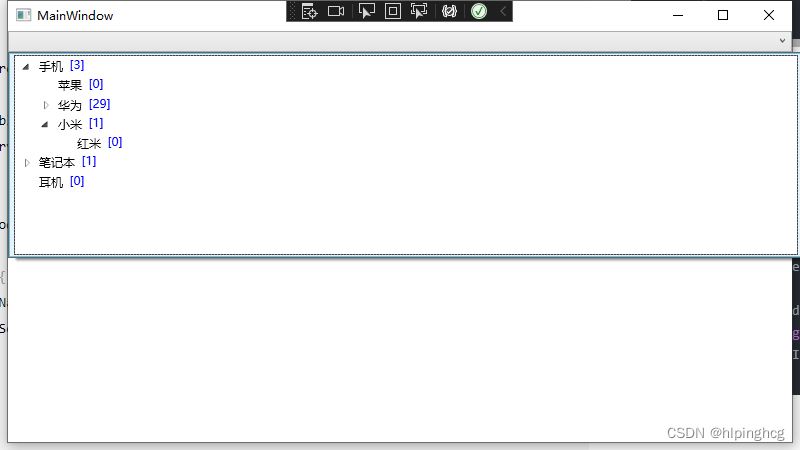
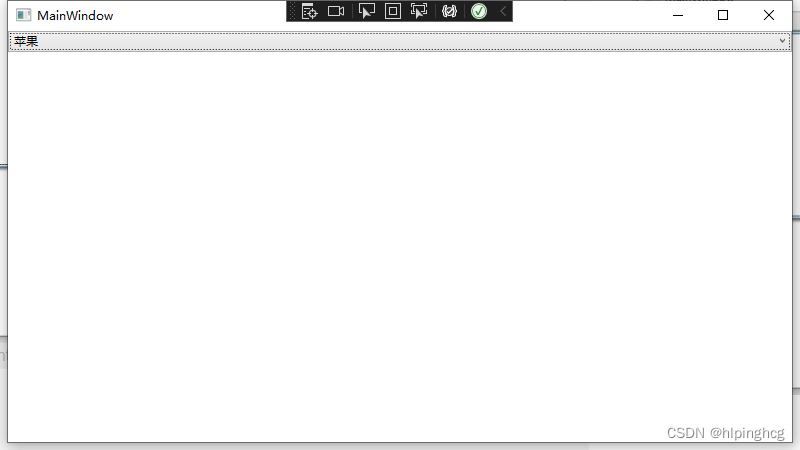
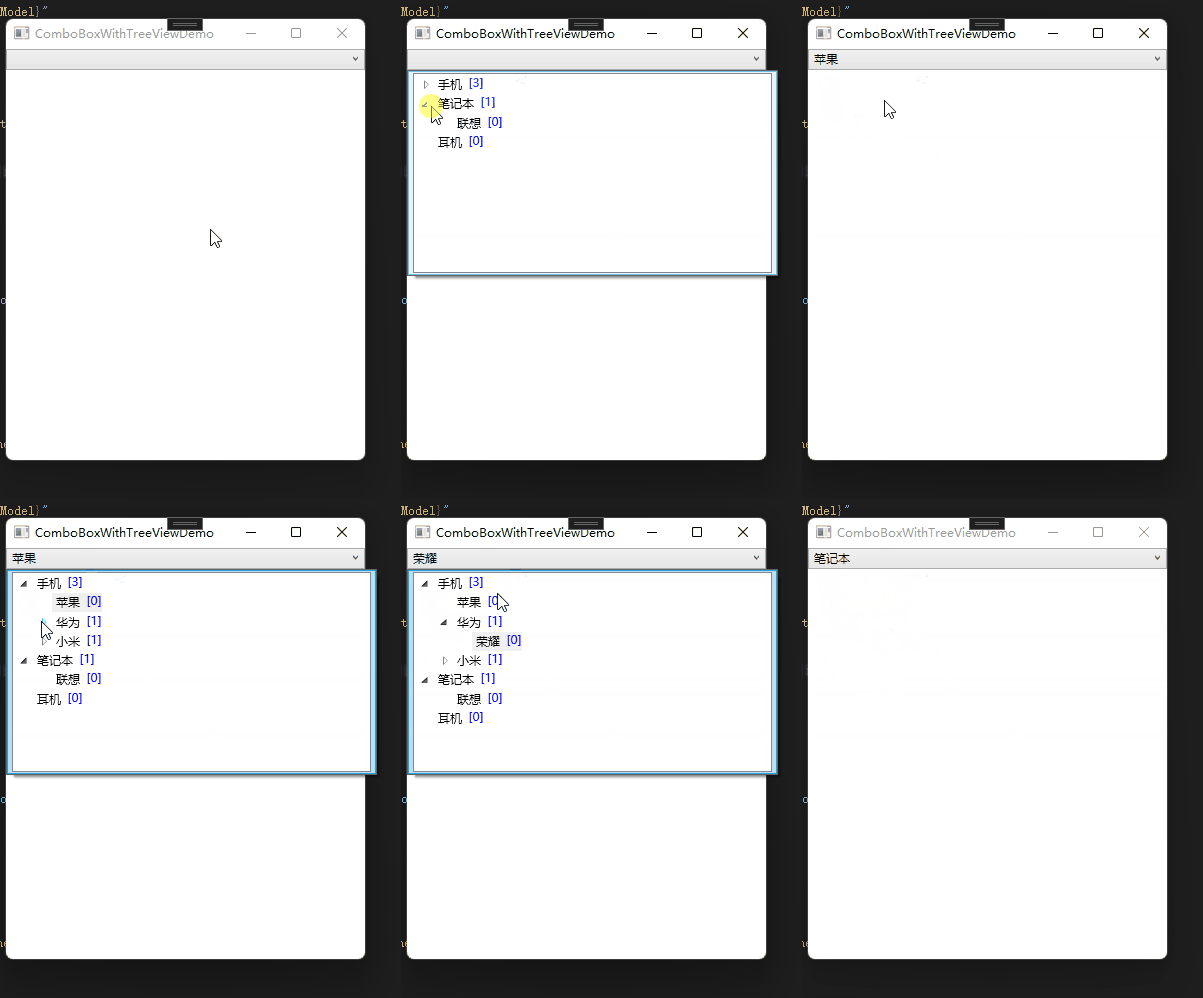
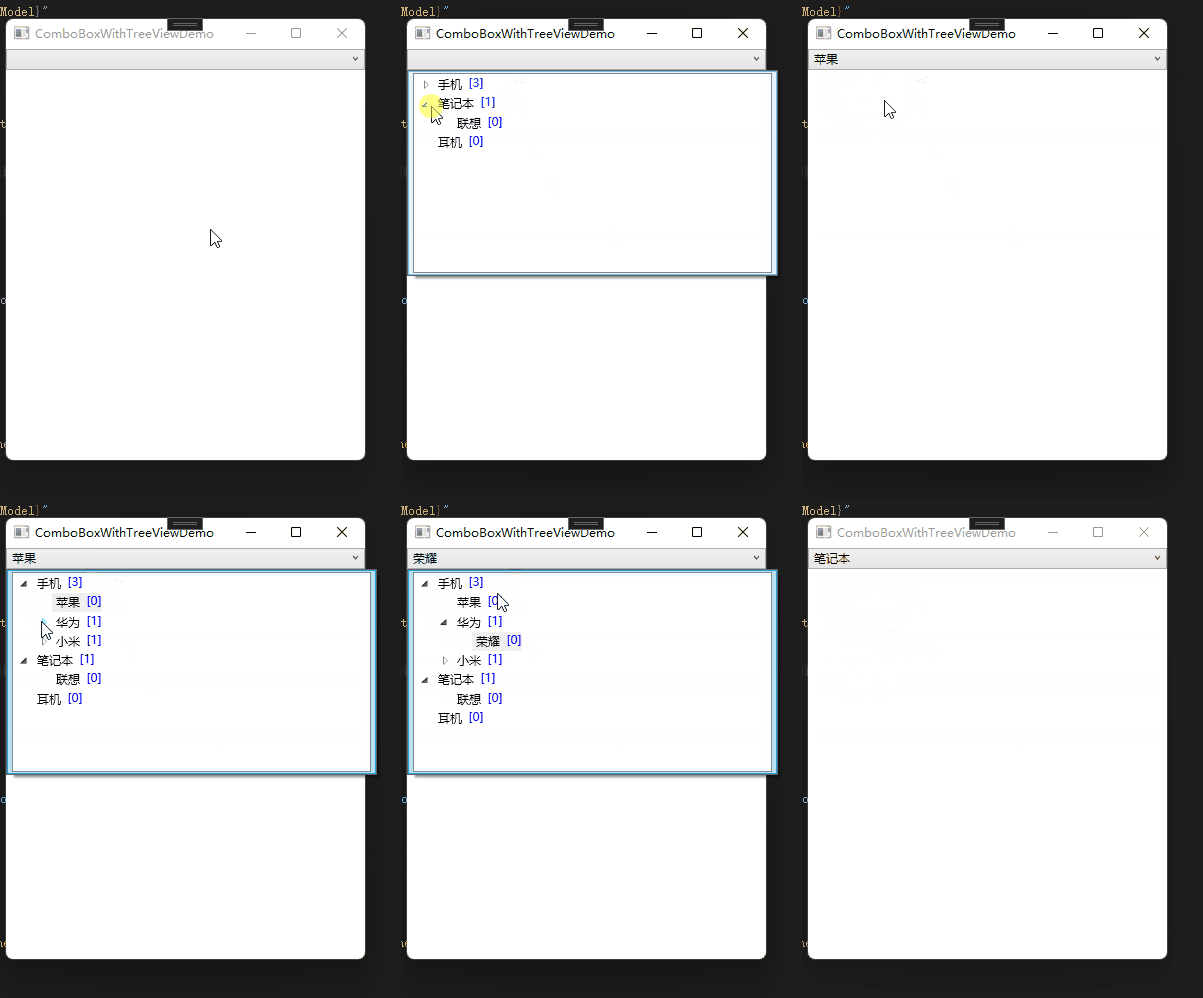
站长尝试以上代码
站长尝试过上面代码,能正常运行,完整代码托管GitHub