有很多文章討論繫結的概念,並講解如何使用 StaticResources 和 DynamicResources 繫結屬性。這些概念使用 WPF 提供的資料繫結運算式。在本文中,讓我們研究 WPF 提供的不同類型的資料繫結運算式。
介紹
資料繫結是一種強大的技術,它允許資料在 UI 元素和商業模型之間流動。當商業模型中的資料發生變化時,它會自動將更改反映到 UI 元素上。
| Models | Description |
|---|---|
| OneWay | Source → Destination |
| TwoWay | Source ←→ Destination |
| OneWayToSource | Source ← Destination |
| OneTime | Source → Destination (only once) |
這可以透過 WPF 提供的不同類型的資料繫結運算式來實現。
資料繫結運算式的類型如下所示。
- DataContext 繫結
- RelativeSource 繫結
- ItemSource 繫結
1、DataContext 繫結
DataContext 是一個相依屬性,它是繫結的預設來源。Datacontext 沿著邏輯樹繼承。因此,如果您設定一個 DataContext 給控制項的邏輯樹中所有子元素,它們也會引用同一個 DataContext,除非且直到明確指定另一個來源。
讓我們舉個例子來更詳細地理解它。
1.1 建立一個類別 Book,如下所示。
public class Book
{
    public string Name
    {
        get;
        set;
    }
    public string Author
    {
        get;
        set;
    }
}
1.2 新增一個 XAML 檔案 DataContextBinding.XAML 並放置四個 TextBlock,如下所示。
<Grid VerticalAlignment="Center">
  <Grid.RowDefinitions>
    <RowDefinition Height="40" />
    <RowDefinition Height="40" />
  </Grid.RowDefinitions>
  <Grid.ColumnDefinitions>
    <ColumnDefinition Width="Auto" />
    <ColumnDefinition Width="Auto" />
  </Grid.ColumnDefinitions>
  <TextBlock Text="Book Name:" FontWeight="Bold" />
  <TextBlock Grid.Column="1" />
  <TextBlock Text="Author:" FontWeight="Bold" Grid.Row="1" />
  <TextBlock Grid.Row="1" Grid.Column="1" />
</Grid>
現在,讓我們看看如何使用這個 DataContext 屬性來顯示資料。
它有兩種用法,如下所示。
- 1.使用 運算式
用於直接繫結 DataContext。
建立類別 Book 的實例,初始化其屬性,並將類別的 Name 屬性指派給 Window 的 DataContext 屬性。
public partial class DataContextBinding: Window
{
    public DataContextBinding()
    {
        InitializeComponent();
        //Create the instance
        Book book = new Book();
        //initialize the properties
        book.Name = "Computer Networking";
        //Assign the Property as DataContext
        this.DataContext = book.Name;
    }
}
由於 DataContext 是沿著邏輯樹和資料 book 繼承的,因此 Name 被繫結到 Control Window。Window 的所有子元素也將引用同一個物件(book.Name)。
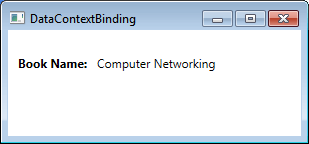
要顯示資料,請將 DataContext 與 Textblock 繫結,如下所示。
<TextBlock Text="Book Name:" FontWeight="Bold" />
<TextBlock Text="{Binding}" Grid.Column="1" />
輸出
- 使用 運算式
繫結 Datacontext 的屬性。
建立類別 Book 的實例,初始化其屬性並將類別的實例(Book)指派給 Window 的 DataContext 屬性。
Book book = new Book();
//initialize the properties
book.Name = "Computer Networking";
book.Author = "James F. Kurose";
//Assign the instance as DataContext
this.DataContext = book;
現在,讓我們看看輸出。
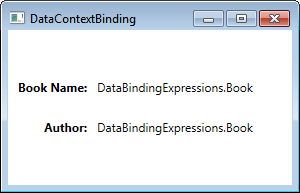
由於繫結運算式 用於繫結 Book 型別的 DataContext 物件,因此呼叫 ToString() 方法,並將資料顯示為字串。為了以正確的格式顯示資料,我們必須將資料物件的屬性與 TextBlock 繫結,如下所示:
<TextBlock Text="Book Name:" FontWeight="Bold" />
<TextBlock Text="{Binding Name}" Grid.Column="1" />
<TextBlock Text="Author:" FontWeight="Bold" Grid.Row="1" />
<TextBlock Text="{Binding Author}" Grid.Row="1" Grid.Column="1" />
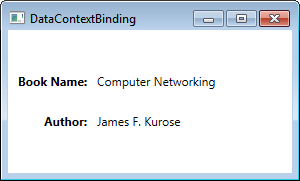
繫結運算式 用於繫結 DataContext 繫結的 Name 屬性。
輸出
2、RelativeSource 繫結
RelativeSource 是一個屬性,它用相對關係設定繫結來源以繫結目標。此擴充主要用於必須將元素的一個屬性繫結到同一元素的另一個屬性時。
RelativeSource 有四種類型,如下所示。
- Self
- FindAncestor
- TemplatedParent
- PreviousData
讓我們一個一個詳細地探討一下。
2.1 Self
Self 用於繫結來源和繫結目標相同的場景中。物件的一個屬性與同一物件的另一個屬性繫結。
例如,讓我們取一個高度和寬度相同的橢圓。
在 XAML 檔案中新增下面給出的程式碼。寬度屬性與高度屬性相對繫結。
<Grid>
  <Ellipse
    Fill="Black"
    Height="100"
    Width="{Binding RelativeSource={RelativeSource Self},Path=Height}"
  >
  </Ellipse>
</Grid>
輸出
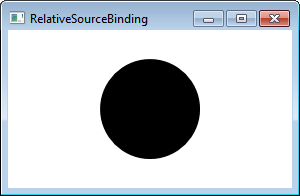
如果改變橢圓的高度,寬度也會相對變化。
2.2 FindAncestor
顧名思義,當繫結來源是繫結目標的祖先(父層)之一時使用此選項。使用 FindAncestor 擴充,可以找到任何層級的祖先。
讓我們舉個例子來更清楚地理解它。
步驟
建立 XAML,它表示下面給出的元素的邏輯樹。
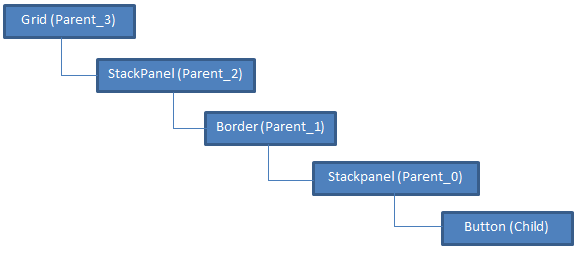
<Grid Name="Parent_3">
  <StackPanel Name="Parent_2">
    <Border Name="Parent_1">
      <StackPanel x:Name="Parent_0" Orientation="Vertical">
        <button></button>
      </StackPanel>
    </Border>
  </StackPanel>
</Grid>
現在,讓我們使用 FindAncestor 擴充將祖先的 Name 屬性繫結到子元素 button 的 Content 屬性。
<Grid Name="Parent_3">
  <StackPanel
    Name="Parent_2"
    HorizontalAlignment="Center"
    VerticalAlignment="Center"
    Width="100"
  >
    <Border Name="Parent_1">
      <StackPanel x:Name="Parent_0" Orientation="Vertical">
        <button
          Height="50"
          Content="{Binding RelativeSource={RelativeSource FindAncestor,
AncestorType={x:Type StackPanel},
AncestorLevel=2},Path=Name}"
        ></button>
      </StackPanel>
    </Border>
  </StackPanel>
</Grid>
輸出
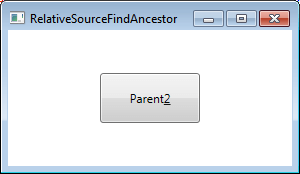
AncestorType 為 "StackPanel" 與 AncestorLevel 為 "2" 組合,將 button 的 content 屬性與 StackPanel 的 Name 屬性(Parent_2)繫結在一起。
2.3 TemplatedParent
TemplatedParent 是一個屬性,它使您能夠建立一個包含少量未知值的控制項範本。這些值取決於套用 ControlTemplate 的控制項的屬性。
讓我們舉個例子來更詳細地理解它
步驟
- 為按鈕建立一個 ControlTemplate,如下所示。
<Window.Resources>
  <ControlTemplate x:Key="template">
    <canvas>
      <Ellipse Height="110" Width="155" Fill="Black" />
      <Ellipse
        Height="100"
        Width="150"
        Fill="{Binding RelativeSource={RelativeSource TemplatedParent},Path=Background}"
      >
      </Ellipse>
      <ContentPresenter
        Margin="35"
        Content="{Binding RelativeSource={RelativeSource TemplatedParent},Path=Content}"
      />
    </canvas>
  </ControlTemplate>
</Window.Resources>
在上面給出的程式碼中,橢圓的 Fill 屬性和 ContentPresenter 的 Content 屬性依賴於將套用此範本的控制項的屬性值。
- 新增一個按鈕並對其套用範本。
<button
  Margin="50"
  Background="Beige"
  Template="{StaticResource template}"
  Height="0"
  Content="Click me"
  FontSize="22"
></button>
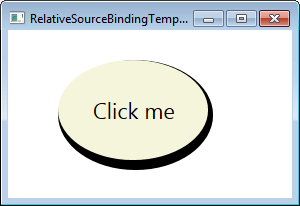
在套用範本時,按鈕的 Background(Beige)與橢圓的 Fill 屬性相對繫結,Content(Click me)與 ContentPresenter 的 Content 屬性相對繫結。依賴值生效並給出以下輸出。
輸出
2.4 PreviousData
這是相對使用最少的方式。當資料被分析時,這就出現了,我們需要表示值相對於以前資料的變化。
讓我們舉個例子來更詳細地理解它。
步驟
- 建立一個類別 Data 並實作 INotifyPropertyChanged 介面,如下所示
public class Data: INotifyPropertyChanged
{
    public int DataValue
    {
        get;
        set;
    }
    public event PropertyChangedEventHandler PropertyChanged;
    protected void OnPropertyChanged(string PropertyName)
    {
        if (null != PropertyChanged)
        {
            PropertyChanged(this,
                new PropertyChangedEventArgs(PropertyName));
        }
    }
}
- 建立一個 Data 型別的清單並將其指定為 DataContext。
public RelativeSourcePreviousData()
{
    InitializeComponent();
    List < Data > data = new List < Data > ();
    data.Add(new Data()
    {
        DataValue = 60
    });
    data.Add(new Data()
    {
        DataValue = 100
    });
    data.Add(new Data()
    {
        DataValue = 120
    });
    this.DataContext = data;
}
- 在 XAML 檔案中新增 ItemsControl。
<ItemsControl ItemsSource="{Binding}"></ItemsControl>
- 為其建立 ItemsPanel 範本,如下。
<ItemsControl ItemsSource="{Binding}">
  <ItemsControl.ItemsPanel>
    <ItemsPanelTemplate>
      <StackPanel Orientation="Vertical" />
    </ItemsPanelTemplate>
  </ItemsControl.ItemsPanel>
</ItemsControl>
- 現在,為了正確地表示資料,建立 DataTemplate,如下所示。
<ItemsControl.ItemTemplate>
  <DataTemplate>
    <StackPanel Orientation="Horizontal">
      <Grid Margin="30,20,0,0">
        <Rectangle Width="80" Height="{Binding DataValue}" Fill="Blue" />
        <TextBlock
          Foreground="White"
          Margin="35,0,0,0"
          Text="{Binding DataValue}"
        ></TextBlock>
      </Grid>
      <TextBlock Margin="30,20,0,0" Text="Previous Data:"></TextBlock>
      <TextBlock
        VerticalAlignment="Center"
        Margin="5,20,0,0"
        Text="{Binding
             RelativeSource={RelativeSource PreviousData}, Path=DataValue}"
      />
    </StackPanel>
  </DataTemplate>
</ItemsControl.ItemTemplate>
輸出
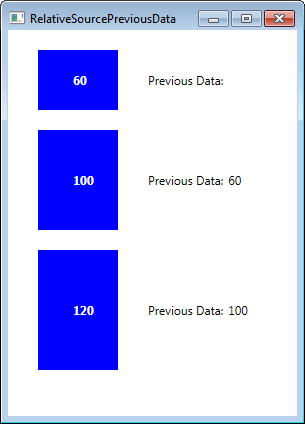
藍色框的高度是清單中項目的值,舊資料顯示在右側。該項的第一個值為 "60"。因此,第一項沒有舊值。
3、ItemSource 繫結
在處理集合時使用。使用這個繫結運算式,您可以非常容易地讀取 SelectedItem 的屬性。斜線是一種特殊運算子,用於處理集合中的當前項。
下面給出了三種運算式。
- {Binding / }
- {Binding Collection / }
- {Binding Collection / Property}
3.1 {Binding / }
此運算式用於繫結 DataContext 中的當前項。
讓我們採取一個範例:
在下面給出的範例中,DataContext 是字串型別的國家/地區的集合,並且與 Listbox 繫結在一起。
步驟
- 建立一個 Countries 類別並新增一個 GetCountriesName() 方法,該方法傳回 string 資料型別的國家的集合,如下所示。
public class Countries
{
    public static List <string> GetCountriesName()
    {
        List <string> countries = new List <string> ();
        foreach(CultureInfo culture in CultureInfo.GetCultures(CultureTypes.SpecificCultures))
        {
            RegionInfo country = new RegionInfo(culture.LCID);
            if (!countries.Contains(country.EnglishName))
                countries.Add(country.EnglishName);
        }
        countries.Sort();
        return countries;
    }
}
- 新增一個 XAML 檔案,一個 ListBox 和 TextBlock,如下所示。
<DockPanel Name="Collection">
  <ListBox ItemsSource="{Binding}" IsSynchronizedWithCurrentItem="True">
  </ListBox>
  <TextBlock DockPanel.Dock="Top" />
</DockPanel>
- 建立類別 Countries 的實例並將 Countries 集合指定為 DataContext。
public CurrentItemCollection()
{
    InitializeComponent();
    Countries countries = new Countries();
    this.DataContext = countries.GetCountriesName()
}
- 繫結 TextBlock 的 Text 屬性以將其繫結到集合的當前選定項,如下所示。
<TextBlock DockPanel.Dock="Top" Text="{Binding /}" />
輸出

一旦清單項被選中,它將在右側顯示所選國家/地區。
3.2 {Binding Collection /}
此運算式用於繫結 DataContext 中集合屬性的當前項。
例如,
DataContext 是 Countries 類別
Collection 屬性是 CounriesList,它與 ListBox 繫結。
步驟
- 使用上面建立的類似的國家類別,只是略有不同。建立傳回型別為 RegionInfo 的方法。
public static List <RegionInfo> GetCountries()
{
    List <RegionInfo> countries = new List <RegionInfo> ();
    foreach(CultureInfo culture in CultureInfo.GetCultures(CultureTypes.SpecificCultures))
    {
        RegionInfo country = new RegionInfo(culture.LCID);
        if (countries.Where(p => p.Name == country.Name).Count() == 0)
            countries.Add(country);
    }
    return countries.OrderBy(p => p.EnglishName).ToList();
}
- 新增 RegionInfo 型別的 CountriesList 屬性。
private List <RegionInfo> countries = null;
public List <RegionInfo> CountriesList
{
    get
    {
        if (countries == null)
            countries = GetCountries();
        return countries;
    }
}
下面是 CountriesList 集合中的值的螢幕擷取畫面。
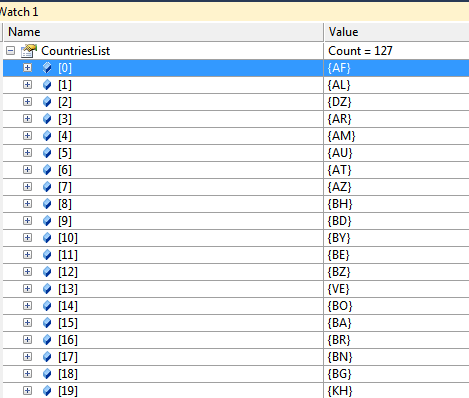
- 將類別 Countries 指定為 DataContext,並將 Listbox 與 DataContext 的 CountriesList 屬性繫結。
<Window.Resources>
  <vm:Countries x:Key="Countries"></vm:Countries>
</Window.Resources>
<Grid>
  <DockPanel Name="Collection" DataContext="{StaticResource Countries}">
    <ListBox
      ItemsSource="{Binding CountriesList}"
      IsSynchronizedWithCurrentItem="True"
    >
      <ListBox.ItemTemplate>
        <DataTemplate>
          <TextBlock Text="{Binding EnglishName}"></TextBlock>
        </DataTemplate>
      </ListBox.ItemTemplate>
    </ListBox>
  </DockPanel>
</Grid>
- 要計算 CountriesList 屬性的當前項,請繫結 TextBlock 的 Text 屬性,如下所示。
<TextBlock DockPanel.Dock="Top" Text="{Binding CountriesList/}" HorizontalAlignment="Center" FontSize="16" VerticalAlignment="Center" />
輸出
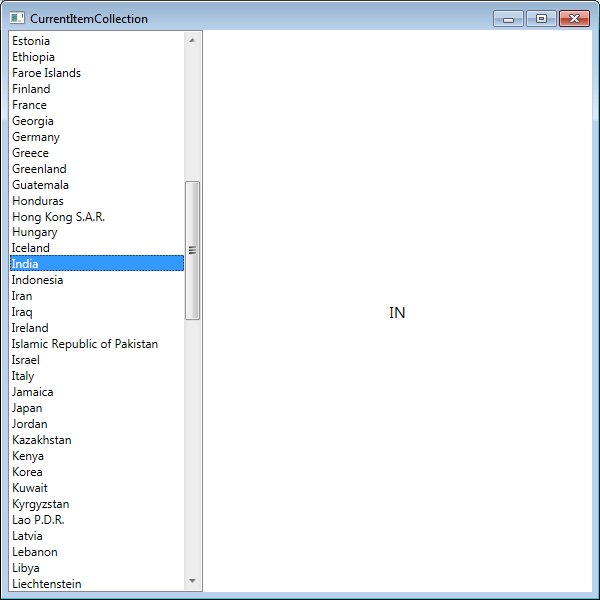
右側顯示 DataContext(CountriesList)中集合的當前項(CountriesList)。
3.3 {Binding Collection / Property}
此運算式用於繫結 DataContext 中集合的當前項的屬性。
例如,如果必須計算 CountriesList 集合的當前項的特定屬性。
在這個例子中,我想顯示屬性 "EnglishName" 的值。
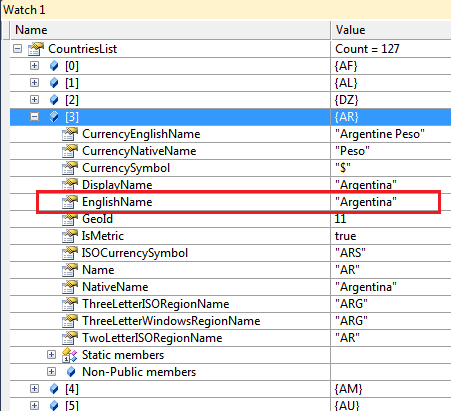
為此,繫結 TextBlock 的 Text 屬性,如下所示。
<TextBlock DockPanel.Dock="Top" Text="{Binding CountriesList/EnglishName}" />
輸出
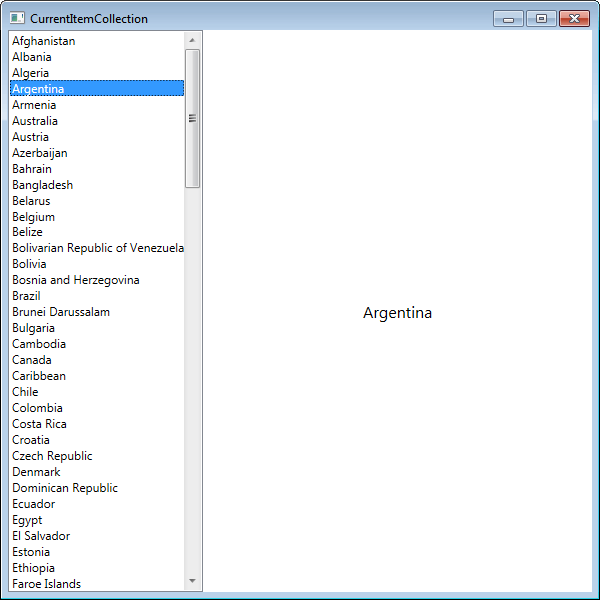
現在,當清單中的項被選中時,它顯示屬性 "EnglishName" 的值。
結論
我已經詳細介紹了所有的資料繫結運算式。我希望這有助於您理解繫結的概念和 WPF 提供的運算式。
- 作者:Swati Gupta
- 原文標題:DataBinding Expressions In WPF
- 原文連結:https://www.c-sharpcorner.com/article/data-binding-expression-in-wpf/
- 編輯:沙漠之盡頭的狼