昨天 ChokCoco 大神搞了個 3D 穿梭效果出來,具體可見這裡:
這個效果太神奇了,他還問我能不能用 WPF 搞出來,因為我完全沒用過 WPF 的 3D,我第一反應是「這太為難我了」。
晚上回家吃飯溜娃打打世紀帝國 4,突然想起我很久沒有寵幸 UWP 了。一股「吾有上將 UWP,可搞定 3D 穿梭效果」的豪氣油然而生。
於是就把這動畫效果造出來了。
總的來說,實現 3D 穿梭的原理是靠改變 CSS 中的 perspective 產生透視效果。perspective 指定了觀察者與 z=0 平面的距離,使具有三維位置變換的元素產生透視效果。它的值越小,視角越深。
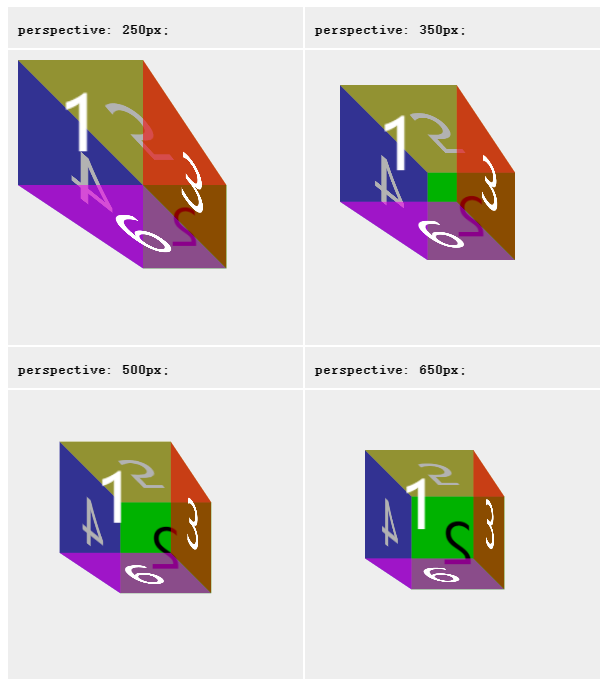
perspective 的具體用法可見此文件:
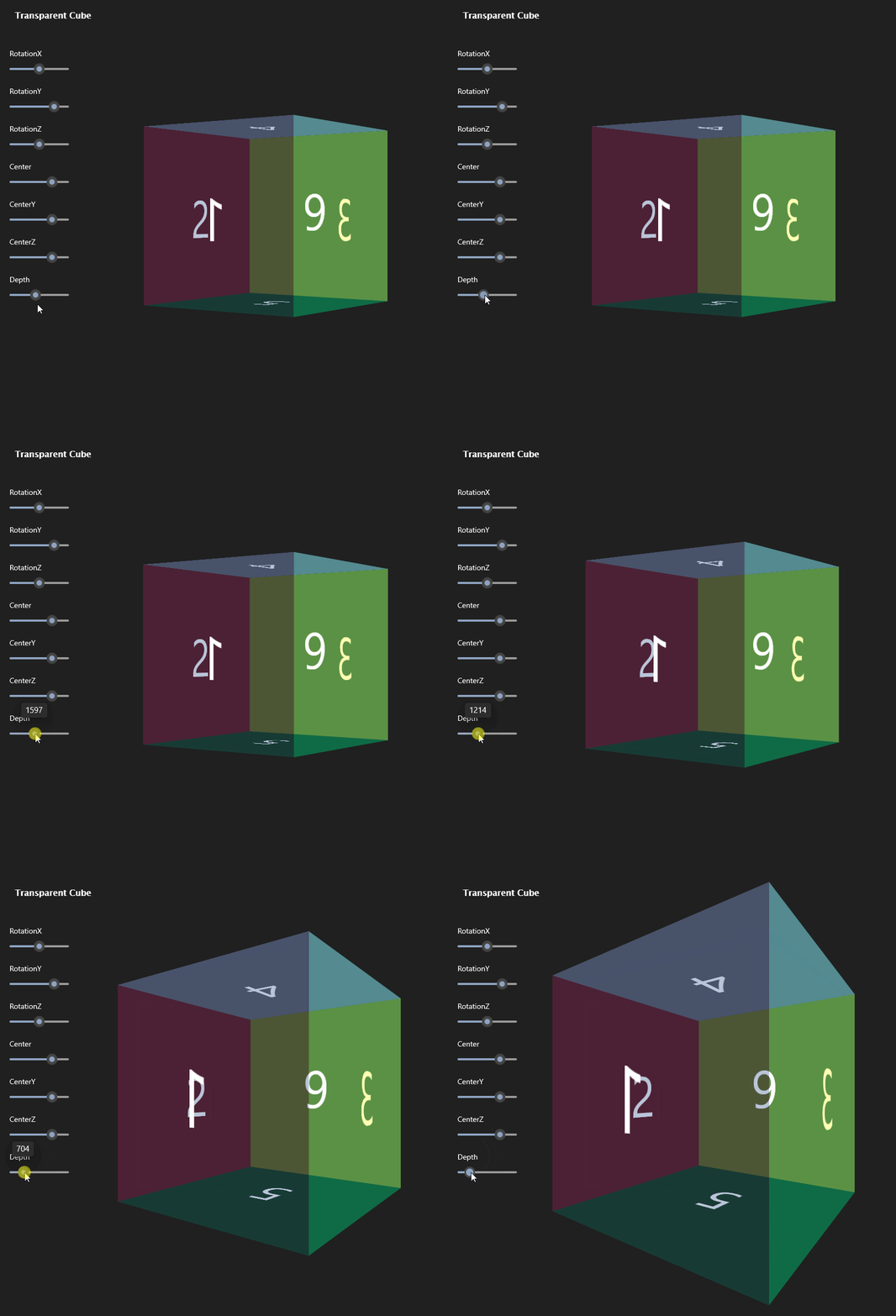
與之對應,UWP 中提供了 PerspectiveTransform3D 類別,它的 Depth 屬性也有類似的效果,當 Depth 越小,視覺越深,與平面相交的物件就越變形:
了解原理後馬上開工。首先在 Xaml 中將 Grid 的大小寫死為 300,然後將 PerspectiveTransform3D 的 Depth 設得很小:
<Grid Height="300" Width="300">
  <Grid.Transform3D>
    <media3D:PerspectiveTransform3D Depth="2" />
  </Grid.Transform3D>
</Grid>
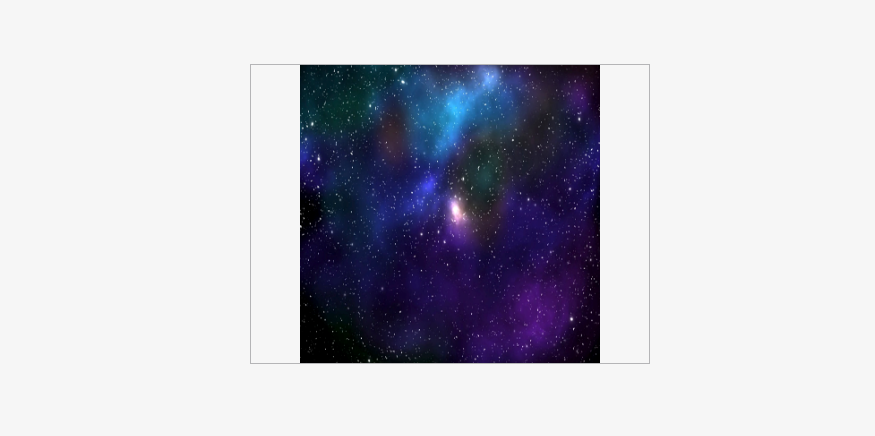
然後從 ChokCoco 大神那裡弄到張星空圖片,放在 Grid 裡:
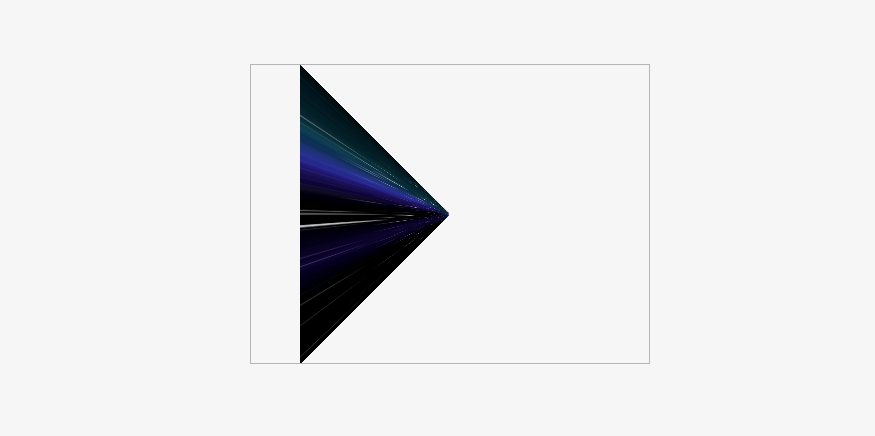
然後將 CompositeTransform3D 的 RotationY 設為 -90,這時候圖片就扭曲起來了:
<media3D:CompositeTransform3D RotationY="-90" />
然後再設定 TranslateZ="100",讓圖片向外拉伸:
<media3D:CompositeTransform3D RotationY="-90" TranslateZ="100" />
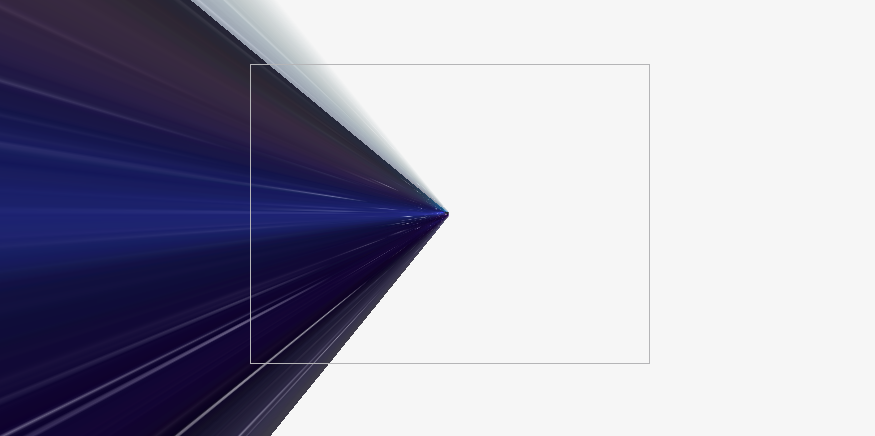
搞定了一個方向後,所有方向都大致這樣操作,只是改變 Rotation 和 Translate 還有中心點,就完成了一張靜態的 3D 穿梭圖:
<media3D:CompositeTransform3D
  x:Name="TransformLeft"
  x:Key="TransformLeft"
  RotationY="-90"
  TranslateZ="100"
/>
<media3D:CompositeTransform3D
  x:Name="TransformUp"
  x:Key="TransformUp"
  RotationX="90"
  TranslateZ="50"
/>
<media3D:CompositeTransform3D
  x:Name="TransformRight"
  x:Key="TransformRight"
  RotationY="90"
  CenterX="300"
  TranslateZ="50"
/>
<media3D:CompositeTransform3D
  x:Name="TransformDown"
  x:Key="TransformDown"
  RotationX="-90"
  CenterY="300"
  TranslateZ="50"
/>

<Grid
  Background="{StaticResource ImageBackground}"
  Transform3D="{StaticResource TransformLeft}"
/>
<Grid
  Background="{StaticResource ImageBackground}"
  Transform3D="{StaticResource TransformUp}"
/>
<Grid
  Background="{StaticResource ImageBackground}"
  Transform3D="{StaticResource TransformRight}"
/>
<Grid
  Background="{StaticResource ImageBackground}"
  Transform3D="{StaticResource TransformDown}"
/>
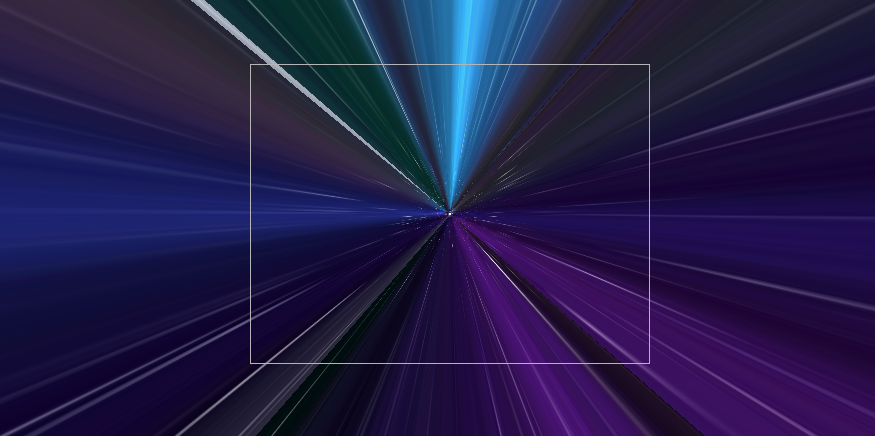
下一步就是要讓這四張圖片動起來。這簡單,用最基本的 DoubleAnimation 操作 TranslateZ 從 10 變到 200:
<Storyboard x:Name="Move" x:Key="Move" RepeatBehavior="Forever">
  <DoubleAnimation
    Storyboard.TargetName="TransformLeft"
    Storyboard.TargetProperty="TranslateZ"
    From="10"
    To="200"
    Duration="0:0:8"
  />
  <DoubleAnimation
    Storyboard.TargetName="TransformUp"
    Storyboard.TargetProperty="TranslateZ"
    From="10"
    To="200"
    Duration="0:0:8"
  />
  <DoubleAnimation
    Storyboard.TargetName="TransformRight"
    Storyboard.TargetProperty="TranslateZ"
    From="10"
    To="200"
    Duration="0:0:8"
  />
  <DoubleAnimation
    Storyboard.TargetName="TransformDown"
    Storyboard.TargetProperty="TranslateZ"
    From="10"
    To="200"
    Duration="0:0:8"
  />
</Storyboard>
這時候基本的動畫就已經實現了,但是沒辦法做到首尾相連,所以先把之前的成果封裝成一個控制項:
然後給它加上透明度變化的動畫:
<Storyboard x:Name="Fade" RepeatBehavior="Forever">
  <DoubleAnimationUsingKeyFrames
    Storyboard.TargetName="Root"
    Storyboard.TargetProperty="Opacity"
    Duration="0:0:8"
  >
    <LinearDoubleKeyFrame KeyTime="0:0:0" Value="0" />
    <LinearDoubleKeyFrame KeyTime="0:0:2" Value="1" />
    <LinearDoubleKeyFrame KeyTime="0:0:4.8" Value="1" />
    <LinearDoubleKeyFrame KeyTime="0:0:8" Value="0" />
  </DoubleAnimationUsingKeyFrames>
</Storyboard>
透過疊加兩個 GalaxyShuttleControl ,並且控制它們動畫開始的時間,互相掩蓋開頭和結尾動畫銜接不上的問題:
public TimeSpan Delay { get; set; }

private async void GalaxyShettleControl_Loaded(object sender, RoutedEventArgs e)
{
    await Task.Delay(Delay);
    Move.Begin();
    Fade.Begin();
}
<galaxyshuttles:GalaxyShuttleControl Delay="0:0:4" />
<galaxyshuttles:GalaxyShuttleControl/>
這樣 3D 穿梭效果就實現了。
最後還差一點,ChokCoco 大神的動畫裡加上了 hueRotate ,讓顏色一直變化。UWP 裡也可以使用 HueRotationEffect 實現這點,不過它的 Angle 的值範圍是 0 到 2 * Math.Pi。要實現它的動畫可以試試 Windows Community Toolkit 裡的 PipelineVisualFactory 和 AnimationSet,這兩個工具可以用來處理很複雜的效果和動畫,用在這裡反而大材小用:
<media:UIElementExtensions.VisualFactory>
    <media:PipelineVisualFactory>
        <media:HueRotationEffect x:Name="HueRotationEffect" IsAnimatable="True"/>
    </media:PipelineVisualFactory>
</media:UIElementExtensions.VisualFactory>
<animations:Explicit.Animations>
    <animations:AnimationSet x:Name="HueAnimation" >
        <animations:AnimationScope>
            <animations:HueRotationEffectAnimation From="0" To="6.28318530718" Target="{Binding ElementName=HueRotationEffect}"  Repeat="Forever" Duration="0:0:28"/>
        </animations:AnimationScope>
    </animations:AnimationSet>
</animations:Explicit.Animations>
最終實現的效果如下:

滿足了好奇心後,下一步(自己生成圖片)就不玩了。3D 穿梭動畫實現起來不算難,最難的部分是 ChokCoco 大神提供的創意,期待 ChokCoco 大神下次再有別的動畫讓我抄來玩。
最後說一句,雖然用 MAUI 或 WinUI3 應該都能搞,而且這兩個技術聽起來更時髦些,可惜它們還沒發佈正式版,我還是趁現在多陪陪 UWP 好了。
原始碼: https://github.com/DinoChan/uwp_design_and_animation_lab