感謝 rgqancy 指出的 Bug,已經修正
先給個效果圖:
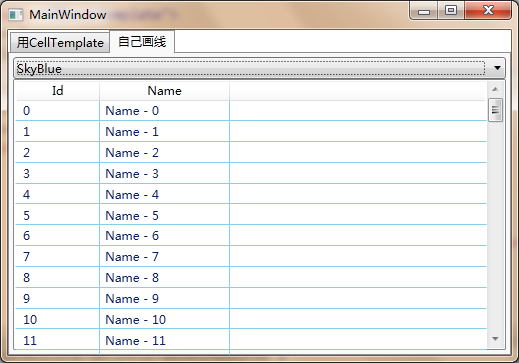
使用時的程式碼:
<l:GridLineDecorator>
    <ListView ItemsSource="{Binding}">
        <ListView.View>
            <GridView>
                <GridViewColumn Header="Id" DisplayMemberBinding="{Binding Id}"/>
                <GridViewColumn Header="Name" DisplayMemberBinding="{Binding Name}"/>
            </GridView>
        </ListView.View>
    </ListView>
</l:GridLineDecorator>
------------------------正文-------------------------------
經常看見有人問在使用 WPF 的 ListView 的時候,怎樣能夠有網格線的效果。例如http://www.bbniu.com/forum/thread-1090-1-1.html
對這個問題,首先能想到的解決辦法是,在 GridViewColumn 的 CellTemplate 中,放上一個 Border,然後設定 Border 的 BorderBrush 和 BorderThickness。例如:
<GridViewColumn.CellTemplate>
    <DataTemplate>
        <Border BorderBrush="LightGray" BorderThickness="1" UseLayoutRounding="True">
            <TextBlock Text="{Binding Id}"/>
        </Border>
    </DataTemplate>
</GridViewColumn.CellTemplate>
但是,很快就會發現,Border 不能隨著列寬的變化而變化,就像這樣:
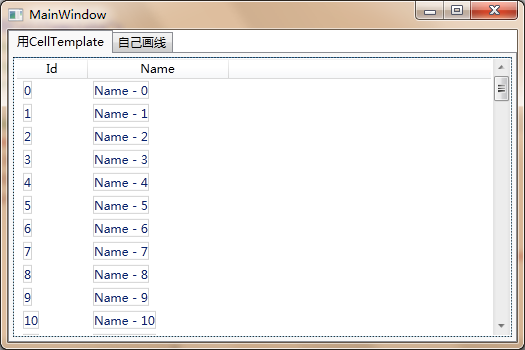
而且,即使將 ListView 的 HorizontalContentAlignment 設為 Stretch,也不能起到作用。必須在 ListViewItem 上設定 HorizontalContentAlignment="True"。因此,必須添加一個 ListViewItem 的樣式,統一指定:
<Style TargetType="ListViewItem">
    <Setter Property="HorizontalContentAlignment" Value="Stretch"/>
</Style>
但問題還是沒有解決,因為 Border 不能填滿整個 Cell,就像這樣:
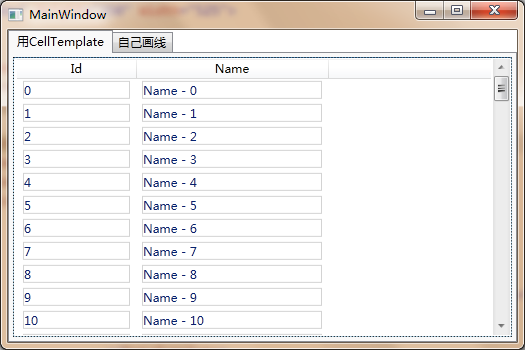
於是,你得小心的設定各個 Border 的 Margin,來讓它們「恰好」都連在一起,看上去就像是連續的線條。也許調整 Margin 還不夠,還得修改 ListViewItem 的範本;範本修改好了,發現建立這麼多的 Border 效能又跟不上;最頭大的是,每個 Column 都要指定一次 CellTemplate,萬一哪天邊線的顏色要統一調整一下……
因此,這種辦法固然可行,操作起來其實麻煩的要死。
有沒有一種方式,可以直接在 ListView 上「畫線」呢?固然,我們可以自己寫一個 ListView,在 OnRender 裡面畫線什麼的,但理想的情況還是能夠在可以不改動任何現有控制項的條件下,實現這個畫網格的功能。同時,這個網格線的顏色可以隨意調整就更好了。
因此,總的要求如下:
可以畫網格
不用改動 ListView,或者自己寫 ListView
可以調整網格的顏色
如果對設計模式熟悉的話,「不改動現有程式碼,增加新的功能」,應該馬上能夠想到裝飾器模式。其實,WPF 中本身就有 Decorator 這個控制項,而常用的 Border 就是一個 Decorator,可以幫助控制項畫背景色,畫邊線等等。
因此,如果能夠有這麼一個 Decorator,把 ListView 往裡面一放,就能有畫線的功能,豈不快哉?不過,這裡我並不打算直接繼承 Decorator 來修改,因為 WPF 提供的 Decorator 是針對所有 UIElment 的,而我們只想針對 ListView。
GridLineDecorator 直接繼承自 FrameworkElement,並且透過多載 VisualChild 和 LogicalChild 相關的程式碼來顯示其包裝的 ListView。
using System;
using System.Collections.Generic;
using System.Linq;
using System.Text;
using System.Windows;
using System.Windows.Controls;
using System.Windows.Markup;
using System.Windows.Media;
using System.Windows.Threading;

namespace ListViewWithLines
{
    [ContentProperty("Target")]
    public class GridLineDecorator : FrameworkElement
    {
        private ListView _target;
        private DrawingVisual _gridLinesVisual = new DrawingVisual();
        private GridViewHeaderRowPresenter _headerRowPresenter = null;

        public GridLineDecorator()
        {
            this.AddVisualChild(_gridLinesVisual);
            this.AddHandler(ScrollViewer.ScrollChangedEvent, new RoutedEventHandler(OnScrollChanged));
        }

        #region GridLineBrush

        /// <summary>
        /// GridLineBrush Dependency Property
        /// </summary>
        public static readonly DependencyProperty GridLineBrushProperty =
            DependencyProperty.Register("GridLineBrush", typeof(Brush), typeof(GridLineDecorator),
                new FrameworkPropertyMetadata(Brushes.LightGray,
                    new PropertyChangedCallback(OnGridLineBrushChanged)));

        /// <summary>
        /// Gets or sets the GridLineBrush property.  This dependency property
        /// indicates ....
        /// </summary>
        public Brush GridLineBrush
        {
            get { return (Brush)GetValue(GridLineBrushProperty); }
            set { SetValue(GridLineBrushProperty, value); }
        }

        /// <summary>
        /// Handles changes to the GridLineBrush property.
        /// </summary>
        private static void OnGridLineBrushChanged(DependencyObject d, DependencyPropertyChangedEventArgs e)
        {
            ((GridLineDecorator)d).OnGridLineBrushChanged(e);
        }

        /// <summary>
        /// Provides derived classes an opportunity to handle changes to the GridLineBrush property.
        /// </summary>
        protected virtual void OnGridLineBrushChanged(DependencyPropertyChangedEventArgs e)
        {
            DrawGridLines();
        }

        #endregion

        #region Target

        public ListView Target
        {
            get { return _target; }
            set
            {
                if (_target != value)
                {
                    if (_target != null) Detach();
                    RemoveVisualChild(_target);
                    RemoveLogicalChild(_target);

                    _target = value;

                    AddVisualChild(_target);
                    AddLogicalChild(_target);
                    if (_target != null) Attach();

                    InvalidateMeasure();
                }
            }
        }

        private void GetGridViewHeaderPresenter()
        {
            if (Target == null)
            {
                _headerRowPresenter = null;
                return;
            }
            _headerRowPresenter = Target.GetDesendentChild<GridViewHeaderRowPresenter>();
        }

        #endregion

        #region DrawGridLines

        private void DrawGridLines()
        {
            if (Target == null) return;
            if (_headerRowPresenter == null) return;

            var itemCount = Target.Items.Count;
            if (itemCount == 0) return;

            var gridView = Target.View as GridView;
            if (gridView == null) return;

            // 取得drawingContext
            var drawingContext = _gridLinesVisual.RenderOpen();
            var startPoint = new Point(0, 0);
            var totalHeight = 0.0;

            // 為了對齊到像素的計算參數,否則就會看到有些線是模糊的
            var dpiFactor = this.GetDpiFactor();
            var pen = new Pen(this.GridLineBrush, 1 * dpiFactor);
            var halfPenWidth = pen.Thickness / 2;
            var guidelines = new GuidelineSet();

            // 畫橫線
            for (int i = 0; i < itemCount; i++)
            {
                var item = Target.ItemContainerGenerator.ContainerFromIndex(i) as ListViewItem;
                if (item != null)
                {
                    var renderSize = item.RenderSize;
                    var offset = item.TranslatePoint(startPoint, this);

                    var hLineX1 = offset.X;
                    var hLineX2 = offset.X + renderSize.Width;
                    var hLineY = offset.Y + renderSize.Height;

                    // 加入參考線,對齊到像素
                    guidelines.GuidelinesY.Add(hLineY + halfPenWidth);
                    drawingContext.PushGuidelineSet(guidelines);
                    drawingContext.DrawLine(pen, new Point(hLineX1, hLineY), new Point(hLineX2, hLineY));
                    drawingContext.Pop();

                    // 計算直線總高度
                    totalHeight += renderSize.Height;
                }
            }

            // 畫直線
            var columns = gridView.Columns;
            var headerOffset = _headerRowPresenter.TranslatePoint(startPoint, this);
            var headerSize = _headerRowPresenter.RenderSize;

            var vLineX = headerOffset.X;
            var vLineY1 = headerOffset.Y + headerSize.Height;

            foreach (var column in columns)
            {
                var columnWidth = column.GetColumnWidth();
                vLineX += columnWidth;

                // 加入參考線,對齊到像素
                guidelines.GuidelinesX.Add(vLineX + halfPenWidth);
                drawingContext.PushGuidelineSet(guidelines);
                drawingContext.DrawLine(pen, new Point(vLineX, vLineY1), new Point(vLineX, totalHeight));
                drawingContext.Pop();
            }

            drawingContext.Close();
        }

        #endregion

        #region Overrides to show Target and grid lines

        protected override int VisualChildrenCount
        {
            get { return Target == null ? 1 : 2; }
        }

        protected override System.Collections.IEnumerator LogicalChildren
        {
            get { yield return Target; }
        }

        protected override Visual GetVisualChild(int index)
        {
            if (index == 0) return _target;
            if (index == 1) return _gridLinesVisual;
            throw new IndexOutOfRangeException(string.Format("Index of visual child '{0}' is out of range", index));
        }

        protected override Size MeasureOverride(Size availableSize)
        {
            if (Target != null)
            {
                Target.Measure(availableSize);
                return Target.DesiredSize;
            }

            return base.MeasureOverride(availableSize);
        }

        protected override Size ArrangeOverride(Size finalSize)
        {
            if (Target != null)
                Target.Arrange(new Rect(new Point(0, 0), finalSize));

            return base.ArrangeOverride(finalSize);
        }

        #endregion

        #region Handle Events

        private void Attach()
        {
            _target.Loaded += OnTargetLoaded;
            _target.Unloaded += OnTargetUnloaded;
        }

        private void Detach()
        {
            _target.Loaded -= OnTargetLoaded;
            _target.Unloaded -= OnTargetUnloaded;
        }

        private void OnTargetLoaded(object sender, RoutedEventArgs e)
        {
            if (_headerRowPresenter == null)
                GetGridViewHeaderPresenter();
            DrawGridLines();
        }

        private void OnTargetUnloaded(object sender, RoutedEventArgs e)
        {
            DrawGridLines();
        }

        private void OnScrollChanged(object sender, RoutedEventArgs e)
        {
            DrawGridLines();
        }

        #endregion
    }
}
其中,Target 是一個屬性,型別是 ListView,還有一個_guidLinesVisual,則是用於繪製網格的 DrawingVisual。有人可能會問,為什麼不直接多載 OnRender 方法,在裡面畫線呢?
理由是,多載 OnRender 方法畫線,當 ListView 設定了背景後,會將我們畫的線蓋住。這是因為控制項的背景是在範本中放了一個 Border 來繪製的,Border 也是在 OnRender 中繪製的,它後繪製,我們的先繪製,會將我們畫的線給蓋住。同時,你會發現,當 ListView 的 Column 改變大小的時候,並不會引起 GridLineDecorator 重繪,所以網格線無法同步變化。
其實,GridLineDecorator 裡面的 GetVisualChild 多載也非常講究:
protected override Visual GetVisualChild(int index)
{
    if (index == 0) return _target;
    if (index == 1) return _gridLinesVisual;
    throw new IndexOutOfRangeException(string.Format("Index of visual child '{0}' is out of range", index));
}
首先傳回的是 ListView,接著才是_gridLinesVisual。 不過,即使是使用 DrawingVisual,也會有 Column 寬度改變無法通知重繪的問題。解決這個問題有好幾個思路:
- 監聽一下 GridViewColumn 的寬度變化
- 監聽 CompositionTarget.Rendering 事件
第一個辦法,不可行,因為 GridViewColumn 的寬度變化事件你找不到,第二個辦法是可行,不過效率嘛……
在經過一番研究之後,終於找到了一個可行的辦法,監聽 ScrollViewer 的 ScrollChanged 事件,因為 ListView 內部是放置了兩個 ScrollViewer,一個用於顯示 Header,一個用於顯示 Items。當 Column 的寬度變化時,會觸發 ScrollViewer 的 ScrollChanged 事件。
因此,在建構函式裡面:
public GridLineDecorator()
{
    this.AddVisualChild(_gridLinesVisual);
    this.AddHandler(ScrollViewer.ScrollChangedEvent, new RoutedEventHandler(OnScrollChanged));
}
畫線的邏輯,主要就是走訪所有的 Container(其實是 ListViewItem),計算其相對於 GridLineDecorator 的位移,算出橫線和縱線的座標和長度,畫線。程式碼比較多,大家可以下載以後自己看。
細心的同學可能會發現,有時候底部的線條在 ListViewItem 顯示不完整時,沒有畫到最下端,這是由於 ListView 做了 Virtualize 處理。大家可以設定 VirtualizingStackPanel.IsVirtualizing="False"來強制繪製。
附程式碼:https://files.cnblogs.com/RMay/ListViewWithLines.zip
站長註:
原作者寫的很好,效果不錯,資料量小,比如幾千條,上面的方案完全沒問題;如果程式需要接收幾十萬資料(分頁接收),使用裝飾器的方式效率一般(可考慮如何優化),下面程式碼可簡單新增水平線:
<ListView.ItemContainerStyle>
    <Style TargetType="{x:Type ListViewItem}">
        <Setter Property="BorderThickness" Value="0 0 1 1" />
        <Setter Property="BorderBrush" Value="Black" />
    </Style>
</ListView.ItemContainerStyle>

- 原文標題:【WPF】自訂 GridLineDecorator 給 ListView 畫網格
- 原文作者:大佛腳下
- 原文連結:https://www.cnblogs.com/RMay/archive/2010/12/27/1918048.html
- 原文範例程式碼:https://files.cnblogs.com/RMay/ListViewWithLines.zip
- 最後範例:https://github.com/dotnet9/CsharpSocketTest