

1. 引言
在.NET开发领域,FluentValidation以其优雅、易扩展的特性成为开发者进行属性验证的首选工具。它不仅适用于Web开发,如MVC、Web API和ASP.NET CORE,同样也能完美集成在WPF应用程序中,提供强大的数据验证功能。本文将深入探讨如何在C# WPF项目中运用FluentValidation进行属性验证,并展示如何通过MVVM模式实现这一功能。
2. 功能概览
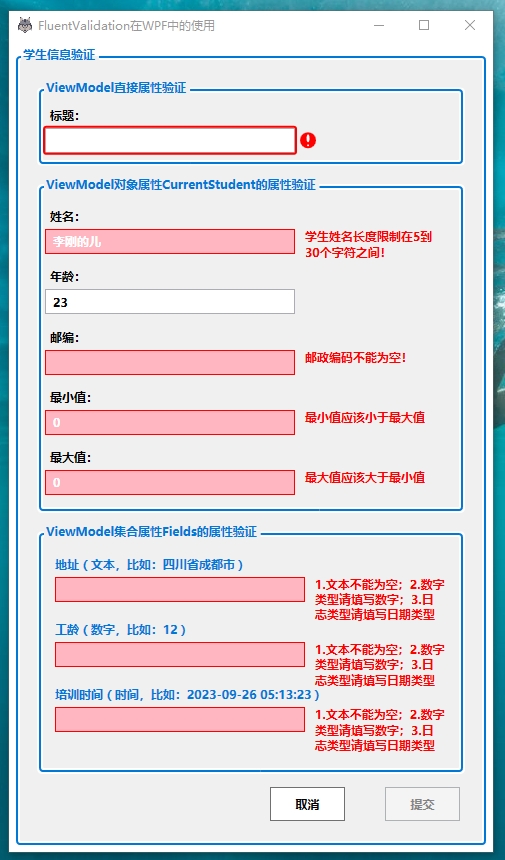
我们的目标是构建一个WPF应用程序,它能够通过FluentValidation实现以下验证功能:
- 验证ViewModel层的基本数据类型属性,如int、string等。
- 对ViewModel中的复杂属性进行验证,这包括对象属性的子属性以及集合属性。
- 提供两种直观的错误提示样式,以增强用户体验。
先看实现效果图:
3. 解决问题与探索
在调研过程中,我发现FluentValidation官方文档主要关注于Web应用的验证。对于WPF和复杂属性的验证,官方文档提供的示例有限。然而,通过深入研究和实践,我找到了将FluentValidation与WPF结合使用的有效方法,特别是针对复杂属性的验证。
4. 开发步骤
4.1. 创建工程、库引入
首先,创建一个新的WPF项目,并引入FluentValidation库用于属性验证,以及Prism.Wpf库以简化MVVM模式的实现。
<ItemGroup>
  <PackageReference Include="FluentValidation" Version="11.9.0" />
  <PackageReference Include="Prism.Wpf" Version="9.0.271-pre" />
</ItemGroup>
4.2. 创建实体类
我创建了两个实体类:Student和Field,分别代表对象属性和集合项属性。这两个类都实现了IDataErrorInfo接口:
IDataErrorInfo接口常用于提供实体数据验证的错误信息。这个接口包含两个成员:一个索引器(this[string columnName])和一个Error属性。索引器用于按属性名称提供错误信息,而Error属性则用于提供整个实体的错误概述。- 两个实体类和另外在后面提及的ViewModel中也实现
IDataErrorInfo接口,并在this[string columnName]索引器和Error属性中使用FluentValidation来验证属性。
4.2.1. 普通类 - Student
学生类包含5个属性:名字、年龄、邮政编码、最小值和最大值,其中最小值和最大值涉及关联验证,即最小值变化后通知最大值验证,反之同理。
/// <summary>
///     学生实体
///     继承BindableBase,即继承属性变化接口INotifyPropertyChanged
///     实现IDataErrorInfo接口,用于FluentValidation验证,必须实现此接口
/// </summary>
public class Student : BindableBase, IDataErrorInfo
{
    private int _age;
    private string? _name;
    private string? _zip;
    private readonly StudentValidator _validator = new();

    public string? Name
    {
        get => _name;
        set => SetProperty(ref _name, value);
    }

    public int Age
    {
        get => _age;
        set => SetProperty(ref _age, value);
    }

    public string? Zip
    {
        get => _zip;
        set => SetProperty(ref _zip, value);
    }

    private int _minValue;

    public int MinValue
    {
        get => _minValue;
        set
        {
            SetProperty(ref _minValue, value);

            // 关联更新最大值验证
            RaisePropertyChanged(nameof(MaxValue));
        }
    }

    private int _maxValue;

    public int MaxValue
    {
        get => _maxValue;
        set
        {
            SetProperty(ref _maxValue, value);

            // 关联更新最小值验证
            RaisePropertyChanged(nameof(MinValue));
        }
    }

    public string this[string columnName]
    {
        get
        {
            var validateResult = _validator.Validate(this);
            if (validateResult.IsValid)
            {
                return string.Empty;
            }

            var firstOrDefault =
                validateResult.Errors.FirstOrDefault(error => error.PropertyName == columnName);
            return firstOrDefault == null ? string.Empty : firstOrDefault.ErrorMessage;
        }
    }

    public string Error
    {
        get
        {
            var validateResult = _validator.Validate(this);
            if (validateResult.IsValid)
            {
                return string.Empty;
            }

            var errors = string.Join(Environment.NewLine, validateResult.Errors.Select(x => x.ErrorMessage).ToArray());
            return errors;
        }
    }
}
上面关键代码在public string this[string columnName]:这里进行输入表单项的数据校验,FluentValidation调用就在这里,校验逻辑封装在StudentValidator,表单输入时会实时调用该处代码,columnName表示表单项的列名,就是View绑定的属性名。
4.2.2. 集合类 - Field
此类用作ViewModel中的集合项使用,模拟动态表单数据校验,简单包含4个属性:字段名称、字段显示名称、数据类型、数据值,表单主要根据数据类型验证输入的数据值是否合法。同样此实体需要继承IDataErrorInfo接口,用于触发FluentValidation验证使用。
/// <summary>
///     扩展字段,用于生成动态表单
///     继承BindableBase,即继承属性变化接口INotifyPropertyChanged
///     实现IDataErrorInfo接口,用于FluentValidation验证,必须实现此接口
/// </summary>
public class Field : BindableBase, IDataErrorInfo
{
    private string? _value;
    private readonly FieldValidator _validator = new();


    public Field(DataType type, string typeLabel, string name, string value)
    {
        Type = type;
        TypeLabel = typeLabel;
        Name = name;
        Value = value;
    }

    /// <summary>
    ///     数据类型
    /// </summary>
    public DataType Type { get; set; }

    /// <summary>
    ///     数据类型名称
    /// </summary>
    public string TypeLabel { get; set; }

    /// <summary>
    ///     名称
    /// </summary>
    public string Name { get; set; }

    /// <summary>
    ///     值
    /// </summary>
    public string? Value
    {
        get => _value;
        set => SetProperty(ref _value, value);
    }

    public string this[string columnName]
    {
        get
        {
            var validateResult = _validator.Validate(this);
            if (validateResult.IsValid)
            {
                return string.Empty;
            }

            var firstOrDefault =
                validateResult.Errors.FirstOrDefault(error => error.PropertyName == columnName);
            return firstOrDefault == null ? string.Empty : firstOrDefault.ErrorMessage;
        }
    }

    public string Error
    {
        get
        {
            var validateResult = _validator.Validate(this);
            if (validateResult.IsValid)
            {
                return string.Empty;
            }

            var errors = string.Join(Environment.NewLine, validateResult.Errors.Select(x => x.ErrorMessage).ToArray());
            return errors;
        }
    }
}

public enum DataType
{
    Text,
    Number,
    Date
}
看上面代码,public string this[string columnName]代码处写法和Student类一样,只是_validator变量类型不同,前者为StudentValidator,这里是FieldValidator,下面我们看看这两个类怎么写。
4.3. 创建验证器
对于每个实体类,我都创建了一个对应的验证器类:StudentValidator和FieldValidator。这些验证器类继承自AbstractValidator,并在其中定义了验证规则。验证属性的写法有两种:
可以在实体属性上方添加特性(本文不作特别说明,百度文章介绍很多);
通过代码的形式添加,如下方,创建一个验证器类,继承自AbstractValidator,在此验证器构造函数中写规则验证属性,方便管理。
本文使用第二种,下面通过创建StudentValidator和FieldValidator两个验证器类介绍。
4.3.1. StudentValidator
这是学生验证器StudentValidator,需要继承AbstractValidator,泛型指定前面需要验证的实体类Student:
public class StudentValidator : AbstractValidator<Student>
{
    public StudentValidator()
    {
        RuleFor(vm => vm.Name)
            .NotEmpty()
            .WithMessage("请输入学生姓名!")
            .Length(5, 30)
            .WithMessage("学生姓名长度限制在5到30个字符之间!");

        RuleFor(vm => vm.Age)
            .GreaterThanOrEqualTo(0)
            .WithMessage("学生年龄为整数!")
            .ExclusiveBetween(10, 150)
            .WithMessage("请正确输入学生年龄(10-150)");

        _ = RuleFor(vm => vm.Zip)
            .NotEmpty()
            .WithMessage("邮政编码不能为空!")
            .Must(BeAValidZip)
            .WithMessage("邮政编码由六位数字组成。");

        RuleFor(model => model.MinValue).Must((model, minValue) => minValue < model.MaxValue).WithMessage("最小值应该小于最大值");

        RuleFor(model => model.MaxValue).Must((model, maxValue) => maxValue > model.MinValue).WithMessage("最大值应该大于最小值");
    }

    private static bool BeAValidZip(string? zip)
    {
        if (string.IsNullOrEmpty(zip))
        {
            return false;
        }

        var regex = new Regex(@"\d{6}");
        return regex.IsMatch(zip);
    }
}
代码简单,使用到数字的大小和范围验证(见Age)、字符串不能为空和长度限制(见Name)、字符串正则表达式验证(见Zip)、多属性关联验证(最小值和最大值,这里配合属性set时通知其他属性验证通知RaisePropertyChanged(nameof(MaxValue));)。
4.3.2. FieldValidator
动态表单数据值校验器,同理需要继承AbstractValidator,泛型指定前面需要验证的实体类Field::
public class FieldValidator : AbstractValidator<Field>
{
    public FieldValidator()
    {
        RuleFor(field => field.Value)
            .Must((field, value) => (field.Type == DataType.Text && !string.IsNullOrWhiteSpace(value))
                                    || (field.Type == DataType.Number && double.TryParse(value, out _))
                                    || (field.Type == DataType.Date && DateTime.TryParse(value, out _)))
            .WithMessage("1.文本不能为空;2.数字类型请填写数字;3.日志类型请填写日期类型");
    }
}
这里写的简单了点:
- 文本数据类型,值不能为空;
- 数字数据类型,必须是
double类型; - 日期类型,必须能使用
DateTime转换;
本文只做简单演示,多种数据类型放Must方法中做统一验证,验证出错给出统一的提示信息,读者可按实际情况修改。
4.3.3. StudentViewModelValidator
此外,我还创建了一个StudentViewModelValidator,用于验证ViewModel层的属性。这个验证器能够处理基本数据类型、对象属性以及集合属性的验证。
public class StudentViewModelValidator : AbstractValidator<StudentViewModel>
{
    public StudentViewModelValidator()
    {
        RuleFor(vm => vm.Title)
            .NotEmpty()
            .WithMessage("标题长度不能为空!")
            .Length(5, 30)
            .WithMessage("标题长度限制在5到30个字符之间!");

        RuleFor(vm => vm.CurrentStudent).SetValidator(new StudentValidator());

        RuleForEach(vm => vm.Fields).SetValidator(new FieldValidator());
    }
}
Title用于关联验证基本数据类型(string类型);CurrentStudent用于验证对象属性(Student类的实例),设置验证该属性时使用StudentValidator验证器;Fields用于验证集合属性(ObservableCollection<Field>),设置验证该属性子项时使用FieldValidator验证器,注意前面使用的RuleForEach表示关联集合中的项验证器。
4.4. ViewModel层实现
StudentViewModel与Student实体类结构类似,都需要实现IDataErrorInfo接口,该类由一个简单的string属性(Title)和一个复杂的Student对象属性(CurrentStudent)、集合属性ObservableCollection<Field> Fields组成,代码如下:
/// <summary>
///     视图ViewModel
///     继承BindableBase,即继承属性变化接口INotifyPropertyChanged
///     实现IDataErrorInfo接口,用于FluentValidation验证,必须实现此接口
/// </summary>
public class StudentViewModel : BindableBase, IDataErrorInfo
{
    private Student _currentStudent;
    private string _title;

    private readonly StudentViewModelValidator _validator;

    public string Title
    {
        get => _title;
        set => SetProperty(ref _title, value);
    }

    public Student CurrentStudent
    {
        get => _currentStudent;
        set => SetProperty(ref _currentStudent, value);
    }

    public ObservableCollection<Field> Fields { get; } = new();

    private DelegateCommand _saveCommand;

    public DelegateCommand SaveCommand => _saveCommand ??= new DelegateCommand(HandleSaveCommand,
        HandleCanExecuteSaveCommand);

    private DelegateCommand _cancelCommand;

    public DelegateCommand CancelCommand =>
        _cancelCommand ??= new DelegateCommand(HandleCancelCommand, () => true);

    public StudentViewModel()
    {
        _validator = new StudentViewModelValidator();
        CurrentStudent = new Student
        {
            Name = "李刚的儿",
            Age = 23
        };
        Fields.Add(new Field(DataType.Text, "文本,比如:四川省成都市场", "地址", ""));
        Fields.Add(new Field(DataType.Number, "数字,比如:12", "工龄", ""));
        Fields.Add(new Field(DataType.Date, "时间,比如:2023-09-26 05:13:23", "培训时间", ""));

        PropertyChanged += Validate;
        CurrentStudent.PropertyChanged += Validate;
        foreach (var field in Fields)
        {
            field.PropertyChanged += Validate;
        }
    }

    ~StudentViewModel()
    {
        PropertyChanged -= Validate;
        CurrentStudent.PropertyChanged -= Validate;
        foreach (var field in Fields)
        {
            field.PropertyChanged -= Validate;
        }
    }

    private void Validate(object sender, PropertyChangedEventArgs e)
    {
        _isCanExecuteSaveCommand = _validator.Validate(this).IsValid;
        SaveCommand.RaiseCanExecuteChanged();
    }

    private void HandleSaveCommand()
    {
        var validateResult = _validator.Validate(this);
        if (validateResult.IsValid)
        {
            MessageBox.Show("看到我说明验证成功!");
        }
        else
        {
            var errorMsg = string.Join(Environment.NewLine,
                validateResult.Errors.Select(x => x.ErrorMessage).ToArray());
            MessageBox.Show($"慌啥子嘛,你再检查下输入噻:\r\n{errorMsg}");
        }
    }

    private bool _isCanExecuteSaveCommand;

    private bool HandleCanExecuteSaveCommand()
    {
        return _isCanExecuteSaveCommand;
    }

    private void HandleCancelCommand()
    {
        MessageBox.Show("我啥都不做,退休了");
    }

    public string this[string columnName]
    {
        get
        {
            var validateResult = _validator.Validate(this);
            if (validateResult.IsValid)
            {
                return string.Empty;
            }

            var firstOrDefault =
                validateResult.Errors.FirstOrDefault(error => error.PropertyName == columnName);
            return firstOrDefault == null ? string.Empty : firstOrDefault.ErrorMessage;
        }
    }

    public string Error
    {
        get
        {
            var validateResult = _validator.Validate(this);
            if (validateResult.IsValid)
            {
                return string.Empty;
            }

            var errors = string.Join(Environment.NewLine, validateResult.Errors.Select(x => x.ErrorMessage).ToArray());
            return errors;
        }
    }
}
ViewModel属性验证和Student及Field类似,这里我加上了保存(SaveCommand)和取消(CancelCommand)两个命令,其中保存命令需要所有属性验证通过才可用,通过注册属性的变化事件PropertyChanged,在变化事件处理程序中验证:
PropertyChanged += Validate;
CurrentStudent.PropertyChanged += Validate;
foreach (var field in Fields)
{
    field.PropertyChanged += Validate;
}
private void Validate(object sender, PropertyChangedEventArgs e)
{
    _isCanExecuteSaveCommand = _validator.Validate(this).IsValid;
    SaveCommand.RaiseCanExecuteChanged();
}
4.5. 视图层实现
在视图层,我创建了一个用户控件StudentView,用于显示输入表单和验证结果。通过绑定ViewModel层的属性和命令,视图层能够与ViewModel层进行交互,并实时显示验证错误。这里比较简单,提供简单属性标题(Title)、复杂属性(包括学生姓名(CurrentStudent.Name)、学生年龄( CurrentStudent .Age)、学生邮政编码( CurrentStudent .Zip)、最小值(CurrentStudent.MinValue)、最大值(CurrentStudent.MaxValue))验证、集合属性验证(Fields),xaml代码如下:
<UserControl
    x:Class="WpfFluentValidation.Views.StudentView"
    xmlns="http://schemas.microsoft.com/winfx/2006/xaml/presentation"
    xmlns:d="http://schemas.microsoft.com/expression/blend/2008"
    xmlns:x="http://schemas.microsoft.com/winfx/2006/xaml"
    xmlns:mc="http://schemas.openxmlformats.org/markup-compatibility/2006"
    xmlns:models="clr-namespace:WpfFluentValidation.Models"
    xmlns:vm="clr-namespace:WpfFluentValidation.ViewModels"
    mc:Ignorable="d" Padding="10">
    <UserControl.DataContext>
        <vm:StudentViewModel />
    </UserControl.DataContext>
    <Grid>
        <Grid.RowDefinitions>
            <RowDefinition Height="*" />
            <RowDefinition Height="50" />
        </Grid.RowDefinitions>
        <ScrollViewer HorizontalScrollBarVisibility="Hidden" VerticalScrollBarVisibility="Auto">
            <Grid>
                <Grid.RowDefinitions>
                    <RowDefinition Height="Auto" />
                    <RowDefinition Height="Auto" />
                    <RowDefinition Height="*" />
                </Grid.RowDefinitions>

                <GroupBox Header="ViewModel直接属性验证">
                    <StackPanel>
                        <Label Content="标题:" />
                        <TextBox Style="{StaticResource Styles.TextBox.ErrorStyle1}"
                                 Text="{Binding Title, UpdateSourceTrigger=PropertyChanged, ValidatesOnDataErrors=True}" />
                    </StackPanel>
                </GroupBox>

                <GroupBox Grid.Row="1" Header="ViewModel对象属性CurrentStudent的属性验证">
                    <StackPanel>
                        <StackPanel>
                            <Label Content="姓名:" />
                            <TextBox Style="{StaticResource Styles.TextBox.ErrorStyle2}"
                                     Text="{Binding CurrentStudent.Name, UpdateSourceTrigger=PropertyChanged, ValidatesOnDataErrors=True}" />
                        </StackPanel>
                        <StackPanel>
                            <Label Content="年龄:" />
                            <TextBox Style="{StaticResource Styles.TextBox.ErrorStyle2}"
                                     Text="{Binding CurrentStudent.Age, UpdateSourceTrigger=PropertyChanged, ValidatesOnDataErrors=True}" />
                        </StackPanel>
                        <StackPanel>
                            <Label Content="邮编:" />
                            <TextBox Style="{StaticResource Styles.TextBox.ErrorStyle2}"
                                     Text="{Binding CurrentStudent.Zip, UpdateSourceTrigger=PropertyChanged, ValidatesOnDataErrors=True}" />
                        </StackPanel>
                        <StackPanel>
                            <Label Content="最小值:" />
                            <TextBox Style="{StaticResource Styles.TextBox.ErrorStyle2}"
                                     Text="{Binding CurrentStudent.MinValue, UpdateSourceTrigger=PropertyChanged, ValidatesOnDataErrors=True}" />
                        </StackPanel>
                        <StackPanel>
                            <Label Content="最大值:" />
                            <TextBox Style="{StaticResource Styles.TextBox.ErrorStyle2}"
                                     Text="{Binding CurrentStudent.MaxValue, UpdateSourceTrigger=PropertyChanged, ValidatesOnDataErrors=True}" />
                        </StackPanel>
                    </StackPanel>
                </GroupBox>

                <GroupBox Grid.Row="2" Header="ViewModel集合属性Fields的属性验证">
                    <ItemsControl ItemsSource="{Binding Fields}">
                        <ItemsControl.ItemTemplate>
                            <DataTemplate DataType="{x:Type models:Field}">
                                <Border Padding="10">
                                    <Grid>
                                        <Grid.RowDefinitions>
                                            <RowDefinition Height="Auto" />
                                            <RowDefinition Height="Auto" />
                                        </Grid.RowDefinitions>
                                        <TextBlock Margin="0,0,0,5">
                                            <Run Text="{Binding Name}" />
                                            <Run Text="(" />
                                            <Run Text="{Binding TypeLabel}" />
                                            <Run Text=")" />
                                        </TextBlock>
                                        <TextBox Grid.Row="1" Style="{StaticResource Styles.TextBox.ErrorStyle2}"
                                                 Text="{Binding Value, UpdateSourceTrigger=PropertyChanged, ValidatesOnDataErrors=True}" />
                                    </Grid>
                                </Border>
                            </DataTemplate>
                        </ItemsControl.ItemTemplate>
                    </ItemsControl>
                </GroupBox>
            </Grid>
        </ScrollViewer>

        <StackPanel Grid.Row="1" HorizontalAlignment="Right" Orientation="Horizontal">
            <Button Content="取消" Command="{Binding CancelCommand}" Style="{StaticResource Styles.Button.Common}"
                    Margin="0 3 40 3" />
            <Button Content="提交" Command="{Binding SaveCommand}" Style="{StaticResource Styles.Button.Blue}"
                    Margin="0 3 10 3" />
        </StackPanel>
    </Grid>
</UserControl>
4.6. 错误提示样式
为了提升用户体验,我定义了两种错误提示样式:一种是通过红色图标提示输入框旁边的错误,另一种是在输入框右侧显示错误文字。这些样式定义在App.xaml中,并可以在整个应用程序中复用。
<Application
    x:Class="WpfFluentValidation.App"
    xmlns="http://schemas.microsoft.com/winfx/2006/xaml/presentation"
    xmlns:x="http://schemas.microsoft.com/winfx/2006/xaml"
    StartupUri="MainWindow.xaml">
    <Application.Resources>
        <Style TargetType="StackPanel">
            <Setter Property="Margin" Value="0,5" />
        </Style>
        <!--  第一种错误样式,红色边框  -->
        <Style x:Key="Styles.TextBox.ErrorStyle1" TargetType="{x:Type TextBox}">
            <Setter Property="Width" Value="250" />
            <Setter Property="Height" Value="25" />
            <Setter Property="HorizontalAlignment" Value="Left" />
            <Setter Property="Validation.ErrorTemplate">
                <Setter.Value>
                    <ControlTemplate>
                        <DockPanel>
                            <Grid
                                Width="16"
                                Height="16"
                                Margin="3,0,0,0"
                                VerticalAlignment="Center"
                                DockPanel.Dock="Right">
                                <Ellipse
                                    Width="16"
                                    Height="16"
                                    Fill="Red" />
                                <Ellipse
                                    Width="3"
                                    Height="8"
                                    Margin="0,2,0,0"
                                    HorizontalAlignment="Center"
                                    VerticalAlignment="Top"
                                    Fill="White" />
                                <Ellipse
                                    Width="2"
                                    Height="2"
                                    Margin="0,0,0,2"
                                    HorizontalAlignment="Center"
                                    VerticalAlignment="Bottom"
                                    Fill="White" />
                            </Grid>
                            <Border
                                BorderBrush="Red"
                                BorderThickness="2"
                                CornerRadius="2">
                                <AdornedElementPlaceholder />
                            </Border>
                        </DockPanel>
                    </ControlTemplate>
                </Setter.Value>
            </Setter>
            <Style.Triggers>
                <Trigger Property="Validation.HasError" Value="true">
                    <Setter Property="ToolTip"
                            Value="{Binding RelativeSource={x:Static RelativeSource.Self}, Path=(Validation.Errors)[0].ErrorContent}" />
                </Trigger>
            </Style.Triggers>
        </Style>

        <!--  第二种错误样式,右键文字提示  -->
        <Style x:Key="Styles.TextBox.ErrorStyle2" TargetType="{x:Type TextBox}">
            <Setter Property="Width" Value="250" />
            <Setter Property="Height" Value="25" />
            <Setter Property="VerticalContentAlignment" Value="Center" />
            <Setter Property="Padding" Value="5,0" />
            <Setter Property="HorizontalAlignment" Value="Left" />
            <Setter Property="Validation.ErrorTemplate">
                <Setter.Value>
                    <ControlTemplate>
                        <StackPanel Orientation="Horizontal">
                            <AdornedElementPlaceholder x:Name="textBox" />
                            <Grid>
                                <TextBlock Margin="10 0 0 0" Width="130"
                                           Foreground="Red" TextWrapping="Wrap"
                                           Text="{Binding [0].ErrorContent}" />
                            </Grid>
                        </StackPanel>
                    </ControlTemplate>
                </Setter.Value>
            </Setter>
            <Style.Triggers>
                <Trigger Property="Validation.HasError" Value="true">
                    <Setter Property="ToolTip"
                            Value="{Binding RelativeSource={x:Static RelativeSource.Self}, Path=(Validation.Errors)[0].ErrorContent}" />
                    <Setter Property="Background" Value="LightPink" />
                    <Setter Property="BorderBrush" Value="Red" />
                    <Setter Property="Foreground" Value="White" />
                </Trigger>
            </Style.Triggers>
        </Style>

        <Style TargetType="GroupBox">
            <Setter Property="Margin" Value="5" />
            <Setter Property="Padding" Value="2" />
            <Setter Property="BorderBrush" Value="#FF0078D7" />
            <Setter Property="BorderThickness" Value="2" />
            <Setter Property="Background" Value="#FFF0F0F0" />
            <Setter Property="Foreground" Value="#FF0078D7" />
            <Setter Property="FontWeight" Value="Bold" />
        </Style>

        <Style x:Key="Styles.Button.Common" TargetType="{x:Type Button}">
            <Setter Property="MinWidth" Value="75" />
            <Setter Property="MinHeight" Value="25" />
            <Setter Property="Background" Value="White" />
            <Setter Property="Foreground" Value="Black" />
        </Style>

        <Style
            x:Key="Styles.Button.Blue"
            BasedOn="{StaticResource ResourceKey=Styles.Button.Common}"
            TargetType="{x:Type Button}">
            <Setter Property="Background" Value="Green" />
            <Setter Property="Foreground" Value="White" />
        </Style>
    </Application.Resources>
</Application>
5. 效果展示
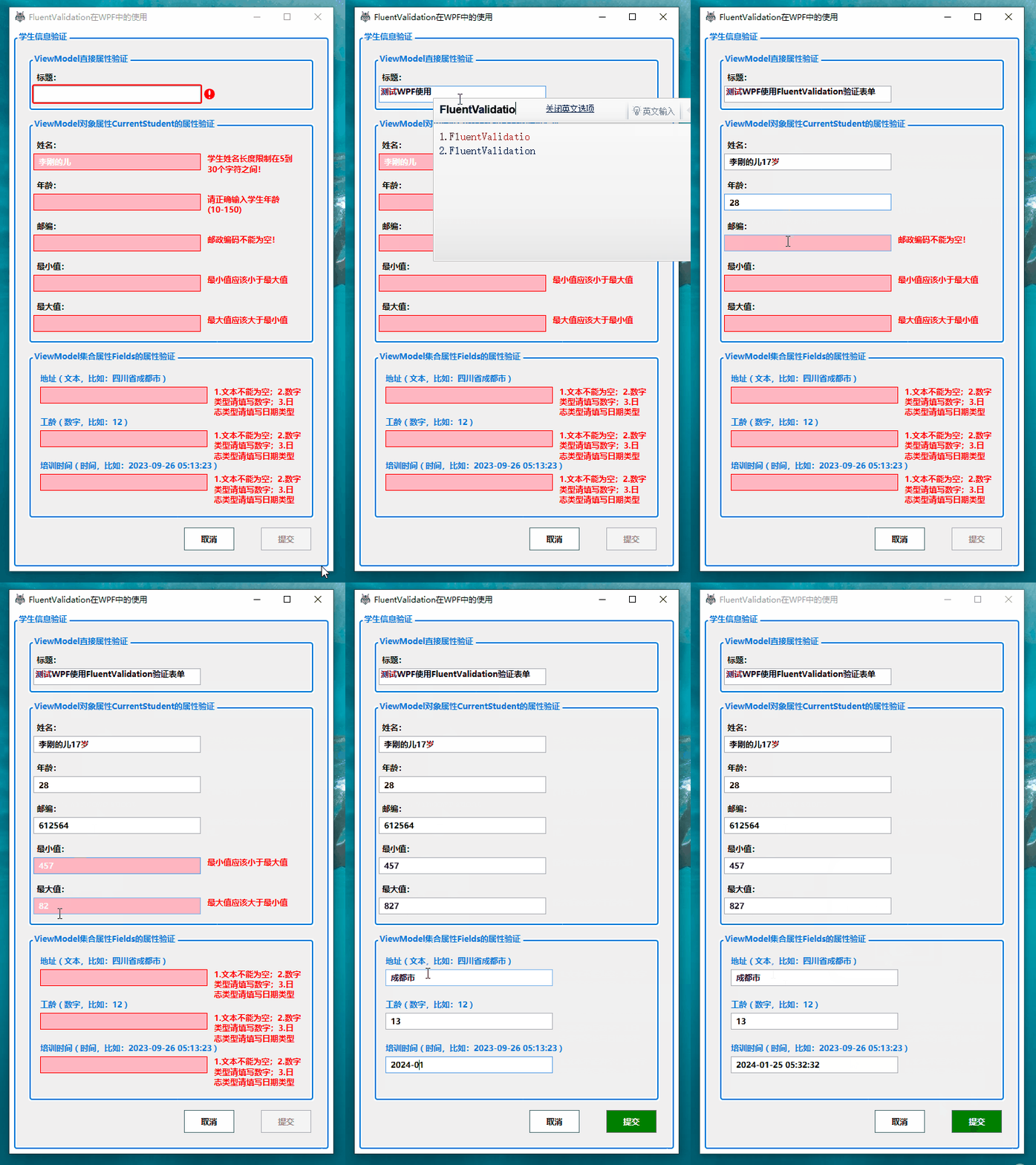
通过上述步骤的实现,我们得到了一个功能完善的WPF应用程序。它能够根据用户输入实时进行验证,并提供直观的错误提示。当所有属性都验证通过时,提交按钮将变为可用状态。
6. 源码分享
为了方便读者学习和交流,本文将所有代码同步到了Gitee和GitHub平台上。欢迎感兴趣的开发者访问以下链接获取源码:
- gitee: https://gitee.com/dotnet9/FluentValidationForWpf
- github: https://github.com/dotnet9/FluentValidationForWPF
7. 总结
通过本文的介绍和实践,我们成功将FluentValidation应用于C# WPF项目中,实现了对ViewModel层属性的全面验证。这不仅提升了数据的安全性和准确性,也为用户提供了更好的交互体验。希望本文能对广大开发者在WPF项目中使用FluentValidation提供有益的参考和启示。
参考:
- FluentValidation官网: https://fluentvalidation.net/