
一、前言
在 WPF 开发过程中,ScrollViewer 是一个很常使用到的控件,在自己工作的项目中,收到一个反馈就是当 ScrollViewer 里面的内容太长时,滚动条的滑块就会变得很小,然后导致点击起来不太友好。一开始想着是通过在样式里面设置滑块的最小值,但都没法生效。最后换了一个思路来,通过把原有的滑块隐藏,然后自己加一个控件来充当滑块来间接控制 ScrollViewer 的滚动。
二、正文
- 这里就直接拿之前写的那个曲线图控件来进行演示,当曲线图的数据很多时,滑块就会显得很小个,现在实在默认样式情况下,如果在自定义的样式情况下很更小
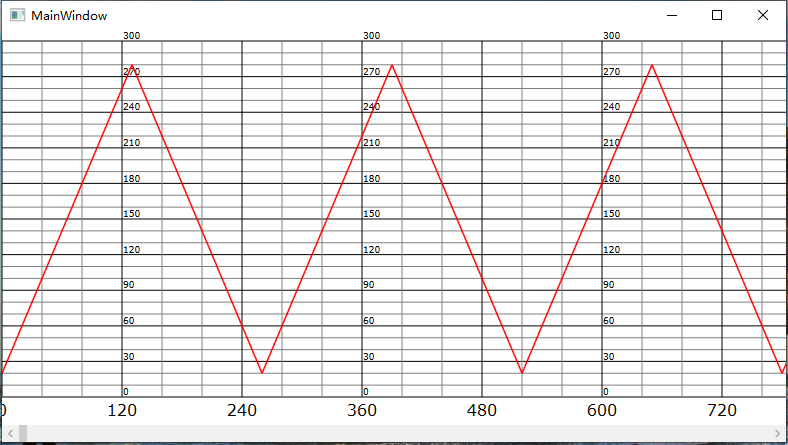
- 这里就直接在曲线图的顶层放置了一个 Canvas,添加一个 Border 来充当滑块,注意这里将整个 Canvas 覆盖再曲线图上,是因为我还添加了可以直接点击曲线图拖拽移动的功能,然后将 ScrollViewer 的滑块隐藏,设置好滑块的最小宽度和高度,默认隐藏
<Grid>
    <local:CruveDrawingVisual x:Name="curve" Margin="0,10,0,15" />
    <ScrollViewer
        Name="scroll"
        HorizontalScrollBarVisibility="Hidden"
        ScrollChanged="ScrollViewer_ScrollChanged"
        VerticalScrollBarVisibility="Disabled">
        <Canvas x:Name="canvas" />
    </ScrollViewer>
    <Canvas x:Name="CurvePanel" Background="Transparent">
        <Border
            x:Name="border"
            Canvas.Left="0"
            Canvas.Bottom="0"
            Height="15"
            MinWidth="80"
            Background="Green"
            PreviewMouseLeftButtonDown="Border_PreviewMouseLeftButtonDown"
            Visibility="Collapsed" />
    </Canvas>
</Grid>
- 接着再后台添加对应的逻辑处理代码,详细的一些东西都已经通过备注的形式写在代码里,这里就不在啰嗦了
public partial class MainWindow : Window
{
    private bool isAdd = true;
    private List<int> lists = new List<int>();

    private Point point_border;

    private double offset = -1;

    public MainWindow()
    {
        InitializeComponent();

        CurvePanel.MouseMove += delegate (object sender, MouseEventArgs e)
        {
            if (e.LeftButton == MouseButtonState.Pressed)
            {
                if (Mouse.Captured == null) Mouse.Capture(CurvePanel);

                //拖动滑块
                if (isBorder)
                {
                    Point point = e.GetPosition(this);
                    //鼠标超出控件左边缘
                    if (point.X - point_border.X <= 0)
                    {
                        scroll.ScrollToHorizontalOffset(0);
                    }
                    //鼠标超出控件右边缘
                    else if (point.X - point_border.X >= CurvePanel.ActualWidth - border.ActualWidth)
                    {
                        scroll.ScrollToHorizontalOffset(lists.Count - CurvePanel.ActualWidth);
                    }
                    //鼠标在控件区间
                    else if (point.X - point_border.X > 0 && point.X - point_border.X < CurvePanel.ActualWidth - border.ActualWidth)
                    {
                        double left = point.X - point_border.X;
                        scroll.ScrollToHorizontalOffset((lists.Count - CurvePanel.ActualWidth) / (CurvePanel.ActualWidth - border.ActualWidth) * left);
                    }
                }
                //拖动画布
                else
                {
                    if (offset >= 0 && offset <= CurvePanel.ActualWidth)
                    {
                        scroll.ScrollToHorizontalOffset(scroll.HorizontalOffset - (e.GetPosition(this).X - offset));
                    }
                    offset = e.GetPosition(this).X;
                }
            }
            else
            {
                offset = -1;
                isBorder = false;
                Mouse.Capture(null); // 释放鼠标捕获
            }
        };
    }

    private void Window_Loaded(object sender, RoutedEventArgs e)
    {
        int temp = 20;
        for (int i = 0; i < 24 * 60 * 60 * 2; i++)
        {
            if (isAdd)
            {
                lists.Add(temp);
                temp += 2;
            }
            else
            {
                lists.Add(temp);
                temp -= 2;
            }

            if (temp == 280) isAdd = false;
            if (temp == 20) isAdd = true;
        }
        canvas.Width = lists.Count;
        //判断是否显示滑块
        if (canvas.Width > CurvePanel.ActualWidth)
        {
            border.Visibility = Visibility.Visible;
            //根据ScrollViewer内容的比例计算滑块的宽度
            border.Width = CurvePanel.ActualWidth * CurvePanel.ActualWidth / canvas.Width;
        }
        else
        {
            border.Visibility = Visibility.Collapsed;
        }
        curve.SetupData(lists);
    }

    private void ScrollViewer_ScrollChanged(object sender, ScrollChangedEventArgs e)
    {
        curve.OffsetX(scroll.HorizontalOffset);

        Canvas.SetLeft(border, scroll.HorizontalOffset / ((lists.Count - CurvePanel.ActualWidth) / (CurvePanel.ActualWidth - border.ActualWidth)));
    }

    private bool isBorder = false;
    private void Border_PreviewMouseLeftButtonDown(object sender, MouseButtonEventArgs e)
    {
        isBorder = true;
        //获取鼠标点击滑块上的位置
        point_border = e.GetPosition(border);
    }
}
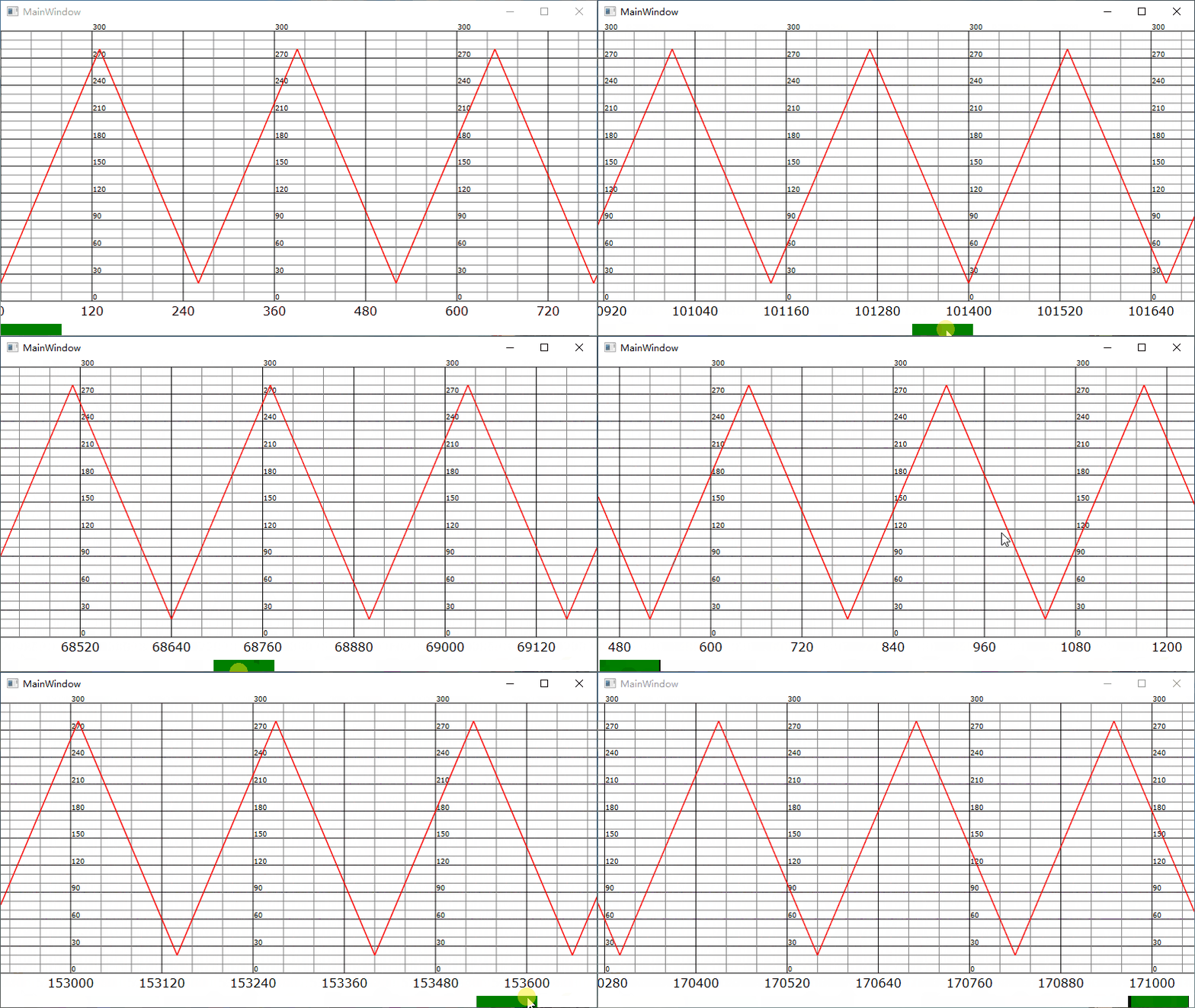
- 运行效果如下
