
在人工智能时代,文字转语音是现在人工智能比较热门的功能,各大公司都有这方面的业务,可以可以通过接口对各种文字转语音,甚至能模拟真人,非常的强大,.NET 东家微软其实也有这方面的服务。如果大家对语言转文字的要求不高,可以用微软自己的语音转换类库,而且实现很简单,只需要 5 行代码实现,本文将介绍如何使用
使用步骤
1、环境准备
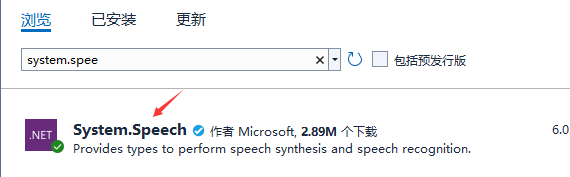
新建一个控制台项目,并使用 nuget 工具安装:System.Speech,也可以在本地类库添加安装,如下图 nuget 安装
2、输入如下代码,并添加引用using System.Speech.Synthesis;
static void  Main(string[] args)
{
    // 实例化 SpeechSynthesizer.
    SpeechSynthesizer synth = new SpeechSynthesizer();
    // 配置音频输出.
    synth.SetOutputToDefaultAudioDevice();
    // 字符串转语言.
    synth.Speak("你好!DotNeT开发跳槽");

    Console.WriteLine();
    Console.WriteLine("按任意键退出...");
    Console.ReadKey();
}
成功朗读“你好!DotNeT 开发跳槽”,这里是控制台应用,大家可以拿 winfrom 和 wpf 实现一下更加完美。
扩展实例
我们这里拿.NET网站实现一下转语音的功能,需求是输入文本框一句话,用这个System.Speech控件转换成音频,并加载到页面读取。
1、首先新建一个.NET的 web 应用,按上面的例子用nuget引入System.Speech
2、新建一个index.shtml页面,设计一个简单的文本框和查询按钮和一个音频输出控件,代码如下
<form>
  <p>
    Title: <input type="text" asp-for="Speektext" />
    <input type="submit" value="生成语音" />
  </p>
</form>
<audio style="width:350px;height:50px;" id="bofang" controls>
  <source src="@Model.filename" type="audio/mpeg" />
</audio>
3、在Index.cshtml.cs页面新建一个输入文字转换文本属性和文件路径属性,并构造函数注入读取路径中间件。
private readonly IHostingEnvironment _IhostingEnvironment;
[BindProperty(SupportsGet = true)]
//用来输入要转换的文本
public string? Speektext { get; set; }
//用来输出文件路径
public string filename { get; set; }
//注入用来读取存放资源文件的路径
public IndexModel(IHostingEnvironment hostingEnvironment)
{
    _IhostingEnvironment= hostingEnvironment;
}
4、在OnGetAsync方法中编写音频处理逻辑,代码如下:
public async Task OnGetAsync()
{
    string wavname = "test";
    string filePath = _IhostingEnvironment.WebRootPath+ $"\\speech\\{wavname}.wav";
    bool isFile = System.IO.File.Exists(filePath);
    if (isFile)
    {
        // 删除文件
        System.IO.File.Delete(filePath);
    }
    if (string.IsNullOrEmpty(Speektext))
        Speektext = "你好!欢迎关注“dotnet开发跳槽!”";
    if (!string.IsNullOrEmpty(Speektext))
    {
        using (SpeechSynthesizer synth = new SpeechSynthesizer())
        {
            //配置音频文件,设置输出流和文件格式
            synth.SetOutputToWaveFile(filePath, new SpeechAudioFormatInfo(32000, AudioBitsPerSample.Sixteen, AudioChannel.Mono));
            // 创建空的 Prompt 对象,并为添加内容、选择语音、控件语音属性和控件朗读单词的发音提供方法
            PromptBuilder builder = new PromptBuilder();
            builder.AppendText(Speektext);
            //输出文件
            synth.Speak(builder);
        }
        //返回文件路径
        filename =  $"\\speech\\{wavname}.wav";
    }
}
5、在前端用 js 加载到音频控件。
<input type="button" id="aa" value="播放" onclick="bofang()" />
<script type="text/javascript">
  function bofang() {
      var url = "@Model.filename.Replace("\\","\\\\")";
      var audio = document.getElementById('bofang');
              $('#bofang').attr('src',url);
              audio.play();
          }
</script>
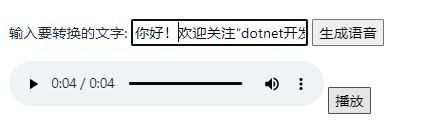
这样就可以用文本框输入内容,然后读取音频了,大家可以拿这个代码封装一下,改造成新闻语音朗读。效果如下:
示例代码链接:
https://pan.baidu.com/s/1IJadMleVEM3ePHE_KHqRqA?pwd=soiq
提取码:soiq
结语
本文介绍了.NET 简单的使用文本转语音的方法,大家可以参考一下,封装成自己的方法。注意本例子只支持 Windows 环境,在跨平台项目大家可以自己探究一下。希望本文对大家学习和工作有一定参考价值,谢谢大家的支持。
本文参考:微软官方技术文档
站长扩展
参考原文 .NET 3 行代码实现文字转语音功能,站长创建 MAUI Blazor 项目,按照文中步骤,添加 nuget 包,成功实现文字转语音功能,贴下关键代码并附上拍摄的视频:
@page "/"
@using System.Speech.Synthesis

<h1>请输入需要转换的文字,然后点击播放按钮</h1>

<MRow>
    <MCol Cols="12" Md="4">
        <MTextField @bind-Value="_message" Label="待转换文字"></MTextField>
    </MCol>
</MRow>
<MRow>
    <MCol Cols="12" Md="4">
        <MButton Class="mr-4" Color="@(string.IsNullOrEmpty(_message) ? "warning" : "success")" OnClick="PlayWord">播放</MButton>
    </MCol>
</MRow>

@code{

    private string _message;
    private SpeechSynthesizer _synth;

    private void PlayWord()
    {
        if (_synth == null)
        {
            _synth = new SpeechSynthesizer();
            _synth.SetOutputToDefaultAudioDevice();
        }
        _synth.Speak(_message);
    }

}