

本文由网友投稿。
作者:竹天笑
原文标题:用 Wpf 做一个思维导图(续 3-Diagram 画板)
原文链接:https://www.cnblogs.com/akwkevin/p/17288814.html
先上一张简易效果图,本次更新主要仿照百度脑图。
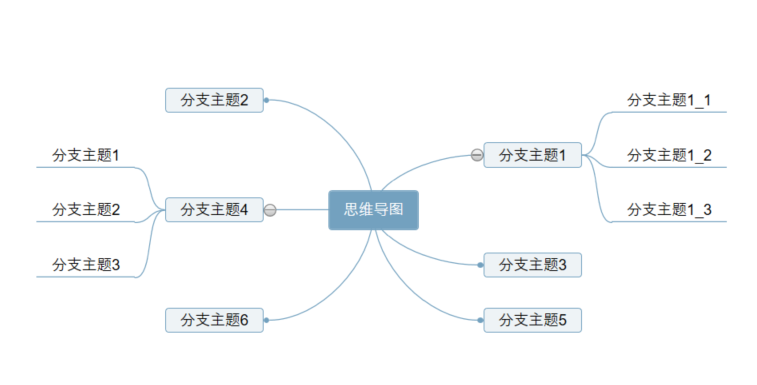
同样老规矩,先上源码地址:https://gitee.com/akwkevin/aistudio.-wpf.-diagram

本次扩展主要内容:
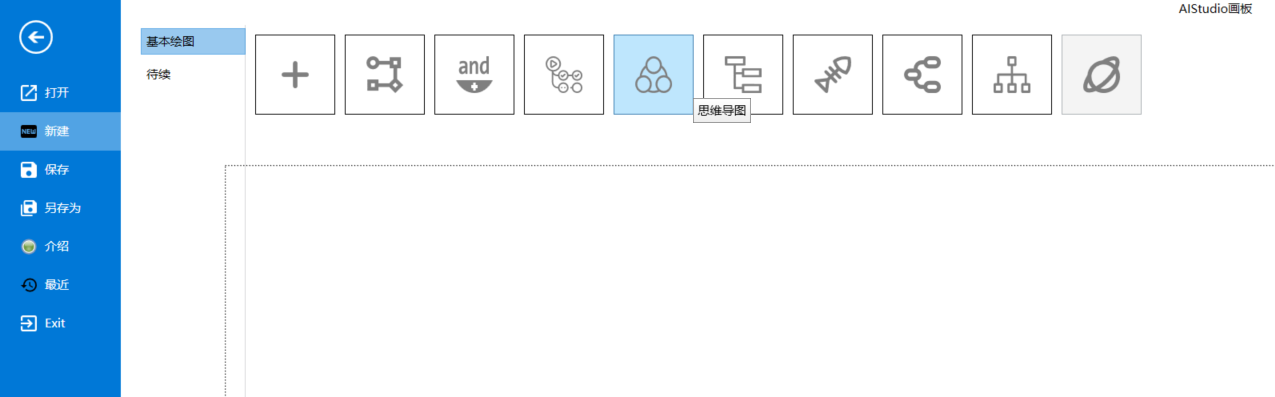
1. 思维导图、目录组织图、鱼骨头图、逻辑结构图、组织结构图,入口在文件新建下。
2. 思维导图工具栏(只有思维导图模式下可见)

2.1. 插入链接
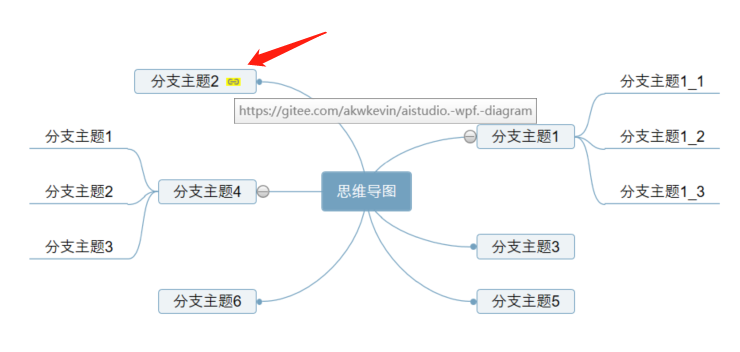
2.2. 插入图片

2.3. 插入备注
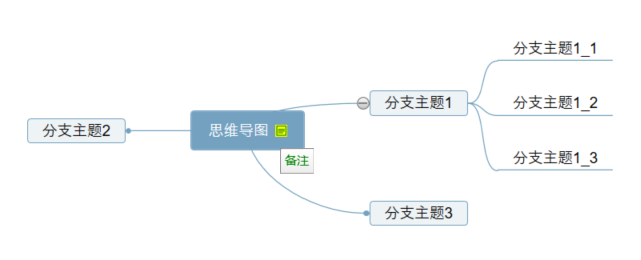
2.4. 插入优先级

2.5. 插入进度
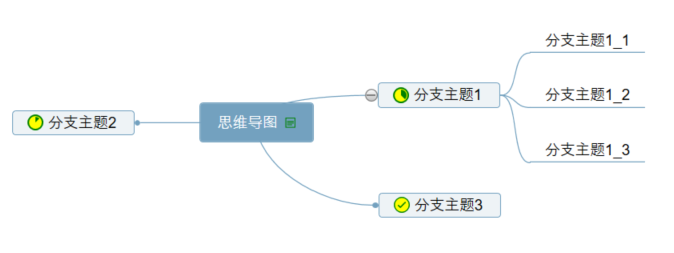
2.6.切换类型


2.7. 切换主题





2.8. 还要展开节点,全选,居中,适应窗体大小等功能,不再介绍。
3. 添加搜索功能(不仅仅思维导图可以使用)
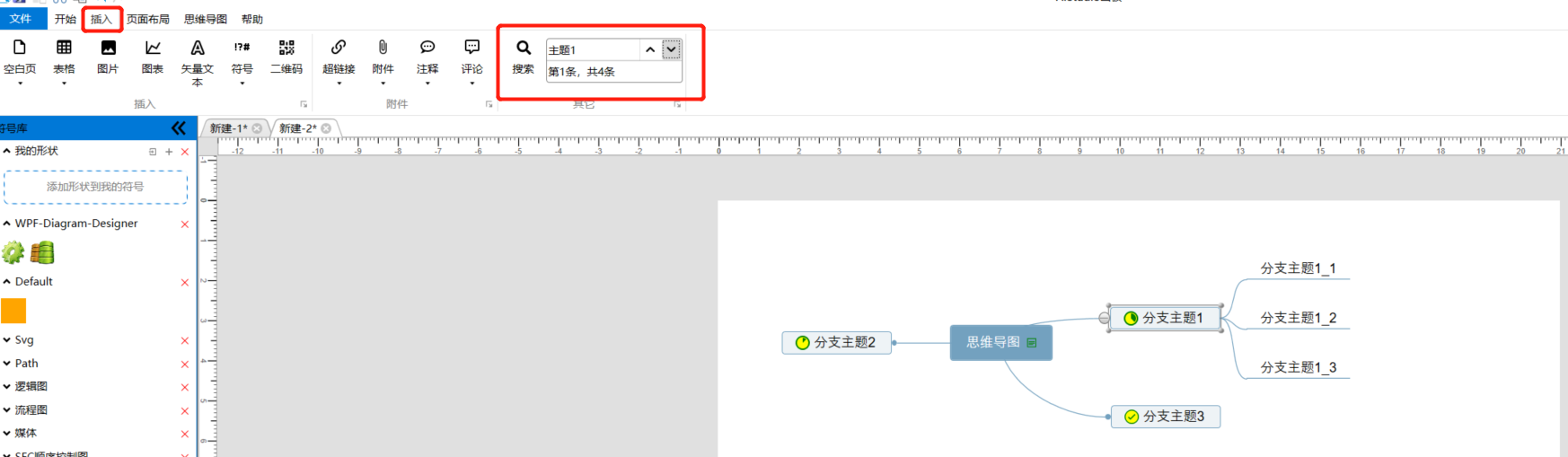
4. 接下来介绍下核心源代码(布局设置)
思维导图、目录组织图、鱼骨头图、逻辑结构图、组织结构图的布局都继承了以下接口:
public interface IMindLayout
{
    /// <summary>
    ///  默认节点样式设置
    /// </summary>
    /// <param name="mindNode"></param>
    void Appearance(MindNode mindNode);

    /// <summary>
    ///  节点样式设置
    /// </summary>
    /// <param name="mindNode"></param>
    /// <param name="mindTheme"></param>
    /// <param name="initAppearance"></param>
    void Appearance(MindNode mindNode, MindTheme mindTheme, bool initAppearance);

    /// <summary>
    /// 连线类型设置
    /// </summary>
    /// <param name="source"></param>
    /// <param name="sink"></param>
    /// <param name="connector"></param>
    /// <returns></returns>
    ConnectionViewModel GetOrSetConnectionViewModel(MindNode source, MindNode sink, ConnectionViewModel connector = null);

    /// <summary>
    /// 更新布局
    /// </summary>
    /// <param name="mindNode"></param>
    void UpdatedLayout(MindNode mindNode);
}
其中:UpdatedLayout 包括布局丈量 MeasureOverride 和摆放元素 ArrangeOverride,是不是感觉和重新 Panel 差不多,先计算每个节点占的大小,然后开始布局。下面为思维导图的源代码,其他导图的,如有兴趣请下载源代码查看。
public SizeBase MeasureOverride(MindNode mindNode, bool isExpanded = true)
{
    var sizewithSpacing = mindNode.SizeWithSpacing;
    if (mindNode.Children?.Count > 0)
    {
        if (mindNode.NodeLevel == 0)
        {
            var rights = mindNode.Children.Where((p, index) => index % 2 == 0).ToList();
            rights.ForEach(p => p.ConnectorOrientation = ConnectorOrientation.Left);
            var rightsizes = rights.Select(p => MeasureOverride(p, mindNode.IsExpanded && isExpanded)).ToArray();
            var lefts = mindNode.Children.Where((p, index) => index % 2 == 1).ToList();
            lefts.ForEach(p => p.ConnectorOrientation = ConnectorOrientation.Right);
            var leftsizes = lefts.Select(p => MeasureOverride(p, mindNode.IsExpanded && isExpanded)).ToArray();
            sizewithSpacing = new SizeBase(sizewithSpacing.Width + rightsizes.MaxOrDefault(p => p.Width) + +leftsizes.MaxOrDefault(p => p.Width), Math.Max(sizewithSpacing.Height, Math.Max(rightsizes.SumOrDefault(p => p.Height), leftsizes.SumOrDefault(p => p.Height))));
        }
        else
        {
            var childrensizes = mindNode.Children.Select(p => MeasureOverride(p, mindNode.IsExpanded && isExpanded)).ToArray();
            sizewithSpacing = new SizeBase(sizewithSpacing.Width + childrensizes.MaxOrDefault(p => p.Width), Math.Max(sizewithSpacing.Height, childrensizes.SumOrDefault(p => p.Height)));
        }
    }
    mindNode.DesiredSize = isExpanded ? sizewithSpacing : new SizeBase(0, 0);
    mindNode.Visible = isExpanded;

    return mindNode.DesiredSize;
}

public void ArrangeOverride(MindNode mindNode)
{
    if (mindNode.NodeLevel == 0)
    {
        mindNode.DesiredPosition = mindNode.Position;

        if (mindNode.Children?.Count > 0)
        {
            var rights = mindNode.Children.Where(p => p.ConnectorOrientation == ConnectorOrientation.Left).ToList();
            double left = mindNode.DesiredPosition.X + mindNode.ItemWidth  + mindNode.Spacing.Width;
            double lefttop = mindNode.DesiredPosition.Y + mindNode.ItemHeight / 2 - Math.Min(mindNode.DesiredSize.Height, rights.SumOrDefault(p => p.DesiredSize.Height)) / 2;
            foreach (var child in rights)
            {
                child.Offset = new PointBase(child.Offset.X - child.RootNode.Offset.X, child.Offset.Y - child.RootNode.Offset.Y);

                child.DesiredPosition = new PointBase(left + child.Spacing.Width, lefttop + child.DesiredSize.Height / 2 - child.ItemHeight / 2);
                child.Left = child.DesiredPosition.X + child.Offset.X;
                child.Top = child.DesiredPosition.Y + child.Offset.Y;
                lefttop += child.DesiredSize.Height;

                ArrangeOverride(child);

                var connector = mindNode.Root?.Items.OfType<ConnectionViewModel>().FirstOrDefault(p => p.SourceConnectorInfo?.DataItem == mindNode && p.SinkConnectorInfoFully?.DataItem == child);
                connector?.SetSourcePort(mindNode.FirstConnector);
                connector?.SetSinkPort(child.LeftConnector);
                connector?.SetVisible(child.Visible);
            }

            var lefts = mindNode.Children.Where(p => p.ConnectorOrientation == ConnectorOrientation.Right).ToList();
            double right = mindNode.DesiredPosition.X - mindNode.Spacing.Width;
            double righttop = mindNode.DesiredPosition.Y + mindNode.ItemHeight / 2 - Math.Min(mindNode.DesiredSize.Height, lefts.SumOrDefault(p => p.DesiredSize.Height)) / 2;
            foreach (var child in lefts)
            {
                child.Offset = new PointBase(child.Offset.X - child.RootNode.Offset.X, child.Offset.Y - child.RootNode.Offset.Y);
                child.DesiredPosition = new PointBase(right - child.Spacing.Width - child.ItemWidth, righttop + child.DesiredSize.Height / 2 - child.ItemHeight / 2);
                child.Left = child.DesiredPosition.X + child.Offset.X;
                child.Top = child.DesiredPosition.Y + child.Offset.Y;
                righttop += child.DesiredSize.Height;

                ArrangeOverride(child);

                var connector = mindNode.Root?.Items.OfType<ConnectionViewModel>().FirstOrDefault(p => p.SourceConnectorInfo?.DataItem == mindNode && p.SinkConnectorInfoFully?.DataItem == child);
                connector?.SetSourcePort(mindNode.FirstConnector);
                connector?.SetSinkPort(child.RightConnector);
                connector?.SetVisible(child.Visible);
            }
        }

        mindNode.Offset = new PointBase();//修正后归0
    }
    else
    {
        if (mindNode.GetLevel1Node().ConnectorOrientation == ConnectorOrientation.Left)
        {
            double left = mindNode.DesiredPosition.X + mindNode.ItemWidth + mindNode.Spacing.Width;
            double top = mindNode.DesiredPosition.Y + mindNode.ItemHeight / 2 - Math.Min(mindNode.DesiredSize.Height, mindNode.Children.SumOrDefault(p => p.DesiredSize.Height)) / 2;
            if (mindNode.Children?.Count > 0)
            {
                foreach (var child in mindNode.Children)
                {
                    child.Offset = new PointBase(child.Offset.X - child.RootNode.Offset.X, child.Offset.Y - child.RootNode.Offset.Y);
                    child.DesiredPosition = new PointBase(left + child.Spacing.Width, top + child.DesiredSize.Height / 2 - child.ItemHeight / 2);
                    child.Left = child.DesiredPosition.X + child.Offset.X;
                    child.Top = child.DesiredPosition.Y + child.Offset.Y;
                    top += child.DesiredSize.Height;

                    ArrangeOverride(child);

                    var connector = mindNode.Root?.Items.OfType<ConnectionViewModel>().FirstOrDefault(p => p.SourceConnectorInfo?.DataItem == mindNode && p.SinkConnectorInfoFully?.DataItem == child);
                    connector?.SetSourcePort(mindNode.RightConnector);
                    connector?.SetSinkPort(child.LeftConnector);
                    connector?.SetVisible(child.Visible);
                }
            }
        }
        else
        {
            double right = mindNode.DesiredPosition.X  - mindNode.Spacing.Width;
            double top = mindNode.DesiredPosition.Y + mindNode.ItemHeight / 2 - Math.Min(mindNode.DesiredSize.Height, mindNode.Children.SumOrDefault(p => p.DesiredSize.Height)) / 2;
            if (mindNode.Children?.Count > 0)
            {
                foreach (var child in mindNode.Children)
                {
                    child.Offset = new PointBase(child.Offset.X - child.RootNode.Offset.X, child.Offset.Y - child.RootNode.Offset.Y);
                    child.DesiredPosition = new PointBase(right - child.Spacing.Width - child.ItemWidth, top + child.DesiredSize.Height / 2 - child.ItemHeight / 2);
                    child.Left = child.DesiredPosition.X + child.Offset.X;
                    child.Top = child.DesiredPosition.Y + child.Offset.Y;
                    top += child.DesiredSize.Height;

                    ArrangeOverride(child);

                    var connector = mindNode.Root?.Items.OfType<ConnectionViewModel>().FirstOrDefault(p => p.SourceConnectorInfo?.DataItem == mindNode && p.SinkConnectorInfoFully?.DataItem == child);
                    connector?.SetSourcePort(mindNode.LeftConnector);
                    connector?.SetSinkPort(child.RightConnector);
                    connector?.SetVisible(child.Visible);
                }
            }
        }
    }


}
5. 最后为了方便大家使用,我封装了一个思维脑图的控件 MindEditor,可以直接绑定 json 格式的数据,数据改变,可以直接加载应用。(见AIStudio.Wpf.DiagramDesigner.Demo)
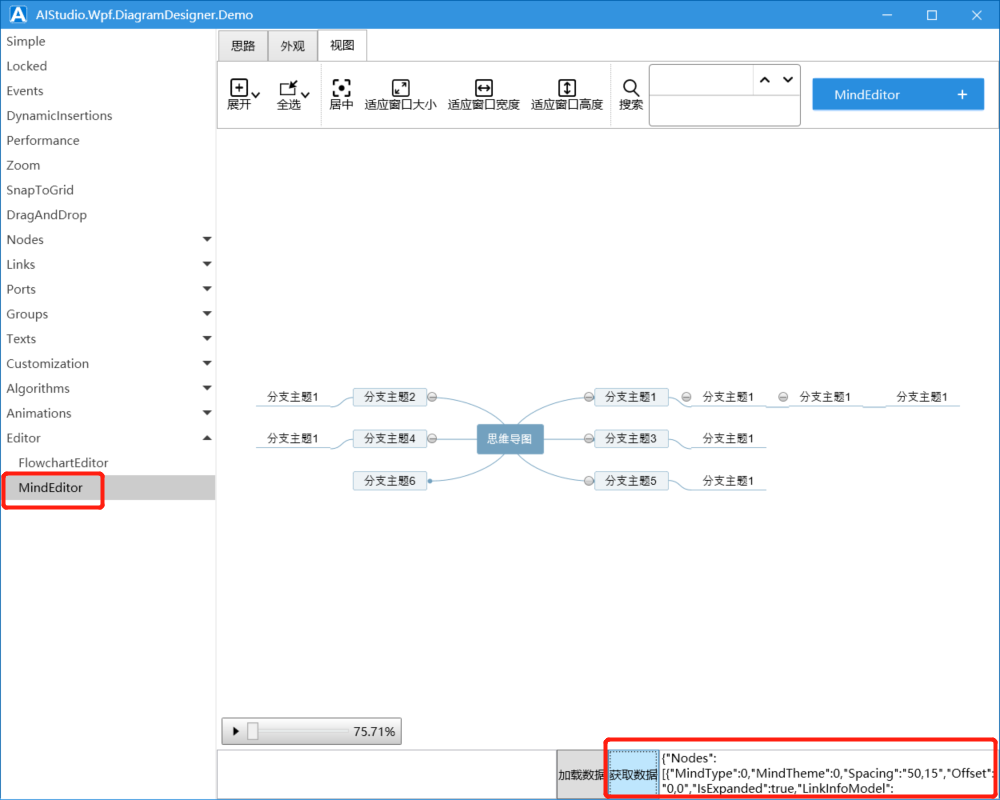
近期会持续更新,欢迎大家光临艾竹 (akwkevin) - Gitee.com,支持的朋友们,点个小星星,你们的支持能燃烧我开源的力量。