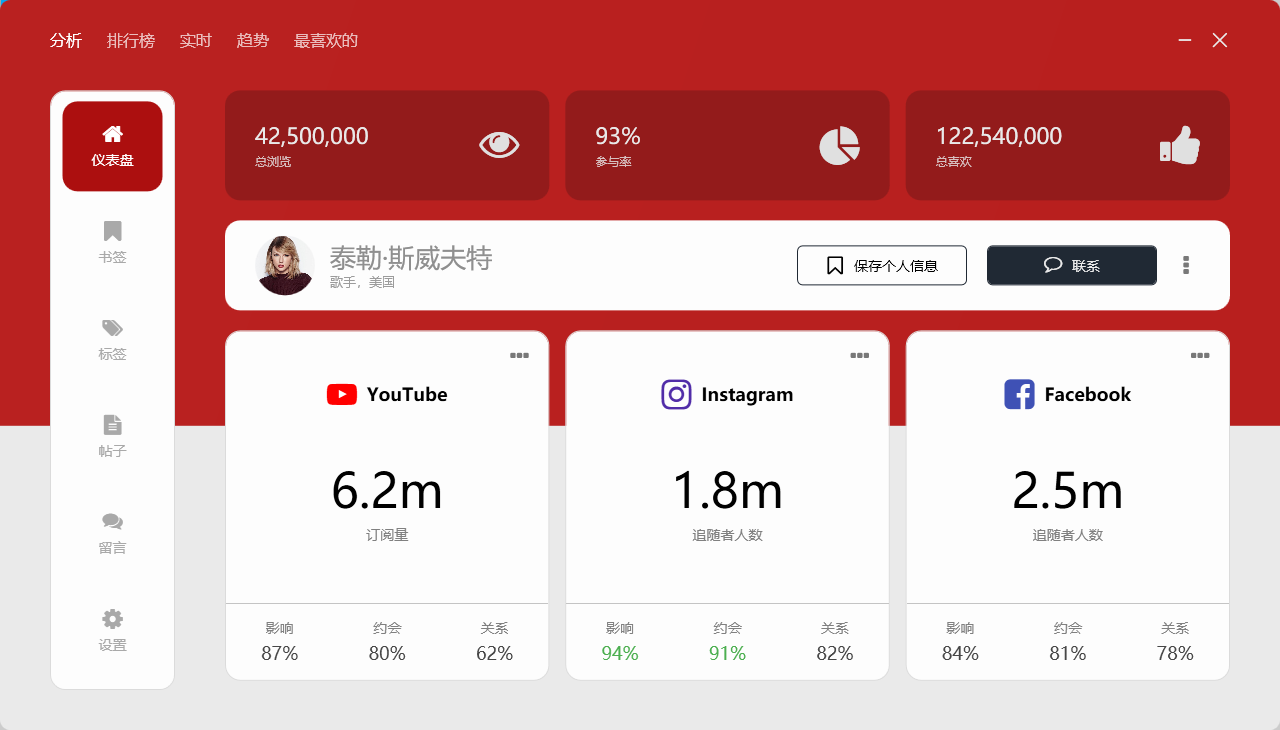
1. 效果展示
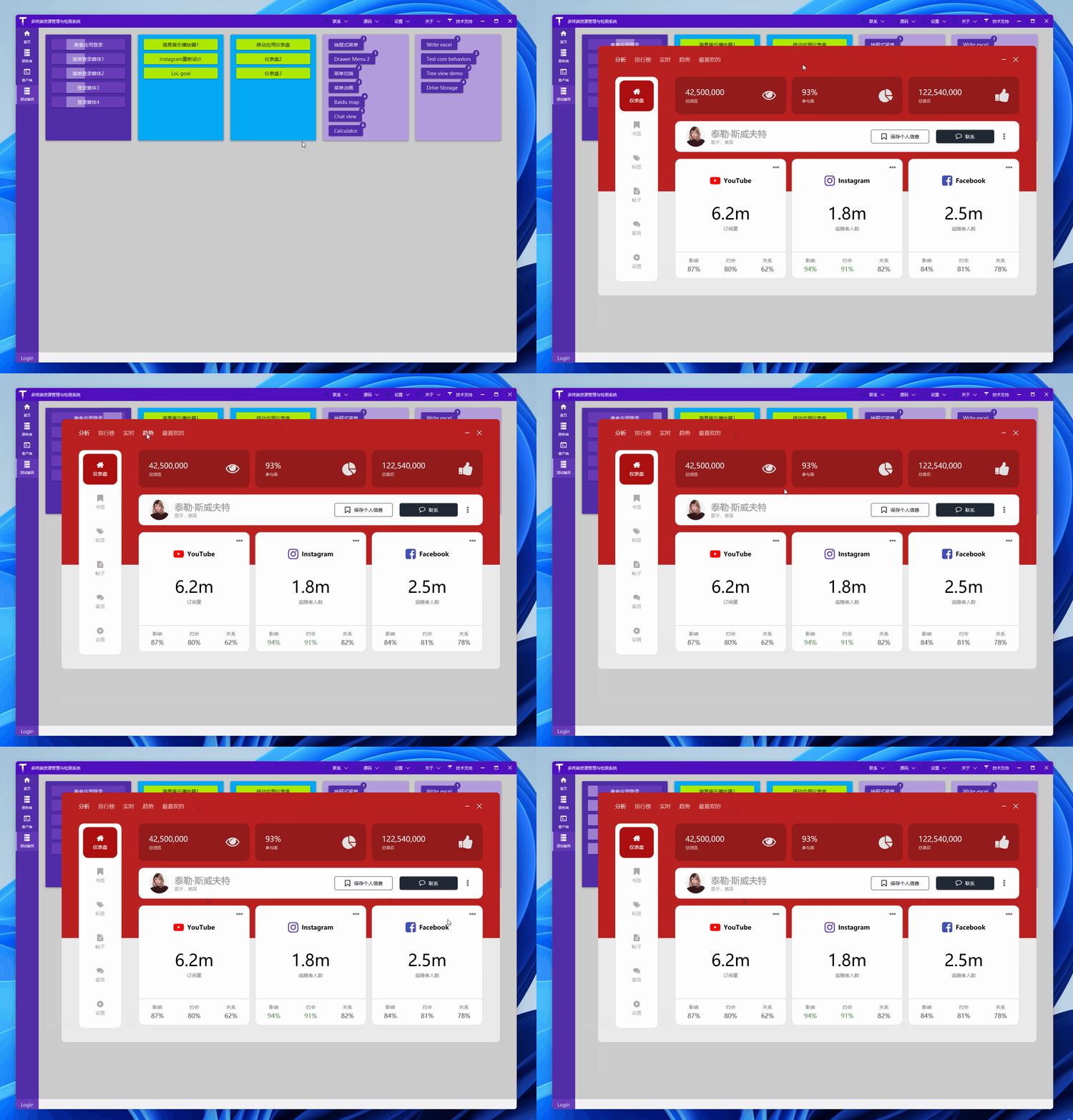
先來直接欣賞效果:
2. 準備
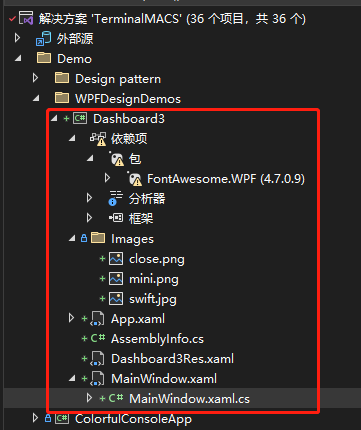
创建一个 WPF 工程,比如站长使用 .NET 7 创建名为 Dashboard3 的 WPF 项目,添加一些图片资源,项目目录如下:
2.1圖片資源
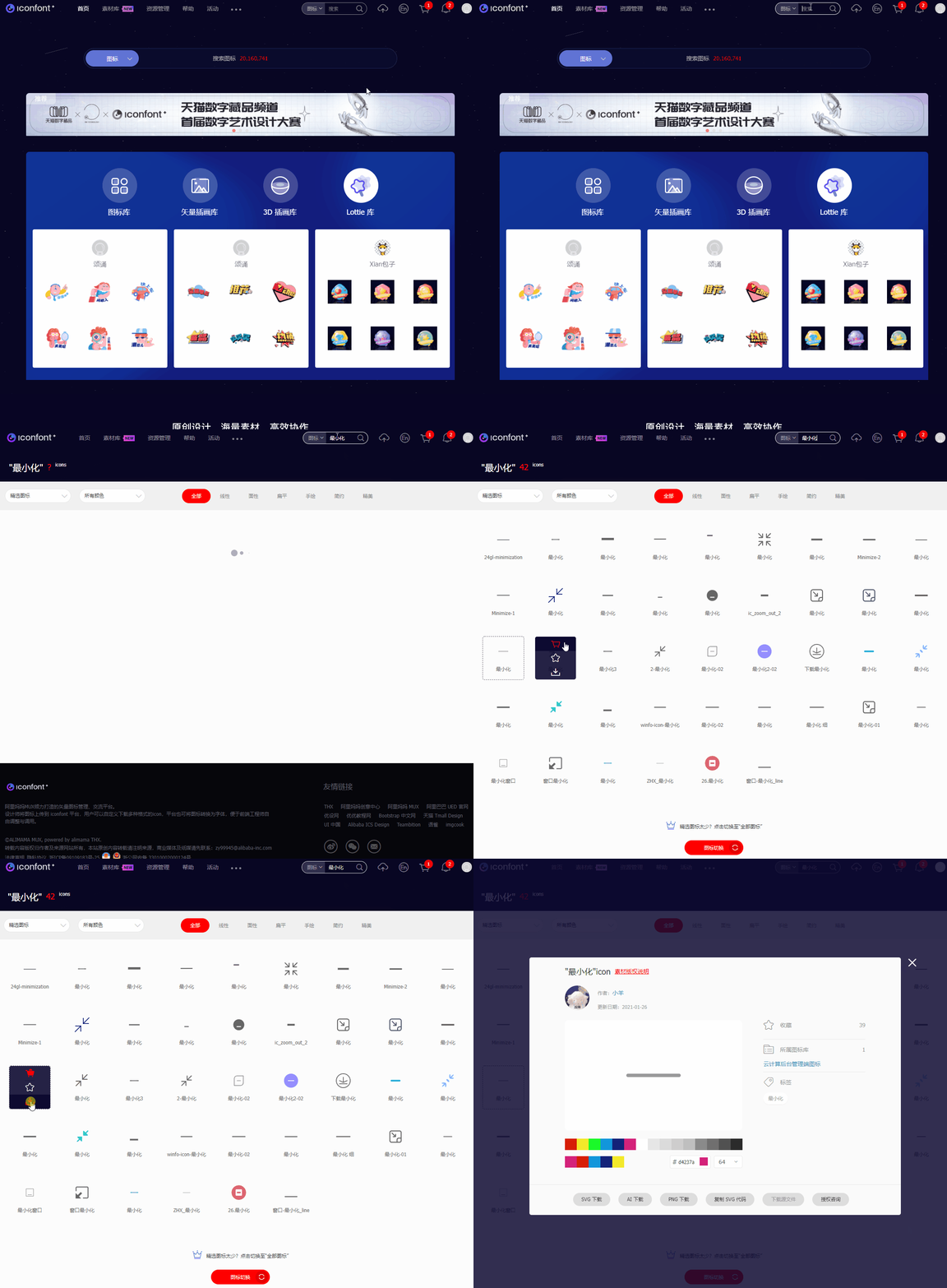
可在网站 iconfont 下载 关闭、最小化 图标,用于窗口右上角显示:
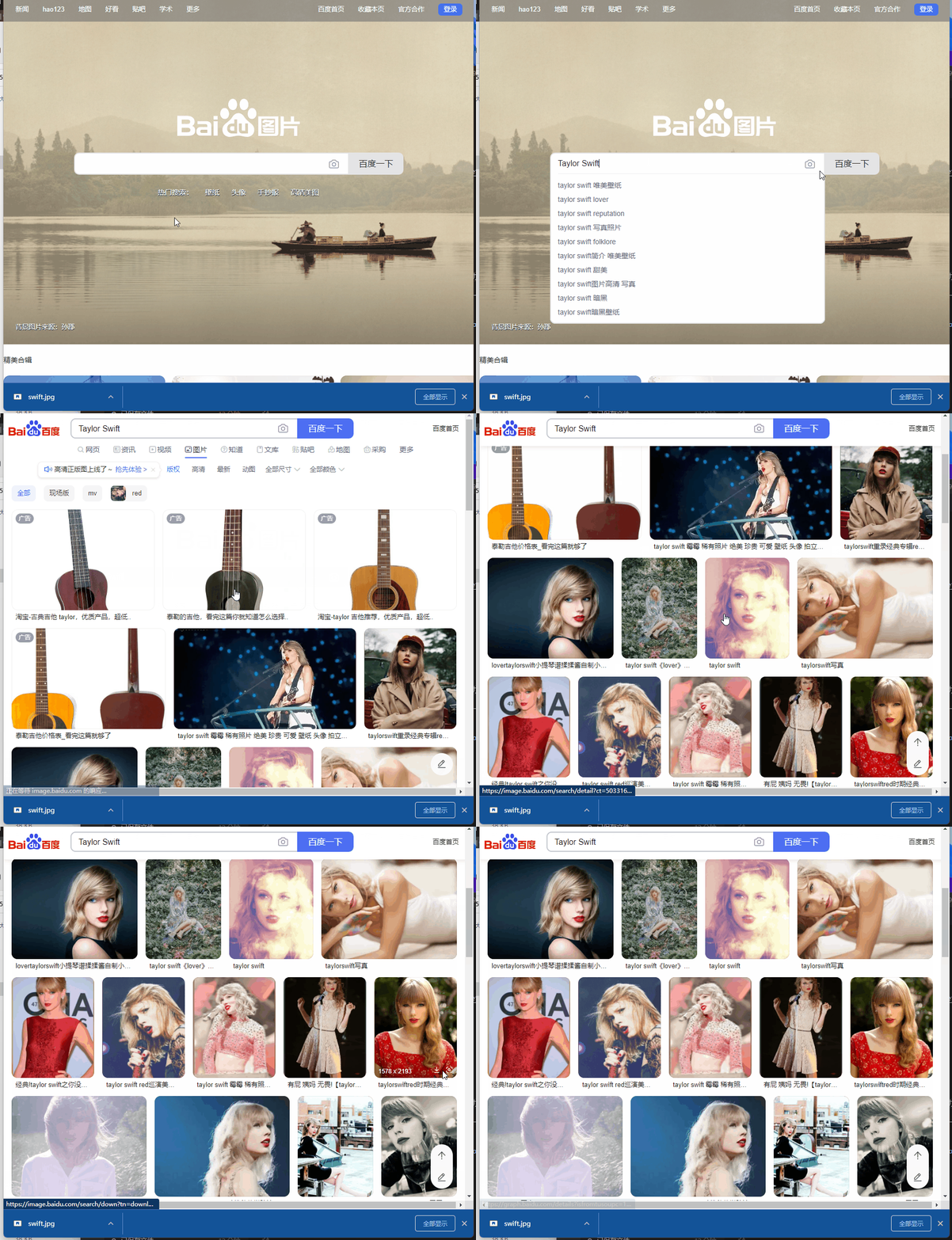
有看到美女圖片沒?在百度圖片或者谷歌圖片下載,比如 泰勒·斯威夫特 ,用於界面展示一個人的頭像:
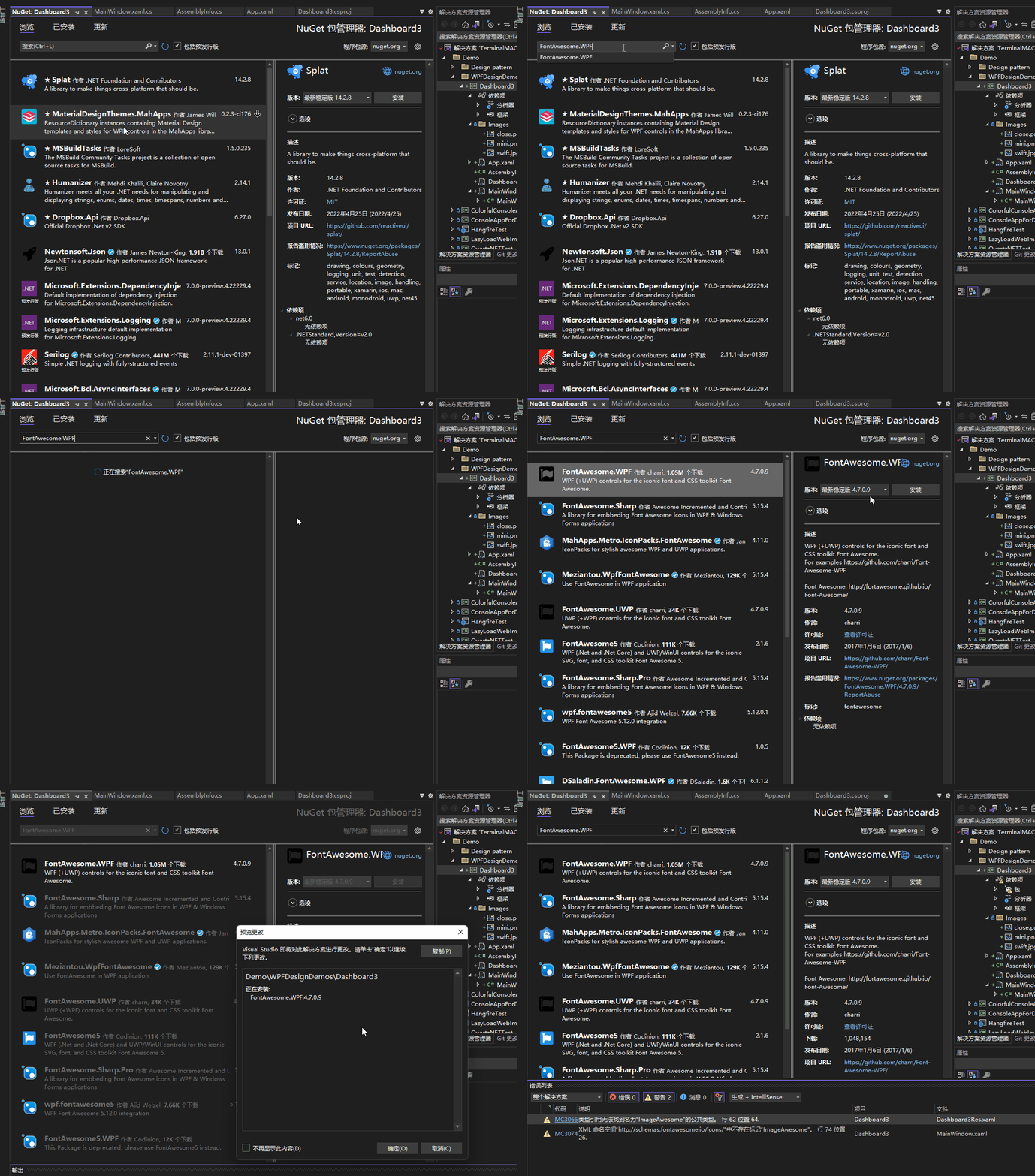
2.2字體圖標 nuget 包:fontawesome.wpf,該包提供一些圖標字體:
<PackageReference Include="FontAwesome.WPF" Version="4.7.0.9" />
編譯時,此包有如下提示:
已使用“.NETFramework,Version=v4.6.1, .NETFramework,Version=v4.6.2, .NETFramework,Version=v4.7, .NETFramework,Version=v4.7.1, .NETFramework,Version=v4.7.2, .NETFramework,Version=v4.8”而不是项目目标框架“net7.0-windows7.0”还原包“FontAwesome.WPF 4.7.0.9”。此包可能与项目不完全兼容。
有.net core 版本的字體圖標庫推薦嗎?可在下面留言,謝謝,這裡不影響使用。
3. 簡單居間
重點提及界面幾個地方:
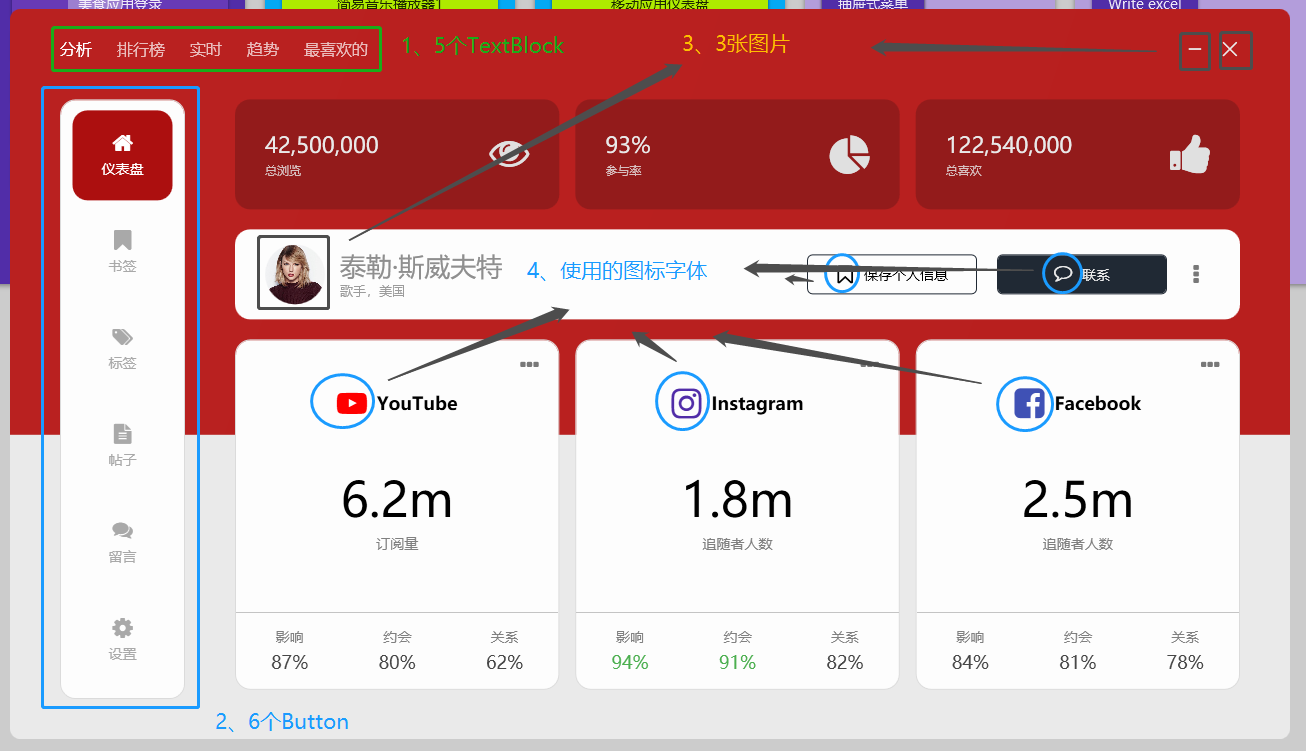
3.1水平菜單

如上圖,水平菜單是幾個 textblox 標籤,默認設置了字體的透明度為 0.7,滑鼠懸浮時設置為 1:
<StackPanel Orientation="Horizontal" HorizontalAlignment="Left">
    <TextBlock Text="分析" Opacity="1" Style="{StaticResource menuTitle}" />
    <TextBlock Text="排行榜" Style="{StaticResource menuTitle}" />
    <TextBlock Text="实时" Style="{StaticResource menuTitle}" />
    <TextBlock Text="趋势" Style="{StaticResource menuTitle}" />
    <TextBlock Text="最喜欢的" Style="{StaticResource menuTitle}" />
</StackPanel>
<Style x:Key="menuTitle" TargetType="TextBlock">
    <Setter Property="Margin" Value="0 0 25 0" />
    <Setter Property="FontSize" Value="16" />
    <Setter Property="Opacity" Value="0.7" />
    <Setter Property="Foreground" Value="#FFFFFF" />
    <Style.Triggers>
        <Trigger Property="IsMouseOver" Value="True">
            <Setter Property="Opacity" Value="1" />
        </Trigger>
    </Style.Triggers>
</Style>
3.2豎直菜單
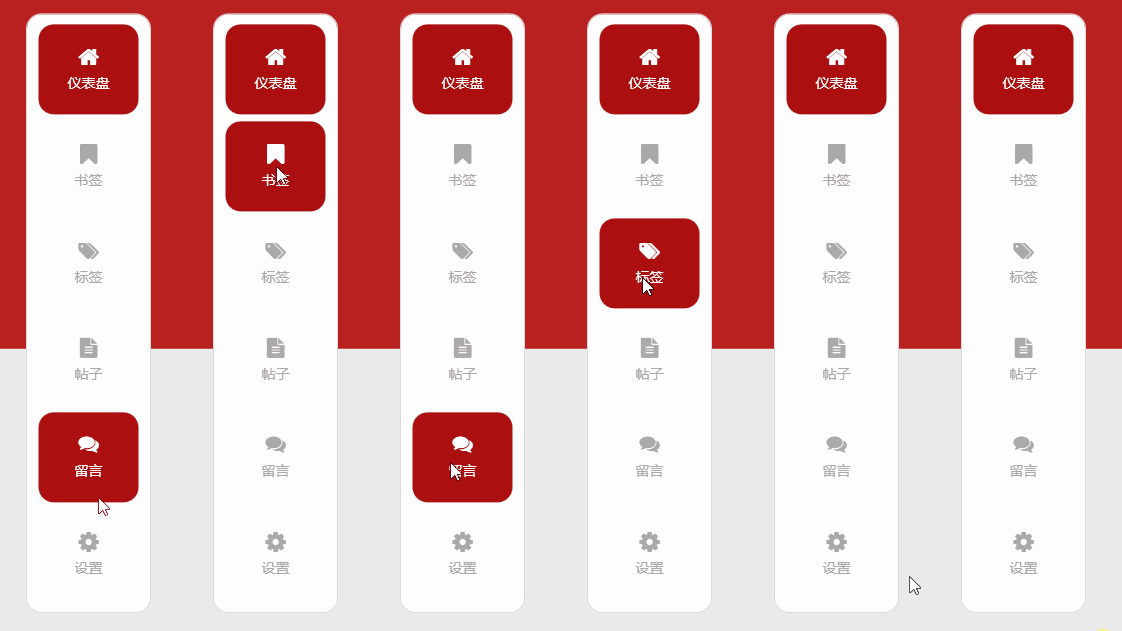
如上圖,豎直菜單是幾個按鈕,按鈕內容填充了字體圖標和文字,設置一些效果樣式:
<Button Style="{StaticResource menuButton}" Margin="0 10 0 0" Background="#AC0F0F" Foreground="#FFFFFF">
    <StackPanel>
        <fa:ImageAwesome Icon="Home" Style="{StaticResource menuButtonIcon}" />
        <TextBlock Text="仪表盘" Style="{StaticResource menuButtonText}" />
    </StackPanel>
</Button>
<Style x:Key="menuButton" TargetType="{x:Type Button}">
    <Setter Property="Margin" Value="0 7 0 0" />
    <Setter Property="FontSize" Value="14" />
    <Setter Property="Width" Value="100" />
    <Setter Property="Height" Value="90" />
    <Setter Property="Background" Value="Transparent" />
    <Setter Property="Foreground" Value="#a9a9a9" />
    <Setter Property="FocusVisualStyle" Value="{x:Null}" />
    <Setter Property="Template">
        <Setter.Value>
            <ControlTemplate TargetType="{x:Type Button}">
                <Border Background="{TemplateBinding Background}" CornerRadius="15" Padding="15">
                    <ContentPresenter HorizontalAlignment="Center" VerticalAlignment="Center" />
                </Border>
            </ControlTemplate>
        </Setter.Value>
    </Setter>
    <Style.Triggers>
        <Trigger Property="IsMouseOver" Value="True">
            <Setter Property="Background" Value="#AC0F0F" />
            <Setter Property="Foreground" Value="#FFFFFF" />
        </Trigger>
        <Trigger Property="IsMouseCaptured" Value="True">
            <Setter Property="Background" Value="#921C1B" />
            <Setter Property="Foreground" Value="#FFFFFF" />
        </Trigger>
    </Style.Triggers>
</Style>


<Style x:Key="menuButtonIcon" TargetType="fa:ImageAwesome">
    <Setter Property="Foreground" Value="{Binding Path=Foreground, RelativeSource={RelativeSource FindAncestor, AncestorType={x:Type Button}}}" />
    <Setter Property="Width" Value="20" />
    <Setter Property="Height" Value="20" />
</Style>


<Style x:Key="menuButtonText" TargetType="TextBlock">
    <Setter Property="Margin" Value="0 7 0 0" />
</Style>
3.3部分圖片和字體圖標
這個就不多說了,上面的代碼也有字體圖標的使用。
4. 結尾
这个面板的效果个人感觉很漂亮,由基本的TextBlock、Button、字体图标、图片等组合、排版布局就能做到很多效果,有兴趣可以看看作者视频(非常推荐),以及下方给出的源码仓库链接:
參考:
- 油管视频作者:C# WPF UI Academy
- 油管视频:C# WPF UI | How to Design Beautiful Social Media Info Dashboard in WPF
- 参考代码:WPF-Social-Media-Info-Dashboard
本文代码:Dashboard3