

大家好,我是沙漠尽头的狼。
Dotnet9网站回归Blazor重构,访问速度确实飞快,同时用上Blazor的交互能力,站长也同步添加了几个在线工具,这篇文章分享下Blazor的重构过程,希望对大家网站开发时做技术选型有个参考。

1. 先聊聊Razor Pages
上个版本网站前台使用的Razor Pages开发,当时选择这个技术栈主要是为了搜索引擎的SEO优化考虑。
关于MVC和Razor Pages哪个更优, 我们这里只说说Razor Pages相对的优势。
首先,Razor Pages相对于MVC来说,更加简单和直观。由于Razor Pages将视图和处理逻辑封装在同一个页面中,开发人员可以更容易地理解和维护代码。对于小型项目或者只有少量页面的应用来说,Razor Pages可以提供更快的开发速度和更简洁的代码结构,这是站长当时从MVC重构成Razor Pages的主要选择理由。
其次,Razor Pages在SEO(搜索引擎优化)方面具有一定的优势。由于Razor Pages将视图和处理逻辑封装在同一个页面中,搜索引擎可以更容易地理解和索引页面的内容。这对于需要更好的搜索引擎排名的应用来说,是一个重要的考虑因素。
说Razor Pages优势,那为啥现在又换Blazor了?因为Blazor可能又是更好的选择了,我们接着说。
2. 关键聊聊Blazor
Blazor是一个新兴的Web开发框架,它可以让开发人员使用C#语言来编写Web应用程序,而不必使用JavaScript,当然只能说尽量少用,完全不用也不太现实。相比于Razor Pages和MVC,Blazor提供了一种全新的开发模式,具有许多独特的优势和适用场景。
首先,Blazor提供了真正的前端开发体验。传统的Web开发中,前端开发人员需要使用JavaScript来处理页面的交互和动态效果,而后端开发人员则负责处理业务逻辑和数据操作。这种分离的开发模式可能导致开发人员之间的沟通和协作问题。而Blazor使用C#语言来编写前端代码,使得前端和后端开发人员可以使用相同的语言和工具,更加高效地协作开发。
其次,Blazor提供了更好的性能和用户体验,Blazor提供了客户端和服务端两种模式(Blazor混合模式有机会我们再谈):
- 客户端模式:Blazor使用WebAssembly技术,在浏览器中直接运行编译后的二进制代码,可以实现接近原生应用的性能。
- 服务端模式:与传统的基于HTTP请求的页面刷新相比,Blazor使用SignalR连接来实现实时数据更新和双向绑定,可以提供更快速和流畅的用户体验。
另外,Blazor还具有更好的可重用性和组件化开发。Blazor提供了丰富的组件库和工具,可以帮助开发人员更快地构建出漂亮且功能强大的界面。开发人员可以将常用的UI组件封装成可重用的组件,提高开发效率和代码质量。
此外,Blazor还支持现代化的前端开发技术和工具。开发人员可以使用Blazor与现有的JavaScript库和框架进行集成,如React、Vue.js等。
总之,Blazor对于Razor Pages和MVC来说是一个更好的选择,特别是对于需要更好的前端开发体验、更好的性能和用户体验以及更好的可重用性和组件化开发的项目来说。然而,选择使用哪种开发模式还是要根据项目的具体需求和开发团队的偏好来决定。无论选择哪种模式,重要的是根据项目的实际情况做出合理的选择,并且在开发过程中遵循良好的设计原则和最佳实践。
3. 再聊聊为啥又用Blazor了?
站长在去年对网站前台使用Blazor Server开发过一个版本,当时因为断线重连体验的问题,站长选择用Razor Pages重构了。
这次站长回归Blazor的转折点在6月13号 - .NET 8 Preview 5发布,VS2022预览版也跟着出了Blazor Web App项目模板,各个技术群也讨论疯了,站长在Razor Pages中添加了Razor 组件尝试,微软确实牛逼,旨在使 Blazor 组件能够满足客户端和服务器端的所有 Web UI 需求。。
但目前该模式Razor组件无法交互,页面还出现了重连置灰UI,索性直接用Blazor Server重构,经过几天的奋战,网站前台已经用Blazor Server完全替换Razor Pages,烦人的重连也解决了,现在访问网站飞快,不知道是不是错觉,个人感觉很好。(重连问题参考微软文档【ASP.NET Core BlazorSignalR 指南】和Token佬写的文章 【如何取消Blazor Server烦人的重新连接?】。)
Razor Pages(MVC)与Blazor都使用的Razor语法,所以理论上切换是无缝的,核心代码改动不大,项目代码文件结构对比看下面截图,不再赘述,有兴趣看源码吧,两个版本代码都在。
| Razor Pages版工程结构 | Blazor Server版工程结构 |
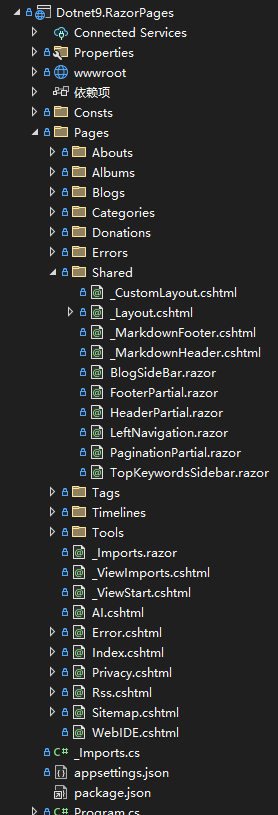 |
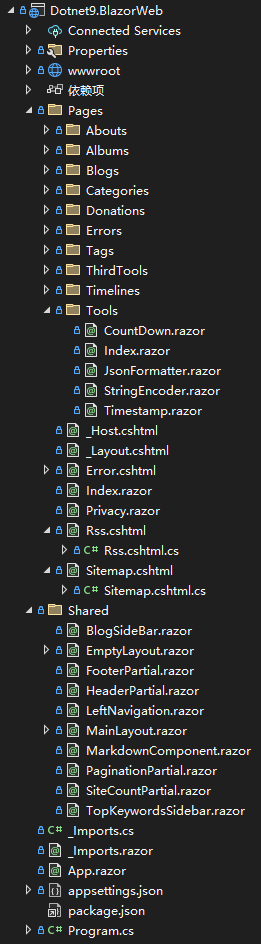 |
4. Blazor的交互便利:带来几个在线工具
对于页面的事件处理,使用Blazor就方便了,下面是昨晚加的4个小工具:

有兴趣的朋友可以点击体验:https://dotnet9.com/tools, 我们直接贴上4个小工具代码,你可能会喜欢上Blazor的代码风格。
4.1. JSON格式化
访问地址:https://dotnet9.com/tools/jsonformatter
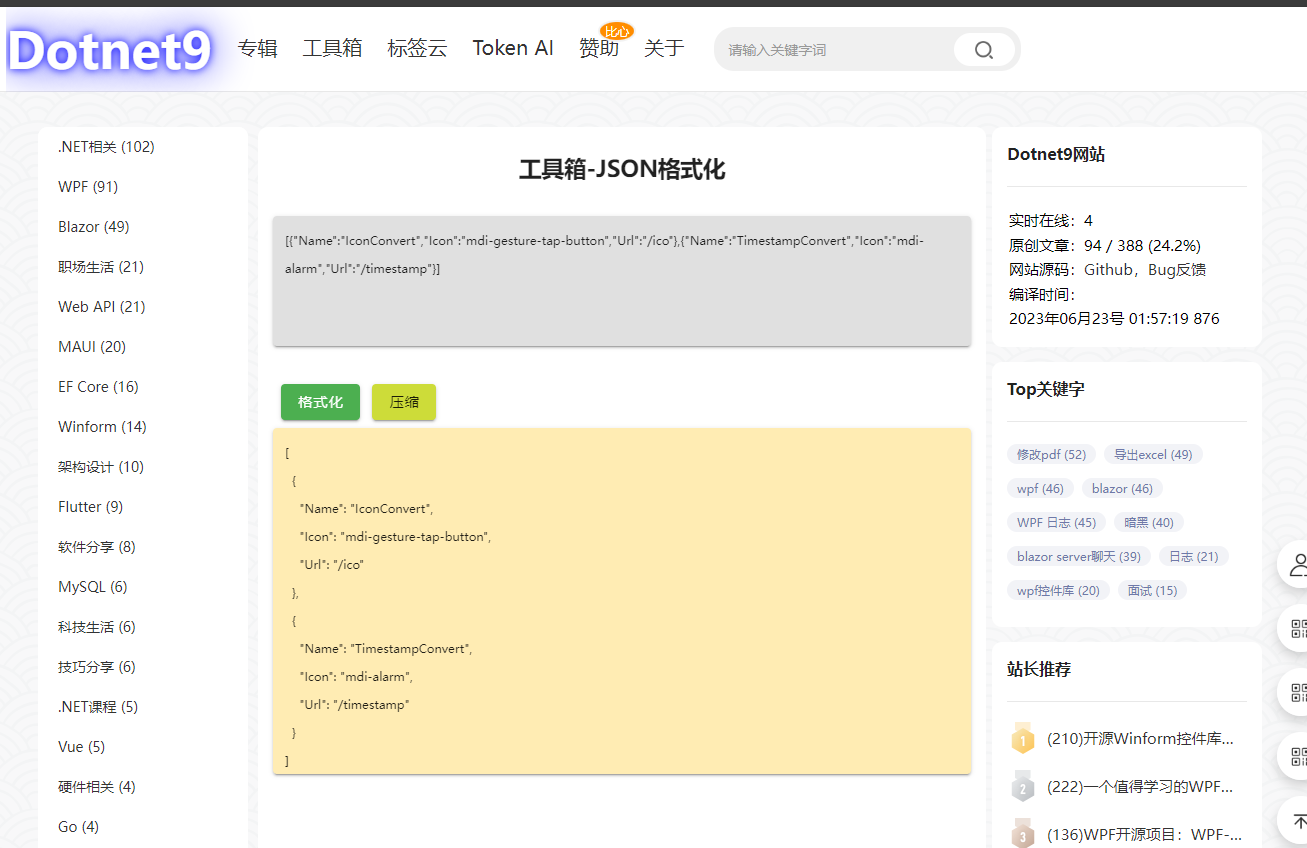
页面代码:
@page "/tools/jsonformatter"
@using System.Text.Json

<PageTitle>@_title</PageTitle>

<MApp>
   <h2 style="margin-bottom: 30px; margin-top: 10px; text-align: center;">@_title</h2>

   <div>
       <MTextarea BackgroundColor="grey lighten-2" Solo
                  Color="orange orange-darken-4" TValue="string" @bind-Value="_inputJson"
                  Label="输入Json" Rows="8" style="font-size:12px;" RowHeight="15" AutoGrow/>
   </div>

   <div>
       <MButton Color="success" class="ma-2" OnClick="() => FormatJson(true)">格式化</MButton>
       <MButton Color="lime" OnClick="() => FormatJson(false)">压缩</MButton>
   </div>

   <div>
       <MTextarea BackgroundColor="amber lighten-4" Solo
                  Color="orange orange-darken-4" TValue="string" @bind-Value="_formattedJson"
                  Label="格式化或压缩后Json" Rows="8" style="font-size:12px;" RowHeight="15" AutoGrow/>
   </div>
</MApp>

@code
{
       private const string? _title = "工具箱-JSON格式化";
   private string? _inputJson;
   private string? _formattedJson;

   private void FormatJson(bool writeIndented)
   {
       try
       {
           var jsonObject = JsonDocument.Parse(_inputJson).RootElement;
           _formattedJson = JsonSerializer.Serialize(jsonObject, new JsonSerializerOptions { WriteIndented = writeIndented });
       }
       catch (JsonException)
       {
           _formattedJson = "无效的JSON格式";
       }
   }
}
4.2. 在线字符串编码工具
访问地址:https://dotnet9.com/tools/string-encoder
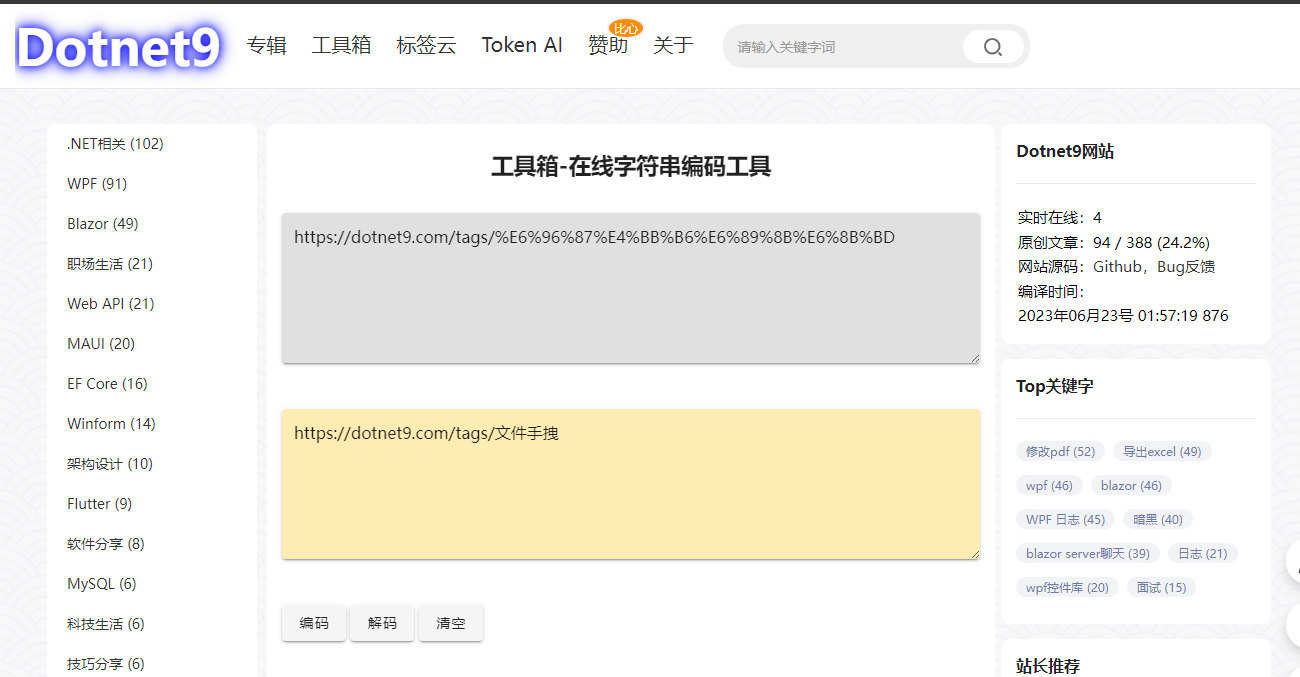
页面代码:
@page "/tools/string-encoder"

<PageTitle>@Title</PageTitle>

<MApp>
   <h2 style="margin-bottom: 30px; margin-top: 10px; text-align: center;">@Title</h2>

   <p>
       <MTextarea BackgroundColor="grey lighten-2"
                  Color="cyan" Solo TValue="string" @bind-Value="_inputString"
                  Label="输入字符串"/>
   </p>

   <p>
       <MTextarea BackgroundColor="amber lighten-4" Solo
                  Color="orange orange-darken-4" TValue="string" @bind-Value="_encodedOrDecodeString"
                  Label="编/解码结果"/>
   </p>

   <p>
       <MButton OnClick="@Encode">编码</MButton>
       <MButton OnClick="@Decode">解码</MButton>
       <MButton OnClick="@Clear">清空</MButton>
   </p>
</MApp>

@code {
   private const string Title = "工具箱-在线字符串编码工具";
   private string? _inputString;
   private string? _encodedOrDecodeString;

   private void Encode()
   {
       _encodedOrDecodeString = System.Web.HttpUtility.UrlEncode(_inputString);
   }

   private void Decode()
   {
       _encodedOrDecodeString = System.Web.HttpUtility.UrlDecode(_inputString);
   }

   private void Clear()
   {
       _inputString = string.Empty;
       _encodedOrDecodeString = string.Empty;
   }

}
4.3. 倒计时
访问地址:https://dotnet9.com/tools/countdown

页面代码:
@page "/tools/countdown"

<PageTitle>@Title</PageTitle>

<MApp>
   <h2 style="margin-bottom: 30px; margin-top: 10px; text-align: center;">@Title</h2>

   <p>
       <MTextField Label="持续时间(秒)" Type="number" TValue="int" @bind-Value="@_duration"/>
   </p>

   <p>
       <MButton Color="success" class="ma-2" OnClick="@StartCountdown" Disabled="@_isCountingDown">开始</MButton>
       <MButton Color="pink" class="ma-2 white--text" OnClick="@PauseCountdown" Disabled="!_isCountingDown">暂停</MButton>
       <MButton Color="deep-orange" class="ma-2 white--text" OnClick="@ResetCountdown" Disabled="!_isCountingDown">重置</MButton>
       剩余时间(秒):@_remainingTime
   </p>
   <div class="text-center">
       <MProgressCircular Value="@_remainingTimePercent" Size="100" Width="15" Rotate="360" Color="teal">@_remainingTime</MProgressCircular>
   </div>
</MApp>

@code {
   private const string Title = "工具箱-倒计时";
   private int _duration = 20;
   private int _remainingTime;
   private int _remainingTimePercent;
   private bool _isCountingDown;
   private bool _isPause;
   private CancellationTokenSource? _countdownTokenSource;

   private async Task StartCountdown()
   {
       if (_duration < 0)
       {
           _duration = 10;
       }
       if (_isCountingDown)
       {
           return;
       }
       _isCountingDown = true;
       if (!_isPause || _remainingTime <= 0)
       {
           _remainingTime = _duration;
           ChangeRemainingTimePercent();
       }
       _countdownTokenSource = new CancellationTokenSource();

       await Countdown(_countdownTokenSource.Token);
   }

   private void PauseCountdown()
   {
       if (!_isCountingDown)
       {
           return;
       }
       _isCountingDown = false;
       _isPause = true;
       _countdownTokenSource?.Cancel();
   }

   private async void ResetCountdown()
   {
       _isPause = false;
       if (_isCountingDown && _countdownTokenSource != null)
       {
           await _countdownTokenSource.CancelAsync();
       }

       _remainingTime = _duration;
       _isCountingDown = false;
       ChangeRemainingTimePercent();
   }

   private async Task Countdown(CancellationToken cancellationToken)
   {
       while (_remainingTime > 0)
       {
           await Task.Delay(1000, cancellationToken);
           _remainingTime--;
           ChangeRemainingTimePercent();

           if (cancellationToken.IsCancellationRequested)
           {
               return;
           }
       }

       _isCountingDown = false;
   }

   private async void ChangeRemainingTimePercent()
   {
       _remainingTimePercent = (int)(_remainingTime * 100.0 / _duration);
       await InvokeAsync(StateHasChanged);
   }

}
4.4. 时间戳转换
访问地址:https://dotnet9.com/tools/timestamp
站长原来写过一篇,可以看这里:使用Blazor做个简单的时间戳在线转换工具。
5. 总结
网站可能存在Bug,不,一定存在Bug,站长会一直重构迭代下去。
很高兴将网站前台重构后分享这个喜悦给大家,祝大家端午安康。
- 网站地址:https://dotnet9.com/
- 网站源码:https://github.com/dotnet9/Dotnet9
- .NET版本: .NET 8.0.0-preview.5.23280.8