Creating a TabControl Component in Blazor

Creating a TabControl Component in Blazor

Create a Blazor TabControl component, with two target knowledge points.

Last updated 12/6/2021 10:01 PM
Blazor University
4 min read
Category
Blazor
Tags
.NET Blazor Frontend

Not a full translation; parts that may be inaccurate are kept as-is.

Create a Blazor TabControl component with two learning objectives:

  1. Pass data into a RenderFragment to give it context.
  2. Use a CascadingParameter to pass the parent TabControl component into its child TabPage components.

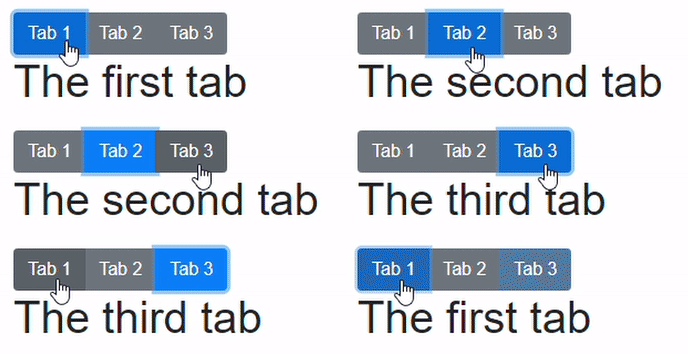
Below is the final effect:

Let's start:

First, create a Blazor project (Blazor Client or Server, we'll use Blazor Server as an example).

Step 1: Create two components: TabControl and TabPage. The TabPage component has a reference to its parent TabControl property (property name Parent, decorated with CascadingParameter).

TabControl component:

File path: ./Shared/TabControl.razor

<div>This is a TabControl</div>
<CascadingValue Value="this"> @ChildContent </CascadingValue>

@code {
    // If we want to use TabPage in the form of <TabPage> tag, the following code is necessary
    [Parameter] public RenderFragment? ChildContent { get; set; }
}

TabPage component:

File path: ./Shared/TabPage.razor

<div>This is a TabPage</div>
@ChildContent
@code {
    [CascadingParameter] private TabControl? Parent { get; set; }
    [Parameter] public RenderFragment? ChildContent { get; set; }

    protected override void OnInitialized()
    {
        if (Parent == null)
            throw new ArgumentNullException(nameof(Parent), "TabPage must contain a TabControl reference");
        base.OnInitialized();
    }
}

TabControl associates TabPage

Add the following line in TabPage's OnInitialized method to associate TabPage with TabControl:

Parent.AddPage(this);

The AddPage method is shown in the code below. After saving the reference in TabControl, we add the ActivePage property in TabControl. See the code below:

public TabPage? ActivePage { get; set; }
readonly List<TabPage> _pages = new();

internal void AddPage(TabPage tabPage)
{
    _pages.Add(tabPage);
    if (_pages.Count == 1)
        ActivePage = tabPage;
    StateHasChanged();
}

Add a Text property to the TabPage component for display.

[Parameter]
public string? Text { get; set; }

Add the following markup in TabControl (before rendering ChildContent). These tags will be rendered all at once; clicking a tab changes the selection in TabControl.

<div class="btn-group" role="group">
  @foreach (TabPage tabPage in Pages)
  {
    <button type="button"
      class="btn @GetButtonClass(tabPage)"
      @onclick=@( ()=>ActivatePage(tabPage) )>
      @tabPage.Text
    </button>
  }
</div>

These tags create a standard Bootstrap button group. Each TabPage creates a button with the following features:

  1. The CSS class is set to "btn" and additional CSS classes are appended via the GetButtonClass method: if the current TabPage is the ActivePage, add the CSS class btn-primary, otherwise add btn-secondary.
  2. Clicking the button activates the clicked TabPage.

Note: @onclick requires a parameterless method, so the lambda expression uses an inline @( ) to set the clicked TabPage as ActivePage.

  1. The button text is set via the TabPage's Text property.

Add the following code to the code section of TabControl.

string GetButtonClass(TabPage page)
{
  return page == ActivePage ? "btn-primary" : "btn-secondary";
}
void ActivatePage(TabPage page)
{
  ActivePage = page;
}

Using TabControl

Add a TabControlTest component:

File name: ./Pages/TabControlTest.razor

@page "/tabcontroltest"

<TabControl>
  <TabPage Text="Tab 1">
    <h1>The first tab</h1>
  </TabPage>
  <TabPage Text="Tab 2">
    <h1>The second tab</h1>
  </TabPage>
  <TabPage Text="Tab 3">
    <h1>The third tab</h1>
  </TabPage>
</TabControl>

@code { }

Add the TabControlTest route in ./Shared/NavMenu.

<!-- omitted part of the code -->
<div class="nav-item px-3">
  <NavLink class="nav-link" href="tabcontroltest">
    <span class="oi oi-plus" aria-hidden="true"></span> TabControl Test
  </NavLink>
</div>
<!-- omitted part of the code -->

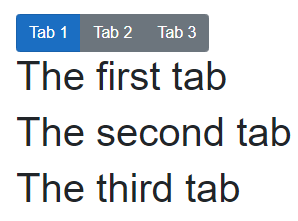
Is it done? Let's see the current result:

That's not right – all three TabPage contents are displayed. To fix this, simply check in TabPage when rendering ChildContent whether the current TabPage is the selected page in TabControl: only render if selected.

@if (Parent.ActivePage == this)
{
  @ChildContent
}

OK, code complete. The effect is as shown at the beginning of this article.

The code in this article has been placed on: GitHub

Keep Exploring

Related Reading

More Articles
Same category / Same tag 11/6/2024

Why My Blog Website Returned to Blazor

The development of the blog website has gone through many hardships, with nearly 10 versions including MVC, Vue, Go, etc. Now it has returned to Blazor and adopted static SSR, resulting in a significant speed increase and successful launch.

Continue Reading
Same category / Same tag 2/29/2024

Data Display Can Also Be Done Like This in Winform

In the process of developing Winform, data display functionality is often required. Previously, the gridcontrol control was commonly used. Today, through an example, I would like to introduce how to use the table component from Ant Design Blazor for data display in a Winform Blazor Hybrid application.

Continue Reading
Same category / Same tag 2/29/2024

Can the Winform interface also look good?

A few days ago, I introduced using Blazor Hybrid in Winform, and mentioned that with the Blazor UI, our Winform programs can be designed to look better. Next, I will illustrate with an example of drawing in Winform Blazor Hybrid, hoping it helps you.

Continue Reading
Same category / Same tag 1/7/2024

Code Workshop 'Article Title URL Alias Generator' Launched

Code Workshop is a new open-source project by the webmaster that provides web online tools, cross-platform desktop and mobile applications. The webmaster is committed to bringing you a more efficient and convenient experience. Today, the webmaster is proud to launch the 'Article Title URL Alias Generator', helping you easily create URL aliases for article titles, improving SEO and user experience. Come to Code Workshop and explore more practical tools!

Continue Reading