

什么是图标
将矢量图形打包成字体的形式,使用方式也和我们使用字体一样,能够自由设置图标的大小,图标的颜色。相对于传统图片来说,优点还是很明显的:
- 体积小,加载速度快,性能高
- 矢量(自由缩放,不会失真)
- 灵活性(可通过代码更改图标颜色)
正是因为它和字体一样,也存在一些弊端:
- 难以兼容以前的设计,替换工作量大
- 很难贴合设计师的设计稿,协调沟通成本略高
常用的图标字体
首先推荐的是阿里巴巴矢量图标库,这个里面方案比较多,也有很多成套的图标,可以多尝试尝试,之前只需要登录就行了,现在好像还要验证手机号,有点恶心。
其次就是Font Awesome 图标,这里分为旧版和新版(V5 版本 or Pro 版本),旧版是免费,图标较少。
微软目前提供了两套,一套是 Windows10 的Segoe MDL2 Assets 图标 ,一套是 windows11 的Segoe Fluent 图标。
Google 有一套开源的 Material Design icons 的图标字体,之前是提供下载到本地的,没找到了Material Design icons by Google。
剩下的就不说了,图标字体比较多,自己去搜一搜吧!
如何在 WPF 中使用图标字体
本例子中使用的是微软的 Segoe MDL2 Assets 图标,下图是网站中图标字体的部分展示,其中可以看到一个Unicode码位,这个是用来标识当前这个字体的,后面也需要用这个来显示我们的字体。
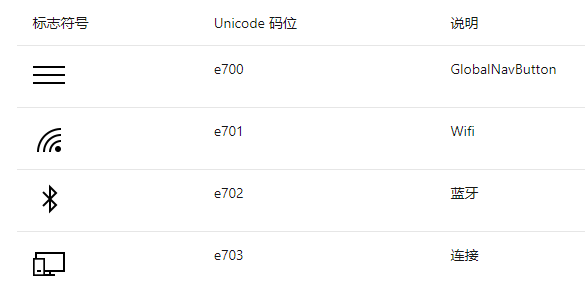
Windows10 中的应用方式
这套图标字体在Windows10中是自带的,所以可以直接设置FontFamily属性为Segoe MDL2 Assets,来获得图标的支持:
<TextBlock
FontFamily="Segoe MDL2 Assets"
FontSize="50"
Foreground="Red"
Text=""
/>
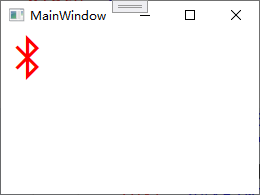
其中Text就是由描述中的Unicode码位来构成的,不过需要在文本前加上&#x,文本后加上分号;,完整的就是”“。
引用字体文件的方式
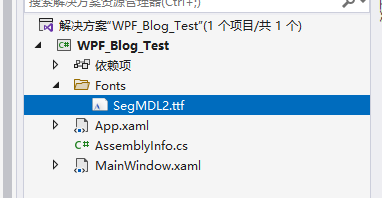
但是这种方式只支持Window10系统,如果在其他系统上,就会无法显示,所以我们下载 Segoe MDL2 Assets图标字体,将下载的压缩包中的SegMDL2.ttf拷贝到我们的项目,为了方便管理,放到了项目中新建的Fonts文件夹下:
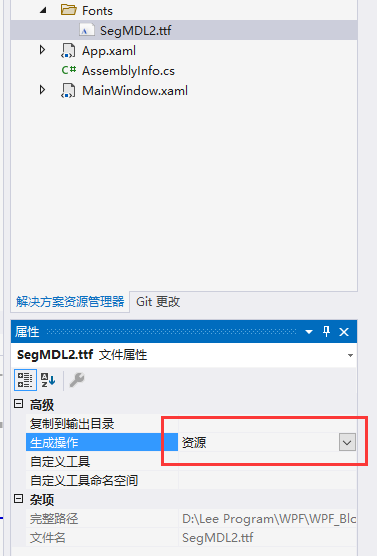
然后选中SegMDL2.ttf在下方的属性栏中将生成操作改为资源,这样这个文件就会以资源的形式包含在我们的 WPF 程序中:
使用图标字体的方式跟上面是一样的,但是因为是通过外置字体的形式来添加到 WPF 程序中的,所以FontFamily设置的属性值就有点讲究了,大概可以表述为pack://application:,,,/项目名称空间;component/字体路径/字体文件名#字体实际名称,下面来一个一个介绍(后面引用自定义资源文件也可以参考此规则,不过#字体名称就不需要了,具体看下方):
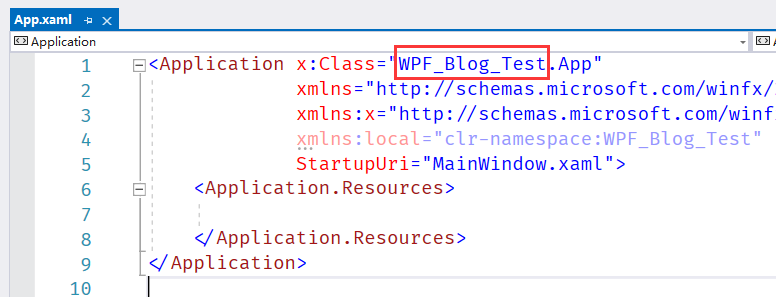
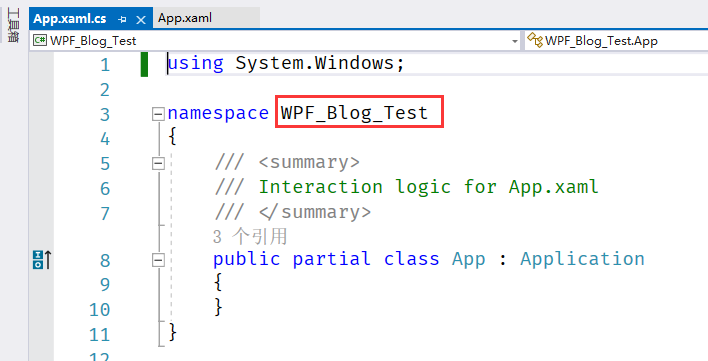
项目名称空间:如果没有私自改过项目名称空间,那么你的项目名称空间就是项目的名称,我这里的项目名称叫WPF_Blog_Test,所以项目名称空间也是如此,如果不清楚你的项目名称空间是什么,可以打开你的XAML文件,比如项目中的App.xaml,可以看到xaml文件中的x:Class属性,或者后台类的namespace:
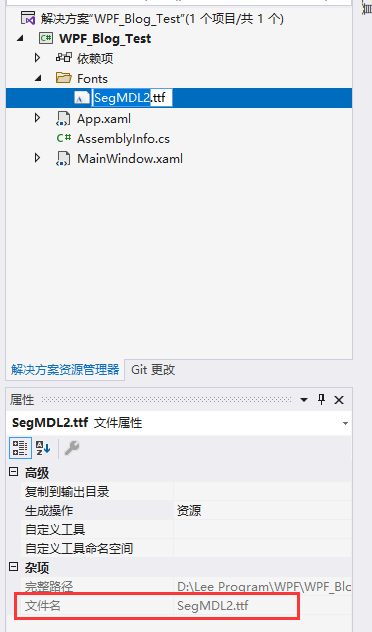
字体路径/文件名:字体文件这里是放在Fonts文件夹下的,所以我的字体路径和文件名为Fonts/SegMDL2.ttf,文件名这里有个小插曲,应使用属性中显示的文件名:
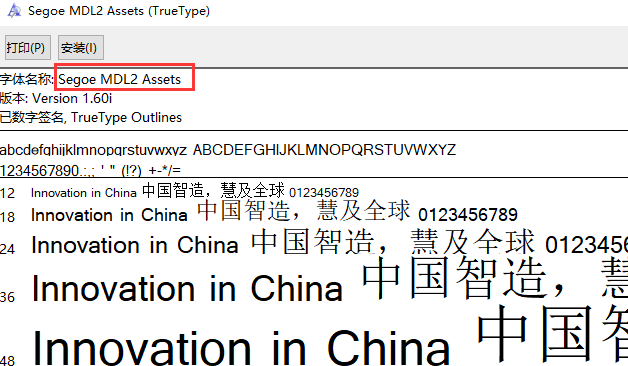
字体实际名称:字体的实际名称需要我们双击打开字体,然后才能看到(别再 VS 中打开,不然看到的是字节码,在 windows 的文件夹中选中文件双击打开),这里SegMDL2.ttf的实际名称是Segoe MDL2 Assets:
所以FontFamily应该设置为”pack://application:,,,/WPF_Blog_Test;component/Fonts/SegMDL2.ttf#Segoe MDL2 Assets“,贴个代码,收工!
<TextBlock
FontFamily="pack://application:,,,/WPF_Blog_Test;component/Fonts/SegMDL2.ttf#Segoe MDL2 Assets"
FontSize="50"
Foreground="Red"
Text=""
/>
PS:为了不让每次用都写这么长的FontFamily,可以考虑在资源中写好再引用,或者定义一个 TextBlock 图标字体样式(再扯点),已经了解资源定义的下面可以略过。
自定义资源
新建文件夹Styles,在该文件夹下新建资源文件IconFonts(右键 Styles,选择添加资源字典)。两种方式都写在IconFonts这个文件中了,方便演示就少搞点:
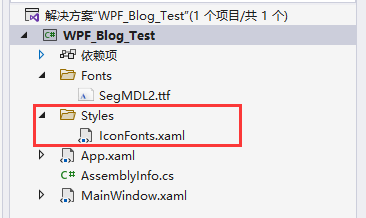
写上我们的定义的样式(代码在图片下方):

<FontFamily x:Key="SegIconFont">
  pack://application:,,,/WPF_Blog_Test;component/Fonts/SegMDL2.ttf#Segoe MDL2
  Assets
</FontFamily>

<style x:Key="tbSegIconFontKey" TargetType="{x:Type TextBlock}">
  <Setter Property="FontFamily" Value="pack://application:,,,/WPF_Blog_Test;component/Fonts/SegMDL2.ttf#Segoe MDL2 Assets" />
  <Setter Property="Foreground" Value="Red" />
  <Setter Property="FontSize" Value="50" />
</style>
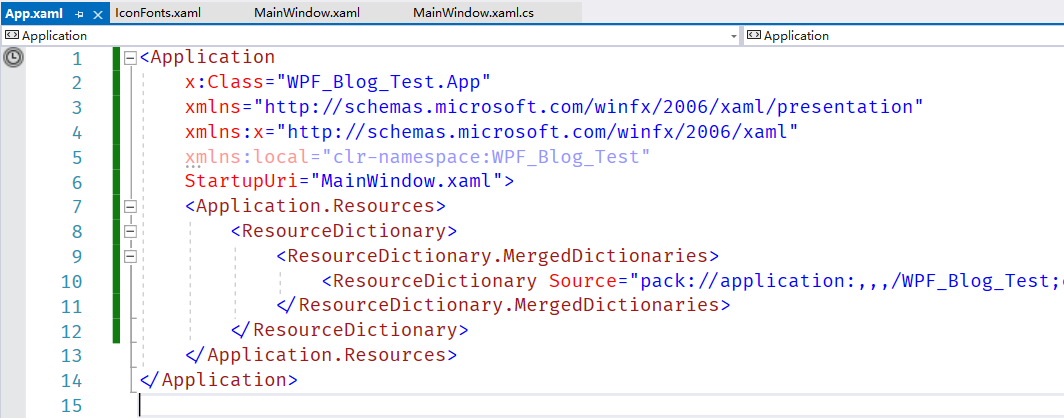
此时只是添加了一个名叫IconFonts资源字典,还需要引入到项目中,才能在界面中使用,所以需要在App.xaml文件中添加一条引用语句,即告知程序需要将新建的这个资源字典包含进来,语句为<ResourceDictionary Source="pack://application:,,,/WPF_Blog_Test;component/Styles/IconFonts.xaml" />,名称空间和资源路径规则上面已表述,添加一个App.xaml的截图:
剩下的就是在程序中使用了,直接上代码
<!-- 最原始方式 -->
<TextBlock
FontFamily="pack://application:,,,/WPF_Blog_Test;component/Fonts/SegMDL2.ttf#Segoe MDL2 Assets"
FontSize="50"
Foreground="Red"
Text=""
/>
<!-- 定义FontFamily资源 -->
<TextBlock
FontFamily="{StaticResource SegIconFont}"
FontSize="50"
Foreground="Red"
Text=""
/>
<!-- 定义TextBlock Style样式 -->
<TextBlock
FontSize="50"
Foreground="Red"
Style="{StaticResource tbSegIconFontKey}"
Text=""
/>
没想到截了这么多图,希望逻辑是清晰的,感谢你的观看!
本文来自博客园,作者:丑萌气质狗,转载请注明原文链接:https://www.cnblogs.com/choumengqizhigou/p/15550133.html
转载请注明出处 QQ 群:560611514