
Free and Open-Source Blazor Online Ico Converter Tool. Source files and converted files are not saved. They are deleted after download, so feel free to use it.
Table of Contents
-
- Feature Demo
-
- Implementation Notes
- 2.1 Other Image Upload
- 2.2 Core Code: Converting Other Images to Ico
- 2.3 Downloading the Converted Ico File
-
- Summary
1. Feature Demo
Repository link: IcoTool
Online demo: https://tool.dotnet9.com/ico
Demo of file upload and conversion result:
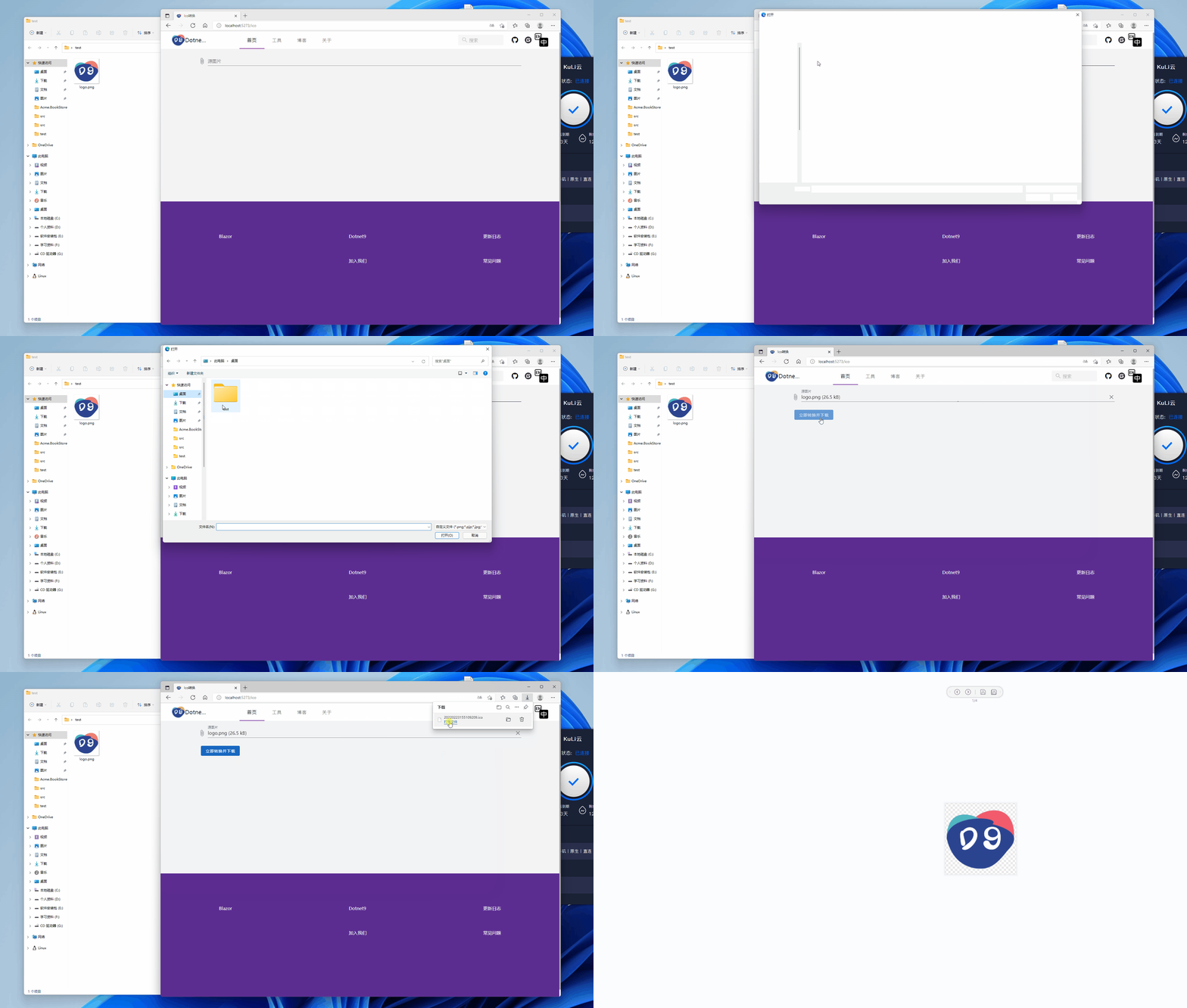
Through this tool and its code, you can learn:
- How to upload files to a server (Blazor Server) using Blazor.
- How to download files from the server.
- How to convert images like PNG to Ico.
Below is a brief explanation of the implementation code. Feel free to leave a comment if anything is unclear.
2. Implementation Notes
2.1 Other Image Upload
Uses the MASA Blazor upload component MFileInput. See the code below: just an upload component plus file saving during upload. Code file: IcoTool.razor
<MFileInput TValue="IBrowserFile"
            Placeholder="@T("IcoToolMFileInputPlaceholder")"
            Rules="_rules"
            ShowSize
            OnChange="@LoadFile"
            Accept="image/png, image/jpeg, image/jpg, image/bmp"
            Label="@T("IcoToolMFileInputLabel")">
</MFileInput>

@code {
    private readonly List<Func<IBrowserFile, StringBoolean>> _rules = new();

    private bool _loading;
    private IBrowserFile? _sourceBrowserFile;

    [Inject]
    public I18n I18N { get; set; } = default!;

    [Inject]
    public IJSRuntime Js { get; set; } = default!;

    protected override async Task OnInitializedAsync()
    {
        _rules.Add(value => value == null || value.Size < 2 * 1024 * 1024 ? true : T("IcoToolFileSizeLimitMessage"));
        await base.OnInitializedAsync();
    }

    private void LoadFile(IBrowserFile? e)
    {
        _sourceBrowserFile = e;
    }
}
In the code above, look at the LoadFile(IBrowserFile? e) method: when a file is selected, it only saves the IBrowserFile reference. After selection, the Convert and Download Icon button appears, as shown below:
@if (_sourceBrowserFile != null) {
<MButton
  class="ma-2 white--text"
  Loading="_loading"
  Disabled="_loading"
  Depressed
  Color="primary"
  OnClick="@ConvertAndDownloadIcon"
>
  <LoaderContent>
    <span>@T("IcoToolMButtonLoaderContent")</span>
  </LoaderContent>
  <ChildContent>
    <span>@T("IcoToolMButtonChildContent")</span>
  </ChildContent>
</MButton>
}
At this point, the source file has not been uploaded yet. The user can still reselect. Clicking the Convert and Download Icon button will perform the icon conversion and download, which is described next.
2.2 Core Code: Converting Other Images to Ico
Reference code: https://gist.github.com/darkfall/1656050
Because Bitmap is used, VS will warn that it only supports the Windows platform (key point: only the package System.Drawing.Common does not support cross-platform; .NET 6 itself supports cross-platform). Currently the tool is deployed on a Windows Server 2019 server. If you have cross-platform conversion code, feel free to discuss. Below is the code I use for converting other images to Ico, located at: ImagingHelper.cs
using System.Drawing;
using System.Drawing.Drawing2D;
using System.Drawing.Imaging;

namespace Dotnet9.Tools.Images;

/// <summary>
///     Adapted from this gist: https://gist.github.com/darkfall/1656050
///     Provides helper methods for imaging
/// </summary>
public static class ImagingHelper
{
    public const string FileheadBmp = "6677";
    public const string FileheadJpg = "255216";
    public const string FileheadPng = "13780";
    public const string FileheadGif = "7173";

    private static readonly Dictionary<ImageType, string> ImageTypeHead = new()
    {
        { ImageType.Bmp, FileheadBmp },
        { ImageType.Jpg, FileheadJpg },
        { ImageType.Png, FileheadPng },
        { ImageType.Gif, FileheadGif }
    };

    public static bool IsPicture(string filePath, out string fileHead)
    {
        fileHead = string.Empty;

        try
        {
            var fs = new FileStream(filePath, FileMode.Open, FileAccess.Read);
            var reader = new BinaryReader(fs);
            var fileClass = $"{reader.ReadByte().ToString()}{reader.ReadByte().ToString()}";
            reader.Close();
            fs.Close();
            if (fileClass is not (FileheadBmp or FileheadJpg or FileheadPng or FileheadGif))
                return false;

            fileHead = fileClass;
            return true;
        }
        catch
        {
            return false;
        }
    }

    public static bool IsPictureType(string filePath, ImageType imageType)
    {
        var isPicture = IsPicture(filePath, out var fileHead);
        if (!isPicture) return false;

        return ImageTypeHead[imageType] == fileHead;
    }

    /// <summary>
    ///     Converts a PNG image to a icon (ico) with all the sizes windows likes
    /// </summary>
    /// <param name="inputBitmap">The input bitmap</param>
    /// <param name="output">The output stream</param>
    /// <returns>Wether or not the icon was succesfully generated</returns>
    public static bool ConvertToIcon(Bitmap inputBitmap, Stream output)
    {
        var sizes = new[] { 256, 48, 32, 16 };

        // Generate bitmaps for all the sizes and toss them in streams
        var imageStreams = new List<MemoryStream>();
        foreach (var size in sizes)
        {
            var newBitmap = ResizeImage(inputBitmap, size, size);

            var memoryStream = new MemoryStream();
            newBitmap.Save(memoryStream, ImageFormat.Png);
            imageStreams.Add(memoryStream);
        }

        var iconWriter = new BinaryWriter(output);

        var offset = 0;

        // 0-1 reserved, 0
        iconWriter.Write((byte)0);
        iconWriter.Write((byte)0);

        // 2-3 image type, 1 = icon, 2 = cursor
        iconWriter.Write((short)1);

        // 4-5 number of images
        iconWriter.Write((short)sizes.Length);

        offset += 6 + 16 * sizes.Length;

        for (var i = 0; i < sizes.Length; i++)
        {
            // image entry 1
            // 0 image width
            iconWriter.Write((byte)sizes[i]);
            // 1 image height
            iconWriter.Write((byte)sizes[i]);

            // 2 number of colors
            iconWriter.Write((byte)0);

            // 3 reserved
            iconWriter.Write((byte)0);

            // 4-5 color planes
            iconWriter.Write((short)0);

            // 6-7 bits per pixel
            iconWriter.Write((short)32);

            // 8-11 size of image data
            iconWriter.Write((int)imageStreams[i].Length);

            // 12-15 offset of image data
            iconWriter.Write(offset);

            offset += (int)imageStreams[i].Length;
        }

        for (var i = 0; i < sizes.Length; i++)
        {
            // write image data
            // png data must contain the whole png data file
            iconWriter.Write(imageStreams[i].ToArray());
            imageStreams[i].Close();
        }

        iconWriter.Flush();

        return true;
    }

    /// <summary>
    ///     Converts a PNG image to a icon (ico)
    /// </summary>
    /// <param name="input">The input stream</param>
    /// <param name="output">The output stream</param
    /// <returns>Wether or not the icon was succesfully generated</returns>
    public static bool ConvertToIcon(Stream input, Stream output)
    {
        var inputBitmap = (Bitmap)Image.FromStream(input);
        return ConvertToIcon(inputBitmap, output);
    }

    /// <summary>
    ///     Converts a PNG image to a icon (ico)
    /// </summary>
    /// <param name="inputPath">The input path</param>
    /// <param name="outputPath">The output path</param>
    /// <returns>Wether or not the icon was succesfully generated</returns>
    public static bool ConvertToIcon(string inputPath, string outputPath)
    {
        using var inputStream = new FileStream(inputPath, FileMode.Open);
        using var outputStream = new FileStream(outputPath, FileMode.OpenOrCreate);
        return ConvertToIcon(inputStream, outputStream);
    }


    /// <summary>
    ///     Converts an image to a icon (ico)
    /// </summary>
    /// <param name="inputImage">The input image</param>
    /// <param name="outputPath">The output path</param>
    /// <returns>Wether or not the icon was succesfully generated</returns>
    public static bool ConvertToIcon(Image inputImage, string outputPath)
    {
        using var outputStream = new FileStream(outputPath, FileMode.OpenOrCreate);
        return ConvertToIcon(new Bitmap(inputImage), outputStream);
    }


    /// <summary>
    ///     Resize the image to the specified width and height.
    ///     Found on stackoverflow: https://stackoverflow.com/questions/1922040/resize-an-image-c-sharp
    /// </summary>
    /// <param name="image">The image to resize.</param>
    /// <param name="width">The width to resize to.</param>
    /// <param name="height">The height to resize to.</param>
    /// <returns>The resized image.</returns>
    public static Bitmap ResizeImage(Image image, int width, int height)
    {
        var destRect = new Rectangle(0, 0, width, height);
        var destImage = new Bitmap(width, height);

        destImage.SetResolution(image.HorizontalResolution, image.VerticalResolution);

        using var graphics = Graphics.FromImage(destImage);
        graphics.CompositingMode = CompositingMode.SourceCopy;
        graphics.CompositingQuality = CompositingQuality.HighQuality;
        graphics.InterpolationMode = InterpolationMode.HighQualityBicubic;
        graphics.SmoothingMode = SmoothingMode.HighQuality;
        graphics.PixelOffsetMode = PixelOffsetMode.HighQuality;

        using var wrapMode = new ImageAttributes();
        wrapMode.SetWrapMode(WrapMode.TileFlipXY);
        graphics.DrawImage(image, destRect, 0, 0, image.Width, image.Height, GraphicsUnit.Pixel, wrapMode);

        return destImage;
    }
}

public enum ImageType
{
    Bmp,
    Jpg,
    Png,
    Gif
}
Simple unit tests are included, see: ImageHelperTests.cs
using Dotnet9.Tools.Images;

namespace Dotnet9.Tools.Tests.Images;

public class ImageHelperTests
{
    [Fact]
    public void IsPicture()
    {
        var testFilePath = Path.Combine(AppDomain.CurrentDomain.BaseDirectory, "TestFiles", "logo.png");
        Assert.True(File.Exists(testFilePath));

        var isPicture = ImagingHelper.IsPicture(testFilePath, out var typename);

        Assert.True(isPicture);
    }

    [Fact]
    public void IsNotPicture()
    {
        var testFilePath = Path.Combine(AppDomain.CurrentDomain.BaseDirectory, "TestFiles", "test.txt");
        Assert.True(File.Exists(testFilePath));

        var isPicture = ImagingHelper.IsPicture(testFilePath, out var typename);

        Assert.False(isPicture);
    }

    [Fact]
    public void IsPngFile()
    {
        var testFilePath = Path.Combine(AppDomain.CurrentDomain.BaseDirectory, "TestFiles", "logo.png");
        Assert.True(File.Exists(testFilePath));

        var isPng = ImagingHelper.IsPictureType(testFilePath, ImageType.Png);

        Assert.True(isPng);
    }

    [Fact]
    public void ShouldConvertPngToIcon()
    {
        var sourcePng = Path.Combine(AppDomain.CurrentDomain.BaseDirectory, "TestFiles", "logo.png");
        var destIco = Path.Combine(AppDomain.CurrentDomain.BaseDirectory, "TestFiles", "logo.ico");
        Assert.True(File.Exists(sourcePng));
        Assert.False(File.Exists(destIco));

        ImagingHelper.ConvertToIcon(sourcePng, destIco);

        Assert.True(File.Exists(destIco));
        File.Delete(destIco);
    }
}
After the user confirms the file selection, click the previously mentioned button Convert and Download Icon to execute the conversion method ConvertAndDownloadIcon(). Code file: IcoTool.razor
@code { private async Task ConvertAndDownloadIcon() { if (_sourceBrowserFile ==
null) return; _loading = true; var tempSourcePath = Path.GetTempFileName(); var
tempDestPath = Path.GetTempFileName(); try { var fileName =
$"{Path.GetFileNameWithoutExtension(_sourceBrowserFile.Name)}.ico"; await
UploadFile(tempSourcePath); ImagingHelper.ConvertToIcon(tempSourcePath,
tempDestPath); await DownloadFile(tempDestPath, fileName); } finally {
DeleteFile(tempSourcePath); DeleteFile(tempDestPath); _loading = false; } }
private async Task UploadFile(string saveFilePath) { await using var
sourceFileStream = new FileStream(saveFilePath, FileMode.Create); await
_sourceBrowserFile!.OpenReadStream().CopyToAsync(sourceFileStream); } private
async Task DownloadFile(string fromFilePath, string saveFileName) { await using
var destFileStream = new FileStream(fromFilePath, FileMode.Open); using var
streamRef = new DotNetStreamReference(destFileStream); await
Js.InvokeVoidAsync("downloadFileFromStream", saveFileName, streamRef); } private
void DeleteFile(string filePath) { try { if (File.Exists(filePath))
File.Delete(filePath); } catch { // ignored } } }
During conversion and download, the uploaded source file and the converted Icon file are temporarily saved. After the download is complete, these two files are immediately deleted. Feel free to use it.
2.3 Downloading the Converted Ico File
After successful conversion, how to provide download?
Initially, I wanted to use an <a href="/files/xxx.ico" target="_blank">xxx.ico</a> tag for browsing and downloading, but dynamically generated images could not be accessed for unknown reasons. So I temporarily adopted a compromise approach. If you have a good idea, feel free to leave a comment.
Currently, a button download is used. Below is the encapsulated JS download method, from Microsoft's documentation: ASP.NET Core Blazor file downloads
I placed the JS code in _Layout.cshtml:
<script>
    // Omitted some code

    async function downloadFileFromStream(fileName, contentStreamReference) {
        const arrayBuffer = await contentStreamReference.arrayBuffer();
        const blob = new Blob([arrayBuffer]);

        const url = URL.createObjectURL(blob);

        triggerFileDownload(fileName, url);

        URL.revokeObjectURL(url);
    }

    function triggerFileDownload(fileName, url) {
        const anchorElement = document.createElement('a');
        anchorElement.href = url;

        if (fileName) {
            anchorElement.download = fileName;
        }

        anchorElement.click();
        anchorElement.remove();
    }
</script>
When downloading on the page, the previously shown method DownloadFile(string fromFilePath, string saveFileName) is used. The code is not repeated here.
The download uses JS interop (What is JS interop? You can refer to my reposted article (14/30) Let us learn Blazor together: JavaScript interop for more information.)
3. Summary
- The Blazor component library used is MASA Blazor, which has a very elegant and generous
Material Designstyle. - Ico conversion uses
Bitmapfrom theSystem.Drawing.Commonpackage. Starting from .NET 6, it does not support cross-platform and prompts that it only supports theWindowsplatform. Key point: only the packageSystem.Drawing.Commondoes not support cross-platform; .NET 6 itself supports cross-platform. - This tool was developed, compiled, and deployed using 7.0.100-preview.1. For those using .NET 6, feel free to use it; it can be seamlessly upgraded.
Dotnet9 Toolbox will continue to add new free, open-source, online tools. Your support by starring is welcome. If you have any requirements, I will consider adding them. Repository address: Dotnet9.Tools. You can submit an issue, leave a message on the website, or contact via WeChat public account (dotnet9), etc.
Tool source code: IcoTool
Introduction article: Blazor Online Ico Converter Tool
Online demo: https://tool.dotnet9.com/ico