
阅读目录
- 效果展示
- 准备
- 简单说明 + 源码
- 结尾(视频及源码仓库)
1. 效果展示
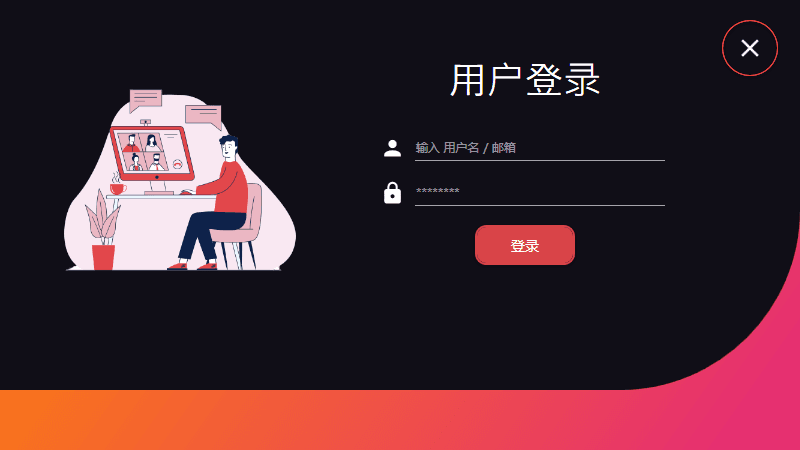
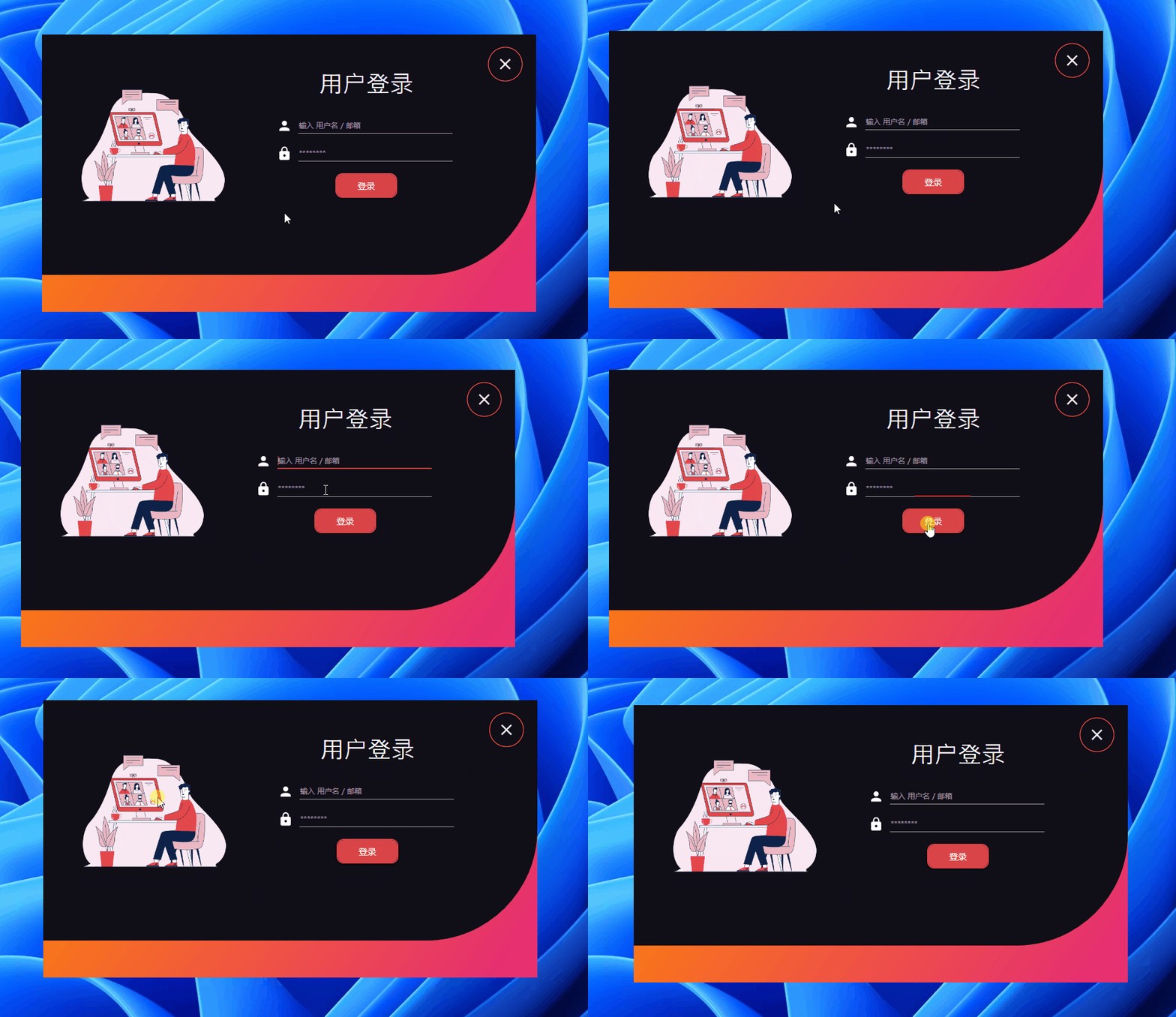
欣赏效果:
2. 准备
创建一个 WPF 工程,比如站长使用 .NET 7 创建名为 Login5 的 WPF 项目。
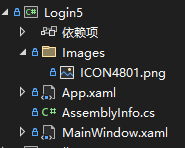
找一张图片作为装饰,放登录表单左侧:

添加 NuGet 包 MaterialDesignThemes:
<PackageReference Include="MaterialDesignThemes" Version="4.6.0-ci176" />
3. 简单说明 + 源码
界面比较简单,代码也不多,我们直接贴代码。
MainWindow.xaml
界面的整体布局和样式都在这个文件内:
<Window
    x:Class="Login5.MainWindow"
    xmlns="http://schemas.microsoft.com/winfx/2006/xaml/presentation"
    xmlns:x="http://schemas.microsoft.com/winfx/2006/xaml"
    xmlns:d="http://schemas.microsoft.com/expression/blend/2008"
    xmlns:materialDesign="http://materialdesigninxaml.net/winfx/xaml/themes"
    xmlns:mc="http://schemas.openxmlformats.org/markup-compatibility/2006"
    Title="MainWindow"
    Width="800"
    Height="450"
    ResizeMode="NoResize"
    WindowStartupLocation="CenterScreen"
    WindowStyle="None"
    mc:Ignorable="d">
    <Window.Resources>
        <ResourceDictionary>
            <ResourceDictionary.MergedDictionaries>
                <ResourceDictionary Source="pack://application:,,,/MaterialDesignThemes.Wpf;component/Themes/MaterialDesignTheme.Light.xaml" />
                <ResourceDictionary Source="pack://application:,,,/MaterialDesignThemes.Wpf;component/Themes/MaterialDesignTheme.Defaults.xaml" />
                <ResourceDictionary Source="pack://application:,,,/MaterialDesignColors;component/Themes/Recommended/Primary/MaterialDesignColor.Red.xaml" />
                <ResourceDictionary Source="pack://application:,,,/MaterialDesignColors;component/Themes/Recommended/Accent/MaterialDesignColor.Lime.xaml" />
            </ResourceDictionary.MergedDictionaries>
        </ResourceDictionary>
    </Window.Resources>
    <Grid MouseDown="Border_MouseDown">
        <Grid.Background>
            <LinearGradientBrush StartPoint="0.1,0" EndPoint="0.9,1">
                <GradientStop Offset="1" Color="#FFE63070" />
                <GradientStop Offset="0" Color="#FFFE8704" />
            </LinearGradientBrush>
        </Grid.Background>
        <Border
            Height="390"
            VerticalAlignment="Top"
            Background="#100E17"
            CornerRadius="0 0 180 0" />
        <StackPanel Orientation="Horizontal">
            <StackPanel Width="350">
                <Image
                    Width="300"
                    Height="300"
                    Margin="30"
                    VerticalAlignment="Top"
                    Source="pack://application:,,,/Login5;component/Images/ICON4801.png"
                    Stretch="Fill" />
            </StackPanel>
            <StackPanel Width="350">
                <StackPanel Margin="20,40">
                    <TextBlock
                        Margin="20"
                        FontFamily="Great Vibes"
                        FontSize="38"
                        Foreground="White"
                        Text="用户登录"
                        TextAlignment="Center" />
                    <StackPanel Margin="10" Orientation="Horizontal">
                        <materialDesign:PackIcon
                            Width="25"
                            Height="25"
                            Foreground="White"
                            Kind="User" />
                        <TextBox
                            x:Name="txtUsername"
                            Width="250"
                            Margin="10,0"
                            materialDesign:HintAssist.Hint="输入 用户名 / 邮箱"
                            BorderBrush="White"
                            CaretBrush="#FFD94448"
                            Foreground="White"
                            SelectionBrush="#FFD94448" />
                    </StackPanel>
                    <StackPanel Margin="10" Orientation="Horizontal">
                        <materialDesign:PackIcon
                            Width="25"
                            Height="25"
                            Foreground="White"
                            Kind="Lock" />
                        <PasswordBox
                            x:Name="txtPassword"
                            Width="250"
                            Margin="10,0"
                            materialDesign:HintAssist.Hint="********"
                            BorderBrush="White"
                            CaretBrush="#FFD94448"
                            Foreground="White"
                            SelectionBrush="#FFD94448" />
                    </StackPanel>
                    <StackPanel Margin="10" HorizontalAlignment="Center">
                        <Button
                            x:Name="btnLogin"
                            Width="100"
                            Height="40"
                            materialDesign:ButtonAssist.CornerRadius="10"
                            Background="#D94448"
                            BorderBrush="#D94448"
                            BorderThickness="2"
                            Content="登录"
                            Foreground="White"
                            Style="{StaticResource MaterialDesignRaisedButton}"
                            ToolTip="登录" />
                    </StackPanel>
                </StackPanel>
            </StackPanel>
            <StackPanel Width="100">
                <Button
                    x:Name="btnExit"
                    Margin="10,20"
                    Background="{x:Null}"
                    Click="btnExit_Click"
                    Style="{StaticResource MaterialDesignFloatingActionButton}"
                    ToolTip="Close">
                    <materialDesign:PackIcon
                        Width="30"
                        Height="30"
                        Foreground="White"
                        Kind="Close" />
                </Button>
            </StackPanel>
        </StackPanel>
    </Grid>
</Window>
MainWindow.xaml.cs
窗体拖动和关闭按钮事件:
using System.Windows;
using System.Windows.Input;

namespace Login5;

public partial class MainWindow : Window
{
    public MainWindow()
    {
        InitializeComponent();
    }

    private void Border_MouseDown(object sender, MouseButtonEventArgs e)
    {
        this.DragMove();
    }

    private void btnExit_Click(object sender, RoutedEventArgs e)
    {
        this.Close();
    }
}
4. 结尾(视频及源码仓库)
有兴趣可以看看原作者视频(推荐),下方给出视频及源码仓库链接:
参考:
- 油管视频作者:C# Code Academy
- 油管视频:Multiple User Login Form | C# WPF
- 参考代码:Multi-login-CSharp-WPF
- 本文代码:Login5