[Introduction to MCU](3) The path to MCU learning in application layer software development-UART serial communication and c#interaction

[Introduction to MCU](3) The path to MCU learning in application layer software development-UART serial communication and c#interaction

A case of UART serial communication and c#serial communication, and what is interrupt, the role and practice of interrupt

最后更新 10/25/2022 9:58 PM
陈显达
预计阅读 10 分钟
分类
share
标签
.NET C# hardware-related

This article was submitted by netizens.

Author: Chen Xianda

Original title: Introduction to Single-Chip Microcontrollers The Learning Path of Single-Chip Microcontrollers in Application Layer Software Development---UART Serial Communication and c#Interaction

Original link: www.cnblogs.com/1996-Chinese-Chen/p/16826558.html

introduction

In the first chapter of the blog, we talked about Arduino's environment configuration for Esp32, and learned about a commonly used bus communication protocol, including SPI,IIC,UART, etc. Today I bring you UART serial communication and c#serial communication. A case of communication, as well as what is interrupt, the role and practice of interrupt. Without saying much, let us officially get started.

UART

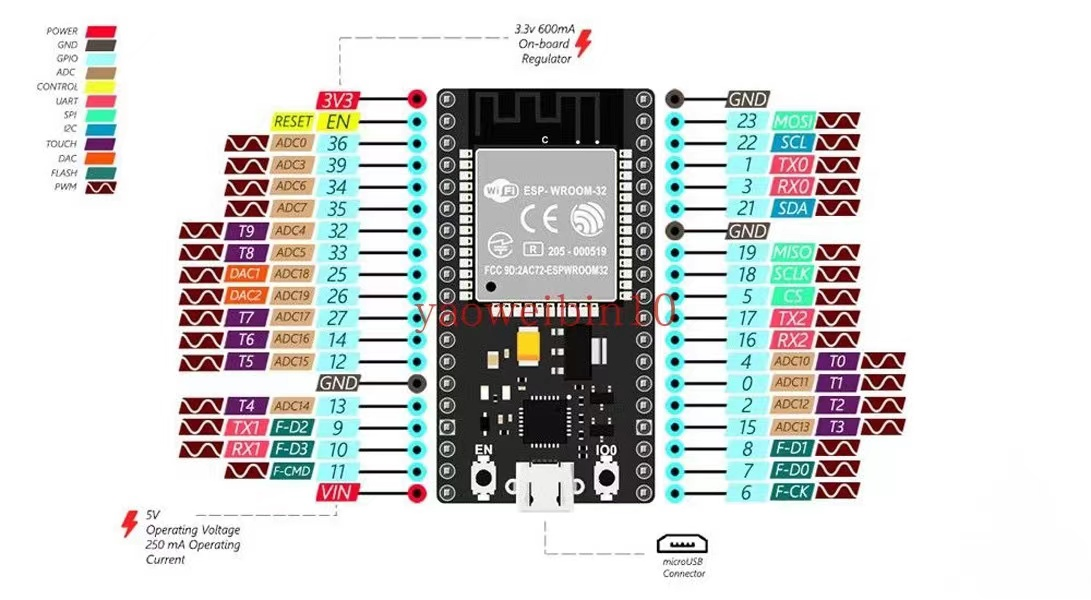
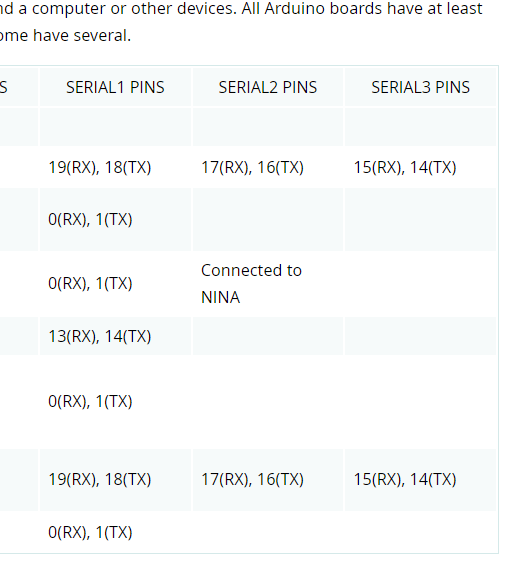
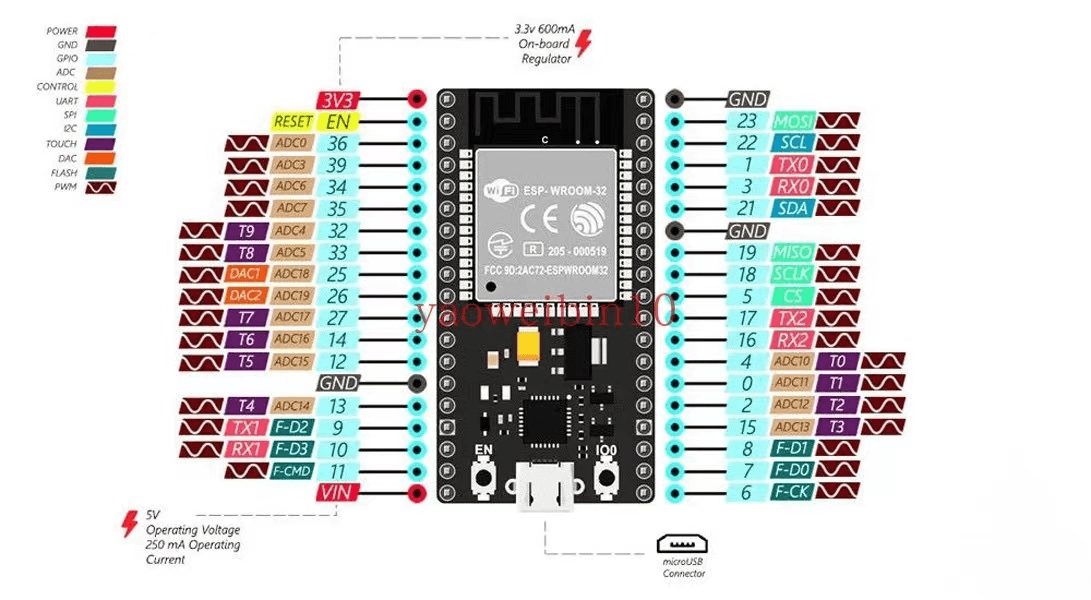
In the first blog post, we talked about how UART requires one receive and one send pins. There are two in total, namely TXD(send pin) and RXD(receive pin). No matter what type of MCU serial port pins are these two. Some may be missing the last D, but they are all the same thing. On the ESP32 development board, there are three pairs of UART pins, which means that there are three serial ports on the board. We can use it, as shown in the figure below. Serial0 corresponds to pins 1 and 3, Serial1 corresponds to pins 9 and 10, and Serial2 corresponds to pins 16 and 17. However, when we burn, 1 and 3 cannot be used because we connect the MCU to the computer via USB, and the serial pins used are 1 and 3, so we can only use two serial ports. However, on the Arduino IDE, The corresponding Serial also has four static classes, namely Serial, Serial1 and Serial2, and Serial3. Although its number is the same as the number of serial ports in our ESP32, only the first one can be used, and we cannot use the latter two because the corresponding pins of the latter two are different from the pins of our ESP32. We can see from the second figure below that the PINS of Serial1 and Serial2 are not aligned with the pins of our ESP32, so we did not use these two when developing serial ports. For the first Serial, we can use it.

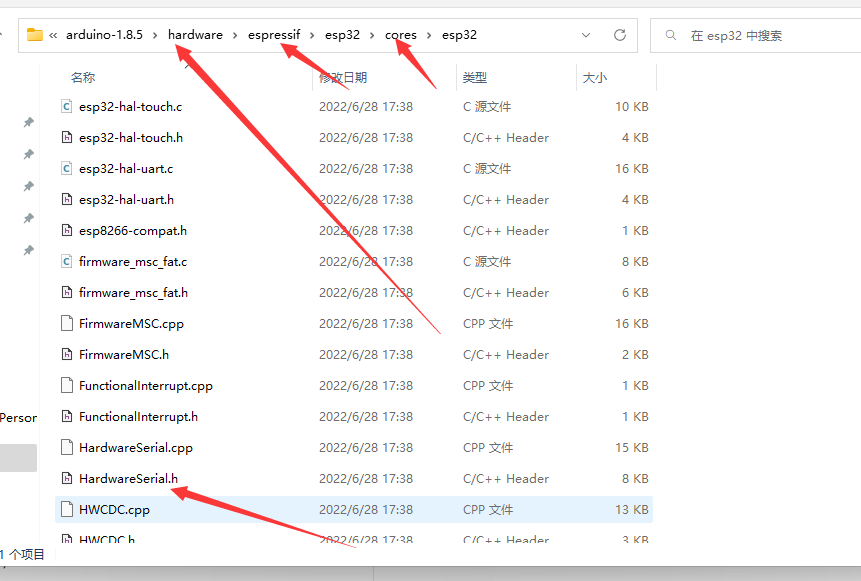
If we need to use ESP32 serial port development, in the ESP development kit, the official provided us with a serial port library of HardwareSerial. In it, we can use the serial port on the development board and designate the pins as our pin diagram. The location of this library is hardware/espressif/esp32/cores/esp32 under our Arduino IDE directory. This folder contains some official ESP32 libraries; using this HardwareSerial.h file, we can develop using the serial port on the ESP32 development board. Next, we will learn how to use it in the code.

encoding

In the following code, we started a simple serial communication. In the first line of the code, we introduced the library files we needed like the c language. Then in the second line, we defined a MySerial1 object of the HardwareSerial class. The value of the constructor inside is 1 means that we will use the first serial port. In the following setup, we started to start the MySerial1 serial port object, and the baud rate at which it was started is 9600. The data length is 8, the check bit is NONE, the stop bit is 1, and the rx pin of the serial port is 16, and the tx pin is 17. In the next line of code, we pass in a receiveEvent method we define below. This method is used to receive a callback from the serial port to receive data, and pass in our method pointer. After the serial port receives data, it will enter our method.

In the last line of code, we enable the 0th serial port, and the baud rate is 9600.

Maybe some friends have doubts about the above code. The serial port defined by 16 and 17 in the pin diagram is 2. Why is 1 defined here? In fact, we can modify the definition and pins of this serial port ourselves. The parameter values passed in by this constructor function are 0, 1, 2, which corresponds to the three UART serial ports on our development board. The pins passed in at the beginning have nothing to do with these 0, 1, and 2. However, this incoming pin must be one of the three UART serial ports on the development board, so we can also define it as MySerial2.begin(9600,SERIAL_8N1,10,9); the 0, 1, and 2 here only correspond to three pairs of serial ports, and do not specify the corresponding pins. In the begin method, we specify the pins of the corresponding serial port.

In the following callback to receive a serial message, our first line of code calls the available method, which returns an int parameter. Of course, we can also write available()>0 in this block, which is also possible. This method is to read the length of the data we received from the serial cache. This condition holds, which means that we have received data, and then we start to read the data in it.

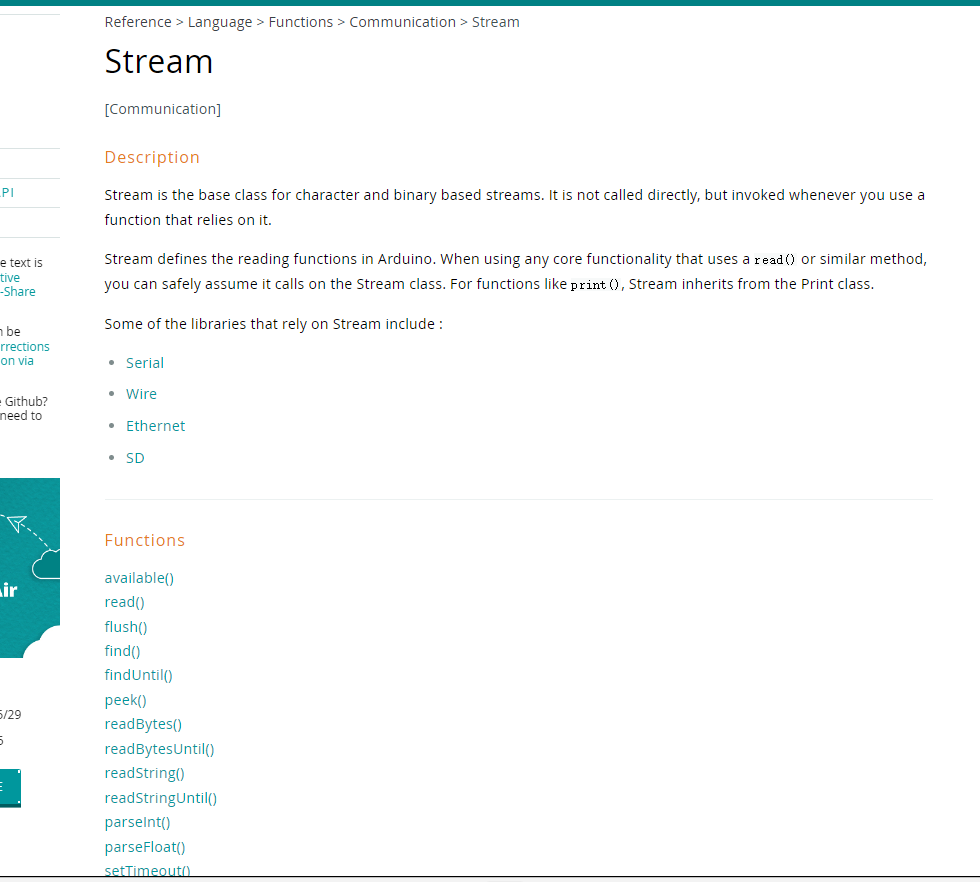
In all Serial is a basic class of a Stream in the program Arduino. This class provides some methods for us to process data. So in the following code, we convert the read data into a string, and then pause the code delay for one second. Then, we use our serial object to write the received data to the buffer, which will send the data we wrote. Just send the parameters passed in println to our serial sender. Whoever sends the data will receive "i am receive!! "+str。

#include <HardwareSerial.h>
HardwareSerial MySerial1(1);
void setup() {
  // put your setup code here, to run once:
  MySerial1.begin(9600,SERIAL_8N1,16,17);
  MySerial1.onReceive(receiveEvent);
  Serial.begin(9600);
}

void loop() {

}
void receiveEvent()
{
  if(MySerial1.available())
  {
     String str= MySerial1.readString();
     delay(1000);
     MySerial1.println("i am receive!!"+str);
  }
  delay(1000);
}            

Stream includes the following methods, among which Stream inherits are serial port, Wire for IIC communication, a class for SD card, and an Ethernet class for network connection. These methods can all be used to operate on data.

c#encoding

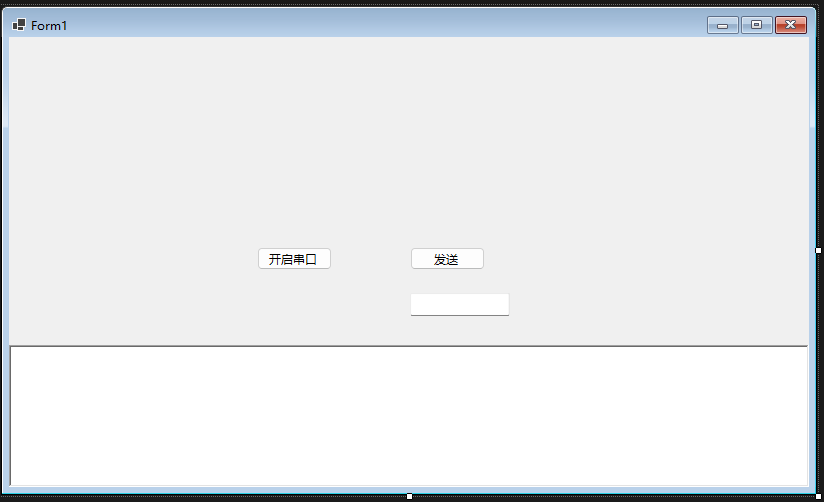
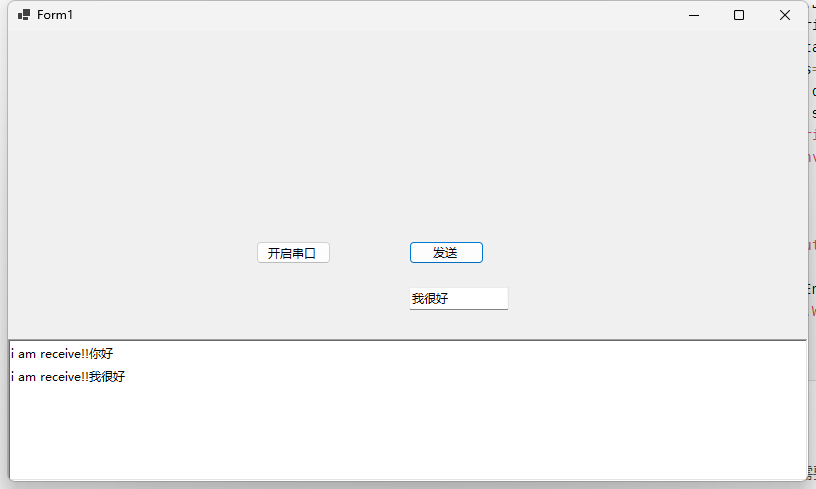
The code for C#is much simpler. The interface has a button to open the serial port, a button and text box to send data, and a text box to receive data and display it.

In the code, we turn on the serial port and specify which serial port to open. Some properties need to be the same as those on the ESP32. Above, we set the baud rate to 9600, the data to 8, the stop bit to 1, and the check bit to NONE, so we need to set this on the c#side, but the check bit is NONE by default, so we don't set it here. Then we turn on the serial port and register a callback for receiving data. Then define a 1024 byte array, read the data from the serial port, and return the read data length. Then intercept the 1024 byte array just defined, then convert it into a string through UTF-8 format, and then display it to the interface. In the rich text box, in the Send button event, we read the data from the input box into a byte array, and then write the data to the serial port.

public partial class Form1 : Form
    {
        private SerialPort serialPort = new SerialPort("COM6");
        public Form1()
        {
            InitializeComponent();
        }

        private async void button1_Click(object sender, EventArgs e)
        {
            serialPort.BaudRate = 9600;
            serialPort.StopBits = StopBits.One;
            serialPort.DataBits = 8;
            serialPort.Open();
            serialPort.DataReceived += (a, b) => {
                var serial = a as SerialPort;
                var data = new byte[1024];
                var res=serial.Read(data,0, data.Length);
                data = data[..res];
                string st = Encoding.UTF8
                .GetString(data);
                BeginInvoke(() => { richTextBox1.Text += st; });
            };
        }

        private void button2_Click(object sender, EventArgs e)
        {
            var str = Encoding.UTF8.GetBytes(textBox1.Text);
            serialPort.Write(str, 0, str.Length);
        }
    }       

wiring diagram

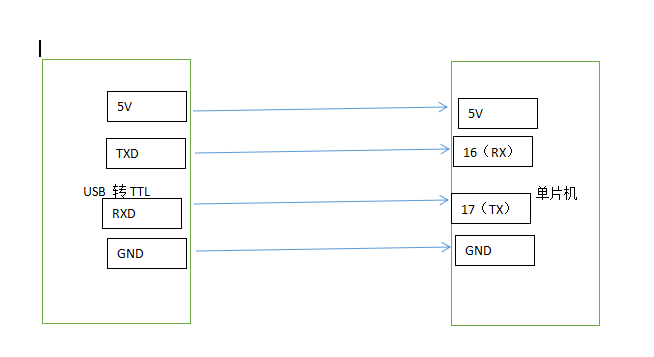
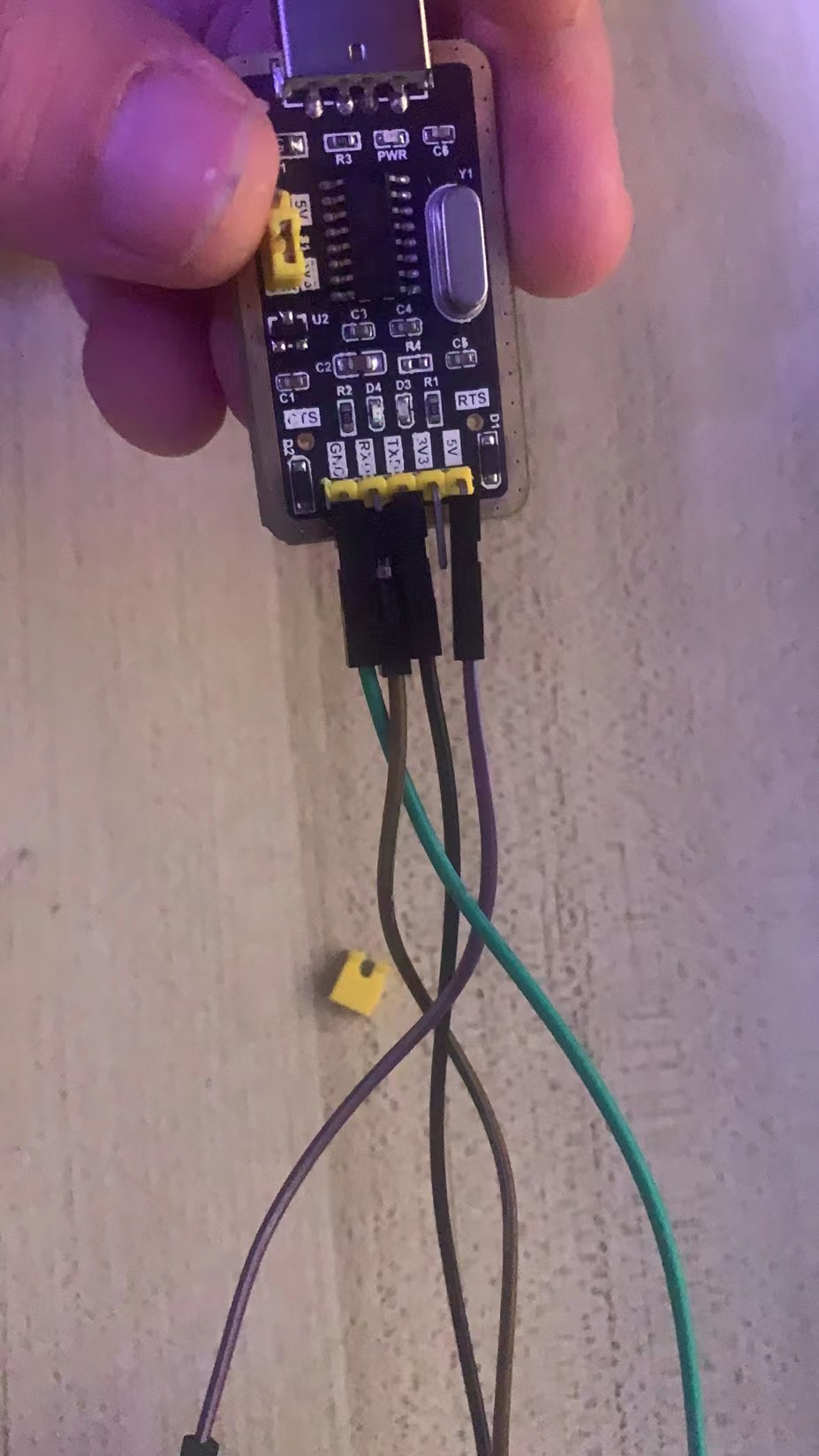
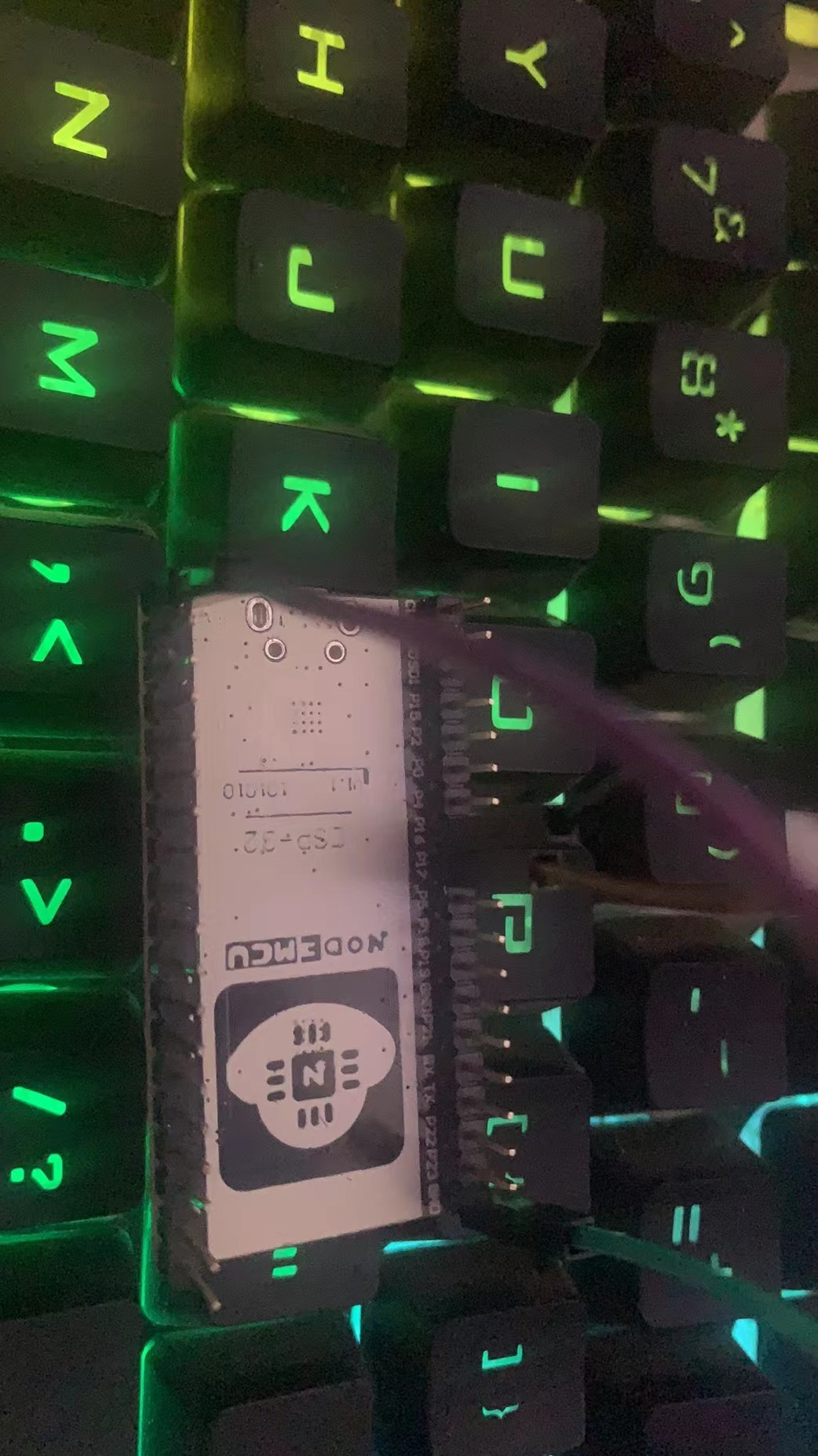
In the example here, we need to prepare a USB to TTL module and four mother-to-mother DuPont cables. After the program is burned, we need to use the DuPont cable to connect the USB to TTL module to the MCU. VCC or 5V is connected to the 5V pin of the MCU, the GND of the USB to TTL is connected to the GND of the MCU, and then the rxd pin of the USB to TTL is connected to the 17 pin of the MCU. The txd pin is connected to pin 16 of the microcontroller, and the connection is as shown in the following figure. 5v cannot be connected reversely to gnd, otherwise the module may be burned. After confirming that the connection is correct, insert the USB to TTL module into the computer, and then run the c#program in the code., the motor turns on the serial port, and then sends data, and you can receive feedback from the microcontroller.

conclusion

Serial communication is an indispensable communication method in the Internet of Things. Under normal circumstances, RX is connected to TX, and TX is connected to RX. Unless it is stipulated by the module manufacturer, this is the case. In the following courses, I will give a separate explanation on IIC, PWM, SPI, and interrupts. Everyone is welcome to pay attention, study and discuss. I will share what I know. At the same time, there will also be a STM32 series of tutorials later. If you have interested friends, you can join the QQ group to discuss 822084696.

Keep Exploring

延伸阅读

更多文章
同标签 2/7/2026

Summary of experience in using AOT

From the very beginning of project creation, you should develop a good habit of conducting AOT release testing in a timely manner whenever new features are added or newer syntax is used.

继续阅读