Quickly create software installation packages-ClickOnce

Quickly create software installation packages-ClickOnce

ClickOnce is a deployment technology that allows you to create self-updating Windows-based applications that can be installed and run with minimal user interaction.

最后更新 11/2/2022 8:56 PM
沙漠尽头的狼
预计阅读 5 分钟
分类
.NET
标签
.NET C#

Hello everyone, I am a wolf at the end of the desert.

NET is a free, cross-platform, open source developer platform for building all applications.

Today, we introduce using ClickOnce to make software installation packages. First of all, let's understand what ClickOne is.

1. What is ClickOnce

The following paragraph is taken from the Microsoft documentation: https://www.example.com view=vs-2022。


ClickOnce is a deployment technology that allows you to create self-updating Windows-based applications that can be installed and run with minimal user interaction.

ClickOnce deployment overcomes three major issues inherent in deployment:

  1. Difficulties in updating applications

With Microsoft Windows Installer deployment, users must reinstall the entire application each time the application is updated; with ClickOnce deployment, updates can be provided automatically. Only the changed application portions will be downloaded and the full, updated application will be reinstalled from a new parallel folder.

  1. Impact on users 'computers

When deployed with Windows Installer, applications usually rely on shared components, which can lead to version conflicts; when deployed with ClickOnce, each application is independent and does not interfere with other applications.

  1. security permissions

Windows Installer deployments require administrator privileges and allow only restricted users to install; ClickOnce deployments allow non-administrative users to install applications and grant only those code access security permissions required by the application.

In the past, these issues have sometimes led developers to decide to create Web applications rather than Windows-based applications, sacrificing the rich user interface and responsiveness of Windows Forms for ease of installation. For applications deployed using ClickOnce, you can combine the advantages of both technologies.

2. Create an installation package using ClickOnce

2.1 require server

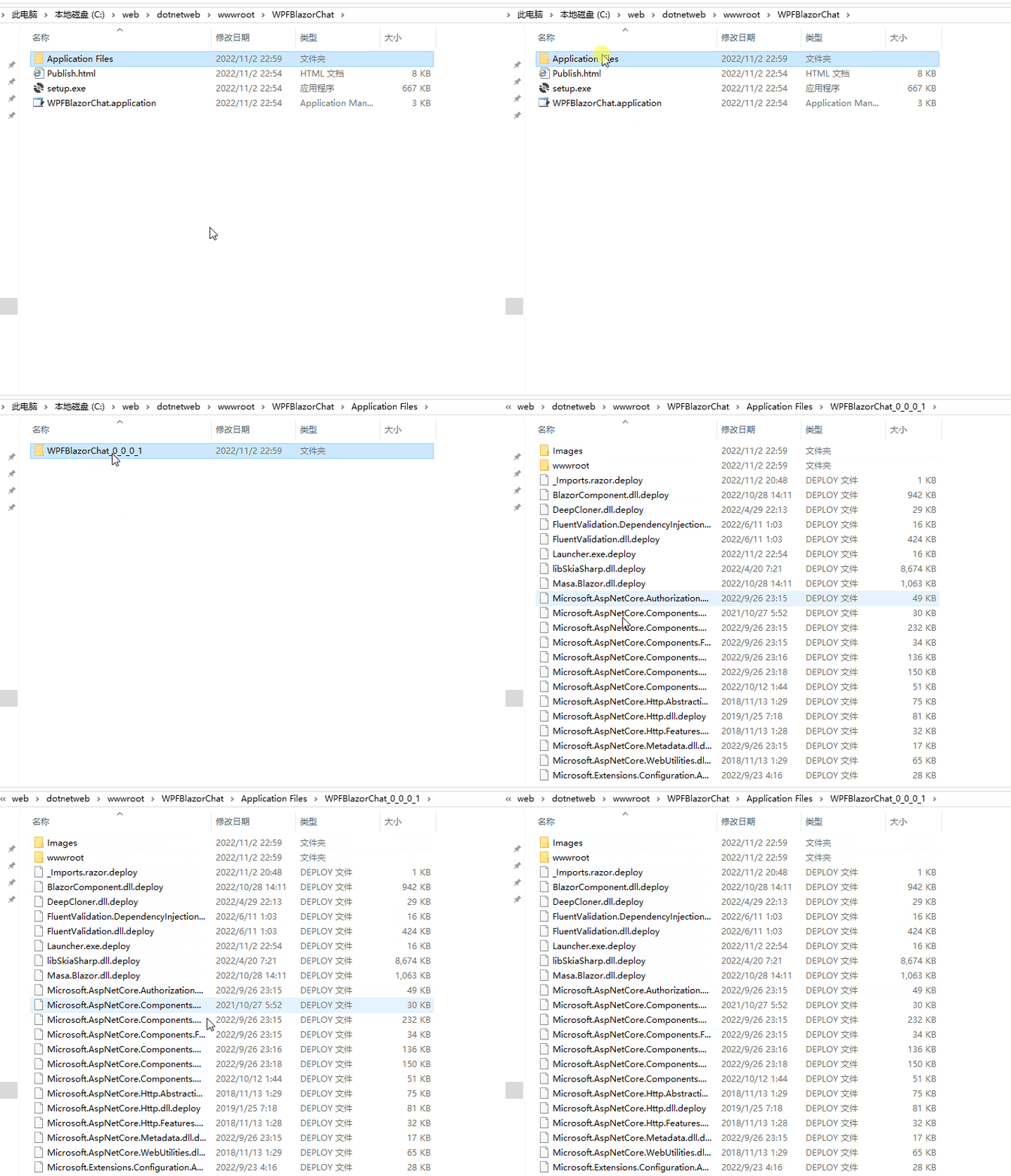
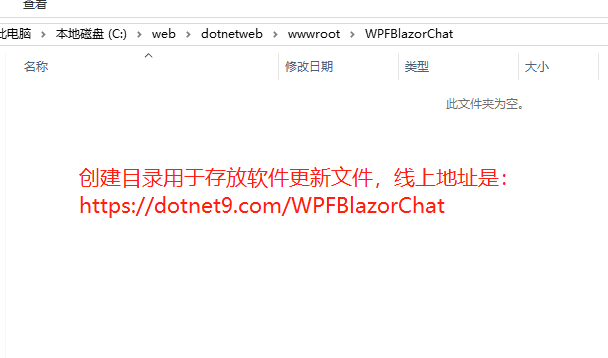
首先,我们需要一个线上的网站,用于托管软件更新文件,比如在Dotnet9网站的根目录创建一个WPFBlazorChat的目录,那么线上托管地址则是https://dotnet9.com/WPFBlazorChat,目录如下:
2.2 Start making installation packages

记住上面的线上地址,使用前几天介绍的WPFBlazorChat作为示例做安装包,仓库地址是:https://github.com/dotnet9/WPFBlazorChat,所以上面创建的目录与项目名同名:WPFBlazorChat

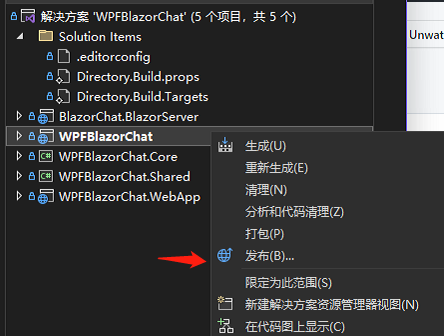
  1. 选择WPFBlazorChat工程,右键发布

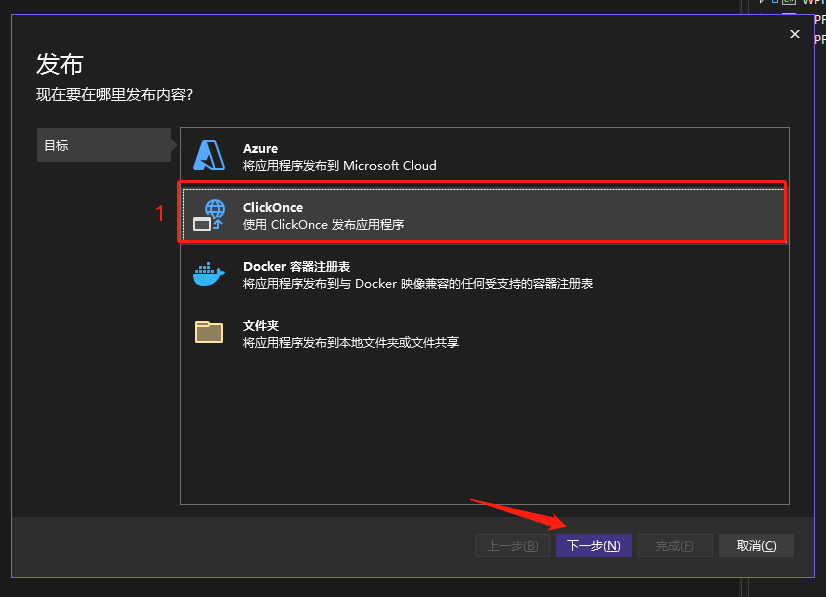
  1. In the pop-up interface, select ClickOnce and click Next

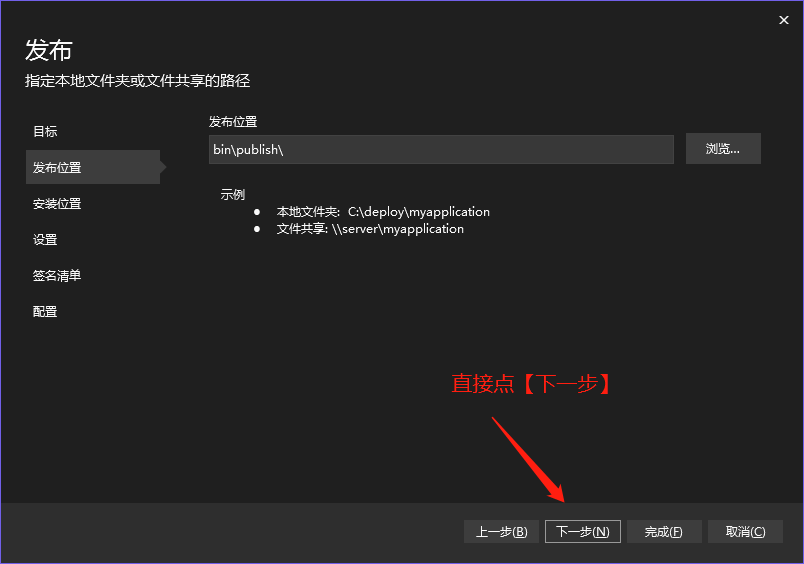
  1. Post location at any time

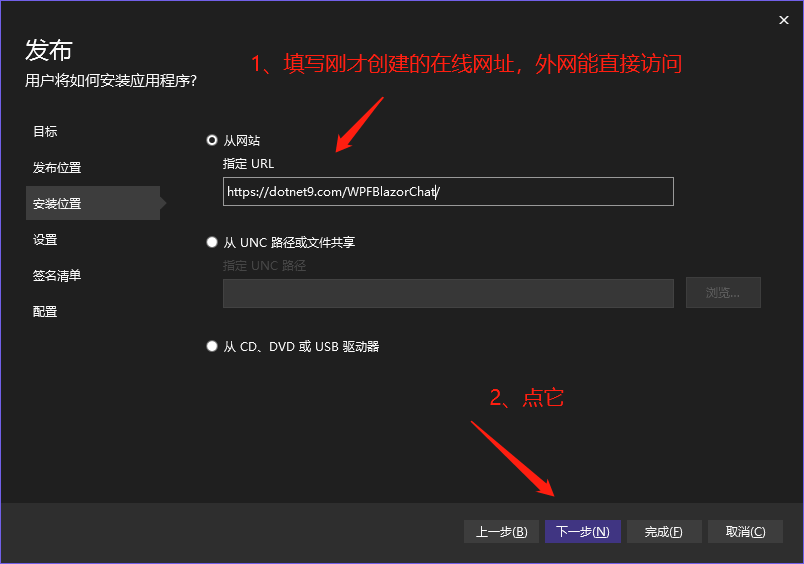
  1. Select the software installation package to obtain the address

  1. set
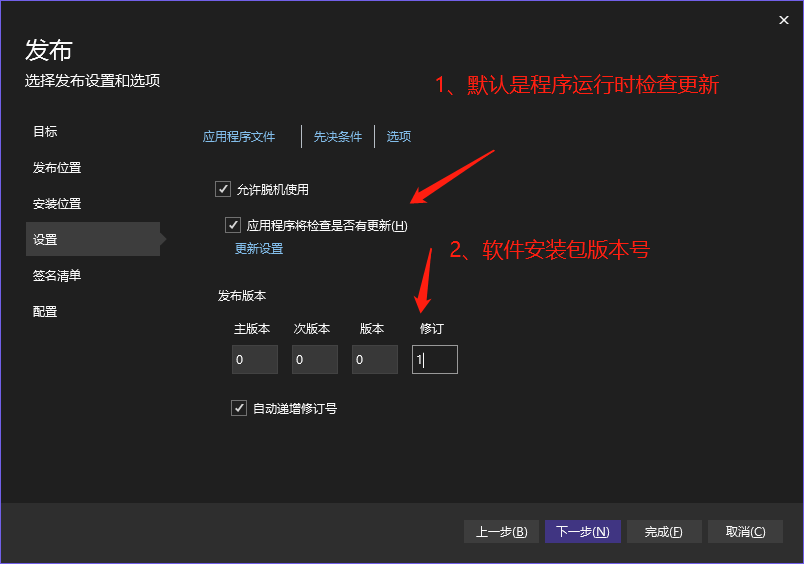
  • It can be configured to automatically detect updates, software version numbers, etc. while running the program, as shown in the following figure:

As shown in the figure above, if [Automatically Increment Revision Number] is checked, the revision number will be incremented every time you click publish (I feel like talking nonsense, mainly to facilitate version number management).

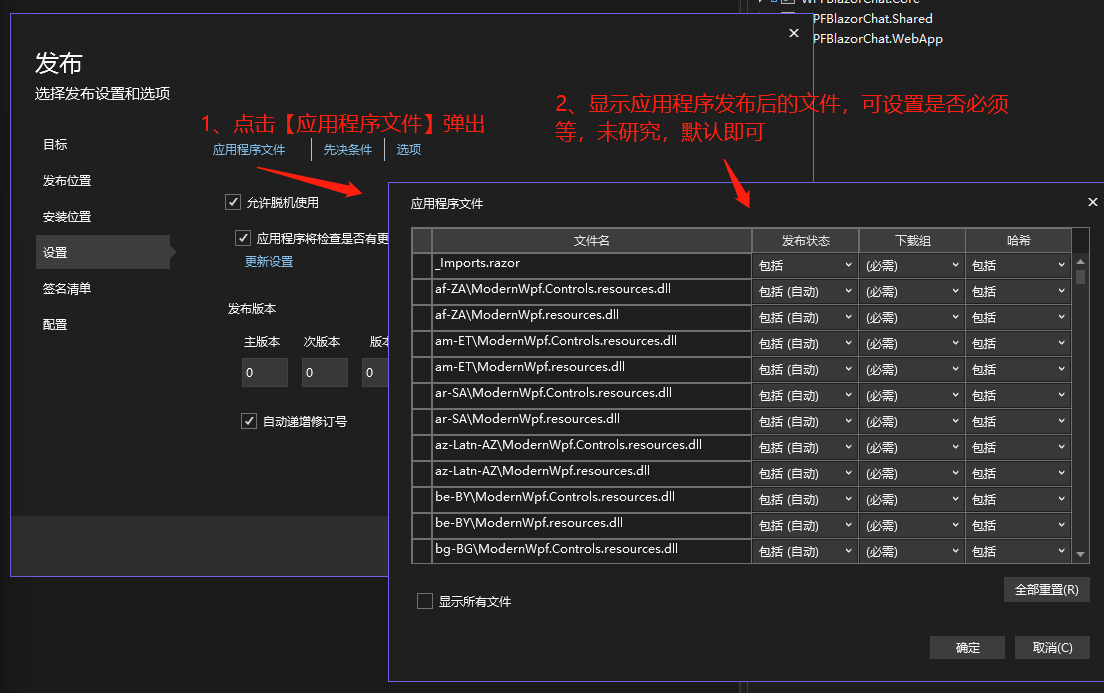
  • Click the application file to check which files can not be downloaded, as shown below:

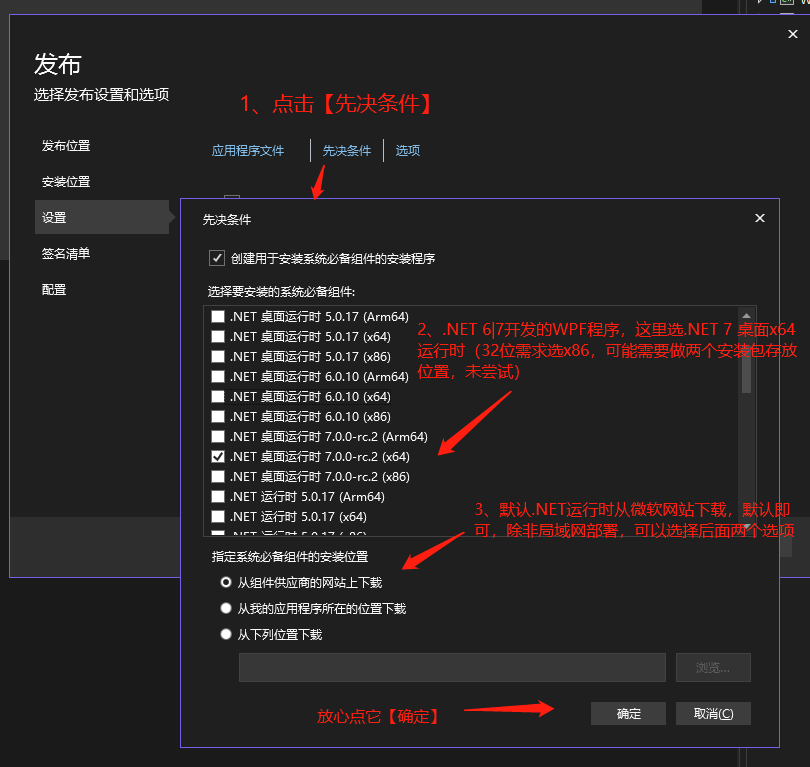
  • Select the prerequisites, that is, select the runtime of the program. Because the program supports. NET 6 and. NET 7 by default, the webmaster checked. NET 7 x64. Win7 32-bit students can choose as needed:

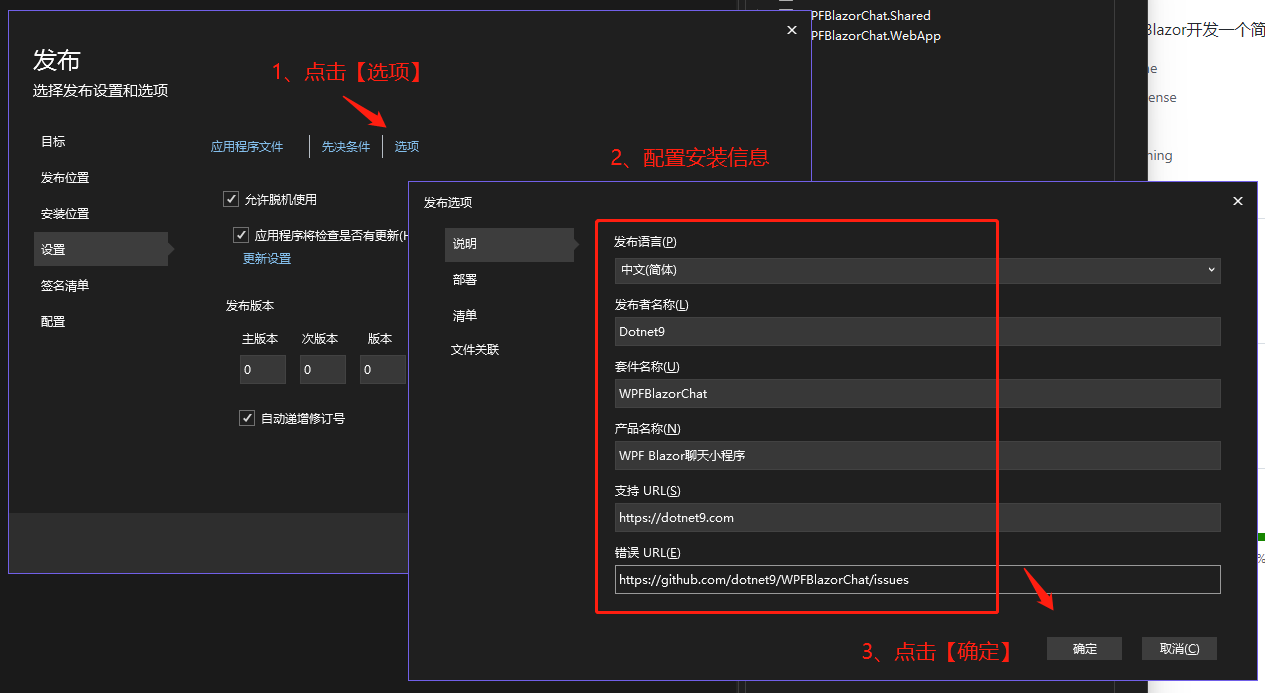
  • option configuration

Configure software installation package information, the more important ones are the publisher name and package name, which determine where the software program is released:

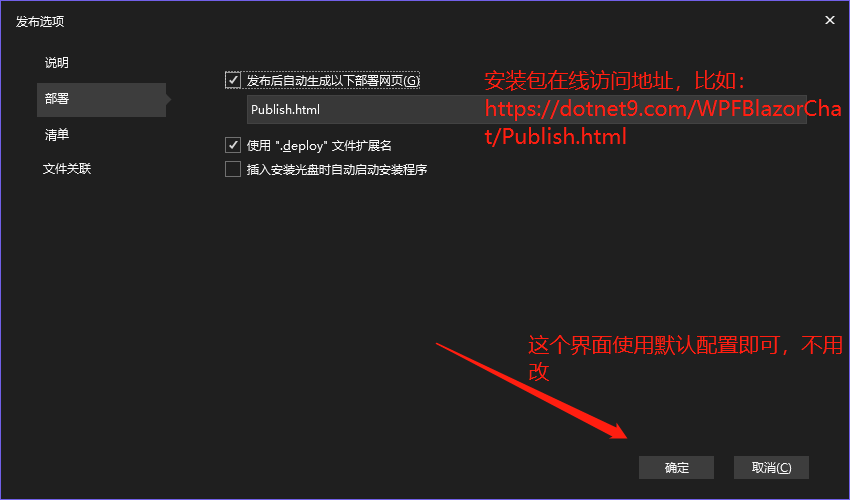
Deployment file configuration, in which Public.html configures the installation package download page

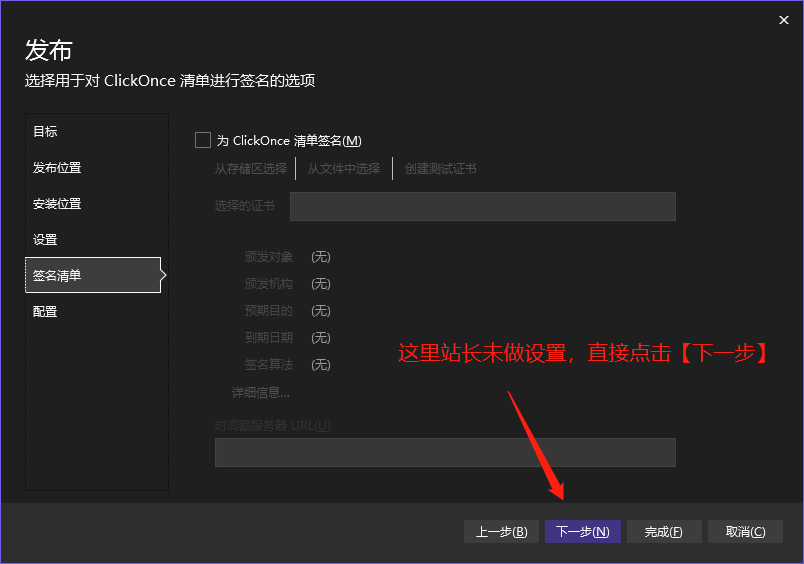
  1. list of signatures

Not set, go to the next step:

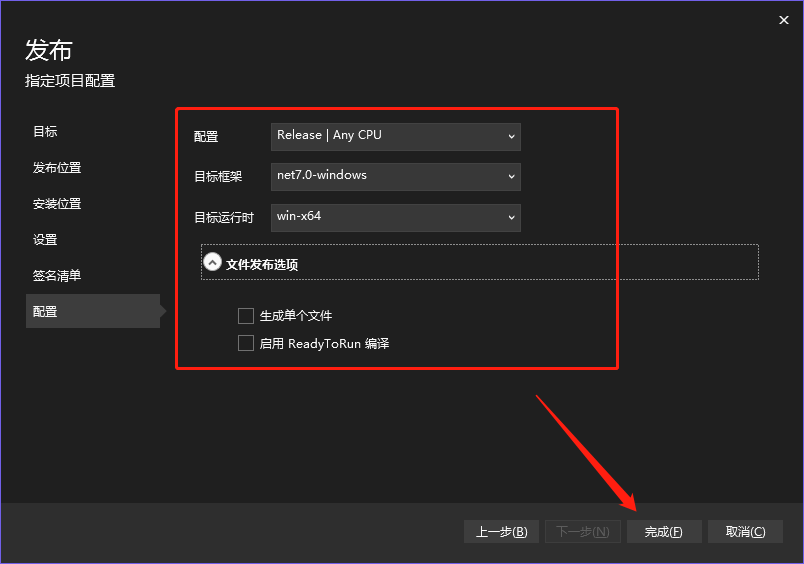
  1. Program release configuration

按情况选择,站长选择的.NET 7 64位发布,注意需要和前面选择.NET桌面运行时版本一致

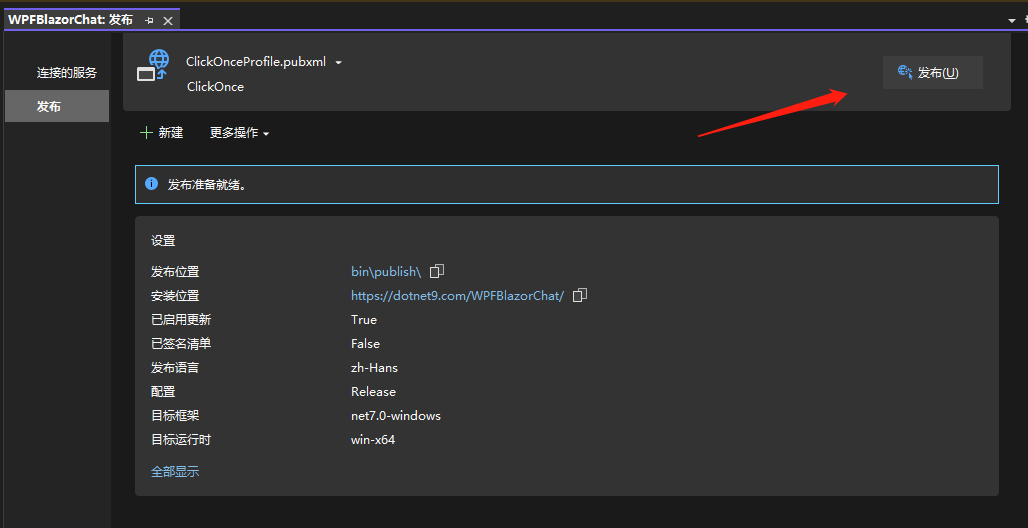
  1. clicking the publish

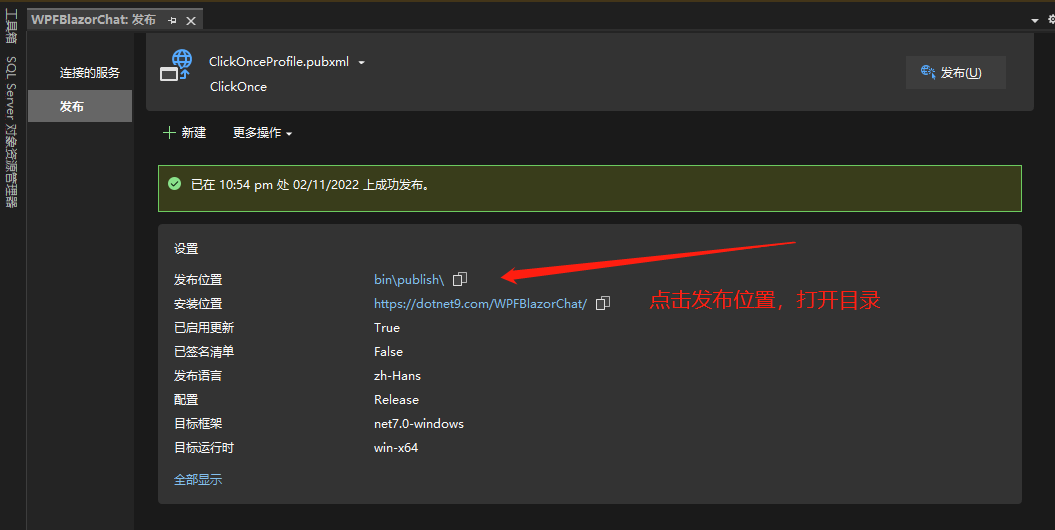
For the last action, click Publish

Publishing is completed, click [Publishing Location] path:

2.3 upload

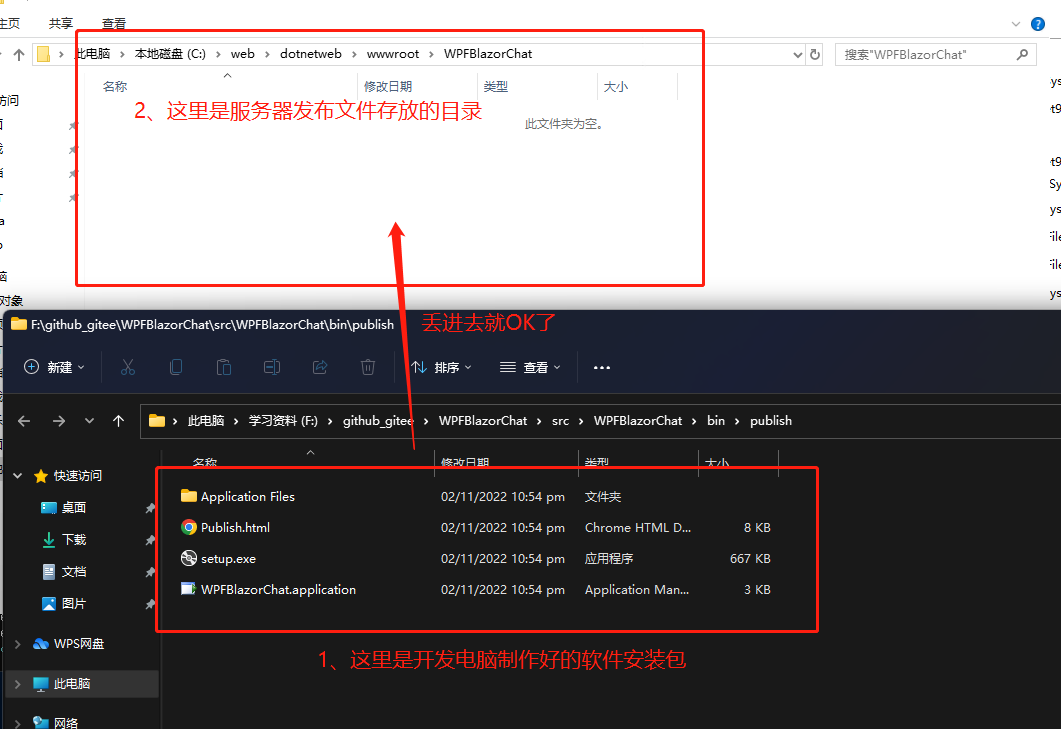
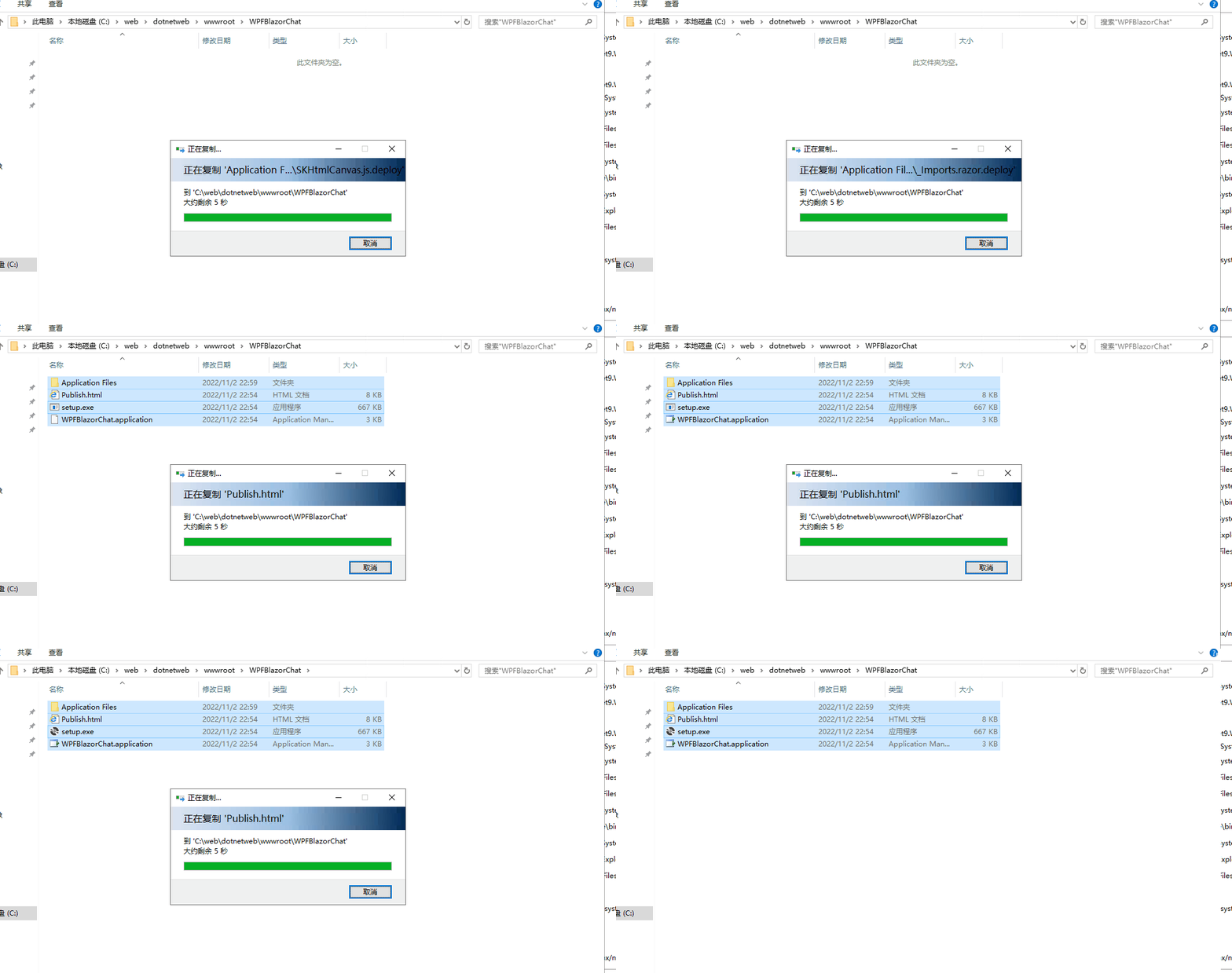
A software installation package has been made above, but there is still one more step left, which is to throw the installation package on the website. This is relatively simple, provided that the website has been deployed:

2.4 Program installation and operation

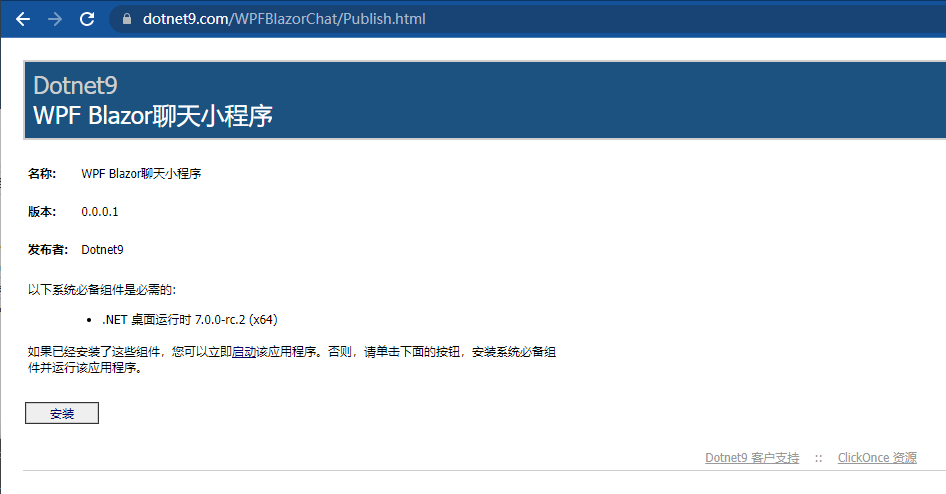
The address is: https://www.example.com

如上图,显示了我们创建安装包配置的软件安装包名称、版本号、发布者、需要的.NET运行时版本等,点击【安装】按钮,会下载一个setup.exe安装文件,这个文件很小,666KB,好吉利的数字:
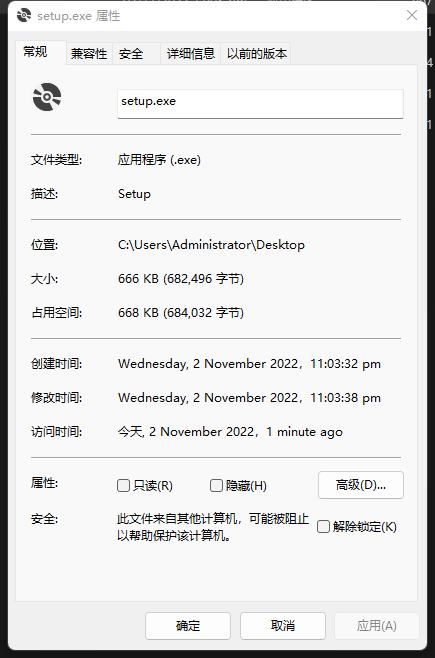
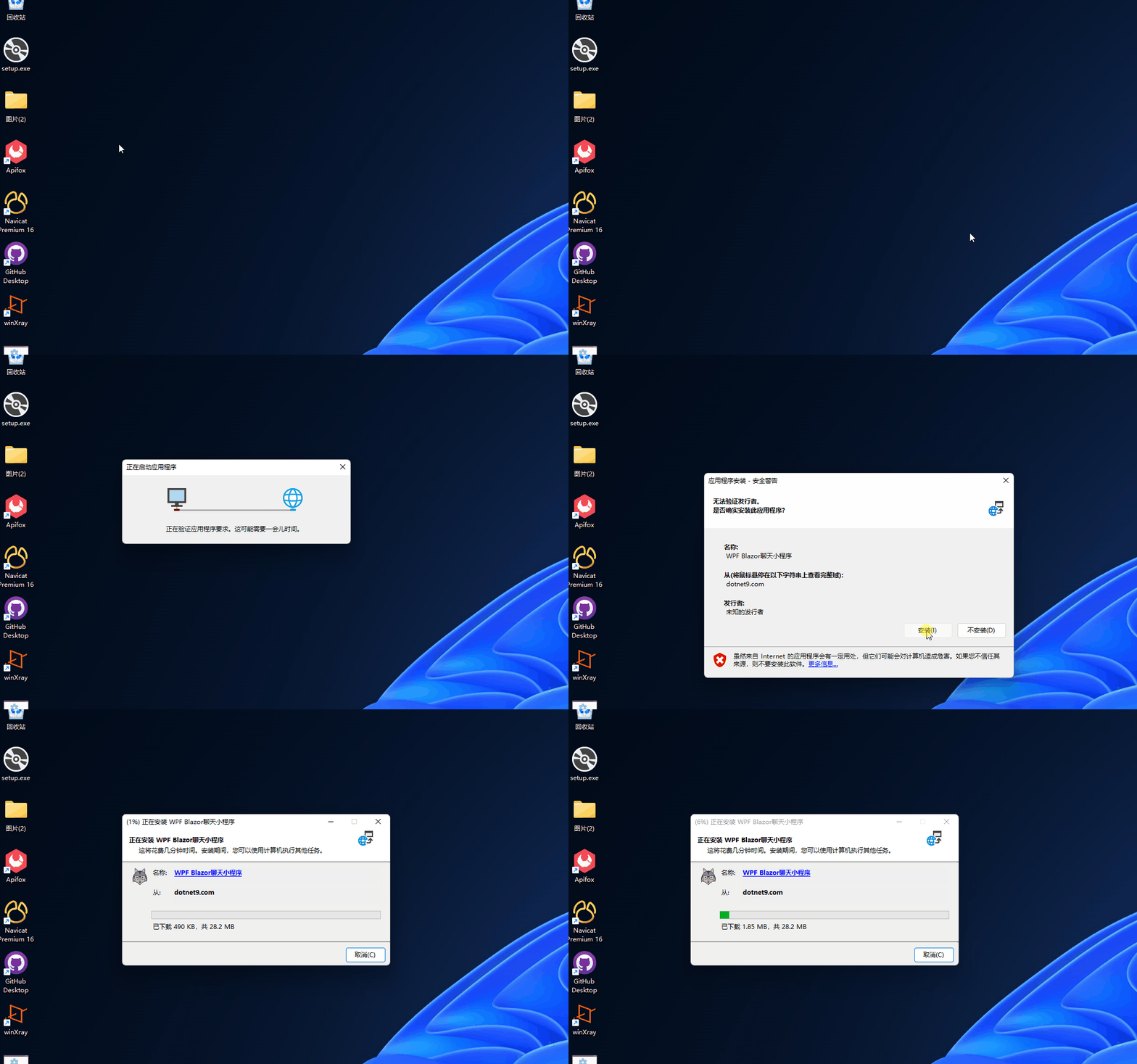
运行setup.exe,会自动从上面的服务器(https://dotnet9.com/WPFBlazorChat/)中检测版本号、文件更新情况,自动下载程序文件了:

The following figure shows the server software installation package information:

The following picture is a screenshot of the installation process:

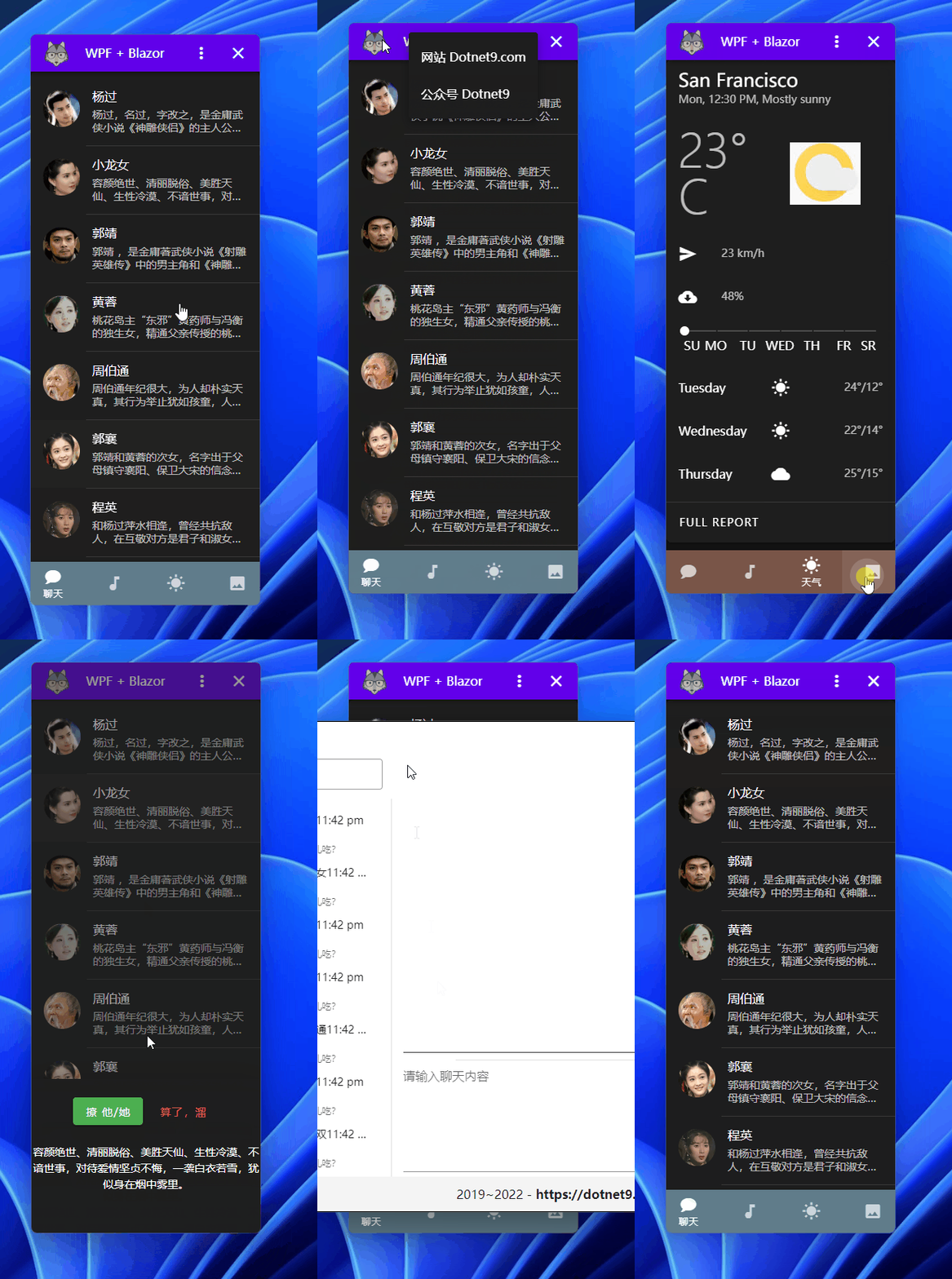
安装包下载完成后,程序自动运行,下面就是测试程序运行界面了,WPF Blazor开发的哟,点击戳源码

3. Q&A

  1. How ClickOnce deployment works

The core ClickOnce deployment architecture is based on two XML manifest files: the application manifest and the deployment manifest. These files describe where to install ClickOnce applications, how to update them, and when to update them.

For more, please visit Microsoft documentation: https://www.example.com view=vs-2022

At the end of this article, the next chapter describes how to use Blazor to develop applications in WPF.

Keep Exploring

延伸阅读

更多文章
同分类 / 同标签 4/22/2026

Support for. NET by operating system versions (250707 update)

Use virtual machines and test machines to test the support of each version of the operating system for. NET. After installing the operating system, it is passed by measuring the corresponding running time of the installation and being able to run the Stardust Agent.

继续阅读
同分类 / 同标签 2/7/2026

Summary of experience in using AOT

From the very beginning of project creation, you should develop a good habit of conducting AOT release testing in a timely manner whenever new features are added or newer syntax is used.

继续阅读