How to make a professional software installation package?

How to make a professional software installation package?

After completing the development of the C/S client, the program needs to be delivered to the user. It is possible to directly compress it and send it to the user (just a bit unprofessional). If there is a better installation interface, the level will be different.

最后更新 2/1/2021 5:16 PM
沙漠尽头的狼
预计阅读 7 分钟
分类
share
标签
.NET C# WPF Winform installation package

After completing the development of the C/S client, the program needs to be delivered to the user. It is possible to directly compress it and send it to the user (just a bit unprofessional). If there is a better installation interface, the level will be different.

This article describes how to use Advanced Installer 17.9 to make a professional Windows client installation package. The production steps for other software or other versions of this software are similar. The following is an installation demonstration after the software installation package is completed:

Software installation demonstration

软件安装演示

This article provides download of packaged program source code and experience of making a completed software installation package. Welcome to browse and download:

    • The following are the steps to make the installation package: **

1. Download Advanced Installer 17.9

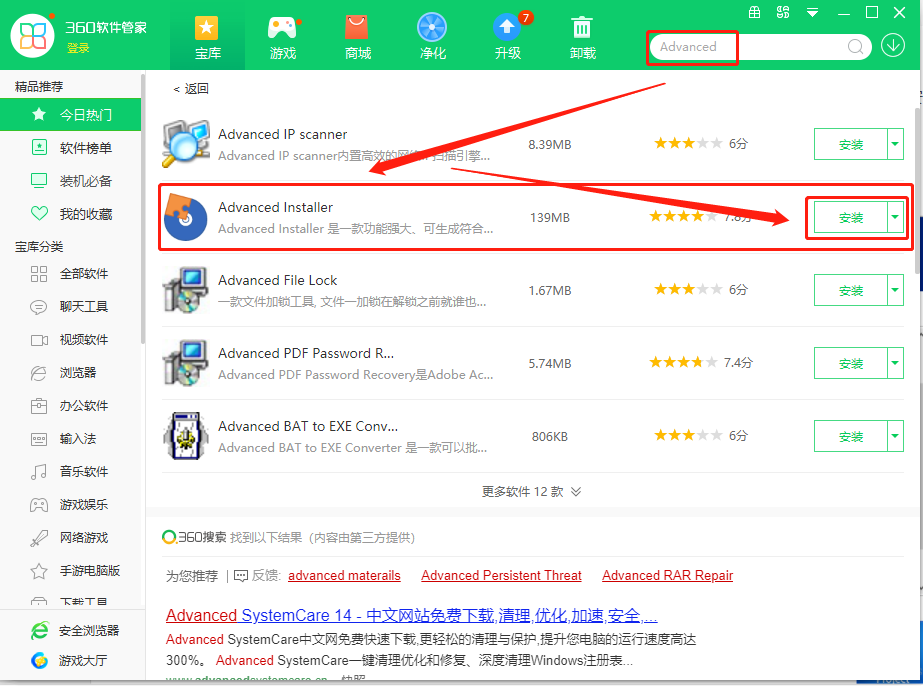
First, download the software installation package making software. Download the installation package from 360 Software Butler. Other channels can also:

Download installation package making software

下载安装包制作软件

After downloading, follow the default steps to install.

2. Create an installation package production project

Making a software installation package is the same as software development. We first create an installation package making project, which is equivalent to the process of saving the installation package configuration to facilitate future modification and packaging:

创建软件安装包配置工程

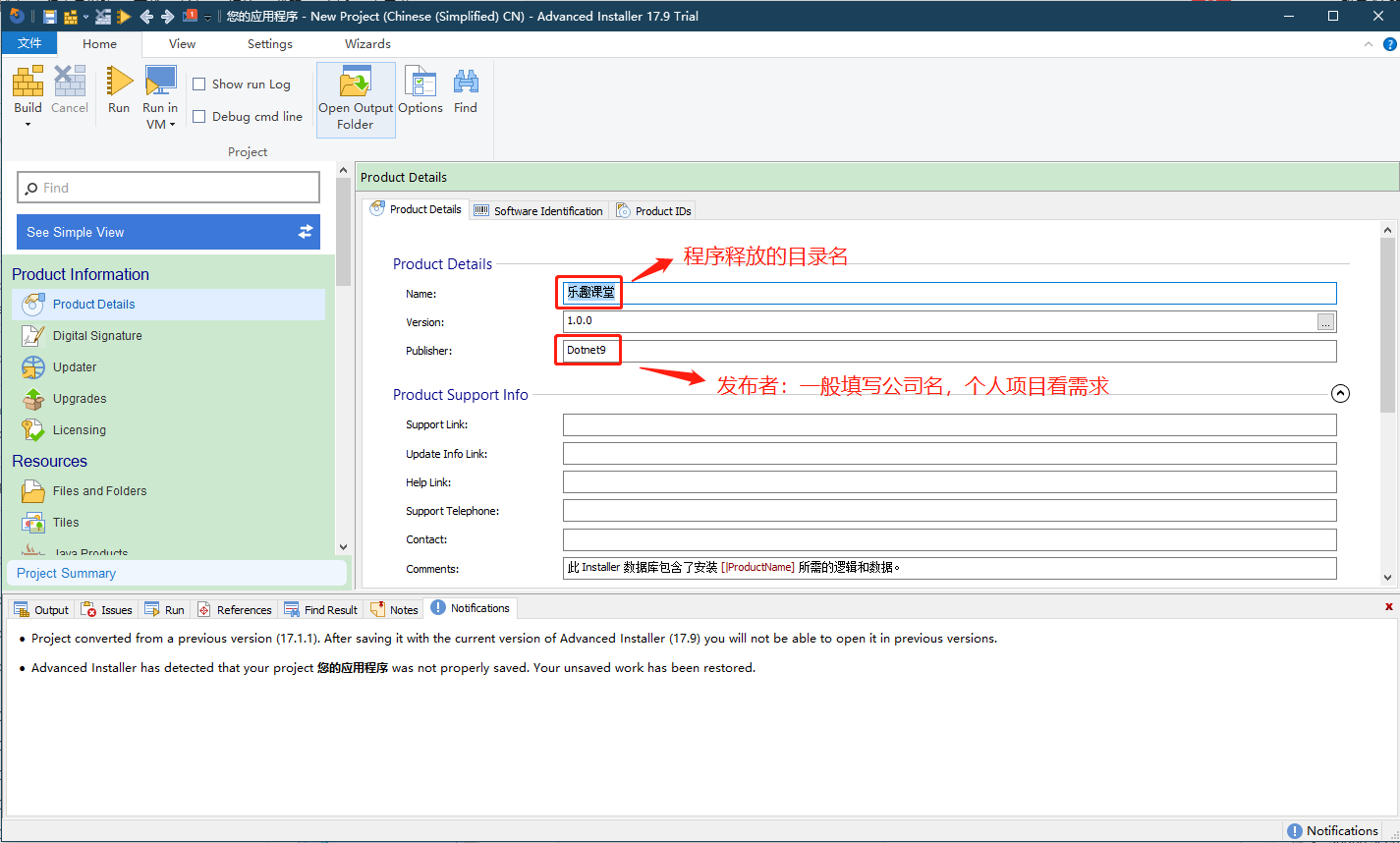
3. Installation package product information

  • Fill in the name of the directory released by the program: Fun Classroom
  • Fill in the company name and the directory name released by the program to form the installation path: Dotnet 9

For example, the default path after installation is: C: \Program Files (x86)\Dotnet9\Fun Classroom. The path can be modified during installation.

安装包产品信息

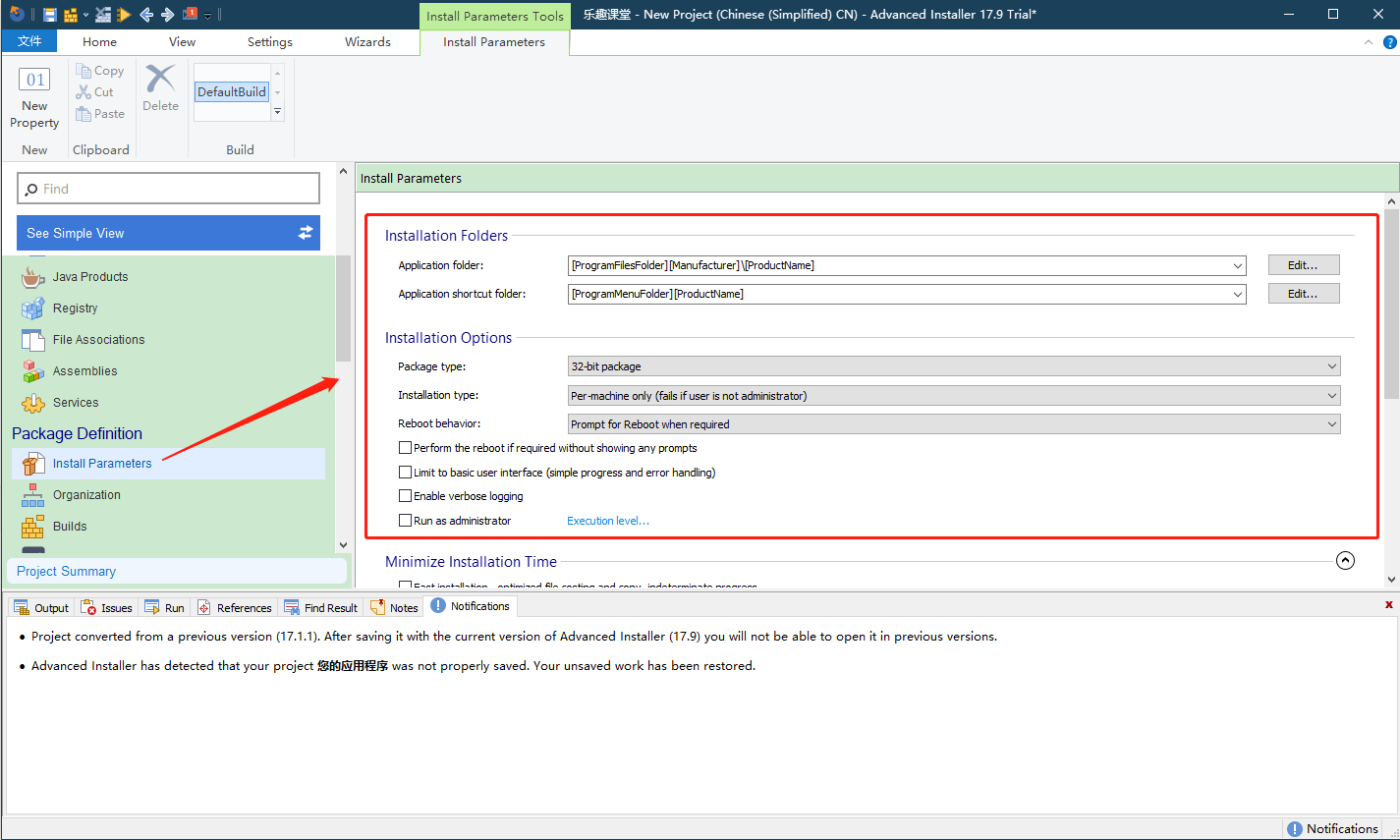
4. Enter installation parameters

The folder of the application program can be modified without modification. It is available by default:

安装参数

5. Select the program running environment

打包的测试程序(访问乐趣课堂源码仓库)依赖.NET 5 运行时(发布时选择的依赖于环境),所以在下面的配置里可以选择安装时下载、安装.NET 5 运行时(独立发布可以忽略这个步骤):
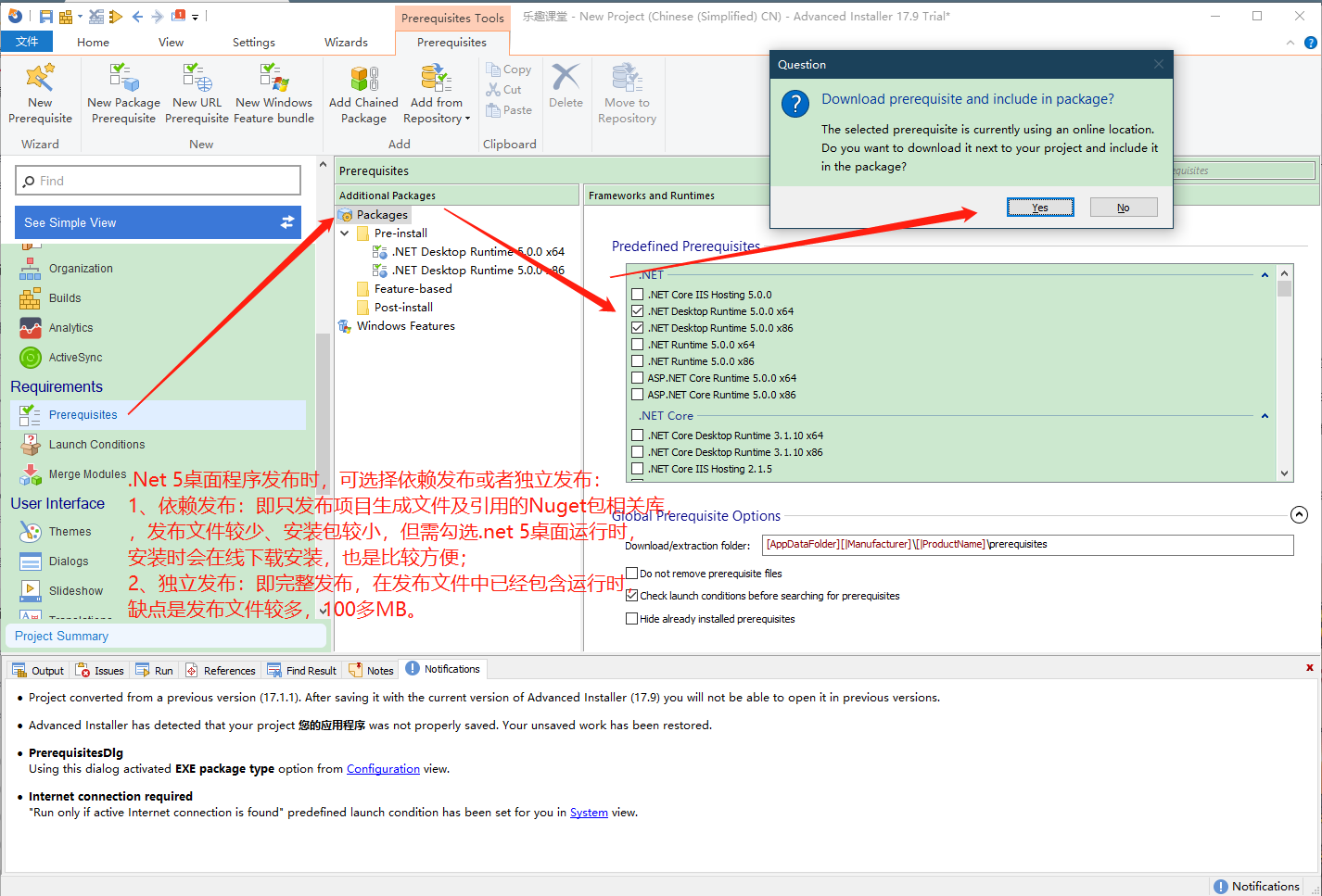
程序运行环境配置

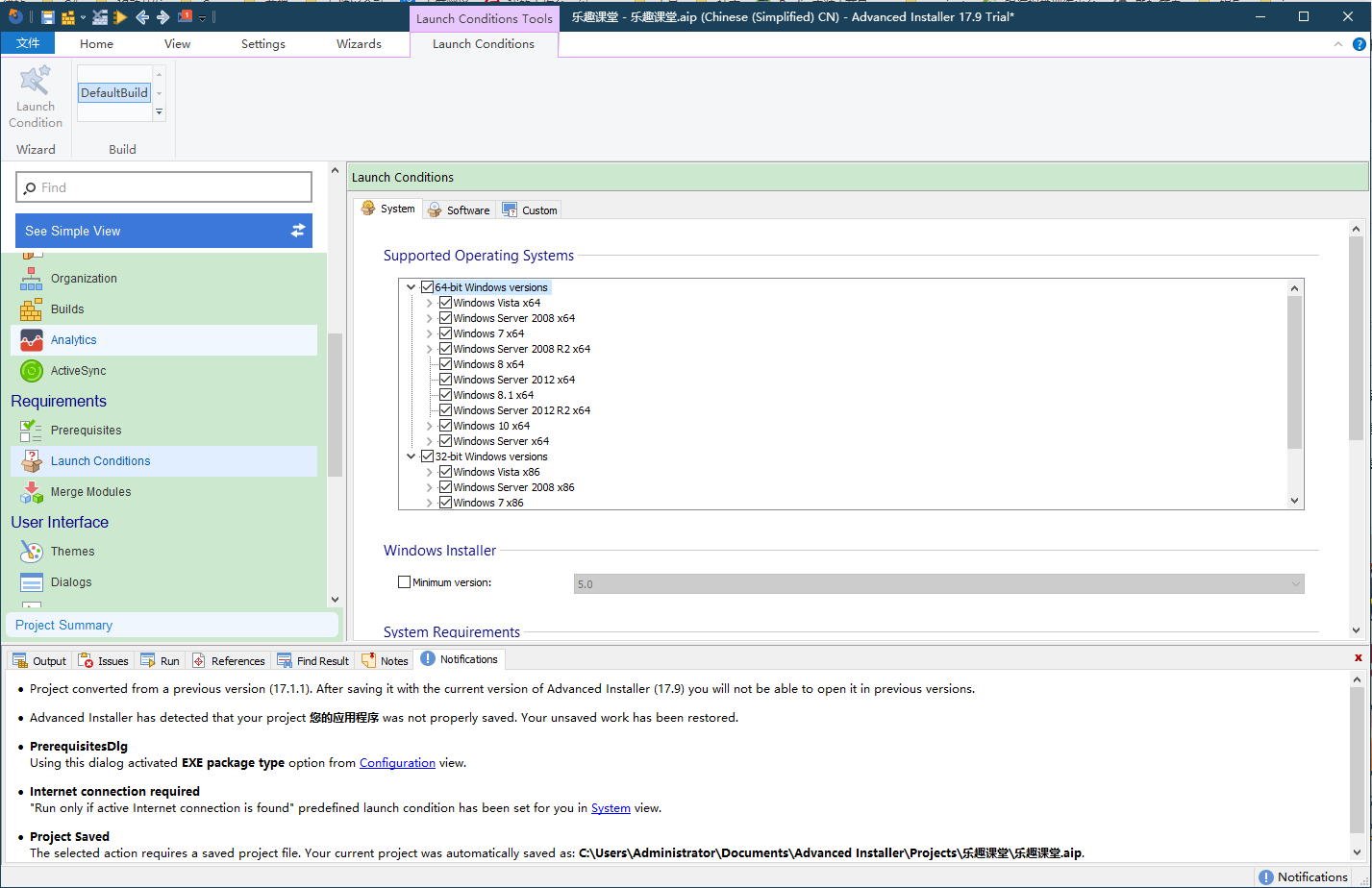
6. Set program start conditions

Look at the following interface and select the operating system on which the program can run. There are x86 and x64 versions of Windows operating systems:

设置启动条件

7. Select the installation file

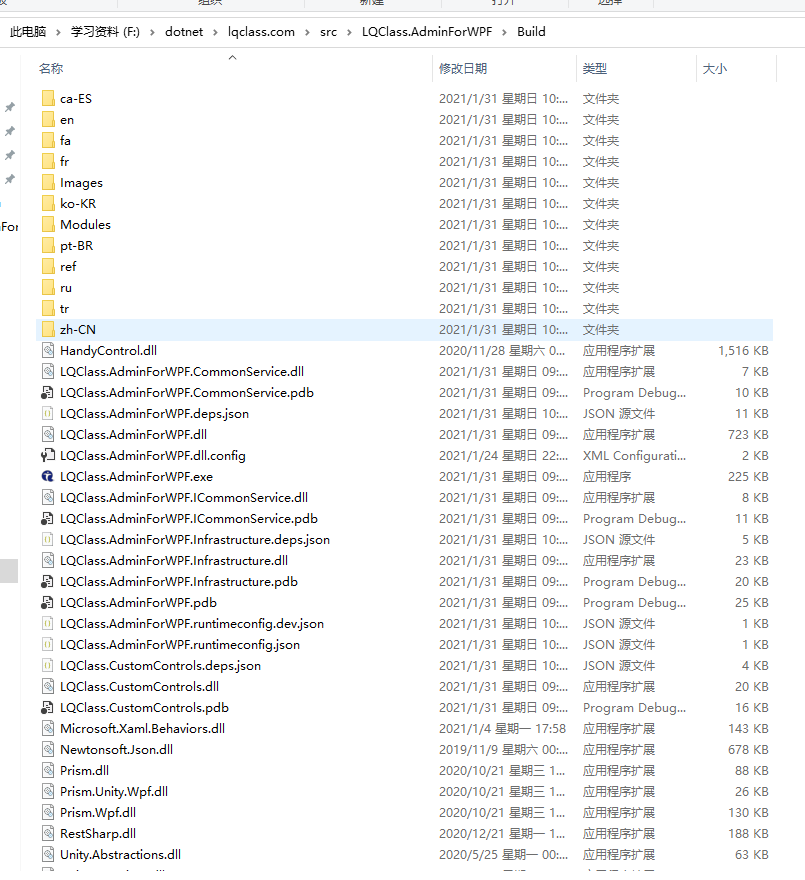
The following is the directory structure of the target program, that is, the directory to be packaged. Both the running program and dependent files are in this folder:

List of program output directory files for fun classroom

乐趣课堂的程序输出目录文件一览

In the software installation package creation interface, add the application file (folder), that is, select the folder above. Note: Subdirectories and files need to be selected separately.

Select the Package File menu

选择程序包文件菜单

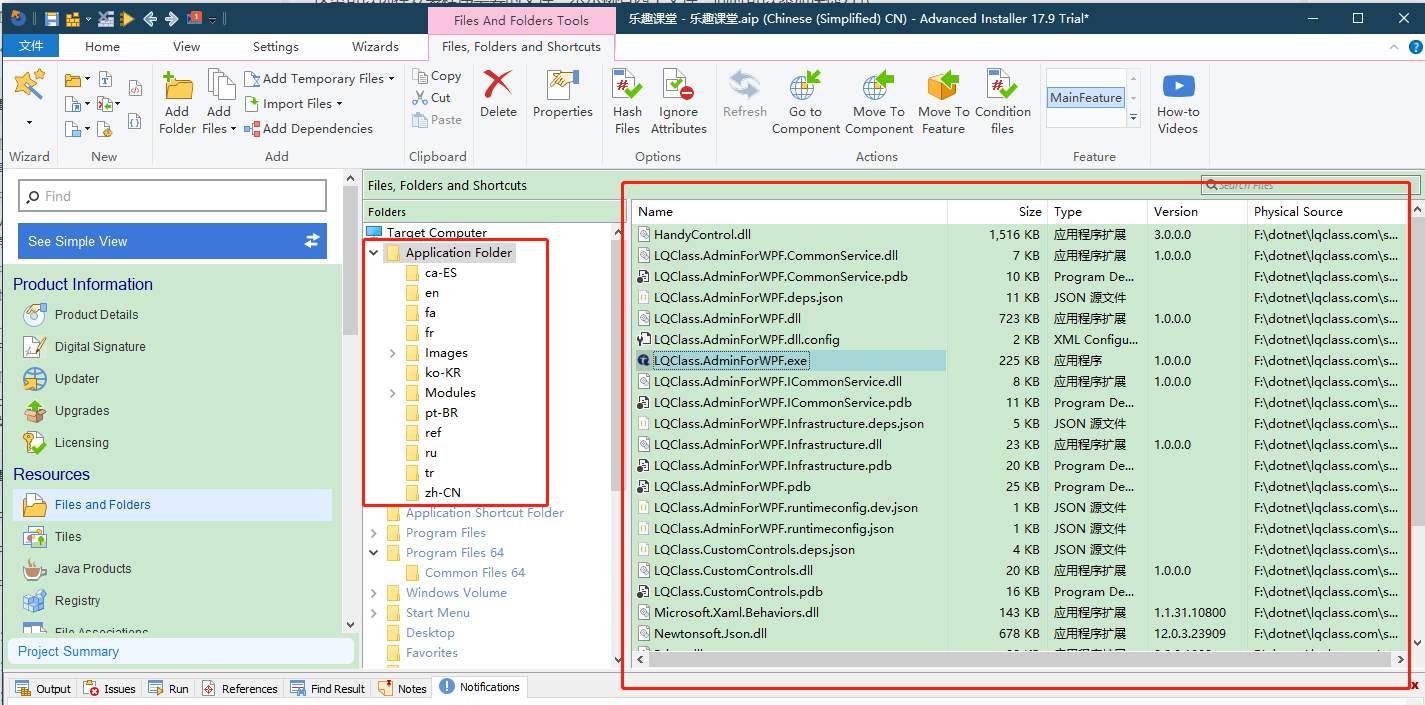
After adding, the directories of the software installation package creation interface are as follows. The added subdirectories are displayed in the middle, and the files under the Application Folder directory are displayed on the right:

Selected file structure

选择后的文件结构

8. Add shortcuts

For normal programs, you need to add program shortcuts on the Start menu and desktop, as shown below:

Start menu shortcut

开始菜单快捷方式

desktop shortcut

桌面快捷方式

To complete the above effects, simple requirements:

  • Add a program directory to the Start Menu: Add a sub-folder [Fun Classroom] under [Start Menu]=>[Programs](change it to the name of your own program)
  • Start menu program directory requires adding a shortcut to start program and an shortcut to uninstall program
  • Add launcher shortcuts to the desktop

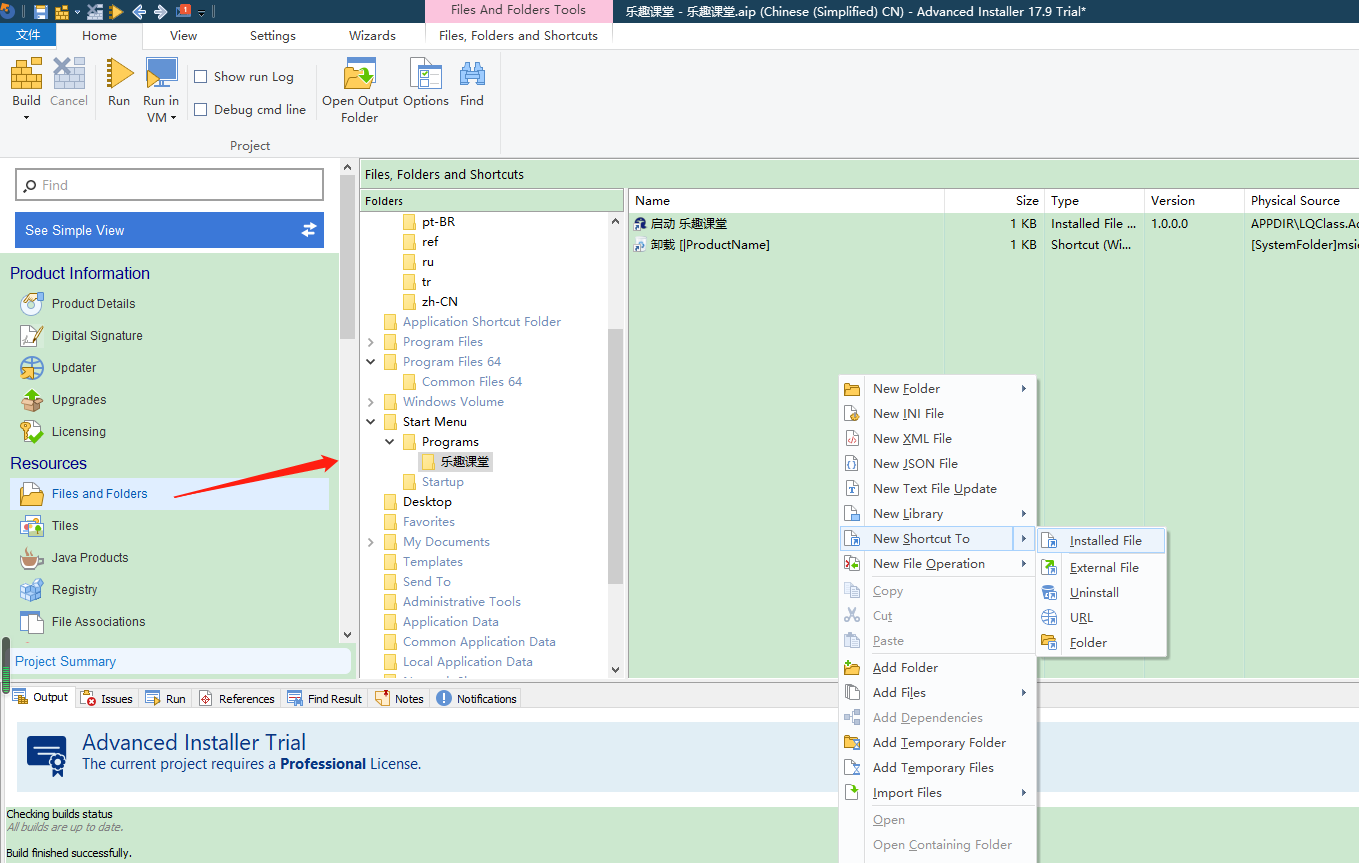
8.1 Add a shortcut launch method

如下图,选中中间的”乐趣课堂“目录(Desktop目录操作同理),右侧右键菜单从安装程序添加快捷方式:

Select the program to start from the installation file

从安装文件中选择启动的程序

下图出现了选择文件列表,需要在前面的第 7 步中选择了文件才会出现,LQClass.AdminForWPF.exe 是主程序的 exe,将它作为开始菜单、桌面的启动程序快捷方式:

Select a program as a shortcut to start the program

选择程序作为启动程序快捷方式

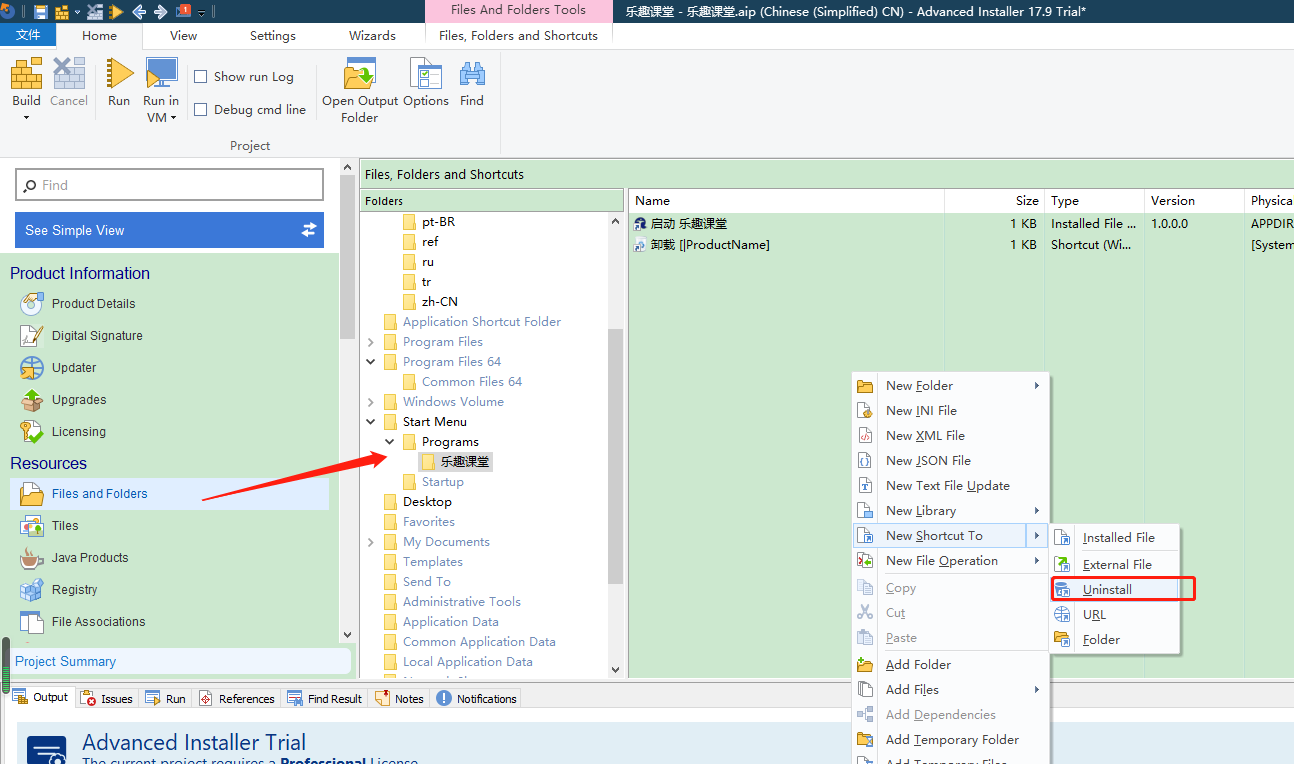
8.2 Add uninstall shortcuts

I think most programs don't have an uninstall shortcut added to the start menu, but we are confident that if you add it, users can uninstall it if they want:

Add uninstall shortcuts

添加卸载快捷方式

The uninstall shortcut editing interface that pops up below does not need to be modified. If you don't want to display the program version number, it doesn't matter if you remove it: "Uninstall [ProductName]" displays the effect of "Uninstall Fun Classroom":

Pop-up uninstall shortcut editing

弹出卸载快捷方式编辑

9. Set the output format of packaged files

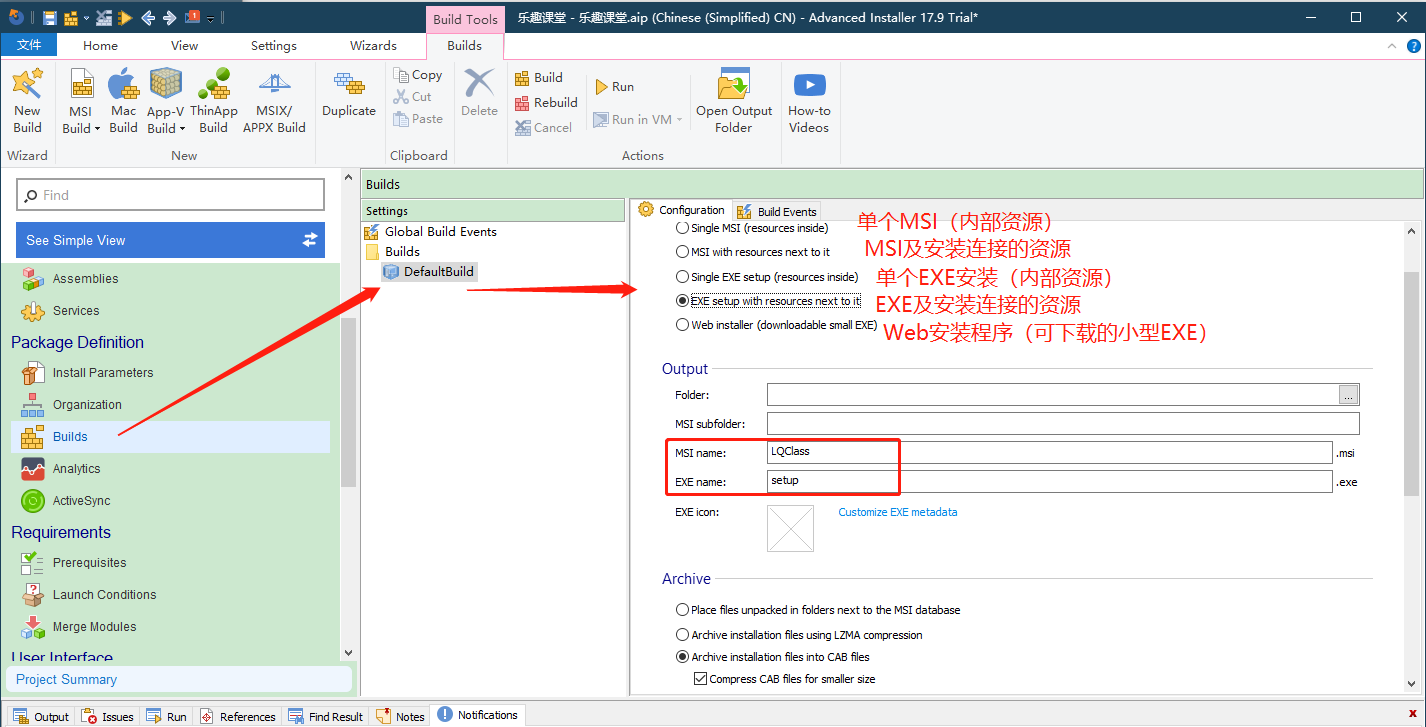
As noted in the figure, select the fourth one. When running the software installation package, you can download it online and modify the name of the MSI installation file and the name of the EXE installation file during installation and running:

打包文件输出格式

10. Configure the installation interface theme style

The software provides many themes and styles. The webmaster browsed through it, and the effect in the picture is relatively refreshing. Depending on your preferences:

安装程序主题

11. Set the interface language pack

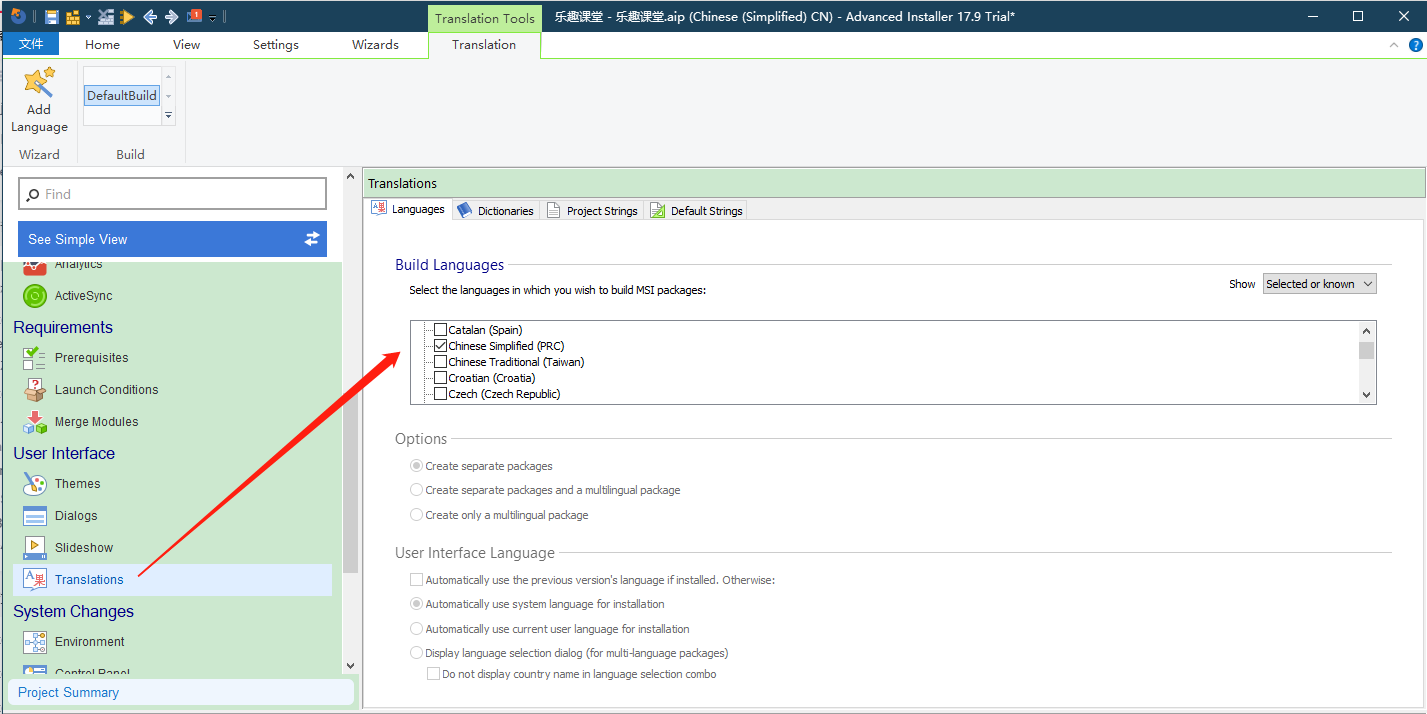
Default Simplified Chinese:

语言包配置

12. The previous configuration is almost complete. It's time to browse the installation effect

You can see the effect at every step of the installation:

安装步骤浏览

13. Build and operate

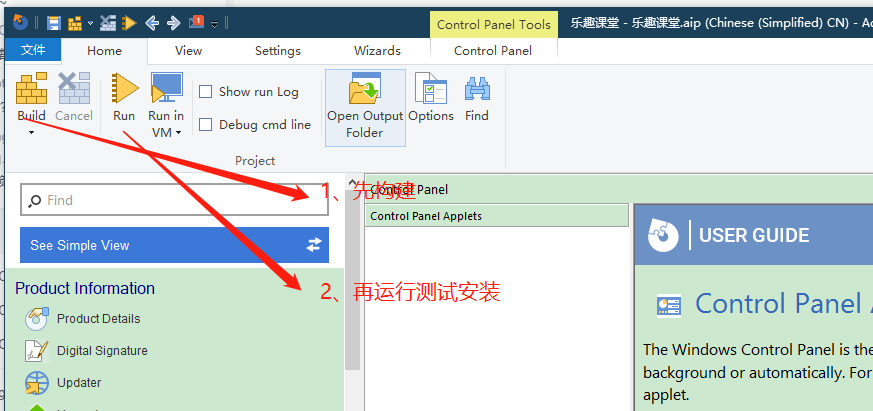
Just like programming, the first thing is just code writing. To complete a simple function, you need to perform code compilation and generate executable files. The same is true for making a software installation package. You first execute the build, and then you can click Run to perform installation testing. See the installation and execution animation at the beginning:

构建运行菜单

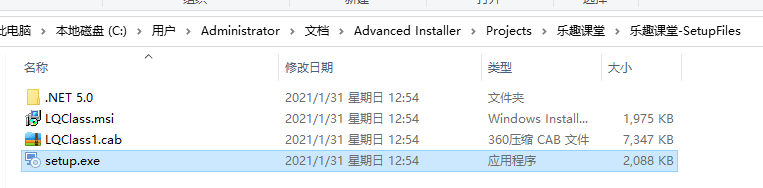
The resulting files after the build are as follows. The following file names can be modified in step 9, but you can also modify them manually now:

安装包文件

Okay, the installation package is complete. If you have any questions, please leave a message and communicate.

Reference article:

Keep Exploring

延伸阅读

更多文章
同标签 6/20/2024

CodeWF.EventBus: Lightweight event bus for smoother communication

CodeWF.EventBus, a flexible event bus library that enables decoupling communication between modules. Supports multiple. NET project types, such as WPF, WinForms, ASP.NET Core, etc. Adopt concise design to easily implement command publishing and subscribing, request and response. Ensure that incidents are properly handled through orderly incident handling. Streamline your code and improve system maintainability.

继续阅读