
- 原文标题:13 Xcode Shortcuts to Boost Your Productivity
- 原文链接:https://betterprogramming.pub/13-xcode-shortcuts-to-boost-your-productivity-329c90512309
- 原文作者:Anupam Chugh
- 译者:沙漠尽头的狼、百度翻译(翻译支撑)
开发人员通常会在 IDE 上花费大量时间。如果你是一个 iOS、macOS、tvOS 或 watchOS 的开发者,Xcode 或许是你最常接触的 IDE。
我常常听到开发人员在刚开始使用 Xcode 时,为不学习 Xcode 快捷键找借口。在他们的辩护中,他们有一个有效的论点:
如果你不记得快捷键,使用鼠标至少可以帮助你快速完成工作。此外,学习快捷键就像是一条额外的学习曲线,尤其是当你刚开始学习的时候。
为了解释键盘快捷键对开发人员工作效率的影响,我将与他们分享一项研究结果:
如果您的工作要求您每天使用 IDE 八小时,那么使用键盘快捷键每年可以节省八个工作日。
八天是很长的时间了。只要花几个小时,你就可以熟练地使用 Xcode 的快捷键,节省额外的一周时间。使用快捷键的高效性会让你专注于手头更大的任务,并加快你的开发和工作流程。
在接下来的几节中,我们将介绍许多我觉得有用的 Xcode 键盘快捷键。我希望他们也能帮助你提高开发效率。
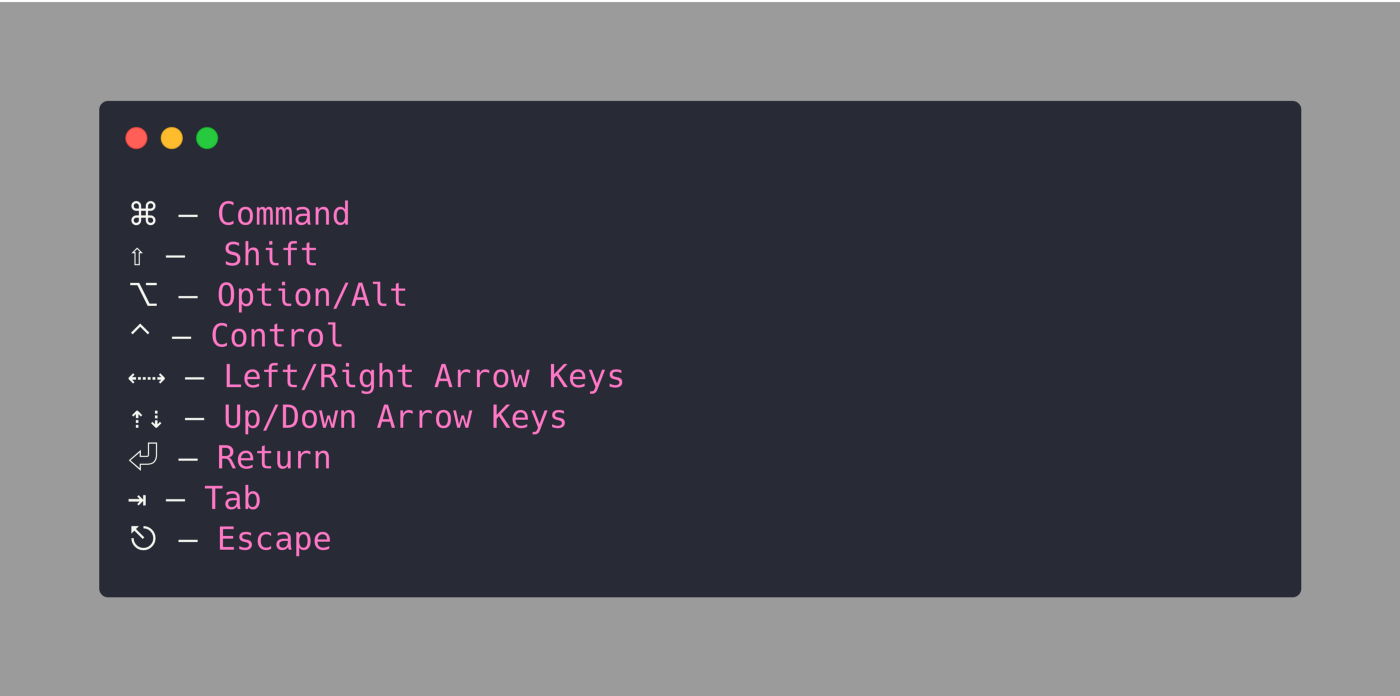
你不需要记住这张清单。我在符号旁边添加了命名的快捷方式:
...
1 基本快捷方式(Basic Shortcuts)
以下是 Xcode 中最常用的快捷键列表:
- 构建(Build):⌘ + B
- 运行(Run):⌘ + R
- 测试(Test):⌘ + U
- 停止(Stop0):⌘ + .
- 清理(Clean):⌘ + ⇧ + K
- 清理构建文件夹(Clean the build folder):⌘ + ⇧ + ⌥ + K
- 快速打开(Open quickly):⇧ + ⌘ + O
- 代码完成(Code completion):⌃ + 空间
2 辅助编辑器快捷键盘(Assistant Editors Shortcuts)
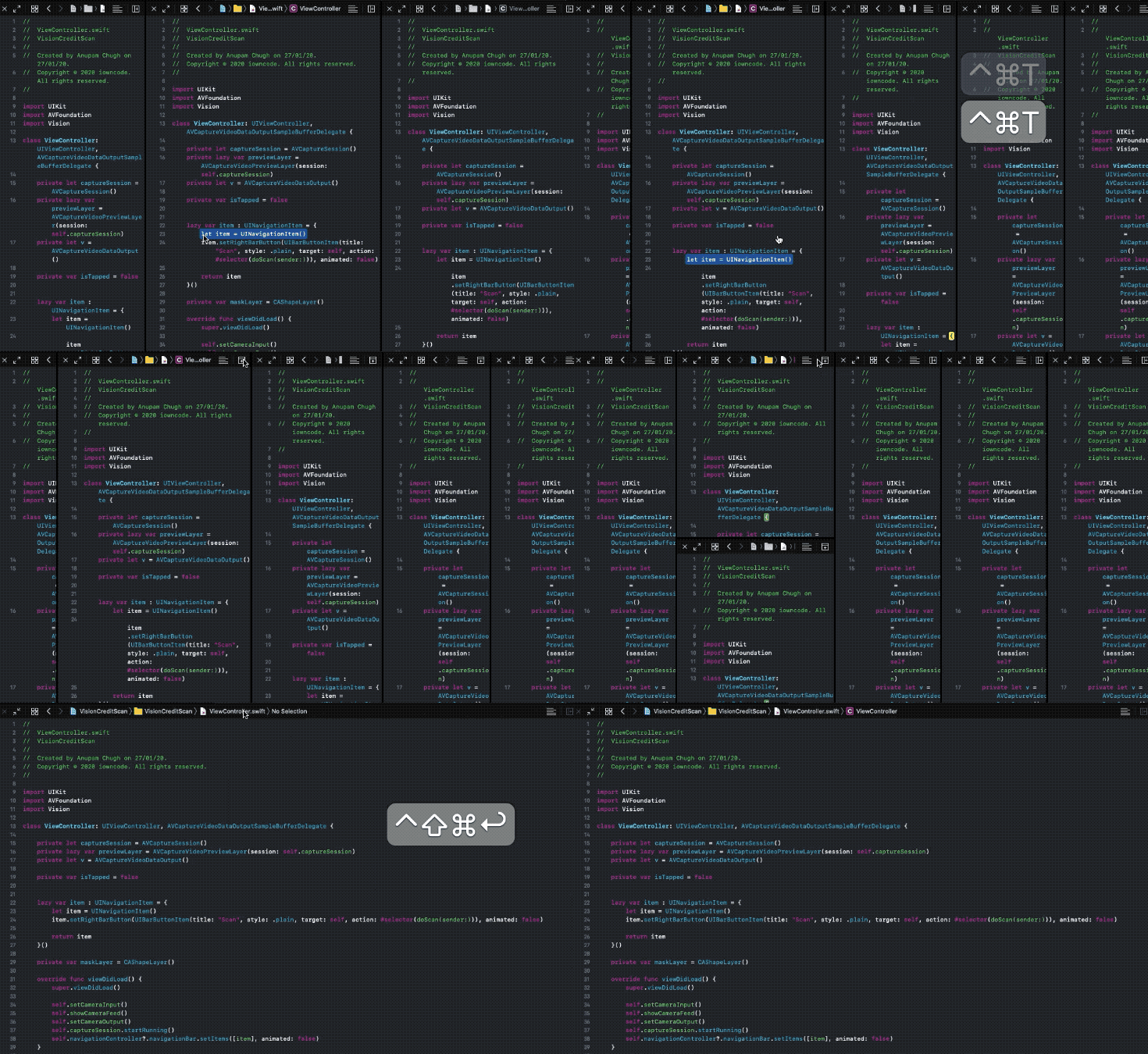
Xcode 11 给他们的辅助编辑器带来了很多改变。现在,您可以根据需要运行多个编辑器,在当前编辑器上切换聚焦模式,或者在隐藏其他编辑器的同时聚焦当前编辑器。此外,还引入了一个新按钮,用于设置辅助编辑器相对于当前编辑器的位置。
2.1 添加辅助编辑器(Adding a secondary editor)
使用以下快捷方式可以添加辅助编辑器。如果处于焦点模式,新编辑器不会反映在屏幕上。
快捷键:⌃ + ⌘ + T
(Control + Command + T)
通过将鼠标移动到“Add New Editor”按钮上并按住Option键,我们可以将新编辑器的位置切换到右侧或底部。
2.2 聚焦当前编辑器(Focusing current editor)
要隐藏除当前编辑器以外的所有编辑器,请使用以下一组键:
快捷键:⇧ + ⌃ + ⌘ + ↩
(Shift + Control + Command + Enter)
2.3 在辅助编辑器中手动打开文件(Opening a file manually in assistant editor)
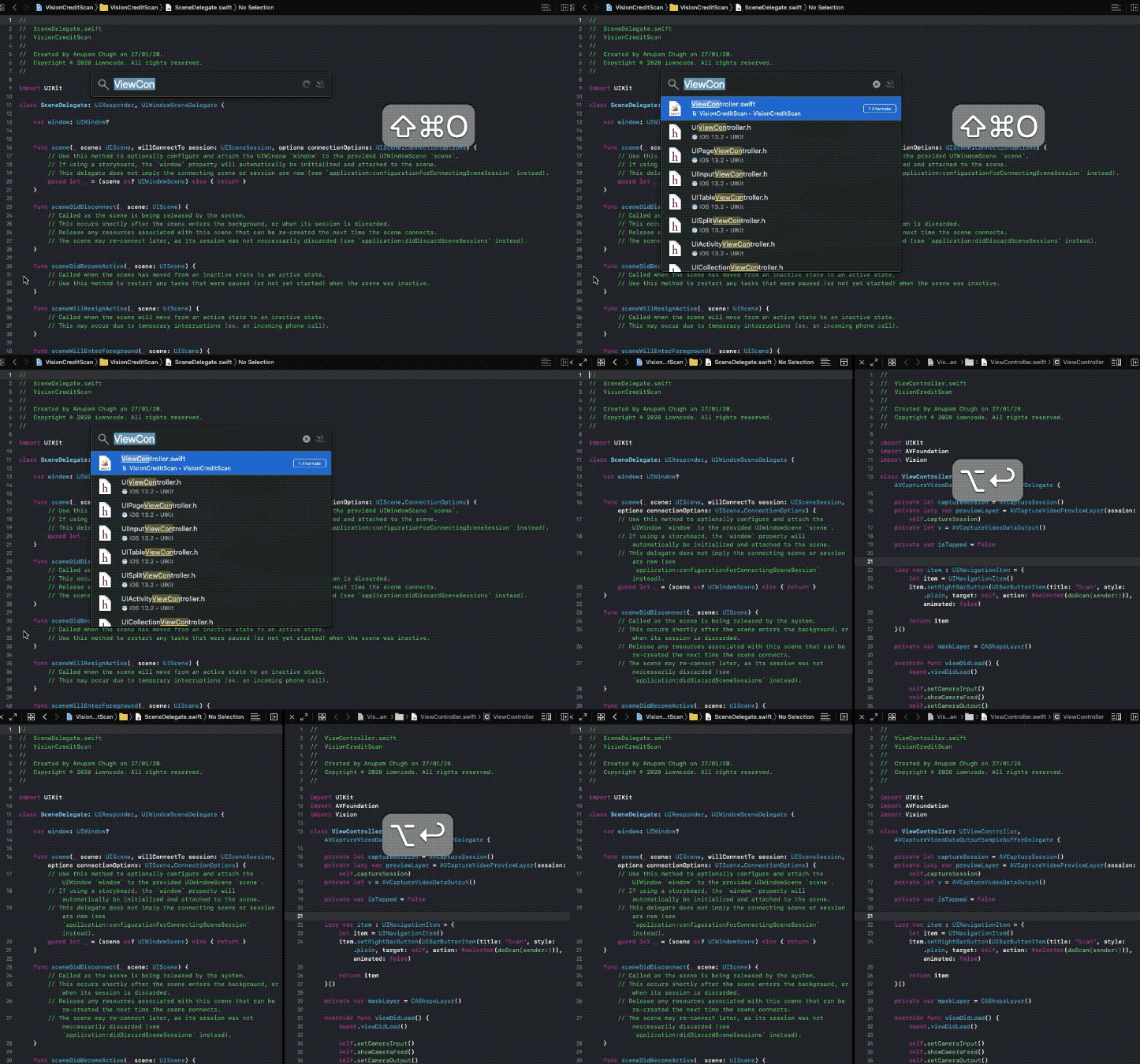
Xcode 11 辅助编辑器的一个重大变化是没有手动操作选项。要在辅助编辑器中打开目标文件,请执行Shift + Command + O以快速打开,并在选择文件的同时按Option键,如图所示:
快捷键:⇧ + ⌘ + O followed by ⌥
2.4 切换不同的编辑器(Navigation across editors)
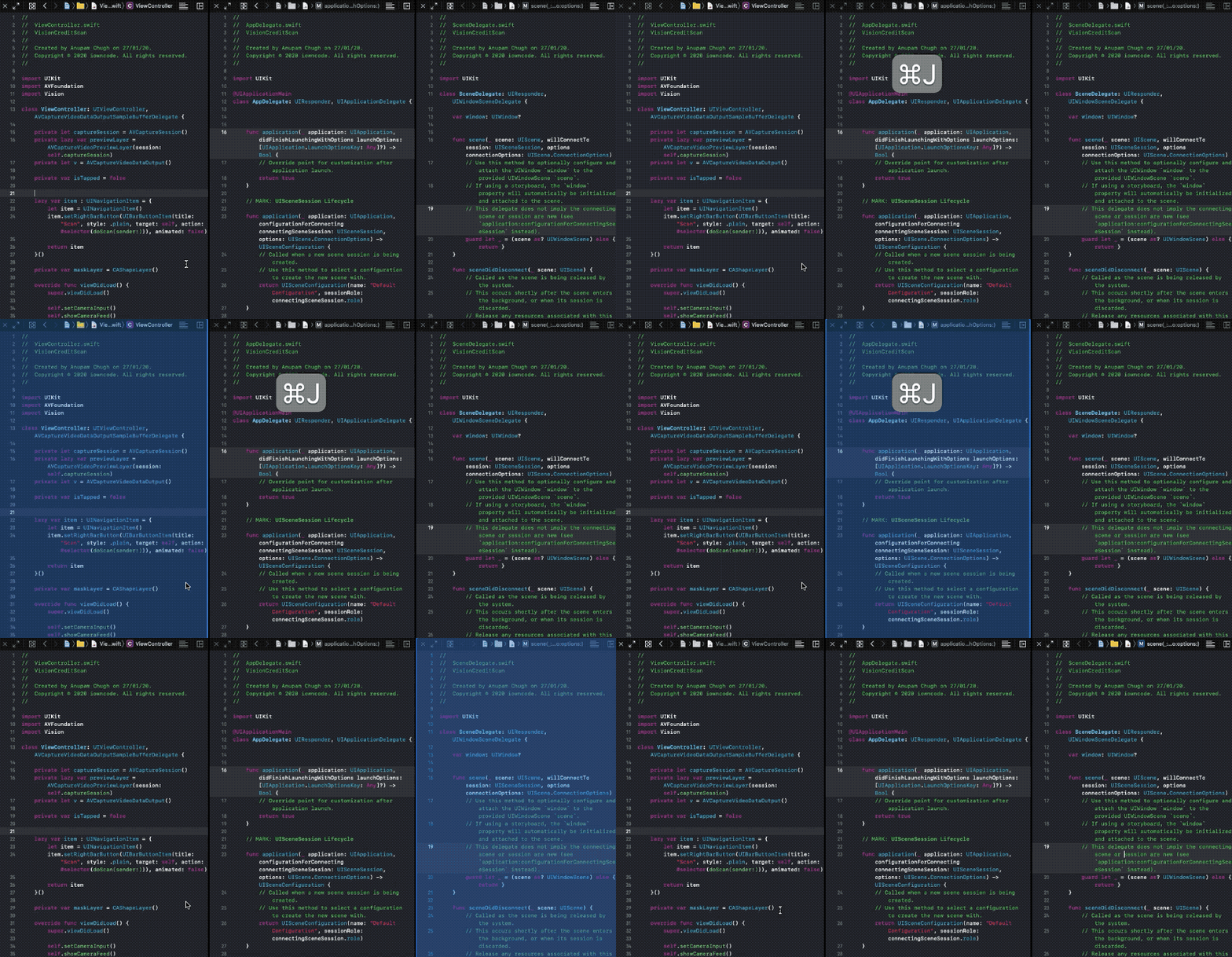
当使用多个辅助编辑器并且需要在它们之间切换时,使用触控板可能没有那么方便。以下是几个快捷键让您方便的切换多个编辑器:
突出显示编辑器:⌘ + J
(Command + J)
当前编辑器高亮显示后,可以使用方向键在辅助编辑器之间切换,并在新编辑器上按Return键使其成为活动编辑器。
3 修复范围内的所有错误(Fix All Errors In-Scope)
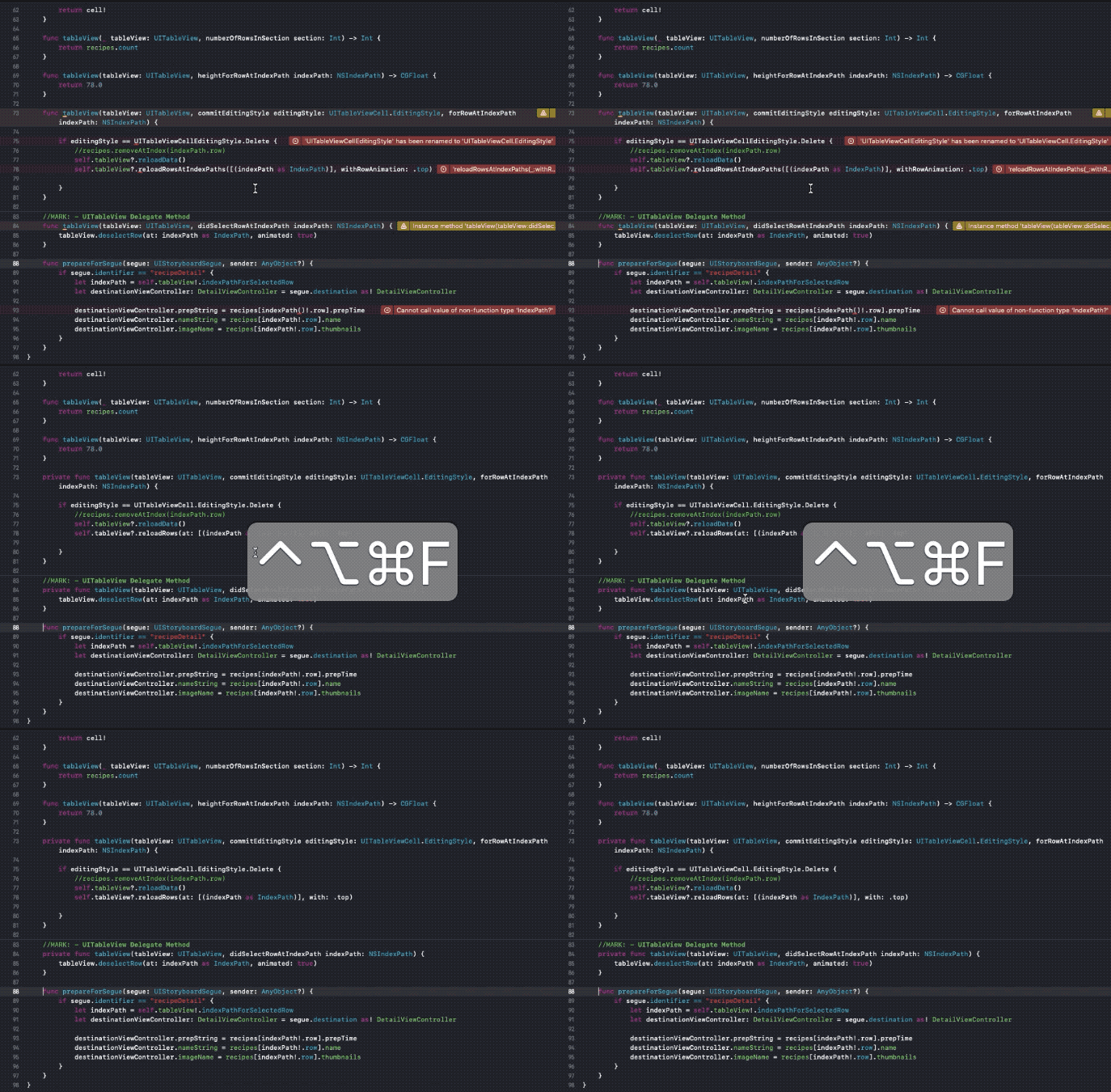
我经常遇到 Xcode 向我抛出大量错误的场景,特别是与 Swift 语法相关的错误——这在跨不同版本迁移时很常见。
幸运的是,Fix-it All 选项对解决大多数常规错误都很有效,并为我们节省了大量时间,尤其是在大型项目中。
快捷键:⌃+ ⌥ + ⌘ + F
(Control + Option + Command + F)
4 多选多光标(Multiple Cursors on Multiple Selections)
通常,需要使用多个光标,以避免在不同的行中键入/复制相同的内容。我们可以通过选择当前单词,并按 Alt + Command + E 来选择下一个出现的单词。这将在单词上放置多个光标,并允许我们同时编辑它们。
快捷键:⌥ + ⌘ + E
(Option + Command + E)
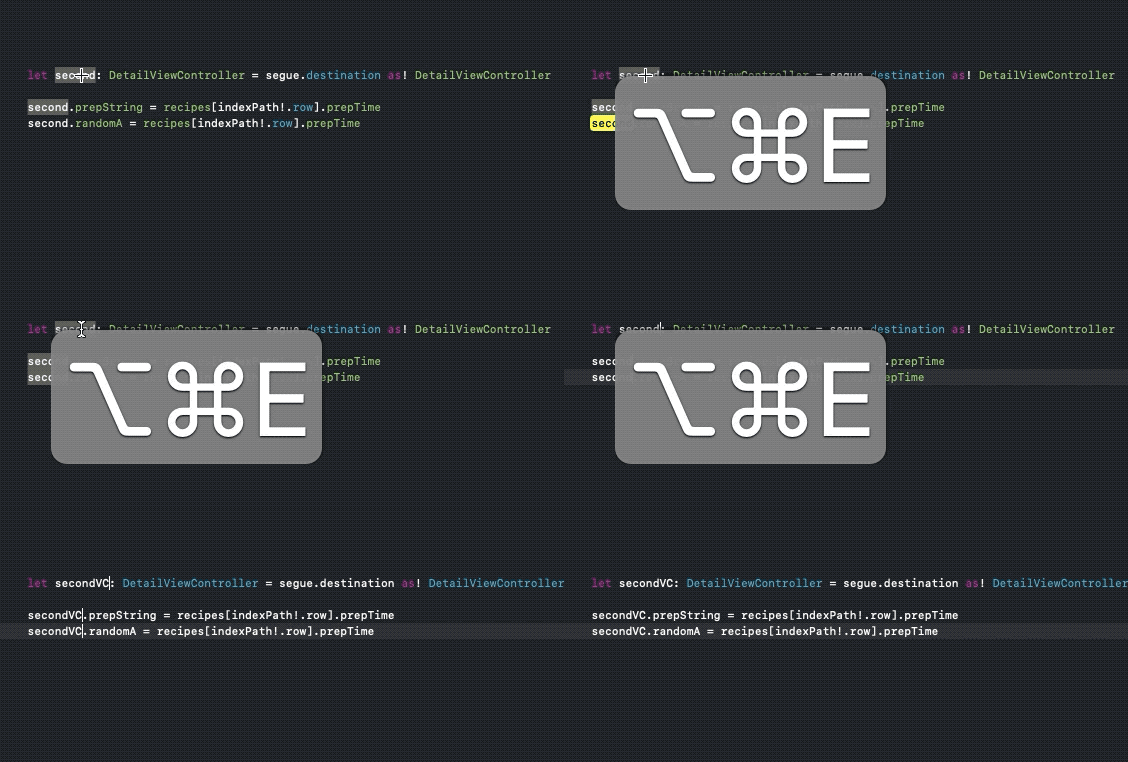
要选择上一个引用,请使用 Shift + Option + Command + E。
5 在范围内重构所有(Refactor All In Scope)
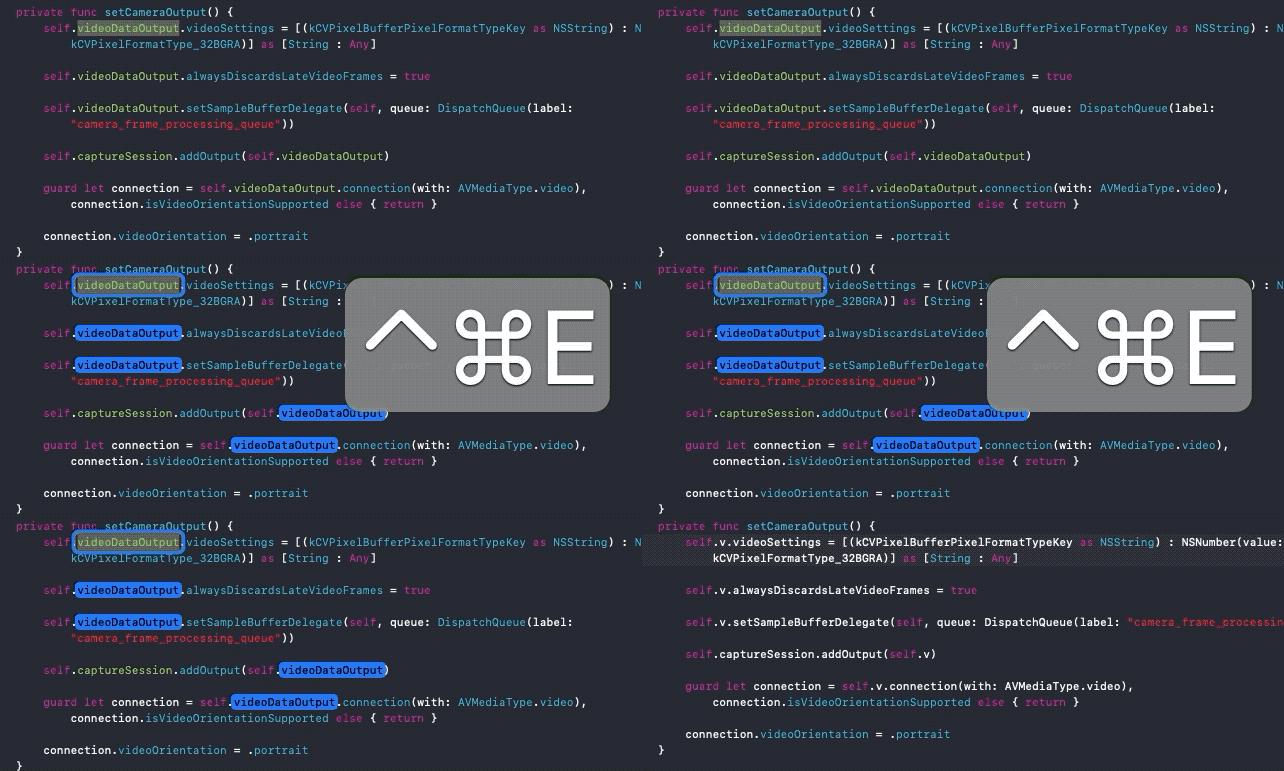
重构是不可避免的。这使得在范围内编辑变量和方法成为一个关键的工具。以下快捷键允许我们同时编辑范围内的所有内容:
快捷键:⌃ + ⌘ + E
(Control + Command + E)
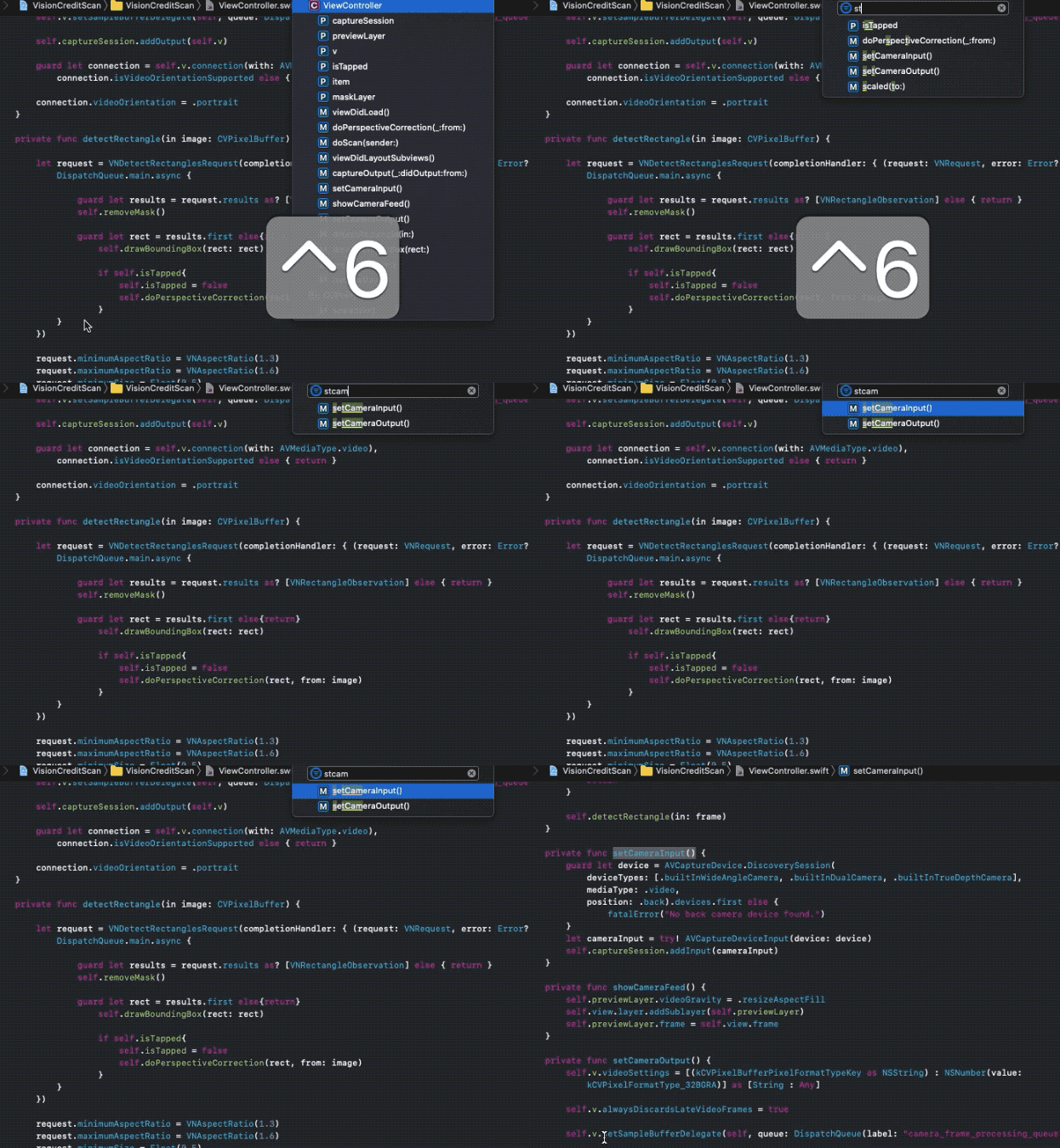
6 跳转到方法(Jump to Method)
要查看文件的大纲,以及所有的方法,只需按 Command + 6。它会打开一个窗体,从中可以搜索所需的方法并直接跳转到该方法。
快捷键:⌃+ 6
(Control + 6)
7 跳转到定义(Jump to Definition)
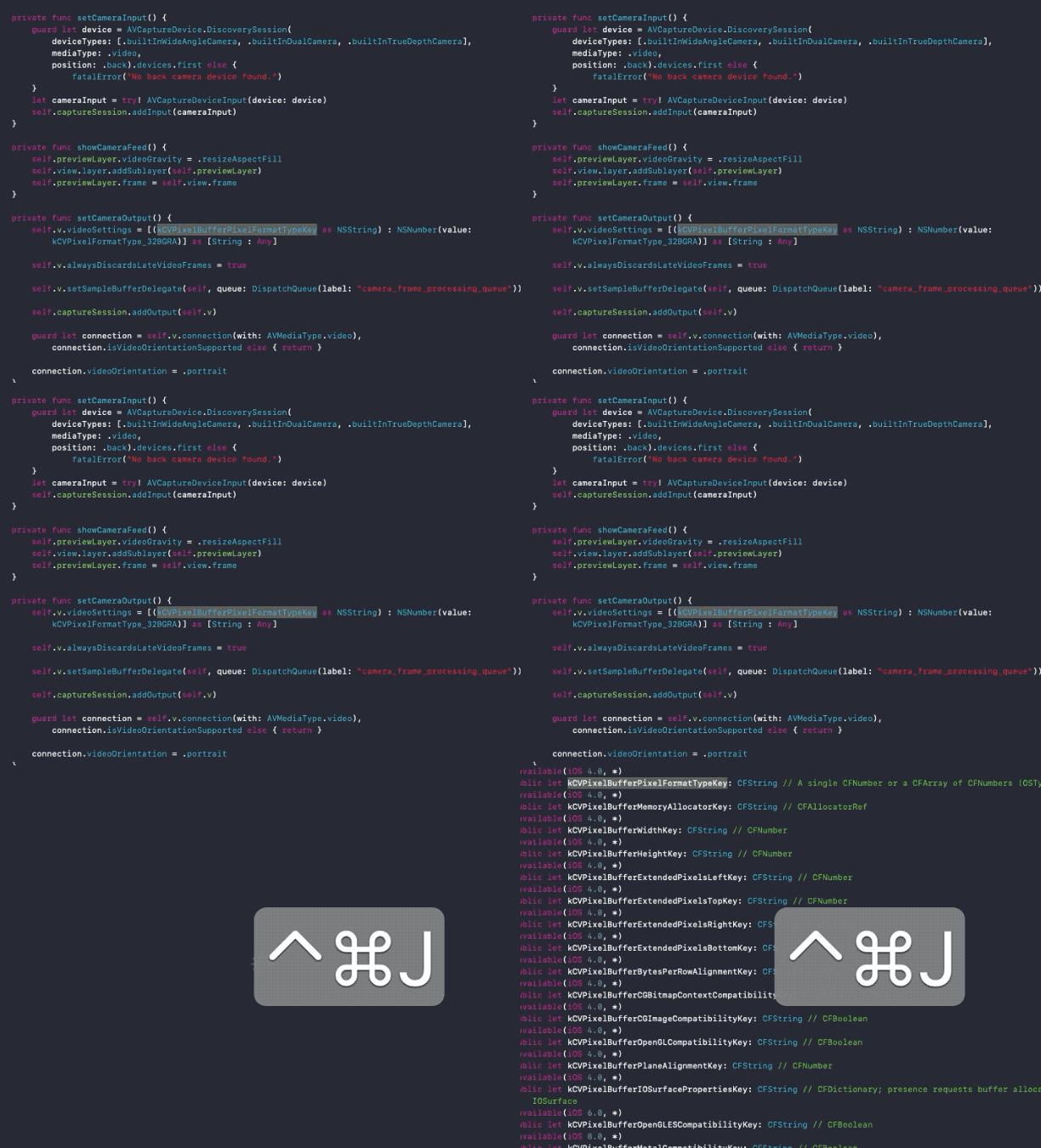
自 Xcode 9 开始,"Command + click"快捷键不会直接让您跳转到定义。相反,它会显示一个带有选项列表的弹出提示。要直接跳转到定义而不显示弹出窗口,请使用以下快捷键:
快捷键:⌃ + ⌘ + J
(Control + Command + J)
8 折叠和展开方法(Fold and Unfold Methods)
当文件大小超出界限(理想情况下不应该超出界限)时,有一个方便的快捷键可以让您进行代码折叠和折叠所有方法/选择的方法。
它在每个封闭块上放置一个代码区。以下是不同情况下的快捷方式:
全部折叠:⇧ +⌥ + ⌘ + ←
(Shift + Option + Command + Left Arrow)
全部展开:⇧ +⌥ + ⌘ + →
(Shift + Option + Command + Right Arrow)
折叠当前块:⌥ + ⌘ + ←
(Option + Command + Left Arrow)
[6.gif]
9 关闭选项卡(Closing Tabs)
Xcode 有很多快捷方式,可以让您选择要关闭的选项卡。你可以关闭当前的选项卡,或者关闭其他选项卡。下面给出了每个操作的快捷键:
关闭选项卡:⌘ + W
(Command + W)
关闭其他选项卡:⌘ + ⌥ + W
(Command + Option + W)
...
10 重新排序语句(Reorder Statements)
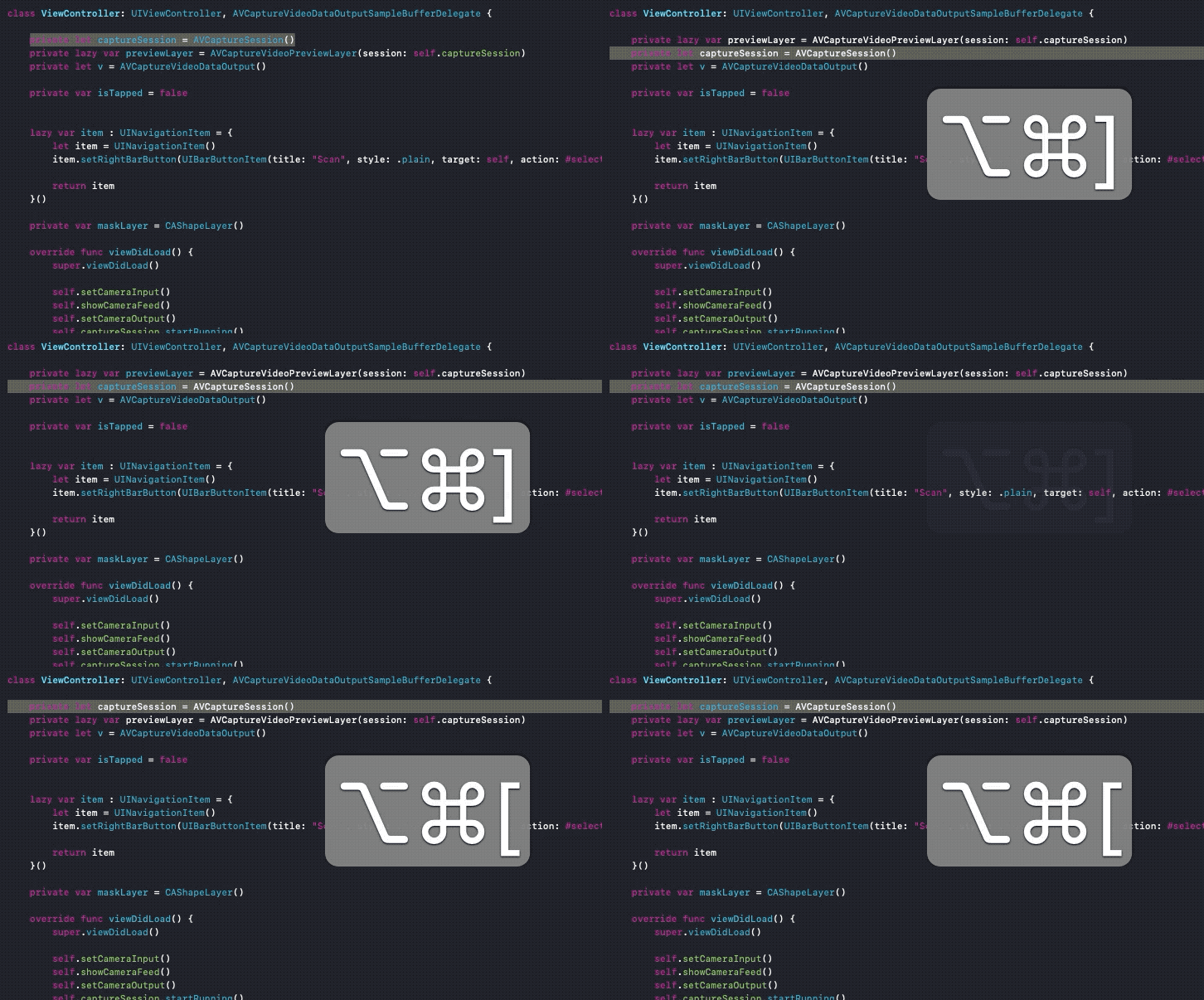
要更改语句的顺序并将它们移动到另一个位置,请使用以下快捷键:
快捷方式:⌘ + ⌥ + ( ] or [ )
(Command + Option + Square Brackets)
11 查找调用层次结构(Find Call Hierarchy)
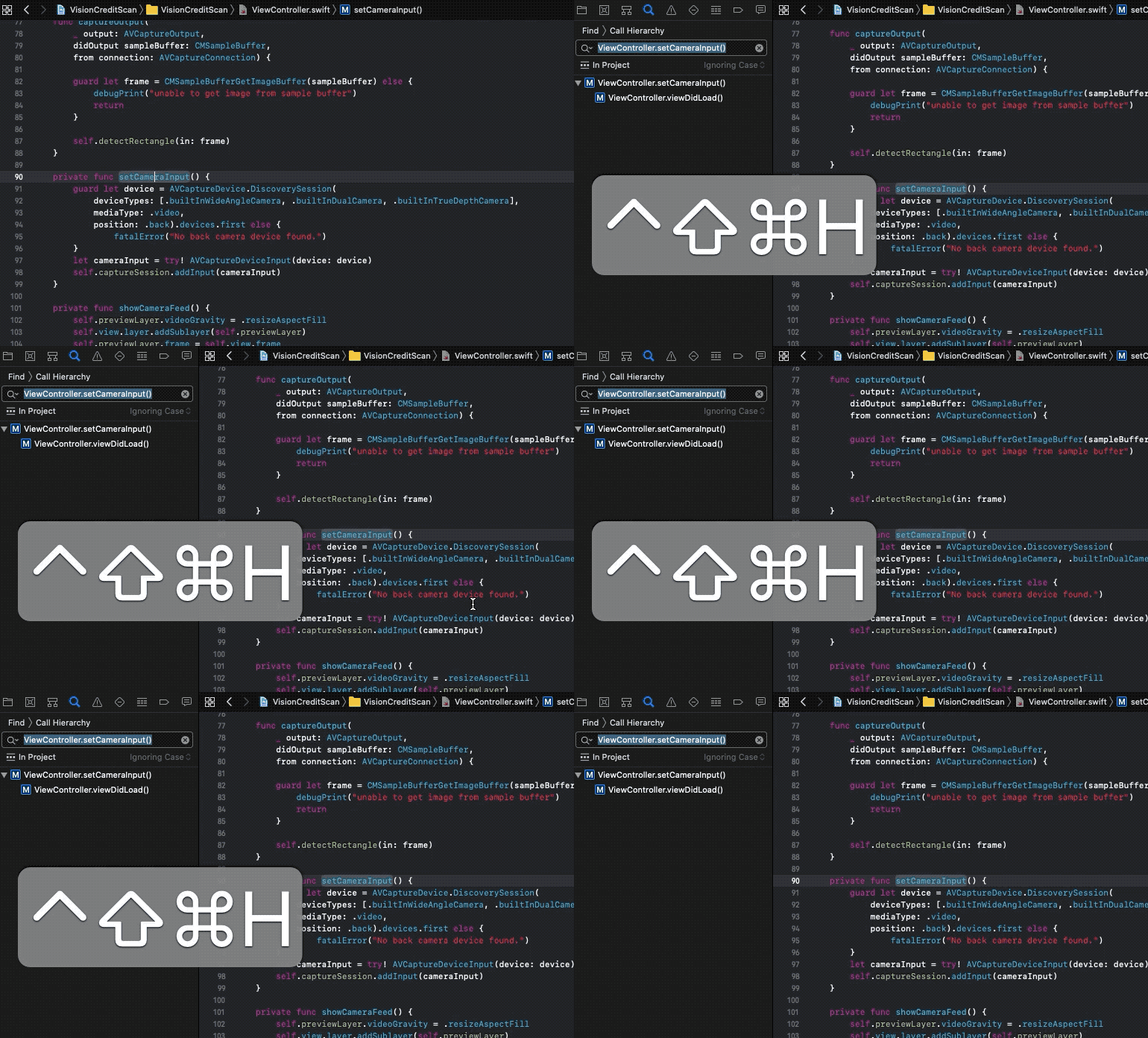
要快速找到所选符号的调用层次结构(无论是方法还是实例),只需使用以下快捷键。它在项目导航器中打开调用层次结构。
快捷键:⇧ + ⌃ + ⌘ + H
(Shift + Control + Command + H)
...
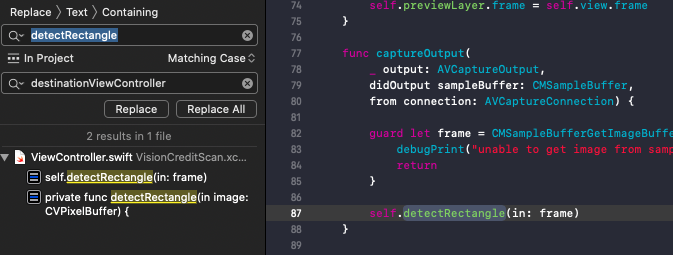
12 全局搜索和/或替换(Global Search And Or Replace)
Xcode IDE 有能力进行快速的全局搜索,甚至有能力在任何地方替换符号(小心处理)。
在整个项目中搜索:⇧ + ⌘ + F
(Shift + Command + F)
在整个项目中搜索和替换:⇧ + ⌥ + ⌘ + F
(Shift + Command + Option + F)
13 SwiftUI 预览(SwiftUI Previews)
Swift UI 改变了我们思考和构建 UI 的方式。使用 Xcode 中的内置画布预览,通过代码或直接在预览中构建 UI 变得简单多了。快捷键只是加快开发过程的锦上添花。
13.1 切换画布(Toggle canvas)
如果您希望在代码中快速构建原型,而不让实时预览分散您的注意力,这是一个方便的快捷键。
快捷键:⌥ + ⌘ + ↩
(Option + Command + Enter)
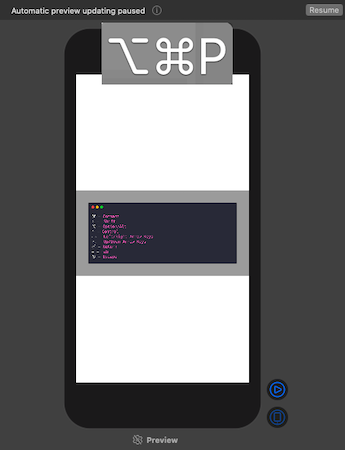
继续自动预览
自动预览通常会暂停,需要我们手动恢复。Xcode 11 有一个快捷键可以达到这个目的。
快捷键:⌥ + ⌘ + P
(Option + Command + P)
14 Minimap 快捷键(Minimap Shortcuts)
Xcode 11 给了我们 Minimap。IDE 右侧有一个非常需要的代码大纲视图。通过将鼠标移动在上面,您可以导航到代码的任何部分。
在重要的快捷键中,一个可以切换“小地图”视图,另一个显示文件中所有属性、方法、类和代码块的大纲:
切换 Minimap:⇧ + ⌃ + ⌘ + F
(Shift + Control + Command + F)
Minimap 轮廓:⇧ + ⌃ + ⌘
(Shift + Control + Command)

结论
我们快速浏览了许多 Xcode 快捷键,这些快捷键可以极大地提高生产率和速度。Xcode11 引入了一些方便的实用程序和快捷键,它们只会帮助您加速工作。
对于刚开始使用快捷键的开发人员,我建议慢慢来。选择一些快捷键,并将它们包含在你的日常使用案例中,以建立肌肉记忆。试图一次记住所有东西并不是掌握键盘快捷键的最佳方法。
本文就到此为止-谢谢您的阅读!