Why use flex layout?

Why use flex layout?

Flex layout sharing

最后更新 4/29/2022 7:13 AM
前端精髓
预计阅读 6 分钟
分类
front end
标签
CSS

这是我参与 2022 首次更文挑战的第 6 天,活动详情查看:2022 首次更文挑战

Question: ** Why use flex layout?*

Answer: Because it is easy to use.

During an interview, when the interviewer asked us why we use flex layout, we first had to understand something. What does the interviewer want to know when asking this question? A simple answer "easy to use" is definitely not enough. Any solution and technology emerge to make up for previous shortcomings. Therefore, compared with the pain points of traditional layout solutions, flex layout definitely has advantages and value. So next we have to talk about what the traditional layout looks like, and then what the flex layout looks like.

Traditional solutions to layout are based on a box model and rely on attributes such as display, position, and float. It is very inconvenient for those special layouts.

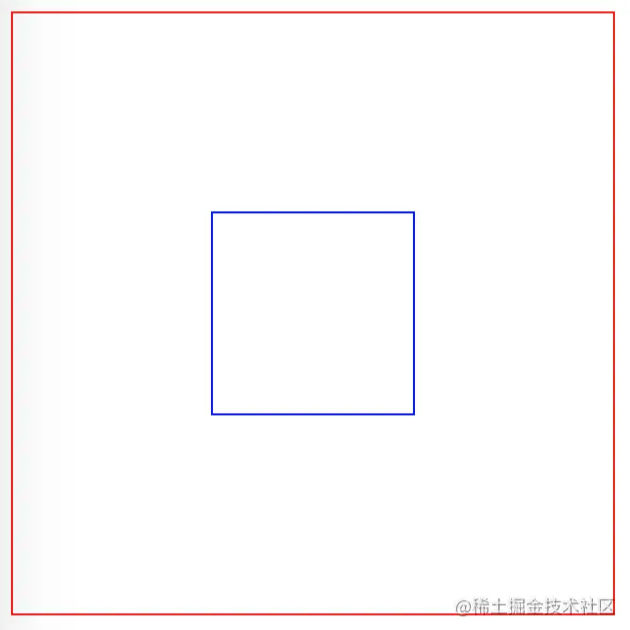
For example, vertical centering is not easy to achieve. We may need to position + transform to complete it.

<div class="wrap">
  <div class="box"></div>
</div>
.wrap {
  width: 300px;
  height: 300px;
  border: 1px solid red;
  position: relative;
}

.box {
  height: 100px;
  width: 100px;
  border: 1px solid blue;
  position: absolute;
  left: 50%;
  top: 50%;
  transform: translate3d(-50%, -50%, 0);
}

The new solution flex layout can easily, completely and responsively implement various page layouts.

Setting vertical centering for a box model using flex layout is very simple, just setting the alig-items:center; attribute.

.wrap {
  width: 300px;
  height: 300px;
  border: 1px solid red;
  display: flex;
  justify-content: center;
  align-items: center;
}

.box {
  height: 100px;
  width: 100px;
  border: 1px solid blue;
}

Flex is the abbreviation for Flexible Box, which means "elastic layout" and is used to provide maximum flexibility for box models.

1. two-column layout

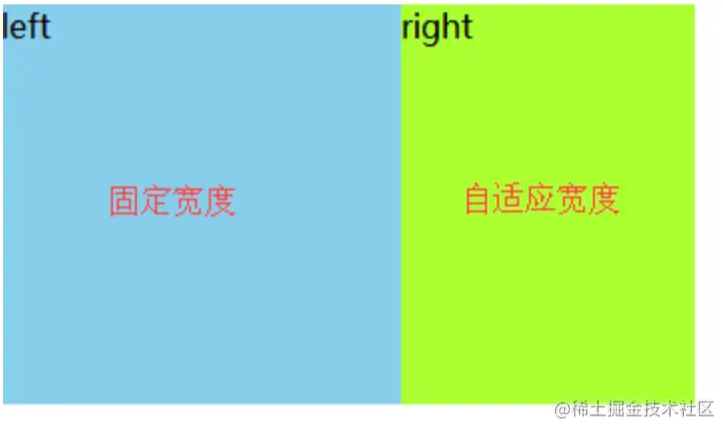
If we need to achieve the effect of a two-column layout on the page, one column has a fixed width and the other column is adaptive.

1.1 Method 1

Left float:left, right margin-left.

.left {
  float: left;
  width: 200px;
}
.right {
  margin-left: 200px;
}

Floating elements are separated from the document flow on the page and have no place of their own. They say that the elements behind them are covered by floating elements and spread out through margin or padding.

1.2 Method 2

left float:left, right overflow:hidden.

.left {
  float: left;
  width: 200px;
}
.right {
  overflow: hidden;
}

You can also clear the float by using overflow: hidden;.

1.3 Method 3

Use positioning position

.wrap {
  position: relative;
}
.left {
  width: 200px;
}
.right {
  position: absolute;
  top: 0;
  left: 200px;
}

1.4 Method 4

Leverage flexible layout flex

.wrap {
  display: flex;
}
.left {
  width: 200px;
}
.right {
  flex: 1;
}

2. attribute

Question: ** The difference between alig-items and justify-content **

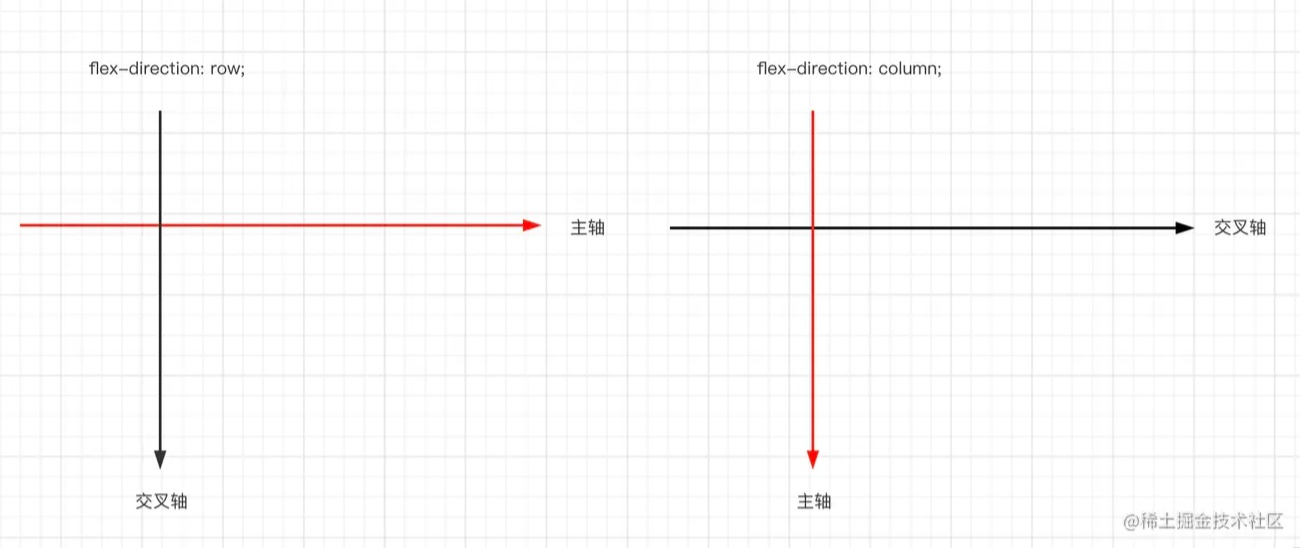
Elements that adopt Flex layout are called flex containers, or "containers" for short. The container has two axes by default: a horizontal main axis and a vertical cross axis.

The flex-direction attribute determines the direction of the main axis (i.e., the arrangement direction). There are 4 property values that can be set.

  1. row (default): The main axis is horizontal and the starting point is at the left end.
  2. row-reverse: The main axis is horizontal and the starting point is at the right end.
  3. column: The main axis is vertical and the starting point is at the upper edge.
  4. column-reverse: The main axis is vertical and the starting point is at the lower edge.

Note: Don't say during the interview: horizontal direction is the main axis. This is not accurate because the main axis may be horizontal and vertical. Because the flex-direction attribute determines the direction of the main axis.

  • The align-items property defines how items are aligned on the cross axis.
  • The justify-content property defines how the item is aligned on the main axis.

Question: **flex:1; what does it mean? *

The flex attribute is shorthand for flex-grow, flex-shrink, and flex-basis, and the default value is 01 auto. The last two attributes are optional.

The flex-grow attribute defines the zoom-in ratio of the project, which defaults to 0, that is, if there is remaining space, it will not be zoom-in. If all items have a flex-grow attribute of 1, they will equally divide the remaining space, if any. If the flex-grow attribute of one item is 2 and all other items are 1, the remaining space occupied by the former will be twice as large as the other items.

The flex-shrink attribute defines the reduction ratio of the project, which defaults to 1, which means that if there is insufficient space, the project will shrink. If the flex-shrink attribute of all projects is 1, when there is insufficient space, they will be reduced equally. If the flex-shrink attribute of one project is 0 and all other projects are 1, the former will not be shrunk when there is insufficient space.

The flex-basis attribute defines the principal axis space occupied by the project before allocating excess space. Based on this attribute, the browser calculates whether there is excess space on the spindle. Its default value is auto, which is the original size of the project.

flex 属性属性有两个快捷值:auto (1 1 auto)none (0 0 auto)

It is recommended to use this attribute first rather than writing three separate attributes separately, because the browser will deduce the relevant values.

So flex: 1 means equally dividing the remaining space.

Keep Exploring

延伸阅读

更多文章