![[Practical Tips] Teach You to Convert Markdown to PDF, PNG, JPEG](https://img1.dotnet9.com/2022/05/cover_24.jpg)
Table of Contents
- Introduction
- Today's Star
- Summary
- Webmaster's Additional Notes
1. Introduction
Markdown, as a very easy-to-grasp document format, is increasingly used by people for writing documentation, resumes, blogs, and more.
However, if the target users' computers don't have a
Markdowneditor, they won't be able to see the preview. Therefore, when sending documents to clients or others, it's common to convertMarkdownfiles to formats like
Initially, I used the Typora editor, which had a great built-in export feature, but it has now become paid software.
2. Today's Star
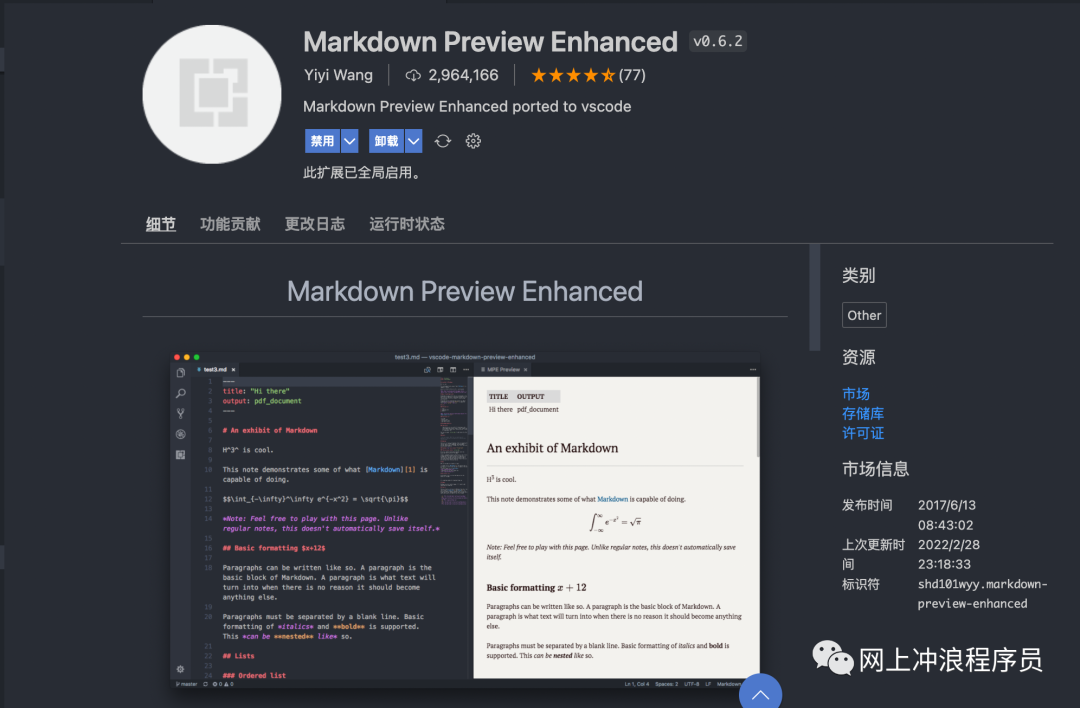
Nowadays, VS Code is incredibly powerful. By using VS Code along with the Markdown Preview Enhanced extension, you can easily export Markdown files to PDF and other formats.
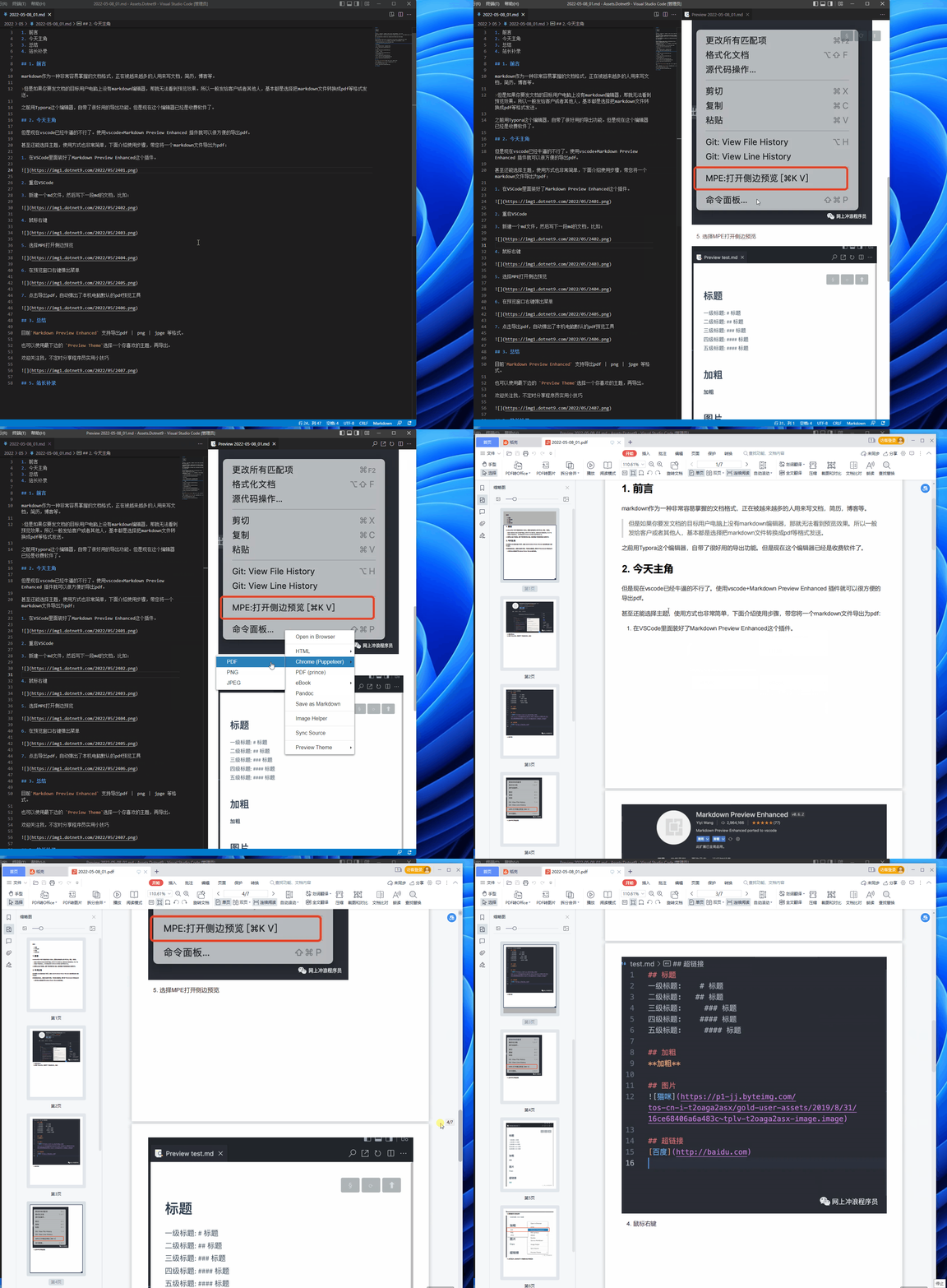
This extension for VS Code even allows you to choose themes, and it's very simple to use. Below are the steps to export a Markdown file to a PDF file:
- Install the
Markdown Preview Enhancedextension inVS Code.
Restart
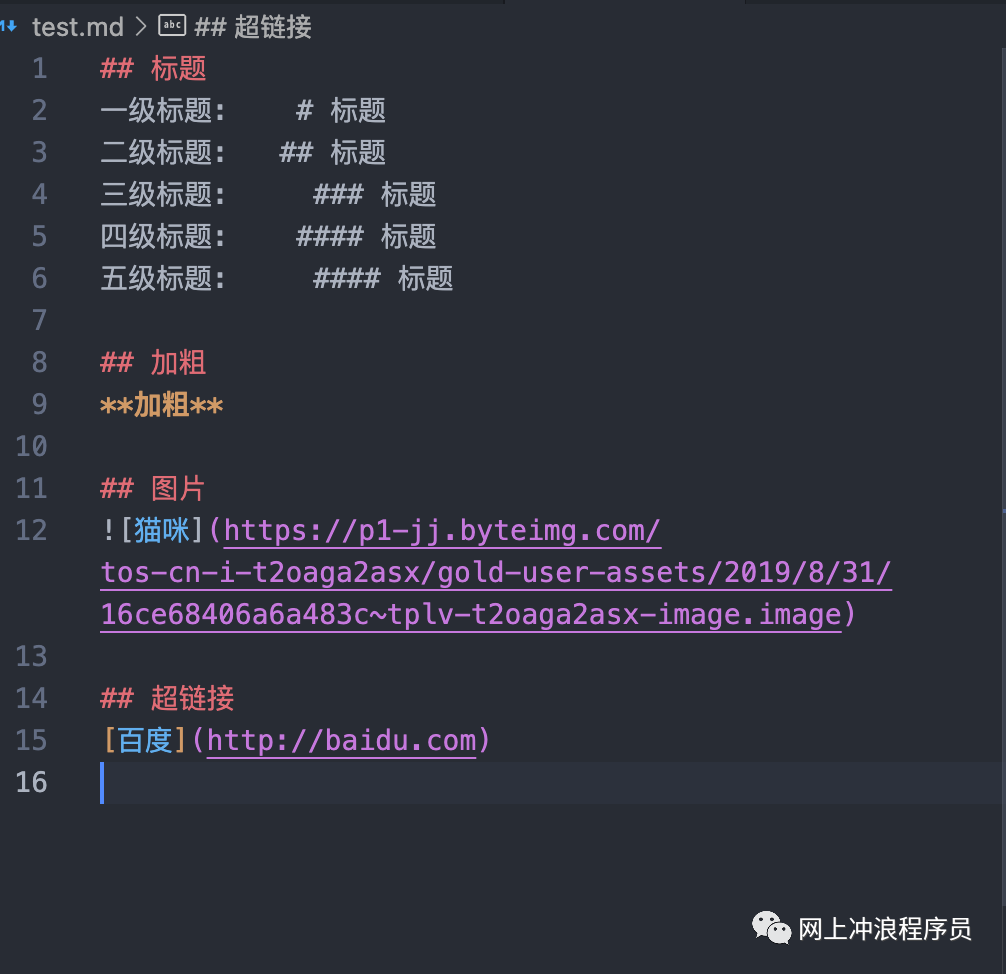
VS Code.Create a new
Markdownfile and write someMarkdowncontent, for example:
- Right-click inside the document:
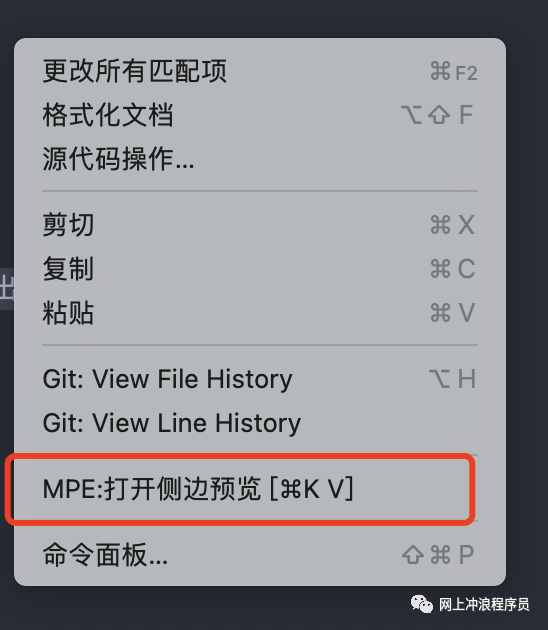
- Select
MPE: Open Preview to the Sideor use the shortcutCtrl + K V(the one shown above is for Mac) to preview theMarkdownrendering:

- Right-click in the preview window to bring up the menu:
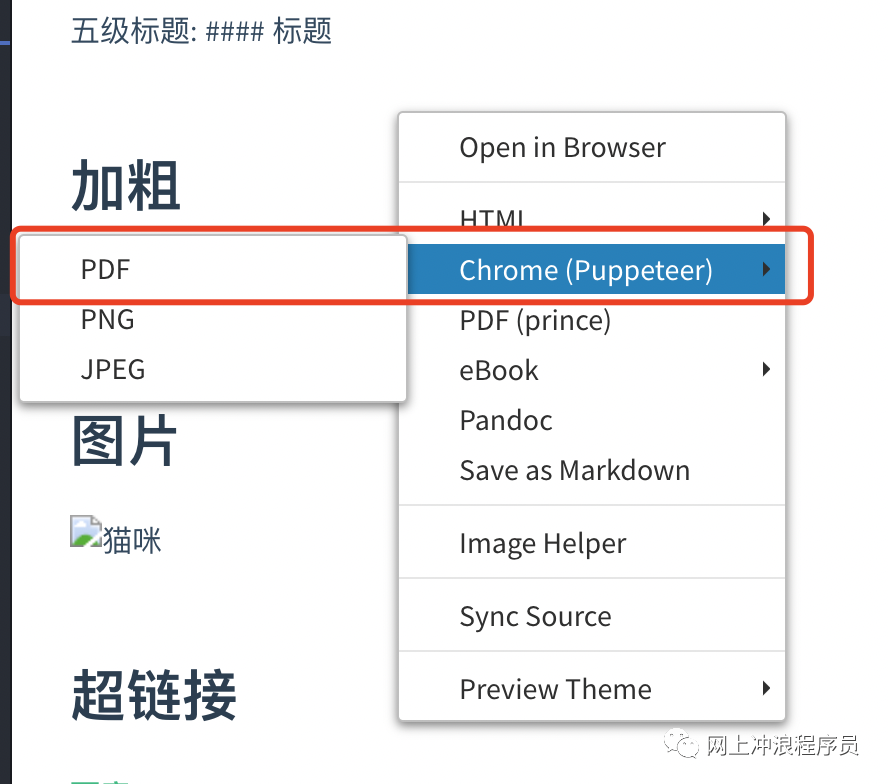
- Click
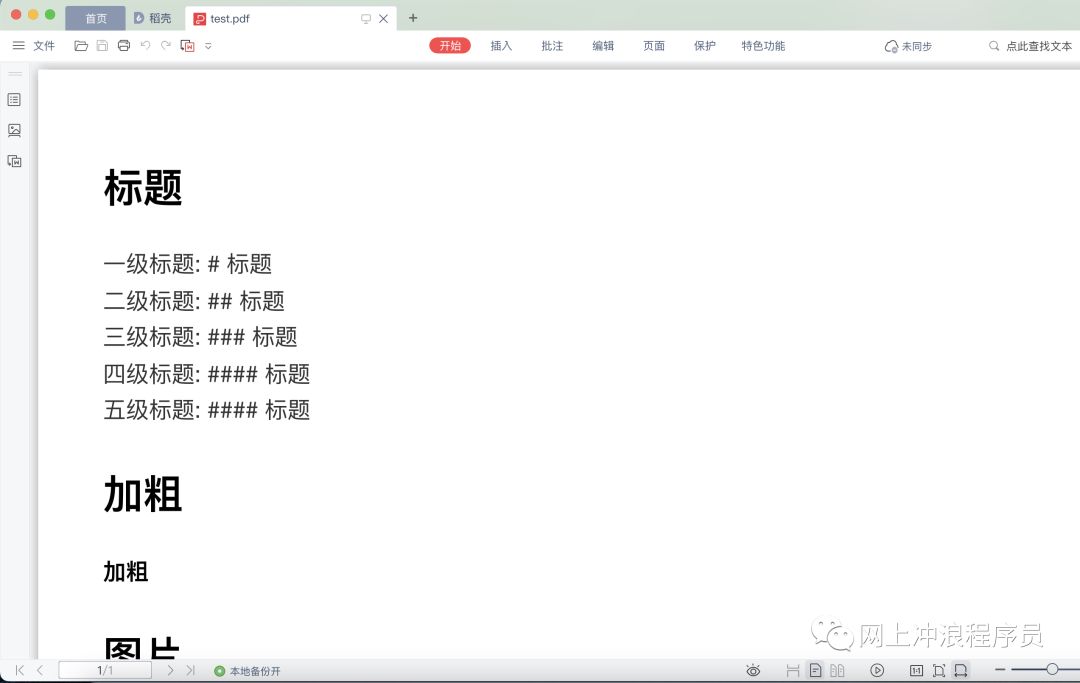
Chrome (Puppeteer) > PDFto export theMarkdownfile toPDF. As shown, it automatically opens the defaultPDFviewer on your computer:
3. Summary
Currently, Markdown Preview Enhanced supports exporting to PDF, PNG, JPEG, and other formats.
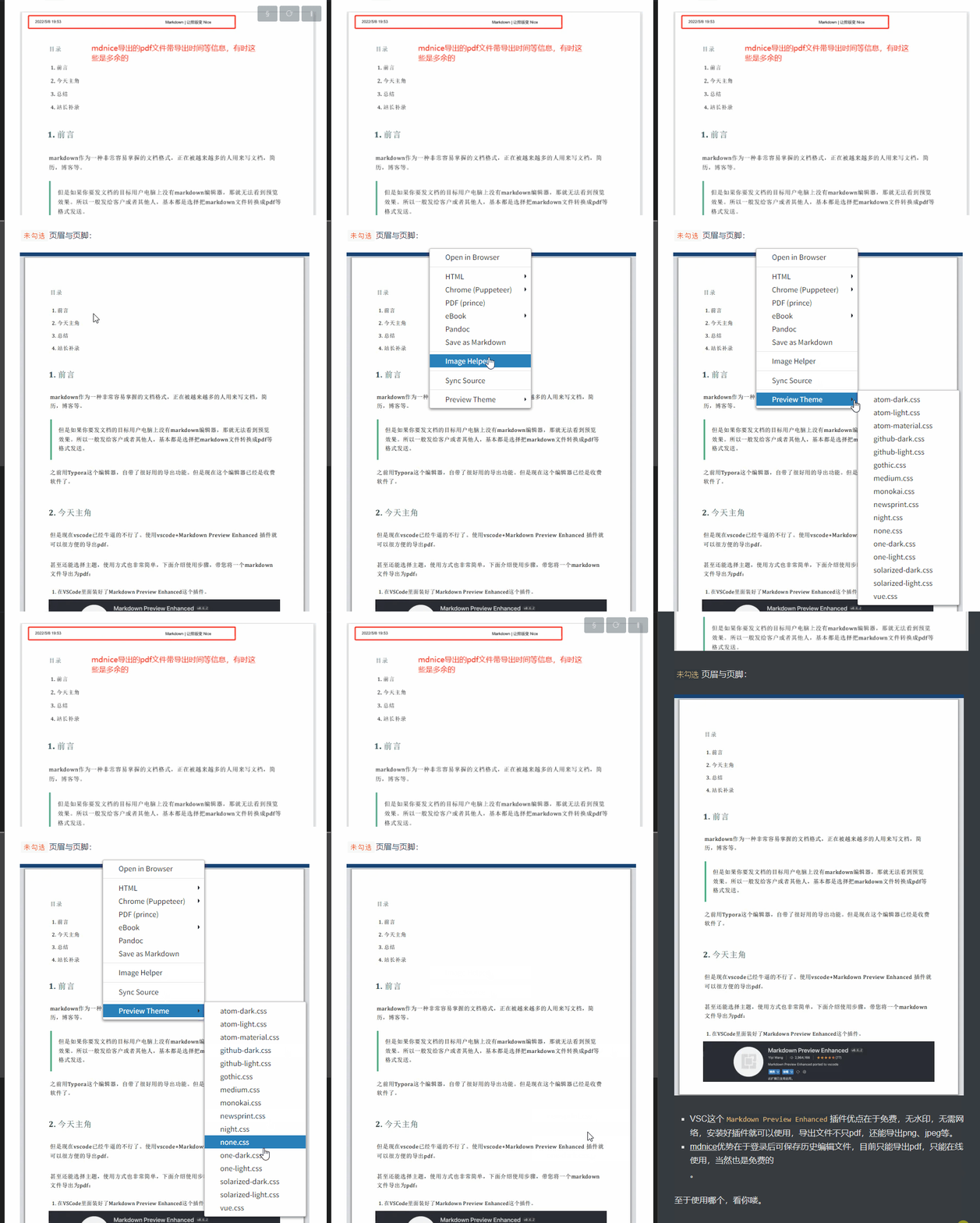
Here's a little surprise: you can use the Preview Theme menu option at the bottom to choose a theme you like before exporting.
Of course, this article only covers a small part of the extension's features — it's quite powerful, so feel free to explore it.
4. Webmaster's Additional Notes
The webmaster recorded a GIF animation of using the Markdown Preview Enhanced extension to export a Markdown file to PDF. See how great it looks. The exported file is saved in the same directory as the original Markdown file by default:
I usually use mdnice to edit Markdown files, and it also has a PDF export feature:
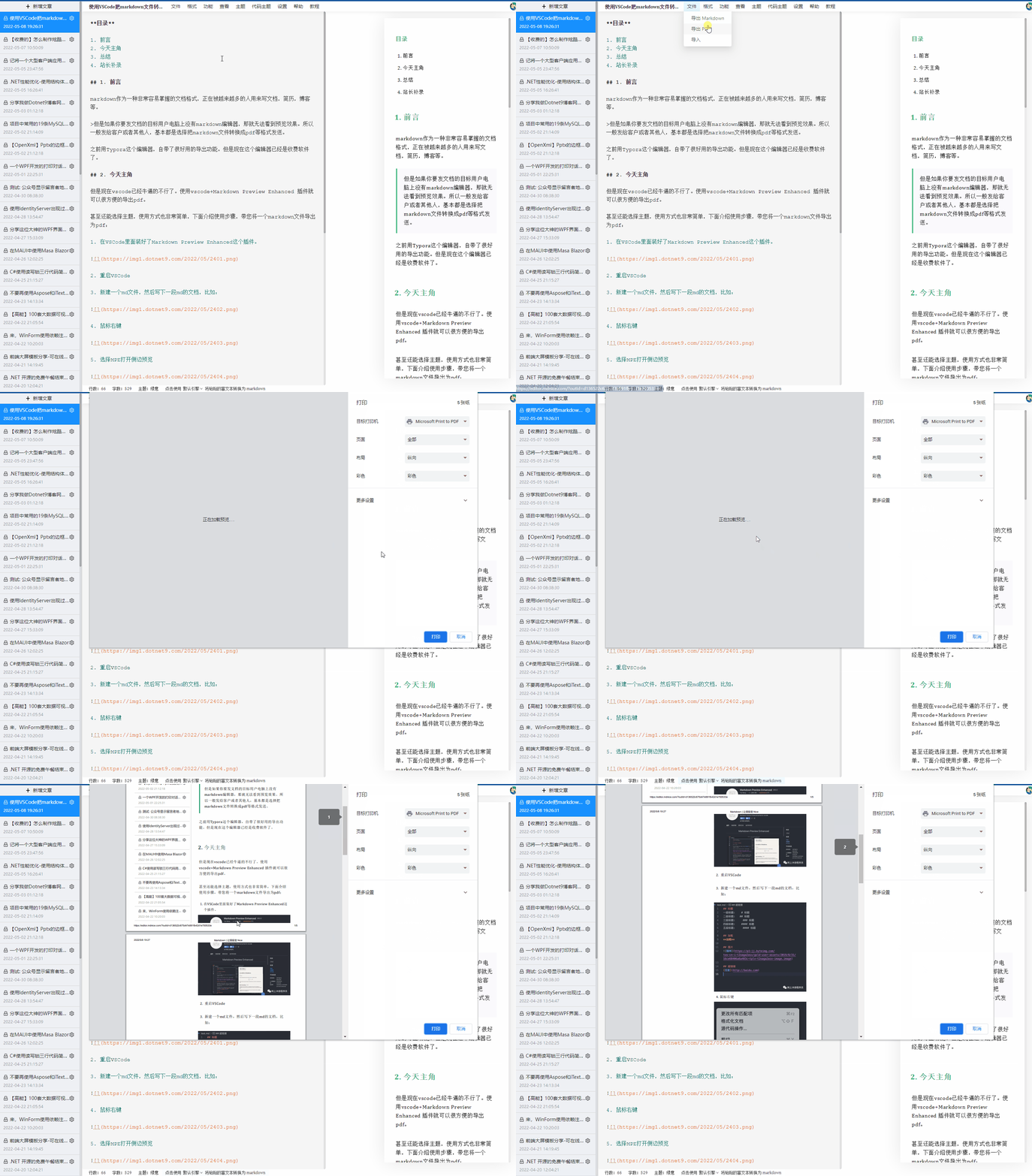
Click the "More Settings" in the image above. You can choose whether to display file information (file export time, file URL) in the header and footer. Usually, this is left unchecked:
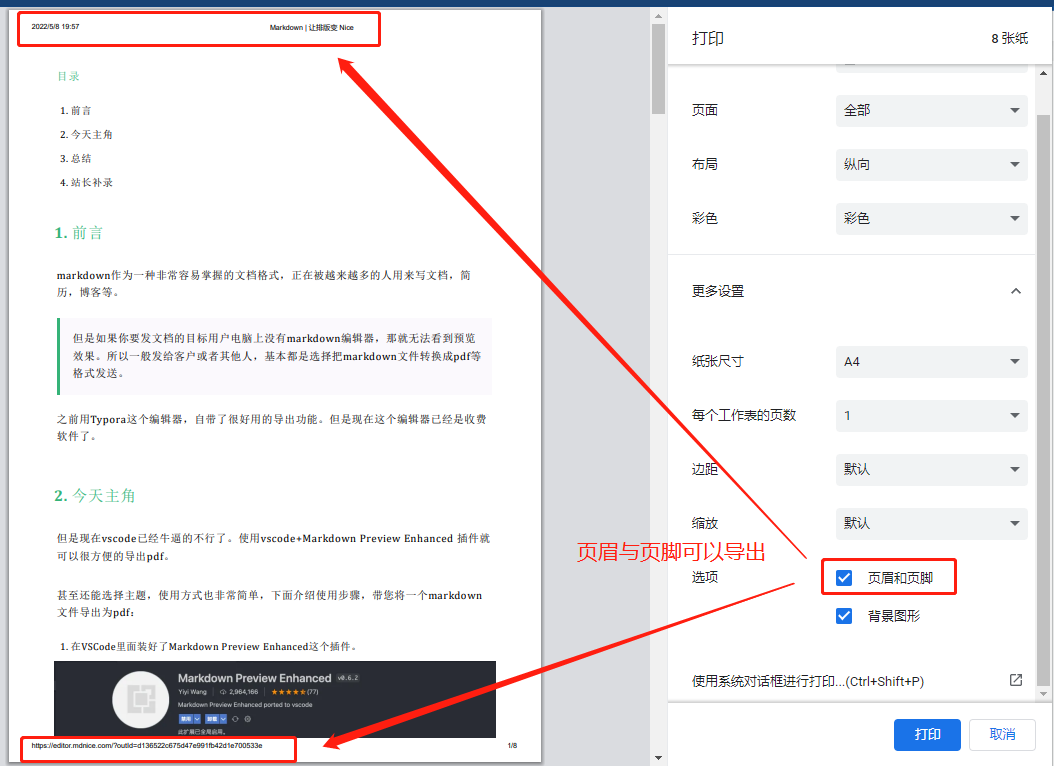
Below is the PDF file exported with the header and footer option checked:
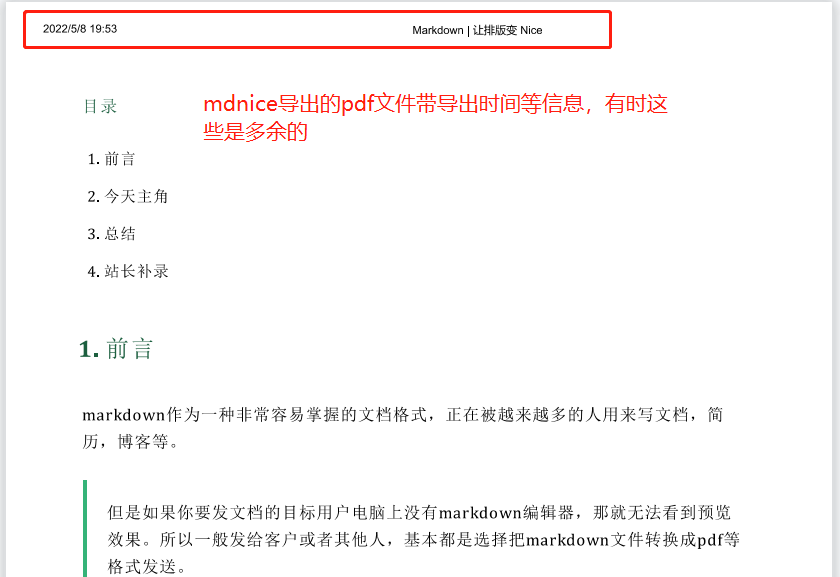
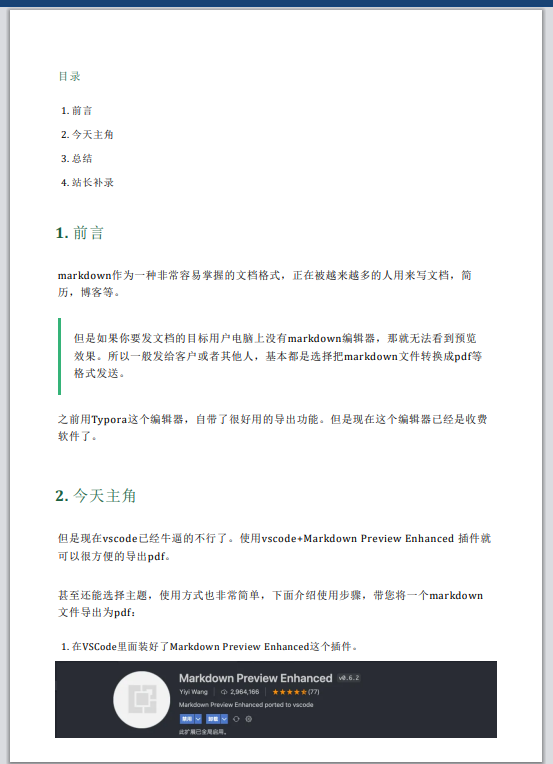
And below is the same PDF file exported with the header and footer option unchecked:
- The advantage of the
Markdown Preview Enhancedextension forVS Codeis that it is free, has no watermark, requires no internet connection, and once installed, you can use it immediately. It exports not onlyPDFbut alsoPNG,JPEG, etc. - The advantage of mdnice is that after logging in, you can save your editing history. Currently, it can only export
PDFfiles and only works online, but it is also free.
Which one to use is up to you (personally, I recommend the VS Code extension, haha).
Follow me for occasional tips and tricks for programmers.