1. Introduction
It has been 2 months since I last published the article "MAUI First Experience: Awesome". I originally planned to study MAUI in the second half of the year or next year, but now the plan has been moved forward because I think MAUI Blazor is very interesting: sharing UI between Android, iOS, macOS, and Windows—add or modify UI in one place and get a consistent UI experience.
Check out this article "Blazor Hybrid/MAUI Introduction and Practice" for an explanation of MAUI Blazor:
MAUI
.NET Multi-platform App UI (.NET MAUI) is a cross-platform framework for creating native mobile and desktop applications using C# and XAML. With .NET MAUI, you can develop applications that run on Android, iOS, macOS, and Windows from a single shared codebase.
Blazor Hybrid Apps and .NET MAUI
Blazor Hybrid support is built into the .NET Multi-platform App UI (.NET MAUI) framework. .NET MAUI includes the BlazorWebView control, which renders Razor components into an embedded Web View. By combining .NET MAUI with Blazor, you can reuse a set of Web UI components across mobile devices, desktop devices, and the Web.
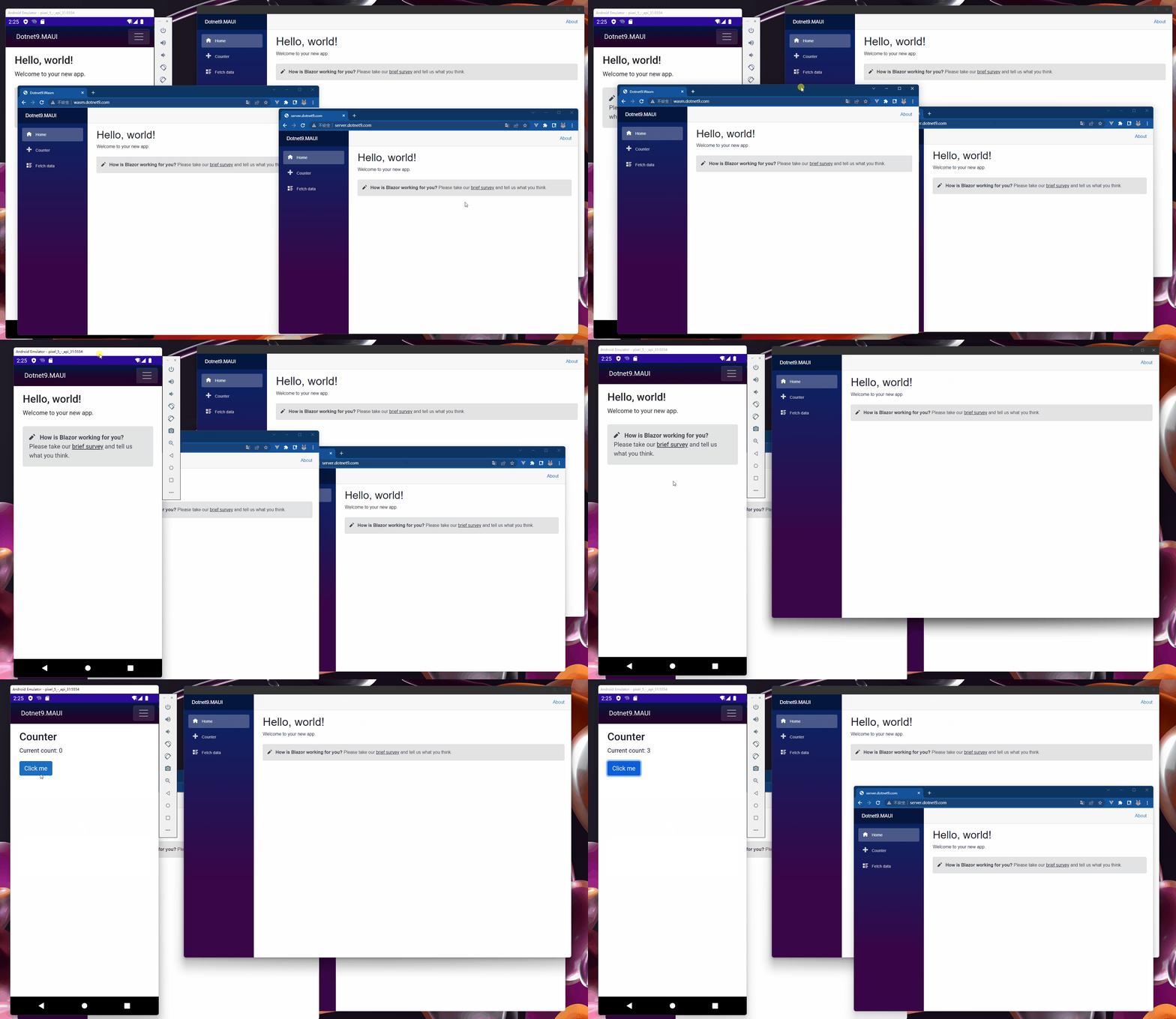
Today I will share an experiment on how to share UI between Blazor Server, Blazor Wasm, and MAUI Blazor. Once this step is completed, developing applications later will be much more convenient (only for UI modifications).
2. Let's first experience the final effect on each platform
- Blazor Server: https://server.dotnet9.com/
- Blazor Wasm: https://wasm.dotnet9.com/
- MAUI (Android/Windows/macOS): https://github.com/dotnet9/Dotnet9/tree/develop/src/Dotnet9.MAUI (compile from source code)
Windows desktop, Blazor Server (online), Blazor Wasm (online), Android effects
iPad Air, iOS, macOS desktop effects
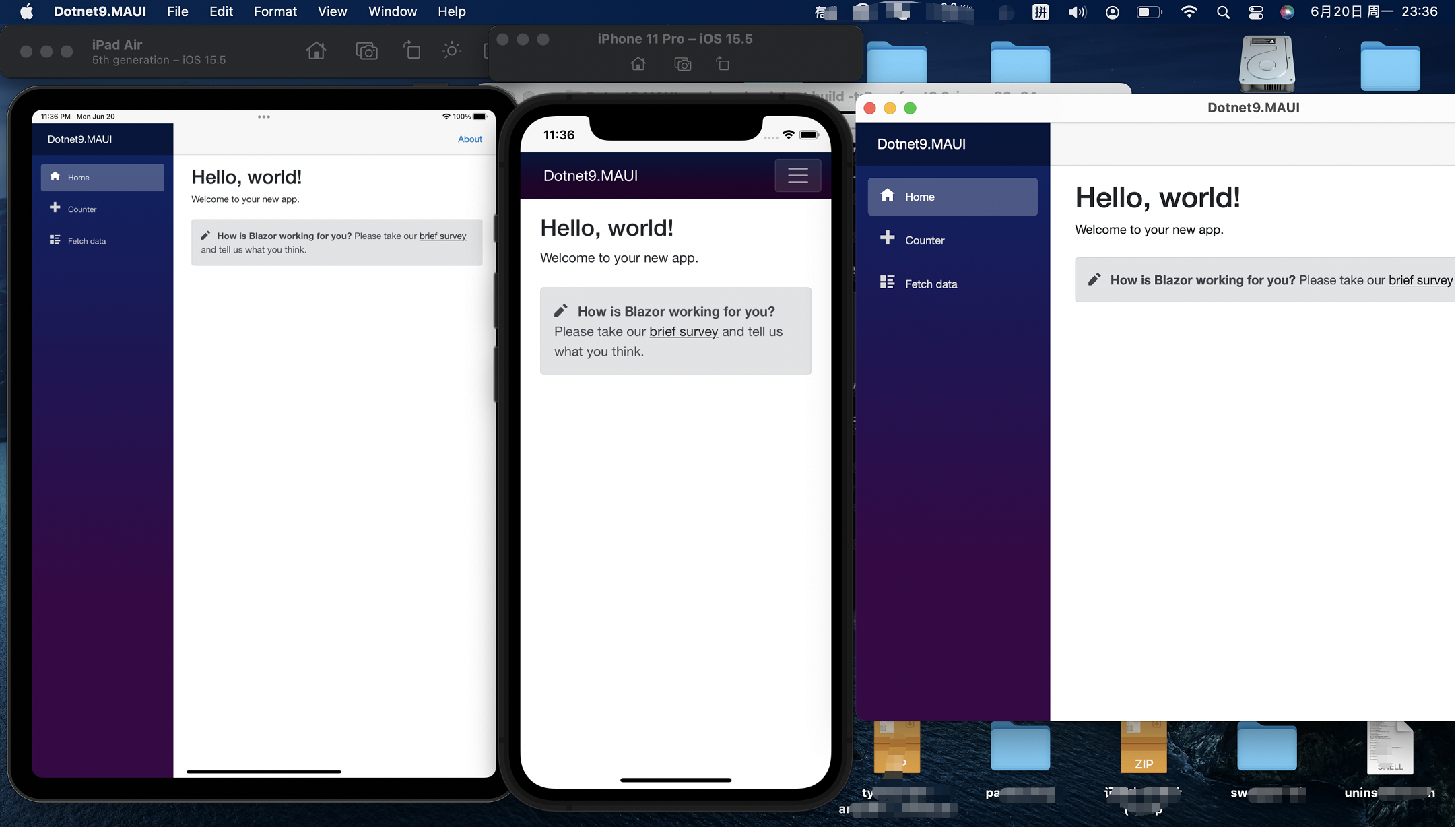
I haven't experienced the published files of MAUI on each platform (requires signature and publishing operations for the respective platform). You can create a project according to the method described below and compile it for a trial.
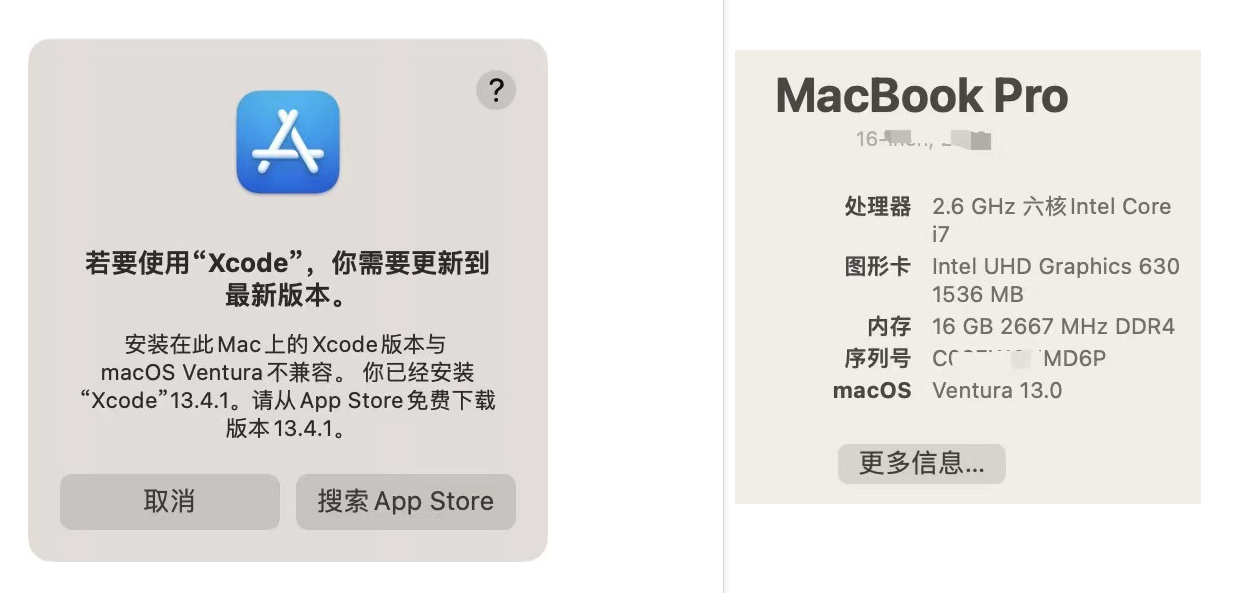
Thanks to Qingcheng classmate for providing the image material for the iOS and macOS effects. The site owner's mbp has installed the latest macOS and xCode is also the latest. Possibly because of the preview version of macOS, xCode could not be opened, indirectly affecting MAUI compilation?
macOS version and xCode version
xCode is not available
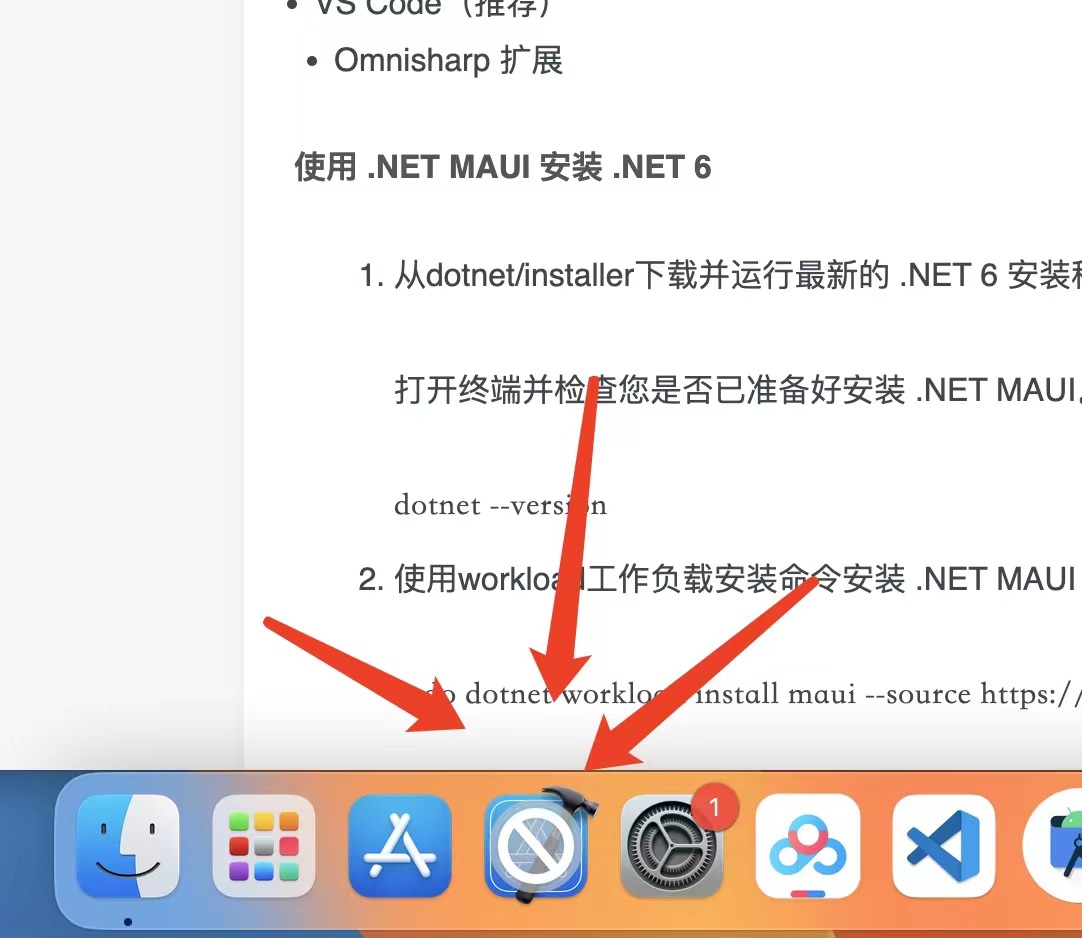
VS compilation error, will be resolved later

I suggest classmates using mbp not install the preview version of the operating system. Don't be a warrior....
3. Create new projects
For setting up the MAUI environment, you can refer to this article "Using Masa Blazor in MAUI". This article does not introduce environment setup; directly use the latest preview version of VS 2022 project templates to create projects.
3.1 Create Blazor Server project: Dotnet9.Server
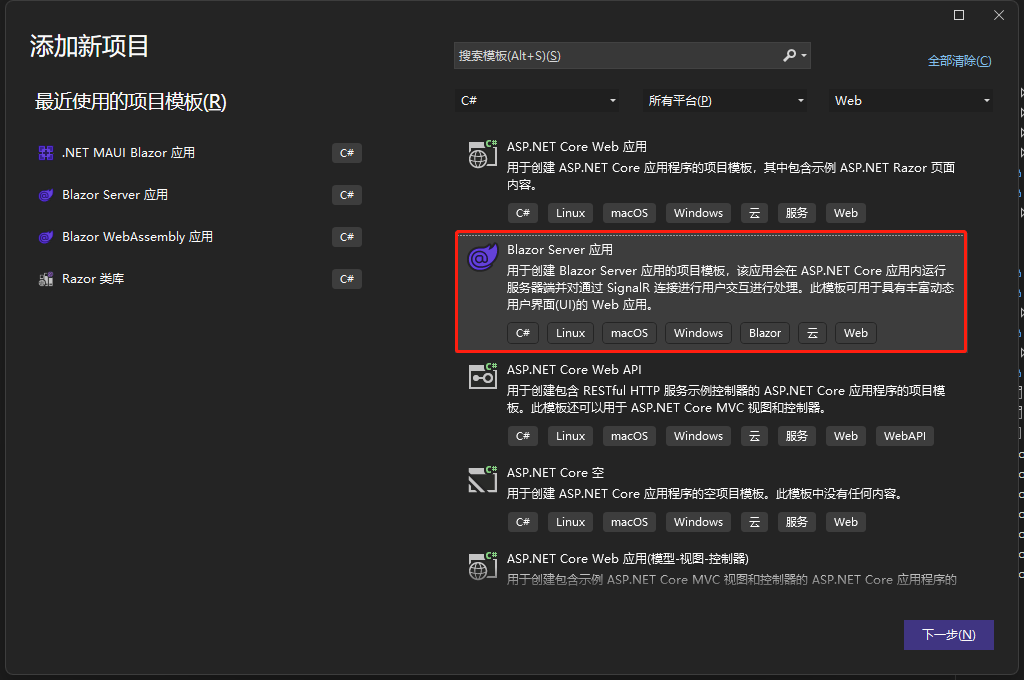
3.2 Create Blazor WebAssembly project: Dotnet9.Wasm
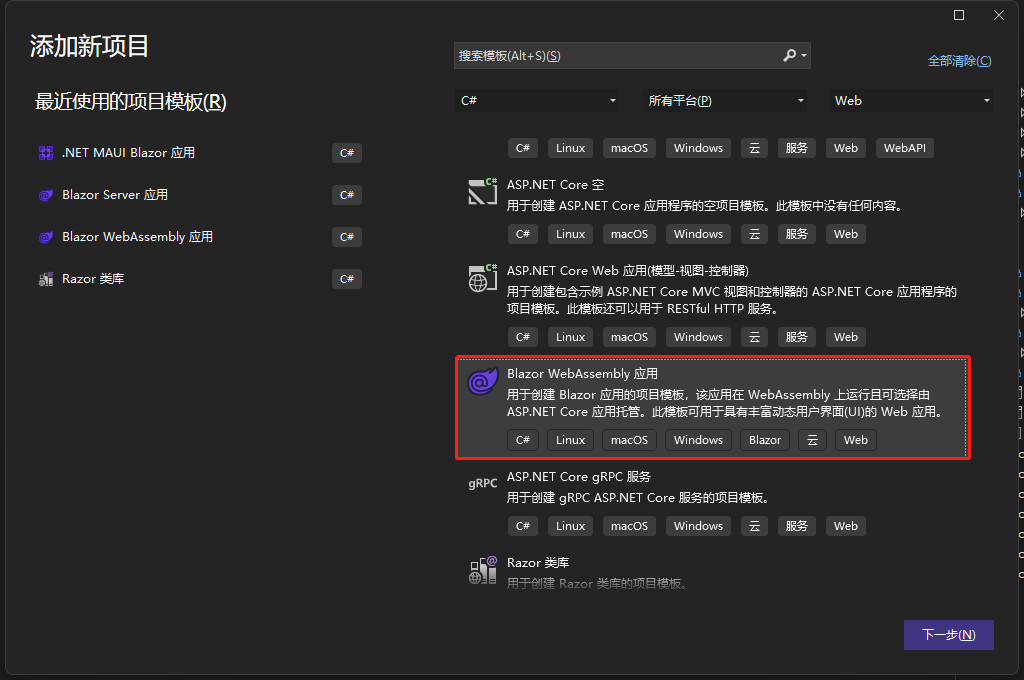
3.3 Create MAUI Blazor project: Dotnet9.MAUI
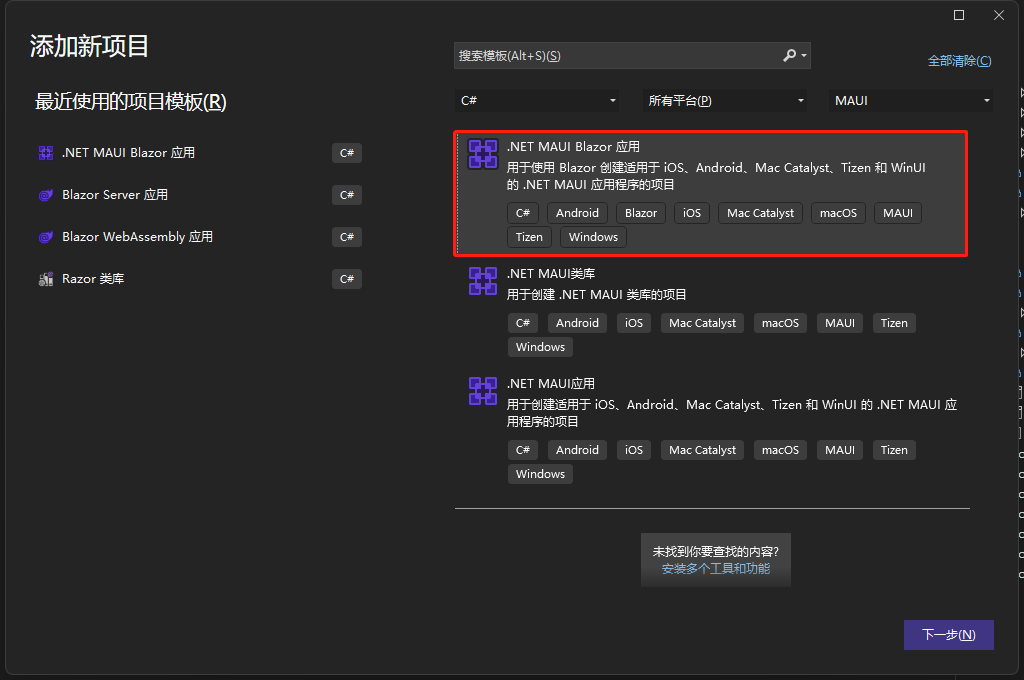
3.4 Find common points
In the parent directory of the 3 projects, open PowerShell and type tree /f to view the detailed directory file structure:
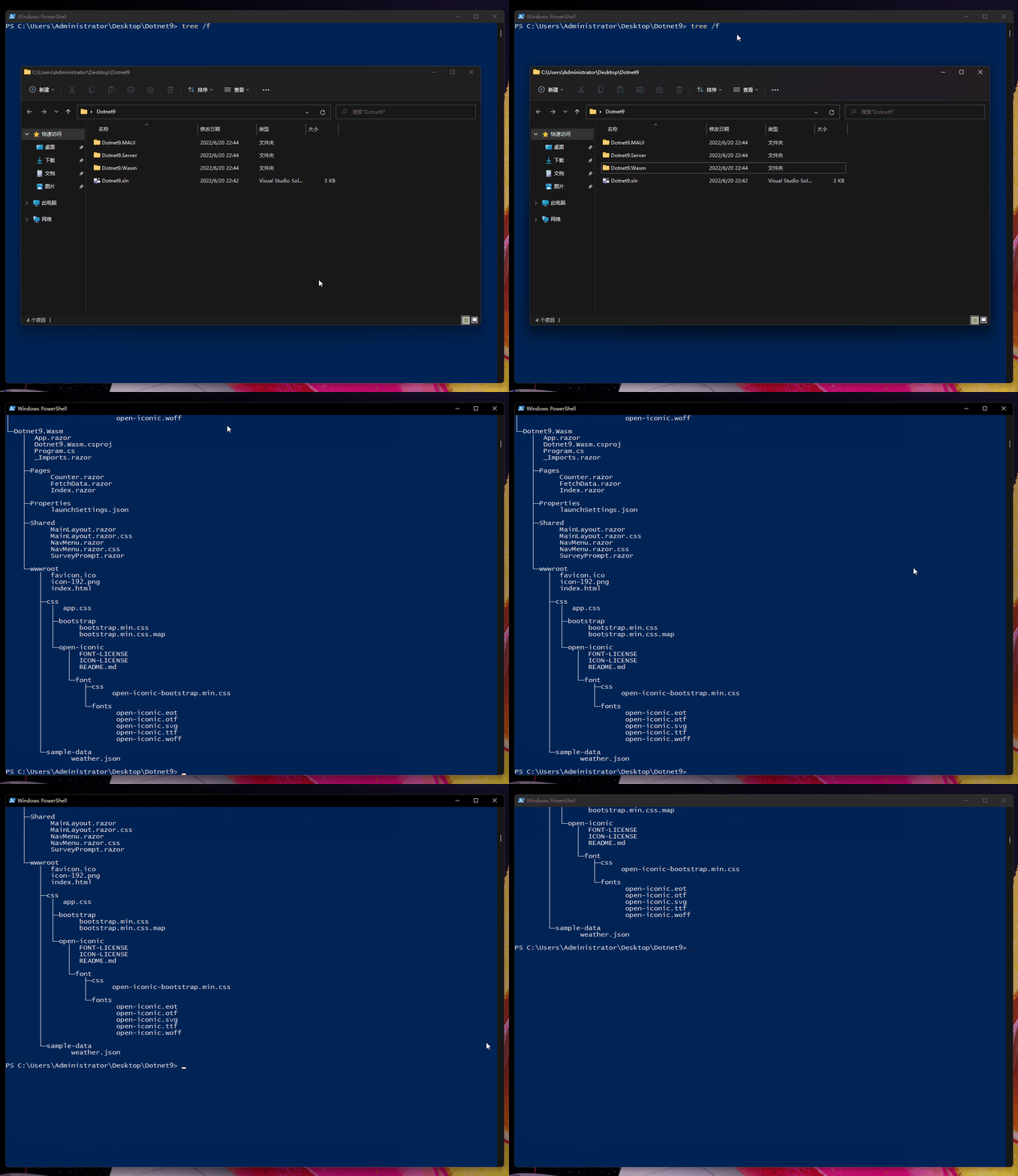
Carefully examine the file structure of the three template projects to find common files:
Folder PATH listing
Volume serial number is 76F5-AF62
C:.
│  Dotnet9.sln
│
├─Dotnet9.MAUI
[1 Some files omitted here]
│  │
│  ├─Data
│  │      WeatherForecast.cs
│  │      WeatherForecastService.cs
│  │
│  ├─Pages
│  │      Counter.razor
│  │      FetchData.razor
│  │      Index.razor
[2 Some files omitted here]
│  │
│  ├─Shared
│  │      MainLayout.razor
│  │      MainLayout.razor.css
│  │      NavMenu.razor
│  │      NavMenu.razor.css
│  │      SurveyPrompt.razor
[3 Some files omitted here]
│
├─Dotnet9.Server
│  │  App.razor
[4 Some files omitted here]
│  │
│  ├─Data
│  │      WeatherForecast.cs
│  │      WeatherForecastService.cs
│  │
│  ├─Pages
│  │      Counter.razor
│  │      Error.cshtml
│  │      Error.cshtml.cs
│  │      FetchData.razor
│  │      Index.razor
│  │      _Host.cshtml
│  │      _Layout.cshtml
│  │
│  ├─Properties
│  │      launchSettings.json
│  │
│  ├─Shared
│  │      MainLayout.razor
│  │      MainLayout.razor.css
│  │      NavMenu.razor
│  │      NavMenu.razor.css
│  │      SurveyPrompt.razor
[5 Some files omitted here]
│
└─Dotnet9.Wasm
[6 Some files omitted here]
    │
    ├─Pages
    │      Counter.razor
    │      FetchData.razor
    │      Index.razor
    │
    ├─Properties
    │      launchSettings.json
    │
    ├─Shared
    │      MainLayout.razor
    │      MainLayout.razor.css
    │      NavMenu.razor
    │      NavMenu.razor.css
    │      SurveyPrompt.razor
[7 Some files omitted here]
It turns out that all have Data directory and Pages directory (the Wasm project does not have a Data directory; the sample classes are written directly in the @code{} block of the FetchData.razor file). Then we can directly extract these files into a class library. Let's do it.
4. Extract UI to Razor class library
Create a Razor class library: Dotnet9.WebApp
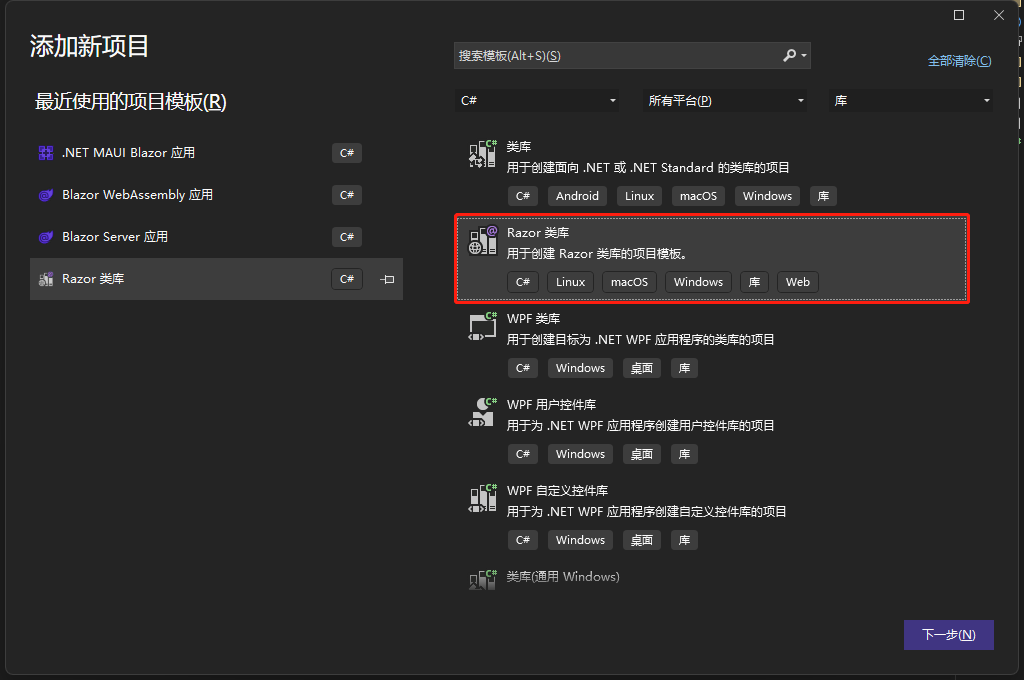
Start extracting UI
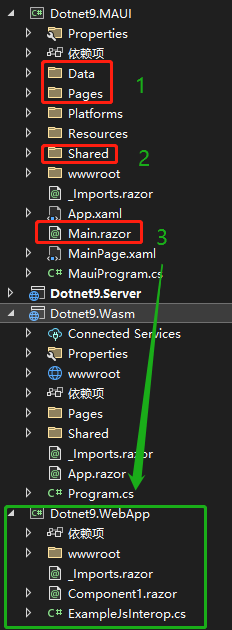
As shown in the figure above, cut the Data, Pages, Shared directories and the Main.razor file from the Dotnet9.MAUI project to the Dotnet9.WebApp project. Then modify the namespace Dotnet9.MAUI[xxx] of the corresponding files to Dotnet9.WebApp[xxx]. Open the _Import.razor file of the Dotnet9.WebApp project, and refer to part of the namespace from the _Import.razor file of the Dotnet9.MAUI project. Modify as follows:
@using System.Net.Http
@using Microsoft.AspNetCore.Authorization
@using Microsoft.AspNetCore.Components.Forms
@using Microsoft.AspNetCore.Components.Routing
@using Microsoft.AspNetCore.Components.Web
@using Microsoft.AspNetCore.Components.Web.Virtualization
@using Microsoft.JSInterop
@using Dotnet9.WebApp
@using Dotnet9.WebApp.Shared
Some of the above namespaces can be deleted (not attempted). Compile the Dotnet9.WebApp project to check if it compiles correctly.
5. Modify each end project
5.1 MAUI project
- Add a project reference to
Dotnet9.WebApp - In
Program.cs, changeusing Dotnet9.MAUI.Data;tousing Dotnet9.WebApp.Data; - Delete the
Data,Pages,Shareddirectories and theMain.razorfile. If they were cut in the previous step, this step can be omitted. - Modify the
_Imports.razorfile, mainly adding namespace references for theDotnet9.WebAppproject.
@using System.Net.Http
@using Microsoft.AspNetCore.Components.Forms
@using Microsoft.AspNetCore.Components.Routing
@using Microsoft.AspNetCore.Components.Web
@using Microsoft.AspNetCore.Components.Web.Virtualization
@using Microsoft.JSInterop
@using Dotnet9.MAUI
@using Dotnet9.WebApp
@using Dotnet9.WebApp.Shared
- In
MauiProgram.cs, modify the referenced namespace:using Dotnet9.MAUI.Data;=>using Dotnet9.WebApp.Data; - Open
MainPage.xamland modify the namespace reference for the routing component.
Add the namespace xmlns:webApp="clr-namespace:Dotnet9.WebApp;assembly=Dotnet9.WebApp", modify the code as follows:
Before modification:
<RootComponent Selector="#app" ComponentType="{x:Type local:Main}" />
After modification:
<RootComponent Selector="#app" ComponentType="{x:Type webApp:Main}" />
Modification complete, compile and run the Dotnet9.MAUI project. Next, modify the Dotnet9.Server project.
5.2 Blazor Server project
- Add a project reference to
Dotnet9.WebApp - In
Program.cs, changeusing Dotnet9.Server.Data;tousing Dotnet9.WebApp.Data; - Delete the
Datadirectory - Delete the
Counter.razor,FetchData.razor,Index.razorfiles (including the.csand.cssfiles with the same names) in thePagesdirectory - Delete the
Shareddirectory - Modify the
_Imports.razorfile, mainly adding namespace references for theDotnet9.WebAppproject.
@using System.Net.Http
@using Microsoft.AspNetCore.Authorization
@using Microsoft.AspNetCore.Components.Authorization
@using Microsoft.AspNetCore.Components.Forms
@using Microsoft.AspNetCore.Components.Routing
@using Microsoft.AspNetCore.Components.Web
@using Microsoft.AspNetCore.Components.Web.Virtualization
@using Microsoft.JSInterop
@using Dotnet9.Server
@using Dotnet9.WebApp
@using Dotnet9.WebApp.Shared
- Delete the
App.razorfile, open the./Pages/_Host.cshtmlfile, add the namespace reference@using Dotnet9.WebApp, modify the code as follows:
Before modification:
<component type="typeof(App)" render-mode="ServerPrerendered" />
After modification:
<component type="typeof(Main)" render-mode="ServerPrerendered" />
Modification complete, compile and run the Dotnet9.Server project. Next, modify the Dotnet9.Wasm project.
5.3 Blazor Wasm project
- Add a project reference to
Dotnet9.WebApp - Delete the
PagesandShareddirectories and theApp.razorfile - In
Program.cs, changeusing Dotnet9.Wasm;tousing Dotnet9.WebApp;, also modify the code.
Before modification:
builder.RootComponents.Add<App>("#app");
After modification:
builder.RootComponents.Add<Main>("#app");
- Modify the
_Imports.razorfile, mainly adding namespace references for theDotnet9.WebAppproject.
@using System.Net.Http
@using Microsoft.AspNetCore.Authorization
@using Microsoft.AspNetCore.Components.Authorization
@using Microsoft.AspNetCore.Components.Forms
@using Microsoft.AspNetCore.Components.Routing
@using Microsoft.AspNetCore.Components.Web
@using Microsoft.AspNetCore.Components.Web.Virtualization
@using Microsoft.JSInterop
@using Dotnet9.Server
@using Dotnet9.WebApp
@using Dotnet9.WebApp.Shared
Modification complete, compile and run the Dotnet9.Wasm project. So far, the three project templates have been modified. The final solution is shown in the figure below:
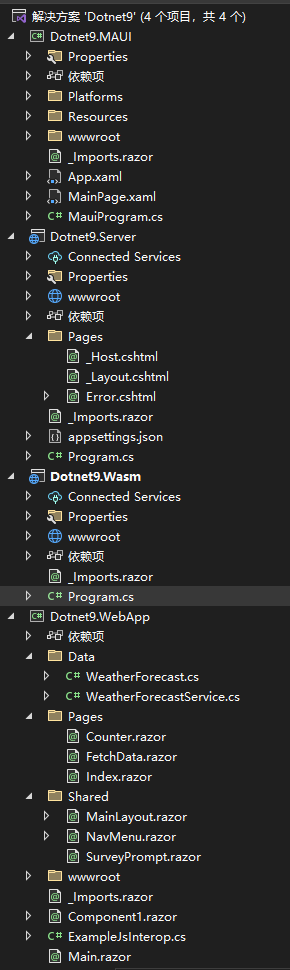
6. Summary
The summary is shown in the figure below:
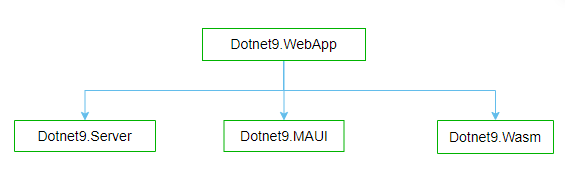
- Dotnet9.WebApp: Blazor component-related code, routing components, etc. are placed in this project for other projects to reference.
- Dotnet9.Server: Blazor Server template project
- Dotnet9.Wasm: Blazor WebAssembly project
- Dotnet9.MAUI: MAUI Blazor project
In one sentence: Encapsulate the UI into the Razor class library Dotnet9.WebApp, and other terminal projects (Dotnet9.Server, Dotnet9.MAUI, Dotnet9.Wasm) reference this project to achieve UI sharing.
- Code address for this article: https://github.com/dotnet9/Dotnet9
- Original article: https://dotnet9.com/2022/06/Share-razor-library-between-maui-and-blazor-server-or-client
References